SnipDock
 Joe Raad834 downloads
Toggle, create, rename and reload CSS snippets from a status-bar menu.
- Overview
- Scorecard
- Updates7
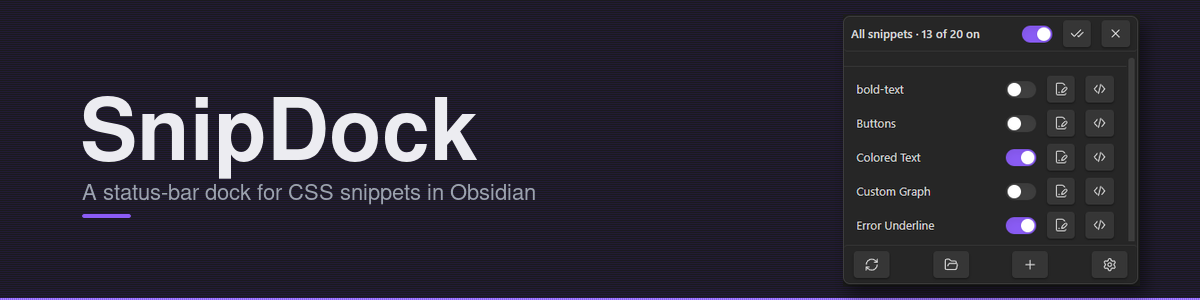
Status-bar menu for managing CSS snippets in Obsidian. Toggle them, rename them, open them in your editor, and create new ones without leaving the note you're working on.
A rewrite of the unmaintained MySnippets plugin against the current Obsidian API.
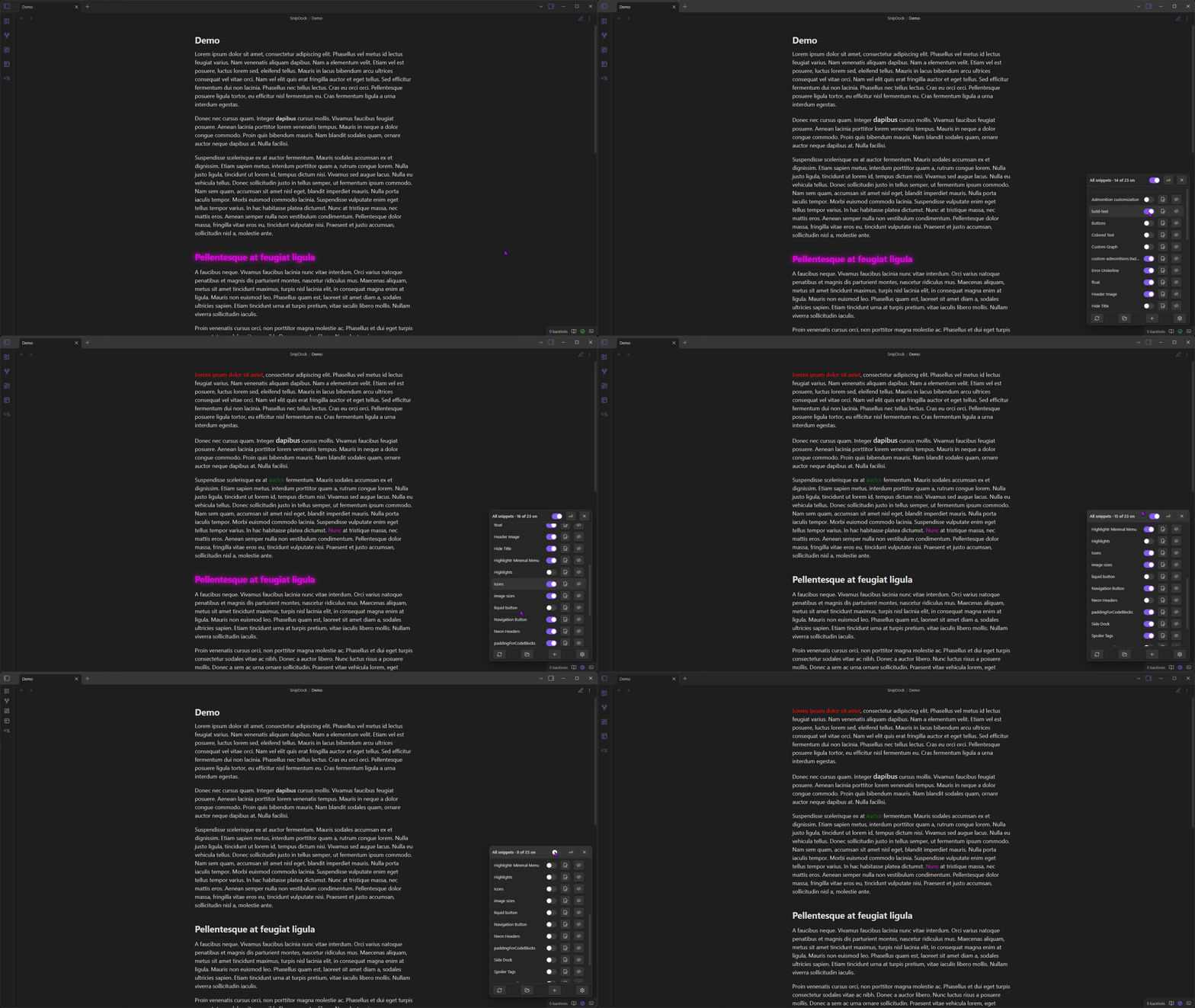
Demo
What's new in v1.1.0
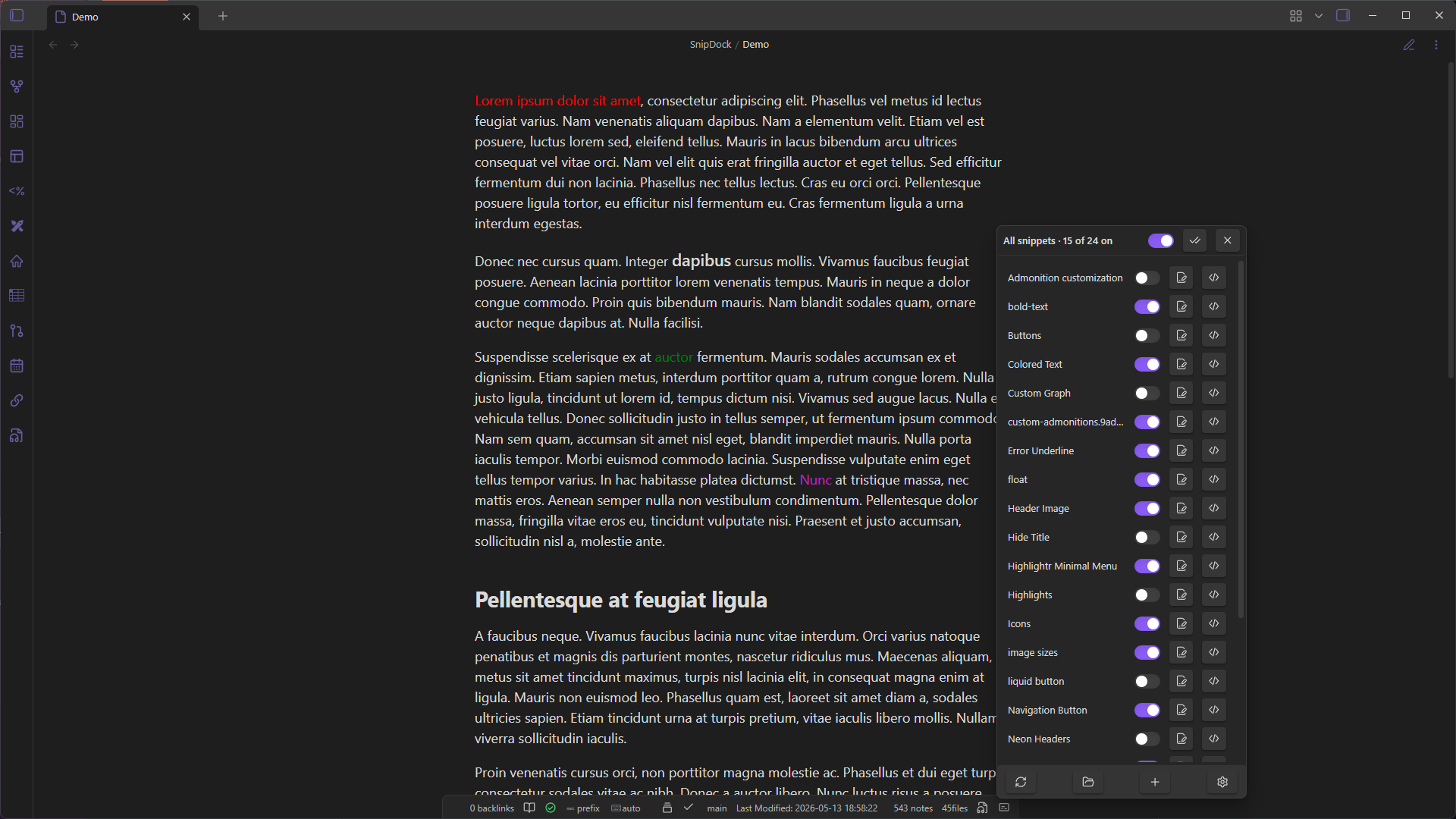
Anchor to status bar icon
New setting to open the menu directly above the SnipDock status-bar icon instead of in the corner of the window. The menu stays pinned just above the bar and grows/shrinks upward as the list changes.
Suggested by @Frumkin13 in Issue #4.
Snippet search
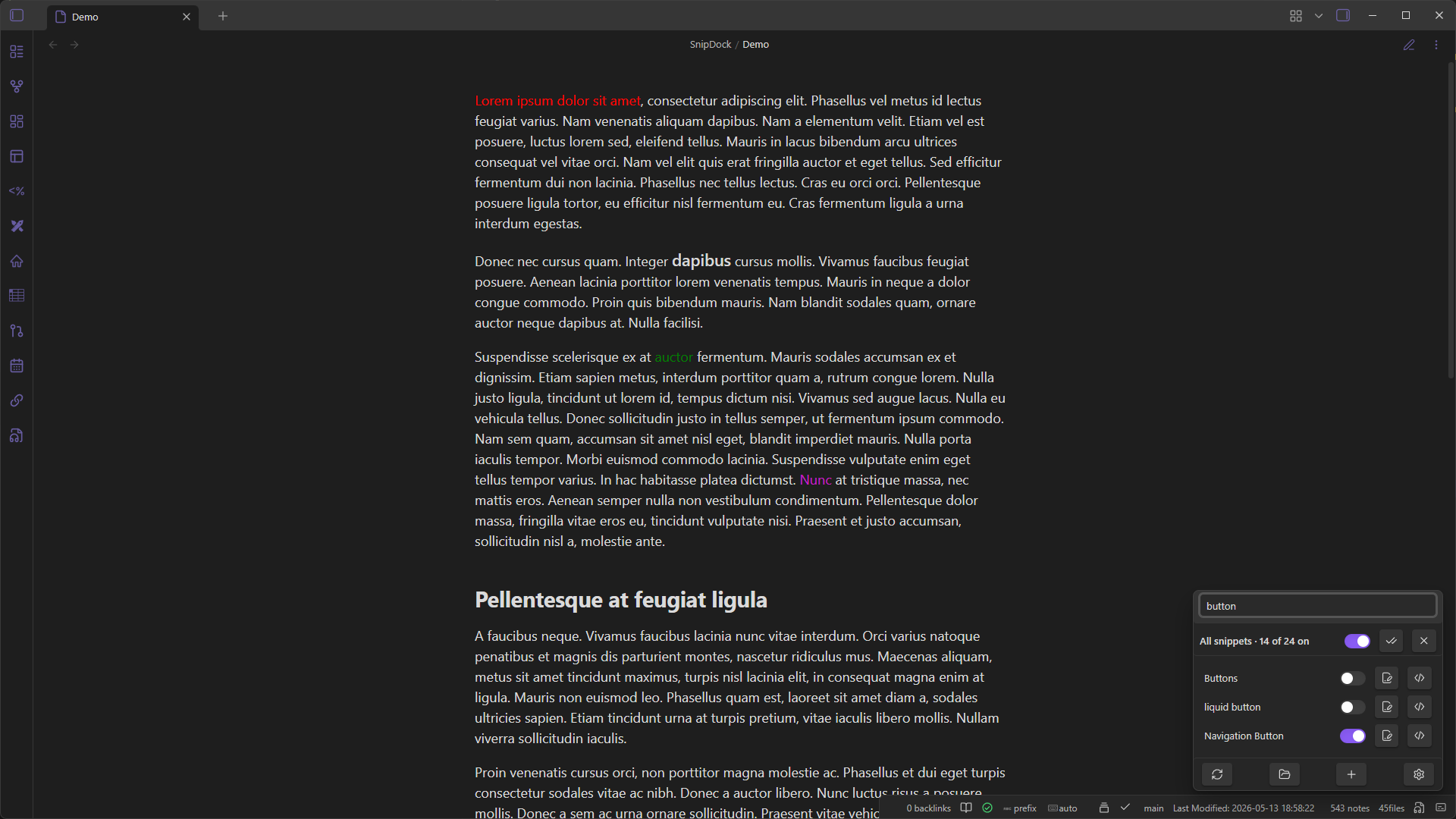
Filter the snippet list as you type. New setting adds a search box to the top of the menu that filters the snippet list as you type.
Suggested by @ksdavidc in Issue #2.
Multi-column layout
New setting lays snippets out across multiple columns instead of a single list. Configure the number of columns (2–6); snippets are distributed evenly across them. When enabled, the "Menu width" setting becomes "Column width". The menu is automatically kept within the screen bounds at any column count.
Optionally enable Column-first sorting to fill each column top-to-bottom before moving to the next, instead of dealing snippets row-by-row across columns.
Suggested by @Bin-T in Issue #1 and Issue #7.
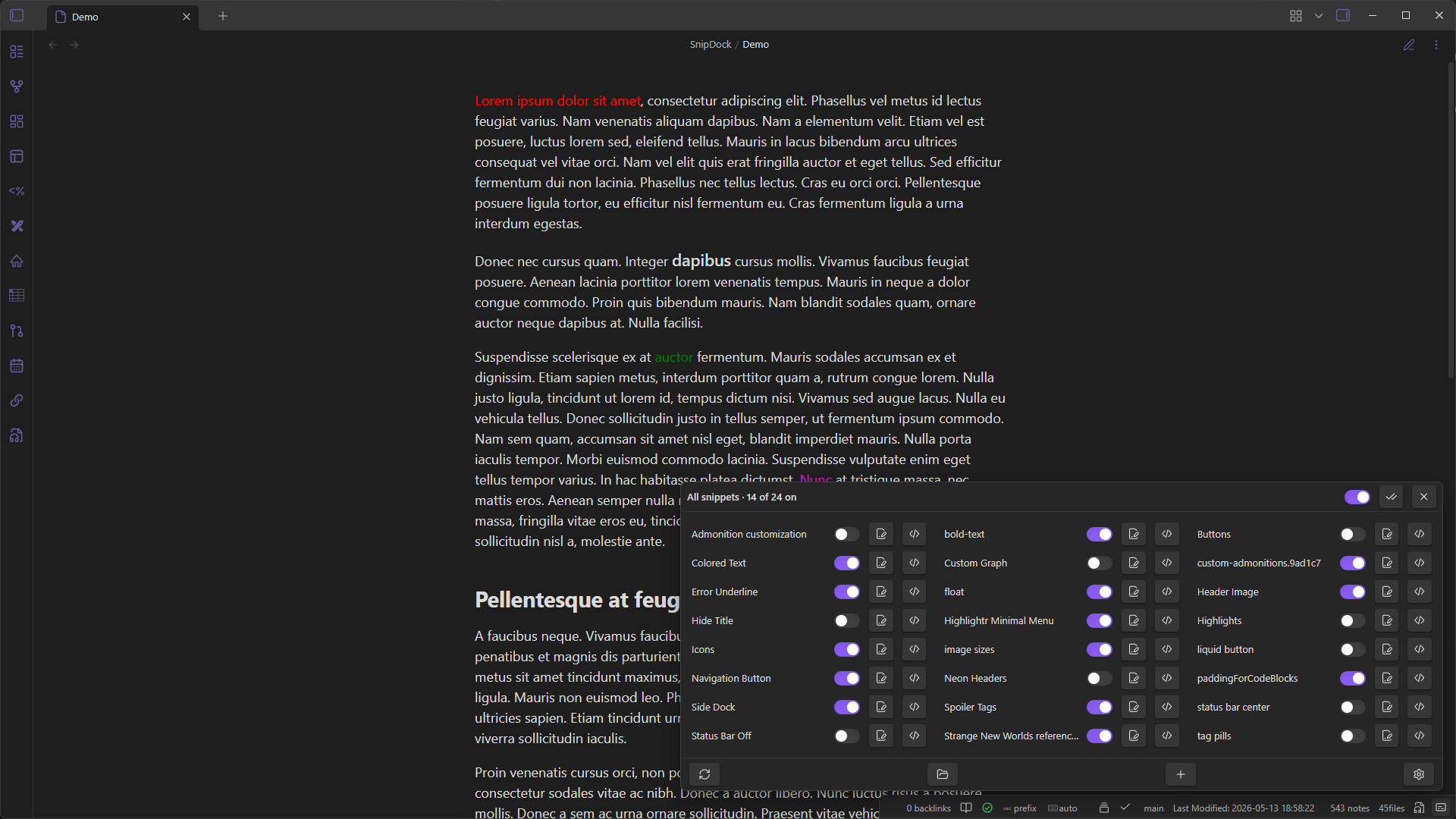
Usage
Click the dock icon in the status bar (bottom-right) to open the menu.
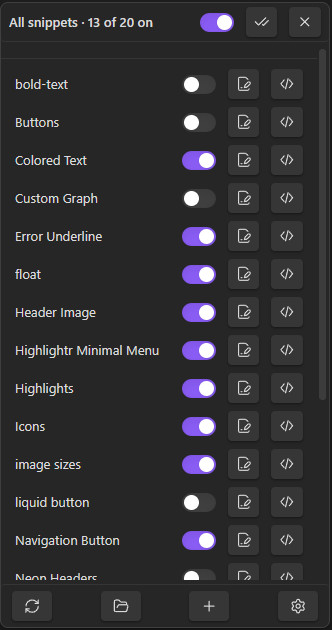
The menu has three sections. The top and bottom rows stay pinned; the middle list scrolls.
Master row
- Master toggle: flips every snippet off and back on. The previously-enabled set is remembered, so toggling back on restores it.
- Check icon: enable all.
- X icon: disable all. No memory.
Snippet rows
One row per .css file in your snippets folder.
- Toggle (or click anywhere on the row) to enable/disable.
- Pencil icon: rename the file. If the snippet was enabled, it gets re-enabled under the new name.
</>icon: open the file in your OS default app for CSS.
Action row
- Reload: re-read the snippets folder. Useful after adding files outside Obsidian.
- Open folder: opens the snippets folder in your file manager.
+: opens the new-snippet modal. Name + body, body pre-filled from your snippet template. The file lands in.obsidian/snippets/; if the folder doesn't exist yet, it gets created.- Gear: jumps to SnipDock's settings.
Commands
| Command | |
|---|---|
Open snippet menu |
Same as clicking the status-bar icon |
Create CSS snippet |
Opens the new-snippet modal |
Toggle all snippets on or off |
Master switch. Bind a hotkey for fast theme isolation. |
Settings
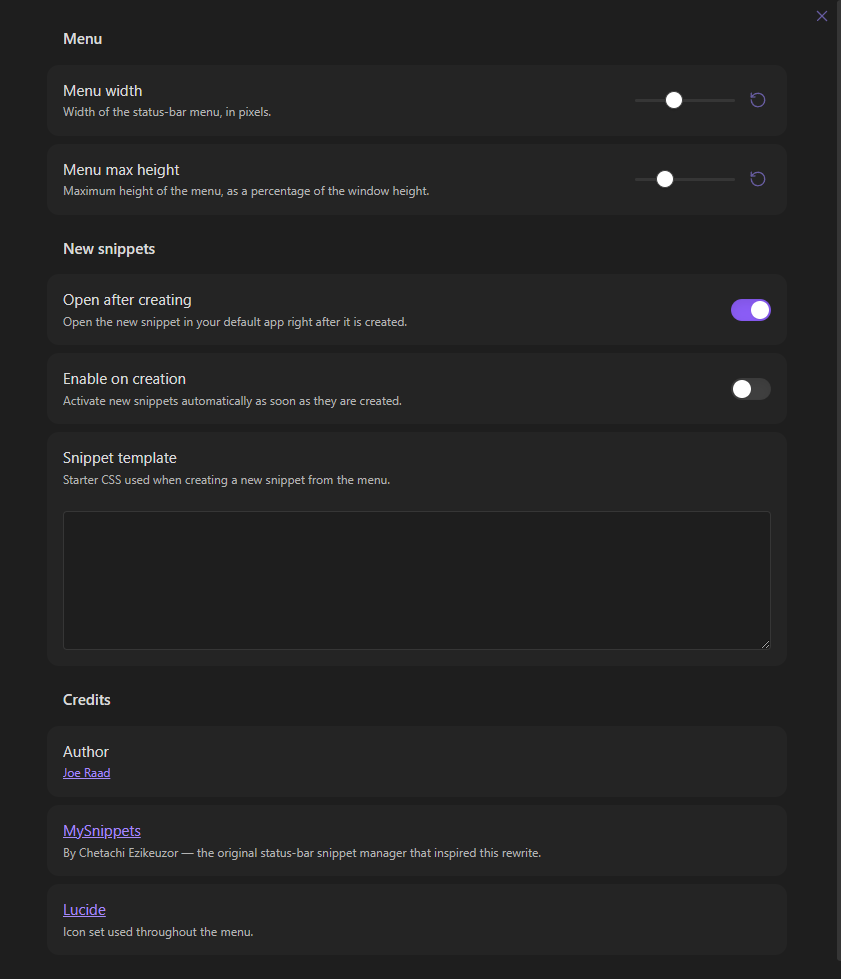
- Menu width (px) and max height (% of window).
- Anchor to status bar icon: open the menu directly above the icon instead of the window corner.
- Search bar: filter the snippet list as you type.
- Multi-column layout: spread snippets across 2–6 columns; "Menu width" becomes "Column width" when on. Toggle "Column-first sorting" to fill columns top-to-bottom instead of row-by-row.
- Open after creating: open the new file in your editor immediately.
- Enable on creation: turn new snippets on right away.
- Snippet template: starter CSS for new snippets.
Install
In Obsidian: Settings → Community plugins → Browse, search for "SnipDock", click Install, then Enable.
Manual install
- Grab
main.js,manifest.json, andstyles.cssfrom the latest release. - Put them in
<your-vault>/.obsidian/plugins/snipdock/. - In Obsidian: Settings → Community plugins, reload, enable SnipDock.
Develop
npm install
npm run dev     # watch + rebuild
npm run build   # production build, type-checks first
The release bundle is just main.js, manifest.json, styles.css.
Contributing
Issues and pull requests are welcome on the SnipDock repository.
- Bug reports: include steps to reproduce, your Obsidian version, your OS, and a screenshot or screen recording if the bug is visual.
- Feature ideas: open an issue describing the use case before sinking time into a PR. Keeps scope creep in check and avoids work going in the wrong direction.
- Pull requests
- Fork the repo and create a feature branch off
main. - Run
npm installthennpm run devwhile you work. - Keep changes focused, one PR per concern. Match the existing TypeScript style (tabs, double quotes, no
anycasts unless unavoidable). - Run
npm run buildbefore pushing. It type-checks first and will fail loudly on errors. - Describe what the PR changes and why in the body. Screenshots help for any UI tweak.
- Fork the repo and create a feature branch off
This plugin has a narrow scope (status-bar snippet management). Suggestions that expand into broader theme or CSS tooling are likely to be declined, but a good issue conversation is the best way to find out.
Credits
- MySnippets by Chetachi Ezikeuzor.
- Icons from Lucide.