Search...Search plugins and themes...
⌘K
Sign in
  • Get started
  • Download
  • Pricing
  • Enterprise
  • Account
  • Obsidian
  • Overview
  • Sync
  • Publish
  • Canvas
  • Mobile
  • Web Clipper
  • CLI
  • Learn
  • Help
  • Developers
  • Changelog
  • About
  • Roadmap
  • Blog
  • Resources
  • System status
  • License overview
  • Terms of service
  • Privacy policy
  • Security
  • Community
  • Plugins
  • Themes
  • Discord
  • Forum / 中文论坛
  • Merch store
  • Brand guidelines
Follow us
DiscordTwitterBlueskyThreadsMastodonYouTubeGitHub
© 2026 Obsidian

Workbuddian

jiang198012jiang1980121k downloads

Chat with the local WorkBuddy/CodeBuddy CLI as an AI agent in your vault: streaming replies, thinking/tool-call cards, @-note references, file attachments, model/permission toolbar, slash commands, inline edit with diff, export and search.

Add to Obsidian
  • Overview
  • Scorecard
  • Updates14

Turn the local WorkBuddy / CodeBuddy CLI into an AI agent that lives inside your Obsidian vault. Chat with streaming replies, paste in a screenshot for visual analysis, reference your notes with @, and manage whole conversations — without ever leaving your notes.

⚠️ Windows and macOS are supported. Linux is not supported yet. Requires Obsidian 1.7.2+.

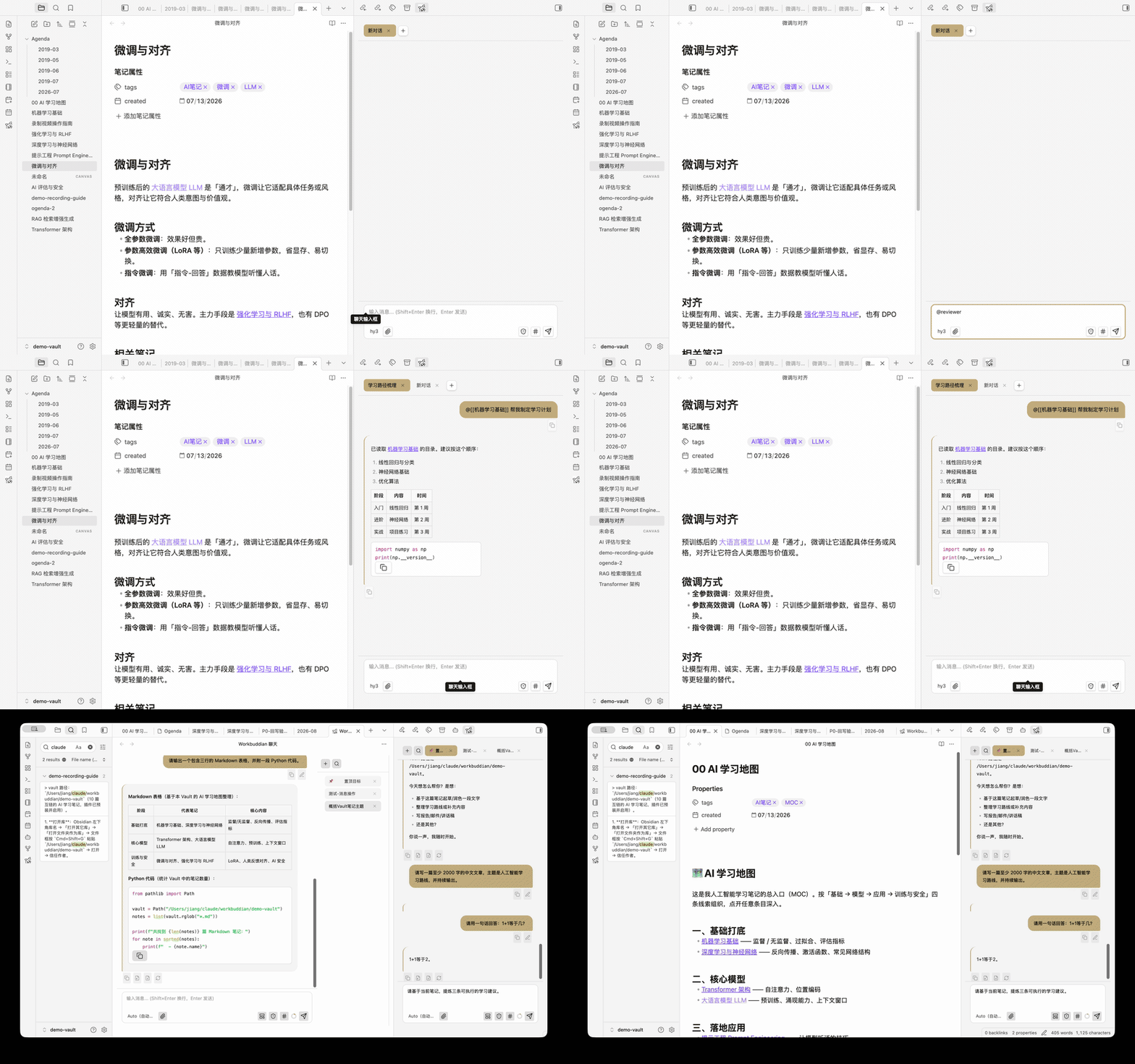
Workbuddian — settings & chat

Workbuddian demo

⭐ If Workbuddian is useful to you, please star the repo — it helps more people discover it.

✨ What's New

  • v2.0.1 — A fully independent codebase. Every remaining file derived from the original upstream was rewritten in fresh expression: all 48 source files now measure under 30% line-level similarity (45 of them under 10%, styles.css just 7.5%) — with public APIs, the on-disk data format, and all 617 tests unchanged. The upstream attribution lines in LICENSE / NOTICE / README were removed accordingly. No behavior change, by design.
  • v2.0.0 — A new engine: persistent ACP sessions, plus a wire-level reliability overhaul. The provider no longer spawns a process per message — one long-lived codebuddy --acp process hosts every conversation:
    • Faster, resumable conversations — true multi-turn context with a visibly quicker second turn; if the CLI process dies, resend and the session restores itself (with an honest error card in between).
    • Approvals in the bubble — Write (path + line count), Edit (path + diff preview), Bash (full command), and MCP tools all ask permission on a card; plan mode shows a "plan ready" card that continues in the same turn — no more re-sending.
    • Watch the agent work — each tool call updates its own row live, then finishes with a collapsed structured diff; vault edits get a guarded one-click undo.
    • Fork any chat — branch a conversation with its full history from the tab's context menu.
    • Two panels, really isolated — the sidebar and main-area panels bind to separate sessions, with per-panel stop.
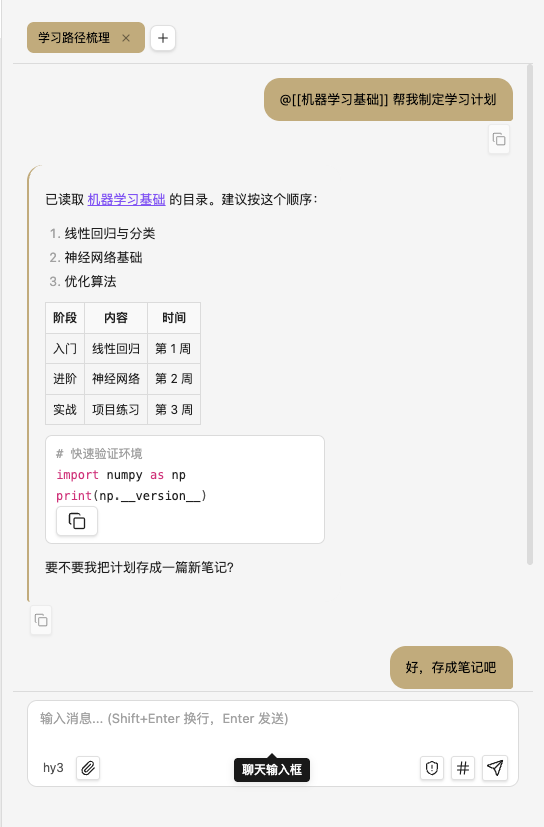
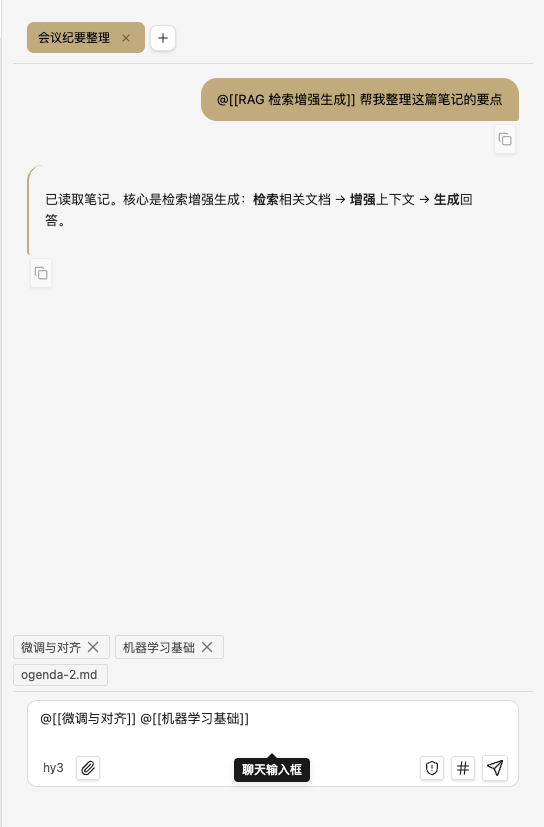
    • @ everything — subagents, MCP servers, notes (@[[note]] reads the note), and any file, in one dropdown. Visual MCP server management with two-way JSON sync, and custom subagents defined in JSON.
    • Auto chat titles that yield instantly to your next message; thinking effort levels with /effort syncing back to settings; native image pasting from screenshots or Finder (TIFF auto-converted); an external-attachment consent dialog — files outside your vault are never read without your OK; word-level diff highlighting; Bash output blocks; subagent output blocks.
    • Reliability proven on the wire — three rounds of GUI testing plus a purpose-built ACP probe (scripts/acp-probe.mjs) pinned down how the CLI really routes sessions and applies config. Prompts are now serialized, sessions are re-activated before each turn, mis-tagged events are re-routed to the live session, config is applied to the correct session first, and a wedged CLI state machine self-heals through a supervised process restart.
  • v1.5.0 — The agent's work is finally visible, reviewable, and reversible. A parser bug had been silently dropping every tool call before it reached the UI; fixing it unlocked this whole release:
    • Line-level diffs — every Edit / Write shows exactly which lines changed, in green/red, collapsible inside the tool card.
    • One-click undo — revert an edit inside your vault without leaving the chat. Three guards protect your files: it refuses when the file changed since, when the replacement text isn't unique, and for pure deletions — each case tells you why instead of guessing. (Write has no undo: the CLI never sends the overwritten content, so it cannot be reversed honestly.)
    • Plan mode is back — ask for a plan, read it as a rendered card, then run it with one click. The card states plainly that the CLI can't approve plans natively in non-interactive mode, so "run" re-sends the plan with accept-edits permission — applied to that single run only, leaving your permission setting untouched.
    • /resume conversation picker — pick from your past conversations (newest first, with message count and relative time) instead of typing a session id.
    • Keyboard-first completion — @ and slash-command dropdowns now respond to ↑↓ and Enter, with mouse hover and keyboard highlight kept in sync.
    • Accessibility pass — ARIA roles and labels, a keyboard-only focus ring, Esc to close dropdowns, Enter/Space to activate chips and tabs, and new replies announced to screen readers without re-reading the whole conversation.
    • Send an image with no text, and long tool arguments no longer stretch the bubble into a horizontal scrollbar.
  • v1.4.0 — Context usage ring: a 14px ring in the input toolbar shows how much of the context window the current conversation has used. Hover for the exact numbers (Context usage 22.6k / 200.0k · 11%); the ring turns red at 80% so you know when to start a fresh chat. It stays hidden until there's data to show, so it never crowds the toolbar.
  • v1.3.0 — Message thumbnails: image attachments now show as 40×40 thumbnails inside the sent message bubble, degrading to a filename chip when the file is gone or the path no longer resolves. Configurable pasted-image retention: the settings page now lets you set how many pasted images to keep on disk (default 20, max 500, 0 = unlimited).
  • v1.2.4 — Dynamic model list: the model selector now fetches the live list of available CodeBuddy models from codebuddy --help on startup, so newly added models appear automatically without waiting for a plugin update. Falls back to the built-in whitelist if the CLI is not reachable.
  • v1.2.3 — Attachment name labels: files attached to a user message now appear as labeled chips (paperclip + filename) inside the message bubble, so you can see at a glance what was sent.
  • v1.2.2 — IME-friendly Enter: composing text with an input method no longer sends the message by accident. Plus a copy button on every message (hover to reveal).
  • v1.2.1 — Fix (Windows): referencing a large note or file with @ no longer crashes with spawn ENAMETOOLONG — the prompt is now piped through stdin instead of the command line, so there's no length limit.
  • v1.2.0 — Instruction mode (#): type #your rule in the chat to set a persistent instruction / persona that applies to every conversation (edit or clear it anytime from the toolbar). @ any file: reference not just notes but any vault file — markdown is read inline, other files are attached for the CLI to read.

Features

  • Streaming chat in the sidebar or a full-width main-area tab, with collapsible thinking and tool-call cards, and Markdown rendering (code, tables, lists, quotes).
  • Image vision — paste / drag a screenshot or image for the agent to analyze.
  • Instruction mode (#) — a persistent custom instruction / persona injected into every message.
  • @-references any vault file — notes are read inline; other files are attached for the CLI to read; selected note text is sent as read-only context automatically.
  • File attachments — inject any file path for the CLI to read.
  • Conversation management — multiple tabs, rename (double-click or right-click), export a conversation to a note or copy to clipboard, and full-text search across titles and messages; history persists across restarts.
  • In-chat toolbar — switch model and permission mode inline; slash commands with autocomplete (built-in + your vault's .codebuddy/commands); inline edit with a diff preview; real stop-generation to interrupt a running response.
  • Bilingual UI (中文 / English) with instant switching, a custom accent color, and settings import/export.
  • Cross-platform auto-discovery of the CodeBuddy CLI and Node.js on Windows and macOS (WorkBuddy install, npm global, PATH, bundled Node, Homebrew, nvm/volta).

Requirements

  • Obsidian 1.7.2 or later (desktop).
  • Windows or macOS (Linux is not supported yet).
  • WorkBuddy desktop app (≥ 5.0.5) with CodeBuddy CLI installed, or a custom CodeBuddy path configured in settings.

Installation

From the community plugins directory (recommended)

  1. In Obsidian: Settings → Community plugins → Browse.
  2. Search "Workbuddian" → Install → Enable.

Via BRAT (to track the latest beta)

  1. Install the BRAT community plugin.
  2. BRAT → Add Beta Plugin → enter jiang198012/workbuddian.
  3. Enable Workbuddian in Settings → Community plugins.

Manual

  1. Download main.js, manifest.json, and styles.css from the latest release.
  2. Copy the three files into .obsidian/plugins/workbuddian/ inside your vault.
  3. Restart Obsidian, then enable Workbuddian in Settings → Community plugins.

First-time setup

If Workbuddian cannot find CodeBuddy or Node.js automatically, follow the environment setup prompt once (see the Chinese section below or open 提示词-授予Vault读写权限.md).

Usage

  1. Click the robot ribbon icon or run the command "Workbuddian: Open chat panel" from the command palette.
  2. A chat panel opens in the right sidebar, joining the existing tab group (like Outline or Backlinks) so it takes the full sidebar height when active. To open it as a full-width tab in the main editor area instead, run the command "Workbuddian: Open chat panel in main editor area".
  3. Type your message and press Enter to send. Use Shift + Enter to insert a new line.
  4. Switch between conversations using the tabs at the top, or click + to start a new one.
  5. Open Settings → Workbuddian to configure the CodeBuddy CLI path manually if needed.

Troubleshooting

Symptom Cause Solution
Cannot find codebuddy CLI Auto-detection failed Fill the CodeBuddy path in plugin settings. Default location: WorkBuddyInstallDir\resources\app.asar.unpacked\cli\bin\codebuddy
Cannot find Node.js Node.js is not configured Run the first-time environment setup prompt (Chinese section below)
Stuck on "Thinking..." Streaming ended without text chunks Fixed

Related

Use Obsidian with Claude Code and know Claudian? Workbuddian is the counterpart for the WorkBuddy / CodeBuddy CLI — it turns that local coding agent into an in-vault chat panel. Same idea (a CLI agent living inside your notes), different backend.


中文说明

将 Obsidian 连接到 WorkBuddy/CodeBuddy CLI,实现侧边栏 AI 聊天。

✨ 更新

  • v2.0.1 —— 完全独立的代码基座。 与上游有渊源的所有文件都以全新表达重写完毕:48 个源文件逐行比对相似度全部低于 30%(其中 45 个低于 10%,styles.css 仅 7.5%),公开 API、磁盘数据格式、617 项测试全部不变。LICENSE / NOTICE / README 中的上游署名行相应移除。按设计,本版无行为变更。
  • v2.0.0 —— 新引擎:ACP 持久会话 + wire 级可靠性攻坚。 provider 不再每条消息起一个进程——一个常驻的 codebuddy --acp 进程承载所有对话:
    • 更快、可恢复的多轮对话 —— 上下文真保持,第二轮起明显加速;CLI 进程意外退出后重发即自动恢复会话(中间有诚实的报错卡)。
    • 气泡内批准卡 —— Write(路径+行数)、Edit(路径+diff 预览)、Bash(命令全文)、MCP 工具按卡批准;计划模式出「计划已就绪」卡,同一轮继续执行,不再重发。
    • 看着 AI 干活 —— 每个工具调用就地更新一行,完成后出默认折叠的结构化 diff;vault 内的编辑带多重保护的一键撤销。
    • 分叉任意会话 —— 标签右键即可开出含全部历史的支线。
    • 双面板真隔离 —— 侧栏与主编辑区各自绑定会话,定向停止互不影响。
    • @ 一切 —— 子代理、MCP 服务器、笔记(@[[名]] 读正文)、任意文件,一个下拉全聚合;MCP 可视化管理(JSON 双向同步);自定义子代理(JSON 定义)。
    • 自动会话标题(你一发消息它立即让位,绝不拖慢吐字);思考力度七档设置,/effort 改动同步回设置页;原生图片粘贴(截图/Finder,TIFF 自动转 PNG);vault 外附件授权窗——不经你点头,vault 外的文件内容一律到不了模型;词级 diff 高亮;Bash 输出块;子代理输出块。
    • wire 级实锤的可靠性 —— 三轮真实 GUI 手测 + 专用 ACP 探针(scripts/acp-probe.mjs)摸清了 CLI 路由会话与下发配置的真实行为:prompt 串行化、每轮前重激活会话、误标事件纠偏归队、配置先激活目标会话再下发、CLI 状态机卡死自动重启自愈。
  • v1.5.0 —— AI 干了什么,终于看得见、审得了、退得回。 此前一个解析 bug 让每一次工具调用在到达界面前就被静默丢弃;修好它之后,这一整版才成为可能:
    • 行级 diff —— 每次 Edit / Write 都能看到具体改了哪几行,绿增红删,在工具卡片内可折叠展开。
    • 一键撤销 —— 不离开聊天就能回退 vault 内的改动。三道闸门守着你的文件:文件已被改过、替换文本在文件中不唯一、纯删除操作——三种情况都明确告诉你原因并拒绝执行,绝不猜着改。(Write 没有撤销:CLI 从不回传被覆盖的原内容,诚实地说它就是退不回来。)
    • 计划模式回归 —— 让 AI 先出计划,以卡片形式读完,再一键执行。卡片会如实说明:CLI 在非交互模式下无法原生批准计划,所以「执行」是把计划重新发起一轮,使用「自动接受编辑」权限,且仅对这一次生效,不改动你的权限设置。
    • /resume 会话选择器 —— 从历史对话里直接挑(按最近更新排序,带消息数和相对时间),不用再记 session id。
    • 补全支持键盘 —— @ 和斜杠命令下拉可用 ↑↓ 选择、回车确认,鼠标悬停与键盘高亮同步,不会各高亮一个。
    • 无障碍改进 —— ARIA 角色与标签、仅键盘可见的焦点环、Esc 关闭下拉、Enter/Space 激活 chip 与标签页,新回复播报给屏幕阅读器时不会把整段历史重念一遍。
    • 图片可以不配文字直接发送,超长工具参数也不再把气泡撑出横向滚动条。
  • v1.4.0 —— 上下文用量圆环:输入区工具栏用一个 14px 圆环显示当前对话的上下文占用,悬停出准确数字(上下文用量 22.6k / 200.0k · 11%),占比 ≥80% 时变红提示该开新对话了。没有用量数据时完全不显示,不占工具栏空间。
  • v1.3.0 —— 消息内图片缩略图:图片附件发送后在气泡内以 40×40 缩略图显示,文件被清理或路径失效时自动降级为文件名 chip。粘贴图保留数量可配置:设置页可设置粘贴图在磁盘上保留的数量(默认 20,最大 500,0 = 不限制)。
  • v1.2.4 —— 动态模型列表:模型选择器启动时会从 codebuddy --help 实时拉取可用模型列表,新模型无需等插件更新即可自动出现;CLI 不可达时回退到内置白名单。
  • v1.2.3 —— 附件文件名标签:用户消息附带文件后,气泡内会显示 paperclip + 文件名的 chip,一眼就能看到这条消息带了哪些附件。
  • v1.2.2 —— 输入法 Enter 友好:中文输入法拼字(有候选)时按 Enter 只上屏候选、不再误发送。每条消息 hover 时浮出复制按钮,一键复制原文。
  • v1.2.1 —— 修复(Windows):用 @ 引用大笔记 / 大文件提问时不再报 spawn ENAMETOOLONG——prompt 改经 stdin 传入,不再受命令行长度限制。
  • v1.2.0 —— 指令模式 #:聊天框输 #你的规则 设一条常驻指令 / 人设,对所有对话生效(工具栏可随时改 / 清)。@ 引用任意文件:不只笔记——markdown 读正文嵌入,其它文件作附件交 CLI 读。

功能亮点

  • 流式对话 —— 侧边栏或主编辑区全宽标签;可折叠的思考过程与工具调用卡片;Markdown 渲染。
  • 图片视觉 —— 粘贴 / 拖拽截图或图片,交给 AI 分析。
  • 指令模式 # —— #你的规则 设常驻指令 / 人设,对所有对话生效,工具栏可随时改 / 清。
  • @ 引用任意文件 —— markdown 读正文嵌入,其它文件作附件交 CLI 读;笔记里选中的文字自动作只读上下文。
  • 文件附件 —— 注入任意文件路径交 CodeBuddy CLI 读取。
  • 会话管理 —— 多标签、重命名(双击 / 右键)、导出为笔记 / 复制、全文搜索;重启后恢复历史。
  • 输入框工具栏 —— 内联切换模型 / 授权模式;斜杠命令 + 自动补全;Inline Edit + Diff;真实停止生成。
  • 中英双语界面 —— 即时切换、自定义主色、设置导入 / 导出。
  • 跨平台自动发现 CodeBuddy CLI 与 Node.js(Windows/macOS:WorkBuddy 安装、npm 全局、PATH、自带 Node、Homebrew、nvm/volta)。

安装

从社区插件目录安装(推荐)

  1. Obsidian 里:设置 → 第三方插件 → 浏览。
  2. 搜索 "Workbuddian" → 安装 → 启用。

通过 BRAT(追踪最新 beta)

  1. 安装社区插件 BRAT。
  2. BRAT → Add Beta Plugin → 填 jiang198012/workbuddian。
  3. 在 设置 → 第三方插件 里启用 Workbuddian。

手动

  1. 从 latest release 下载 main.js、manifest.json、styles.css。
  2. 复制到 Vault 目录下的 .obsidian/plugins/workbuddian/。
  3. 重启 Obsidian。
  4. 进入 设置 → 第三方插件 → 关闭安全模式 → 开启 Workbuddian。

使用方法

  1. 点击左侧的 机器人图标,或从命令面板运行 "Workbuddian: 打开聊天面板"。
  2. 聊天面板会加入右侧栏现有的标签组(和大纲、反向链接一样),激活时占满整个侧边栏高度。如需在主编辑区打开为全宽标签页,请运行 "Workbuddian: 在主编辑区打开大面板" 命令。
  3. 输入消息后按 Enter 发送;Shift + Enter 换行。
  4. 顶部标签可切换对话,点击 + 新建对话。
  5. 如需手动指定 CodeBuddy CLI 路径,进入 设置 → Workbuddian。

前置条件

  1. 已安装 WorkBuddy 桌面版(≥ 5.0.5)
  2. 已安装 Obsidian(≥ 1.7.2)

首次使用:环境初始化

如果插件无法自动找到 CodeBuddy 或 Node.js,将以下提示词完整复制到 WorkBuddy 对话中执行一次即可:


请帮我配置 Workbuddian 插件的运行环境,步骤如下:

  1. 搜索 WorkBuddy 安装目录下的 vendor/node.zip(常见位置:C:\Program Files\WorkBuddy、D:\Program Files\WorkBuddy、%LOCALAPPDATA%\Programs\WorkBuddy)

  2. 如果 ~/.workbuddy/binaries/node/versions/ 下还没有可用的 node.exe,将 node.zip 里的 node-v*-win-x64/ 目录解压,把其中的文件复制到 ~/.workbuddy/binaries/node/versions/{版本号}/(版本号从目录名提取,如 22.22.2)

  3. 执行 ~/.workbuddy/binaries/node/versions/{版本号}/node.exe --version 确认可用

  4. 可选:同样处理 vendor/PortableGit.zip

完成后告诉我环境是否就绪。


执行完毕后,重启 Obsidian,Workbuddian 即可正常使用。

自动发现

插件启动时自动搜索以下位置:

搜索目标 Windows 路径
WorkBuddy 安装 %LocalAppData%\Programs\WorkBuddy\...、%ProgramFiles%\WorkBuddy\...、C/D/E 盘全覆盖
npm 全局安装 %AppData%\npm\codebuddy.cmd、%ProgramFiles%\nodejs\...
系统 PATH 遍历 PATH 中每个目录查找 codebuddy.cmd / codebuddy.exe
WorkBuddy 自带 Node ~/.workbuddy/binaries/node/versions/*/
多盘符 Node C:\Program Files\nodejs、D 盘、E 盘

故障排查

现象 原因 解决
找不到 codebuddy CLI 自动检测未找到(如自定义安装路径) 在插件设置中手动填写路径。默认路径:WorkBuddy安装目录\resources\app.asar.unpacked\cli\bin\codebuddy。右键 WorkBuddy 快捷方式 → 打开文件位置 可找到安装目录
找不到 Node.js 来运行 codebuddy Node.js 未正确配置 完成上方的「环境初始化」
一直显示「思考中」 流式结束未清理占位元素 已修复
重启后对话丢失 chatView 未正确持有导致无法加载历史 已修复
(无响应,请重试) 本轮流式结束但没收到任何正文(纯工具调用轮 / CLI 超时 / 模型空回复) 直接重试;仍旧则打开开发者控制台看 [WB] 日志(chunk 类型、exit code、stderr)判断

权限授权

插件需要 CodeBuddy 对 Vault 有读写权限才能正常工作。如果使用时提示权限不足,将 提示词-授予Vault读写权限.md 的完整内容发送给 WorkBuddy/CodeBuddy 执行一次即可。

完成后完全退出 WorkBuddy/CodeBuddy(系统托盘右键退出),重新打开即可生效。

设置

设置项 说明 默认值
CodeBuddy 路径 CLI 可执行文件路径(留空自动检测) 自动
CLI 超时时长(分钟) 单次响应最长等待时间,超时强制中断 5
手动指定 Node.js 路径 留空自动探测;探测失败时手动指定 node 完整路径 自动
注入 Vault 上下文 每次消息附上当前 Vault 路径 开
注入当前笔记链接 每次消息附上当前笔记标题+路径(不含正文) 关
界面语言 Auto(跟随 Obsidian)/ 中文 / English Auto
聊天主色调 自定义强调色(留空=默认土黄) 默认

模型与授权模式已移到聊天输入框底部工具栏:点当前模型名可切换模型,点盾牌图标切换权限(默认 / 完全访问)。工具栏还有 📎 附件(挑任意文件注入)与 # 常驻指令。在笔记里选中文字会实时出现「选区」chip,随消息作只读上下文发送。

开发

npm run dev    # 开发构建
npm run build  # 生产构建
npm test       # 运行测试

相关项目

如果你在 Obsidian 里用 Claude Code,也许见过 Claudian——Workbuddian 就是面向 WorkBuddy / CodeBuddy CLI 的同类:把这个本地编程 agent 变成 vault 内的聊天面板。思路一致(让 CLI agent 住进笔记),后端不同。


Credits / 致谢

UI references Claudian (MIT) for design patterns only — no code copied. See LICENSE / NOTICE. Maintained independently.

UI 参考 Claudian(MIT,仅设计模式,无代码拷贝)。见 LICENSE / NOTICE。独立维护。

License

MIT

HealthExcellent
ReviewCaution
About
Connect Obsidian to a local WorkBuddy/CodeBuddy CLI and open an in-app AI chat panel that streams responses with real stop-generation. Manage conversations with multiple tabs, rename, export, and full-text search; insert note references or selected text, attach files, and switch models and permissions from an in-chat toolbar.
AIInterfaceIntegrations
Details
Current version
2.0.2
Last updated
19 hours ago
Created
3 weeks ago
Updates
14 releases
Downloads
1k
Compatible with
Obsidian 1.7.2+
Platforms
Desktop only
License
MIT
Report bugRequest featureReport plugin
Author
jiang198012jiang198012jiang198012
GitHubjiang198012
  1. Community
  2. Plugins
  3. AI
  4. Workbuddian

Related plugins

Agent Client

Chat with Claude Code, Codex, Gemini CLI, and more via the Agent Client Protocol — right from your vault.

Fast Note Sync

Real-time sync of your vaults across server, mobile, and web; shareable with anyone; supports REST and MCP integrations to build your personal AI knowledge base.

Smart Composer

AI chat with note context, smart writing assistance, and one-click edits for your vault.

Claude Sidebar

Run Claude Code in your sidebar.

Claude Code IDE

Connect your vault to Claude Code and share editor context with the CLI.

Snipd Official

Sync Snipd podcast highlights to your vault with transcript, notes, AI summaries and metadata.

Hider

Hide interface elements such as tooltips, status bar, titlebar, and more.

Claudian

Embeds Claude Code/Codex and other local Agents as AI collaborators in your vault.

BRAT

Easily install a beta version of a plugin for testing.

Meta Bind

Make your notes interactive with inline input fields, metadata displays, and buttons.