Vaultbox
 grumpydev978 downloads
Sync your vault directly with a selected Dropbox folder on desktop and mobile.
- Overview
- Scorecard
- Updates12

Vaultbox is an Obsidian plugin that syncs a vault directly with a selected Dropbox folder on desktop and mobile.
It is built for people who already keep a vault in Dropbox on a desktop machine, but cannot use that same Dropbox folder from Obsidian mobile. Vaultbox talks to the Dropbox API from inside Obsidian, so phones and tablets can sync against a Dropbox-backed vault without needing the Dropbox desktop client.
Why Use It
- Sync a vault to a normal Dropbox folder.
- Use Dropbox-backed sync on phones and tablets where the Dropbox desktop client is not available.
- Pick an existing Dropbox folder, so desktop users can keep using their current Dropbox workflow.
- Preview changes with simulation before applying them.
- Choose manual sync for full control or automatic sync for routine updates.
- Keep Obsidian configuration and hidden directories out of sync by default, with narrow opt-in categories for plugin IDs, themes, snippets, and selected hidden directories.
- Detect conflicts and stop for a user decision instead of silently overwriting notes.
Vaultbox is deliberately conservative. It plans the sync before applying it, tracks file metadata, treats deletes carefully, rechecks files before changing them, and uses Dropbox rev values for guarded remote writes.
Sync Modes
Vaultbox supports two main workflows.
Settings
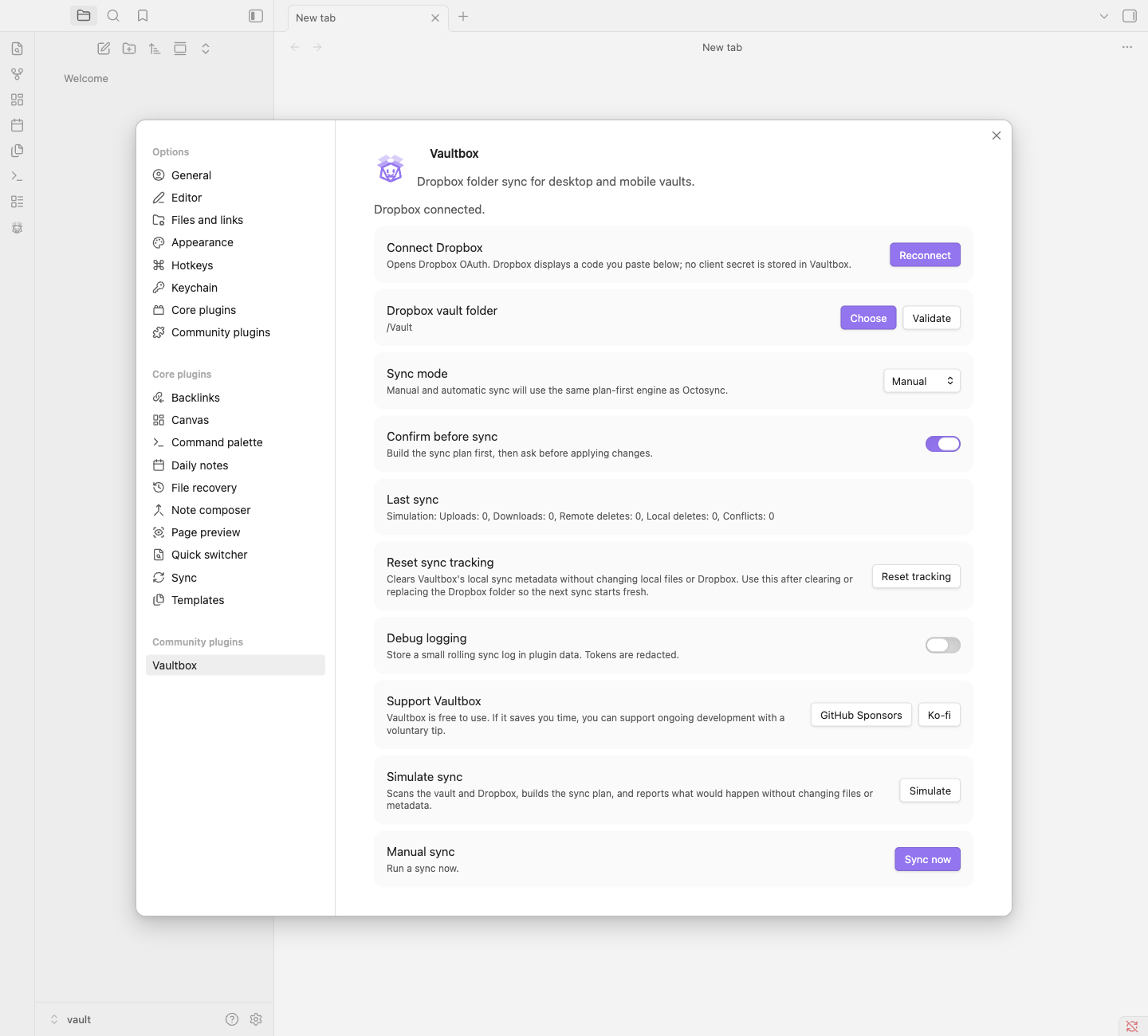
Manual sync runs only when you click the ribbon icon, use the command palette, or start sync from settings. Manual mode can also require confirmation: Vaultbox prepares the sync plan, shows what it intends to upload, download, or delete, and waits for approval before changing anything.
Automatic sync can run on startup, on an interval, or both. It uses the same planning engine as manual sync, but applies safe plans without asking each time.
The settings screen also includes Simulate sync. Simulation builds the same plan as a real sync without applying file changes or advancing sync tracking. It is useful before first sync, after changing Dropbox folders, and any time the vault state feels uncertain.
Simulation opens a complete, read-only report, grouped into local deletes, remote deletes, uploads, downloads, no-ops, and conflicts. No paths are truncated. Use the copy icon to copy the report, or Select all and your device's copy action if clipboard access is unavailable. View simulation report beside Last sync reopens the snapshot during the current plugin session. A new simulation, a sync attempt, or resetting tracking clears the previous report. The report includes the scan time, plugin version, and Dropbox folder; it is not a live preview, so simulate again after making changes. Reports contain filenames and folder paths: review them for private information before sharing. They do not include file contents or authentication credentials.
First Sync Performance
Initial push syncs to an empty Dropbox folder can take a few minutes for larger vaults. Vaultbox intentionally favors consistency over raw throughput: it plans first, rechecks each local file before upload, uses guarded Dropbox writes, handles Dropbox write throttling with backoff, and only records files as synced after Dropbox confirms them.
That is slower than a bulk "fire and forget" upload, but it reduces the chance of turning a temporary network or API issue into a damaged vault. Vaultbox shows progress while it works.
If a first sync is interrupted or the selected Dropbox folder is manually cleared, use Reset sync tracking in settings. It clears Vaultbox metadata without deleting local files or Dropbox files, so the next sync starts from the current local and Dropbox contents.
Safety Net
Sync tools need a high bar because mistakes can damage a vault. Vaultbox includes unit tests for the sync planner, sync executor, Dropbox client, auth flow, debug logging, throttling retry behavior, and progress reporting. It also includes live Dropbox end-to-end tests against disposable folders.
The automated tests cover uploads, downloads, local deletes, remote deletes, stale Dropbox rev protection, first-sync behavior, conflict detection, case conflicts, reset tracking, and live Dropbox conflict modes.
That testing does not remove the need for backups, especially while the plugin is young, but it gives the sync logic a real safety net rather than relying only on happy-path manual testing.
Privacy And Access
Vaultbox enumerates vault files so it can compare local paths with the selected Dropbox folder and decide what needs to sync. Obsidian's configuration directory and hidden directories are excluded by default. Users can separately enable synchronization of community-plugins.json, themes, snippets, or explicitly selected top-level hidden directories.
The configuration allowlist is deliberately narrow. Vaultbox never syncs community plugin binaries, plugin data.json files, workspace state, or Vaultbox's stored Dropbox tokens. Optional exclusion patterns can remove particular paths or filenames from the enabled configuration and hidden directories.
Vaultbox requests Dropbox file metadata read and file content read/write scopes. The Dropbox app uses Full Dropbox access because the core use case is selecting an existing folder that may already be managed by the Dropbox desktop app. Vaultbox only operates inside the folder you select in settings.
Vaultbox does not read from or write to the system clipboard.
See the privacy policy for more detail.
Support
Vaultbox is free to use. If it saves you time and you want to support ongoing development, you can sponsor the project on GitHub Sponsors or send a one-off tip on Ko-fi.
Support is optional and does not unlock features.
Installation
The easiest installation path is the Obsidian Community Plugin directory. Search for Vaultbox, install it, then enable it from Community plugins.
Manual Installation
Build or download the plugin files, then place them in:
<vault>/.obsidian/plugins/vaultbox/
The folder should contain:
main.js
manifest.json
styles.css
Restart Obsidian or reload plugins, then enable Vaultbox from Community plugins.
Dropbox App Setup
Vaultbox uses the public Dropbox app key for Vaultbox for Obsidian:
k671hqjipp2sdpl
The app secret must never be stored in the plugin or committed to the repository.
If you are creating your own Dropbox API app for development, configure it with:
- Scoped access.
- Full Dropbox access.
- PKCE/public clients enabled.
- Scopes for file metadata read and file content read/write.
Vaultbox uses the OAuth code flow without a redirect URI. Dropbox displays an authorization code on screen after approval; paste that code into Vaultbox. The plugin exchanges the code with the PKCE verifier and stores the refresh token in local plugin data.
Development
See CONTRIBUTING.md for contribution guidelines, sync safety expectations, and release notes.
Install dependencies:
npm install
Run unit tests:
npm test
Run Dropbox API E2E tests:
npm run dropbox:token
npm run test:e2e
The E2E suite creates timestamped folders under VAULTBOX_E2E_DROPBOX_TEST_ROOT, uploads/downloads/updates/deletes files, verifies stale rev conflict behavior, runs the real planner/executor against live Dropbox data, and checks the sync conflict modes before cleaning up by default.
The token helper prints a Dropbox authorization URL, asks you to paste the authorization code shown by Dropbox, and writes the resulting refresh token to .env.e2e. Treat .env.e2e as secret local state.
Build:
npm run build
Install into a local test vault:
npm run local-install -- "/path/to/Test Vault"
Use a throwaway Dropbox account or folder while developing sync behavior.
License
MIT