Vault Reader
 MaverickHQ209 downloads
Focused speed reading for Obsidian notes with in-note highlighting.
- Overview
- Scorecard
- Updates5
Read long notes without leaving your vault.
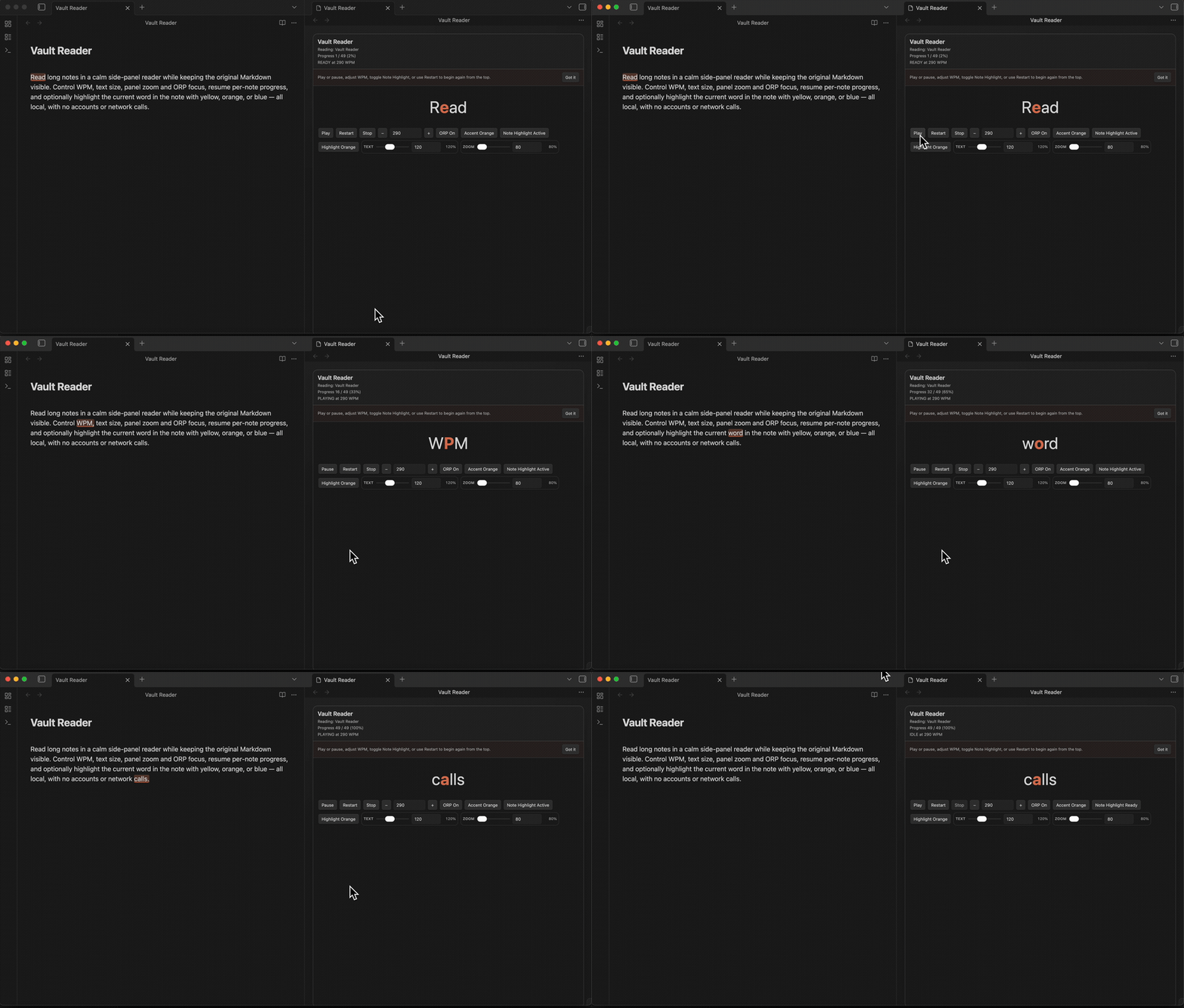
Vault Reader turns any Markdown note into a calm speed-reading panel beside your source note. Set your pace, pause and restart anytime, resume where you left off, and optionally highlight the current word in the note as you read.
Why Install It?
- Review dense notes, essays, research, and meeting notes at a steady pace.
- Keep the original Markdown visible while the reader runs beside it.
- Control WPM, text size, panel zoom, accent color, and ORP focus.
- Resume per-note progress or restart from the beginning.
- Keep everything local: no accounts, telemetry, backend, or network calls.
What It Does
- Side-panel reader: read beside the note instead of replacing it.
- Playback controls: play, pause, stop, restart, and resume progress.
- Reading controls: adjust WPM, text size, panel zoom, and ORP focus mode.
- In-note highlight: optionally follow the current word in source mode.
- Highlight colors: switch between yellow, orange, and blue.
- Local-first design: no network calls, no account, no hosted backend, no telemetry.
Install
Install from Community Plugins:
- Open
Settings -> Community plugins. - Turn off
Restricted modeif community plugins are not already enabled. - Browse for
Vault Reader. - Install and enable the plugin.
- Open any Markdown note and run
Vault Reader: Start reading current note.
Vault Reader is desktop-only for the first release.
How To Use
- Open a Markdown note.
- Run
Vault Reader: Start reading current note. - Use
Play,Pause,Stop, andRestart. - Adjust WPM with the buttons, number input, or
ArrowUp/ArrowDown. - Press
Spacewhile the reader panel is focused to play or pause. - Toggle ORP, accent, text size, panel zoom, note highlight, and highlight color from the reader controls.
If you open a different note while the reader is still loaded, Vault Reader keeps the existing session and shows a Read current note action. This avoids silently losing your place.
Privacy And Security
Vault Reader does not collect telemetry, does not make network requests, does not require an account, and does not use a hosted backend.
The plugin stores settings and reading progress locally through Obsidian plugin data. It reads the active note only when you run the reader command or explicitly click Read current note.
See SECURITY.md and security-review.md for the public-review security contract.
Current Scope
- Built for desktop Obsidian.
- In-note highlight works best in source mode and may fall back to panel-only reading when exact mapping is unavailable.
- Follow-scroll is intentionally not enabled, so playback does not force editor scroll/reflow on every token.
- Selected-text reading is not a launch feature.
- Mobile support is not validated yet.
For Developers
Local Testing
For local development or release-asset verification, use the included manual test vault:
- Install dependencies:
npm ci - Build and deploy into the test vault:
npm run build:local - Open this vault in Obsidian:
fixtures/manual-test-vault - Enable
Vault ReaderinSettings -> Community plugins. - Open a test note such as
10-Prose.md. - Run
Vault Reader: Start reading current notefrom the command palette.
For a different local vault, set:
VAULT_READER_PLUGIN_DIR="/absolute/path/to/.obsidian/plugins/vault-reader" npm run build:local
Demo Asset
The README demo GIF is stored at docs/assets/vault-reader-demo.gif. Demo asset standards are documented in docs/assets/README.md. The GIF was captured from the curated manual test vault so public docs, QA, and launch assets all show the same tested experience.

Local Build + Deploy Pipeline
- Deploy into the local manual test vault plugin folder:
npm run deploy:local - Build then deploy in one step:
npm run build:local - Watch mode with auto-deploy after each successful rebuild:
npm run dev:local