Unhide
 polyipseity35k downloads
(formerly Show Hidden Files) Unhide hidden files, like dotfiles, in Obsidian.
- Overview
- Scorecard
- Updates19
(formerly Show Hidden Files) Unhide hidden files, like dotfiles.
Repository · Changelog · Community plugin · Related · Features · Installation · Usage · Contributing · Security
For Obsidian Sync users
Using this plugin in a vault with Obsidian Sync can permanently delete hidden files on all your synced devices. The "Protect Obsidian Sync" setting (on by default) prevents this by skipping hiding while Sync is active, but it may not catch every case. Do not disable it in synced vaults, and keep independent backups. Do not use this plugin if your data is very important.
For first time users, read the installation section first!
This file is automatically opened on first install. You can reopen it in settings or command palette.
Features
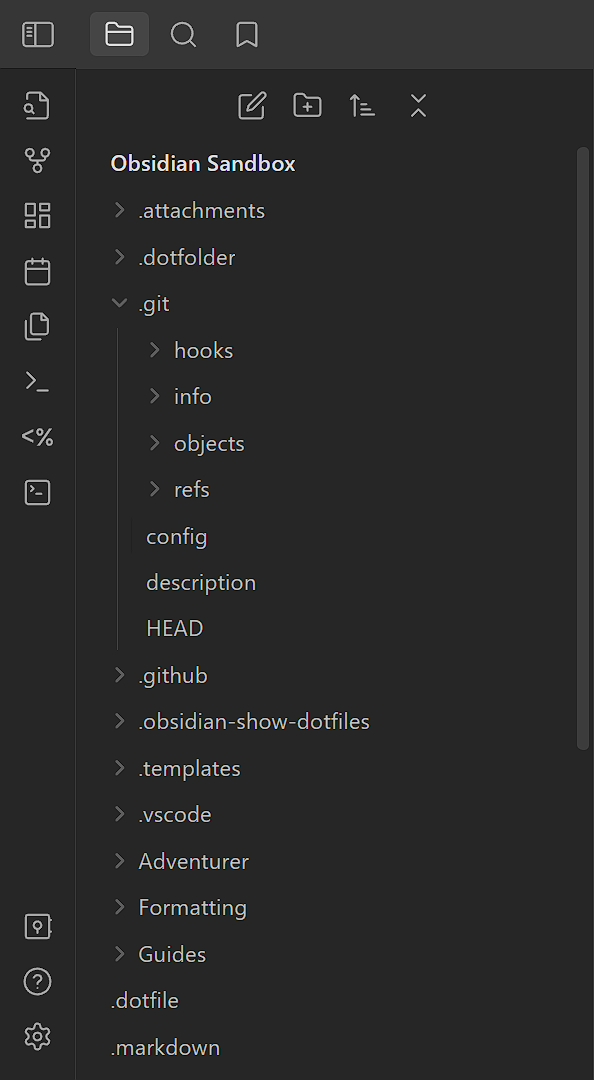
- Show files that are forcefully hidden in vanilla Obsidian.
- Toggle visibility of hidden files.
- Interact with hidden files normally like normal files.
Installation
- Install plugin.
- Community plugins
- Install the plugin from community plugins directly.
- Manual
- Create directory
unhideunder.obsidian/pluginsof your vault. - Place
manifest.json,main.js, andstyles.cssfrom the latest release into the directory.
- Create directory
- Building (rolling)
- Clone this repository, including its submodules.
- Install
bun. See https://bun.sh for installation. - Run
bun installin the root directory. - Run
bun run obsidian:install <vault directory>in the root directory.
- Obsidian42 - BRAT (rolling)
- See their readme.
- Community plugins
- Enable plugin. Before you enable, please check § Usage.
- (optional) Configure plugin settings.
Usage
Before enabling the plugin, check if your vault contains dot folders with a lot of files (e.g. 100+ files). If yes, Obsidian will likely freeze (for a long time) when you enable the plugin, as Obsidian scans all files in the dot folders.
By default, the plugin excludes folders and files named
.gitor.venvat any level of the vault file tree. If your dot folders are excluded by the defaults, you can simply enable the plugin without freezing Obsidian. The defaults can be edited in plugin settings.If not, you should manually create
.obsidian/plugins/unhide/data.json, with the following contents as an example (excluding the comments):{ "showingRules": [ "+/", // Needed to include all hidden files and folders. // Add dot folders with a lot of files, e.g.: "-/\\.git(?:\\/|$)/u", "-/\\.venv(?:\\/|$)/u", "-/\\.aDotFolderWithManyFiles(?:\\/|$)/u", ] }The example excludes folders and files named
.git,.venv, or.aDotFolderWithManyFilesat any level of the vault file tree. You can instead use"-.aDotFolderWithManyFiles/"to exclude a folder or file named.aDotFolderWithManyFilesat the vault root only.Enable the plugin.
Please also enable
Files & links > Detect all file extensionsfor the plugin to work properly.Other plugins will treat visible hidden files as normal files. This may cause issues such as treating plugin JavaScript files as user scripts. To resolve such issues, exclude those hidden files in the other plugins' settings or hide those hidden files in this plugin's settings.
Use cases
- The plugin reveals dot-directories such as Obsidian's
.assetsand Nextcloud Notes'.attachments*by default (only.gitand.venvare excluded). When the vault base is synced with Nextcloud, this lets embedded images display in both Obsidian and Nextcloud Notes. KeepFiles & links > Detect all file extensionsenabled (see above) for this to work.
Contributing
Contributions are welcome!
Changesets
This project uses changesets to manage the changelog. When creating a pull request, please add a changeset describing the changes. Add multiple changesets if your pull request changes several things. End each changeset with ([PR number](PR link) by [author username](author link)). For example, the newly created file under the directory .changeset should look like:
---
"example": patch
---

This is an example change. ([GH#1](https://github.com/ghost/example/pull/1) by [@ghost](https://github.com/ghost))
Linting, Commit, and Hooks
This project uses the following tools to ensure code and commit quality:
- ESLint: Linting for TypeScript/JavaScript. Run with
bun run check(lint only) orbun run fix(auto-fix lint issues). - Prettier: Code formatting. Run with
bun run format(format all files) orbun run format:check(check formatting only). - markdownlint: Lints Markdown files. Run with
bun run markdownlintor auto-fix withbun run markdownlint:fix. - commitlint: Enforces conventional commit messages. Used automatically on commit via Husky.
- husky: Manages Git hooks. Pre-commit runs
lint-stagedand pre-push runs commitlint. - lint-staged: Runs linters on staged files. Markdown files are auto-fixed before commit.
Lint-staged note: The lint-staged configuration (
.lintstagedrc.mjs) invokes formatter/linter binaries directly (for exampleprettier --write,eslint --cache --fix,markdownlint-cli2 --fix) so that the list of staged files is passed through to the tool. Invoking these viabun runwould prevent lint-staged from forwarding filenames and cause the tool to operate on its default glob (or the entire repo). Usebun run formatto format the entire repository when needed.
To set up locally:
- Run
bun installto install dependencies and set up hooks. - On commit, staged Markdown files will be linted and auto-fixed.
- Commit messages are checked for conventional format.
You can manually run:
bun run check— lint all code (no formatting)bun run fix— auto-fix lint issues (no formatting)bun run format— format all code with Prettierbun run format:check— check formatting with Prettierbun run markdownlint— check all Markdown filesbun run markdownlint:fix— auto-fix Markdown filesbun run commitlint— check commit messages in range
Configuration files:
.eslintrc.*oreslint.config.mjs— ESLint rules.prettierrc— Prettier rules.prettierignore— Prettier ignore patterns.markdownlint.jsonc— markdownlint rules.commitlintrc.js— commitlint config.husky/— Git hooks
Testing
This repository uses Vitest for fast unit tests. Tests live under tests/ and should be named *.spec.ts or *.spec.js.
- Run locally (non-interactive, coverage):
bun run test(runsvitest run --coverage). - Run locally (interactive / watch):
bun run test:watch. - Git hooks: The pre-push hook runs
bun run test(see.husky/pre-push) and will block pushes if tests fail.
See vitest.config.mts for minimal config and further instructions.
Todos
The todos here, ordered alphabetically, are things planned for the plugin. There are no guarantees that they will be completed. However, we are likely to accept contributions for them.
- (none)
Translating
Security
We hope that there will never be any security vulnerabilities, but unfortunately it does happen. Please report them!
Supported versions
| Version | Supported |
|---|---|
| rolling | ✅ |
| latest | ✅ |
| outdated | ❌ |
Reporting a vulnerability
Please report a vulnerability by opening a private vulnerability report. We will get back to you as soon as possible.