Thread Studio
 马自立12 downloads
Write X threads, long posts, and Articles from your notes, with a live preview and a lively composer.
- Overview
- Scorecard
- Updates1
Write X posts, threads, long posts, and Articles from your Obsidian notes, in a composer that shows you what the timeline will show.
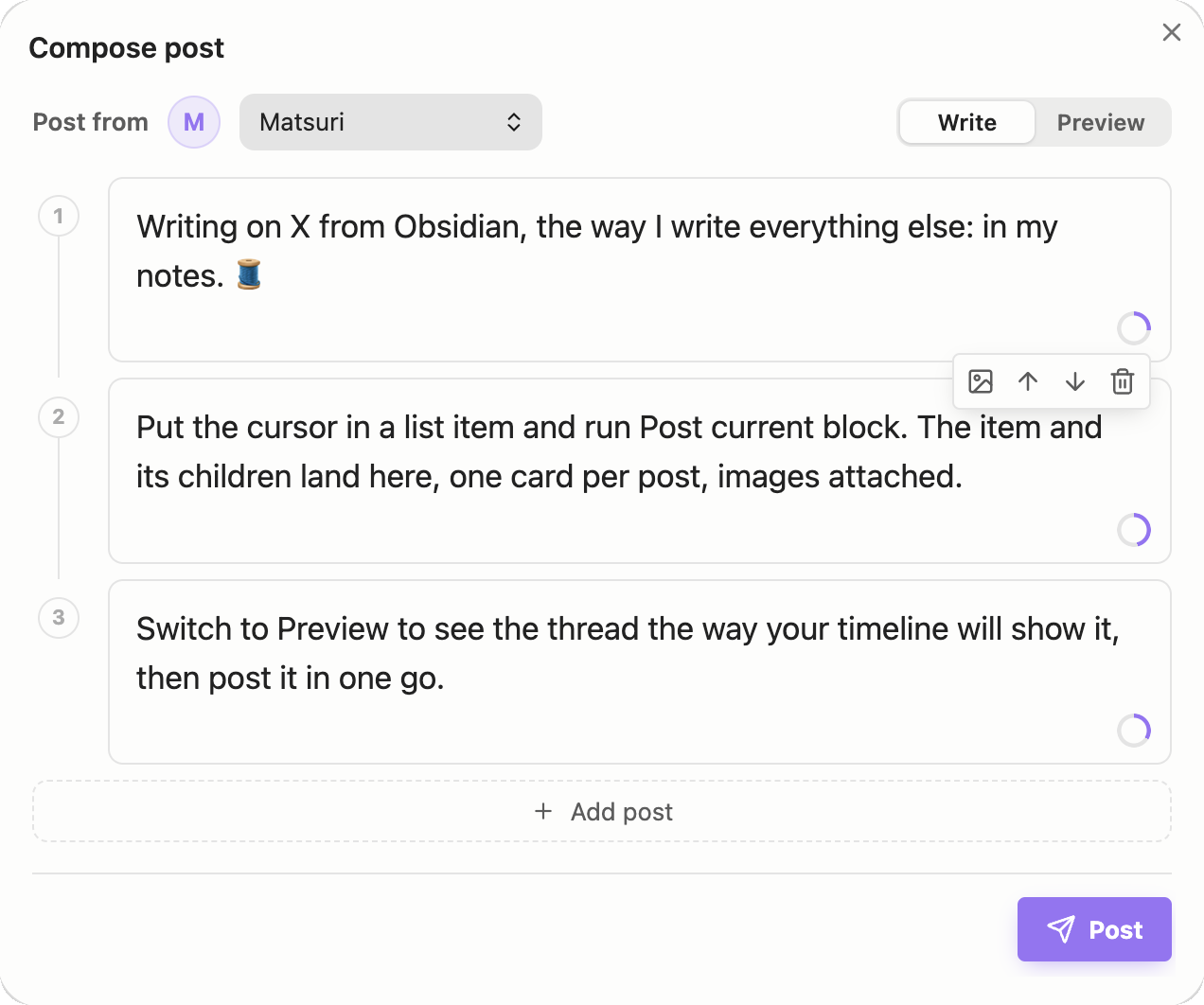
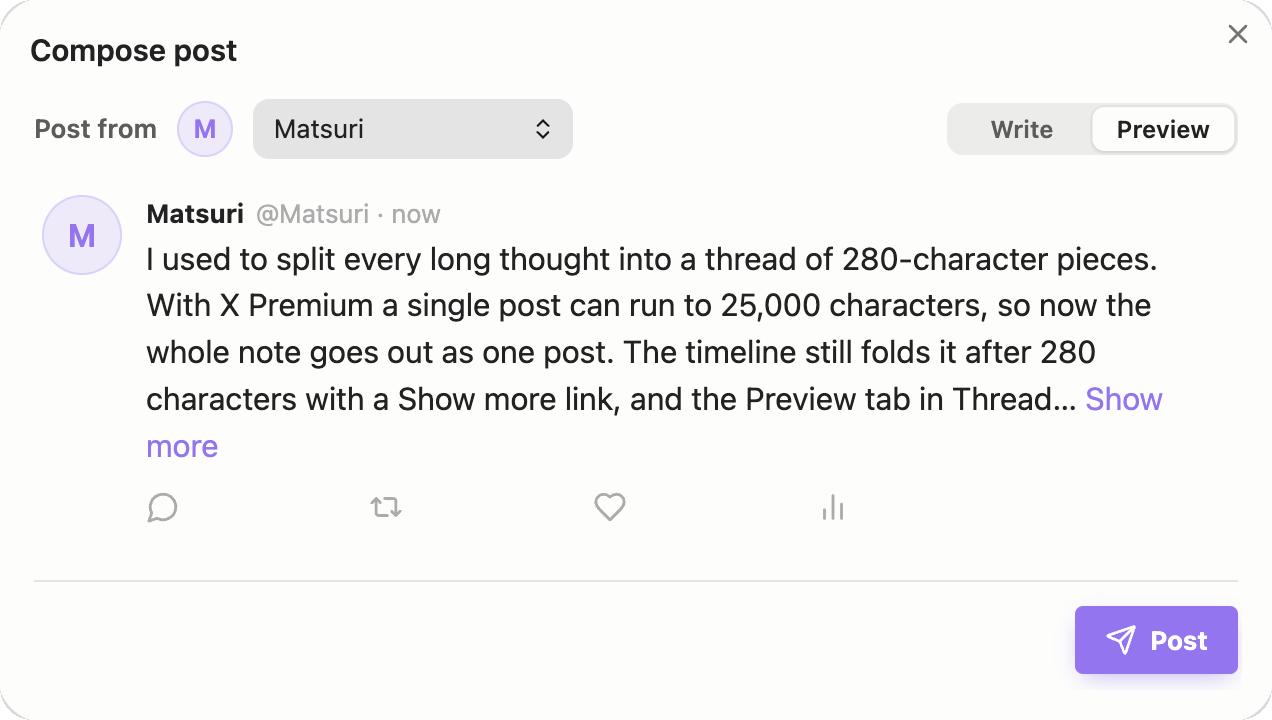
Thread Studio is a fork of NoteTweet by Christian Bager Bach Houmann, published with his consent (chhoumann/notetweet_obsidian#76). Everything NoteTweet does still works; Thread Studio adds:
- Write / Preview. Preview lays the thread out the way X does: avatar, name, the thread line, image grids, and links, hashtags, and mentions in color.
- Post current block. Put the cursor in a list item or paragraph and run the command, click the paper plane in the ribbon, or right-click. The item and its children open in the composer, embedded images attached. Task keywords (
TODO,DOING, …), wikilink brackets, emphasis marks, and%%comments%%are cleaned up. Once posted, the tweet tag goes on that block's first line. - X Premium long posts. Turn on X Premium long posts and a single post can hold up to 25,000 characters instead of being split into a thread. The count shows the post's length past 280, and Preview folds it with Show more where X will.
- X Articles. Post note as X Article turns the active note into an Article: headings, lists, quotes, bold, italic, strikethrough, links, images, code blocks, tables, and dividers carry over. Publish it at once, or save a draft and finish it in X's editor.
- A composer with some life in it. A count ring that fills like X's, cards that slide into place when you add, move, split, or delete posts, icons that move when you point at them, and short, quiet sounds you can switch off. Reduced-motion settings are respected.
Installation
Until Thread Studio is listed in the Obsidian community plugin directory:
- With BRAT: install BRAT, run BRAT: Add a beta plugin for testing, and enter
MatsuriMW/thread-studio. - By hand: download
main.js,manifest.json, andstyles.cssfrom the latest release into<your vault>/.obsidian/plugins/thread-studio/, then enable Thread Studio under Settings → Community plugins.
Thread Studio needs Obsidian 1.13.0 or newer, for its encrypted Secret Storage. It can be installed next to NoteTweet: the two keep separate settings and separate credentials.
Setup
You post through your own X developer app, so you need four keys from the X Developer Portal.
- Sign in at developer.x.com and create an App in the Developer Portal. New apps are placed inside a Project, which the X API v2 requires.
- Copy the API Key (the Consumer Key) and the API Key Secret (the Consumer Secret) shown when the app is created.
- Let the app post:
- In the app's Settings, open User authentication settings → Edit.
- Enable OAuth 1.0a and set App permissions to Read and write.
- X also asks for a Callback URI, a Website URL, and a Type of App. Thread Studio never uses the callback, so
https://github.com/MatsuriMW/thread-studioin both URL fields and Web App, Automated App or Bot work fine. Save. - Under Keys and tokens → Access Token and Secret, click Generate to get the Access Token and Access Token Secret. If you change permissions later, generate them again, or the token stays read-only.
- In Thread Studio's settings, click Add account, name it, and paste all four values. Use Test to check the connection. Repeat for each account you post from.
Usage
Composer
Run Post tweet to open the composer. If text is selected, it comes along: a THREAD START / THREAD END block opens as a ready-made thread, and other text is split into posts at the length limit. Pasting long text splits it too. Pick the account at the top, switch between Write and Preview, and press Post (or Schedule, when scheduling is on).
Shortcuts inside a post:
Alt + Enter,Enterat the length limit, or three line breaks in a row: start a new postShift + Enter/Ctrl + Enter: insert a post above / belowCtrl + ↑/Ctrl + ↓: go to the post above / belowCtrl + Shift + ↑/Ctrl + Shift + ↓: move the post up / downBackspacein an empty post, orCtrl + Shift + Delete: delete the post
Images: hover a post and click the image button to pick one from your vault, paste an image straight in (it is saved to your vault, then uploaded), or type a [[wikilink]] to an image (gif, jpg, jpeg, png, webp, bmp). Up to four per post.
Post current block
Run Post current block from the command palette, the ribbon, or the editor's right-click menu. In a list, the block is the item under the cursor with all of its children; elsewhere it is the paragraph. Child items keep a plain - or 1. marker so the structure survives on X.
X Premium long posts
If your accounts have X Premium, turn on X Premium long posts in settings. A post may then hold up to 25,000 characters; Auto-split tweets splits only past that limit. X shows the first 280 characters of a long post with Show more, and Preview folds it at the same place. Without Premium, X rejects posts longer than 280 characters, and Thread Studio shows X's reason.
X Articles
Open a note and run Post note as X Article. Confirm the title and the account, then choose Publish, or Save draft to finish it in X's Articles editor (the notice links straight to the draft).
- Title: the note's
titleproperty; else a# Headingon the note's first line (it is then left out of the body); else the file name. - Cover: an image in the note's
coverproperty, such ascover: "[[header.png]]". - Body:
#,##, and###+ become X's three heading levels; lists, quotes (callout markers removed), bold, italic, and strikethrough carry over;==highlights==become bold; links become links and wikilinks become plain text; images from your vault are uploaded; fenced code blocks and tables go in as Markdown blocks;---becomes a divider. Nested lists are flattened, because Articles have no list depth. Frontmatter,%%comments%%, and block ids are left out.
Articles need X Premium on the posting account.
Quick posts
- Post selection as tweet posts the selected text at once, through the default account.
- Post file as thread posts the first
THREAD START/THREAD ENDblock in the active note, through the default account:
THREAD START

The first post.

---
The second post. A line with only three dashes separates posts.

THREAD END
After posting, a dialog links to each post and lets you delete them again. If a Tweet tag is set, it is added to your note.
Scheduling
Optional and advanced: posts can go out later through a self-hosted scheduler, which posts with its own X credentials. See the scheduler guide.
Network use and accounts
- Thread Studio talks to the X API (
https://api.x.com) only when you post, schedule, upload images, delete posts you just made, or test an account. It sends the text and images you choose to post. There is no analytics or telemetry. - It needs your own X developer app and its four keys (see Setup). Depending on your X developer plan, X may bill API use. Long posts and Articles need an X Premium subscription.
- If you turn on scheduling, posts and your scheduler password go to the scheduler URL you enter.
- Credentials are kept in Obsidian's encrypted Secret Storage, never in the plugin's
data.json. Thread Studio reads image files from your vault to upload them and writes the tweet tag into your notes; it touches nothing outside your vault.
Troubleshooting
Not connected: 403 Client Forbidden (client-not-enrolled). The app is not attached to a Project. Create a fresh app (new apps are enrolled automatically) or attach yours to a Project, regenerate the Access Token and Secret, and paste the new values in.
Connected, but posting fails with 403. The connection test only reads, so it passes even when the app cannot write. Usually the Access Token is read-only: set Read and write, then regenerate the Access Token and Secret. Other causes: your plan's write limit is used up, or X rejects a duplicate post. The error notice shows X's own reason.
A long post or an Article fails with 403. The posting account has no X Premium, or X has not enabled the feature for it yet.
401 authentication errors. Check that the app is in a Project and has Read and write permission, that your computer's clock is right, and regenerate the tokens.
An image does not upload. Use gif, jpg, jpeg, png, webp, or bmp, and make sure the file is in your vault.
Credits
Thread Studio stands on NoteTweet by Christian Bager Bach Houmann, who wrote the composer, the X API client, Secret Storage handling, and the scheduler, and kindly agreed to this fork. Icons are Lucide (ISC), animated in the spirit of lucide-animated; the Preview follows X's own composer and Typefully's preview pane.
License
MIT, keeping the original NoteTweet copyright.