TextBundle Files
 theluckystrike6 downloads
Imports TextBundle and TextPack files as notes with their images, and exports a note as a TextPack.
- Overview
- Scorecard
- Updates4
TextBundle Files brings TextBundle and TextPack files into your vault as normal notes, and writes a note back out as a TextPack. A .textbundle is a folder with text.markdown (or text.md), info.json and an assets/ folder. A .textpack is the same folder in a zip file. With this plugin, a pack becomes a note in your folder for new notes, its images go to your attachment folder, and the links in the note point to them.
Features
Import packs and bundles
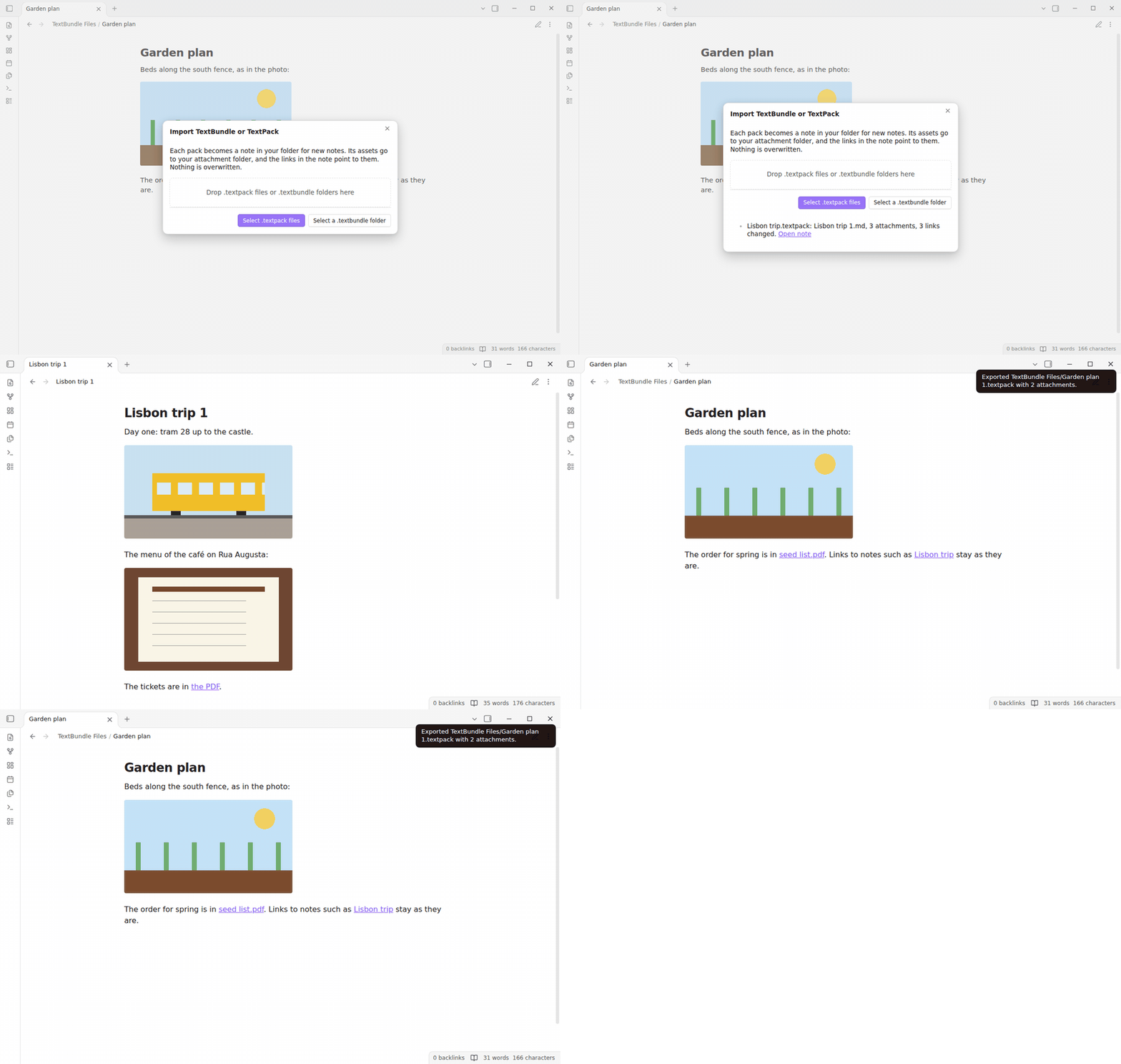
Run "Import TextBundle or TextPack files" from the command palette. The import window takes one or more .textpack files from the file picker. On desktop, it also takes a .textbundle folder from a folder picker, and you can drop packs and bundle folders on it. The plugin uses no desktop-only API. The tests run on the desktop app.
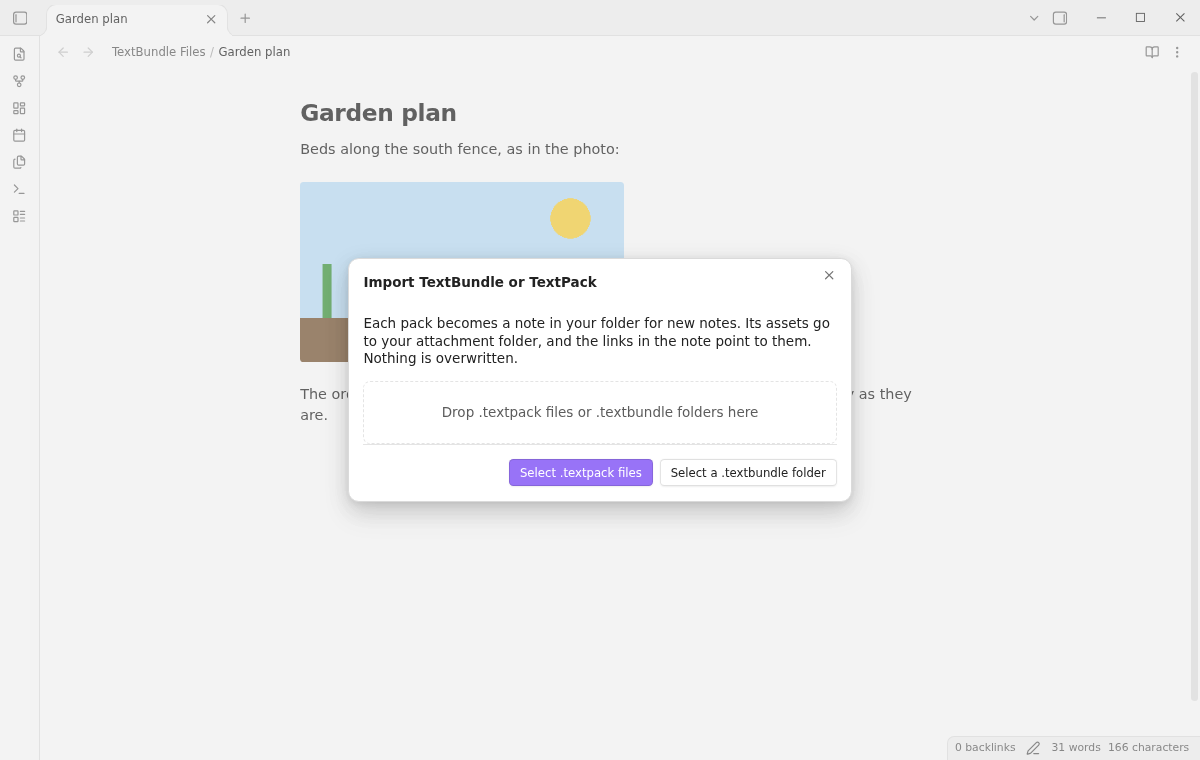
Import report in the window
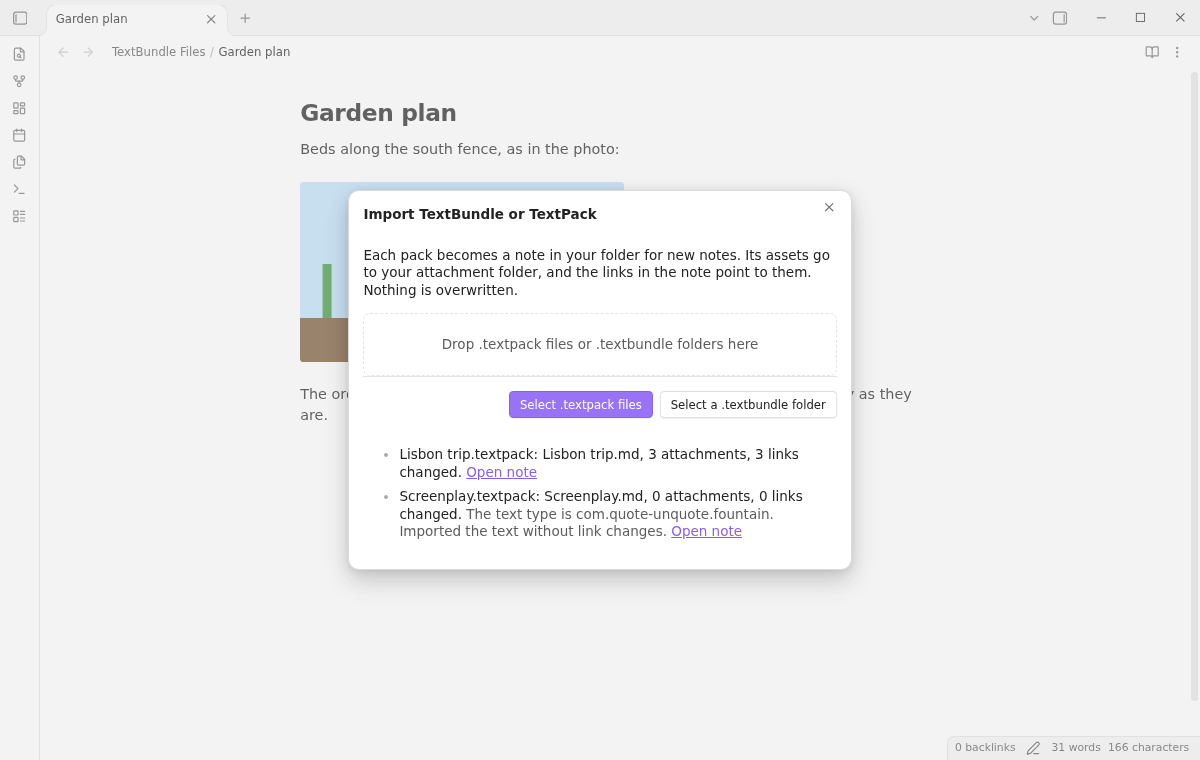
After the import, the window lists each pack with the new note, the number of attachments and the number of changed links.
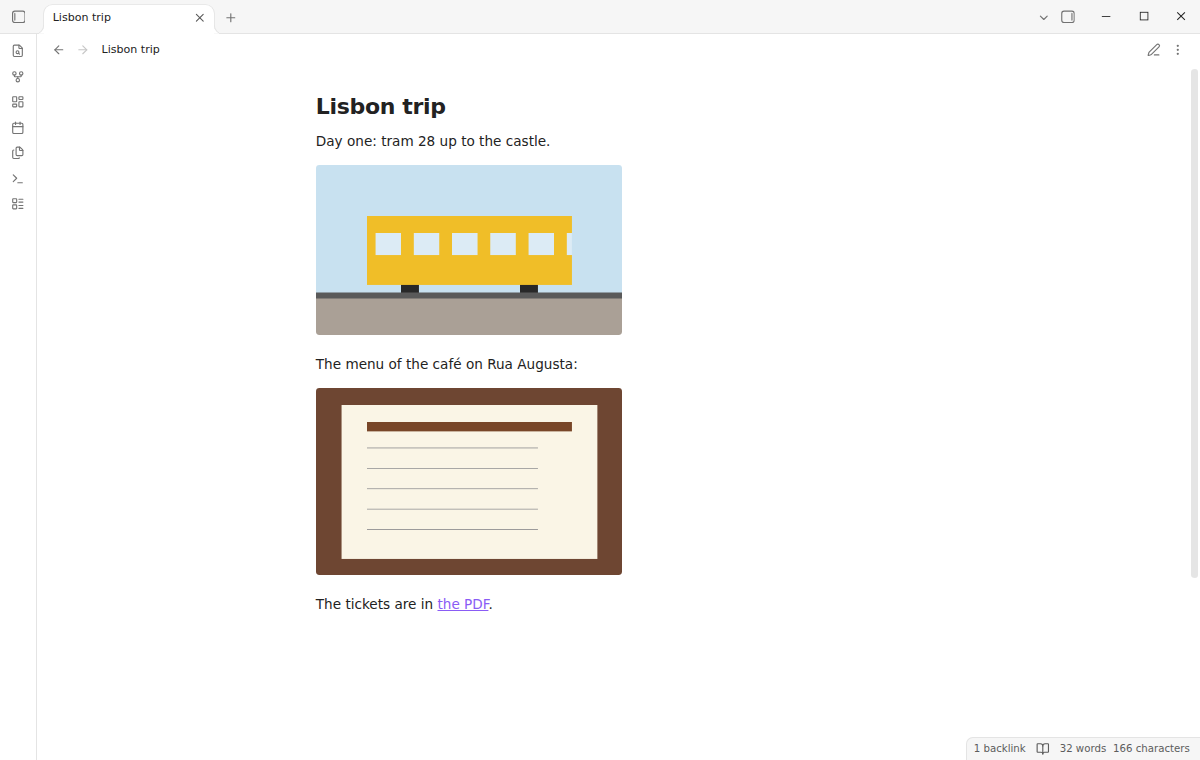
Images and attachments in the vault
Each file under assets/ goes to the attachment folder that you set in Settings, Files and links. Files in subfolders of assets/ go to the same attachment folder. The plugin makes each file name safe for Windows and Android, and it never overwrites a note or an attachment. When the name is taken, it adds " 1", " 2" to the name. The compare ignores case. When a write fails, the files of that import go to the trash.
Links that point to the vault
The plugin changes each Markdown link, image, reference definition and HTML src that points to assets/.... The link keeps its form: a percent encoded link stays encoded, and a link in angle brackets stays in angle brackets. Links in fenced code (also inside a quote), indented code and inline code do not change. A link to an asset that is not in the pack stays as it is, and the window counts it.
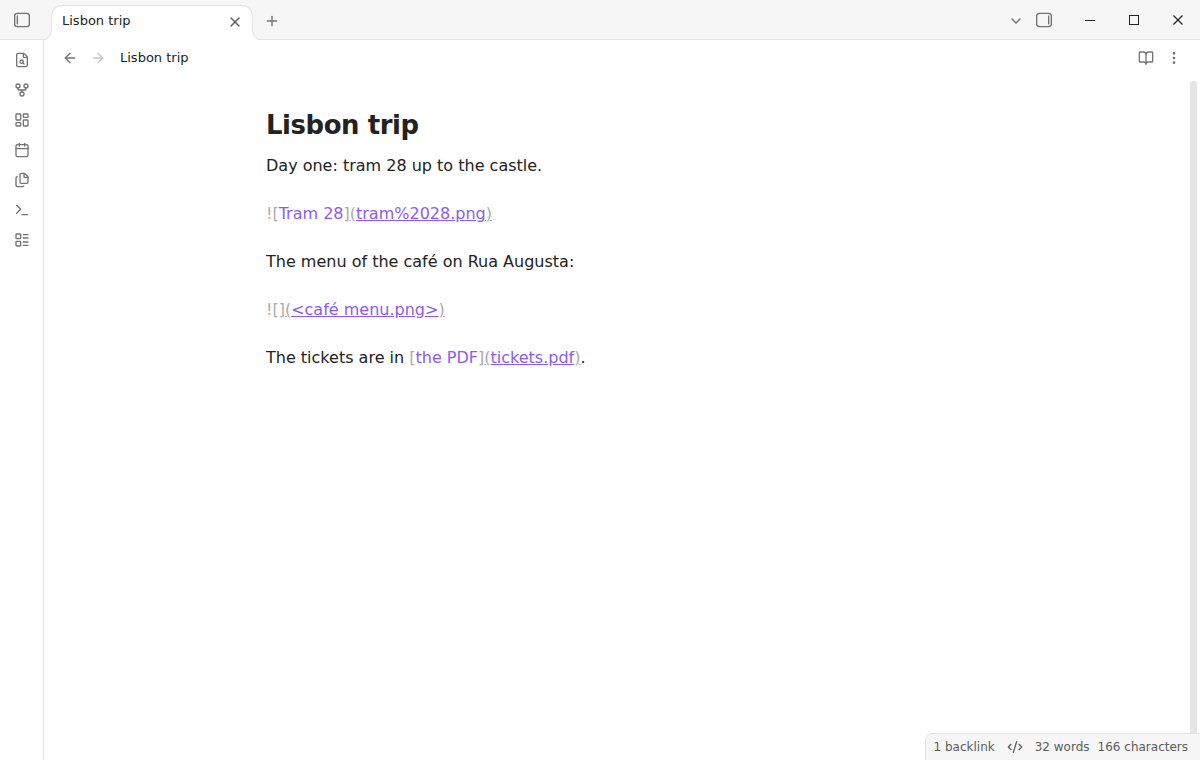
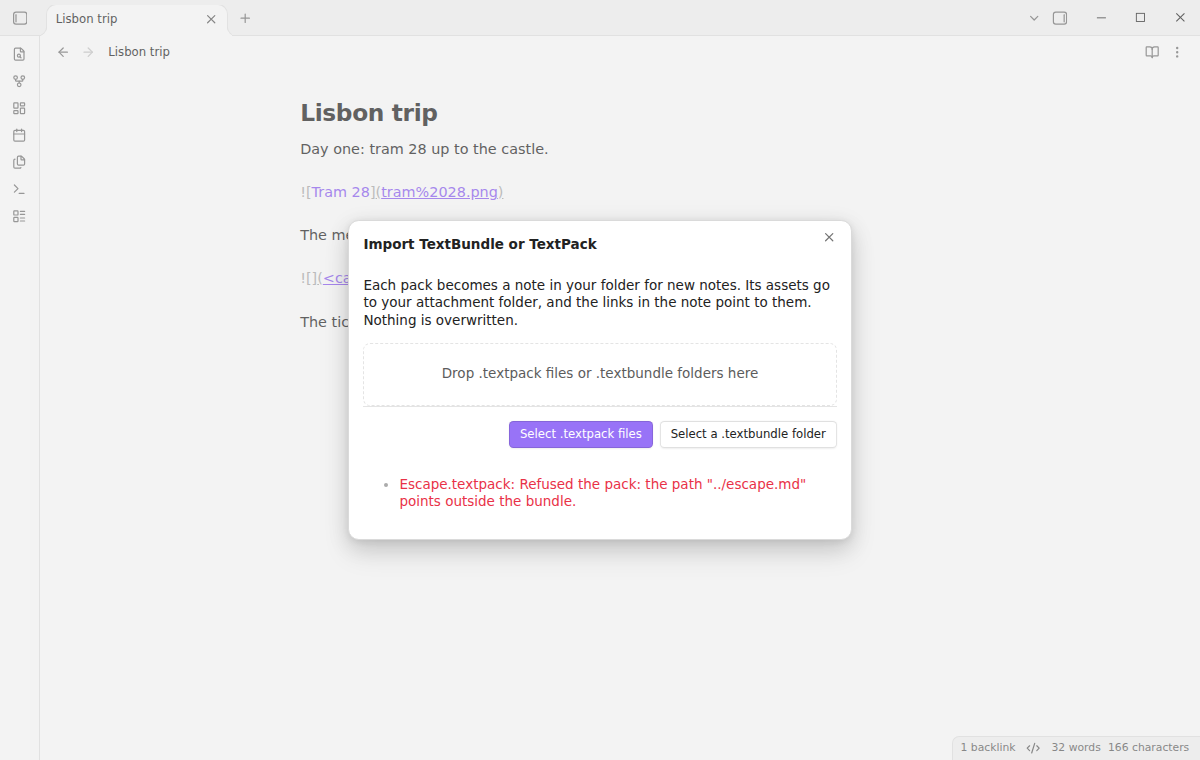
Unsafe packs are refused
A zip entry with .., a leading slash or a drive letter can write outside the bundle. The plugin refuses the whole pack and writes nothing for it. It also refuses a pack of more than 100 MB, more than 250 MB unpacked, or more than 5,000 entries, and the message gives the size. The plugin reads the zip directory first and unpacks only the entries that it checked. It refuses ZIP64 packs and entries that share data. After the unpack, each file must have its declared size and checksum.
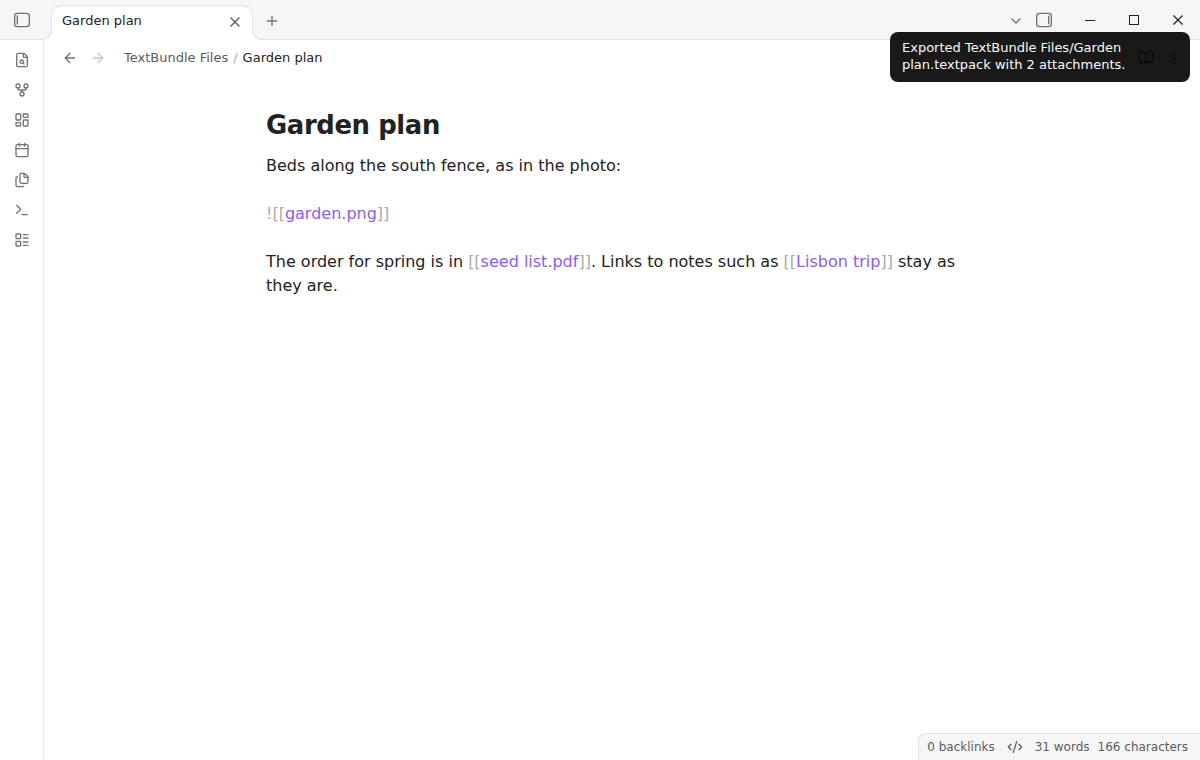
Export a note as a TextPack
Run "Export current note as TextPack", or select "Export as TextPack" in the file menu of a note. The plugin writes Note name.textpack next to the note. The pack holds info.json (version 2, type net.daringfireball.markdown), text.markdown and assets/ with each image and attachment that the note links to. A wikilink such as ![[garden.png]] becomes a Markdown image link to assets/garden.png, as the spec asks. Links to other notes and web links stay as they are.
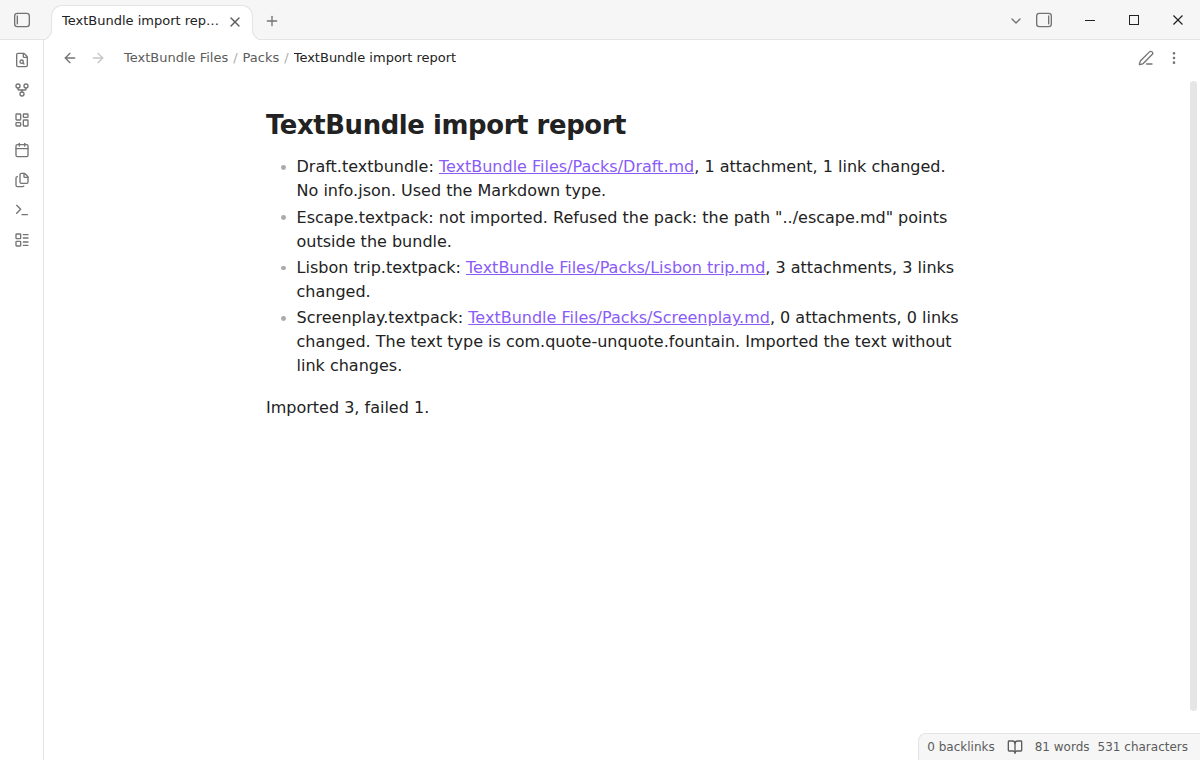
Folder import with a report (Pro)
Run "Import every pack in a folder", or select "Import packs in this folder (Pro)" in the file menu of a folder. The plugin imports each .textpack file and each .textbundle folder in it, next to the pack. Then it writes a report note with one line for each pack: the new note, the attachments, the changed links, or the reason for a failure. Pro also adds "Export every note in a folder as TextPacks", which writes the packs and a report into a new TextPacks folder.
Install
When TextBundle Files is listed in the community directory, open Settings, then Community plugins, then Browse, and search for "TextBundle Files". Select Install, then Enable.
To install by hand, download main.js, manifest.json and styles.css from the latest release. Put the three files in <vault>/.obsidian/plugins/textbundle-files/. Restart Obsidian or reload the list of community plugins, then turn on TextBundle Files.
Usage
- Export a note from Bear, Ulysses, iA Writer or Craft as TextBundle or TextPack.
- In Obsidian, run "Import TextBundle or TextPack files" and select the files.
- Select "Open note" in the list.
- To send a note back, open it and run "Export current note as TextPack". The pack is next to the note.
A .textpack file or a .textbundle folder that is already in the vault has "Import TextPack as note" or "Import TextBundle as note" in its file menu. Obsidian shows a .textpack file in the file explorer only when "Detect all file extensions" is on in Settings, Files and links.
Settings
After a minor or major update, this plugin opens one What's new tab in the background. The tab and settings card suggest other NoteMods plugins and Zovo Chat and link to notemods.com for feedback (privacy). The tab sends no data. Turn the tab off in Settings.
| Setting | What it does |
|---|---|
| Import packs added to the vault | When a .textpack file comes into the vault, for example from a drag into the file explorer, the plugin imports it as a note next to it. The plugin waits until the file size stays the same. The pack stays. A pack that the plugin exported, with its text unchanged, does not import again on any device. A notice tells you when it skips a pack. A pack that an import writes as an attachment does not import either. Off by default. |
| Keep info.json in a property | Pro. On import, the plugin puts info.json in the textbundle property. On export, it reads that property in any YAML form and writes it back to info.json, and it removes the property from the text. A text that has the property already keeps it. The keys of other apps stay, as the spec asks. On by default, and it works only with Pro. |
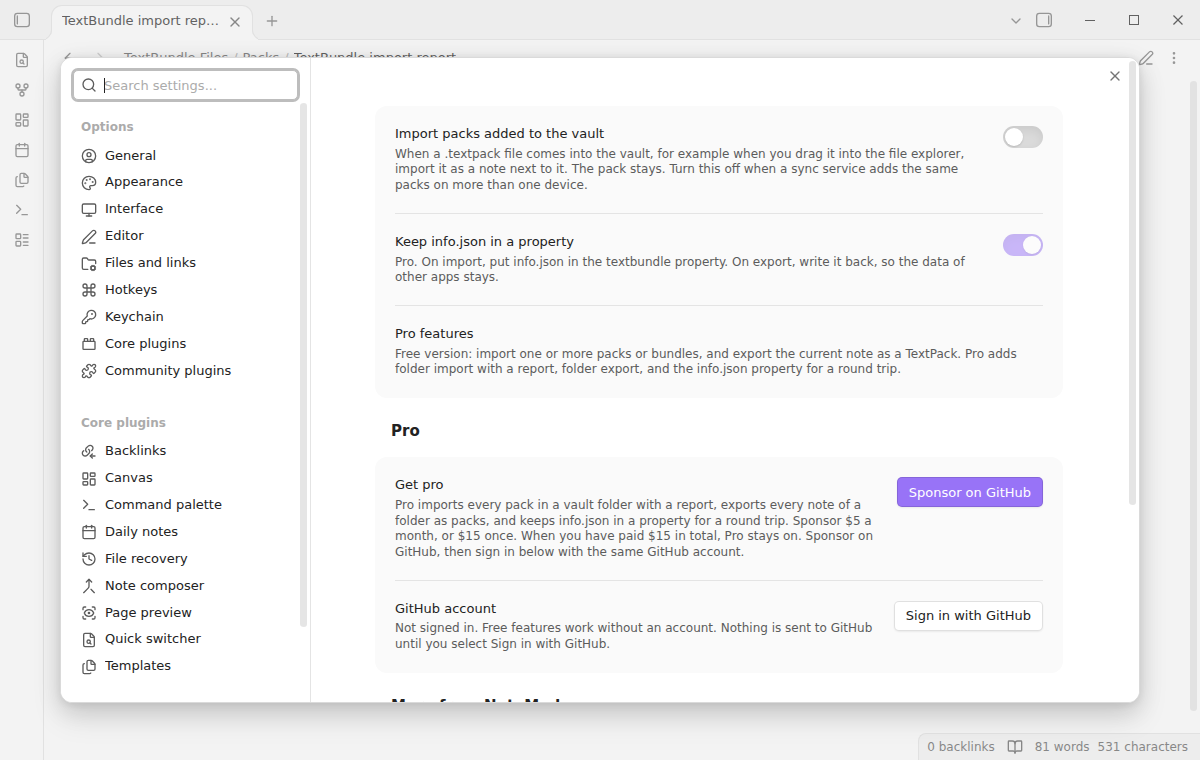
Pro
To sign in and enable Pro:
- Sponsor via GitHub Sponsors. A total payment of $15 meets the payment requirement for Pro without further payment. Sign-in and the checks below still apply.
- In Obsidian, open the settings of TextBundle Files and select "Sign in with GitHub".
- The plugin copies a code and opens github.com/login/device. Paste the code there and approve.
If you sponsor after you sign in, select Refresh. A negative sponsorship answer turns Pro off.
FAQ
Does an import and export give back the same text?
Yes, when no asset name clashes and no asset is in a subfolder of assets/. A byte order mark stays. A test compares the text bytes. A renamed asset (such as map 1.png) or a file from a subfolder keeps its link, but the link text changes.
What happens to a Fountain or plain text pack?
The text goes into a note as it is, without link changes. The window shows the type from info.json.
Payment, account and network
The core features are free. Pro features need a GitHub Sponsors sponsorship of theluckystrike: $5 a month or more, or $15 once. A total payment of $15 meets the payment requirement for Pro without further payment. Sign-in and the checks below still apply. Your notes stay readable and editable with or without Pro.
GitHub handles the payment. Sponsor at https://github.com/sponsors/theluckystrike. You need no account for the free features. Pro needs the GitHub account that sponsors.
Until you select "Sign in with GitHub" in the settings, TextBundle Files makes no network requests. Sign in uses the GitHub device flow. TextBundle Files sends its public client ID and the scope read:user to https://github.com/login/device/code and shows you a code. While you enter the code at https://github.com/login/device, it asks https://github.com/login/oauth/access_token every few seconds to check the sign-in status. The scope permits profile reads only. GitHub needs this access to show the sponsorship tier. It grants no repository scope and no write access.
After sign in, TextBundle Files sends one query to https://api.github.com/graphql. It checks if the signed-in account sponsors theluckystrike. It asks for the tier and the total payment to theluckystrike. The plugin reuses a successful check for 7 days. Failed checks can retry after 6 hours. Select Refresh to request an earlier check. It sends no note content, file names or other vault data, and it has no telemetry.
After a successful check, Pro can work offline for up to 14 days. Sign out or a negative sponsorship answer turns Pro off. The plugin stores the GitHub token through the secret storage API of Obsidian. It does not put the token in its saved settings or its local sponsorship data. The local storage of this device keeps your GitHub login, the tier and the time of the last check. Sign out clears the token. You can also revoke the access in your GitHub settings, under Applications.
Support
Plugin page: textbundle-files.
Report bugs and ask for features in the GitHub issues of this repository. Add your Obsidian version and a small sample pack.
npm ci
npm run build
npm test
Community
Questions, bugs or plugin ideas? Talk to me and other Obsidian users in Zovo Chat on Telegram. It has a topic for these plugins. You can also open an issue here.
License
MIT