Text Finder
 nyable10k downloads
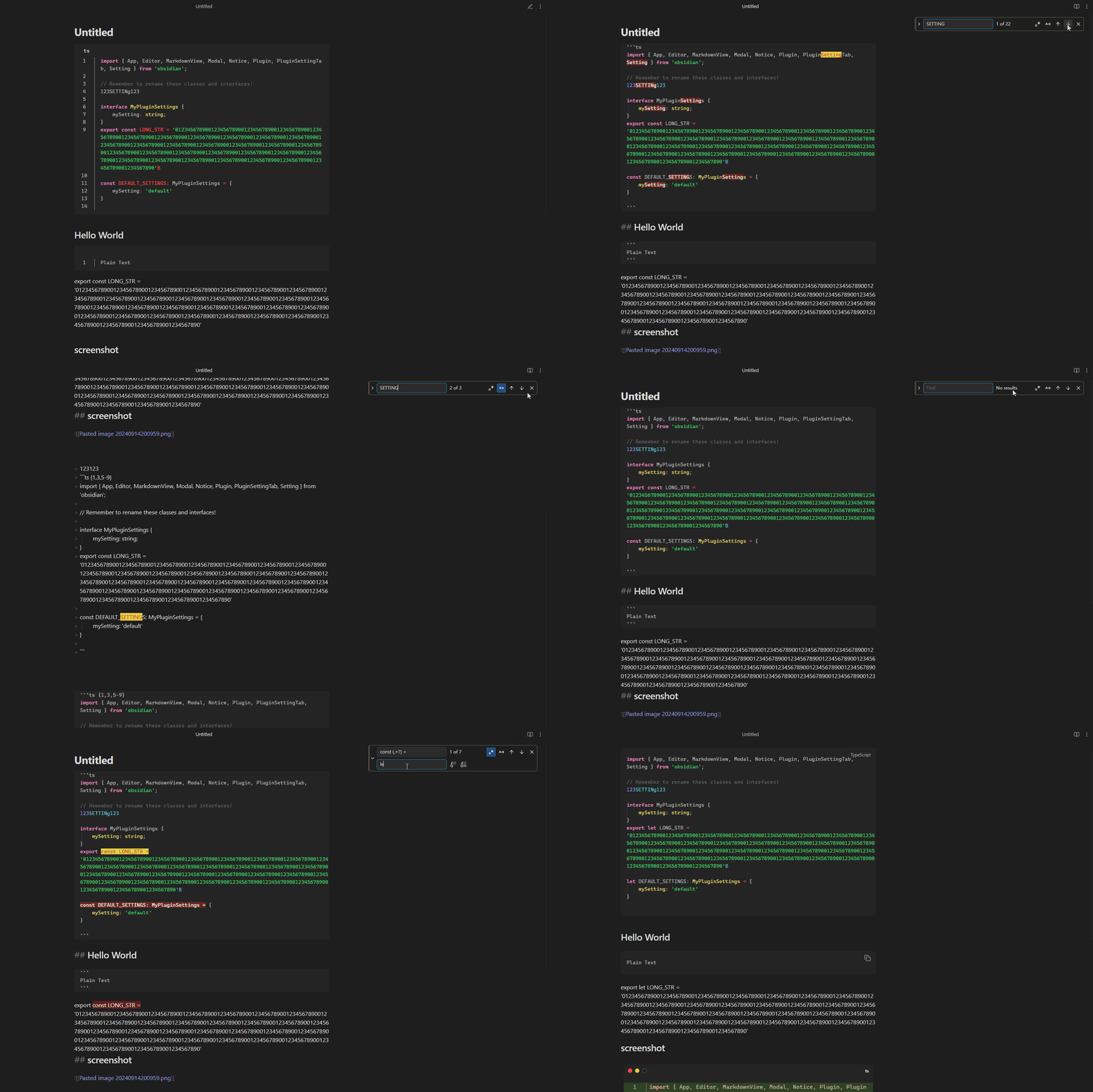
A search bar that supports search, replace, regular expressions, and case sensitivity.
- Overview
- Scorecard
- Updates12
This plugin for Obsidian(https://obsidian.md).
Provides a search/replace window similar to VSCode in editing mode.
Note: The Obsidian API is still in early alpha and is subject to change at any time!
Feature
Search or replace the text of the current MarkDown file in editor mode.
- Search/Replace in current file
- Highlight matching text
- Show number of matches
- Supports regular expressions
- Supports case sensitivity
- Input history
To Do
- Search/Replace in Selection
ScreenShot
How to use
Install
Community plugins
- Search for "text finder" in the community plugins and install it.
- Enable plugin in Obsidian setting.
BRAT
- Install the BRAT Plugin
- Execute command
Obsidian42 - BRAT: Add a beta plugin for testing - Paste the URL of this repository and confirm
- Enable plugin in Obsidian setting.
Source Code
- Clone this repo.
npm ioryarnto install dependenciesnpm run buildto build file in./dist.- Copy over
main.js,styles.css,manifest.jsonto your vaultVaultFolder/.obsidian/plugins/text-finder/. - Enable plugin in Obsidian setting.
Releases
- Download
main.js,styles.css,manifest.jsonin the latest release - Copy over
main.js,styles.css,manifest.jsonto your vaultVaultFolder/.obsidian/plugins/text-finder/. - Enable plugin in Obsidian setting.
Settings
- Assign a hotkeys for the plugin's command.
Customize Style
Use CSS snippets or Style Settings Plugin to customize styles.
Example Style Settings configuration file.
Here are some CSS snippets examples.
Match Highlight and Current Item
.nya-text-finder-match {
    border-radius: 2px;
    box-shadow: 0 0 0 1px rgb(60, 115, 75);
    background-color: inherit;
    color: inherit;
}

.nya-text-finder-match-current {
    box-shadow: 0 0 0 1px rgb(187, 187, 187);
    background-color: rgba(255, 170, 0, 0.8);
    color: black;
}
Change Position
Top Left
.nya-finder {
    right: unset !important;
    left: 376px;
}
Bottom Right
.nya-finder {
    top: unset !important;
    bottom: 72px;
}
Bottom Left
.nya-finder {
    top: unset !important;
    right: unset !important;
    left: 376px;
    bottom: 72px;
}
Change the border color when focused
body {
    --nya-focus-border-color: #39c5bb;
}
Change the color of the collapse button
.nya-toggle {
    border-left: 3px solid red !important;
}
HealthGood
ReviewCaution
About
Search and replace text in the current Markdown editor with a VS Code–style find/replace panel. Highlight matches, show match counts, and support regular expressions, case sensitivity, and input history.Details
Current version
0.3.0
Last updated
10 months ago
Created
2 years ago
Updates
12 releases
Downloads
10k
Compatible with
Obsidian 0.15.0+
Platforms
Desktop, Mobile
License
MIT
Sponsor