Tasklines
Show inline checkbox tasks in Bases as a table, a board, an urgent-and-important matrix or a calendar, with each note's properties as columns. Filter, sort, group, color, tick and edit tasks in place.
- Overview
- Scorecard
- Updates24
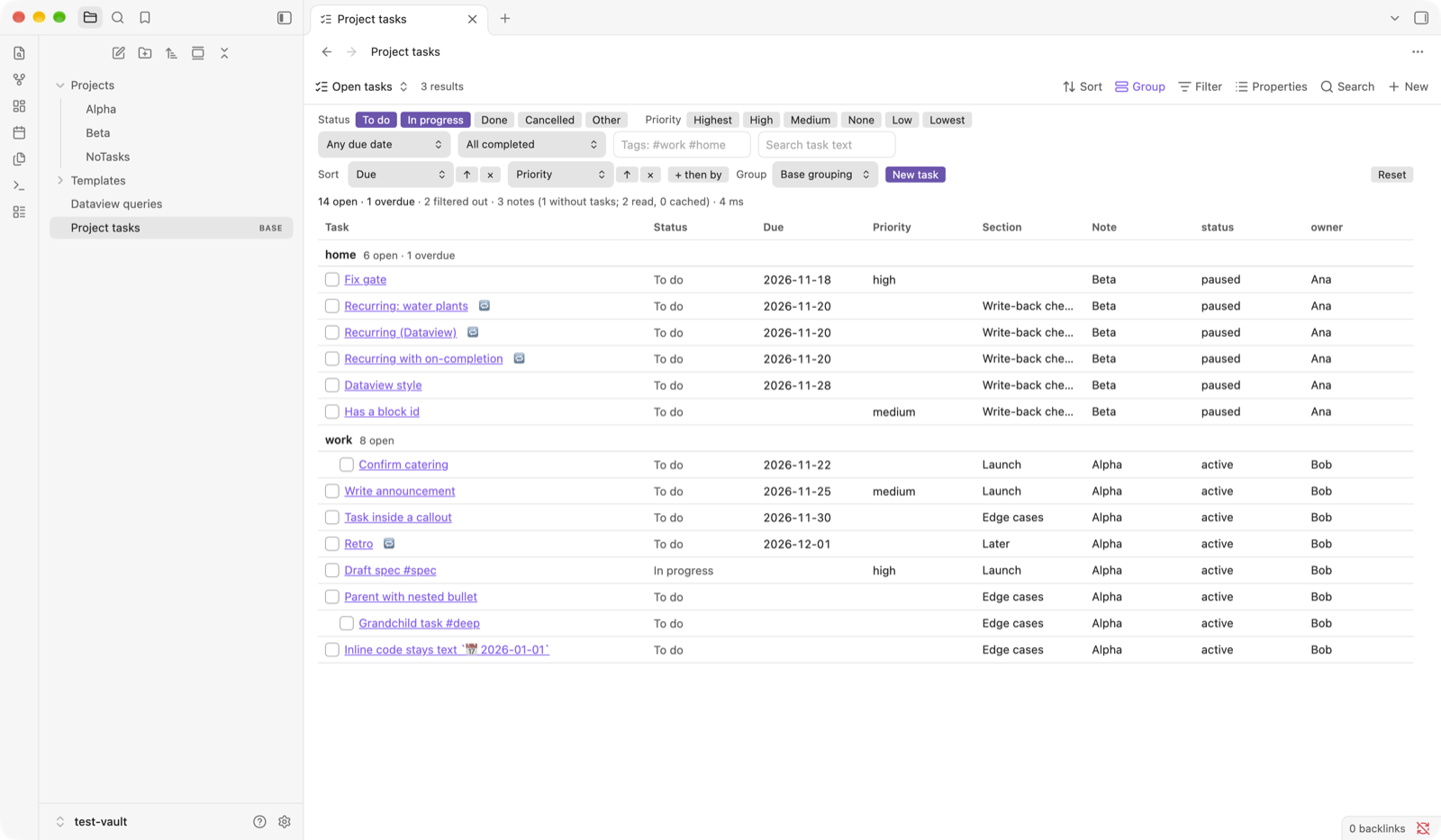
Your inline tasks as rows in Obsidian Bases. Tasklines adds a view to Bases with one row per checkbox task in the notes a base selects, a task board with the same tasks as cards (by status, priority, due date, or as an urgent-and-important matrix), and a task calendar. Each row carries its note's properties as columns. Filter, sort and group by task or note fields, then tick, edit and add tasks without leaving the view.
- Works on the tasks you already write. Each
- [ ]line in your daily notes, meeting notes and project notes is a task. You don't need one note per task, and you don't need a new syntax. - Leaves your notes as they are. Tasklines reads and writes Tasks plugin emoji and Dataview fields, and keeps each line in the format it already uses. An edit changes only that one line, and if the line has changed since Tasklines read it, the edit is refused rather than guessed.
- Free, with no limits and no account. Every feature is in the plugin, with no cap on tasks. It never goes online, and it works on desktop and mobile.
Watch the 4-minute demo (captions, no sound):
Please report problems on the issue tracker. For ideas, feature requests and questions, use Discussions.
Install
Community plugins: search for "Tasklines" in Settings → Community plugins → Browse, then install and enable it.
Beta versions, with BRAT: install and enable the BRAT community plugin, choose Add beta plugin in its settings, enter casazium/tasklines, and enable Tasklines in Settings → Community plugins.
Manually: download main.js, manifest.json and styles.css from a release into <vault>/.obsidian/plugins/tasklines/, then enable the plugin.
Requires Obsidian 1.13 or newer with the Bases core plugin turned on. Works on desktop and mobile. On Obsidian 1.10 to 1.12 you'll get Tasklines 1.0.2, the last version that runs there: the list view only, without the task board, the calendar, bulk changes, Color or a second grouping level. Update Obsidian to get the current version.
Quick start
Fastest: right-click a folder and choose New task base, or run New task base for the current note's folder from the command palette. Tasklines creates <folder> tasks.base inside the folder and opens it, with four views of the tasks in that folder and its subfolders: open tasks grouped by note, a status board, an urgent-and-important board and a calendar. It never replaces an existing file; a second one is numbered.
By hand:
- Create a base (New base), or open an existing one.
- Use the base's Filters to pick the notes whose tasks you want, for example notes in your
Projectsfolder. - Add a view and choose Tasklines as its layout.
- In the base's Properties menu, pick the note properties to show as columns (for example
statusorowner). - Use the task toolbar to filter, sort and group the tasks.
A .base file with a Tasklines view looks like this:
filters:
  and:
    - file.inFolder("Projects")
views:
  - type: tasklines
    name: Open tasks
    order: [file.name, note.owner]
    taskQuery:
      statuses: [todo, in-progress]
      due: next30
      sort:
        - key: due
          desc: false
      group: prop:note.owner
Using the view
- Notes vs tasks: the base's own filters, sort and Group by work on notes. The task toolbar works on tasks:
- Filter by status, priority, due date (overdue, today, next 7 or 30 days, has or has no due date, or a date range), completion window (completed today, in the last 7 or 30 days), tags (
#areaalso matches#area/home) and task text. - Sort by up to three keys, each ascending or descending: any task date, priority, status, text, note name, base order, or any note property. Tasks with no value always sort last.
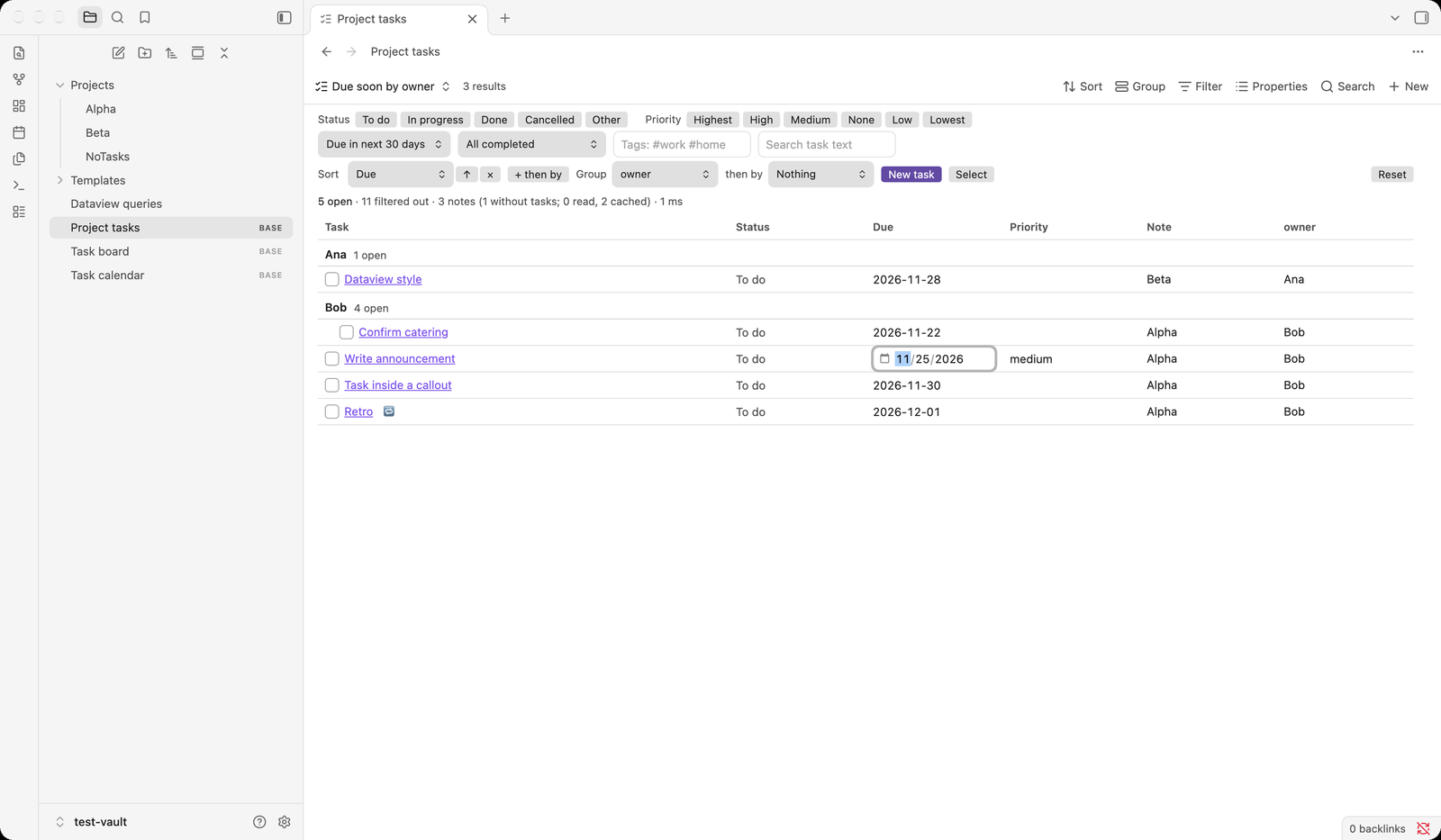
- Group by the base's grouping, note, section (nearest heading), status, due bucket, priority, tag, or any note property. then by adds a second level inside each group, for example note then section, or due bucket then owner. Each second-level heading has its own counts, and in select mode its own checkbox. The board and the calendar use one level: their columns and days are the grouping.
- Filter by status, priority, due date (overdue, today, next 7 or 30 days, has or has no due date, or a date range), completion window (completed today, in the last 7 or 30 days), tags (
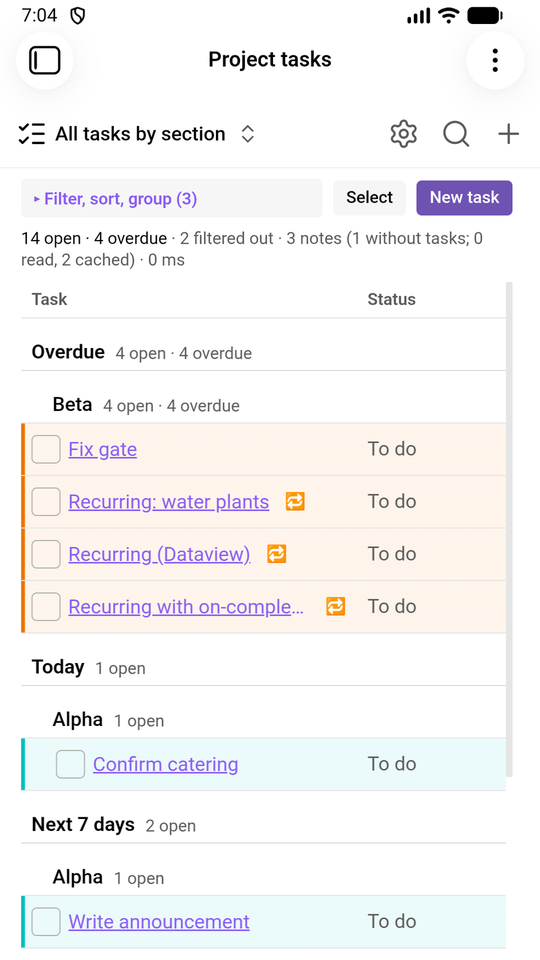
- On phones the toolbar folds into one Filter, sort, group button, which shows how many settings are active, next to New task, so the tasks keep the screen. Tap it to open the controls.
- Each view is a saved preset: the toolbar's settings are stored in the
.basefile, so each view keeps its own. Reset clears them. - Columns: note properties come from the base's Properties menu. Task columns (status, dates, priority, recurrence, tags, section, line, note) and computed columns (Overdue, Days until due, Age, Subtasks done, Note progress) are switched on in the view's config menu, which also has Show task toolbar (turn it off for embedded bases).
- Counts: group headers and the line above the table show open, overdue and done counts.
- Color (in the view's config menu, in the list, the board and the calendar) tints tasks with a bar on their leading edge and a faint wash, in your theme's colours:
- Due date: overdue tasks red, tasks due today orange.
- Priority: highest red, high orange, medium yellow, low blue, lowest cyan.
- Note property: pick the property in Color property. Each value always gets the same colour (never red, which stays for overdue), so every task in a note shares its note's colour.
- Finished tasks aren't tinted by due date or priority. Colour is an extra cue, not the only one: screen readers hear it in words (for example "overdue" or "area: home"), and the same facts can be shown as columns.
- Open a task: click its text to open the note at that line; Cmd/Ctrl-click opens a new tab.
- Large vaults: only the rows on screen are drawn, and each note is read once and cached until it changes.
Task board
Add a view with the Task board layout to see the same tasks as cards in columns.
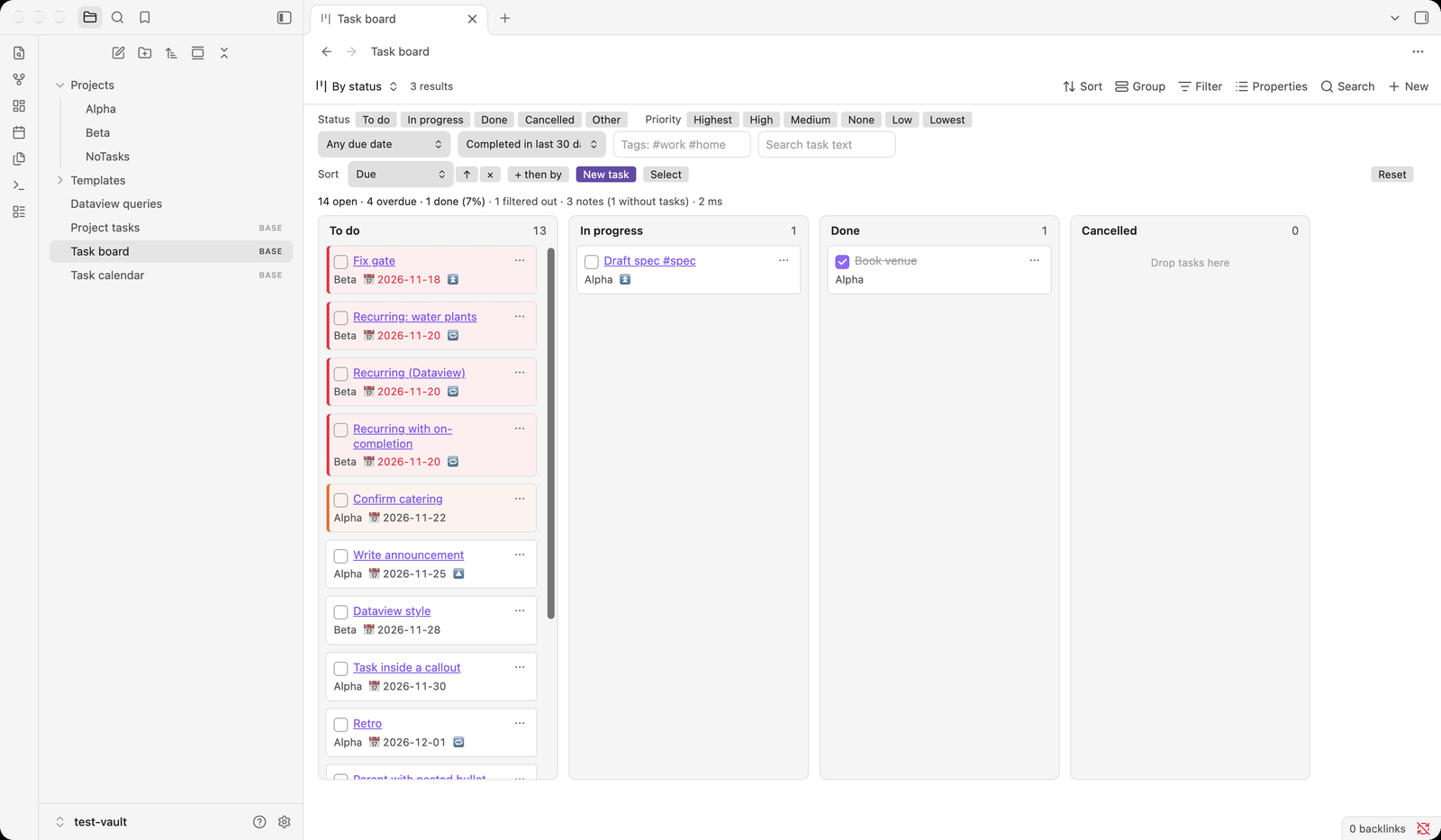 In the view's config menu, Columns picks the field: Status, Priority, Due date or Urgent and important (Eisenhower). The task toolbar filters and sorts the cards, and sorting applies within each column.
- Move a card by dragging it to another column, or with its ⋯ menu (on phones, and from the keyboard). A move is one ordinary change to that one line, with the same checks as everywhere else:
Status: To do, In progress, Done and Cancelled. Moving to Done adds the completion date. A recurring task moved to Done is completed through the Tasks plugin, so it gets its next occurrence.
Priority: one column per priority, including No priority.
Due date: dropping on Today or Tomorrow sets the due date, and No due date clears it. Overdue, Next 7 days and Later cover ranges of dates, so they show tasks but don't accept drops. Finished tasks with a past due date sit in their own column instead of Overdue.
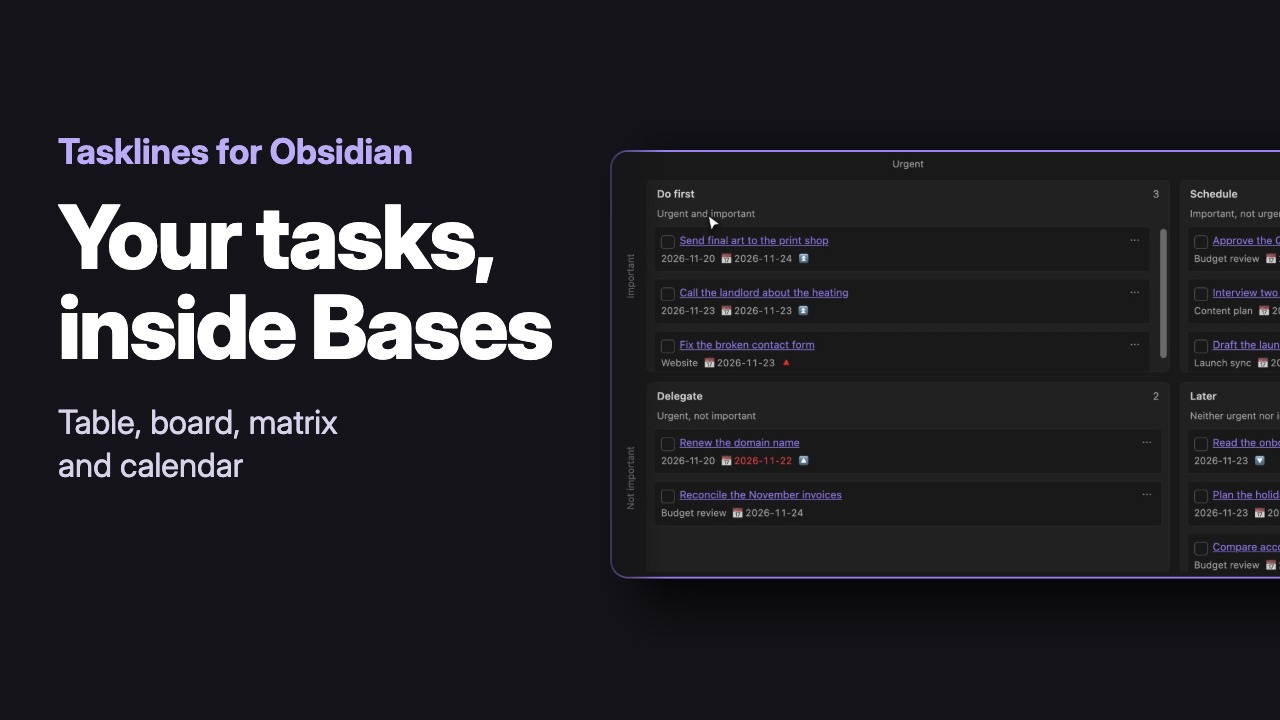
Urgent and important: four boxes, Do first, Schedule, Delegate and Later. Urgent means overdue or due by tomorrow, going by the due date only (not scheduled or start dates). Important means high or highest priority (⏫ or 🔺). Finished tasks sit in their own Finished column. A move changes one thing:
- Into an urgent box, the due date becomes today, even if it was later. Out of one, the due date is removed. A recurring task keeps its date: moving it out is refused, so give it a later date in the list or the calendar instead.
- Into an important box, the priority becomes high. Out of one, the priority is removed.
- A move that would change both (from Later straight to Do first, say) is refused with a notice naming the boxes to go through, so every move stays one edit you can undo. To move a finished task, reopen it first.
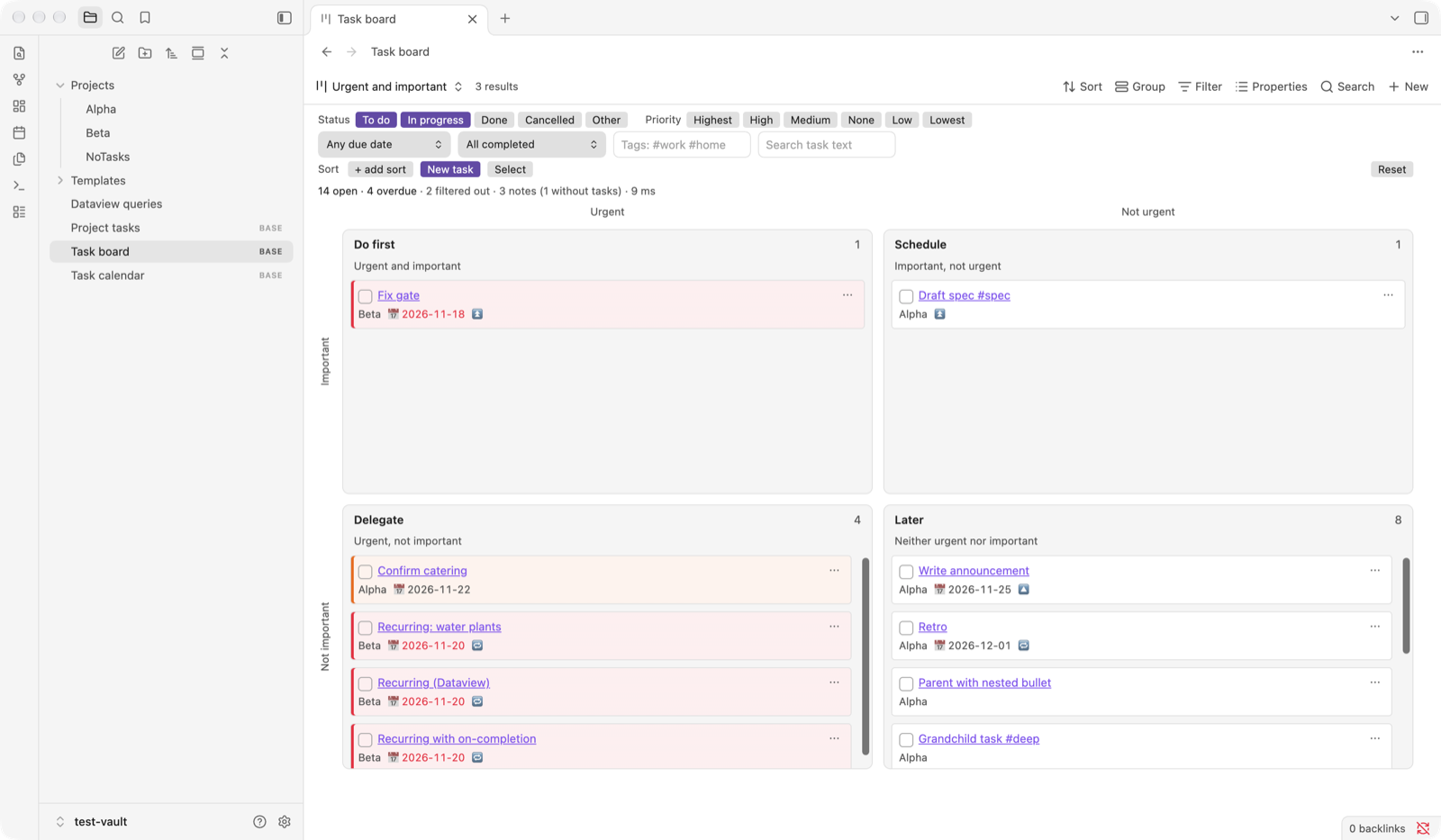
- Layout: with room for it (a board at least about 600 px wide and 400 px tall, as in most desktop panes and on tablets), the boxes form a 2×2 grid: urgent on the left, important on top, with the axes labelled. All four stay in view, and a full box scrolls on its own. Finished, when shown, runs along the bottom. In less room (phones, a phone held sideways, a narrow or short pane) they're swipeable columns like the other boards.
- Undo: after a move, the notice has an Undo button that puts the line back exactly as it was (unless it has changed since). Completing a recurring task can't be undone this way, because it adds the next occurrence.
- Custom statuses keep their place: a
[!]task stays in To do. They aren't a drop target of their own, so moving it to another status replaces the custom status. - Long columns show 100 cards at a time, with a Show more button.
A board view in a .base file:
views:
  - type: tasklines-board
    name: Board
    boardField: status
    taskQuery:
      doneWithinDays: 7
Task calendar
Add a view with the Task calendar layout to see tasks on the days of their dates.
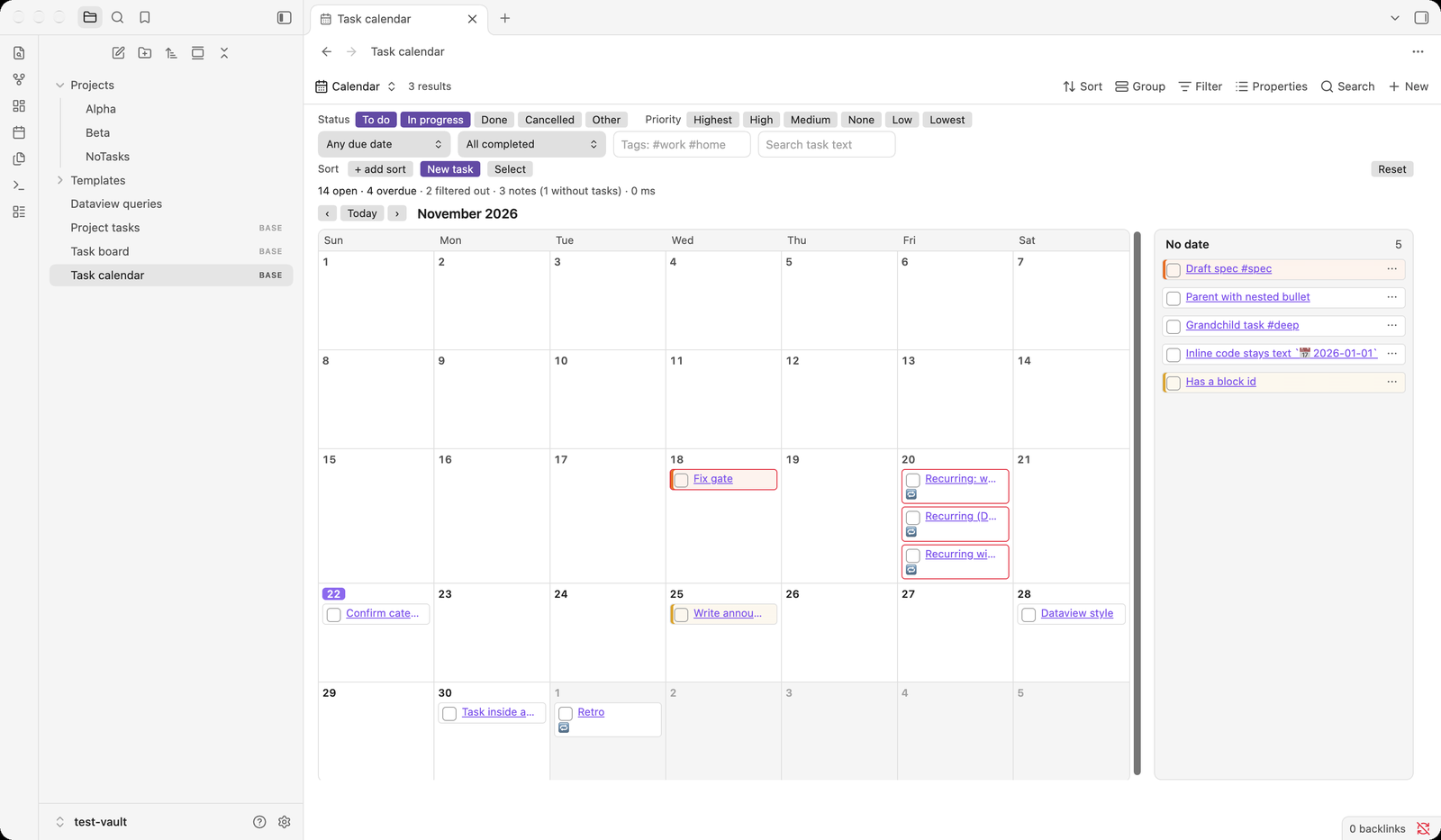 In the view's config menu:
- Date picks which date places a task: Due, Scheduled or Start.
- Layout picks Month, Agenda or Automatic. Automatic, the default, shows the agenda on phones and the month elsewhere, so one base suits both.
The task toolbar's filters and sort still apply.
- Month: a grid of weeks. It starts on the first day of the week for your Obsidian language. Use ‹, Today and › to change month. A day shows three tasks, with +N more for the rest. Tasks without the date are in No date, beside the grid (below it on phones).
- Agenda: Overdue (open tasks only), then each of the next two weeks' days that has tasks, then Later and No date. On desktop the next seven days always show, as places to drop tasks.
- Reschedule a task by dragging it to another day, or with its ⋯ menu (on phones, and from the keyboard): Today, Tomorrow, One day later, One week later, Pick a date… and Remove date. Each is one ordinary date edit, in the line's own style, with the same checks as everywhere else. The notice offers Undo. Dropping a task on No date removes that date.
- A recurring task keeps its last date, so it always has one to repeat from.
- A date that isn't a real day (such as
2026-11-31) shows the task under No date with the date marked, so you can fix it. - Dates only: the calendar has no times of day and no reminders.
A calendar view in a .base file:
views:
  - type: tasklines-calendar
    name: Calendar
    calendarField: due
    taskQuery:
      statuses: [todo, in-progress]
Changing several tasks at once
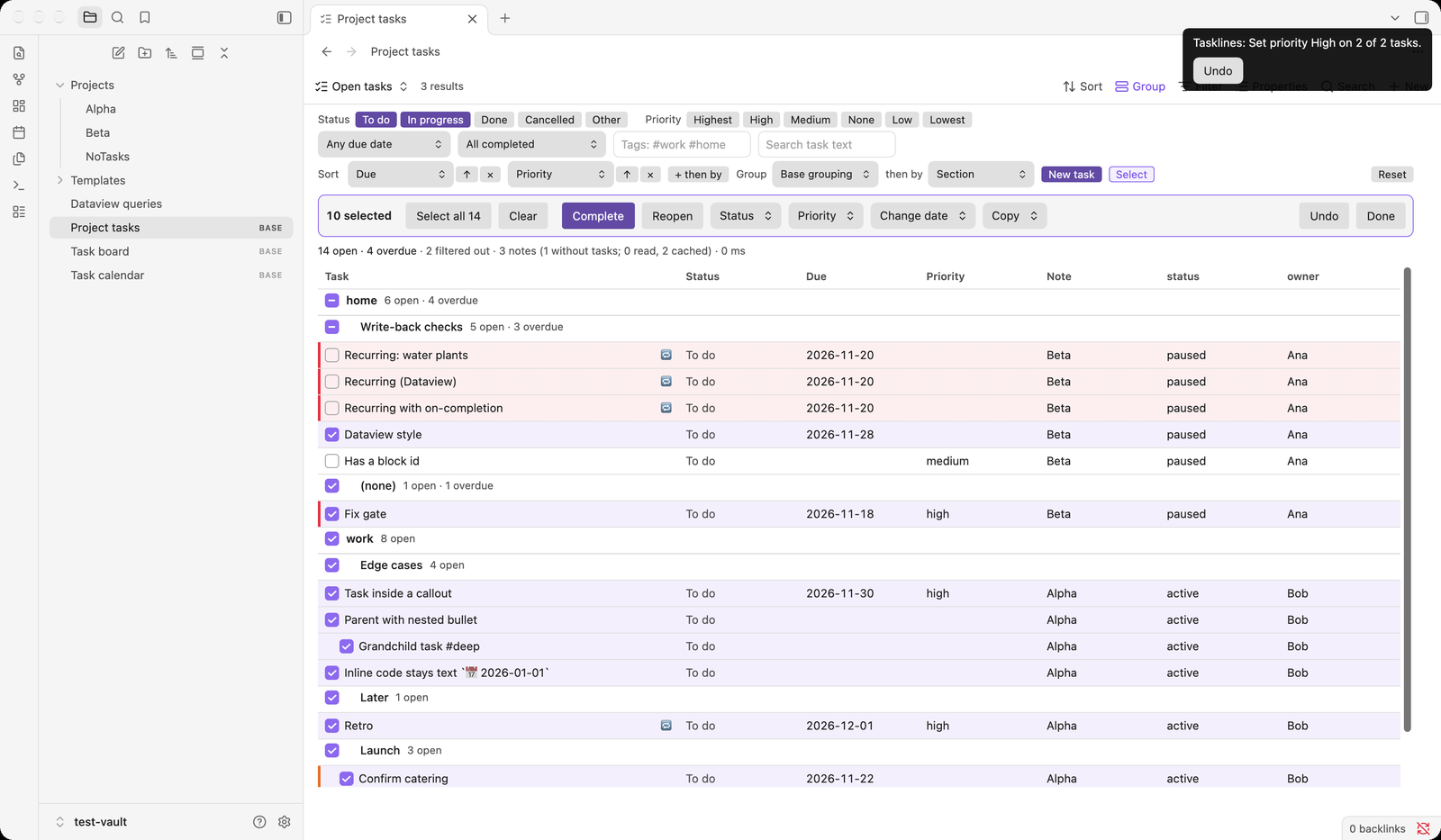
Press Select in the task toolbar of any Tasklines view (list, board or calendar); it stays highlighted while select mode is on, and pressing it again (or Done, or Escape) leaves. Each task's checkbox becomes a selection box, and tapping a task selects it too. To select several at once:
- Shift-click a task to select (or unselect) everything from the last task you ticked to this one, in the order they appear on screen.
- The checkbox at the start of a list group, board column or calendar day selects every task under it, and shows a dash when only some are selected.
- Select all selects every task the view's filters show.
An action bar appears above the tasks and stays there as they scroll. From left to right:
- What's selected: the count, Select all and Clear.
- The actions: Complete, Reopen, Status, Priority, Change date and Copy.
- Change date has Today, Tomorrow, One day later, One week later, Pick a date… and Remove for each of the due, scheduled and start dates (a calendar's own date first). "One day later" moves each task's own date (counting from today once it has passed), and skips tasks with no date.
- Copy puts the selected tasks on the clipboard as a plain list with a link to each task's note (no checkboxes, so pasting it doesn't make copies of the tasks), or as the task lines themselves.
- Undo and Done. Undo is always in the same place, and is greyed out when there's nothing to undo.
On a phone the bar is two rows: the count, Select all, Undo and Done, then Complete, Date and More (Reopen, Status, Priority, Copy and Clear).
Each selected task is still changed on its own, one line at a time, with the same checks as everywhere else. If a line changed since you selected it, that task is refused and the rest go ahead. Tasks with nothing to change are skipped. One notice reports what was done, skipped and refused, and Undo (in the notice and in the action bar) puts every changed line back, each only if it's still what the batch wrote.
Batches of more than 20 tasks ask first. So do batches that complete a recurring task: those go through the Tasks plugin, which adds the next occurrence, so Undo can't take them back.
Completing, editing and adding tasks
Every change follows the same safety rule. Tasklines re-reads the note and checks that the line is still exactly what the view showed. It then writes through Obsidian's atomic Vault.process, changing only that line. If anything differs (you edited the line, it moved, the note was renamed), nothing is written, and a notice with an Open at line button appears.
- Tick a checkbox to complete or reopen a task. A completion date is added in the line's own style:
✅ 2026-11-20or[completion:: 2026-11-20]. Unticking removes it. Cancelling a task adds a cancelled date the same way (❌ 2026-11-20or[cancelled:: 2026-11-20]), and reopening it removes that date. - Click a Status, Due, Scheduled, Start or Priority cell to edit it. Existing fields are changed where they are. New ones go at the end of the line, before any
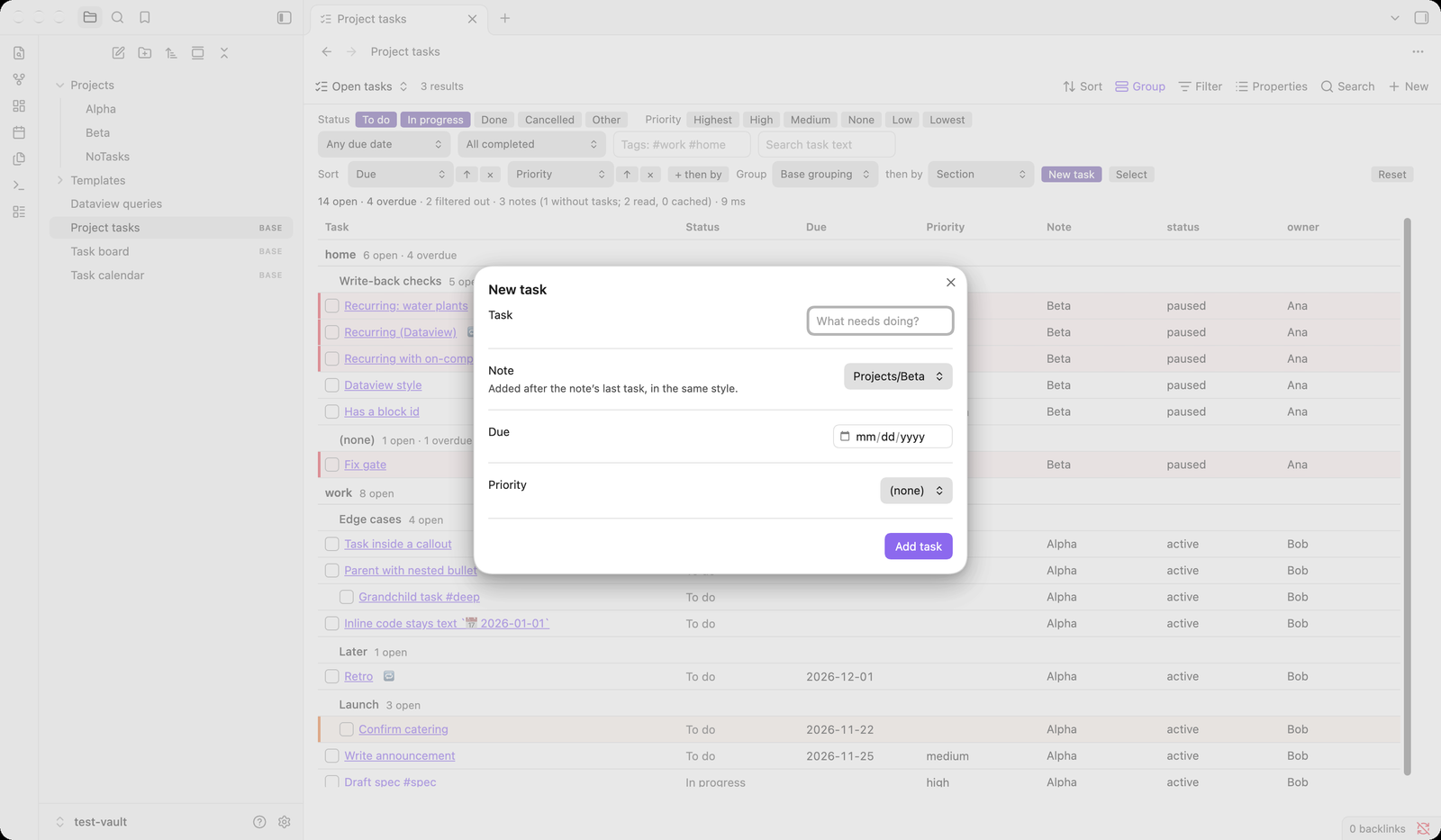
^block-id. Text ininline codeis never touched. - New task adds one line to any note in the base, after the note's last task (and anything nested under it), in the same style and inside the same callout. A note without tasks gets it at the end.
Works with the Tasks plugin
- Completion: when the Tasks plugin (7.2.0 or later) is enabled, Tasklines asks it to complete tasks. Recurrence, done dates and custom status transitions then follow your Tasks settings, and a recurring task gets its next occurrence exactly as it would in the editor.
- Formats: Tasks reads one format at a time (emoji or Dataview). If it's set to the other format than a line uses, Tasklines never writes the mixed result. One-off tasks are completed by Tasklines itself; recurring ones are refused, so the next occurrence is never lost.
- Without Tasks: recurring tasks (marked 🔁) can't be completed from the view; open the note to complete them. Everything else works.
Supported task syntax
Any list item Obsidian recognizes as a task: a -, *, + or numbered list item, with any status character, including inside block quotes and callouts.
| Field | Tasks plugin emoji | Dataview inline field |
|---|---|---|
| Due | 📅 📆 🗓 |
[due:: 2026-01-01] |
| Scheduled | ⏳ ⌛ |
[scheduled:: …] |
| Start | 🛫 |
[start:: …] |
| Created | ➕ |
[created:: …] |
| Done | ✅ |
[completion:: …] |
| Cancelled | ❌ |
[cancelled:: …] |
| Priority | 🔺 ⏫ 🔼 🔽 ⏬ |
[priority:: high] |
| Recurrence | 🔁 every week |
[repeat:: every week] |
| ID / depends on / on completion | 🆔 ⛔ 🏁 |
Also read: #tags, [[wikilinks]], a trailing ^block-id, any other [key:: value] or (key:: value) field, the nearest heading and subtask nesting. Checkboxes in code blocks are ignored.
Moving from Dataview
Put the cursor inside a ```dataview block that starts with TASK and run **Convert Dataview task query under cursor to a base**. Tasklines creates <note> tasks.base next to the note and opens it. Your note isn't changed; embed the base with ![[<note> tasks.base]] when you're happy with it.
| Dataview | Tasklines |
|---|---|
FROM "folder", #tag, -"folder", AND / OR |
Base filters file.inFolder(), file.hasTag() |
WHERE !completed / completed / status = "/" |
Status filter |
due < date(today), = date(today), <= date(today) + dur(7 days) (or 30), due >= date(2026-01-01) |
Due filter: overdue, today, next 7/30 days, date range |
contains(text, "…"), contains(tags, "…") |
Text and tag filters |
project = "Alpha" |
Base filter note.project == "Alpha" |
SORT due ASC, priority DESC |
Up to 3 sort keys |
GROUP BY file.link, status, section |
Group by note, status, section |
Anything else (OR inside WHERE, LIMIT, FLATTEN, link sources, custom functions) is listed at the top of the new file to fix by hand.
Settings
- Completion date on or off, and whether to let the Tasks plugin complete tasks.
- Style for new fields on plain tasks: Tasks emoji (
📅 2026-01-31) or Dataview fields ([due:: 2026-01-31]). Tasks that already have a style keep it. - Task statuses: one per line,
character | name | kind, where kind istodo,in-progress,done,cancelledorother. Space,xand-always mean to do, done and cancelled. - Excluded folders: notes in these folders are never indexed (for example
Templates).
Troubleshooting
- A task disappeared after I ticked it. It's still in your note. The view's Status filter is hiding finished tasks. Turn on Done in the task toolbar to see it.
- A task doesn't show up. It must be a list item with a checkbox (
- [ ] Task), in a note the base's Filters select, and outside your Excluded folders. Check the task toolbar's filters too, or press Reset. - A date isn't recognized. Dates are written
YYYY-MM-DD. A date inside inline code, a link or a%% comment %%is treated as text on purpose. - "That change could not be made safely on this line." The line has repeated or competing fields, such as two priorities. Tasklines refuses rather than guess, so make that change in the note.
- A recurring task won't complete. The next occurrence comes from the Tasks plugin, so it needs Tasks 7.2.0 or later, turned on, with Let the Tasks plugin complete tasks enabled.
- I can't find the Tasklines layout. It needs Obsidian 1.13 or newer with the Bases core plugin turned on.
Still stuck? Report a bug. Run Tasklines: Copy debug info from the command palette and paste the result into the form. It has versions and settings, and no note content.
Privacy
Tasklines works entirely inside your vault. It makes no network requests, collects no data, and changes notes only when you tick, edit or add a task. It touches the clipboard only when you press Copy in select mode, which writes the selected tasks to it, or run Copy debug info, which writes versions and settings with no note content; it never reads the clipboard. Turning the plugin off leaves every note and .base file as plain, valid Markdown and YAML.
Known limits
- Task fields can't appear in Bases' own filter, sort or group menus, because the Bases API only allows note, file and formula properties. That's why the task toolbar exists.
- Task text, tags and recurrence rules can't be edited in the view yet. Open the note for those.
- Rows have a fixed height. Long text is cut off with an ellipsis, and the full text is in the tooltip.
- Sorting and grouping by a note property use the value's displayed text, with numbers in natural order (
9before10). - In files with old Mac line endings (CR only), a change may be refused if Obsidian numbers lines differently. Tasklines never writes to the wrong line.
- With Obsidian set to a language that doesn't use 0-9, such as Arabic, the Tasks plugin can write dates in that language's digits, which neither plugin reads back as dates. Tasklines won't accept those lines: it completes plain tasks itself with 0-9 dates and refuses recurring ones.
- A change to a line with repeated or competing fields (two priorities, or a date written both as an emoji and as a Dataview field) is refused if the line wouldn't read back exactly as asked. Make that change in the note.
Development
Needs Node 22.18 or newer. CI builds, lints and tests on Node 22 and 24.
npm ci
npm run build   # type-check and bundle to main.js
npm test        # parser fixtures, write-back safety and feature tests
npm run lint
npm run bench   # index and query timing on a synthetic vault
- CONTRIBUTING.md: how to report a problem, suggest a feature and get a change accepted.
- AGENTS.md: code layout and the rules every change must keep.
- VERIFY.md: manual checks in Obsidian;
test-vault/has material for each. - RELEASE.md: how to cut a release and the community-submission checklist.
- SPIKE.md: the Bases API findings behind the design.
License
MIT © 2026 Bob Casazza