Tally
 Liam Gour258 downloads
Track daily habits from your notes. Reads and writes plain frontmatter and Dataview inline fields, draws a year heatmap and streaks, and is built to be tapped one-handed on a phone.
- Overview
- Scorecard
- Updates7
A habit tracker for Obsidian that is built to be tapped on a phone and to leave nothing behind.
The one promise
Delete this plugin and every reading you made is still there, in plain markdown, still readable and still queryable.
That is not a feature, it is the constraint the whole thing is designed around:
- Readings live in the note.
Gym: 30 minin frontmatter, orGym:: 30 minin the body. Nothing is written to a sidecar file, a database, or a JSON blob. - Every write goes through
app.fileManager.processFrontMatter, which is Obsidian's own API — so your formatting, comments and property order survive. - Clearing a habit deletes the key rather than writing
0. A missing property means "no entry";0means "I did zero", and those are different facts. - The plugin's own settings hold only the list of names you consider habits. Lose it and you lose a list, not a data point.
What it looks like
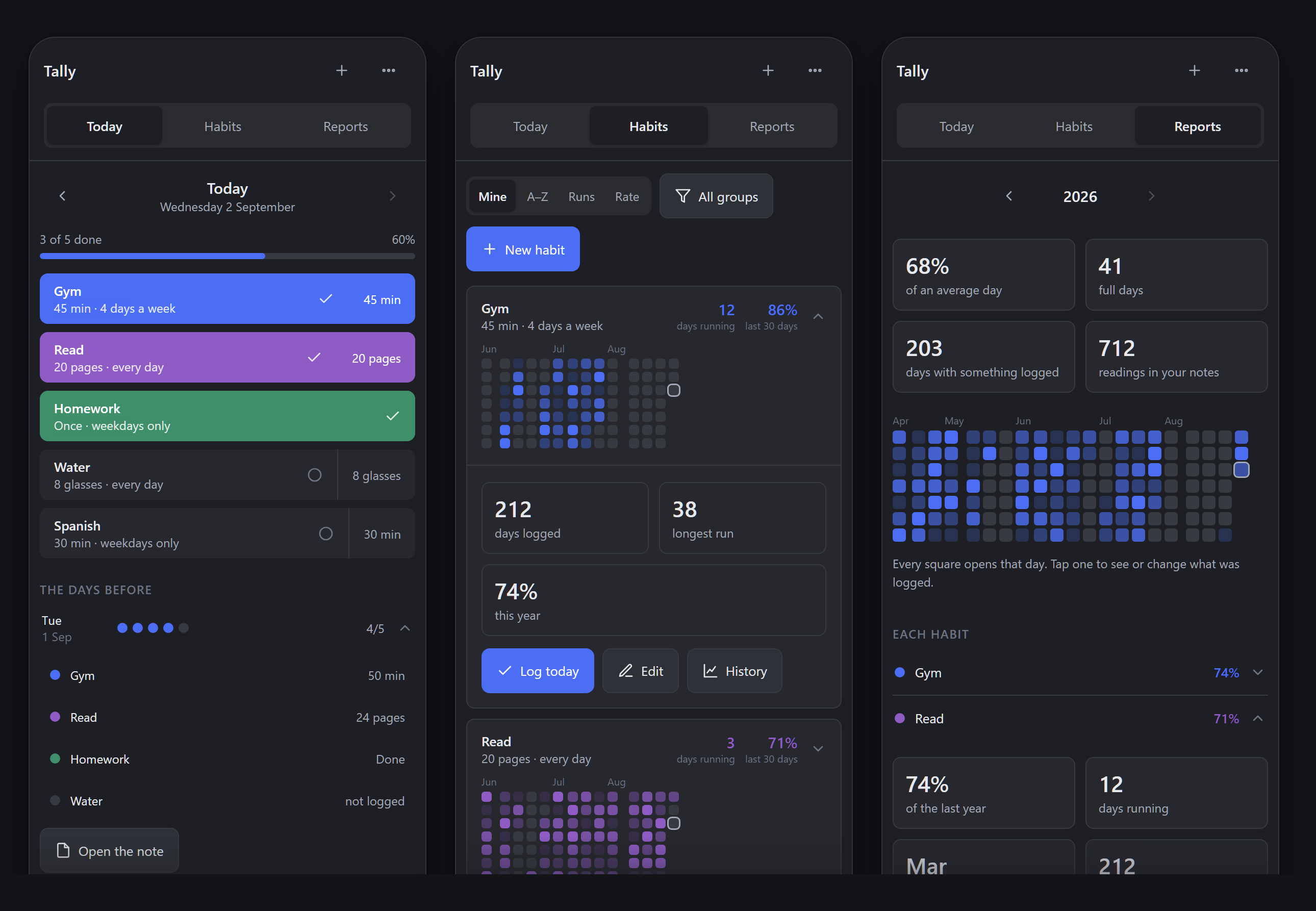
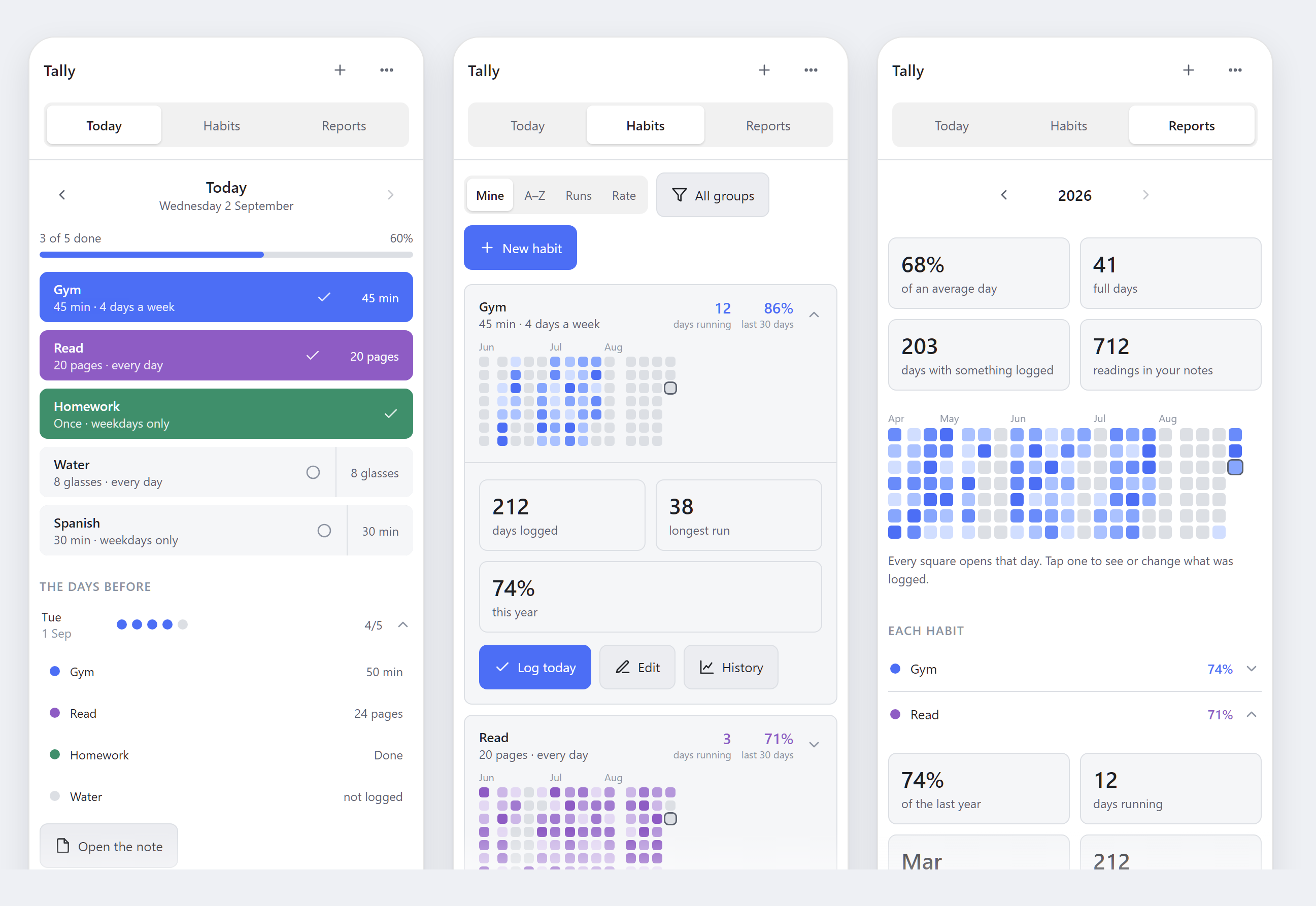
Every colour comes from your theme's own variables, so Tally follows whatever you already run. Here is the same plugin in a light theme:
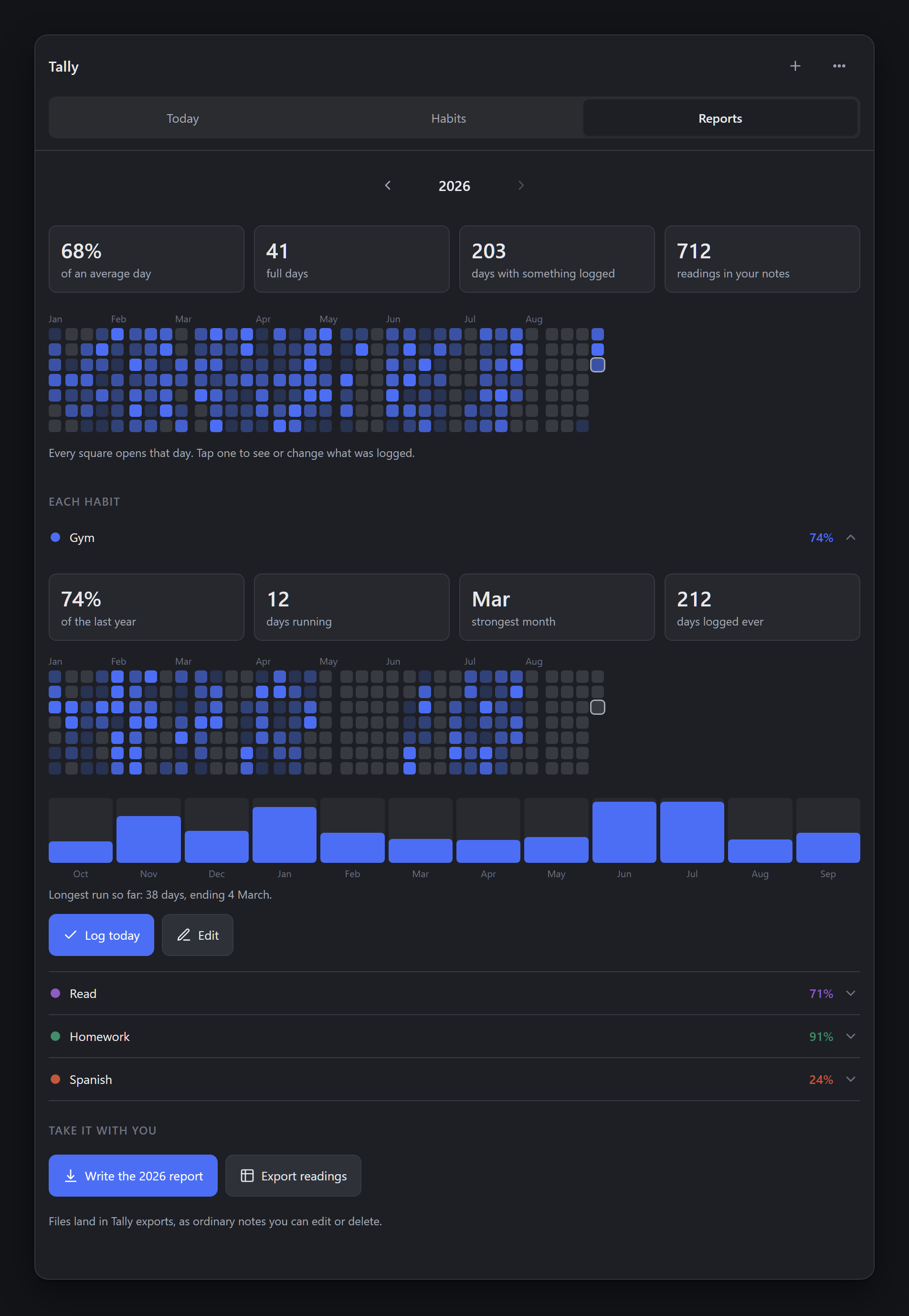
Reports, in a desktop pane. Four figures for the year, a grid where every square opens that day, and a row per habit that expands into its own heatmap, month bars and run history.
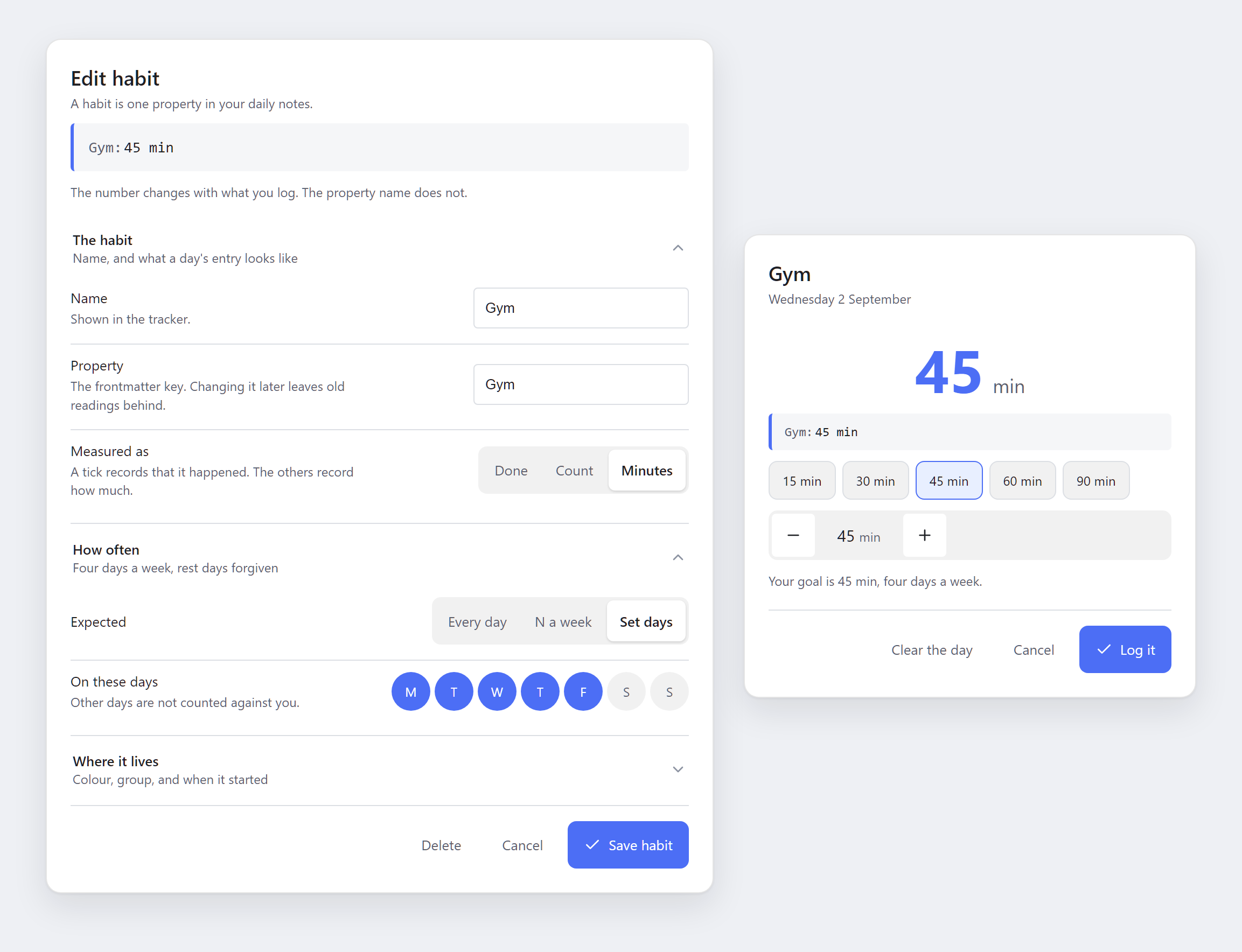
Logging is one tap, and a measured habit asks how much on a sheet sized for a thumb. The editor breaks a habit into four questions and shows the line it will write in your note, live, above them.
Settings are grouped into seven sections with a navigation rail — a chip row on a phone, a sidebar on a desktop, from one DOM.
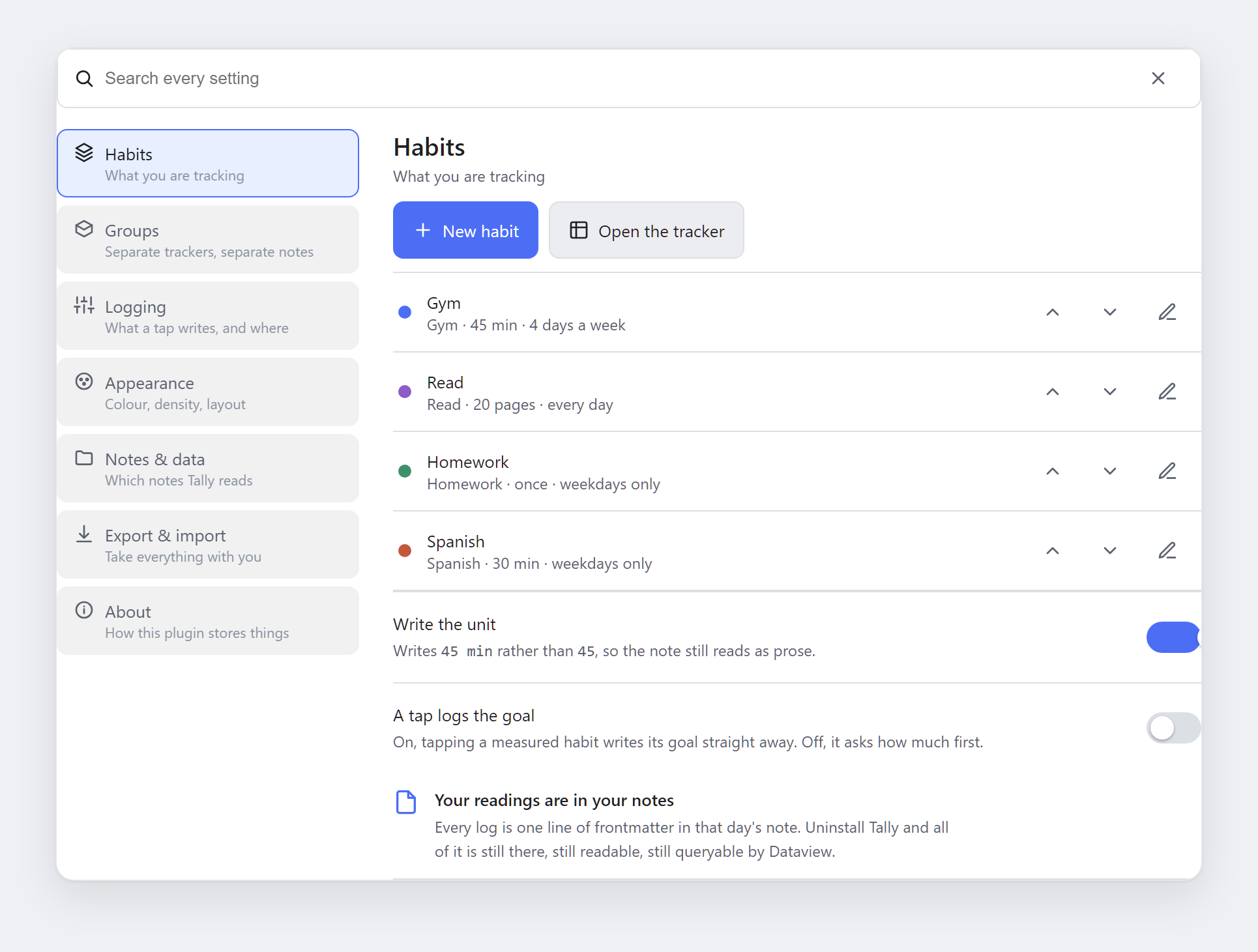
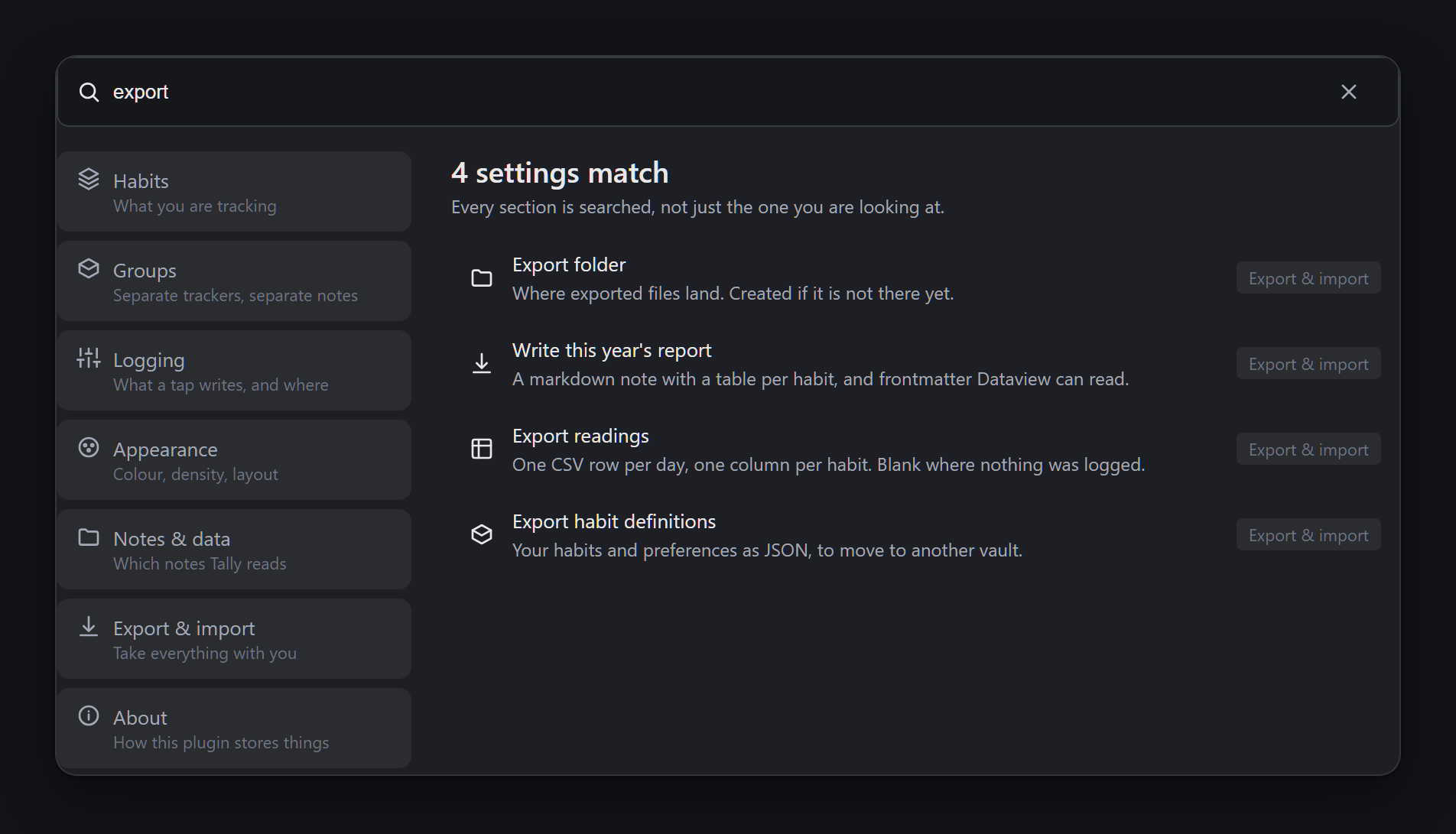
They are also searchable across every section at once, so you do not have to know which section a setting lives in:
Installing and updating
Tally is not in the community store yet. Until it is, there are two ways to run it, and both keep updating.
With BRAT — the route Obsidian recommends for a plugin that has not been published yet. Install BRAT from the community store, run BRAT: Add a beta plugin for testing, and give it:
https://github.com/Virus7976/2026-09-02_school_habit-tracker_v1
BRAT installs the latest release and checks for a newer one from then on, so a new release here becomes an update in your vault.
By hand — download main.js, manifest.json and styles.css from the
latest release
into <your vault>/.obsidian/plugins/tally/, then enable Tally under Community
plugins. Repeat to update.
Once it is approved, install it from Community plugins → Browse → Tally and Obsidian handles updates itself. A vault already running the BRAT copy should remove it there first, so the same plugin is not installed twice.
Either way your readings are untouched — they live in your notes, not in the plugin.
It follows Dataview's rules, without needing Dataview
Field names, inline fields and value typing all behave the way Dataview defines them — implemented natively, so nothing breaks when Dataview is switched off:
| Dataview rule | Here |
|---|---|
Key:: value on its own line |
read |
[Key:: value] and (Key:: value) mid-sentence |
read |
| Inside a list item or a task | read |
| Inside a code span or a fenced block | ignored, as Dataview ignores it |
Canonical names — Lights out by 11 → lights-out-by-11 |
resolved |
A bare number types as a number, 30 min stays a string |
same |
| A repeated key becomes an array | same |
| Frontmatter wins a collision with an inline field | same |
If Dataview is installed and enabled, its API is used directly instead — same
source, same predicates — so a tally block and a dv query cannot disagree.
It agrees with Heatmap Tracker
The data model was read out of Heatmap Tracker's shipped bundle rather than its
README, and kept faithful on purpose: the date comes from the filename, days
merge by summing, values coerce by parseFloat (so 30 min is 30 and yes is
1), buckets scale linearly across the range, and the default and danger
palettes are byte-identical. A day painted by an existing heatmap-tracker
block and the same day painted here are the same colour.
The deliberate differences are three:
- No hard dependency on Dataview. Heatmap Tracker throws without it and the codeblock processor swallows the throw, so the grid renders as nothing, with no explanation. Here, a block that cannot render says why, in the note.
- Body fields count. Heatmap Tracker only reads what Dataview hands it; this reads inline fields itself.
- The default palette follows your theme rather than being fixed GitHub greens. See below.
Both differences are covered by tests/parity.test.ts, which names them, so a
future change that quietly drifts back into agreement is as visible as one that
drifts away.
Colour
The default ramp is built from --habit-accent, which resolves to
var(--interactive-accent) unless you set it. So:
- Change your Obsidian theme and the grid follows it, with no setting to update.
- Or pick an accent in settings — eight presets that hold up on both a light and a dark ground, or any CSS colour — and every grid, chain, control and focus ring changes at once.
- Or set
accent:on one block, or on one habit, to override just that.
Steps are mixed in oklab against the background, not toward white, which is
why one set of numbers reads correctly on both grounds.
Using it
Add habits in Settings → Tally. The tab offers the properties your vault already contains, so you pick rather than type — a typo in a property name is otherwise how you get a silently empty grid.
Habits you want less of
A goal has a direction. At least is the ordinary kind — hit the target and
the day counts. At most inverts it: you set a ceiling, and a day is good
when you stay under it. A ceiling of 0 is the common case, and it means none
at all.
The two kinds are counted differently on purpose, because "did you write something down" and "was the day a success" stop being the same question:
- A day with no reading at all is a good day on an at-most habit. You do not tap anything to record not smoking, so the streak counts clean days forward from the habit's start date and never asks you to log a zero.
- Tapping it records a slip, and the tile shows it as one — an error tint and a warning mark, not the accent fill and tick a completed habit gets. A slip is logged, but it is not an achievement, and it should not look like one.
- The streak is days since the last slip, so it resets to zero the moment you log one, including when you log it today.
Everything else behaves the same. The heatmap still paints, only inverted: a clean day sits at the bottom of the ramp and a bad day climbs it, so a good year still reads as a quiet grid. The year summary keeps readings and good days as separate figures, since on this kind of habit they are close to opposites.
Then, in any note:
```tally
property: Gym
year: 2026
```
Every key is optional. Without one, the block uses your first habit, the current year, your daily-note folder and your accent.
| Key | Meaning |
|---|---|
property |
Field name, or a list of them to sum |
path |
Folder to search. Defaults to your daily-note folder |
tags |
Note must carry one of these |
year |
Defaults to this year |
title |
Defaults to the habit's label |
accent |
Any CSS colour, for this block only |
paletteName |
theme, default or danger |
separateMonths |
Month blocks, or one continuous run |
Commands
| Command | What it does |
|---|---|
| Tally: Open the tracker | Opens the tracker as a tab. Settings can put it in the right sidebar instead |
| Tally: Log today | Opens the tracker on today, ready to tap |
| Tally: Export this year's report | Writes a markdown report into your export folder |
| Tally: Export readings as a spreadsheet | Writes a CSV, one row per day |
| Tally: Create a Base for your habits | Forces a rewrite of the Base. It normally maintains itself |
Exports are written into your vault as ordinary notes, not downloaded, because a download is not something a phone can usefully do with a file.
There is already a Base
You do not run anything to get one. The moment you have a habit, Tally puts a
.base in your vault — next to whatever Bases you already keep, so if
yours live in Templates/Bases alongside Movies.base and Books.base, that
is where Tally.base turns up too. It then follows your habit list: add a
habit and a column appears, without you regenerating anything.
It is Obsidian's own table view over the same notes, with a column per habit and these views —
| View | Rows |
|---|---|
| All days | Every day in your folder, newest first |
| Last 30 days | The recent window |
| One per habit | Days that habit has a reading. A negative habit's view is named "— slips", because that is what its rows are |
| Fullest days | The days you logged the most, sorted by a Logged formula |
| Nothing logged | Days you tracked none of the habits you are building. Habits you are holding down are left out of this one, since an empty reading there is a clean day, not a gap |
It is generated rather than shipped as a file in this repo because a Base names a property literally and the properties are yours. It reads your frontmatter directly and stores nothing of its own, so like everything else here it keeps working with Tally uninstalled.
It will not overwrite your edits
A Base is also a thing you edit — drag a column wider and Obsidian writes the new width into the file, which is where the hand-tuned numbers in every one of Obsidian's own templates came from. A plugin that rewrites the file on every settings change would throw those away silently.
So Tally signs its work. Each file it writes carries a fingerprint of its own contents on the second line, and before rewriting it checks that the fingerprint still matches what is on disk. Matches, and the file is exactly as Tally left it, so it is safe to replace. Does not match, and you have edited it — Tally leaves it alone from then on, and Tally: Create a Base for your habits is how you ask for the generated one back.
The fingerprint lives in the file rather than in the plugin's settings, so this survives a settings reset, a sync to another machine, and an uninstall.
Turn the whole thing off, or move the file, under Settings → Tally → Export & import → A Base.
One limit, stated rather than papered over: a Base refers to a property by
writing its name bare into an expression, so a habit whose property has spaces
in it — Lights out by 11 — cannot appear. None of Obsidian's own thirty Base
templates contains such a property and no escape for one is documented, so
rather than guess at bracket syntax and hand you a file with a silently empty
column, the generator leaves that habit out and names it in a comment at the
top of the file. Rename the property to a single word to include it.
On a phone
- Every control is at least 44px on a phone, the weekday picker included.
- Every animation sits behind
prefers-reduced-motion, and the interface is complete and correct with all of them off. - Icons come from Obsidian's own
setIcon, so no markup is ever assigned as a string. - Layout responds to the pane width through container queries, not the window's, because a sidebar on a wide monitor is still narrow — and a tab on a narrow one is not wide.
On a desktop
The tracker opens as a tab, not in the right sidebar. It has a year grid, a ledger and a card per habit to fit, and the sidebar is the narrowest column in the app. Settings → Tally → Appearance → Opens in puts it back in the sidebar if you would rather have it beside a note; phones always get the tab.
Past about 700px of pane the content caps at 960px and centres, so a wide window reads as a page rather than as a sidebar somebody stretched. That number is where a full year — 53 columns of a 13px cell — stops needing to scroll. Habit cards go two abreast.
Development
npm install
npm test       # 200 assertions, no Obsidian needed
npm run dev    # watch build
npm run check  # tests, production build, release preflight
The tests run the real modules through esbuild against a small Obsidian stub, so they need no vault and no running app:
| Suite | Covers |
|---|---|
tests/parity.test.ts |
65 assertions — Dataview's field rules and Heatmap Tracker's data model |
tests/reports.test.ts |
135 assertions — runs, rates, year summaries, negative habits, the Base and every export format |
Cutting a release
The version is the tag, with no leading v:
git tag -a 0.1.0 -m "0.1.0"
git push origin 0.1.0
.github/workflows/release.yml then runs npm run check and, only if it passes,
builds and publishes a release with main.js, manifest.json and styles.css
attached and notes generated from the commits. Nothing else to click: every BRAT
install picks it up, and the community store can see it.
Obsidian's own template stops at a draft, which is worth knowing about
because a draft is invisible to everyone — the store scanner reports "no
release matches your manifest version" rather than "your release is a draft".
Publishing straight from the tag is safe here because the checks run first; a
build that fails never reaches gh release create.
The tag must equal version in manifest.json: Obsidian serves the release
whose tag matches the manifest at the head of the default branch, and no other.
Bump manifest.json, package.json and versions.json together — preflight
fails the release if they disagree.
Submission to the community store is done at community.obsidian.md by linking your GitHub account, not by opening a pull request.
scripts/preflight.mjs checks the rules that fail silently when publishing to
the community store — version agreement across manifest.json, package.json
and versions.json, tag format, description length, no Node builtins in the
bundle, no innerHTML, no credential-shaped strings.
Licence
MIT.