Table CSV Encoding
 theluckystrike1 downloads
Export Markdown tables to UTF-8 CSV files with a preview.
- Overview
- Scorecard
- Updates1
Save a Markdown pipe table as a UTF-8 CSV file. Choose the table, delimiter, header row, and byte order mark before you write the file. Read the preview and edit the output name. Your source note stays as written.
This plugin helps when a table must leave a note as a file. It keeps Vietnamese letters, Chinese text, and emoji as Unicode text. The optional UTF-8 byte order mark, or BOM, gives a CSV reader an explicit encoding signal. The plugin does not choose the import settings of another application.
The single-table export is free. Pro adds a reviewed folder batch. The free command has no export quota and needs no account.
Features
Preview a table before export
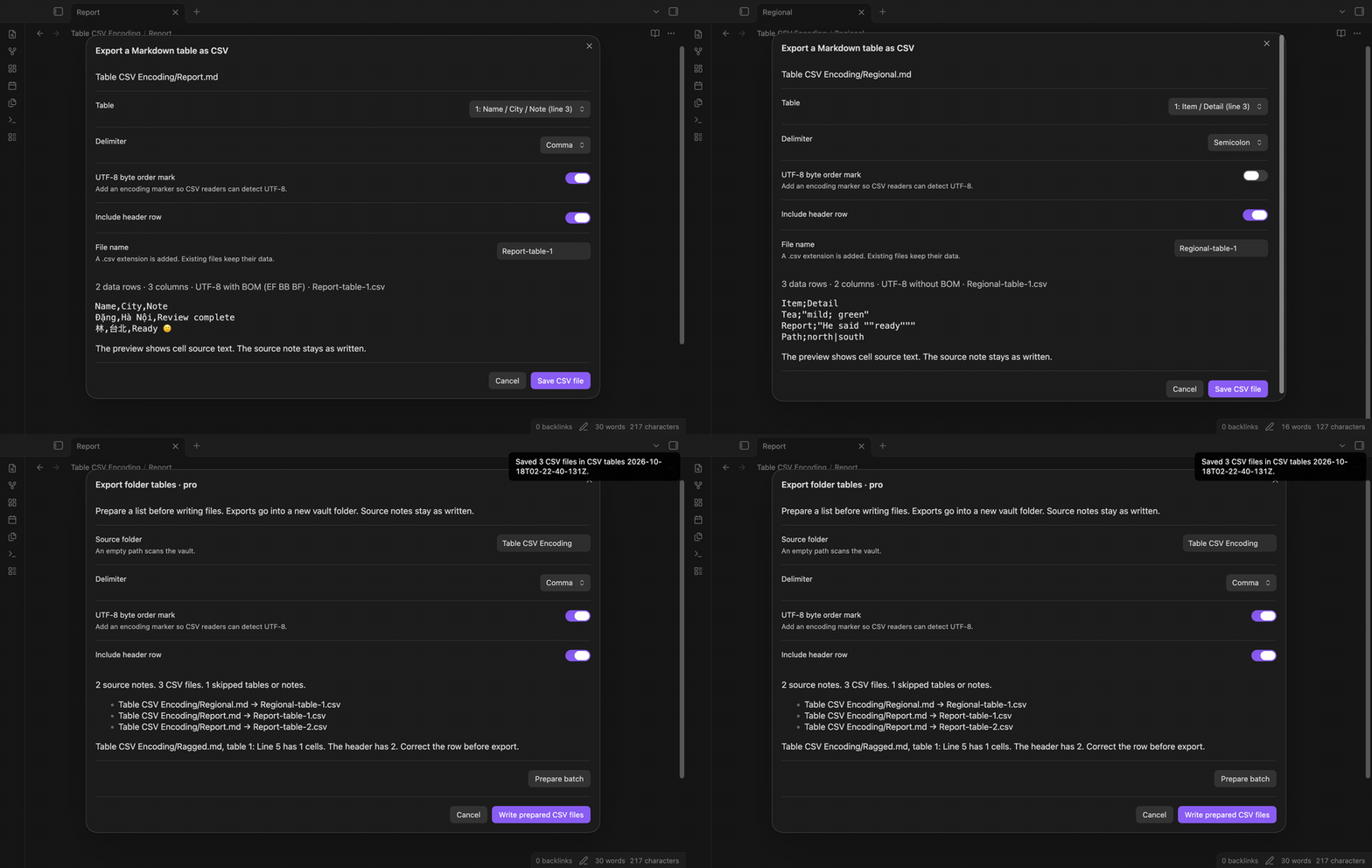
Run Export a Markdown table as CSV from an open editor. The dialog finds pipe tables in the note. It selects the table under the cursor when possible. Use the table list to choose another one. The list shows header names and the source line number.
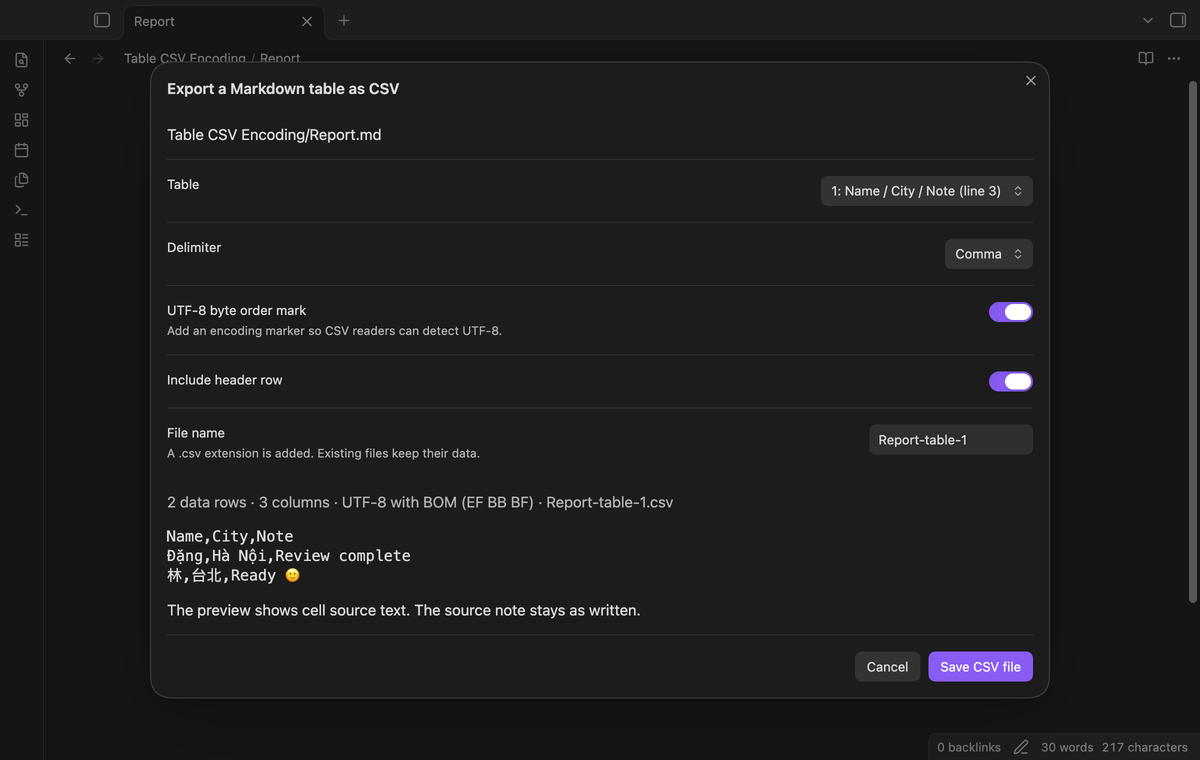
The preview shows CSV text from the chosen table. It shows the data row count and column count. The default file name uses the note name and table number. You can replace that name before saving. Changing the table resets the suggested file name for that table.
The BOM option starts a saved file with the bytes EF BB BF. Turning it off writes plain UTF-8 without that prefix. The preview hides the invisible prefix and shows the selected mode in its summary. These two options change the encoding marker, not the source cell text.
Choose a regional delimiter
Choose comma, semicolon, or tab as the field separator. The encoder quotes a cell when it contains the chosen separator, a double quote, or a line break. It doubles a quote inside a quoted field. It uses CRLF between records.
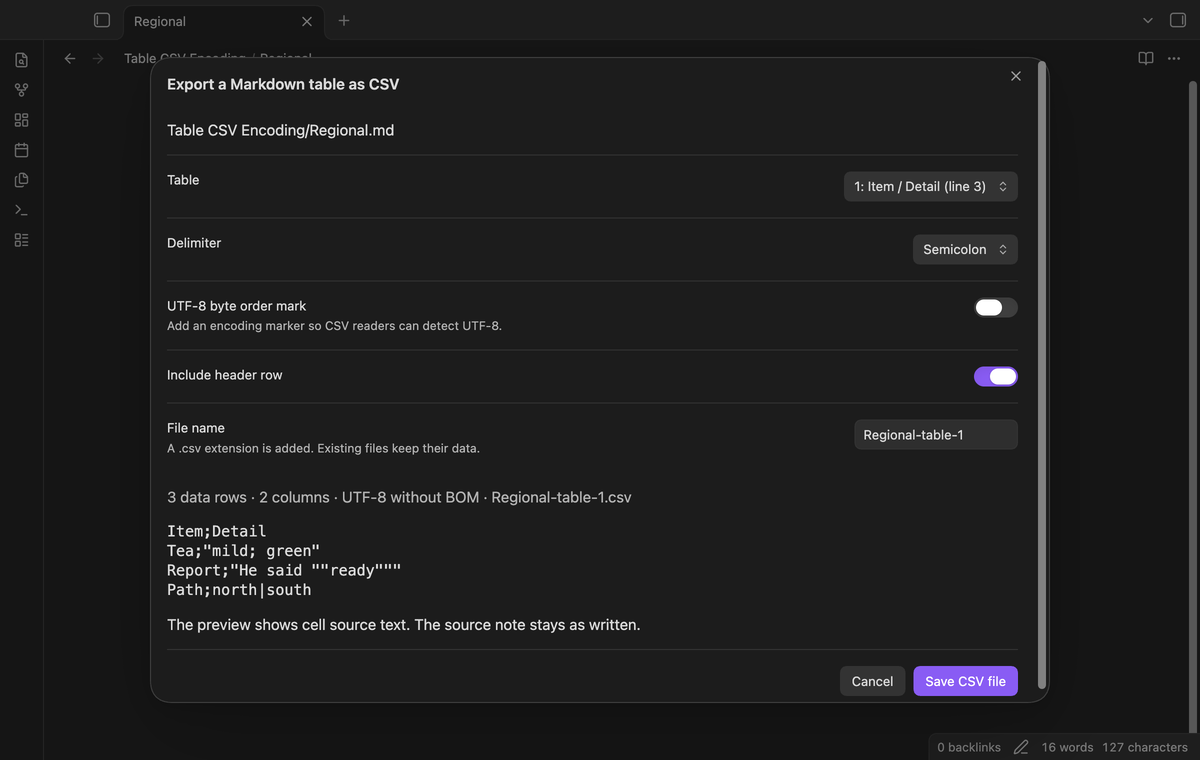
You can omit the header record with Include header row. This changes only the output. The original Markdown header and separator line stay in the note. The separator line does not become a CSV record.
The export copies cell source text. It keeps Markdown markers such as bold text, links, and inline code as text. An escaped table pipe becomes a literal pipe in the CSV cell. The plugin does not render links into labels or turn formulas into calculated values. A value that starts with a formula marker keeps that marker.
Check row shape before writing
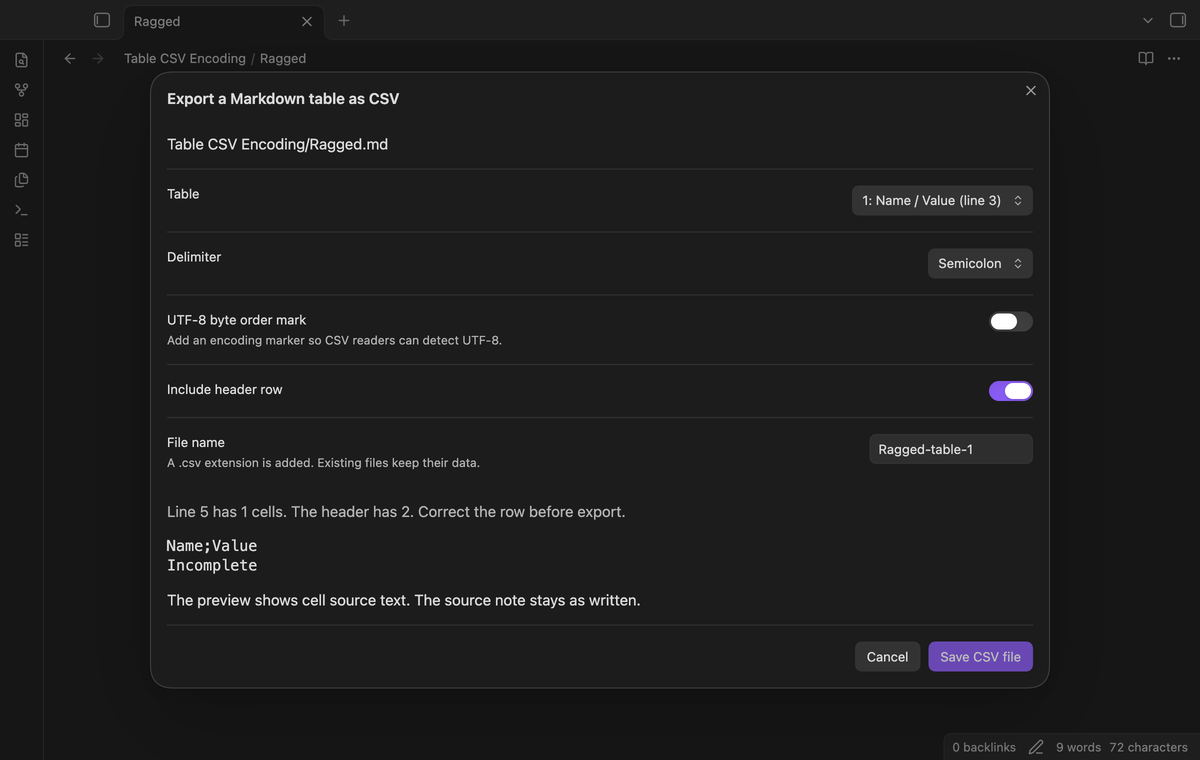
A data row must have the same number of cells as its header. A short or wide row gives a source line number and blocks that table export. Correct the row in the note, then open a new preview. The plugin does not drop extra cells or guess missing values.
Tables inside fenced code and frontmatter are outside the scan. The scanner reads Markdown pipe tables from the editor, including tables in callouts and block quotes. Quote markers stay in the note and do not enter the CSV. It does not read a rendered Dataview result, a Bases view, an HTML table, or a spreadsheet file. Use a dedicated export tool for those sources.
A source change after the preview opens stops the export. Close the dialog and scan again. This keeps a saved file consistent with the text you reviewed. Saving a CSV does not create an editor change, because it writes a separate file.
Export a folder batch with Pro
Pro reads a source folder and its subfolders. Prepare batch lists the planned CSV files before a write. Each valid table gets a separate file. The list also names malformed tables and notes above the scan limit. Those entries do not produce an output file.
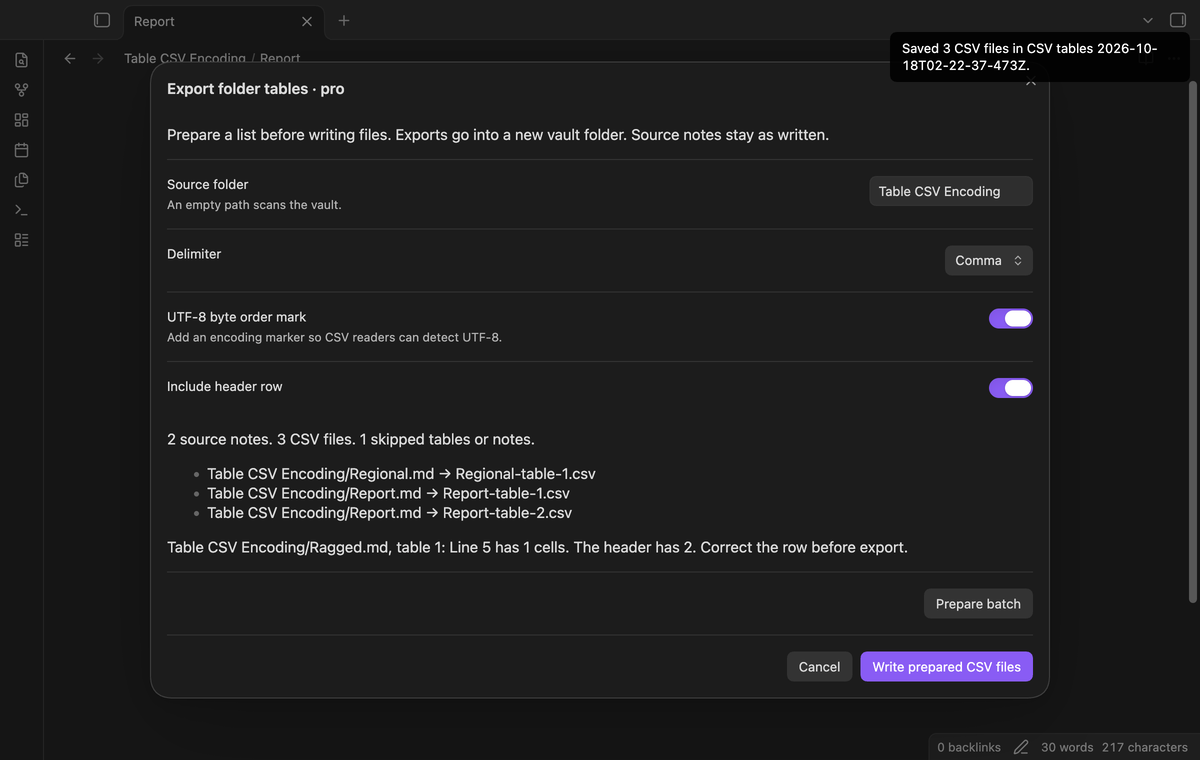
Select Write prepared CSV files after you inspect the list. The plugin checks the source snapshots again. A changed source stops the batch before folder creation. A valid batch writes into a new timestamped folder at the vault root. Relative source paths help distinguish notes with the same name. A numbered suffix resolves another filename collision.
The batch leaves source notes intact. It does not overwrite files from an earlier batch. If a write fails after some files finish, the notice gives the output folder and completed count. Inspect that folder before you repeat the operation. Closing a prepared dialog before writing creates no output files.
Install
Requires Obsidian 1.13.4 or later. The settings tab uses the public settings API from that release series.
For a manual install, obtain main.js, manifest.json, and styles.css from the plugin release. Create .obsidian/plugins/table-csv-encoding in the vault. Copy those files into that folder. Reload Obsidian and enable Table CSV Encoding under Settings → Community plugins.
If the plugin appears in the community directory, search for its name there. Select Install, then Enable. Build the release files before using a source checkout as a manual installation.
Usage
- Open a note with a Markdown pipe table.
- Put the cursor inside the table you want.
- Open the command palette.
- Run Table CSV Encoding: Export a Markdown table as CSV.
- Choose the table and CSV format.
- Read the preview and output name.
- Select Save CSV file.
A saved file appears in the source note folder by default. An existing file keeps its data. A later export with the same name gets a numbered suffix. Use Cancel to close an export preview without writing a file.
For Pro, run Export folder tables (pro). Enter a source folder path. An empty path scans the vault. Prepare the list before writing the batch. A batch keeps at most 8,388,608 source characters in memory. Use a smaller folder when that limit stops preparation.
The scanner accepts notes up to 2,097,152 characters. Folder scans skip files above 8 MiB before reading them. The text preview shows up to 30,000 characters. The output uses the complete selected table.
Settings
Output folder selects an existing vault folder for free exports. An empty value uses the source note folder. This setting does not change the Pro batch destination. Batch outputs use their own new folder at the vault root.
Folder for Pro batches stores the initial source path for the batch dialog. Use a path relative to the vault root. The plugin refuses dot segments such as ... Filename stems keep Unicode characters and stop at 180 UTF-8 bytes. Unsupported filename characters become _ characters.
FAQ
Does the BOM guarantee a correct spreadsheet import?
The plugin writes the selected bytes. The receiving application still controls its delimiter and encoding choices. Select UTF-8 and the same delimiter there when an import dialog asks for them.
Does export change a note?
The plugin reads the source and writes a new CSV file. It does not replace table text or move the note. Remove an unwanted output file yourself.
Payment, account and network
The core features are free. Pro features need a GitHub Sponsors sponsorship of theluckystrike: $5 a month or more, or $15 once. A total payment of $15 meets the payment requirement for Pro without further payment. Sign-in and the checks below still apply. Your notes stay readable and editable with or without Pro.
GitHub handles the payment. Sponsor at https://github.com/sponsors/theluckystrike. You need no account for the free features. Pro needs the GitHub account that sponsors.
Until you select "Sign in with GitHub" in the settings, Table CSV Encoding makes no network requests. Sign in uses the GitHub device flow. Table CSV Encoding sends its public client ID and the scope read:user to https://github.com/login/device/code and shows you a code. While you enter the code at https://github.com/login/device, it asks https://github.com/login/oauth/access_token every few seconds to check the sign-in status. The scope permits profile reads only. GitHub needs this access to show the sponsorship tier. It grants no repository scope and no write access.
After sign in, Table CSV Encoding sends one query to https://api.github.com/graphql. It checks if the signed-in account sponsors theluckystrike. It asks for the tier and the total payment to theluckystrike. The plugin reuses a successful check for 7 days. Failed checks can retry after 6 hours. Select Refresh to request an earlier check. It sends no note content, file names or other vault data, and it has no telemetry.
After a successful check, Pro can work offline for up to 14 days. Sign out or a negative sponsorship answer turns Pro off. The plugin stores the GitHub token through the secret storage API of Obsidian. It does not put the token in its saved settings or its local sponsorship data. The local storage of this device keeps your GitHub login, the tier and the time of the last check. Sign out clears the token. You can also revoke the access in your GitHub settings, under Applications.
Support
Use the issue tracker for a reproducible problem. Include the Obsidian version, plugin version, chosen delimiter, and a small sample table. Replace private cell values before sharing them. State the expected file text and the result you saw. The project uses the MIT license.