
- Overview
- Scorecard
- Updates46
Obsidian plugin for time tracking
This plugin provides a simple and easy way to track time spent on various tasks. After tracking your time, you can export the tracked time as a Markdown Table, CSV, JSON, or PDF.
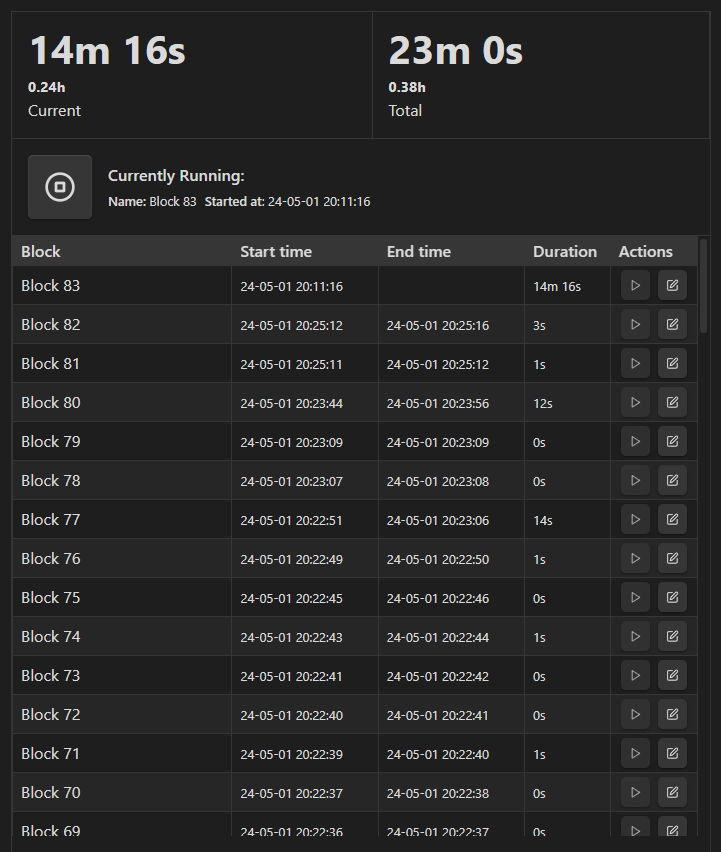
This plugin provides a command for inserting time trackers: Timekeep: Insert Tracker. Alternatively, a timekeep can be created by creating a codeblock like the following:
```timekeep

```
✏️ Editing & Deleting
If you accidentally gave a block an incorrect name or started the timer late, you can use the editing feature to update the stored data or delete the entry.
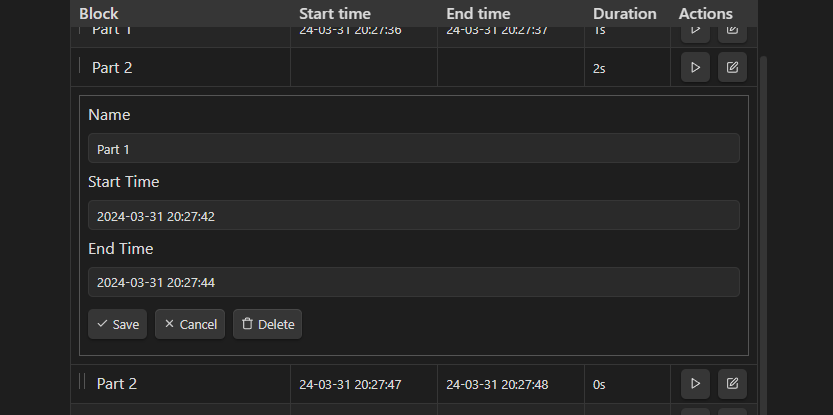
👀 How it's stored
This plugin is heavily inspired by ObsidianSimpleTimeTracker (semi backwards compatible; some simple-time-tracker blocks can be renamed to timekeep), the data for time tracking is stored as JSON within the timekeep code block.
The time block start and stop times are stored as timestamps, making it possible for you to start your time tracker, then close Obsidian and have the tracking continue when you open it again.
Below is an example of how this is stored:
{
    "entries": [
        {
            "name": "Example Time Block",
            "startTime": "2024-03-17T06:32:36.118Z",
            "endTime": "2024-03-17T06:32:37.012Z",
            "subEntries": null
        }
    ]
}
📝 Export Formats
Below are the various formats that timekeeping data can be exported to:
Markdown Table
| Block | Start time | End time | Duration |
|---|---|---|---|
| Example Time Block | 24-03-17 19:32:36 | 24-03-17 19:32:37 | 0s |
| Total | 0s |
| Block              | Start time        | End time          | Duration |
| ------------------ | ----------------- | ----------------- | -------- |
| Example Time Block | 24-03-17 19:32:36 | 24-03-17 19:32:37 | 0s       |
| **Total**          |                   |                   | **0s**   |
CSV
Block,Start time,End time,Duration
Example Time Block,24-03-17 19:32:36,24-03-17 19:32:37,0s
[!NOTE] In the plugin settings, you can choose to omit the first line of the CSV containing the column names:
JSON
The JSON export format simply copies the JSON stored inside the timekeep:
{"entries":[{"name":"Example Time Block","startTime":"2024-03-17T06:32:36.118Z","endTime":"2024-03-17T06:32:37.012Z","subEntries":null}]}
Generated PDFs
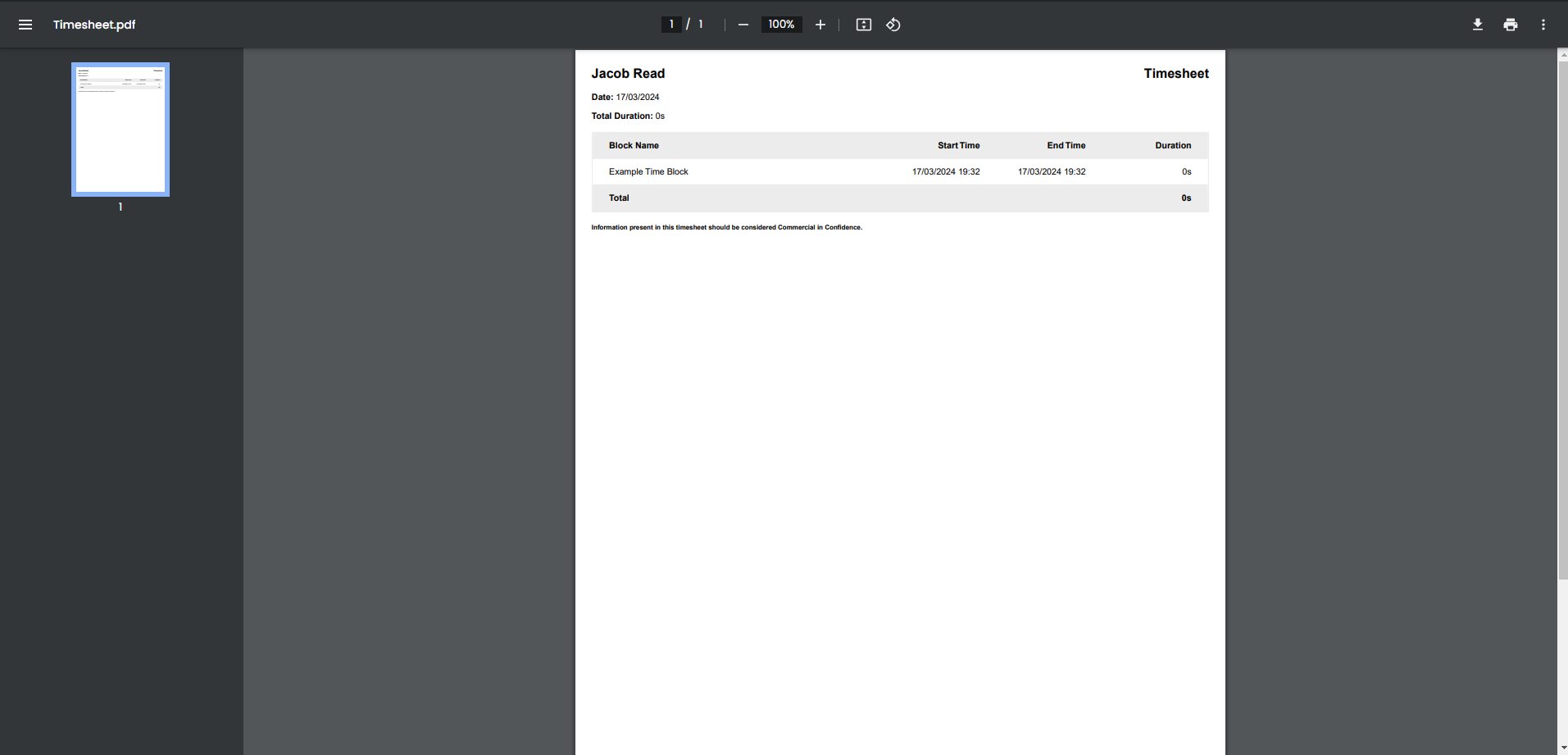
Below is an example of a PDF generated by Timekeep. These PDFs are generated using pdfmake locally.
🔣 Using with templates
If you would like to create a timekeep through a template plugin, you can do so by using the JSON for a timekeep directly.
If you have frequently used entry names you can define them in your template by specifying null for both the startTime and endTime:
{"entries":[{"name":"Example Time Block","startTime":"2024-03-17T06:32:36.118Z","endTime":"2024-03-17T06:32:37.012Z","subEntries":null}]}
This will create an entry that is not yet started; you can start it by clicking the play button without having to type out the name.
👀 Status Bar Icons
Timekeep will show running timers in the Obsidian status bar, allowing you to see whats happening at a glance, you can then quickly open the file or stop the timer right from the status bar.
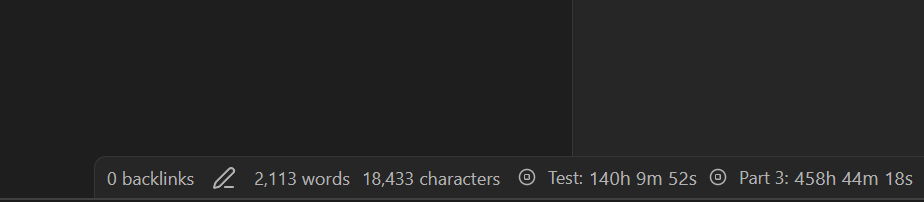
*Status bar icons are only available if the registry setting is enabled as well as the status bar setting
🦾 API
Timekeep exposes a JS API which can be used by other scripts such as with Dataview
You can access the plugin API through:
// Get the timekeep plugin API
const timekeepPlugin = this.app.plugins.plugins.timekeep.api;

// Extract the timekeeps from the file text
const timekeeps = timekeepPlugin.parser.extractTimekeepCodeblocks(text);
Below is a Dataview example for showing the total elapsed time for all timekeeps in the current file:
```dataviewjs
// Get the currently open file
const activeFile = this.app.workspace.getActiveFile();
if(!activeFile || !activeFile.name) return;

// Read the file
const text = await this.app.vault.read(activeFile);

// Get the timekeep plugin API
const timekeepPlugin = this.app.plugins.plugins.timekeep.api;

// Extract the timekeeps from the file text
const timekeeps = timekeepPlugin.parser.extractTimekeepCodeblocks(text);

// Current time is required for unfinished entries
const currentTime = moment();

let totalRunningDuration = 0;

for (const timekeep of timekeeps) {
  totalRunningDuration += timekeepPlugin.queries.getTotalDuration(timekeep.entries, currentTime);
}

// Total running duration is in milliseconds
dv.span(totalRunningDuration);
```
Known issues
Jumpy rendering behavior on modification
If your lists become longer you will likely see some jumpy/flickery behavior with timekeep when making modifications (add/save/delete/collapse/expand), this is a limitation of how Obsidian re-renders the app.
Because Obsidian re-creates the entire app when the code block changes (Since the timekeep data is stored in the codeblock, modifications cause this to happen. Thus the DOM is thrown away causing a full re-render). This issue also means local state will all be lost on modification (This is why the collapsed state must be persisted to the timekeep.)
I do not believe this can be fixed but PRs are welcome if you are aware of a way to fix this.
📄 License
This project is licensed under the MIT License