Search...Search plugins and themes...
⌘K
Sign in
  • Get started
  • Download
  • Pricing
  • Enterprise
  • Account
  • Obsidian
  • Overview
  • Sync
  • Publish
  • Canvas
  • Mobile
  • Web Clipper
  • CLI
  • Learn
  • Help
  • Developers
  • Changelog
  • About
  • Roadmap
  • Blog
  • Resources
  • System status
  • License overview
  • Terms of service
  • Privacy policy
  • Security
  • Community
  • Plugins
  • Themes
  • Discord
  • Forum / 中文论坛
  • Merch store
  • Brand guidelines
Follow us
DiscordTwitterBlueskyThreadsMastodonYouTubeGitHub
© 2026 Obsidian

Tab Numbers

Jordan DuabeJordan Duabe55 downloads

Shows numbered badges (1-8) on tabs when holding Ctrl/Cmd for quick keyboard navigation.

Add to Obsidian
Tab Numbers screenshot
  • Overview
  • Scorecard
  • Updates4

Obsidian Tab Numbers logo

Displays numbered badges (1-8) on Obsidian tabs when Ctrl or Cmd is held. This plugin complements the default Obsidian keyboard shortcuts for switching tabs (Ctrl/Cmd 1-8, 9 selects the last tab) by adding tab number 'hints'. When working with split panes, each split will have its own tab sequence and tab numbers will only be displayed on the currently active (split) pane.

Screenshots
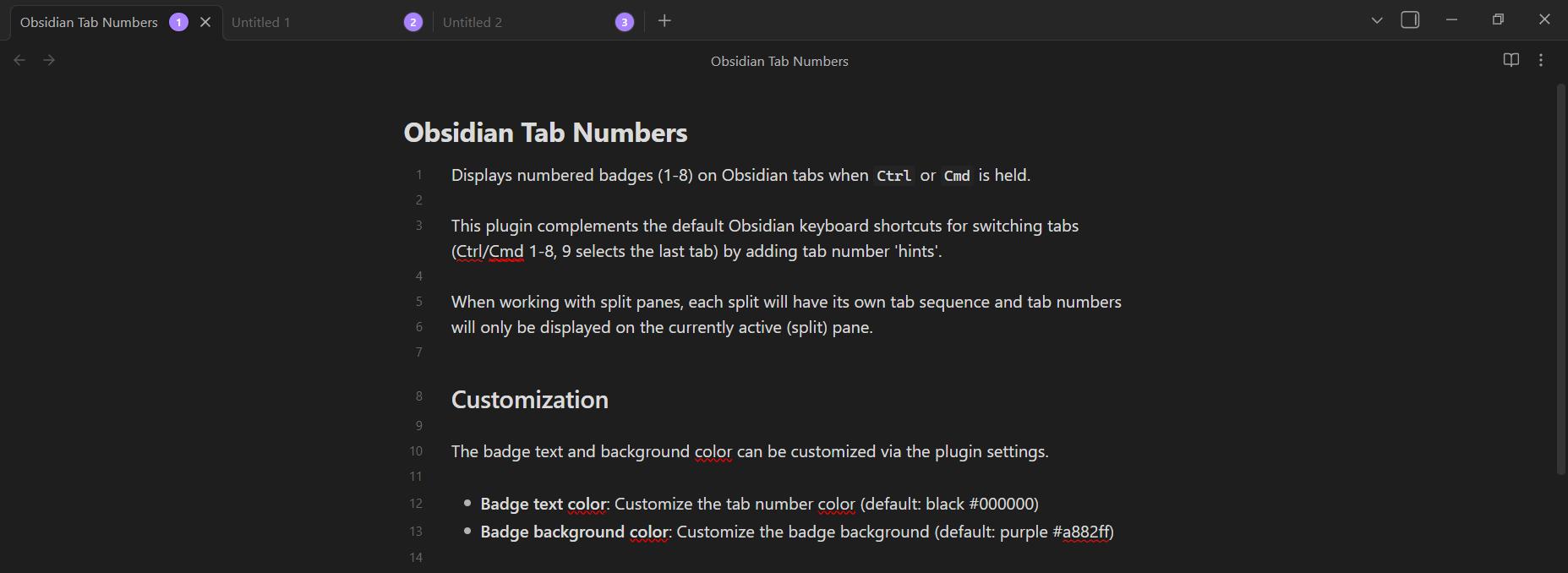
Obsidian window with 3 open tabs showing tab numbers

Customization

The badge text and background color can be customized via the plugin settings.

  • Badge text color: Customize the tab number color (default: black #000000)
  • Badge background color: Customize the badge background (default: purple #a882ff)

Installation

Manual installation is currently the only supported method.

  1. Download the plugin files from the latest release on GitHub

    • Download the main.js, manifest.json, and styles.css files.
  2. Copy files to your vault's plugin directory:

    • Copy main.js, manifest.json, and styles.css to:
      /path/to/your/vault/.obsidian/plugins/tab-numbers/
      
  3. Reload Obsidian:

    • Open Developer Console: Ctrl/Cmd + Shift + I
    • Run: app.commands.executeCommandById('app:reload')
    • Or restart Obsidian
  4. Enable the plugin:

    • Go to Settings → Community plugins
    • Find "Tab Numbers" and enable the plugin

Development

Setup

# Install dependencies
pnpm install

# Start development build (watch mode)
pnpm run dev

# Production build
pnpm run build

Testing

To test the plugin during development:

  1. Build the plugin:

    pnpm run build
    
  2. Copy files to your test vault:

    • Copy main.js, manifest.json, and styles.css to:
      /path/to/your/vault/.obsidian/plugins/tab-numbers/
      
  3. Reload Obsidian:

    • Open Developer Console: Ctrl/Cmd + Shift + I
    • Run: app.commands.executeCommandById('app:reload')
    • Or restart Obsidian
  4. Enable the plugin:

    • Go to Settings → Community plugins
    • Find "Tab Numbers" and enable the plugin
99%
HealthExcellent
ReviewPassed
About
Display numbered badges (1–8) on tabs while holding Ctrl/Cmd to reveal tab-switch shortcuts. Limit numbers to the active split pane and customize badge text and background colors.
NavigationHotkeysInterface
Details
Current version
0.1.3
Last updated
17 hours ago
Created
6 months ago
Updates
4 releases
Downloads
55
Compatible with
Obsidian 1.10.3+
Platforms
Desktop, Mobile
License
MIT
Report bugRequest featureReport plugin
Author
Jordan DuabeJordan Duabej4ckofalltrades
jduabe.dev
GitHubj4ckofalltrades
infosec.exchange
  1. Community
  2. Plugins
  3. Navigation
  4. Tab Numbers

Related plugins

Hover Editor

Transform the Page Preview hover popover into a fully working editor instance.

Tray

Run Obsidian from the system tray for customisable window management and global quick notes.

Leader Hotkeys

Add leader hotkey support to any command (like tmux or vim).

Mousewheel Image zoom

Increase or decrease the size of an image by scrolling.

Floating Search

Search text by using Obsidian default search view.

Graph Banner

Display a local graph view to the note header

Dragger

Drag and drop any block (paragraphs, headings, lists, etc.) to rearrange content like Notion.

Insert Heading Link

Add a command to create a link to a heading.

Disable Tabs

Disables having more than one tab open at a time.

Image Toolkit

Click images to preview with zoom, move, rotate, flip, invert, and copy.