Syncthing Manager
 Gustavo Carreiro7k downloads
Control panel for Syncthing. Monitor status, resolve conflicts, and force synchronization on Desktop and Mobile.
- Overview
- Scorecard
- Updates23

Control, monitor, and visualize your Syncthing synchronization directly inside Obsidian.
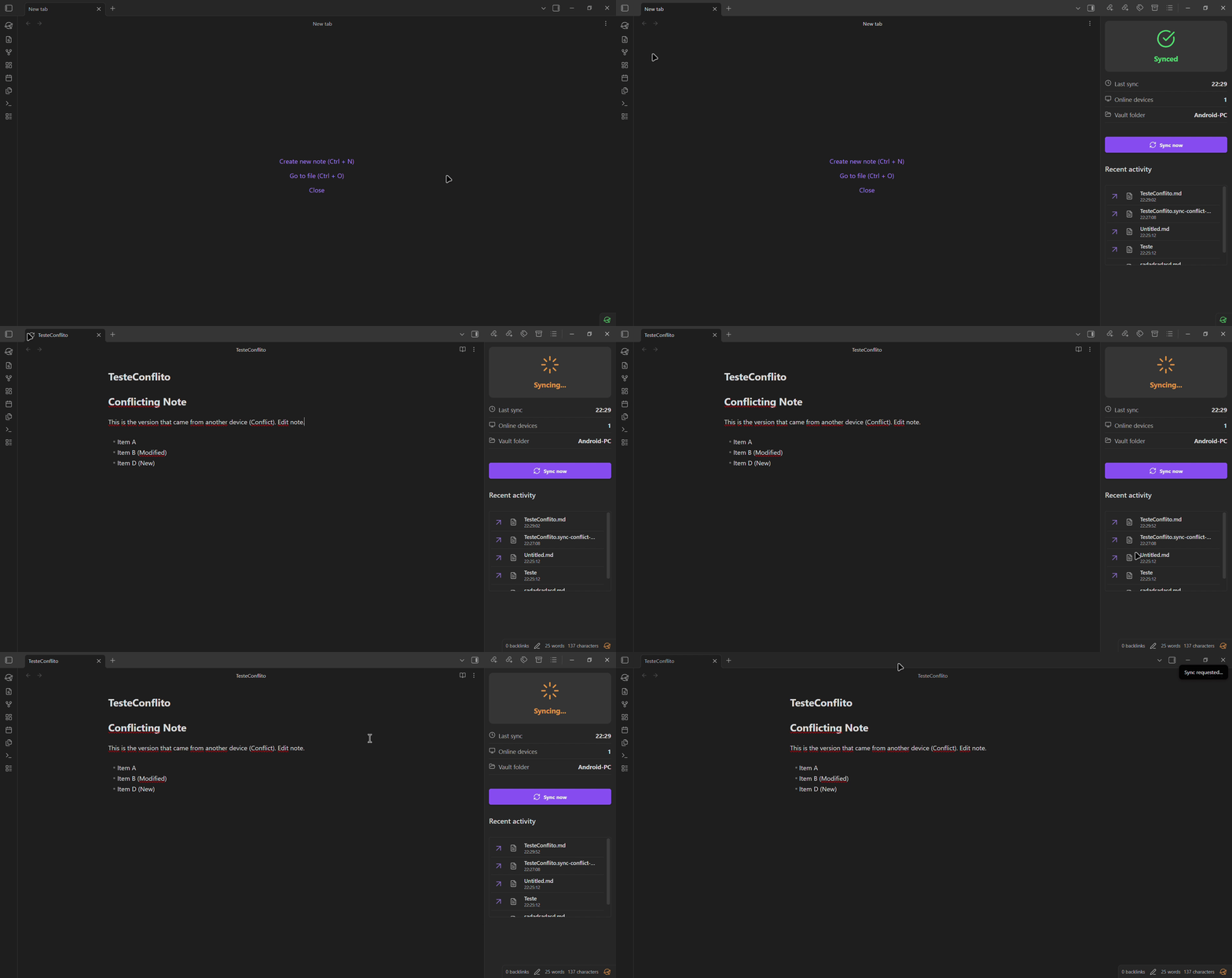
This plugin acts as a bridge to your local Syncthing API, providing real-time file status, a powerful conflict resolver, and tools to keep your vault healthy across Desktop and Mobile devices.
📚 Documentation
For full usage guides, installation instructions, and troubleshooting, visit the Official Documentation.
✨ What's New (v1.2 - v1.4)
Syncthing Manager is constantly evolving. Here are the latest highlights:
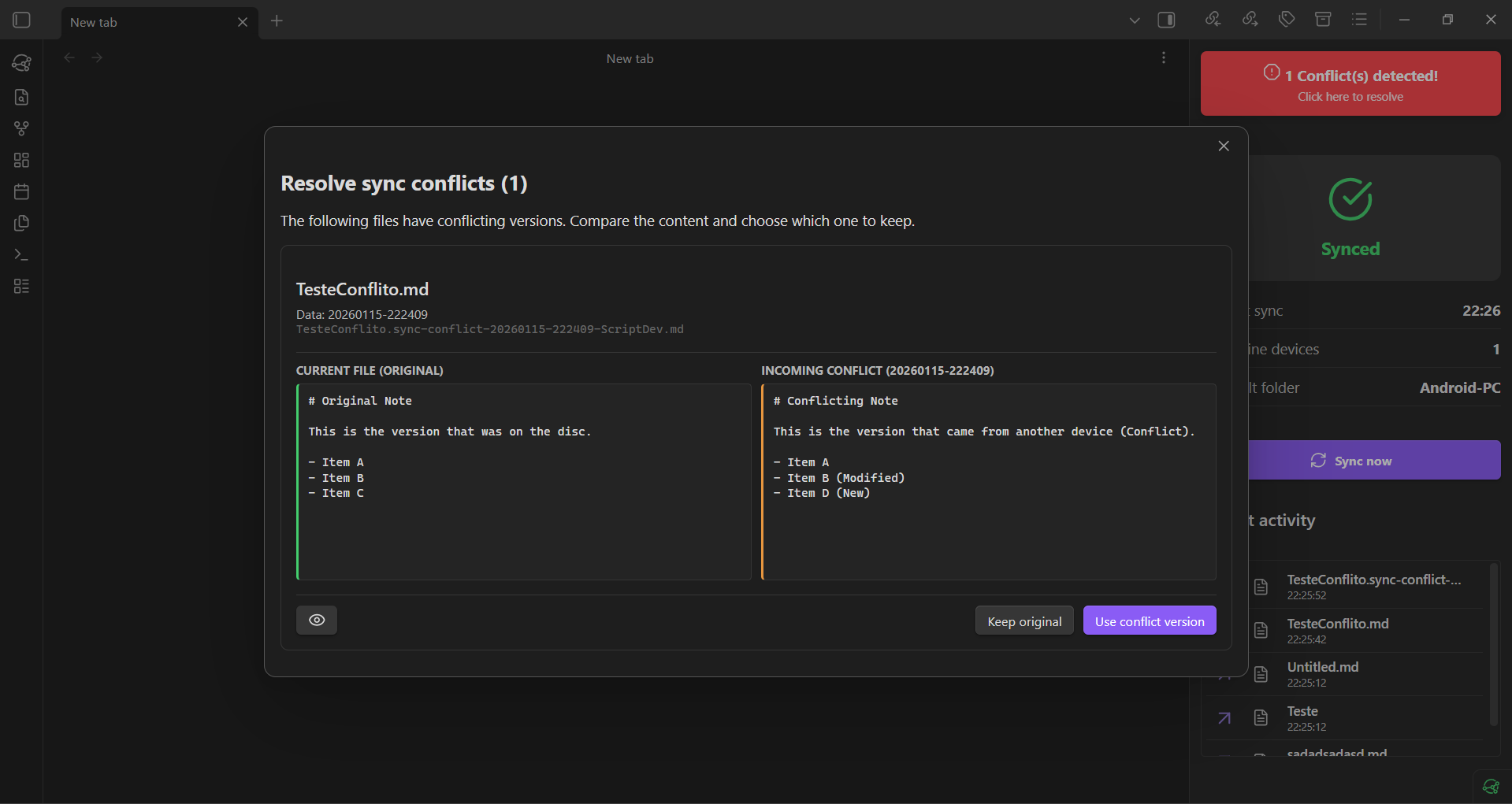
- Visual Conflict Resolver: Safely compare and merge
.sync-conflictfiles with a side-by-side diff view powered by CodeMirror 6. - Sync Progress Bar: Monitor real-time file transfer progress directly from the side panel.
- Quick Ignore: Right-click any file or folder and select "Don't sync this" to instantly add it to your
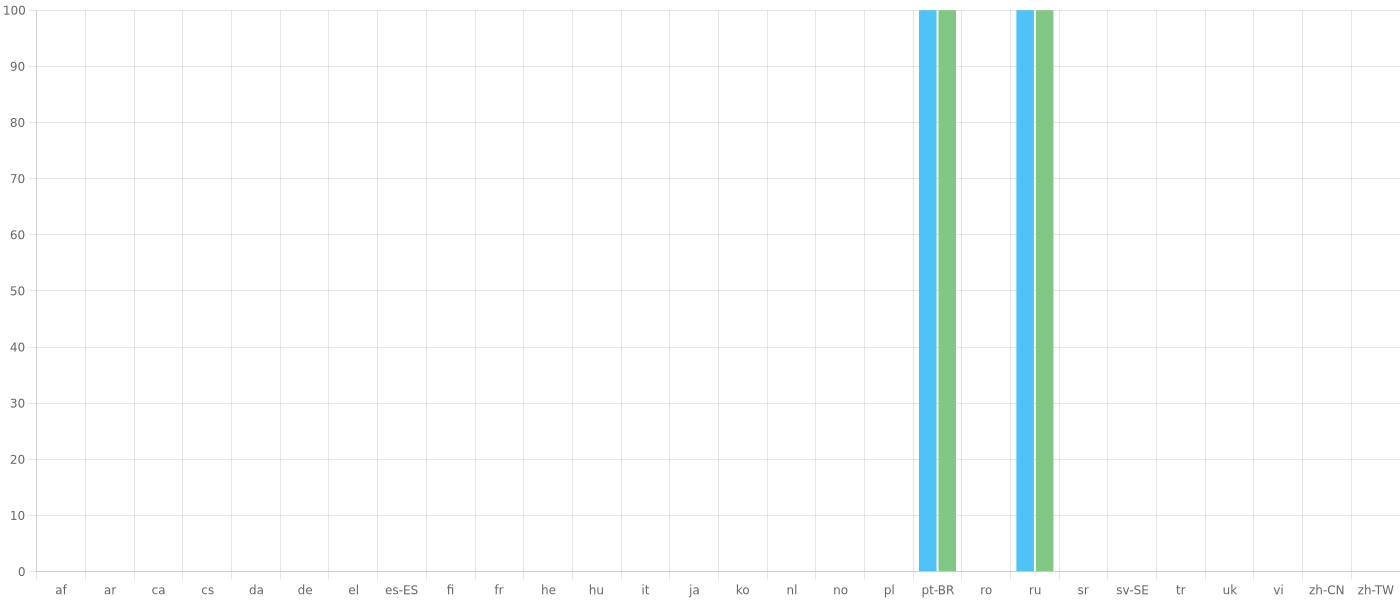
.stignore. - Global Localization: Support for over 20 languages (thanks to our community on Crowdin!).
- Security & Stability: API keys are now securely stored in the Obsidian native Keychain. Enhanced connection resiliency with a new long-polling architecture, plus a built-in Debug Console.
Note: The Visual Sync feature (spinning 🟠 and checkmark 🟢 icons on active tabs) introduced in v1.1 remains one of our core capabilities!
🚀 Features
- Real-Time Monitoring: View your vault status (Synced, Syncing, Disconnected) via the Status Bar or a dedicated Side Panel.
- Visual Sync: Tabs show specific icons when files are syncing (🟠) or fully synced (🟢).
- Control Center: Pause/Resume specific folders and see connected devices by name directly in the plugin view.
- File Versioning: Configure versioning strategies (Trashcan, Simple, Staggered) and restore previous versions of files directly within Obsidian.
- Conflict Resolver: Intelligent detection of
.sync-conflictfiles with a side-by-side diff view for safe resolution. - Context Menu Integration: Right-click any file to force a sync or view its version history.
- .stignore Editor: Manage ignored files (like
workspace.jsonor.DS_Store) directly within Obsidian using built-in templates. - History Filter: Keep your activity log clean by hiding system files from the history view.
- Mobile Optimized: Responsive design built to work perfectly on Android.
- Localization: Fully translated into 🇺🇸 English, 🇧🇷 Portuguese (BR), and 🇷🇺 Russian.
Quick Start
- Install: Search for Syncthing Manager in the Obsidian Community Store and install it, or use BRAT.
- Get API Key: In Syncthing, navigate to Actions > Settings > General and copy the API Key.
- Configure:
- Open Obsidian Settings > Syncthing Manager.
- Paste your API Key and click Test Connection.
- Important: Select your Vault Folder from the dropdown menu to track events.
📱 Android Setup (Critical)
To use this plugin on Android (via Syncthing-Fork or the official app), you must allow local HTTP connections.
[!WARNING] > HTTPS Restriction: Obsidian Mobile cannot connect to self-signed HTTPS certificates on localhost. You must disable HTTPS in the Syncthing App settings. Since the address is restricted to
127.0.0.1, your traffic remains local and secure.
- Open Syncthing App > Settings > GUI.
- Set GUI Listen Address to
127.0.0.1:8384. - Disable "Use HTTPS for GUI".
- Note: Ensure you have cleared "GUI Authentication User/Password" fields, otherwise the app may enforce HTTPS.
- Restart the Syncthing App.
- In Obsidian Plugin Settings, ensure Use HTTPS is toggled OFF.
Alternative: Force HTTP (Environment Variable)
If the above method resets or fails, you can force Syncthing to use HTTP using an environment variable.
[!CAUTION] Side Effect: This may cause the Syncthing Android App's native UI to stop loading (showing a blank screen or loading spinner). However, the background service will still run, and you can access the full Web UI via your browser at
http://127.0.0.1:8384.
- Go to Settings > Troubleshooting > Environment Variables.
- Add the following variable:
- Key:
STGUIADDRESS - Value:
http://127.0.0.1:8384
- Key:
- Restart the App.
- If you need to revert, simply delete this variable.
Features Guide
⚔️ Conflict Resolution
When a sync conflict occurs, a red alert will appear in the Syncthing View.
- Click the alert to open the Conflict Resolver.
- Select Compare Content for a side-by-side comparison.
- Choose:
- Keep Original: Deletes the conflict file.
- Use Conflict Version: Overwrites your local file with the remote version.
📂 Ignoring Files (.stignore)
Prevent layout issues by ignoring workspace configuration files.
- Open Settings > Syncthing Manager > Edit .stignore.
- Use "Add Common Patterns" to quickly ignore
workspace.json,.obsidian/workspace, or OS files like.DS_Store.
FAQ & Troubleshooting
Q: The tab icon is spinning but never turns green.
- This usually means Syncthing is still scanning or the file is large. Check the Syncthing GUI web panel for detailed progress.
Q: Plugin status shows "Disconnected".
- Verify that the Syncthing service is running.
- Ensure the API Key matches exactly.
- On Android, double-check that HTTPS is disabled in the Syncthing App.
Q: Is it secure to disable HTTPS on Android?
- Yes. By setting the GUI Listen Address to
127.0.0.1, access is restricted exclusively to applications running locally on that specific device.
Installation
1. Obsidian Community Store (Recommended)
You can search for and install Syncthing Manager directly from the Obsidian Community Store:
- Open Settings > Community plugins in Obsidian.
- Click Browse and search for
Syncthing Manager. - Click Install, then Enable.
Alternatively, you can open the plugin page directly using this link.
2. BRAT (Beta)
If you want to test the latest beta releases:
- Install the BRAT plugin from the Obsidian Community Store.
- Add this repository URL:
https://github.com/gustjose/obsidian-syncthing-manager. - Enable Syncthing Manager.
Contributing
Contributions are welcome! If you encounter bugs or have feature requests, please open an issue.
- Build:
npm run build - Dev:
npm run dev
🌍 Translations
Help us make the plugin accessible to everyone! We use Crowdin to manage translations. You don't need to be a developer to contribute. Just create a free account and start translating strings to your language directly in the browser!
License
This project is licensed under the MIT License.
Copyright © 2025 Gustavo Carreiro.