SyncScroll
 omnbird931 downloads
Sync scrolling between two different files in side-by-side panes. Triple-click any line to jump the other file to the same line with horizontal alignment - perfect for comparing documents or reading translations.
- Overview
- Scorecard
- Updates1
Sync scrolling between two different files in side-by-side panes. Triple-click any line to jump the other file to the same line with horizontal alignment - perfect for comparing documents or reading translations.
Why I Built This Plugin
I often translate English technical documents into Chinese while reading in Obsidian. The constant back-and-forth between source and translation was tedious—especially when documents have different lengths and scrolling gets them out of sync.
This plugin solves it with one simple gesture: triple-click any line to instantly align both panes. No more manual scrolling or losing your place.
Features
- Sync Scrolling: When you scroll one pane, the other follows with percentage-based synchronization
- Triple-Click Line Jump: Triple-click any line to instantly jump the other pane to the same line with horizontal alignment
- Relative Sync: After line jumping, the offset is maintained during scrolling - no sudden jumps back
- Bidirectional: Works both left→right and right→left
Installation
From Obsidian Community Plugins (Recommended)
- Open Obsidian Settings → Community Plugins
- Turn off Safe Mode
- Click "Browse" and search for "SyncScroll"
- Click Install, then Enable
Manual Installation
- Download
syncscroll.zipfrom GitHub Releases - Extract to your vault's
.obsidian/plugins/folder - Enable in Obsidian Settings → Community Plugins
Usage
Open two files side by side
- Drag one tab to the right side of the screen
Enable SyncScroll
- Open Command Palette (Ctrl/Cmd + P)
- Type "SyncScroll: Enable" and press Enter
Triple-click to align
- Triple-click any line in the left or right pane
- The other pane will jump to the same line and align horizontally
Continue scrolling
- Scroll either pane - they stay in sync with the maintained offset
Disable when done
- Use Command Palette → "SyncScroll: Disable"
Demo
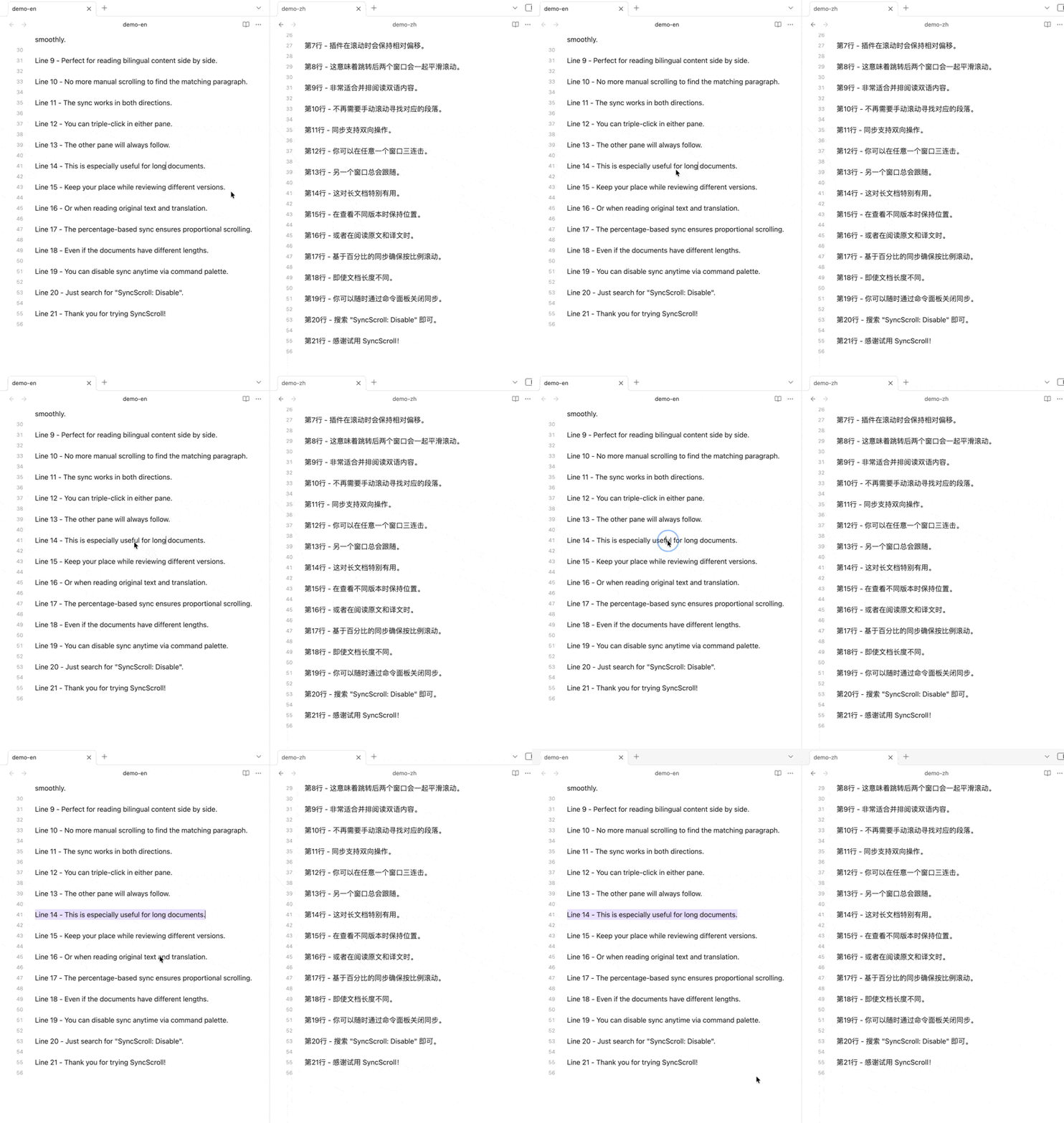
Triple-Click to Sync Lines
Triple-click any line to instantly align both panes to the same line number.
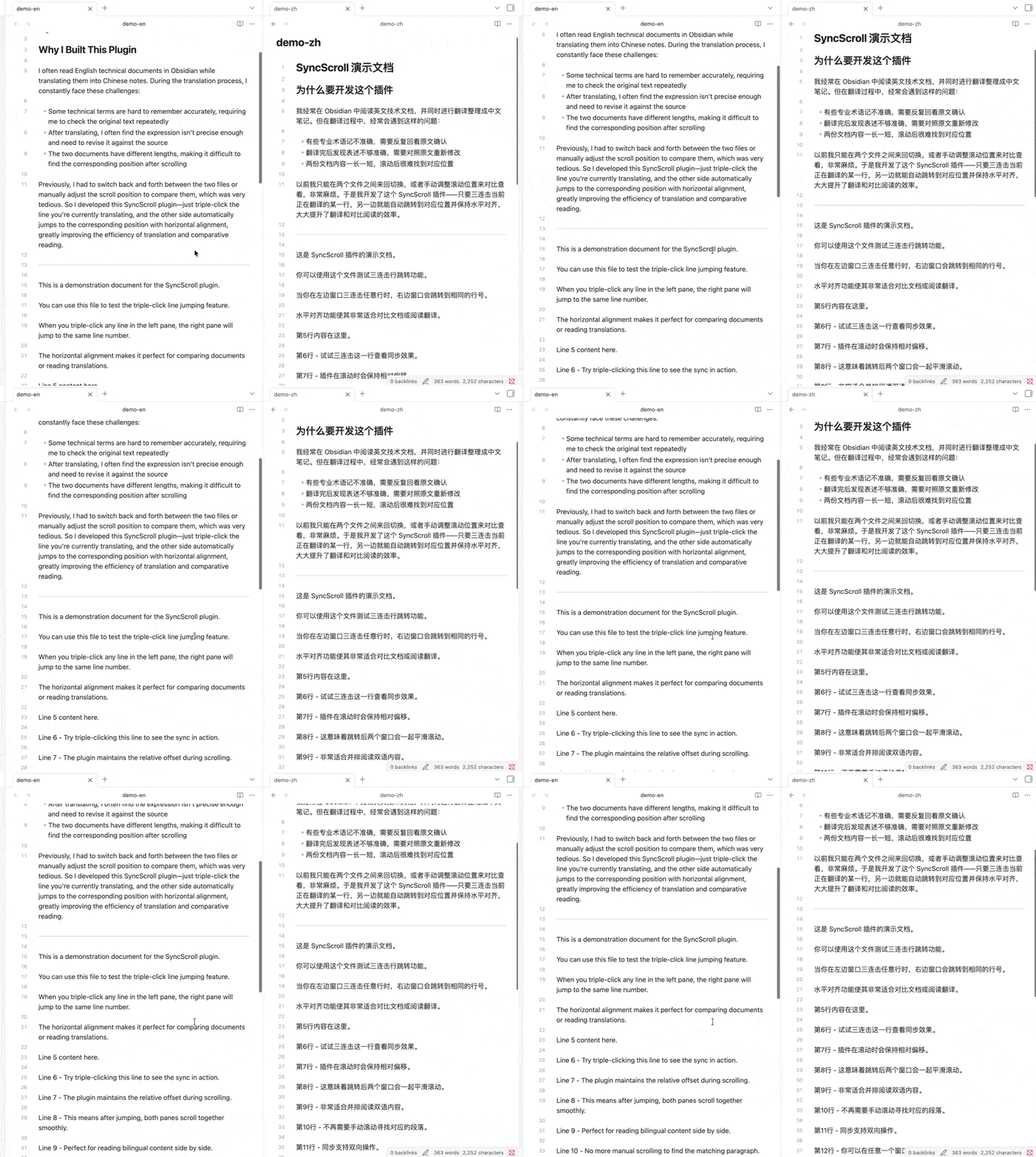
Scroll with Maintained Offset
After alignment, scroll either pane and the other follows with the relative offset preserved.
Support
If you find this plugin helpful, consider buying me a coffee:
License
MIT
Changelog
1.0.0
- Initial release
- Sync scrolling with percentage mode
- Triple-click line jumping with horizontal alignment
- Bidirectional support
- Relative offset maintenance