StyleMate
 droidstream66 downloads
Style headings, text, lists, checkboxes and callouts with sliders and color pickers, and watch a sample note change live.
- Overview
- Scorecard
- Updates2
Full control over how your notes look. No CSS needed.
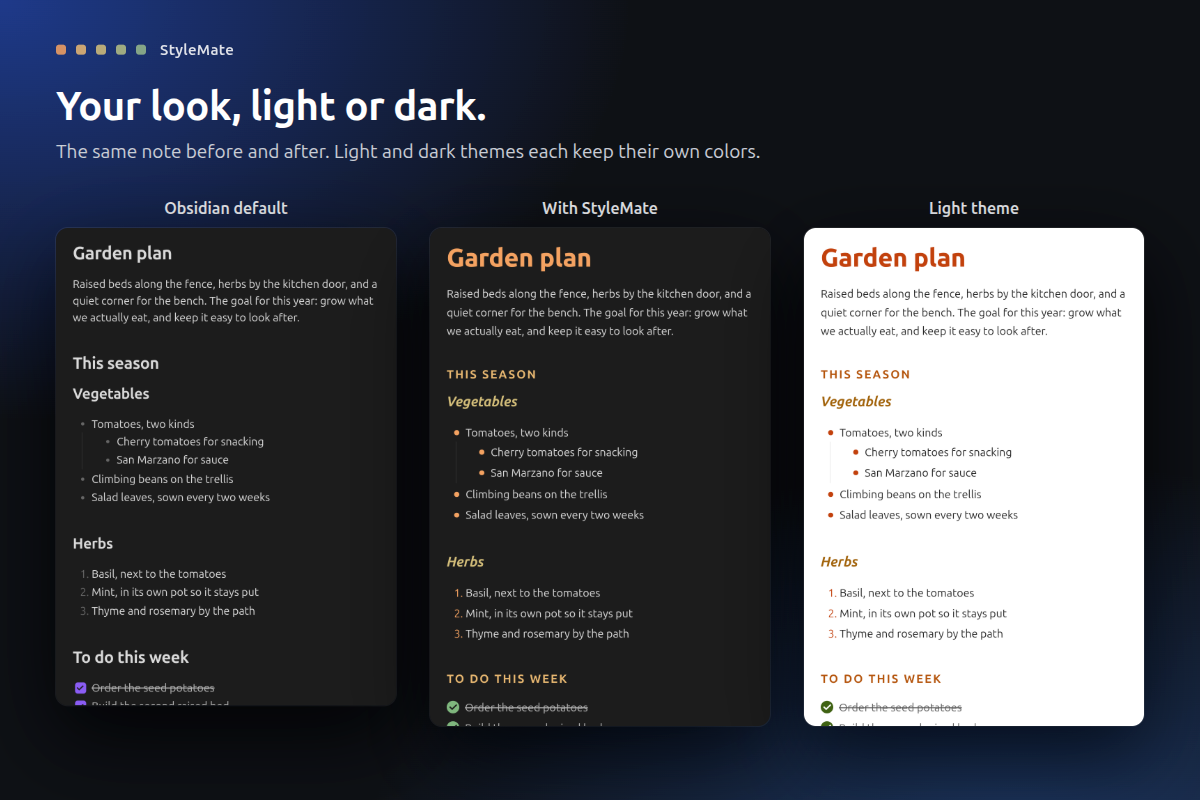
Changing Obsidian's look usually means writing CSS snippets and reloading to see what happened. StyleMate turns every part of a note into a setting you can see: headings, text, lists, checkboxes, quotes and callouts, each with its own sliders and color pickers. Move a slider, watch the note change, done.
What it does
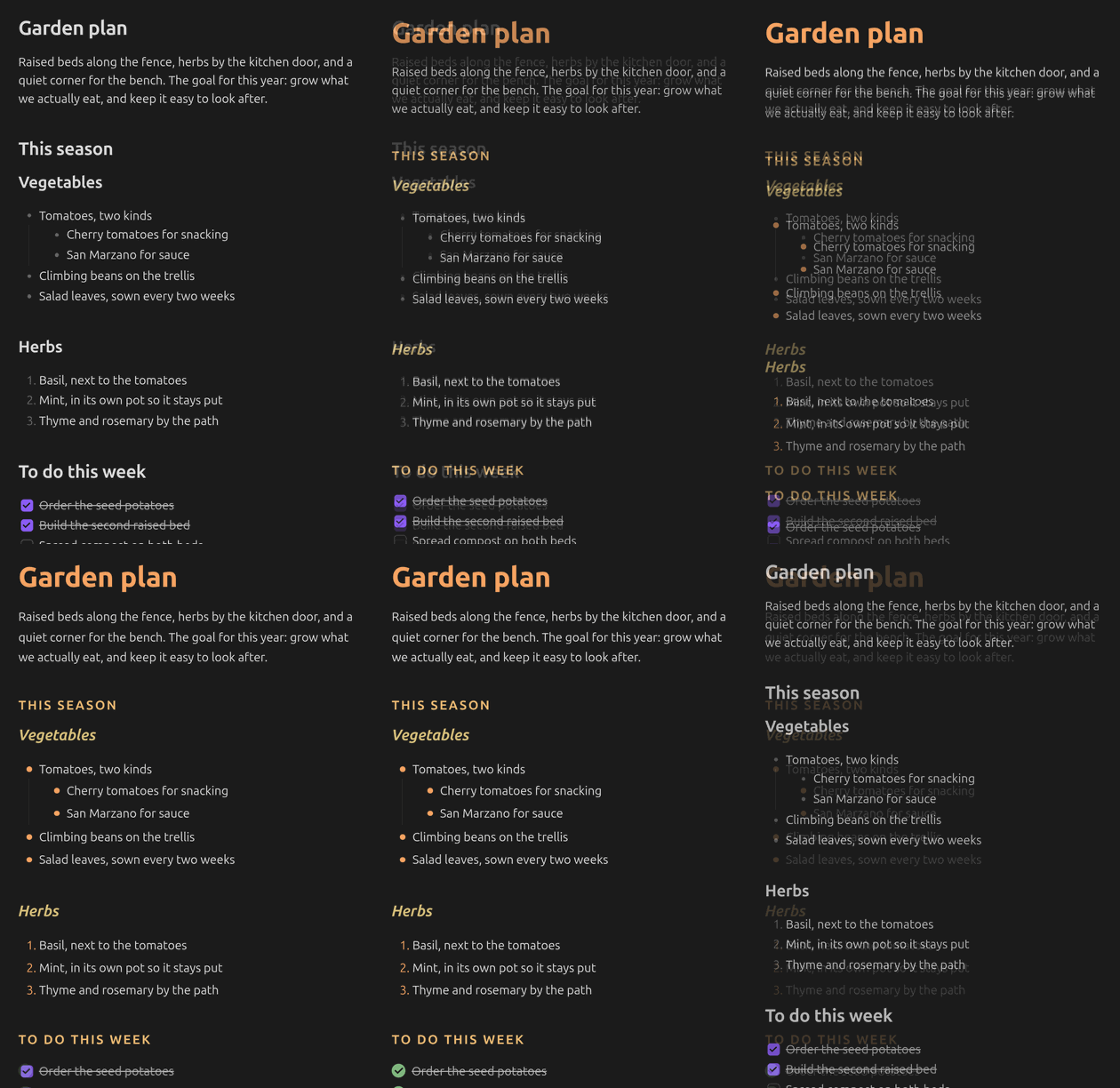
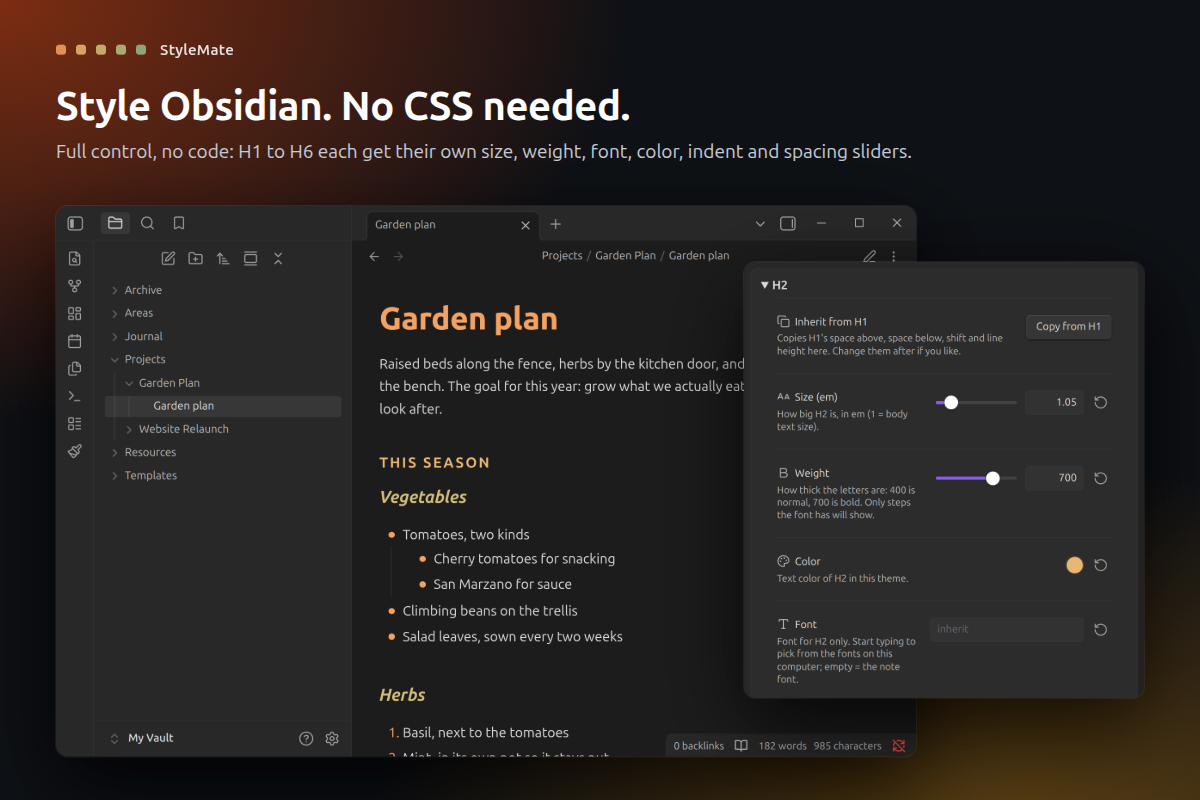
- Every heading, its own style. H1 to H6 each get sliders for size, weight, line height, letter spacing, space above and below, and a left/right indent, plus their own font, color, letter case, italic and underline.
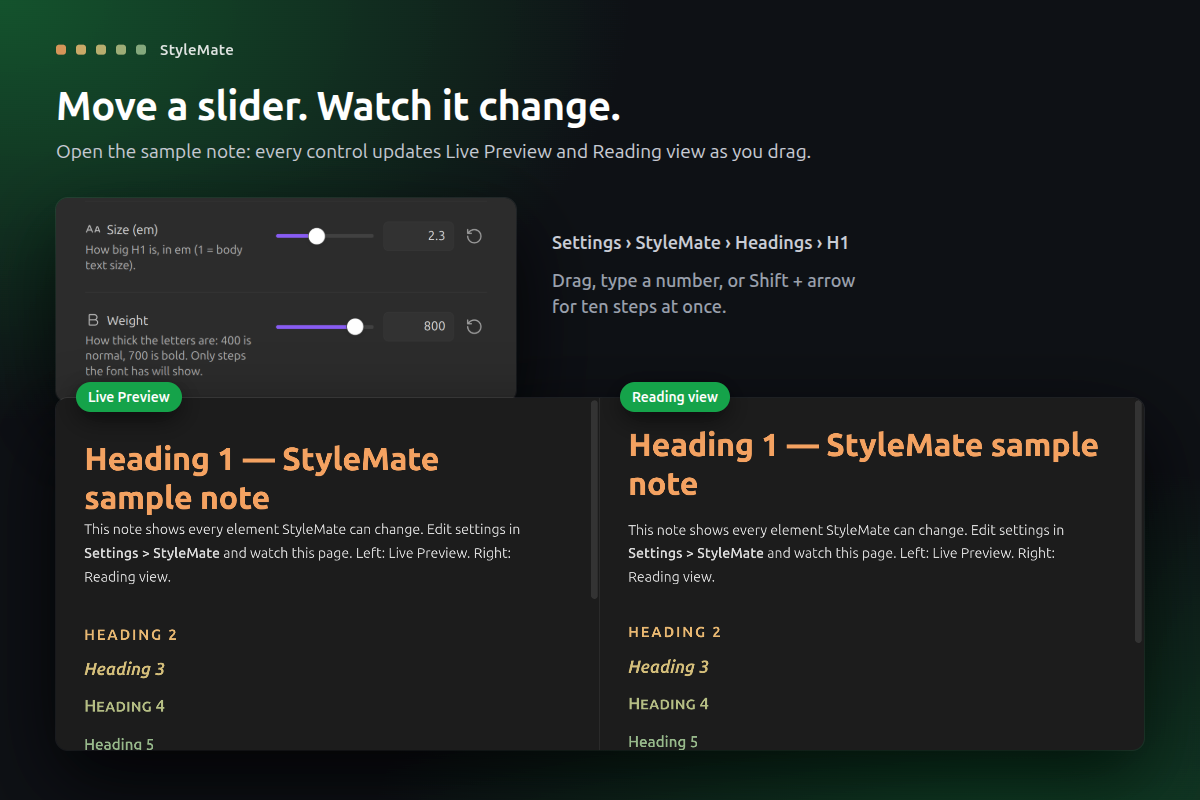
- See it live. A sample note opens in Live Preview and Reading view side by side, and changes as you drag.
- Exact when you need it. Every slider has a number box beside it. Type a value, or press Shift + arrow to jump ten steps.
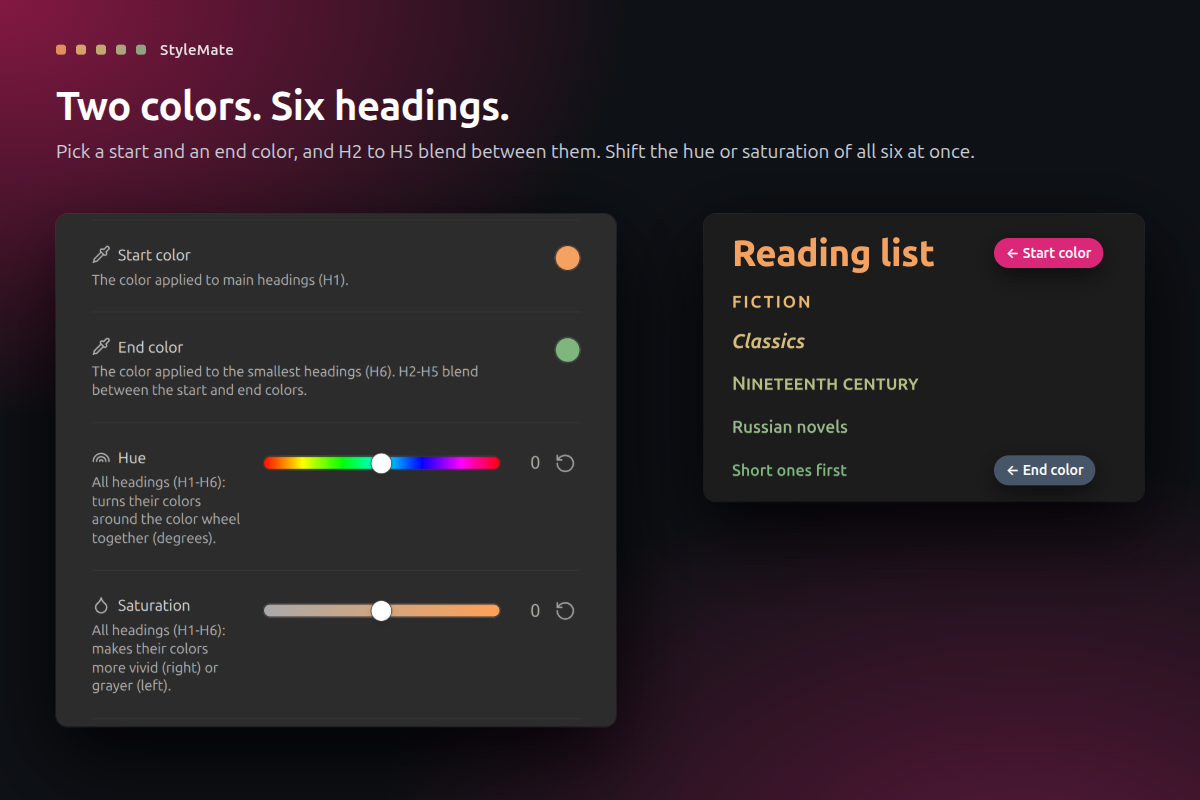
- Two colors, six headings. Pick a start and an end color and H2 to H5 blend between them. Shift the hue, saturation, brightness or contrast of all six at once.
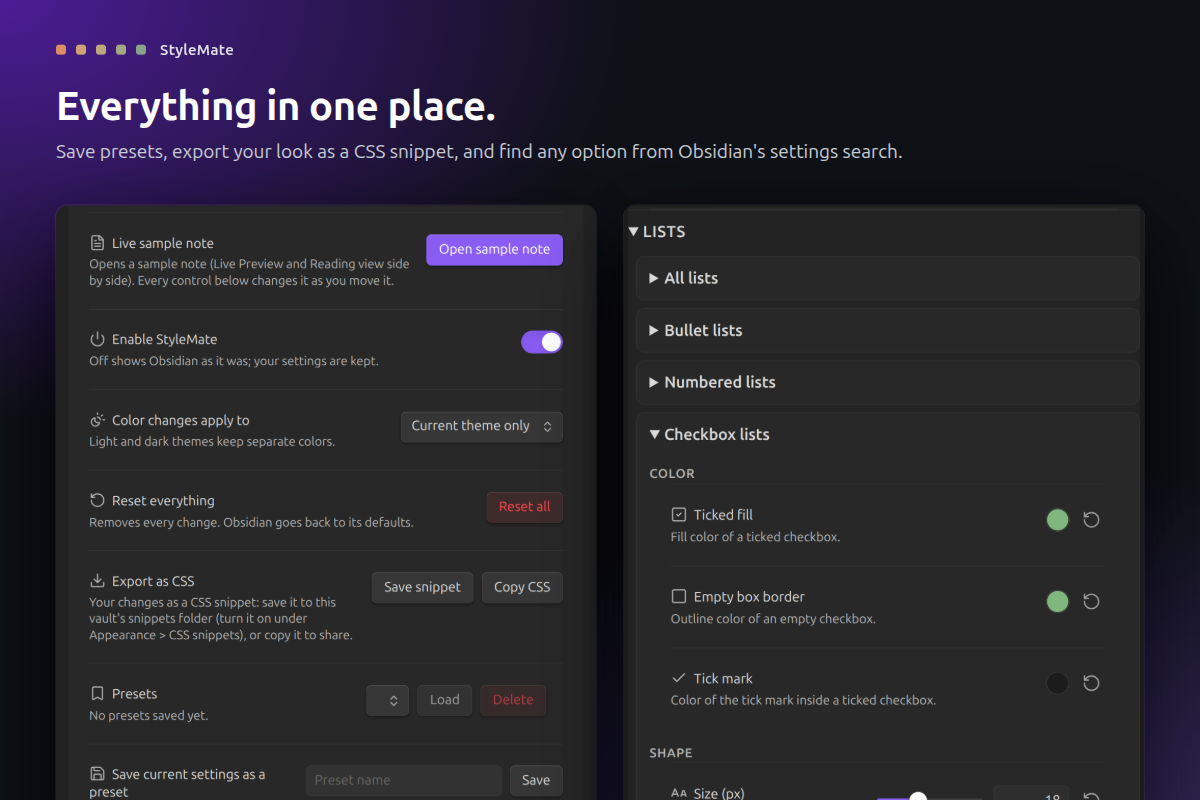
- Lists your way. Bullet, numbered and checkbox lists each get their own indent per level, spacing and marker color; bullets and checkboxes also get size and roundness.
- Text, quotes and callouts. Note font, text size, line width, link and tag colors, quote bars, and callout background, title, icon and text colors.
- Light and dark. Each theme keeps its own colors.
- Black and white for PDFs. One command, Toggle PDF mode, turns the note black, white and gray, and Export to PDF prints it that way. Heading shifts and deep indents are set aside while it is on, so nothing gets cut off at the page edge. Toggle it again and your colors come back.
- Your look in your PDFs. Export to PDF uses your StyleMate settings, not Obsidian's defaults.
- Presets and snippets. Save looks as presets, or export your look as a CSS snippet to share.
- Searchable settings. Obsidian's settings search finds any StyleMate option.
How to use
- Install StyleMate from Settings > Community plugins and enable it.
- Open Settings > StyleMate and press Open sample note.
- Open a group (Page, Text & links, Headings, Lists, Quotes & rules, Editor) and move any slider. Every row has a reset arrow, and Reset all puts Obsidian back as it was.
- To keep a look, save it as a preset or press Save snippet.
- For a black-and-white PDF, open Settings > Hotkeys, search for "StyleMate" and give Toggle PDF mode (black and white) a key (or run it from the command palette). Press it, use File > Export to PDF, then press it again. The status bar says PDF mode while it is on.
StyleMate sits on top of your theme. If a theme or snippet styles the same thing, StyleMate's setting wins while it is on.
Privacy and safety
- Your notes never change. Your settings live in the plugin's own
data.json. The sample note is the only file StyleMate creates, plus a snippet file when you ask for one. - No network, no telemetry. It also has no runtime dependencies.
- Easy to undo. Turn StyleMate off and Obsidian looks exactly as before.
- Desktop only. Needs Obsidian 1.13 or later.
- Signed releases. Every release is built by GitHub Actions from this repository and carries a build provenance attestation.
Support
If StyleMate makes your notes a little nicer to look at, you can buy me a coffee. Thank you!
Develop
npm ci, npm test, npm run lint, npm run build (installs into ../test-vault), npm run obsidian:check (live checks in a real Obsidian), npm run showcase (store screenshots), npm run ship.
MIT licensed. Made by Droid.