Sidebar Timer
 hornat867 downloads
A minimalist floating capsule timer that supports custom durations, notification messages, and drag position saving.
- Overview
- Scorecard
- Updates9
我在小红书发布了许多 Obsidian 的教程和插件开发进度,你的关注就是对我最大的支持
高颜值悬浮胶囊倒计时,喝水提醒、番茄钟、防疲劳,一拖即用。
简体中文
Capsule Timer(极简悬浮胶囊倒计时) 是一款为 Obsidian 用户量身定制的高颜值、无干扰悬浮倒计时插件。极简美学设计,高精准度计时,帮助您在专注写作或工作时轻松掌控节奏。
核心功能
1. 极简毛玻璃胶囊悬浮窗
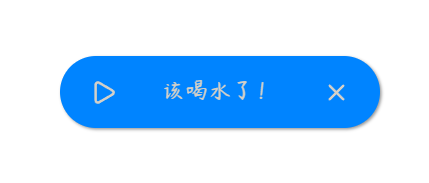
半透明毛玻璃质感,自适应深色/浅色主题。深色模式呈"奶咖胶囊",浅色模式呈"暗灰胶囊"。按钮悬停变色、点击微弹,融入极简桌面美学。
2. 智能休眠校准(防漂移)
锁定真实目标截止时间戳,无惧系统休眠。合上笔记本重新唤醒后自动校验真实时间差,超时立刻提醒,彻底解决休眠后计时卡死问题。
3. 位置记忆与边缘防丢失
拖拽到任意位置,松手即自动记忆坐标。严格的坐标约束算法确保悬浮窗永远不会被拖出屏幕外,窗口大小变化后自动调整。
4. 双计时模式自由切换
- 真实时间模式:适合喝水提醒、番茄钟,关闭软件时间继续走
- 仅软件运行模式:适合防用眼疲劳,关闭或休眠时时间暂停
5. 纯净设计零残留
完全离线运行,生命周期主动释放,定时器手动销毁,不占用额外内存。
用法
- 前往 设置 > Capsule Timer,设置倒计时时长和到期提示语。
- 点击左侧 钟表 图标启动倒计时,底部状态栏实时显示进度。
- 时间归零后,胶囊悬浮窗弹出:
- 点击 播放 按钮快速重启一轮
- 点击 X 按钮关闭提醒
- 拖拽悬浮窗文字区域可调整位置,松手即保存。
设置项一览
| 设置项 | 说明 |
|---|---|
| 倒计时时间 | 设置时长(分钟) |
| 提示内容 | 倒计时结束时显示的文字 |
| 开启软件时自动启动 | 打开 Obsidian 自动开始倒计时 |
| 倒计时模式 | 真实时间 / 仅软件运行 |
| 显示状态栏倒计时 | 底部状态栏实时显示剩余时间 |
| 深色/浅色模式背景色 | 自定义胶囊悬浮窗背景色 |
赞赏支持
🎁 如果觉得有用,请作者喝杯咖啡

安装方法
方法一:社区插件安装(推荐)
待插件通过审核并上架社区市场后:
- 打开 Obsidian 设置 > 社区插件 > 浏览。
- 搜索并选择
Capsule Timer。 - 点击 安装 并选择 启用。
方法二:手动安装
- 前往 Releases 页面下载最新的
main.js、manifest.json和styles.css文件。 - 打开您的 Obsidian 库所在的本地文件夹。
- 进入
.obsidian/plugins/目录,并创建一个名为capsule-timer的文件夹。 - 将下载的三个文件放入该文件夹中。
- 在 Obsidian 设置 > 社区插件 中重新加载并开启该插件。
QQ 交流群:1094620986
English
Capsule Timer is a beautifully designed, distraction-free floating countdown timer plugin for Obsidian. Combining elegant minimalist aesthetics with solid, drift-free timing logic, it helps you manage hydration reminders, Pomodoro sessions, or eye-strain breaks effortlessly.
Features
1. Minimalist Frosted Glass Capsule UI
Translucent glassmorphism design with automatic theme adaptation — warm "Milky Coffee" in Dark Mode, sleek "Slate Gray" in Light Mode. Micro-interactions on hover and click blend into a polished desktop aesthetic.
2. Smart Sleep-Proof Accuracy
Timestamp-based tracking ensures drift-free timing. If your computer sleeps or hibernates, the plugin recalculates elapsed time upon waking and triggers immediately if expired.
3. Position Memory & Viewport Clamping
Drag the capsule anywhere on screen — coordinates are saved automatically. Robust boundary calculations prevent the capsule from being dragged off-screen and auto-adjust on window resize.
4. Dual Counting Modes
- Real Time Mode: Perfect for hydration reminders or Pomodoro — time keeps ticking even when Obsidian is closed.
- App-Only Mode: Ideal for eye-strain prevention — time pauses when the app is closed or system sleeps.
5. Clean, Leak-Free Engineering
Fully offline operation. Complete lifecycle teardown with active timer cleanup — no background CPU consumption, no memory leaks.
Usage
- Go to Settings > Capsule Timer to configure duration and alert message.
- Click the Clock ribbon icon to start the countdown. A live countdown appears in the status bar.
- When time runs out, the capsule appears:
- Click Play to quickly restart a new session.
- Click X to dismiss the alert.
- Drag the capsule text area to reposition. Position saves automatically on release.
Settings Overview
| Setting | Description |
|---|---|
| Duration (minutes) | Countdown duration |
| Alert Message | Text shown when timer expires |
| Auto-start on launch | Start countdown automatically when Obsidian opens |
| Counting Mode | Real time / App-only |
| Show Status Bar | Display live countdown in the status bar |
| Dark/Light Mode Background | Customize capsule background color |
Installation
Method 1: Community Plugins (Recommended)
Once reviewed and listed on the community marketplace:
- Open Obsidian Settings > Community plugins > Browse.
- Search for and select
Capsule Timer. - Click Install and then Enable.
Method 2: Manual Installation
- Go to the Releases page to download the latest
main.js,manifest.jsonandstyles.cssfiles. - Open your Obsidian vault folder on your computer.
- Navigate to the
.obsidian/plugins/directory and create a folder namedcapsule-timer. - Place the downloaded files into this folder.
- Reload and enable the plugin in Obsidian Settings > Community plugins.
QQ Group: 1094620986