Export Selection to Word (RTF)
 Keith Pieper805 downloads
Export a selected Markdown passage or whole note as a Word-readable RTF while preserving common formatting.
- Overview
- Scorecard
- Updates1
Export the current Markdown selection—or the whole note when no text is selected—to a Word-readable Rich Text Format (RTF) file. The plugin converts common Markdown structure into portable document formatting without external tools.
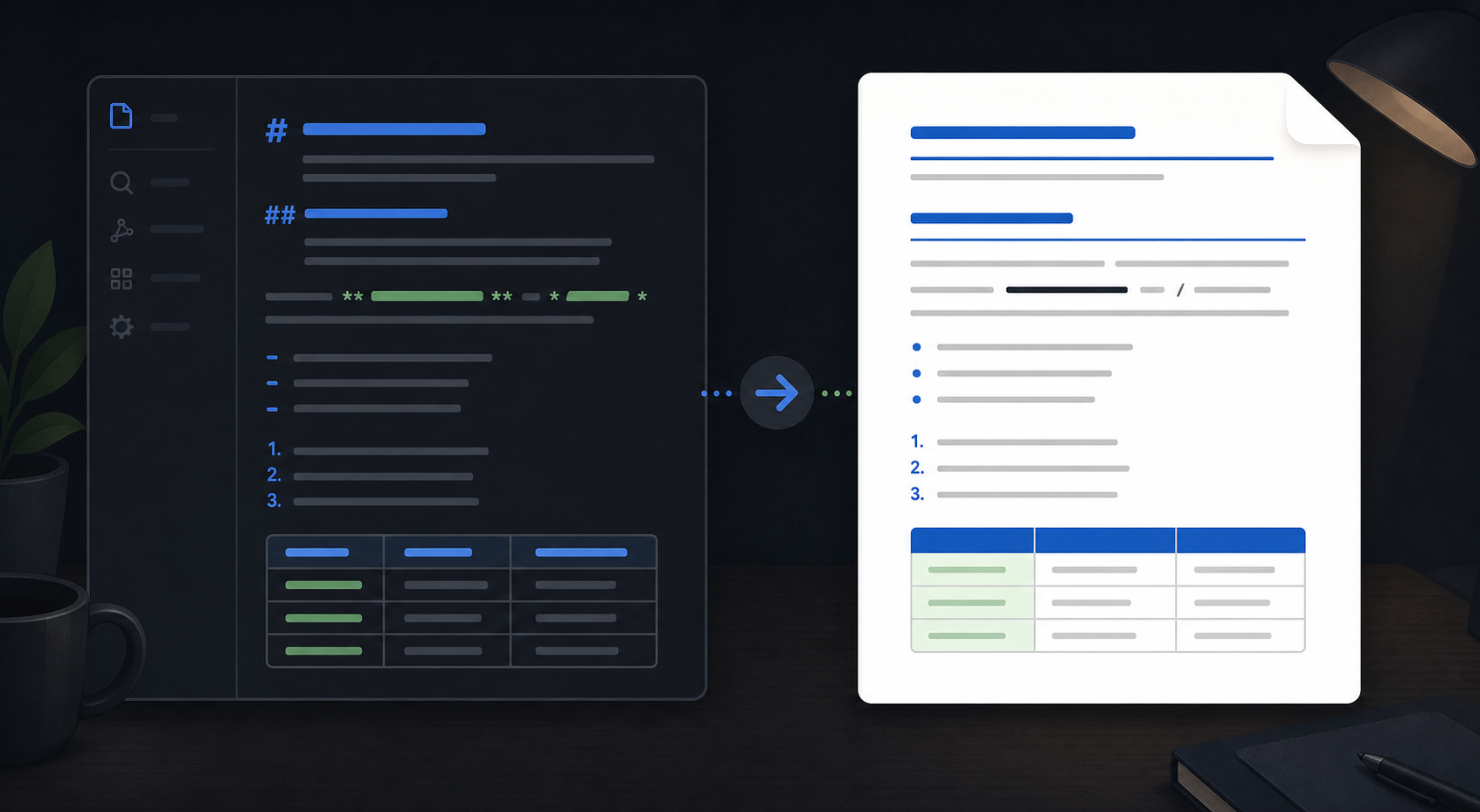
The image is an illustrative example of the workflow, not a screenshot of the plugin.
Features
- Exports the current selection or the entire active Markdown note.
- Preserves headings, bold, italics, underline, strikethrough, inline code, lists, and tables.
- Optionally strips Markdown links, wikilinks, and visible URLs.
- Lets you choose whether to keep inline formatting.
- Writes beside the source note by default, or into a vault folder you specify.
- Provides controls for list indentation and table width.
Install
- Copy this folder to /.obsidian/plugins/selection-to-word-rtf/.
- Open Settings → Community plugins.
- Enable Export Selection to Word (RTF).
The included main.js is prebuilt. This plugin is desktop-only because it writes a local RTF file through Obsidian's adapter.
Usage
- Open a Markdown note.
- Select the passage to export, or leave the selection empty to export the whole note.
- Open Command Palette and run Export selection to Word (RTF)….
- Choose the export options and click Export.
- Open the generated Note name (export).rtf in Word or another RTF-compatible editor.
By default the file is created in the source note's folder. Set Export folder to a vault-relative folder such as Exports.
Limitations
- RTF is a compatibility format, not a full Word document model.
- Complex Markdown extensions and embedded media are not reproduced as native Word objects.
- Exporting again overwrites the same target path.
License
MIT. See LICENSE.
HealthExcellent
ReviewSatisfactory
About
Export the current selection—or the whole note when nothing is selected—to a Word-readable RTF file. Preserve headings, bold, italics, underline, strikethrough, inline code, lists and tables, and optionally strip links or wikilinks; save the RTF beside the source note or to a vault folder. Run on desktop only.Details
Current version
1.4.0
Last updated
2 months ago
Created
2 months ago
Updates
1 release
Downloads
805
Compatible with
Obsidian 1.4.0+
Platforms
Desktop only
License
MIT