Section Variants
 Gabriel Bacha1k downloads
Switch, compare, and manage parallel versions of Markdown sections within one note.
- Overview
- Scorecard
- Updates11
Section Variants lets you switch, compare, and manage parallel versions of a Markdown section without splitting them across notes.
Screenshots
Compare variants side by side
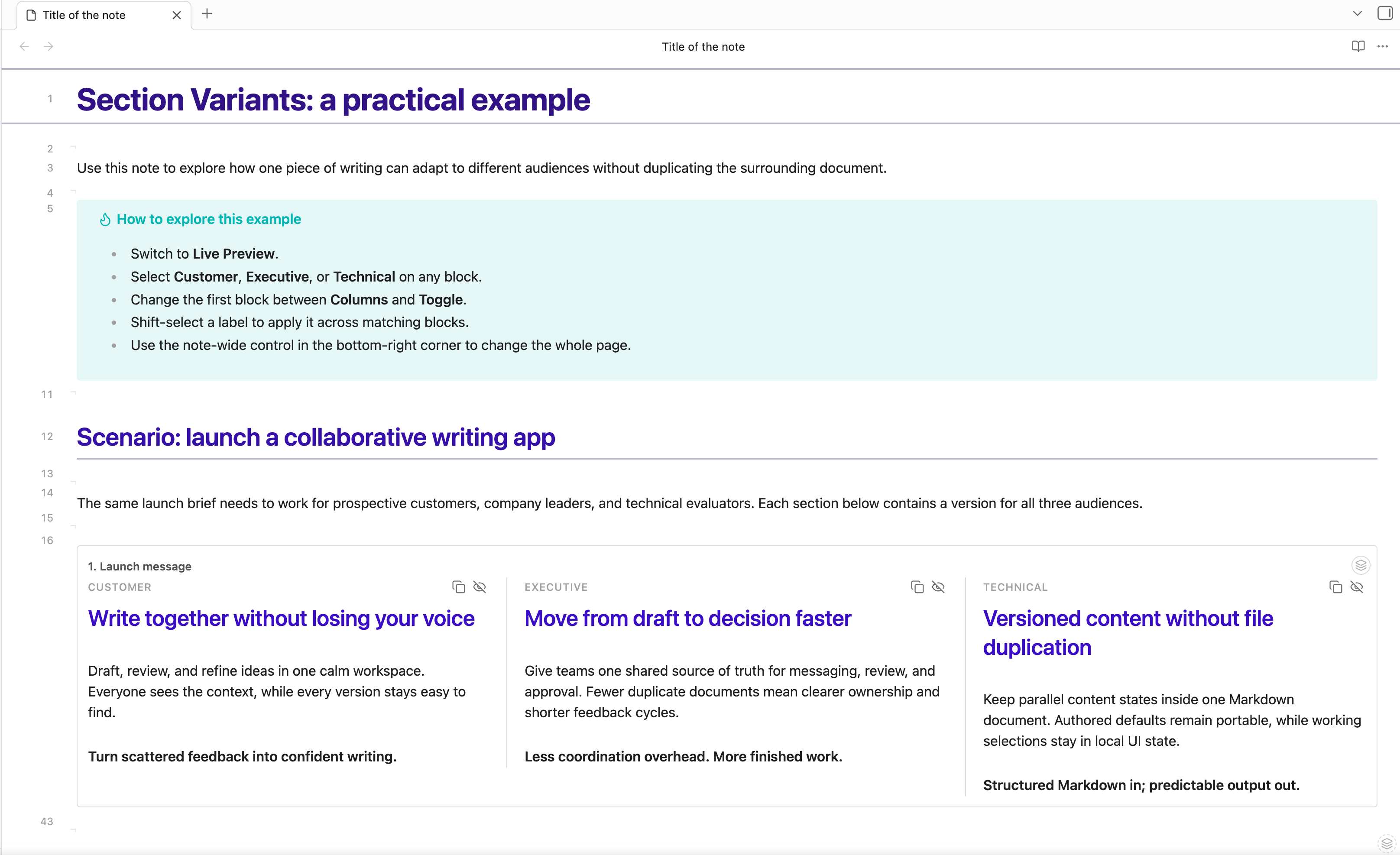
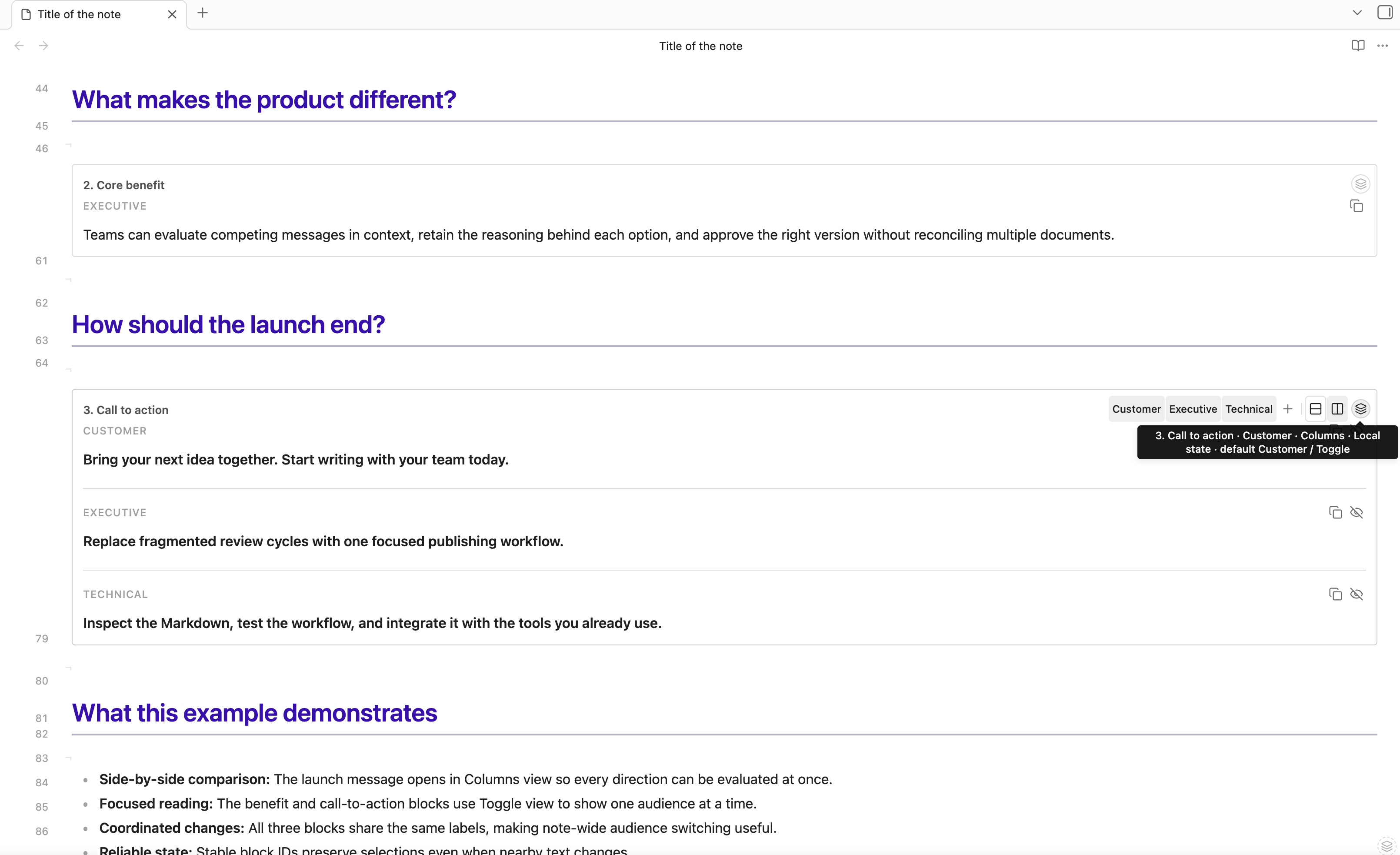
Switch audiences and control each block
Syntax
Use a Pandoc fenced div containing two or more labeled variant divs:
:::: {.variants #introduction name="Introduction options" view="columns" default="Short"}

::: Short
A concise introduction.
:::

::: {.variant label="Long version"}
A longer introduction with more context.
:::

::::
Safe single-token labels use shorthand. Labels containing spaces or punctuation use the explicit .variant form. Supported block attributes are:
#idname="Box title"view="toggle|columns"default="Label"widths="2fr 1fr"(generated from column ratios)responsive="responsive|stack|scroll"
The canonical container is variants. Additional aliases can be enabled in Settings → Section Variants.
Using variants
- Hover or focus a bordered block to reveal its labels, an Add variant shortcut, and Toggle/Columns controls.
- Shift-select a label to apply it to every matching block in the note.
- Open the small layers marker for Add variant, Rename variant, and Delete variant, followed by box and state settings. Rename/Delete submenus open while hovering or focusing and stay attached to their parent item. Delete box removes the complete container, all variants, and its attached stable block ID. Every deletion requires confirmation; a box may temporarily contain one variant, but the final variant cannot be deleted independently.
- Hide individual columns temporarily and explicitly save visibility when wanted.
- Use the copy action in any variant header to copy that variant's exact Markdown content without its outer fences.
- Use the bottom-right note control to apply labels, views, or narrow-screen layout across a note. Its narrow-layout button sits beside the globe at every view state and opens Wrap into rows, Stack vertically, or Scroll horizontally; boxes following global state use that layout whenever they display Columns. Its label buttons show or hide that column across every matching box, and the eye toggle hides every column or restores all of them at once. The control measures the current Obsidian status bar and stays above it, including in pop-out windows.
- The note-wide controller's persistent layers marker has an accent-colored border so it remains distinct from individual actions. Turning the globe off restores local block state without clearing or visually deselecting the saved global label, view, and narrow-layout choices.
- Every note-wide action affects only boxes following global state. Opted-out boxes retain their local variant, view, layout, column visibility, and active editor even while the toolbar displays remembered global choices.
- The layers marker menu contains only Hide note control. Restore a hidden control from the command palette with Section Variants: Show note control.
- In Live Preview, click a column's text to edit directly inside that column using Obsidian's native Markdown editor. Other columns stay visible, and widths and headers stay in place. Click another column to switch, or press
Escapeor click outside to return to its rendered preview. Normal Live Preview syntax and wrapping changes are expected. Links, checkboxes, embeds, buttons, and controls retain their own behavior. Toggle content remains directly editable in the note editor. An empty Toggle variant shows a Write in … button that creates its first line. - Variant previews use Obsidian's native preview component, including its section wrappers, list bullets, callouts, and embeds. A native HTML boundary prevents the outer editor's whitespace rules from adding blank lines. The plugin only sizes the preview container; it does not override prose spacing. Theme and snippet changes apply to mounted previews. Editing uses native Live Preview styling; differences deliberately defined by Obsidian or the theme between embedded and Reading View content are preserved.
- Source Mode always displays the complete Markdown source.
Open the command palette for insertion, cycling, note-wide actions, resets, sticky-control visibility, focused-block ID and column-visibility actions, and HTML export. No default hotkeys are assigned.
Creating blocks
Three insertion paths open the same configuration dialog:
- Run Section Variants: Insert variants block.
- Type
/variants. - Type
::: variants.
Typing a variant opener inside an existing block also suggests labels already used in the note.
Variant fields in both Insert variants block and Add variant autocomplete labels from valid blocks in the current note. Suggestions preserve authored casing, rank frequent labels first, and exclude labels already used in the box being edited.
Legacy notes containing view="auto" remain valid and use responsive Columns. Auto is no longer offered for new blocks because Columns already wraps according to the available width.
The block context menu owns box configuration directly: Box name contains an inline text field, while Authored default, Authored view, and Narrow-screen layout use checked attached submenus that stay open while choices are applied. Each structural choice updates the open view immediately. Edit column relative widths is the only box-configuration dialog and presents one positive ratio per current variant; equal values split the box evenly. Wrap is the default narrow-screen layout. Legacy CSS widths and min-width attributes remain readable but are no longer exposed in the UI.
State and safety
Authored defaults remain in Markdown. Current selections, view choices, sticky-control state, and explicitly saved column visibility live in plugin data. Ordinary switching never rewrites the note.
Block-specific label, view, and authored narrow-layout choices are stored separately from note-wide global state. Follow global state is a checkbox toggle: while enabled, compatible global values are displayed without erasing the saved block-specific values; disabling it restores exactly those earlier local values. The note-wide globe toggles every valid block between following global state and its saved block-specific state. A blue marker dot means the block is following global state. Authored differences instead appear as a Modified badge beside Reset to authored defaults in the context menu. Stable-ID creation and label renames migrate these states to the new identity.
Inactive Toggle variants are hidden in Live Preview. Columns retain their comparison grid, with an Obsidian-owned editor mounted only for the active column. Its changes and undo/redo are routed through the original note; no cloned editor state or temporary Markdown files are used. The native editor adapter uses an internal Obsidian interface and reports an error without changing the note if that interface is unavailable. Menu-driven structural changes use the open note's editor transaction; closed notes use an atomic vault update. Whole-note and cross-block selections in the outer editor can replace complete variants blocks. Select-all inside a column selects that variant's content. Source Mode exposes individual fences directly.
When another program changes an open note, Obsidian loads the change as usual, including into an open column editor. Section Variants does not read or reconcile the file itself. The external change is its own undo step. Section Variants blocks only direct typing, deleting, pasting, or dragging that would overwrite hidden fences or inactive variants. Changes from Obsidian, commands, and other plugins are never blocked.
Blocks use an explicit Pandoc ID, a following Obsidian block ID, or a structural fingerprint for persistence. If duplicate fingerprints become ambiguous, use Add stable block ID or enable automatic IDs.
Malformed blocks remain fully visible. The warning explains the exact problem, and automatic fixing is offered only for an unambiguous missing final fence.
Reading View maps fences only within Obsidian's reported source section and requires an exact ordered match. Sections rendered later through virtualization and blocks split across render chunks are aggregated safely; incomplete or ambiguous mappings remain visible with a warning. Pop-out windows use their own document for mounts and ranges.
Export
- Obsidian PDF export uses authored defaults through print styles.
- Export variants to HTML offers authored-default or current-state output and writes a new
.htmlfile inside the vault. - HTML export keeps internal links and attachments as references; it does not bundle linked files.
- Raw Markdown always retains every variant.
Development
Requirements: Node.js 18 or newer and npm.
npm install
npm test
npx playwright install chromium
npm run test:browser
npm run build
npm run lint
npm run check runs all release gates. The production release consists of main.js, manifest.json, and styles.css.
npm run test:stability checks, in real Obsidian, that content does not move while a note renders or after scrolling, that the editor height map matches the rendered widgets, that typing during autosave keeps every keystroke, and that edit protection blocks only direct user edits. Set SECTION_VARIANTS_PLUGINS_DIR to a plugins folder to also test Table Editor, Advanced Cursors, and Linter. On macOS both Obsidian tests start the app hidden and without focus; set SECTION_VARIANTS_TEST_VISIBLE=1 to show it.
npm run test:obsidian additionally tests the installed desktop app in an isolated temporary vault. Set OBSIDIAN_EXECUTABLE to its executable, optionally OBSIDIAN_ASAR to the installed update package and OBSIDIAN_THEME_DIR to a theme directory. It verifies in-column editing and undo, external file changes and Obsidian's own merge of concurrent edits, compares native preview markup and computed prose styles at equal widths, checks light/dark and live theme changes, and exercises preview checkbox edits. The test copies only the built plugin and optional theme into its fixture; it does not operate on existing vault windows. Native preview integration is guarded: incompatible hosts retain a static read-only preview while in-column editing remains available.
License
Section Variants is licensed under the Zero-Clause BSD license.