Section Reader
 SeraphinaGlacia125 downloads
Read and edit long notes one section at a time, without splitting files.
- Overview
- Scorecard
- Updates8
简体中文 · Installation · Get started
Read and edit long notes one section at a time, without splitting files.
Section Reader adds section focus to Obsidian's native Markdown view: content separated by root-level --- lines is shown one section at a time, while the complete note remains in its original file. After enabling native mode switching in settings, you can switch between Reading view and Editing view, including Live Preview and Source mode, while keeping focus. Native links, embeds, task interactions, and reading progress remain available.
Requires Obsidian 1.8.7 or later, for desktop and mobile.
1. See it in action
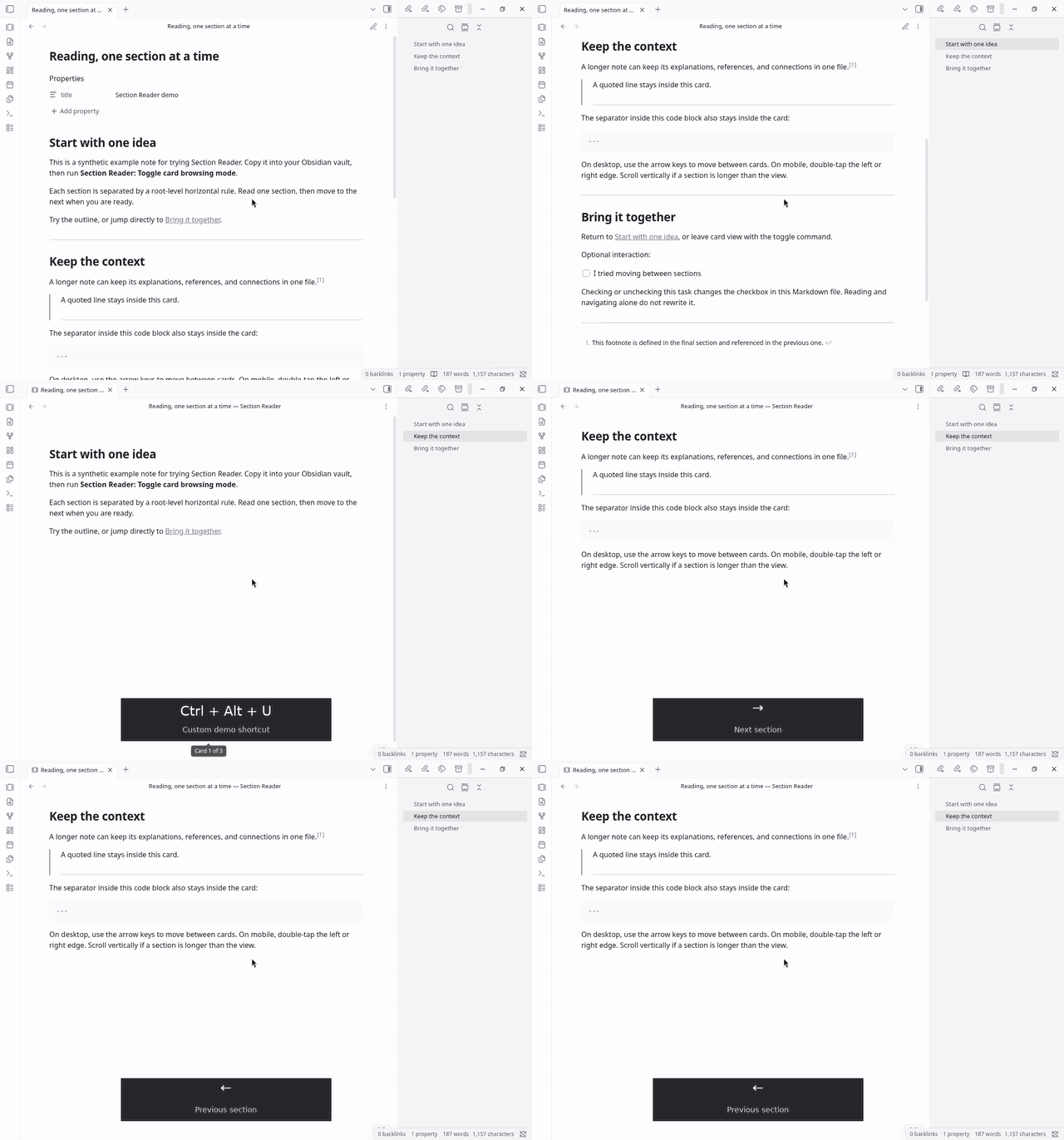
Press Ctrl + Alt + U → switch to reading one section at a time → use → / ← to move forward and back. The key labels show the keys actually pressed during the recording. This recording shows the reading workflow in 0.2.x; 0.3.0 also supports focused editing.
[!NOTE] Ctrl + Alt + U is a custom shortcut configured only for this demo. Section Reader does not assign a toggle hotkey by default; you can set one under “Settings → Hotkeys”.
Compare the original note and the section view
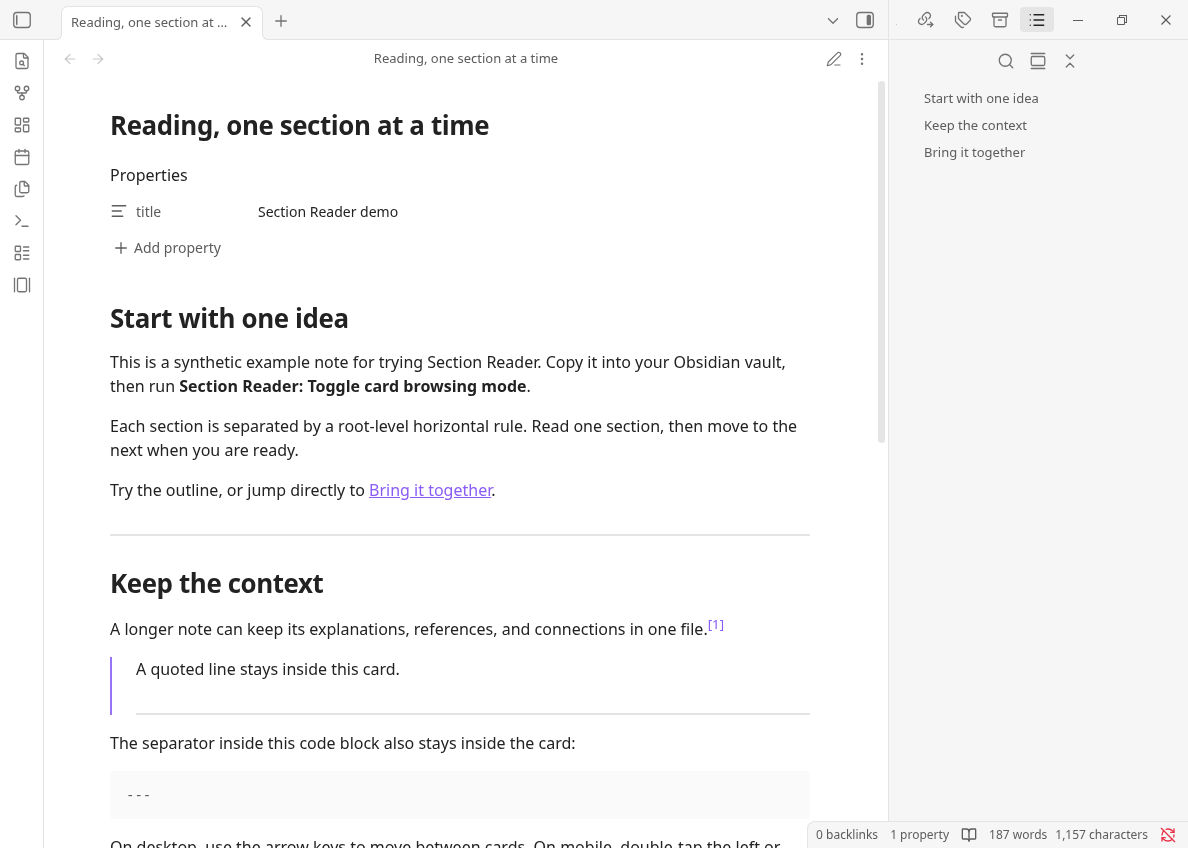
Original note: Multiple sections appear continuously in the normal Reading view.
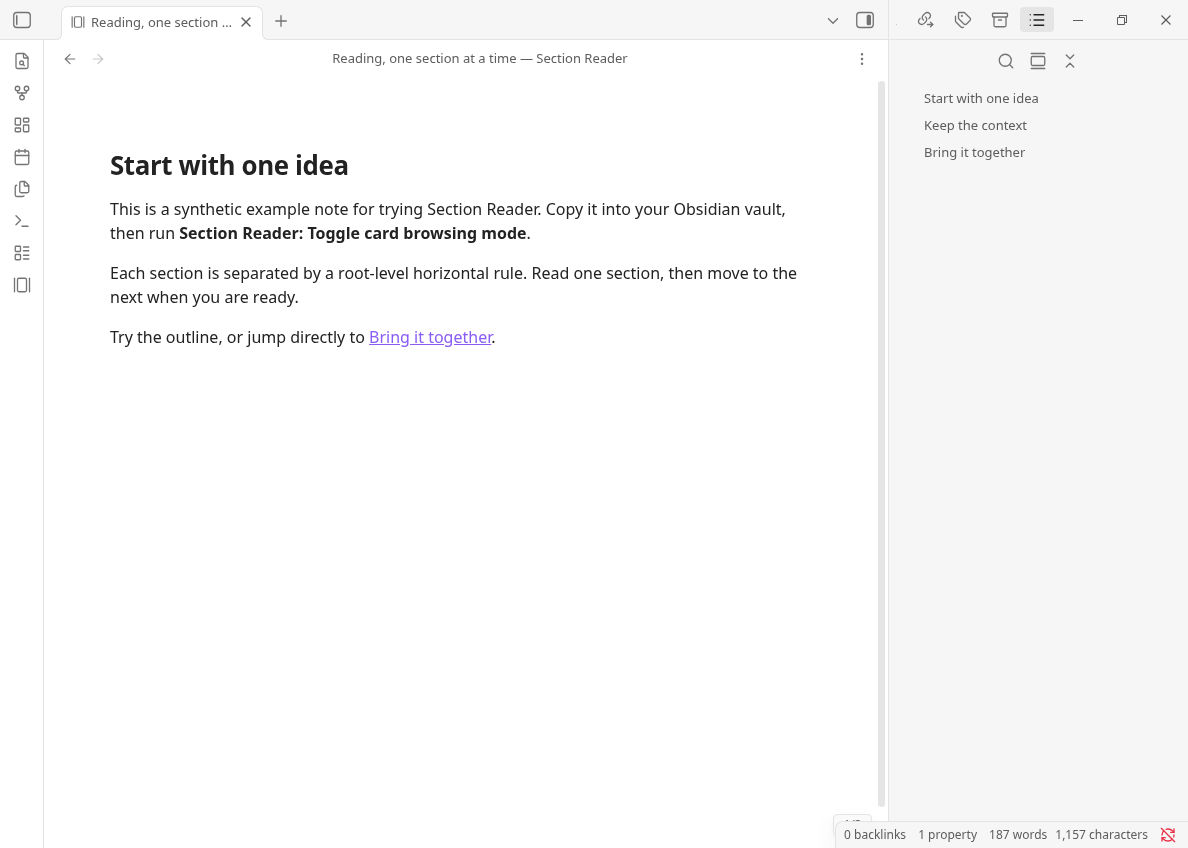
Section Reader: One section is shown at a time, with the Outline still available on the right.
2. Why use it?
- Focus on the current section. Turn long reading notes or study materials into cards you can browse one section at a time, without splitting them into multiple files
- Edit without leaving the section. Use the native editor to annotate text or run editor commands such as Templater, then return to Reading view in the same section
- Remember your reading position. Move between cards with the keyboard or by double-tapping the screen edges on mobile, and resume from the note's saved reading progress
- Keep the connections between content. Navigate through the Outline and heading or block links within the same note, while retaining Obsidian's native Markdown rendering, footnotes, embeds, and task interactions
3. Installation and usage
3.1 Installation
3.1.1 Install from the community plugin directory
- Open “Settings → Community plugins” in Obsidian and turn on community plugins.
- Go to “Community plugins → Browse”, search for Section Reader, and open its details.
- Click “Install”, then click “Enable” once installation is complete.
3.1.2 Manual installation
First, choose one way to obtain the installation files:
- Download a release: Go to Releases and download
main.js,manifest.json, andstyles.cssfrom the same Section Reader version. - Build from source: Download or clone this repository. With Node.js 24 LTS and pnpm 11.7.0, run
pnpm install --frozen-lockfileandpnpm run buildto generate those three files.
Once you have the files, complete these steps:
- Place all three files together in
<vault>/.obsidian/plugins/section-reader/, creating the folder if it does not exist. If your vault uses a custom configuration folder, use the corresponding directory. - Reload Obsidian and enable Section Reader under “Settings → Community plugins”.
3.2 Usage
Open any Markdown note in your vault to try Section Reader.
When several concepts are written in the same Markdown note, the content stacks up from top to bottom. As the note gets longer, it becomes easier to lose focus while reading and reviewing.
If you want to read one concept at a time without manually splitting the note into multiple files, simply place --- on its own line between concepts, with a blank line before and after it. In Section Reader, each section is displayed as a separate card, while the original note stays in a single file. For example, the two concepts below will appear as two cards:
### The Accounting Equation

**Assets = Liabilities + Equity**

A company has USD 50,000 in assets and USD 20,000 in liabilities.
Its equity is USD 30,000: the owners' remaining interest in the assets
after deducting liabilities.

---

### Double-Entry Bookkeeping

Every transaction records equal total debits and total credits.

Buying equipment for USD 5,000 in cash:

- Debit Equipment: USD 5,000
- Credit Cash: USD 5,000

Total assets stay the same: equipment increases while cash decreases.
- Enter and exit: Click the “Toggle Section Reader” ribbon icon, or run “Toggle section focus”. Trigger it again to show the full note. In Reading view,
Escalso exits focus; in Editing view,Esckeeps its native behavior. - Read and edit: Enable “Allow native reading/editing mode switching” in Section Reader settings, then exit and re-enter Section Reader. You can use Obsidian's native reading/editing command or view control while keeping the current section. With the setting off, Section Reader stays read-only until you exit.
- Turn pages: In desktop Reading view, click the note and use
←/→. In Editing view, these keys always belong to the editor; assign your own shortcuts to “Previous section” and “Next section” for navigation. On mobile, double-tap the left / right window edge in either mode. - Jump and resume: The Outline and same-note heading, block, and footnote links reveal the destination section. Entering focus from Editing view selects the cursor's section; entering from Reading view resumes the saved section. Each entry, section navigation, or reading/editing mode switch starts at the top of the card. Closing a tab ends its focus session but preserves the saved section.
- Quick access: Configure your own hotkeys under “Settings → Hotkeys”. On mobile, the focus toggle can use Obsidian's ribbon or Quick Action; use the native reading/editing control for mode changes. No default hotkeys are assigned.
3.3 Commands
| Command | ID |
|---|---|
| Toggle section focus | toggle-card-view |
| Next section | next-card |
| Previous section | previous-card |
4. Development
Use Node.js 24 LTS and pnpm 11.7.0, as declared in .node-version and package.json. Source builds also support Node.js 22.13+ in the 22.x line and Node.js 24 or newer. The packageManager field fixes the pnpm version; when launched from another pnpm version, it downloads and uses the pinned version. Dependency overrides and reviewed installation scripts are configured in pnpm-workspace.yaml.
pnpm install --frozen-lockfile
pnpm run dev
Full validation:
pnpm run check
pnpm run check runs TypeScript checks against the current API and the minimum supported Obsidian 1.8.7 API, followed by ESLint (including Obsidian plugin rules), Vitest, release-check tests, a production build, and packaging checks. CI runs the same command for pull requests; release builds also check the version tag. See release checks for coverage and limitations.
5. Additional information
Additional information (interface language, splitting rules, feature scope)
1. Interface language
When the plugin loads, it reads Obsidian's current interface language: Chinese language codes (zh, zh-CN, zh-TW, and so on) display Chinese; English and all other languages display English. After changing Obsidian's interface language, reload the plugin or restart Obsidian so that all command names are refreshed.
2. Splitting rules
Only a line that meets both of the following conditions splits cards:
- Its source text is exactly
---, with no spaces or other characters. - It is a Markdown root-level horizontal rule.
Therefore, matching text in YAML frontmatter, code blocks, blockquotes, lists, HTML blocks, and Setext headings, as well as *** / ___, does not split cards. Empty cards produced by consecutive, leading, or trailing separators are ignored.
3. Feature scope
- The native Markdown view retains the complete document. Reading view filters content blocks by their original line numbers, preserving the full context for footnotes, reference definitions, links, embeds, and task interactions; Editing view uses the native CodeMirror editor and hides content outside the focused range.
- Card content follows the readable line width and page-margin settings of the normal Markdown view, rather than touching the sides of the desktop window.
- Each card can scroll vertically. In Reading and Editing view, entering or returning to a card starts at the top; progress remembers only the current section, not the scroll position within a card.
- In Reading view, internal links to other notes open in a new tab in the normal Markdown view, while the original tab stays in focus mode. Heading and block links within the same note navigate in the current card view; clicking with a modifier key can still open them in a new tab.
- On desktop, internal-link hover previews are handled through Obsidian's native Page Preview events. With Hover Editor enabled, the same interactive preview popovers are available in card mode.
- Browsing does not modify Markdown. Text edits, templates, and task checkbox changes update the original file through the native editor and renderer.
- The current version does not include fullscreen presentations, autoplay, export, a theme system, custom separators, or visible page navigation buttons.
License
MIT © 2026 Xinlei Zhou