Scan Stitch
 Jay Leimer2 downloads
Combine one-file-per-page scanner output into a single PDF with fast rotation review.
- Overview
- Scorecard
- Updates2

Turn a scanner's one-file-per-page output into a single, correctly rotated PDF in your Obsidian vault.

Why
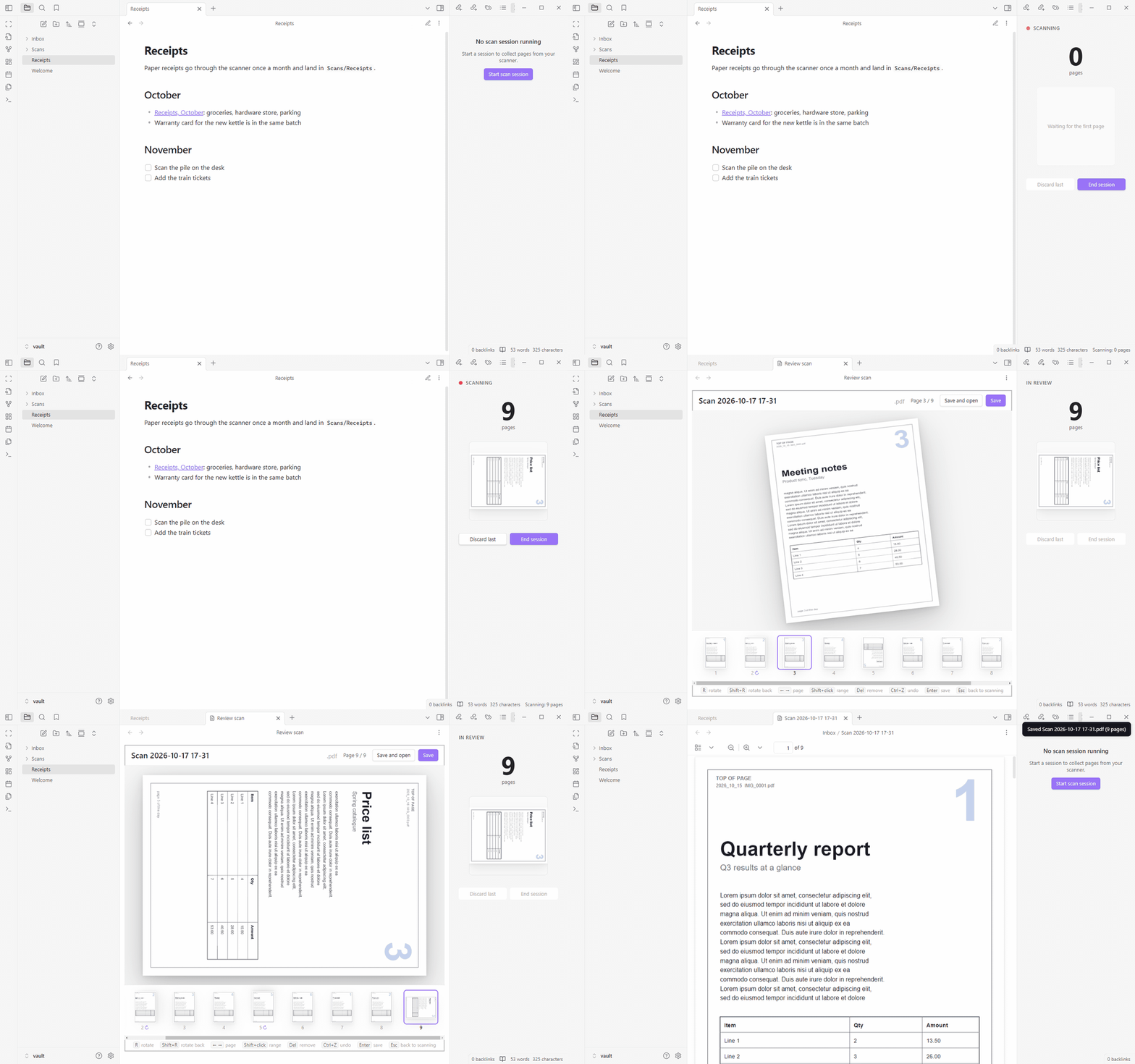
Many flatbed and sheet-fed scanners save one file per page into a folder: IMG_0001.pdf, IMG_0002.pdf, and so on, often restarting the numbering in a new folder every day. Turning a stack of those into one PDF, with every page the right way up, is tedious by hand. Scan Stitch makes it a short session: start, scan while Obsidian is open, end, fix rotation with a few key presses, save.
Features
- Works with any scanner that writes files into a folder. Point it at the folder once; subfolders (such as one folder per day) are included, even ones created mid-session.
- PDF, JPEG and PNG pages. Multi-page PDFs are split into separate reviewable pages. Images become full pages (EXIF orientation applied, sized from their DPI or 150 DPI).
- Live side pane while you scan: a large page counter, a preview of the last page, Discard last and End session. A status bar item shows the count too.
- Keyboard-first review: one large page plus a filmstrip. Rotate, reorder by dragging, delete, select a range, undo and redo.
- Filename templates with placeholders such as
{date},{counter}and{pages}, saved as named templates, optionally with a default destination folder. - Append the new pages to a PDF that is already in your vault, verified before the original is replaced.
- Recent destinations: the last 5 folders you saved to are one click (or one Enter) away.
- Nothing is lost if Obsidian closes mid-session: the session is stored and offered for resume on the next start.
- Read only outside the vault: the scanner folder is never modified. No network access.
How it works
1. Start a session. Click the scan icon in the ribbon or run Start scan session. Pick the destination folder (the most recent one is preselected) and a filename template; the file name preview updates live.

2. Scan. Feed pages to your scanner as usual. Each new file appears in the side pane a few seconds after the scanner finishes writing it. Scanned a page twice? Press Discard last.

3. Review. Press End session to open the review screen. Fix the pages that came out the wrong way with R or Shift+R, drag thumbnails to reorder, delete strays with Del.

4. Save. Press Enter or Save to write one PDF into the destination folder, or Save and open to open it straight away. The session ends.
Install
Scan Stitch is desktop only and needs Obsidian 1.5.0 or newer. It is tested on Windows; see Limitations.
From Community plugins: the listing is pending review. Once it is listed, open Settings → Community plugins → Browse, search for "Scan Stitch", install and enable it.
Manually:
- Open the latest release (releases are named by the bare version, for example
1.0.0). - Download
main.js,manifest.jsonandstyles.css. - Put them in
<your vault>/.obsidian/plugins/scan-stitch/(create the folder if needed). - Restart Obsidian or reload plugins, then enable Scan Stitch under Settings → Community plugins.
- In Settings → Scan Stitch, set Watch folder to the folder your scanner saves into.
Verifying a download (optional): from 1.0.1 on, the release workflow publishes signed build provenance (GitHub artifact attestations) for main.js, manifest.json and styles.css. With the GitHub CLI you can check that a downloaded file was built by this repository's release workflow:
gh attestation verify main.js --repo CodingJinxx/scan-stitch
Limitations
- Windows is the only fully tested platform. macOS and Linux are untested; they are expected to work through the polling fallback (besides listening for file system events, the folder is rescanned every 3 seconds).
- Desktop only. Obsidian mobile cannot read folders outside the vault.
- No automatic rotation. You rotate the wrong-way pages yourself; it takes one key per page, or one for a whole range.
- No OCR. The PDF contains the scanned pages as they are, so their text is not searchable unless the scanner already made it so.
- No TIFF. Only PDF, JPEG and PNG files are read.
- Files rewritten in place are ignored. A file that already existed when the session started and is then overwritten under the same name is not picked up. (After an Obsidian restart and resume it may be, because the list of old files is kept in memory only.)
Usage
Commands
All commands are in the command palette under "Scan Stitch". None has a default hotkey; assign your own in Settings → Hotkeys.
| Command | Id | Available |
|---|---|---|
| Start scan session | start-session |
Always. If a session is already open, asks whether to resume or replace it. Also the ribbon icon. |
| End scan session | end-session |
While scanning. Opens the review screen. |
| Discard last scanned page | discard-last-page |
While scanning with at least one page. |
| Resume scan session | resume-session |
Reopens the open or stored session, in the scan pane or the review screen, wherever it was. |
Clicking the status bar counter ("Scanning: 7 pages") also ends the session and opens the review.
Scanning
Only files that appear in the watch folder after the session starts are counted; pages already there are ignored. Pages are ordered by the time each file finished writing, not by file name, so the restarting IMG_0001 numbering in day folders does not matter.
Discard last removes the newest file from the session (all pages of it, if it is a multi-page PDF). The file on disk stays where it is; the plugin just remembers to ignore it. Press it again to discard the page before. A rescan arrives as a new file at the end.
Review screen keyboard shortcuts
The review screen opens on page 1. While the file name field has focus, only Enter (save) and Esc (leave the field) are handled.
| Key | Action |
|---|---|
R |
Rotate 90° clockwise (the current page, or every selected page) |
Shift+R |
Rotate 90° counter-clockwise |
← / → |
Previous / next page |
Home / End |
First / last page |
Del or Backspace |
Remove the current page, or every selected page |
Ctrl+Z (Cmd+Z on macOS) |
Undo rotate, remove or reorder |
Ctrl+Y or Ctrl+Shift+Z (Cmd on macOS) |
Redo |
Ctrl+A (Cmd+A) |
Select all pages |
Enter |
Save |
Esc |
Back to scanning. With unsaved changes, asks: Keep scanning, Discard session or Cancel |
| Click a thumbnail | Jump to that page |
Shift+click a thumbnail |
Select the range from the current page to that one |
| Drag a thumbnail | Move the page to a new position |
Rotated pages show a small ↻ marker in the filmstrip. Rotation is added on top of whatever rotation the page already had.
Filename templates
A template is a pattern with placeholders in braces. The default template is called "Scan": Scan {date} {time}.
| Placeholder | Becomes | Example |
|---|---|---|
{date} |
Session start date, YYYY-MM-DD |
2026-10-17 |
{time} |
Session start time, HH-mm |
17-11 |
{year} |
Four-digit year | 2026 |
{month} |
Two-digit month | 10 |
{day} |
Two-digit day | 17 |
{pages} |
Number of pages, filled in when saving (? in previews) |
12 |
{counter} |
Next unused number for that name in the destination folder | 3 if Invoice 1 and Invoice 2 exist |
{folder} |
Name of the destination folder | Receipts for Scans/Receipts |
The five date and time placeholders take an optional format after a colon, using moment.js format tokens: {date:DD.MM.YYYY} gives 17.10.2026, {time:HH-mm-ss} gives 17-11-42, {date:YYYYMMDD} gives 20261017.
- Names are sanitised:
\ / : * ? " < > |and control characters are removed, trailing dots and spaces are trimmed, and Windows reserved names such asCONget a leading_. So avoid:in a time format;{time:HH:mm}would become1711. - Nothing is overwritten. If the name already exists in the destination,
2,3, ... is appended. - Unknown placeholders are kept as literal text and flagged in the template editor.
- Templates are named and saved in Settings → Scan Stitch → Filename templates. One is the default. A template can store a destination folder, which the start dialog then preselects.
- The file name can still be edited in the review screen's top bar before saving.
Example: Receipts {date:YYYY-MM} {counter} ({pages} p) saved into Scans/Receipts gives Receipts 2026-10 1 (3 p).pdf.
Append mode
Turn on Append to existing PDF in the start dialog and pick a PDF in your vault. The new pages are added after the existing pages:
- The review screen shows only the new pages; the header reads "Appending to file (N existing pages)". The existing pages cannot be changed there.
- The file name field is hidden because the target file is fixed.
- Before replacing the file, the merged result is reopened and its page count checked. A copy of the original is kept in
.obsidian/plugins/scan-stitch/backups/until the write succeeds; if anything fails, the original stays as it was and the copy is kept.
Settings

| Setting | Default | What it does |
|---|---|---|
| Watch folder | empty | Absolute path of the folder your scanner saves into. Type it or use Browse. Shows "Folder found" or "Folder not found". |
| Include subfolders | on | Also watch folders inside the watch folder, including ones created during a session. |
| PDF files | on | Count *.pdf files. |
| JPEG images | off | Count *.jpg and *.jpeg files, embedded as full pages. |
| PNG images | off | Count *.png files, embedded as full pages. |
| Stability delay (ms) | 1000 | How long a new file must stay unchanged before it counts. 100 to 30000. |
| Stability retries | 3 | How many times to re-check a file that is still being written. 1 to 20. |
| Filename templates | "Scan": Scan {date} {time} |
Add, edit, delete templates and choose the default. The last template cannot be deleted. |
| Recent destination folders | none | The last 5 folders saved to. Clear empties the list. |
At least one file type must stay enabled. Folder, file type and stability changes apply from the next scan session.
Privacy and file access
Obsidian's developer policies ask plugins to explain any access outside the vault, so here it is plainly:
- Desktop only. The plugin uses Node's file system API, which Obsidian provides only on desktop.
- Reads files outside your vault. It reads PDF, JPEG and PNG files from the scanner folder you configure, which is normally outside the vault. That is the whole point: your scanner writes there, and Scan Stitch picks the pages up from there. The Browse button in the settings opens your system's local folder picker; nothing is sent anywhere.
- Node's
fsis used only for the scanner folder. The plugin uses Node's file system module only to list, watch, check and read the files in the scanner folder you configure (and to check that a folder path you type exists). It never writes outside the vault. - Never changes the scanner folder. It never modifies, moves, renames or deletes anything in it. "Discard last" and "Discard session" only change what the plugin remembers; the files stay.
- Writes only into the vault: the merged PDF in the destination folder, and (in append mode) a temporary backup copy in the plugin's own folder.
- Lists vault folders and PDF paths, not note contents. To fill the destination folder and append target pickers, it lists the vault's folder paths and PDF file paths, and it looks at the file names in the destination folder so a new PDF never overwrites one. It reads no notes: apart from its own files in
.obsidian/plugins/scan-stitch/, the only vault file it reads is the PDF you choose to append to. - No network access, no telemetry, no account. The plugin makes no network requests.
- Verifiable releases. From 1.0.1 on,
main.js,manifest.jsonandstyles.cssin each release carry GitHub artifact attestations (signed build provenance); see Install for thegh attestation verifycommand. - Session state (scanner folder path, destination, template, the list of page file paths with their rotations, discarded paths, start time) is stored in the plugin's
data.jsonin.obsidian/plugins/scan-stitch/, together with your settings and recent folders.
FAQ
Which scanners does it work with? Any scanner, scanner app or phone sync tool that saves one file per page (or a few pages per file) as PDF, JPEG or PNG into a folder the computer can read. The plugin does not talk to the scanner or its driver; it only reads the files.
Why desktop only?
Watching a folder outside the vault needs Node's fs, which Obsidian mobile does not provide.
Why does a page take about 4 seconds to appear? A file only counts once it has stopped growing, so half-written files are never merged. The plugin reads the file size every Stability delay and needs Stability retries + 1 readings, the last ones unchanged: 1000 ms × (3 + 1) = about 4 s with the defaults. To speed it up, lower the delay (for example 300 ms) or the retries (for example 1, giving 2 readings: about 0.6 s). If your scanner writes slowly, or over a network share, raise them instead.
What happens if Obsidian closes in the middle of a session? Nothing is lost. The session is saved as it changes. On the next start Scan Stitch asks whether to Resume, Drop or decide Later (then use Resume scan session). Pages that arrived while Obsidian was closed are picked up if they are newer than the session start. Page files that no longer exist are skipped with a notice.
Why is TIFF not supported? pdf-lib, the PDF library the plugin uses, cannot embed TIFF images, and Obsidian's web view cannot display them. Set your scanner to PDF, JPEG or PNG.
I started a session and the pages already in the folder were not picked up. That is intended: only files created or modified after the session start count. Files that were already there are ignored.
I rescanned into an existing file name and it was not picked up. A file that already existed when the session started and is then overwritten in place is not picked up during that session; the plugin has already noted it as an old file. Let the scanner write a new file instead. (After a restart and resume such a file may be picked up, because that note is kept in memory only.)
How do I rotate a whole batch at once?
Click the first page of the batch in the filmstrip, Shift+click the last, then press R (or Shift+R). Ctrl+A then R rotates every page.
Does "Discard last" delete the file? No. It only removes the page from the session. The file stays in the scanner folder and is ignored for the rest of the session.
Development
Requires Node.js 22.12 or newer.
npm ci
npm run dev        # esbuild in watch mode, writes main.js
npm test           # vitest
npm run lint       # eslint with eslint-plugin-obsidianmd
npm run typecheck  # tsc --noEmit
npm run build      # production bundle: main.js
To try it in Obsidian without using real documents:
npm run build
node scripts/install-demo.mjs <vaultDir>          # copies main.js, manifest.json, styles.css into <vaultDir>/.obsidian/plugins/scan-stitch
node scripts/make-demo-scans.mjs <scannerDir>     # synthetic one-PDF-per-page scanner output, a few pages deliberately the wrong way round
node scripts/make-demo-scans.mjs --drip <stagedDir> <scannerDir> 4   # copies one file every 4 s to simulate a scanner
The defaults are C:\Dev\scan-stitch-demo\vault for the vault; see the comments at the top of each script for all options. The full manual test plan is in docs/qa-checklist.md; the design is in docs/superpowers/specs/2026-10-17-scan-stitch-design.md.
Support
Scan Stitch is free and open source. If it saves you time, you can buy me a coffee; it is never expected, and it helps me keep maintaining it.
Contributing
Bug reports, ideas and pull requests are welcome. See CONTRIBUTING.md.
Licence
MIT © 2026 Jay Leimer
Acknowledgements
- pdf-lib for merging and writing PDFs (MIT).
- The logo wordmark is set in Bricolage Grotesque and Figtree, both under the SIL Open Font License 1.1.