Root Folder Order
 Chiloh311 downloads
Keep root-level folders in a custom order in the file explorer.
- Overview
- Scorecard
- Updates4
Root Folder Order keeps the folders at the top level of your Obsidian vault in a custom order.
Use it when your vault has a fixed structure such as:
Reading
Clips
Notes
Archive
Resources
or:
读书
剪藏
笔记
归档
资源
Obsidian can sort files and folders by its built-in rules, but many vaults need a stable root structure that does not change just because a folder name changes. This plugin only changes the order of root-level folders in the file explorer. Notes and nested folders keep Obsidian's normal sorting behavior.
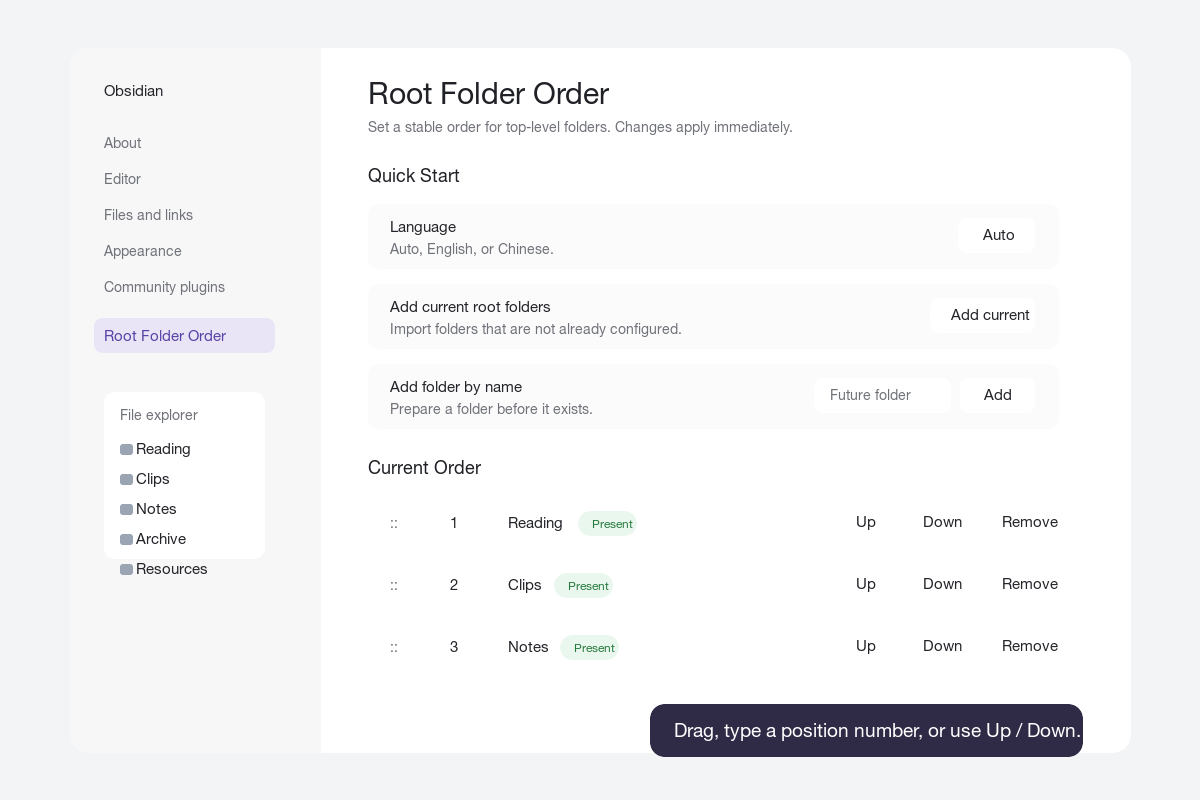
Features
- Sort root-level folders in a custom order.
- Reorder with drag and drop.
- Reorder by typing a position number.
- Reorder with Up and Down buttons.
- Add all current root folders with one click.
- Add a future folder by name before it exists.
- Mark configured folders as present or missing.
- Create a missing configured folder from the settings page.
- Optionally auto-add new root folders.
- Optionally track root folder renames.
- Optionally remove deleted root folders from the order.
- Settings UI in English and Chinese.
- No build step or runtime dependencies.
Installation
Obsidian Community Plugin Directory
- Open
Settings -> Community pluginsin Obsidian. - Search for
Root Folder Order. - Install and enable the plugin.
Manual Install
- Download the latest release from GitHub Releases.
- Copy these files into your vault:
<your-vault>/.obsidian/plugins/root-folder-order/
Required files:
main.js
manifest.json
styles.css
- Restart Obsidian or reload community plugins.
- Open
Settings -> Community plugins. - Enable
Root Folder Order.
BRAT Install
If you use the BRAT plugin, add this repository:
chilohwei/obsidian-root-folder-order
Quick Start
- Open
Settings -> Community plugins -> Root Folder Order. - Click
Add currentto import the current root folders. - Reorder folders by dragging rows, clicking
Up/Down, or editing the position number.
Changes are saved immediately and the file explorer refreshes in real time.
Settings
Quick Start
Language: Auto, English, or Chinese.Add current root folders: Adds root folders that are not already in the list.Add folder by name: Adds a root folder name to the order list, even if the folder does not exist yet.
Current Order
Each configured folder row includes:
- Drag handle for drag-and-drop sorting.
- Position number for direct ordering.
- Folder status: present or missing.
UpandDownbuttons.Createbutton when the folder is missing.Removebutton to remove it from the configured order.
Advanced Options
Configured folders position: Show configured folders before or after unconfigured root folders.Unconfigured folders: Keep Obsidian order, sort A to Z, or sort Z to A.Auto-add new root folders: Append newly created root folders to the configured order.Track root folder renames: Update saved entries when configured root folders are renamed.Remove deleted root folders: Remove configured entries when root folders are deleted or moved away from the vault root.Remove missing entries: Clean up configured folders that no longer exist.Reset to current root folders: Replace the order list with all current root folders.Bulk edit: Paste one root folder name per line and apply it as the new order.
Common Use Cases
Personal Knowledge Base
Recommended configuration:
- Configured folders position:
Top - Unconfigured folders:
Use Obsidian order - Track root folder renames:
On
Shared Vault
Recommended configuration:
- Auto-add new root folders:
On - Track root folder renames:
On - Remove deleted root folders:
On
Vault Cleanup or Migration
Useful actions:
- Use
Bulk editto paste a clean folder list. - Use
Createto create missing root folders. - Use
Remove missing entriesafter reorganizing the vault.
Chinese Guide
Root Folder Order 用于固定 Obsidian vault 顶层目录在文件列表中的显示顺序。
适合这类结构:
读书
剪藏
笔记
归档
资源
插件只影响 vault 根目录下的一级目录。子目录和笔记仍然使用 Obsidian 原本的排序方式。
快速开始
- 打开
设置 -> 第三方插件 -> Root Folder Order。 - 点击
添加当前,导入当前根目录。 - 通过拖拽、
上移/下移,或直接输入序号来调整顺序。
所有改动都会立即保存,并实时刷新文件列表。
常用配置
语言:自动、English、中文。添加当前根目录:把还不在列表里的根目录加入排序。按名称添加目录:即使目录还不存在,也可以先加入排序列表。高级选项:包含未配置目录排序、自动添加新根目录、重命名跟踪、删除清理、批量编辑等功能。
Development
This repository is intentionally simple. The plugin is plain JavaScript and does not require a build step.
Run local checks:
node --check main.js
node -e "const fs=require('fs'); for (const f of ['manifest.json','versions.json']) JSON.parse(fs.readFileSync(f,'utf8'));"
For local development, copy or clone this repository into:
<your-vault>/.obsidian/plugins/root-folder-order
Then reload Obsidian and enable the plugin.
Release Notes for Maintainers
For Obsidian community plugin releases:
- Keep
manifest.jsonat the repository root. - The GitHub release tag must exactly match
manifest.jsonversion, for example1.0.0. - Attach
main.js,manifest.json, andstyles.cssto the GitHub release. - Prefer the
ReleaseGitHub Actions workflow so release assets receive artifact attestations. - Keep personal vault configuration such as
data.jsonout of the release.
To publish a release:
git tag 1.0.3
git push origin 1.0.3
After the workflow finishes, verify the released assets:
gh release verify 1.0.3 --repo chilohwei/obsidian-root-folder-order
gh release download 1.0.3 --repo chilohwei/obsidian-root-folder-order --dir /tmp/root-folder-order-verify --clobber
gh attestation verify /tmp/root-folder-order-verify/main.js -R chilohwei/obsidian-root-folder-order
gh attestation verify /tmp/root-folder-order-verify/manifest.json -R chilohwei/obsidian-root-folder-order
gh attestation verify /tmp/root-folder-order-verify/styles.css -R chilohwei/obsidian-root-folder-order
License
MIT