Roll for Initiative
 Marek Meissner97 downloads
Initiative tracker that keeps the fight as plain text in your note. Reads statblocks, live-syncs HP and conditions with character sheets, and supports D&D 5e (2024) and Cyberpunk RED.
- Overview
- Scorecard
- Updates9
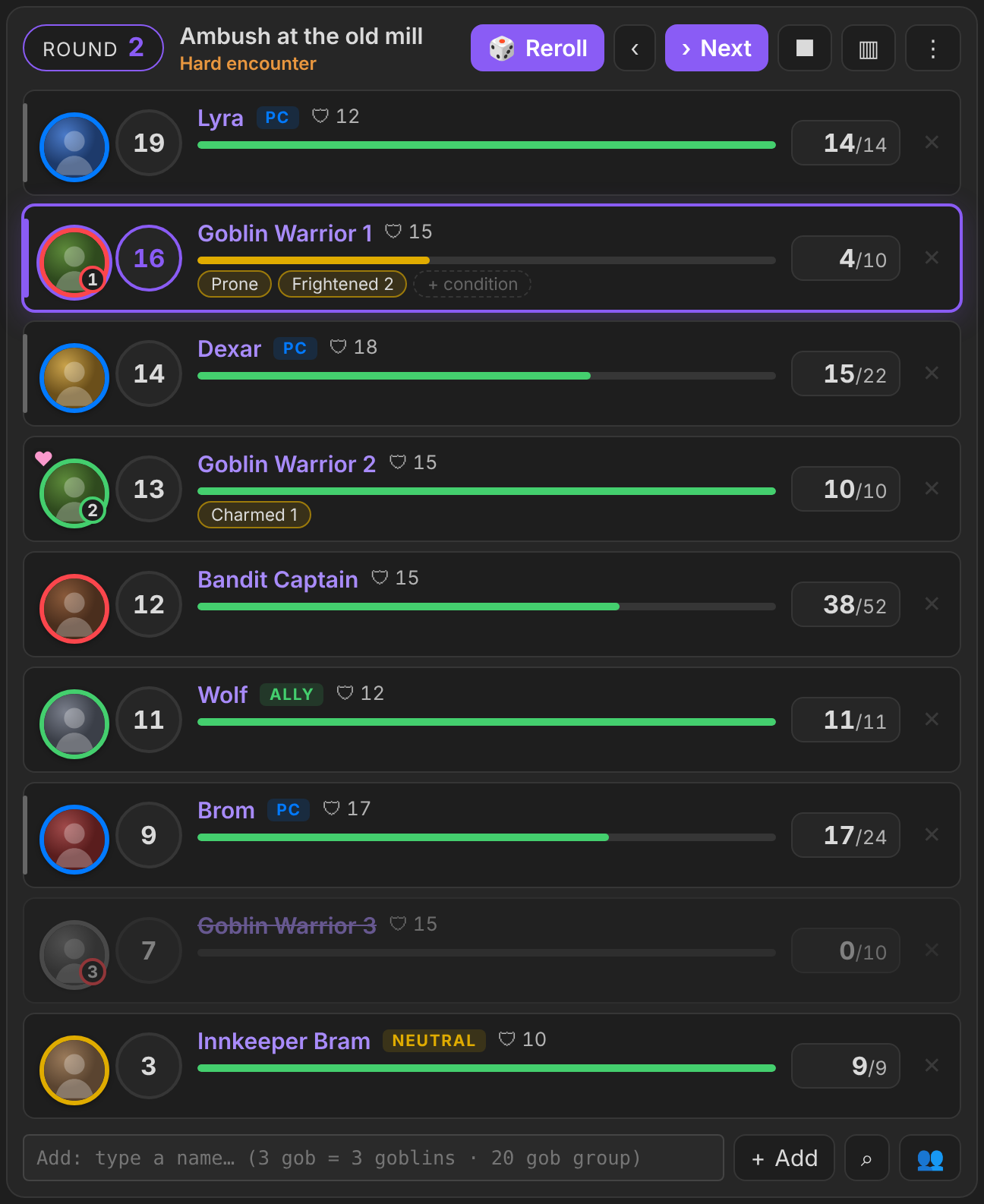
An initiative tracker for Obsidian that keeps the whole fight as plain text in your note. You can run it in the note or from the sidebar.
- It reads HP, AC and initiative from your monster statblocks.
- It writes damage, healing, conditions and death saves straight back to your players' character sheets.
- It supports two game systems: D&D 5e (2024) and Cyberpunk RED.
Roll for Initiative is built on Quick Initiative by walkertbrown (Bananafest Destiny). It follows Quick Initiative's plain-text block format and its look. See Credits.
Features
- The fight is plain text in a
```roll-initiative ```code block. It is readable, it syncs with your vault and it works on mobile. Edit it by hand or with the buttons. - Sidebar view: run the same encounter from the right sidebar. Both views edit the same block.
- Monster stats from statblocks:
- AC, HP, hit dice, initiative modifier, CR and portrait come from the note's
```statblock ```(Fantasy Statblocks). - If a note has none, the plugin uses its frontmatter instead, then the Fantasy Statblocks bestiary.
- Statblock numbers always win.
- AC, HP, hit dice, initiative modifier, CR and portrait come from the note's
- Live character sheets (One DnD Character Sheet):
- HP, temp HP, AC, conditions, exhaustion and death saves are read from the sheet and written back to it.
- The sheet's own rules apply: temp HP absorbs damage first, 0 HP means dying, three successful saves bring the PC back to 1 HP.
- Tokens with number badges: Goblin 2 keeps its "2" after sorting.
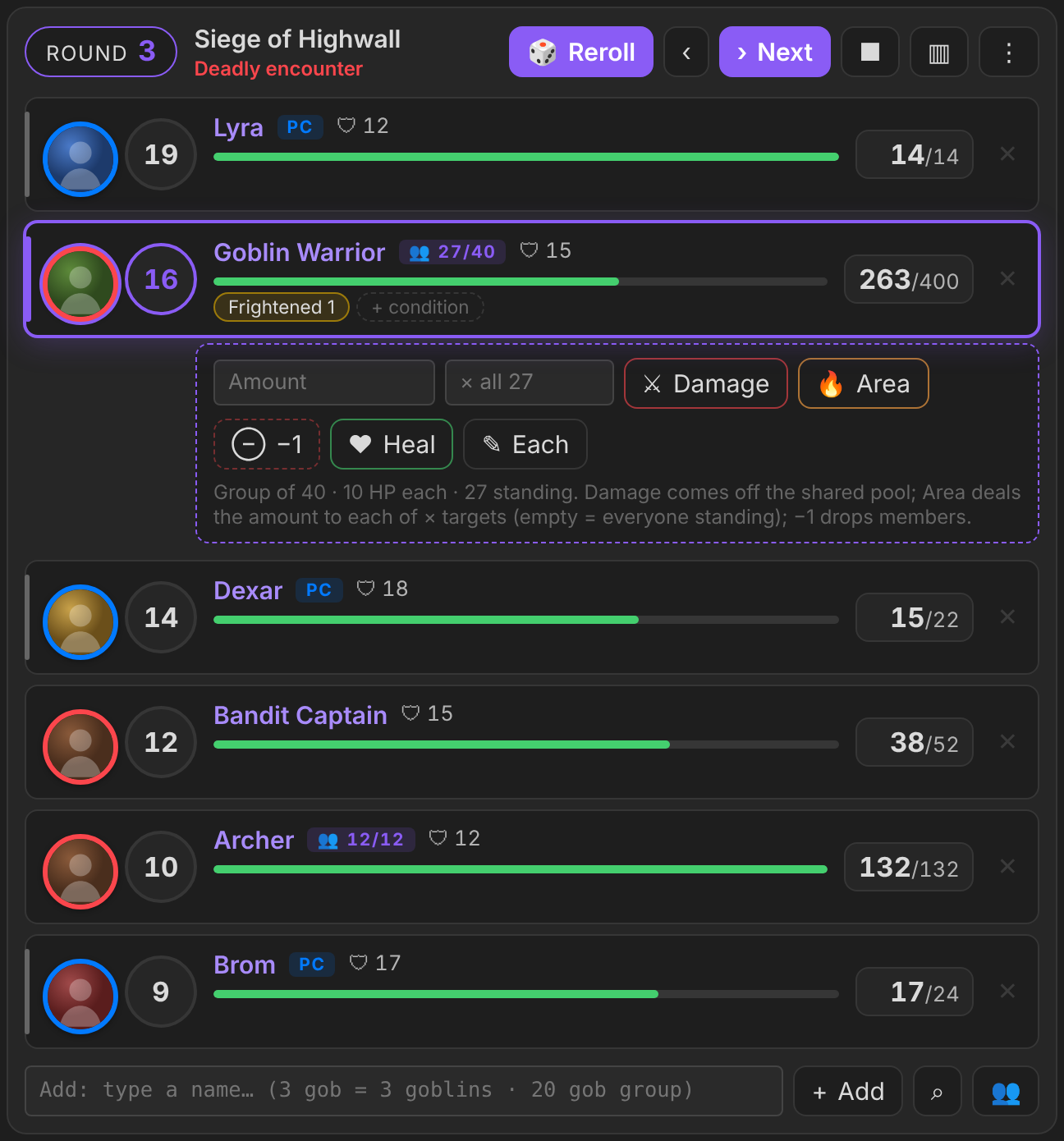
- Armies and minions: run 40 goblins as one row with a shared HP pool, hit the whole group or several members at once, and watch the "27/40 standing" count drop.
- Rim colours show the side: blue = player, red = enemy, yellow = neutral NPC, green = ally. Charmed flips the colour. A player character can turn against the party (tick Enemy in their token menu): red rim, an ENEMY tag, and they count as an enemy.
- Encounter cards: write an encounter in a
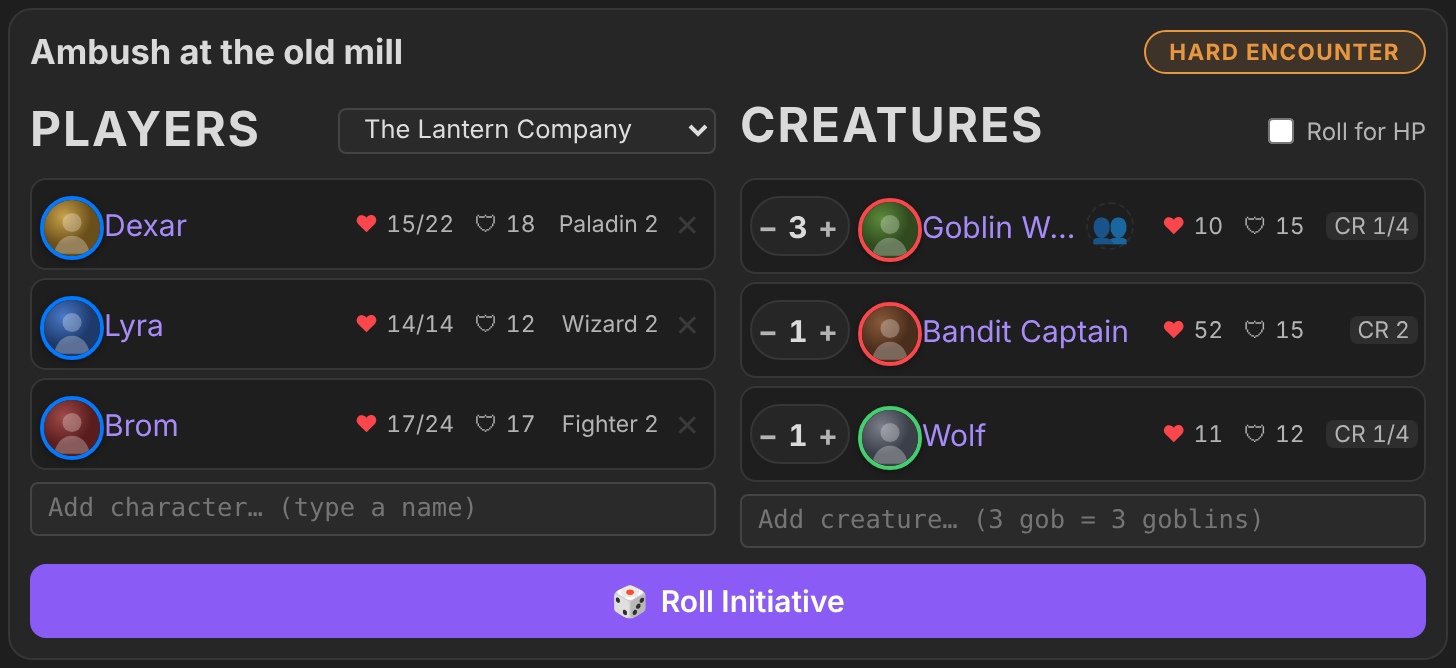
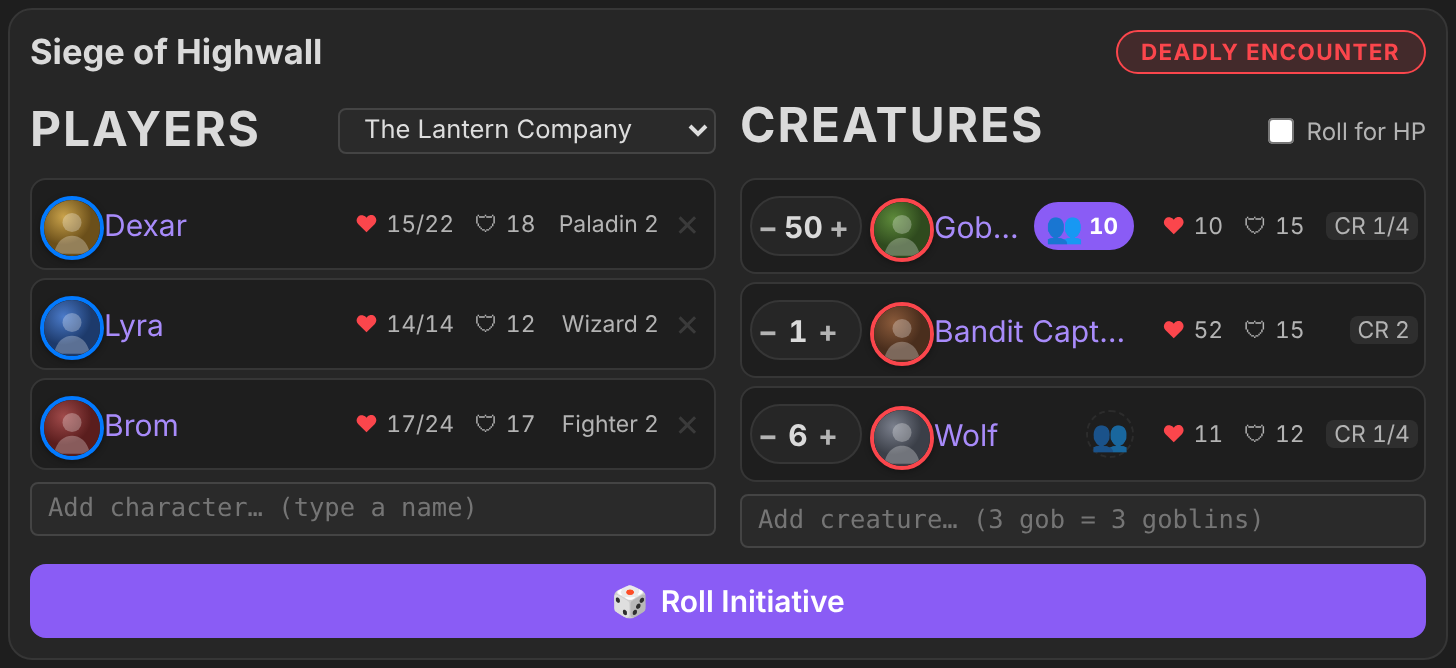
```roll-encounter ```block (Initiative Tracker syntax) and press Roll Initiative.- The card has players on the left and creatures on the right, with − / + steppers.
- A badge shows the difficulty (Easy / Medium / Hard / Deadly encounter).
- An optional Roll for HP checkbox rolls each creature's HP.
- One combat note: every fight goes into one Roll Initiative note. If a fight is still running, the plugin asks before overwriting it.
- Auto-end: combat ends by itself when every enemy is down.
- Statblock pane: click a monster's name to open its statblock in the sidebar.
- Add box with suggestions: type
3 goband press Enter to add 3 Goblins. - Atlas VTT: start fights from Atlas encounters and keep initiative, HP and conditions in sync with an open Atlas map.
- Game systems: switch between D&D 5e (2024) and Cyberpunk RED in Settings.
| Encounter card | Damage / heal box |
|---|---|
 |
 |
Armies and minions (groups)
Large battles stay manageable: a group is one row for many identical creatures. They share one initiative and one HP pool (HP each × how many).
- Make a group in any of these ways:
- on an encounter card, click the 👥 button next to a creature with a count above 1 and pick One group, Groups of 10 or a custom size: 50 goblins in groups of 10 = 5 group rows;
- in the add box, type
40 gob group; - in the block, write
40x [[Goblin Warrior]] group; - in the tracker, right-click creatures of the same kind → Fight as one group.
- The tag next to the name shows how many are still standing (
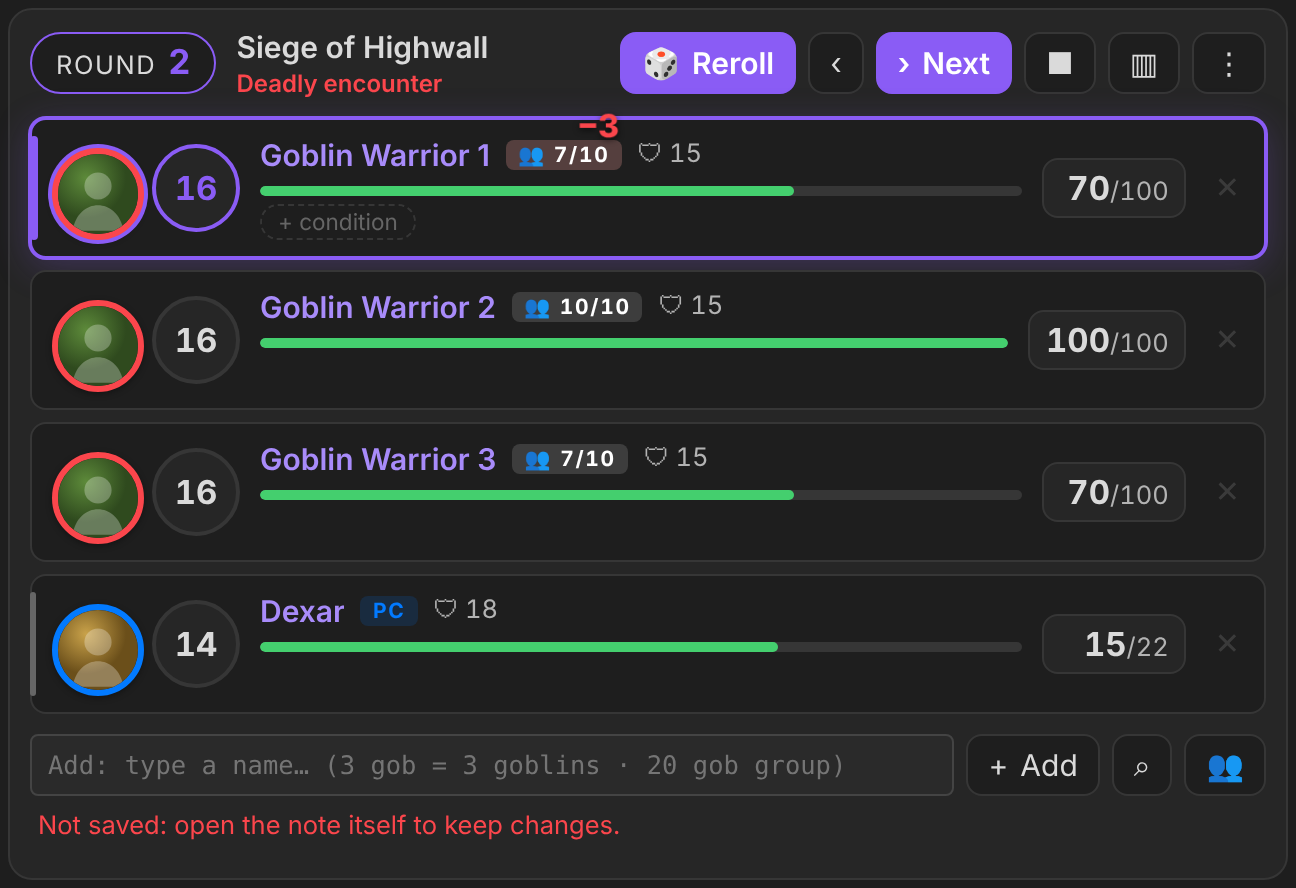
👥 27/40). That's the pool divided by HP each, rounded up. - Casualties: when members go down, a red −3 floats over the group's HP bar for a moment (green +N when healing brings them back).
- Damage box for a group:
- Damage comes off the shared pool.
- Area deals the amount to each of × targets (empty = everyone standing): Fireball for 28 on 6 goblins = 6 goblins down. One member never loses more than its own HP.
- −1 drops members (type a number to drop more).
- Heal puts HP back into the pool.
- Each sets HP each and refills the group.
- Splitting: right-click → Split into smaller groups… (e.g. 22 survivors → groups of 10 = 10/10/2) or Split into individual creatures. The last row keeps the damage the pool had taken.
- Settings → Armies & minions:
- Group size sets the default size of each group;
- Group automatically from starts big counts as groups;
- Show casualties turns the floating numbers on or off.
- Difficulty counts every member of the group.
- Auto-end triggers when the pool hits 0.
- Cyberpunk RED: one SP value for the whole group, Body / Head / Direct hits come off the pool, and Area hits each target through body SP.
| 50 goblins in groups of 10 | Casualties after an area attack |
|---|---|
 |
 |
Concentration at a glance
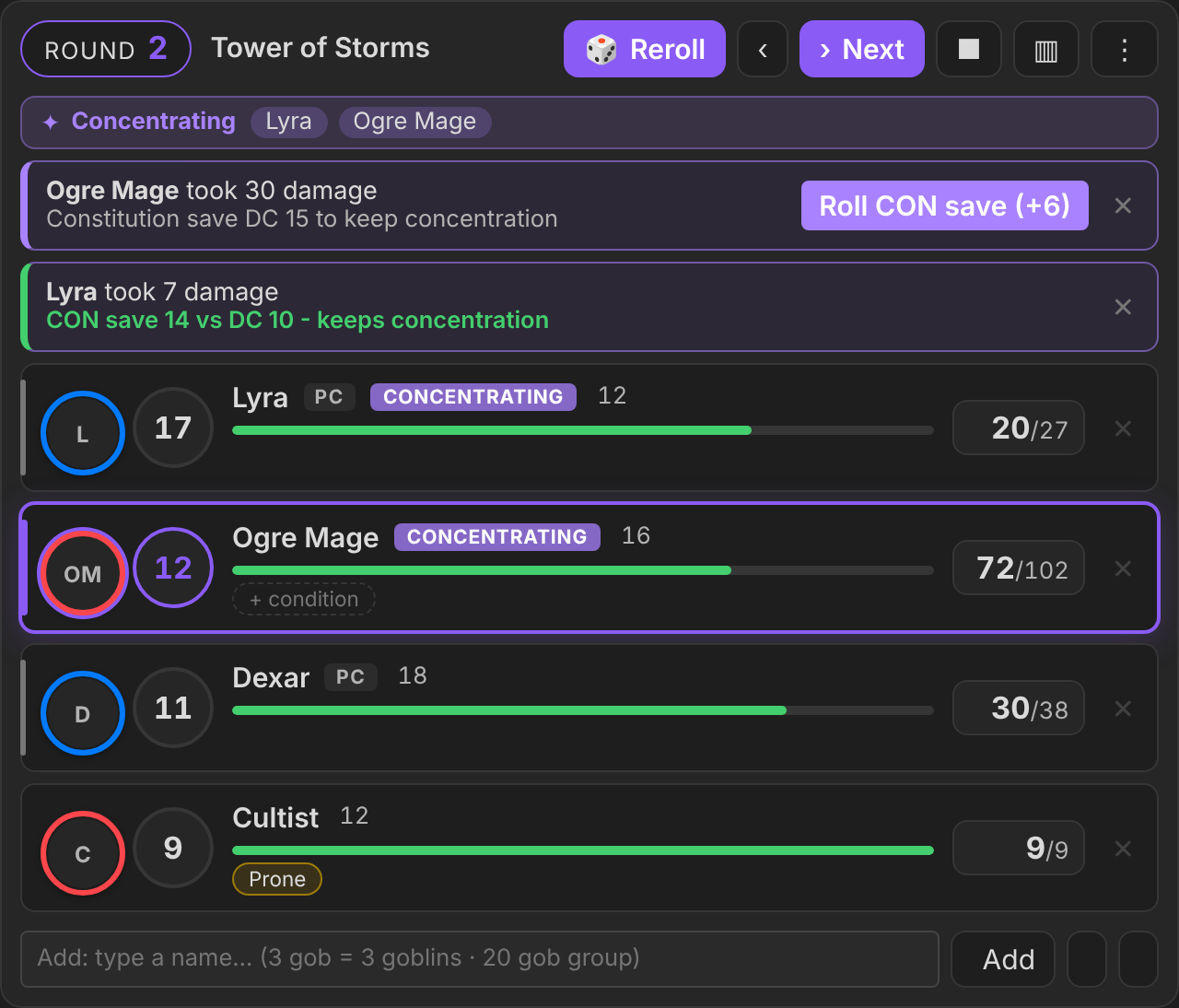
- Badge: anyone with the Concentrating condition gets a purple Concentrating badge on their row. Click it to end concentration.
- Strip: the top of the tracker lists everyone who's concentrating.
- Save card: when someone who's concentrating loses HP, a card shows the Constitution save DC (half the damage, at least 10, at most 30) and a Roll CON save (+X) button.
- The roll goes through the dice hook, so it shows in the GM screen's dice tray.
- The card then says whether they keep or lose concentration.
- A lost save removes the condition, from the character sheet too.
- Where the CON bonus comes from:
- characters: the character sheet's saving throws;
- monsters: the statblock's
saves, or its CON score.
- At 0 HP concentration ends by itself.
- Player screen: players see their own characters' badge and strip. A monster's concentration stays hidden, because concentrating is silent and only the spell's effect is visible. Turn on Show monsters' concentration on the player screen to reveal it.
- Turn it off under Settings → Combat → Concentration at a glance.
Several initiatives at once
For when the party splits up, like a city attack where each group fights its own enemies somewhere else.
- Start another one: while an initiative is running, a Run alongside button shows next to Roll initiative, both on encounter cards and on a fight in its own note that isn't rolled yet. (Roll Initiative on an encounter card also asks: Run alongside or Overwrite.)
- The new fight goes into its own note:
Roll Initiative 2.md,Roll Initiative 3.md, and so on. - Overwrite still replaces the fight shown in the sidebar.
- The new fight goes into its own note:
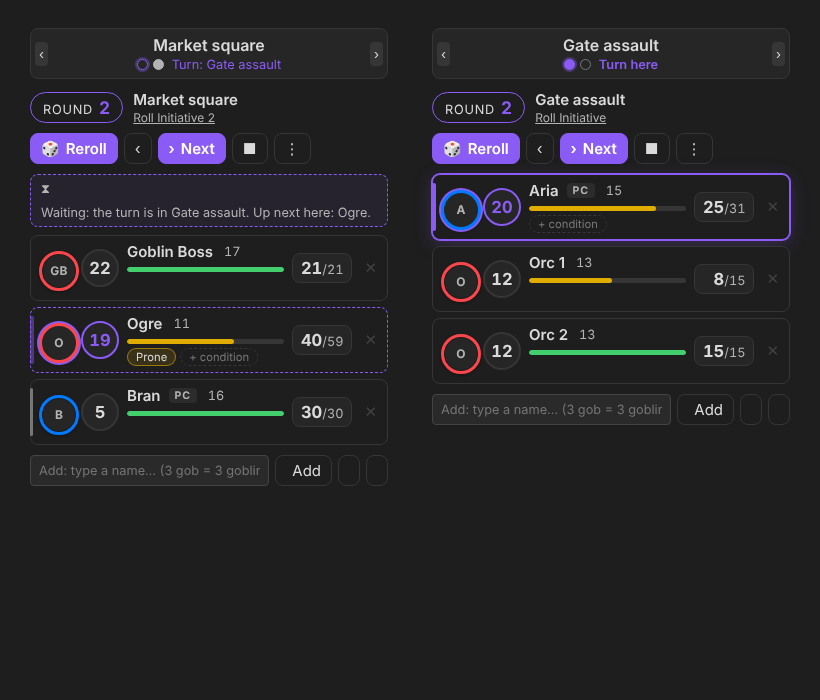
- Switch between them: the top of the sidebar shows ‹ fight name › arrows and one dot per initiative.
- The highlighted dot is the initiative whose turn it is.
- Turn: … jumps straight to that initiative.
- One shared turn order: all the initiatives run together like one big initiative order, and turns are never skipped.
- Example: a player with 20 in the first fight and a monster with 19 in the second. When the player presses Next, the turn goes to the monster, and the sidebar switches to the second fight by itself.
- Next and Previous work from any of the initiatives.
- The round is shared, too.
- Condition durations still tick at the end of each creature's own turn.
- A waiting initiative says so at the top (Waiting: the turn is in …). Its dashed
>marker shows who acts next there. - Joining mid-round: a new initiative joins the current round. Its creatures act this round if their initiative is still to come, and the rest wait for the next round.
- Stop and go back to setup (↺ next to ■, or ⋮ menu): the initiative goes back to how it was before rolling. Round, turn and initiative values are cleared; HP and conditions stay. Press Roll initiative to start it again; a stopped initiative that ran alongside others rejoins their turn order.
- Ending: end one initiative (■, or all its enemies go down) and the others carry on. If it had the turn, the turn passes to whoever is next. When only one is left, it's a normal fight again.
- Player screen: shows the initiative whose turn it is.
- Who takes the damage?: offers the targets from the fight of whoever rolled.
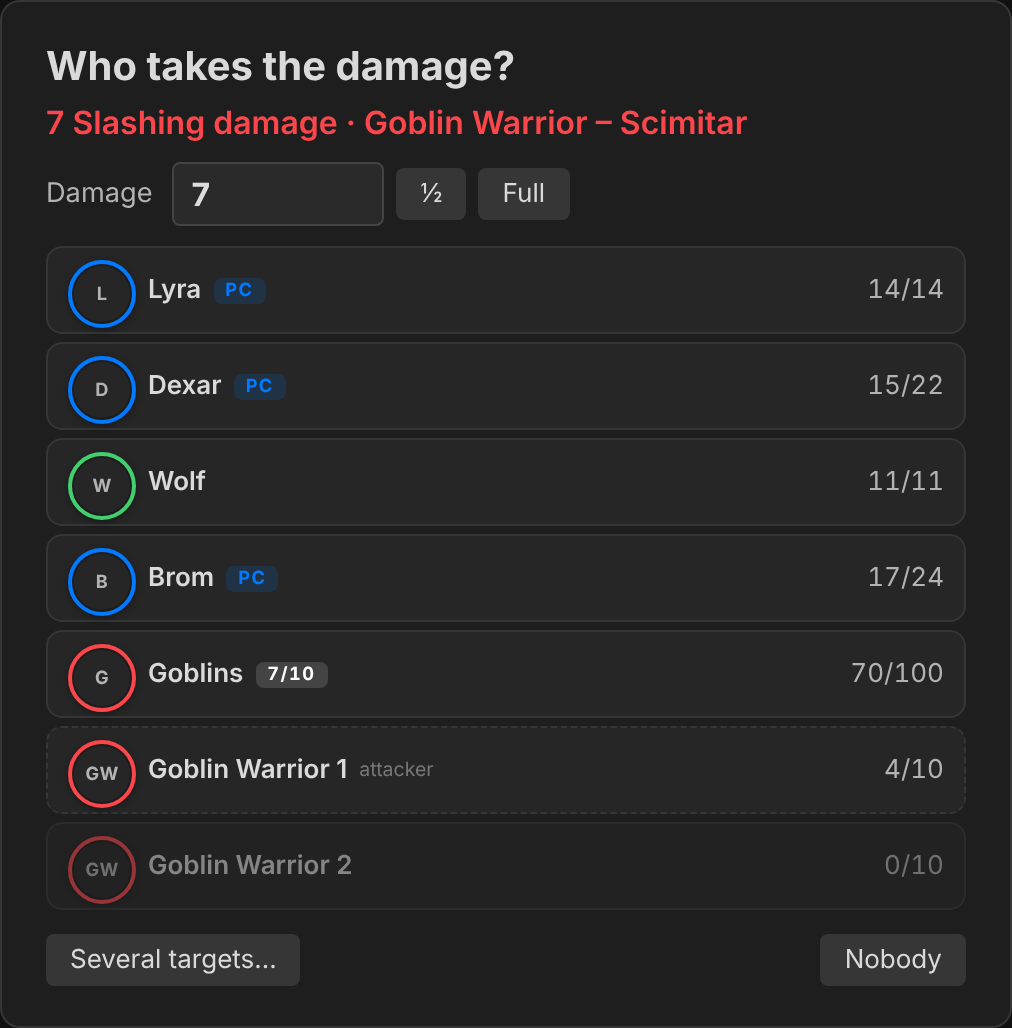
Rolled damage and healing: "Who takes the damage?"
During a fight, when someone rolls damage or healing, a window asks Who takes the damage? (or Who takes the heal?). It catches rolls from:
- the dice tray of the Game Master Interactive Screen;
- the roll buttons on One DnD Character Sheet;
- Fantasy Statblocks actions (through the Dice Roller plugin).
To use it:
- Click a creature and the HP is taken off, or added, straight away. This works for character sheets, groups and Cyberpunk armour too.
- Several targets… lets you tick everyone caught in a Fireball and apply to all of them.
- ½ halves the damage for a successful save or resistance. You can also type any amount.
- Nobody closes the window.
The likely targets come first:
- for damage, the other side, with the attacker and anyone who's down at the bottom;
- for healing, the healer's own side.
Attack rolls, checks and initiative rolls are ignored. Turn it off under Settings → Rolled damage and healing.
Player screen
Show the fight to your players on a second screen with TTRPG Tools – Player Screen by Jareika.
- Click the monitor button in the tracker's header (or ⋮ → Show on player screen, or run the command Show initiative on player screen).
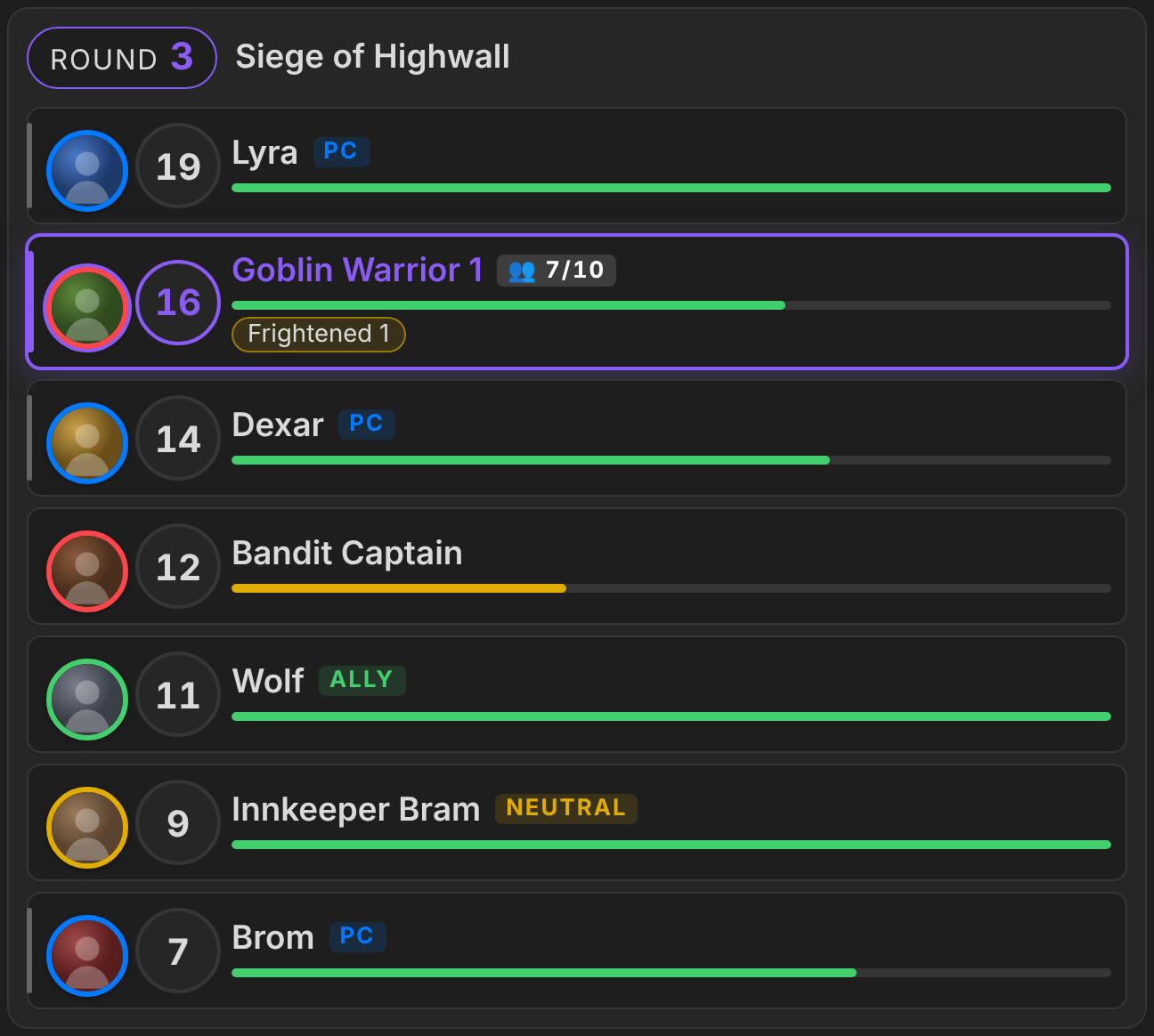
- The players see the round, the order, whose turn it is, tokens, names, PC / ally / neutral tags, group counts with casualties, health bars, conditions and death saves.
- They never see HP numbers, AC / SP, any buttons, or creatures you've marked hidden. Revealing a creature puts it on their screen.
- The view is live: every change you make in the tracker shows up there immediately.
- Settings → Player screen → Health bars controls the bars: everyone, player characters only, or nobody.
Cyberpunk RED mode
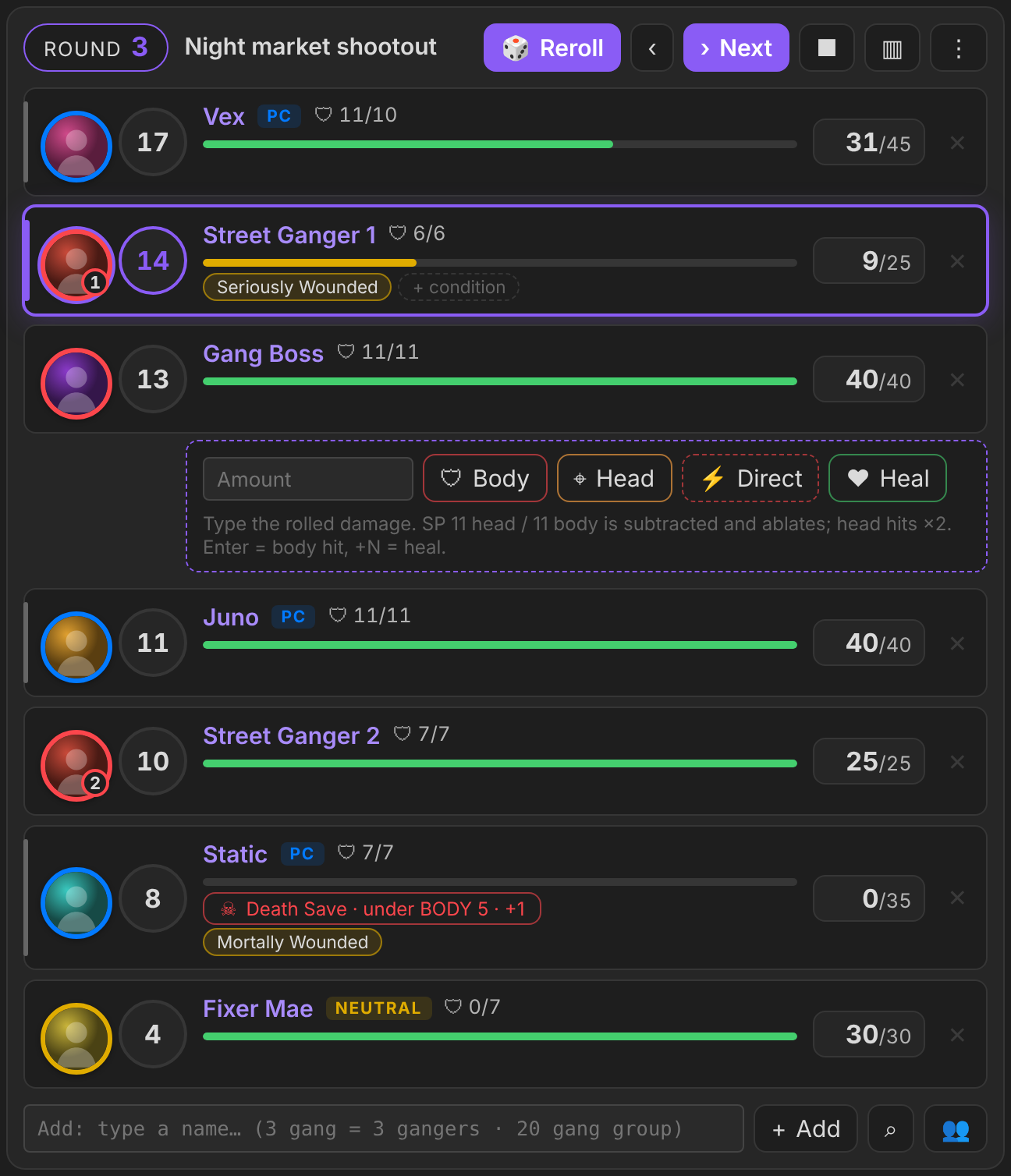
Settings → Roll for Initiative → Game system → Cyberpunk RED. In this mode:
- Initiative is 1d10 + REF. Bonuses such as a Solo's Combat Awareness are added automatically.
- Armour: each location has its own SP. A hit is marked Body, Head or Direct:
- damage over the SP gets through, and that SP drops by 1;
- head hits double the damage that gets through;
- Direct ignores armour.
- Wounds: Seriously Wounded and Mortally Wounded are applied automatically.
- Death Saves: a Mortally Wounded creature gets a Death Save button.
- Critical Injuries deal their 5 bonus damage when you add them as a condition.
- Player notes: everything is read from and written to the note's properties. It works with the Cyberpunk RED Character Sheet plugin.
Installation
Roll for Initiative is not in the Community plugins list yet, so you can't install it from Browse in Obsidian. Use one of these two ways.
Option A: BRAT (recommended; installs and updates inside Obsidian)
- In Obsidian, open Settings → Community plugins and turn off Restricted mode if it is on.
- Click Browse, search for BRAT (Obsidian42 - BRAT), then Install and Enable it.
- Open Settings → BRAT → Add Beta plugin.
- Paste this repository's address:
https://github.com/YOUR-GITHUB-USERNAME/roll-initiative - Click Add Plugin. BRAT downloads the latest release.
- Go to Settings → Community plugins and switch on Roll for Initiative.
BRAT checks for new releases when Obsidian starts. You can also run BRAT: Check for updates from the command palette.
Option B: by hand
- Download
main.js,manifest.jsonandstyles.cssfrom the latest release. - In your vault, create the folder
.obsidian/plugins/roll-initiative/. The.obsidianfolder is hidden: turn on hidden files in your file manager. - Put the three files in that folder.
- Restart Obsidian, or run Reload app without saving, then go to Settings → Community plugins and switch on Roll for Initiative.
To update, replace the three files with the ones from the new release.
Recommended companion plugins
| Plugin | Why |
|---|---|
| Fantasy Statblocks | Monster statblocks: the stat source and the statblock pane |
| One DnD Character Sheet | Live D&D 2024 player sheets (HP, conditions, death saves) |
| Cyberpunk RED Character Sheet | Live Cyberpunk RED player sheets |
| Atlas VTT | Battle maps; encounters and live token sync |
None of them is required. Without them, type HP and AC into the block yourself.
Quick start
The fastest way: the ⚔ icon in the left ribbon
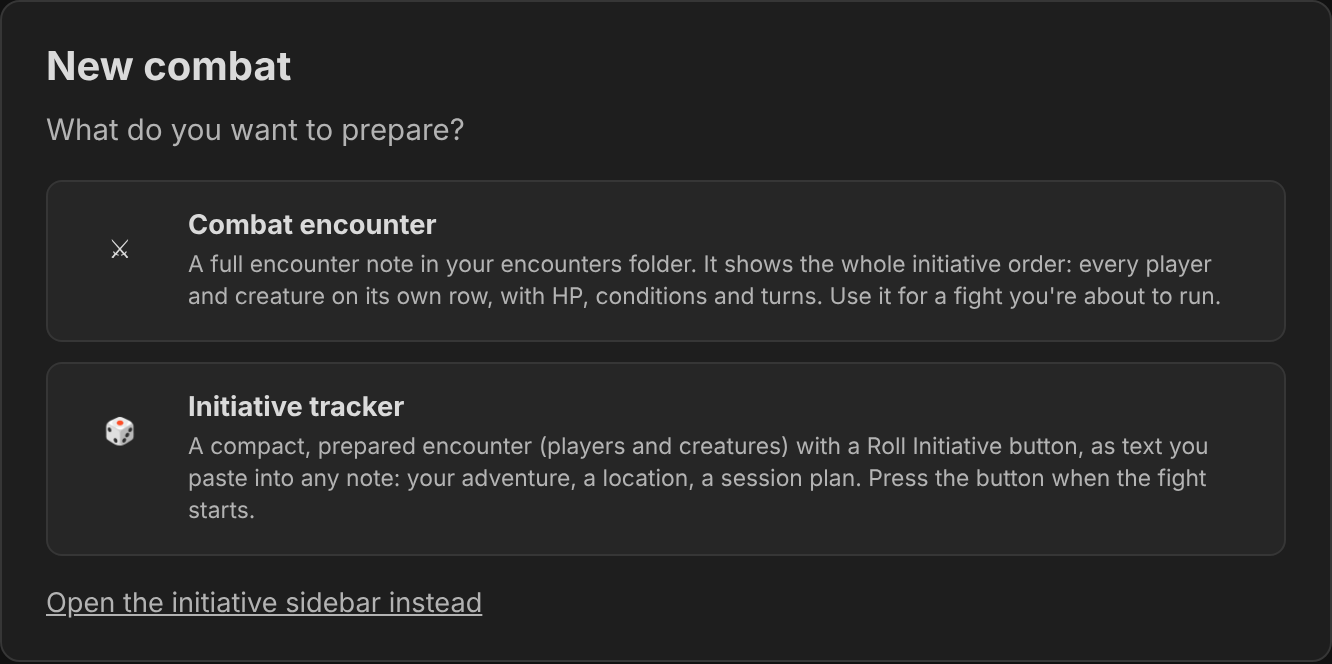
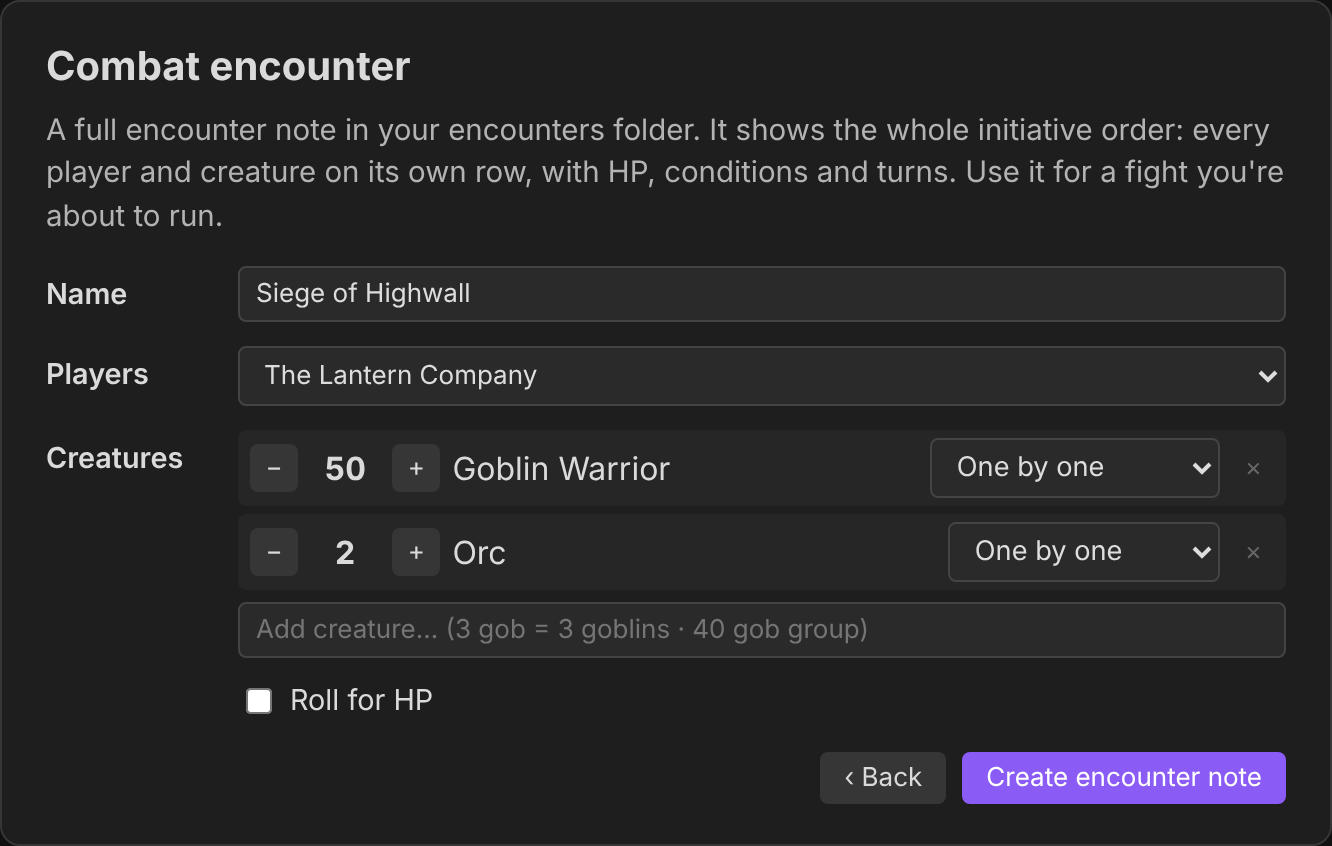
Click the swords icon in Obsidian's left ribbon. A window asks what you want to prepare:
- Combat encounter creates a full encounter note in your Encounters folder (Settings). It holds the whole initiative order, with every player and creature on its own row, ready to roll and run.
- Initiative tracker builds a compact prepared encounter with a Roll Initiative button and gives you its text with a Copy and Close button. Paste it into your adventure or session notes and press the button when the fight starts.
The next step works the same for both:
- Name the fight.
- Pick the players (a party, chosen characters, or none).
- Type creatures (
3 gob= 3 goblins). - For armies, choose One by one, One group or Groups of 10.
| Choose | Set up |
|---|---|
 |
 |
By hand
Open the command palette (Ctrl/Cmd + P) and run Roll for Initiative: Insert combat block. Or create an encounter card with an empty block:
```roll-encounter ```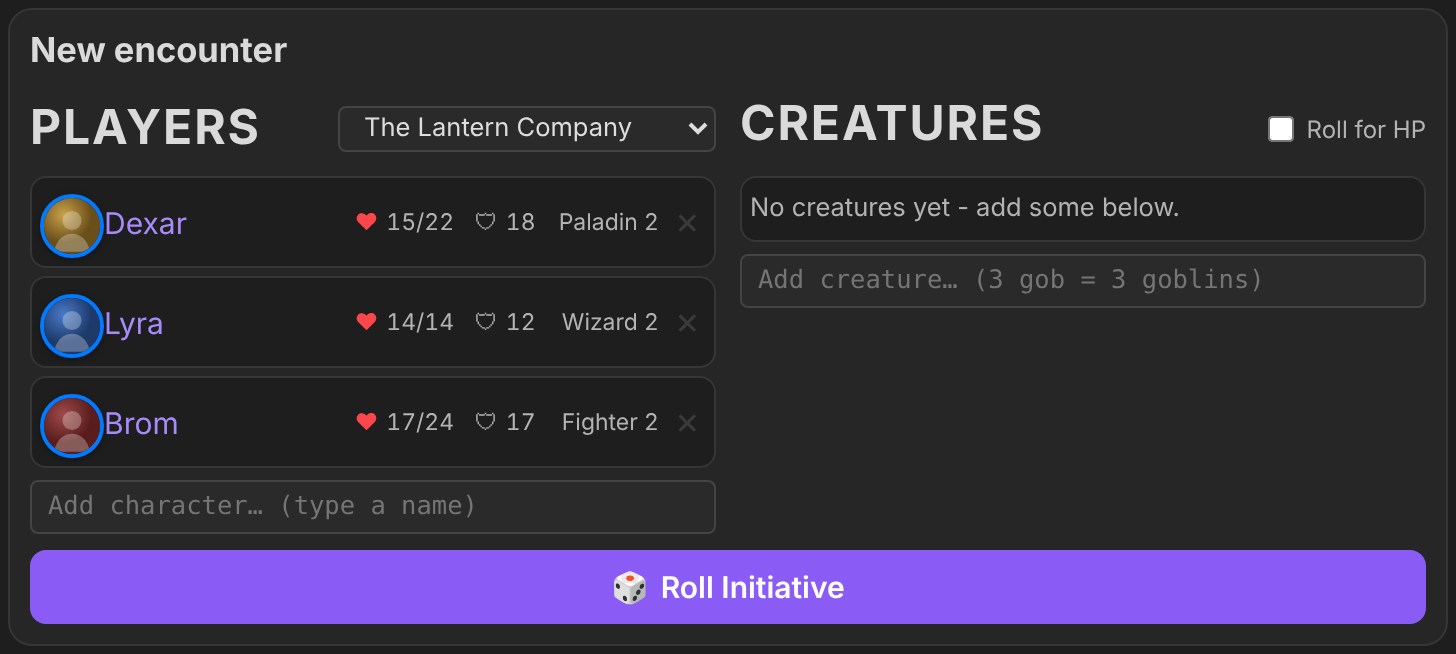
Pick your party, type monsters into the Add creature box (
3 gob= 3 Goblins), then press Roll Initiative.Use Next / ‹ to move through turns.
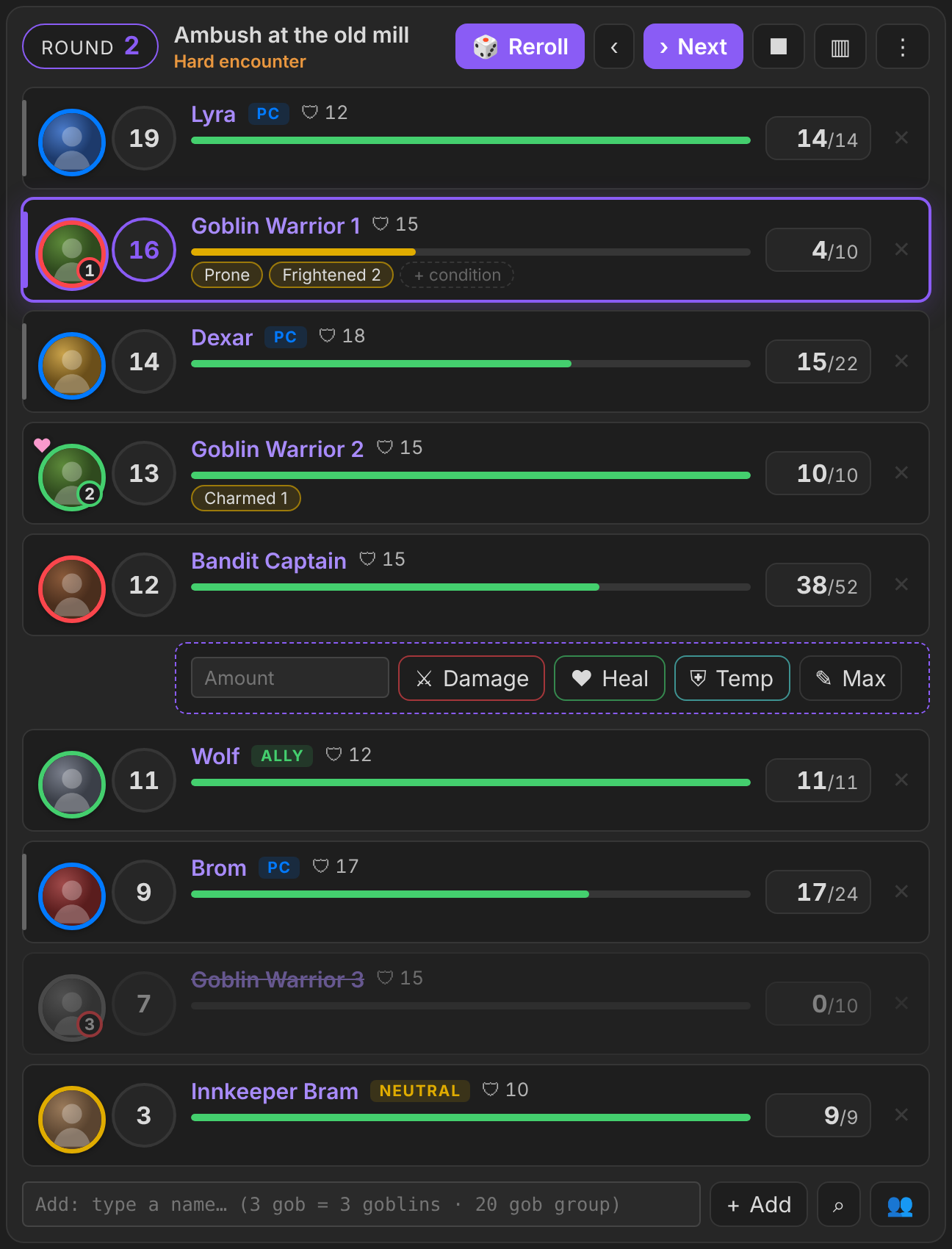
- Click a creature's HP to deal damage or heal it.
- Hover over a row to add conditions.
- Press ■ to end the fight.
The block format
The format comes from Quick Initiative. A filled block looks like this:
```roll-encounter
name: Ambush at the old mill
party: The Lantern Company
creatures:
  - 3: [[Goblin Warrior]]
  - 1: [[Bandit Captain]]
  - 1: [[Wolf]], ally
```
During a fight, the tracker keeps the combat as readable text:
```roll-initiative
name Ambush at the old mill
round 2
> Goblin Warrior 1 [[Goblin Warrior]] init 16 hp 4/10 ac 15 (Prone, Frightened:2)
[[Dexar]] player init 14
[[Wolf]] init 11 hp 11/11 ac 12 ally
```
The full guide covers everything else:
- every token of the block syntax;
- all the controls;
- the settings;
- Atlas VTT sync;
- the Cyberpunk RED rules;
- the events other plugins can listen to.
Settings
| Setting | What it does |
|---|---|
| Game system | D&D 5e (2024) or Cyberpunk RED |
| Roll Initiative note | The note every fight is written to (default Roll Initiative.md) |
| Encounters folder | Where the New encounter note command creates encounter notes |
| Group size / Group automatically from | Default group size for armies, and from which count creatures start as a group |
| Show casualties | Floating −N over a group's HP bar when members go down |
| Health bars on the player screen | Everyone / player characters only / nobody |
| Ask who takes rolled damage / healing | The "Who takes the damage?" window for damage and healing rolls during a fight |
| Ask players for initiative | Opens a window to type each player's own roll |
| End combat when all enemies are down | Auto-end (on by default) |
| Monster / NPC / Players folders | Where to look for creatures, neutral NPCs and (Cyberpunk) player notes |
| Atlas VTT live sync | Mirrors the fight onto an open Atlas map |
API for other plugins
Other plugins (for example a GM screen) and scripts can drive Roll for Initiative through api:
const ri = app.plugins.plugins["roll-initiative"]?.api;
if (!ri) return; // not installed or not enabled
Everything below also works from the developer console (Ctrl/Cmd + Shift + I).
ri.version
The plugin version as a string, so you can check which calls exist.
if (ri.version >= "1.5.0") { /* getState, setRoller, … are available */ }
ri.getState(sourcePath?, id?) → Promise<state | null>
The state of the active fight, or of the block id in the note at sourcePath. Returns null when there's no encounter.
const st = await ri.getState();
// {
//   sourcePath, id, name, round,
//   running, ended,
//   waiting,          // true: runs alongside others and the turn is in another one
//   initiatives: 2,   // how many initiatives run together (1 = just this one)
//   current: "Goblin 1", next: "Dexar",
//   combatants: [{ name, link, init, hp, maxHp, temp, ac, player, live, conditions: ["Prone"],
//                  disp: "enemy" | "ally" | "neutral", hidden, off, current,
//                  group: { size: 20, alive: 14, each: 10 } | null }]
// }
linkis the creature's note path when it has a note.- Player characters report
disp: "ally"andplayer: true.
ri.newCombat(options?) → Promise<result | null>
Opens the New combat window and resolves when the user finishes it, or with null if they close it without creating anything.
const res = await ri.newCombat({ kind: "encounter", players: ["Party/Dexar.md", "Party/Lyra.md"] });
// { kind: "encounter", path: "Encounters/Gate.md", id: "k3j9xq", name: "Gate" }
const card = await ri.newCombat({ kind: "initiative" });
// { kind: "initiative", text: "```roll-encounter\n…```\n", name: "…" }  (no copy window)
kind:"encounter"or"initiative"skips the first step.players: note paths (or link text) to pre-fill the party.
ri.addCombatant(line, target?) → Promise<boolean>
Adds creatures to the active fight, or to target = { sourcePath, id }, using the block line syntax.
await ri.addCombatant("3x [[Imp]]");
await ri.addCombatant("20 [[Orc]] group");
await ri.addCombatant("[[Dexar]] player", { sourcePath: "Encounters/Gate.md", id: "k3j9xq" });
- Stats come from statblocks.
- In a running fight, the newcomers' initiative is rolled (one batch through the dice hook) and they're sorted into the order.
- Returns
falsewhen there's no encounter.
ri.setRoller(roller | null): dice hook
Lets another plugin make the tracker's dice rolls, for example to show them in its own dice tray. roller.rollMany(requests) gets an array of requests and must resolve to an array of totals in the same order.
ri.setRoller({
  rollMany: async (requests) => {
    // [{ formula: "1d20+3", label: "Goblin 1", kind: "initiative" | "hp", sourcePath, id }, …]
    return requests.map(() => 10); // the final totals, modifier included
  },
});
ri.setRoller(null); // back to the built-in dice
- What goes through it:
- initiative: Roll initiative, the single "Roll +X" button, the dice button in the player-initiative window, and creatures joining a running fight;
- rolled HP: the Roll monster HP setting and the encounter card's Roll for HP.
- Batches: rolling for everyone sends one
rollManycall with every request. With Group initiative on, there's one request per creature type. - Fallback: if
rollManythrows, returns the wrong number of values, returns non-numbers, or takes longer than 15 s, the built-in dice roll instead. Combat never gets stuck.
ri.applyRoll(roll) → Promise<boolean>
Opens Who takes the damage / heal? for a roll, even when the setting is off.
await ri.applyRoll({ total: 12, kind: "damage", damageType: "Fire", who: "Aria", action: "Fireball" });
await ri.applyRoll({ total: 7, kind: "healing", who: "Dexar", action: "Cure Wounds" });
kindis"damage"or"healing"; other kinds are ignored.who,whoPath,actionanddamageTypeare optional.who/whoPathdecide who's listed first.- Roll for Initiative also listens to the GM screen's
game-master-screen:rolledevent ({ total, kind, damageType, who, whoPath, action, crit }), so the GM screen doesn't need to call this for its own rolls.
Small calls
await ri.rollInitiative();                         // same as pressing Roll initiative (active fight)
await ri.rollInitiative({ sourcePath, id });       // …or a given fight
await ri.endCombat();                              // same as the End combat command
await ri.showOnPlayerScreen();                     // same as Show initiative on player screen
ri.getActive();                                    // { path, id } of the sidebar fight, or null
ri.next(); ri.previous();                          // next / previous turn
Events
plugin.registerEvent(app.workspace.on("roll-initiative:change", (state) => { /* same shape as getState() */ }));
plugin.registerEvent(app.workspace.on("roll-initiative:created", (result) => { /* same shape as newCombat() */ }));
roll-initiative:changefires:- on every change;
- when a fight ends (
ended: true); - when the active fight switches. When no fight is active any more, it fires with
{ cleared: true, combatants: [], … }.
roll-initiative:createdfires whenever the New combat window creates something, whether it was opened through the API or by hand.
Credits
Roll for Initiative stands on the shoulders of these projects. Thank you to their authors.
Quick Initiative by walkertbrown (Bananafest Destiny), MIT License. This is the base plugin. Roll for Initiative takes from it:
- the idea of keeping the whole fight as plain text in a note;
- the
```…```block format and its tokens (init,hp,ac,>,2x,(conditions)); - the look and layout of the tracker.
This is a separate plugin with its own code, built to add live character sheets, encounter cards, game systems and VTT sync. If you only need a light, fast tracker, use Quick Initiative.
Initiative Tracker by Jeremy Valentine (javalent) gave us:
- the
encounterblock syntax used by```roll-encounter ```; - the sidebar creature view;
- the idea of writing HP back to player notes.
- the
Initiative Tracker Plus by Mike (msweat254), a community fork of Initiative Tracker, inspired the encounter card's behaviour.
Fantasy Statblocks by Jeremy Valentine renders the statblock pane and supplies the bestiary.
Atlas VTT by Fabian Urbanek is the battle-map plugin the live sync talks to. Connect for Atlas VTT by Bento's Grimoire of Things showed how to reach an open Atlas map.
One DnD Character Sheet and Cyberpunk RED Character Sheet are companion plugins by the same author as this one.
The full list, with licences, is in CREDITS.md.
Disclaimer
This is an unofficial fan project.
- Dungeons & Dragons is a trademark of Wizards of the Coast.
- Cyberpunk RED is a trademark of R. Talsorian Games.
- No game text or art ships with this plugin. The screenshots use made-up characters and generated tokens.
License
MIT © 2026 Majsnic