Ribbon and Status Bar Organizer
 xooooooooox2k downloads
Group your ribbon and launch commands from a configurable ribbon menu.
- Overview
- Scorecard
- Updates30

Ribbon and Status Bar Organizer
An Obsidian plugin that organizes the left ribbon into named groups, tames the status bar, and launches your commands from configurable ribbon menus.
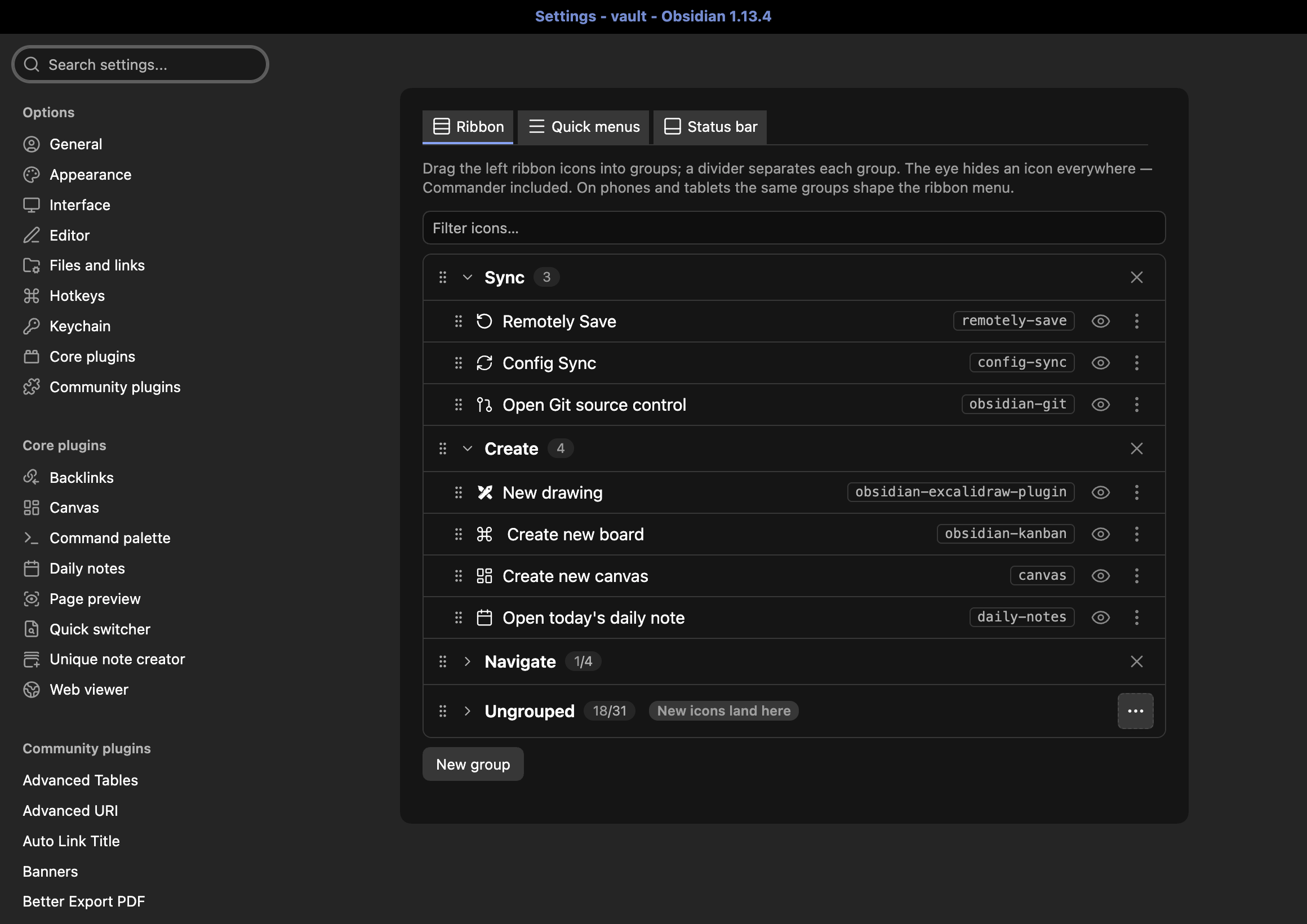
Features
- Ribbon groups — order the ribbon icons into named groups with a thin divider between them, on desktop, tablet and phone. (details)
- Tuck icons away — mark any Ungrouped icon and it moves off the ribbon into one ⋯ menu button. (details)
- Hide icons everywhere — one eye toggle writes both Obsidian's native hide and Commander's hide list, so the three UIs never disagree. (caveats)
- Quick menus — extra ribbon icons, each opening its own command list with editable labels and icons (Iconize packs included). (details)
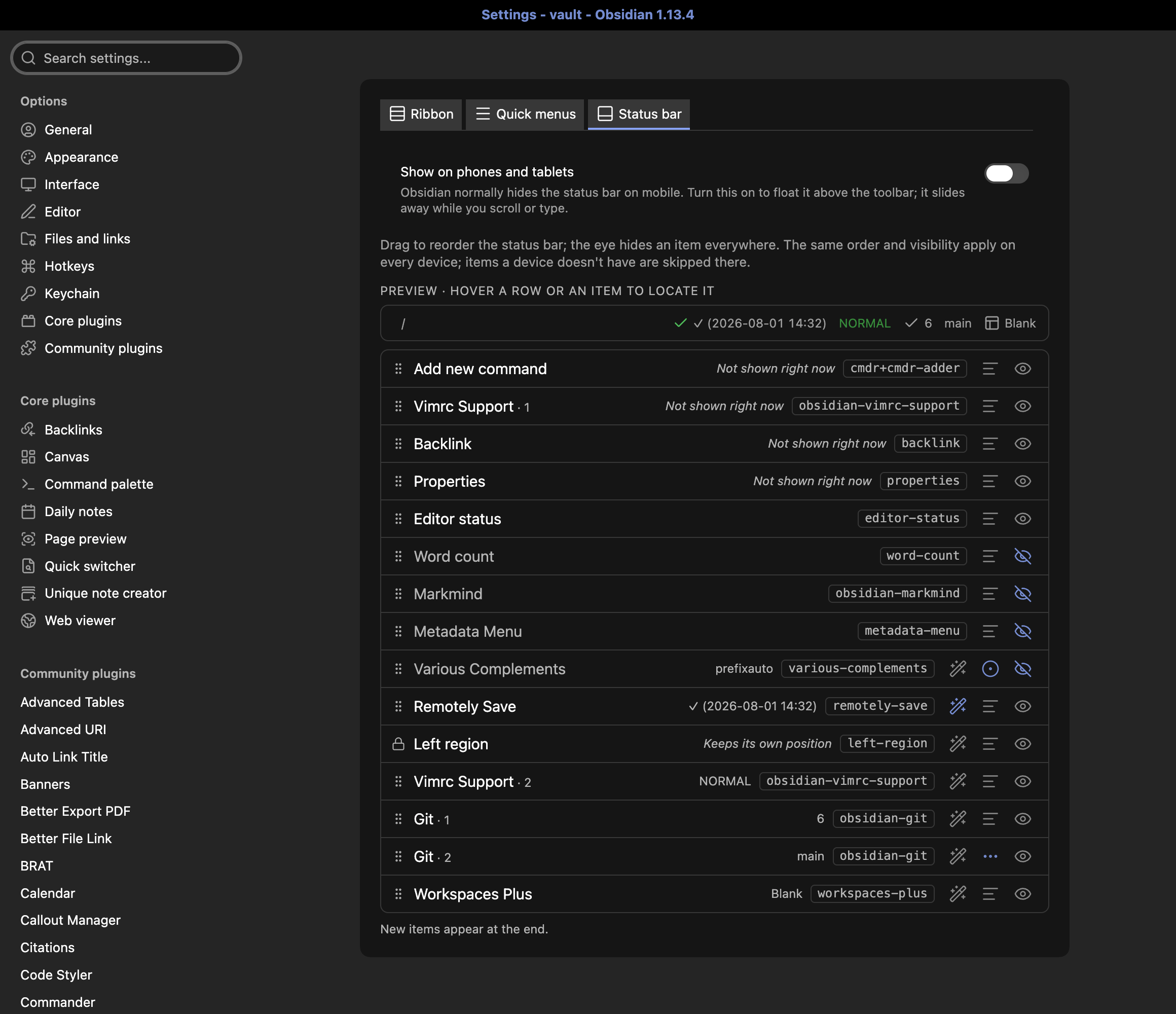
- Status bar order — drag the status bar items into your own order and hide the ones you don't need, applied live on every device. (details)
- Shorten noisy items — compact and icon-only display modes, plus rewrite rules like
Successfully synced {time}→✓ {time}that can add an icon and colors. (rules) - Live preview — a preview strip mirrors the real status bar, and hovering highlights the same item in the settings, the preview and the bar at once.
- Status bar on mobile — optionally show the status bar on phones and tablets as a floating pill.
- Diagnostics — a "Copy ribbon diagnostics" command copies a JSON snapshot for issue reports. (details)
- Syncs like a note — configuration lives in the plugin's
data.json, so it follows whatever vault sync you use.
Install
From Obsidian: Settings → Community plugins → Browse, search Ribbon and Status Bar Organizer, install and enable.
Beta builds: via BRAT, add xooooooooox/obsidian-ribbon-organizer.
Quick start
- Open Settings → Ribbon and Status Bar Organizer → Ribbon: create a group and drag icons into it — dividers appear on the ribbon between adjacent non-empty groups.
- Use the eye toggle on any row to hide or show that icon everywhere.
- Switch to the Status bar tab: drag items into your order, or click a learned status text to draft a rewrite rule from it.
- Switch to the Quick menus tab: create a menu and add commands — the menu appears as its own ribbon icon.
How it works
- Grouping is visual-only — a presentation layer over the existing buttons; Obsidian's own icon order and settings are never touched, and disabling the plugin restores the stock ribbon.
- Every platform, two mechanisms — desktop and tablet ribbons are reordered in place; on phones the plugin reorders the navbar ribbon menu (the ≡ button) as it opens.
- The status bar keeps its own layer — ordering, hiding and rewrites never modify what other plugins write, so an untouched config leaves a byte-for-byte native bar.
The full tour — groups, hiding, quick menus, the status bar tab, caveats — lives in the user guide.
Privacy
The plugin performs no network access and no telemetry. Configuration lives in the plugin's data.json and rides whatever vault sync you use; the status texts the plugin learns for rule drafting stay in each device's localStorage by design.
Documentation
- User guide — every behavior in one place: ribbon groups, hiding, quick menus, the status bar tab, diagnostics.
- Architecture — code map and invariants, for contributors.
Development
npm install
npm run dev     # watch build
npm test        # vitest
npm run build   # type-check + production bundle
Develop against a dedicated test vault (never a real one).