Recent Notes
 kamil-rudnicki16k downloads
List of recently edited notes with previews by time periods.
- Overview
- Scorecard
- Updates22
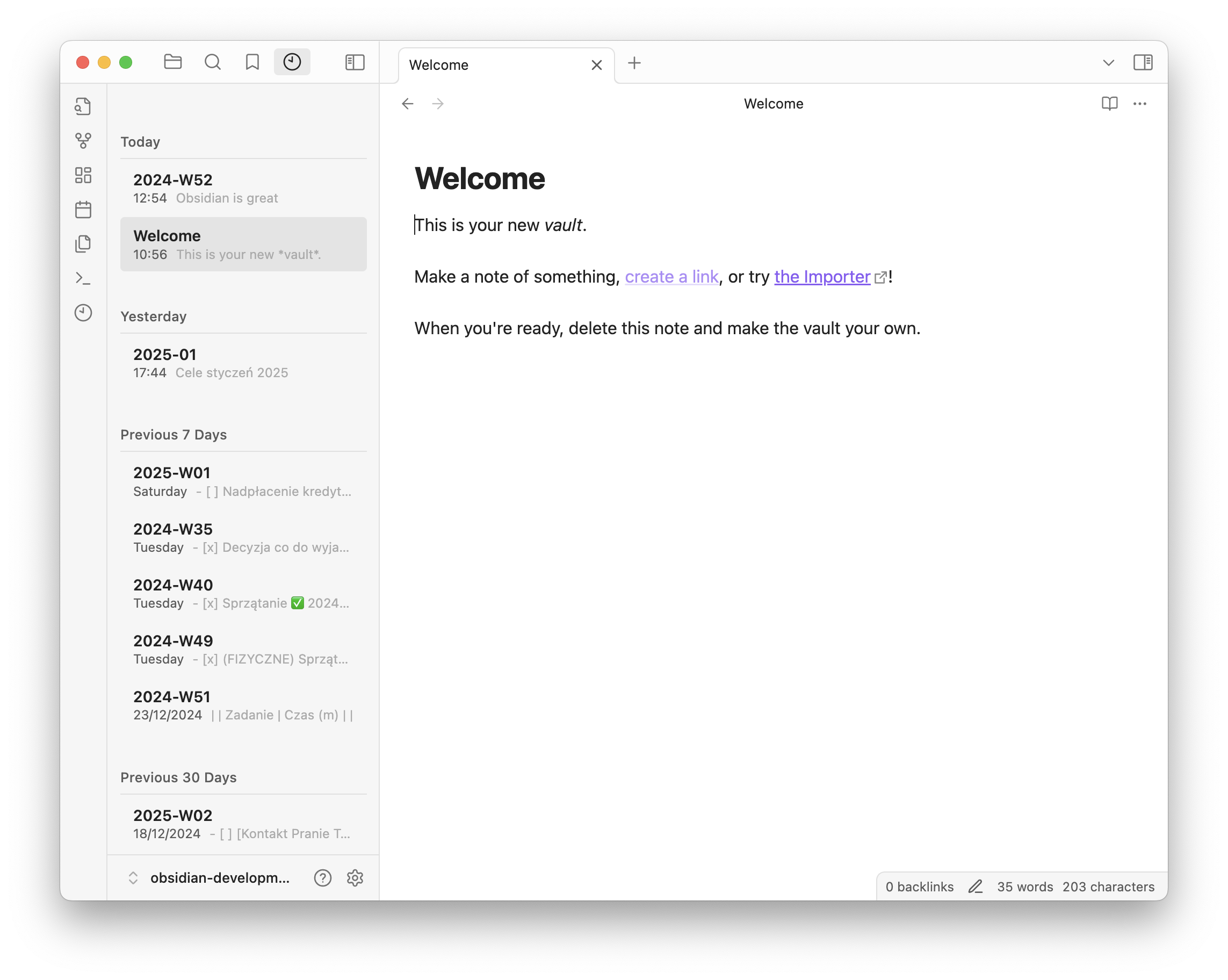
Transform how you navigate your notes with this elegant, timeline-based view of your recently edited files. Inspired by Apple Notes, Recent Notes creates a beautifully organized overview that makes tracking and accessing your latest work effortless.
✨ Features
- Timeline Organization: View your recently edited notes categorized by intuitive time periods (Today, Yesterday, This Week, etc.)
- Smart Filtering: Choose which file types to include (Markdown, images, PDFs, audio, video, Canvas files, CSV)
- Customizable Display:
- Adjust the number of notes displayed
- Customize date/time formats
- Control preview length
- Efficient Navigation:
- Move between notes using keyboard shortcuts
- Jump directly to today's section
- Workspace Management:
- Pin important notes for quick access
- Exclude specific folders or files from the view
- Performance Optimized:
- Smart caching for better performance
- Handles large vaults with ease
- Tailored Experience:
- Change appearance using Style Settings plugin
- Full translation support
- Rich Information: For each note displays:
- Note title (can use
titleproperty instead of filename) - First lines of content (cleaned of Markdown formatting)
- Last edit timestamp
- Folder path showing note location
- Thumbnail preview for image and media files
- Note title (can use
How to Use
- Install the plugin from Obsidian's Community Plugins
- Enable the plugin in Settings → Community Plugins
- Click the clock icon in the ribbon (left sidebar) or use the command "Show Recent Notes" to open the view
- Click any note to open it
- Click with CMD (Mac) or CTRL (Windows/Linux) to open in a new tab
Installation
From Obsidian
- Open Settings → Community plugins
- Click "Browse" and search for "Recent Notes"
- Click Install
- Enable the plugin in your settings
Manual Installation
- Download the latest release
- Extract the files into your
.obsidian/plugins/obsidian-recent-notesfolder - Reload Obsidian
- Enable the plugin in your settings
Changelog
Version 1.5.0
New Features:
- Thumbnail Previews: Image and media files now display thumbnail previews in the recent notes list
- Folder Display: Each note now shows its folder path, making it easier to understand note location and organization
Support
If you encounter any issues or have suggestions, please file them in the GitHub Issues section.
License
MIT
HealthGood
ReviewCaution
About
View your recently edited notes in a timeline sorted by intuitive periods (Today, Yesterday, This Week) for fast access. Filter by file type, view thumbnails and cleaned first-line previews with edit timestamps, pin notes, exclude folders, and keep the view fast with smart caching.Details
Current version
1.5.5
Last updated
7 months ago
Created
2 years ago
Updates
22 releases
Downloads
16k
Compatible with
Obsidian 0.15.0+
Platforms
Desktop, Mobile
License
MIT