quizblock
 Oliver Cheng583 downloads
Render interactive multiple-choice quiz blocks inside your notes
- Overview
- Scorecard
- Updates3
As the name implies: a simple quiz block format to help create interactive quizzes in your Obsidian notes. quizblock is intentionally lightweight and adds just two things:
- A
quizfenced code block to specify the details of each multiple-choice quiz - A "Reset quiz block attempts in note" command (in the Command Palette, ⌘ + P or ctrl + P)
The widget is minimal but interactive. The format is simple, powerful, and built to be easily written by humans and/or LLMs. See Using with an LLM to understand how quizblock can integrate with your LLM of choice.
Install
quizblock is available from the Obsidian plugin catalogue! Install it from Settings → Community Plugins → Browse.
Alternatively: install BRAT using its Quick Guide, and add the quizblock plugin link: https://github.com/olliecheng/quizblock. Enable the plugin from Community Plugins.
How to use
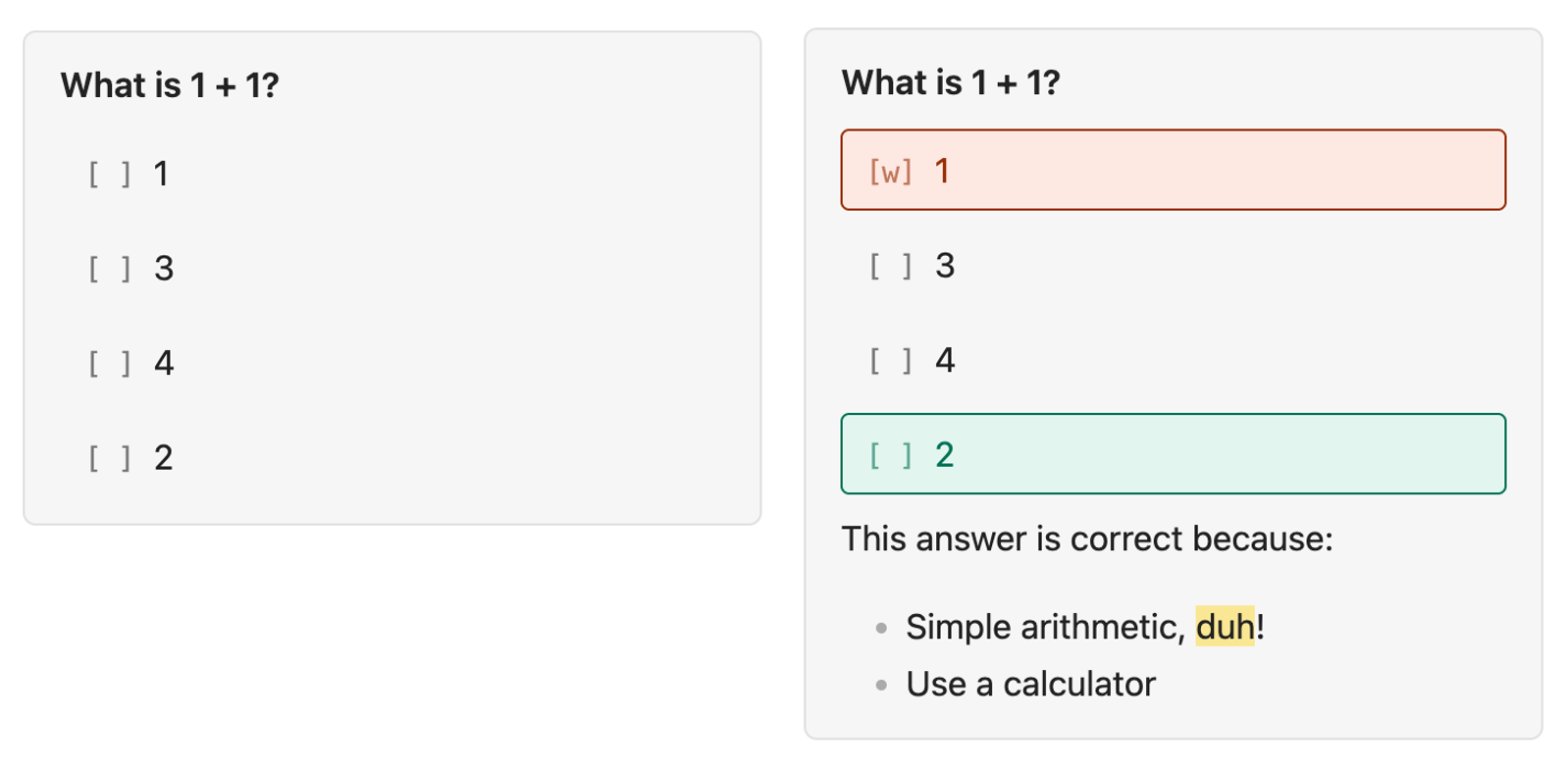
Here is a quiz block. You get interactivity, hidden explanations, and question order shuffling included for free:
```quiz
What is 1 + 1?
[ ] 1
[c] 2
[ ] 3
[ ] 4

This answer is correct because:
- Simple arithmetic, ==duh==!
- Use a calculator
```
You can preview this block in Live Preview or Reading mode. You can answer this block interactively in Live Preview mode. Your selected options persist in the text Markdown.
Using with an LLM
Just to try it
You can start your ChatGPT/Claude/Gemini message with this prompt:
Prompt to copy-paste
Use the copy button to the right:Your goal is to become an examiner who writes multiple-choice quiz questions in Markdown, using the quizblock format. Next, you must create a Markdown (.md) document with the quiz blocks embedded.
Here is information about quizblock:
<skill_info>
This file tells you how to write quiz blocks that the Obsidian plugin can render. The files must be in Markdown format. Wrap each question in a fenced code block with the `quiz` language tag:
```quiz
Question text
[ ] Wrong option
[ ] Wrong option
[c] Correct option
[ ] Wrong option
```
- The first line is the question. It is usually a single line of plain text.
- In some circumstances, a multiline question may be desirable. For instance, if providing a clinical vignette. In this case, everything up to the first option is considered part of the question. Markdown is supported.
- Only use a multiline question if necessary.
- Each option follows immediately, one per line, with no blank lines between them.
- `[ ]` marks a wrong option. `[c]` marks the correct option.
- There must be exactly one `[c]` per block.
Details section
You can should add an explanation that is hidden until the user answers. Put it after the options, separated by one blank line:
```quiz
What is the capital of France?
[ ] London
[ ] Berlin
[c] Paris
[ ] Madrid
Paris has been the capital of France since the 10th century. **Île de la Cité** was its historic centre.
```
The details section supports Markdown formatting. Multiple lines are fine.
Guidelines for good questions
- Write questions that have one clearly correct answer.
- Make wrong options plausible — avoid obviously silly distractors.
- Keep option text roughly the same length and grammatical form.
- Use the details section to explain *why* the correct answer is right, not just to restate it.
- Keep the question specific enough that there is no ambiguity about what is being asked.
What not to do
- Do not include more than one `[c]`. The plugin only supports single-answer questions.
- Do not put a blank line between the question and the options, or between options.
- Do not write a multi-line question — only the first line is used.
- Do not write `[w]` or `[r]` markers. Those are written by the plugin at runtime to record the user's answer; they should never appear in authored content.
Example with details
```quiz
A pituitary macroadenoma classically compresses which structure to produce a visual field defect?
- [c] Optic chiasm
- [ ] Right optic radiation
- [ ] Left optic tract
- [ ] Lateral geniculate nucleus
The pituitary gland sits directly below the optic chiasm. Upward expansion compresses the decussating nasal fibres, which carry temporal visual field information from both eyes.
Left optic tract — would produce right homonymous hemianopia; not the classic pituitary presentation.
Right optic radiation — a more posterior structure in the temporal/parietal lobe; not adjacent to the pituitary.
Optic chiasm (correct) — compression of crossing nasal fibres → bitemporal hemianopia.
Lateral geniculate nucleus — thalamic relay; too far posterior and lateral to be compressed by a pituitary mass.
```
Key considerations
* You can often put in two answers that are both technically correct, but one is more correct than the other. In this case, you should mark the more correct answer as `[c]` and the less correct answer as `[ ]`. The details section can be used to explain why the correct answer is better than the other technically correct answer.
* Your questions should challenge the user to apply their knowledge, not just recall facts. Avoid questions that can be answered by rote memorization; instead, ask questions that require reasoning, analysis, or synthesis of information.
* "Trick questions" are allowed, even encouraged. Perhaps the first half of the answer is correct but there is a key caveat which makes the answer incorrect. Do not shy away from challenging the user!
* It is CRITICAL that you write your correct answer in the same style as your incorrect answers. If your correct answer is much longer, more technical, or more detailed than the incorrect options, the user will be able to guess the correct answer without understanding the material. This is a common mistake when writing quiz questions, and it must be avoided. Furthermore, do not use lists, semicolons, or detailed grammatical constructs in the correct answer if you are not using them in the incorrect options. The correct answer should be indistinguishable from the incorrect options in terms of style and formatting; the only difference should be the content.
Here is an example of a poorly written question that violates these principles:
```quiz
What is the distinction between "homeostatic" and "hedonic" appetite control?
[ ] Homeostatic appetite is conscious; hedonic appetite is subconscious
[r] Homeostatic appetite responds to metabolic needs (leptin, incretins); hedonic appetite is driven by sensory cues and emotional triggers independent of energy needs
^^^^^^^^^^^^^^^^^
TOO LONG!!! This answer is obviously correct because it has too much detail.
[ ] Homeostatic appetite increases food intake; hedonic appetite decreases it
[ ] Hedonic appetite only occurs in obese individuals
```
An improved version:
```quiz
What is the distinction between "homeostatic" and "hedonic" appetite control?
[ ] Homeostatic appetite is conscious; hedonic appetite is subconscious
[r] Hedonic appetite is driven by sensory cues and emotional triggers, independent of energy needs
[ ] Homeostatic appetite increases food intake; hedonic appetite decreases it
[ ] Hedonic appetite only occurs in obese individuals
```
Another poor question:
```quiz
The SELECT trial (semaglutide 2.4 mg weekly) demonstrated which cardiovascular benefit in patients with obesity but WITHOUT diabetes?
[ ] Reduced progression to type 2 diabetes
[ ] Improved glycaemic control in pre-diabetic patients
[r] Reduced incidence of death from CV causes, non-fatal MI, or non-fatal stroke in patients with pre-existing CVD
[ ] Reduced rate of heart failure hospitalisation only
```
A much better way to write that question would be:
```quiz
The SELECT trial (semaglutide 2.4 mg weekly) demonstrated which cardiovascular benefit in patients with obesity but WITHOUT diabetes?
[ ] Reduced progression to type 2 diabetes
[ ] Improved glycaemic control in pre-diabetic patients
[r] Reduced incidence of death from CV causes
[ ] Reduced rate of heart failure hospitalisation only
```
</skill_info>
Aim to create 30 questions. Be comprehensive; your goal is create challenging questions, not easy ones.
The prompt is:
... and then tell it whatever topic/file you want to be examined on.
Teaching the LLM how to use quizblock
Download the skill from skills/quiz-writer.skill and import it into your desktop chat of choice, or view it on GitHub and copy-paste it into your chatbot.
You might like to create a separate Project which explains how to generate questions. I have also anecdotally had success instructing the agent "not to use any front-end design tool and to produce output only in Markdown format."
LLMs are bad at randomness and often their selected correct answer is located in the same location. To fix this, each question automatically has a deterministic but random shuffle order (seeded with the question stem).
Format
The simple anatomy of a quiz block is:
```quiz
Question stem prompt
[ ] Answer A
[ ] Answer B
[c] Answer C
[ ] Answer D

Explanation, in Markdown - supports Obsidian's Markdown features
```
If a quiz has not been attempted, the correct answer should be marked using [c] at the start. If a quiz has been attempted:
- If the attempt was correct: the correct attempt should be marked using
[r] - If the attempt was incorrect: the incorrect attempt should be marked using
[w]
The correct answer should still use[c]
Example
Note. This is handled automatically by quizblock when the user selects an option. In most cases, you do not need to manually adjust this.In this case, the user has answered "3" incorrectly.
```quiz
What is 1 + 1?
[ ] 1
[c] 2
[w] 3
[ ] 4
```
In this case, the user has answered "2" correctly.
```quiz
What is 1 + 1?
[ ] 1
[r] 2
[ ] 3
[ ] 4
```
Motivation
I think that MCQs are quite a good way to test and learn content.
- eMedici/Passmedicine etc. provide premade questions which reinforce guidelines - great practice, but in practice not always too relevant to what you're learning
- Gemini's Canvas Quiz feature is powerful and flexible, but doesn't integrate into your notes. Plus, you can only generate a set number of MCQs at a time - this can make it hard to comprehensively test a large set of notes
- Chat interfaces (ChatGPT etc.) can generate unlimited questions, but the text interface makes an immersive MCQ format challenging
Obsidian provides an extensible text platform and already provides integration with your notes (i.e. via Tasks). Therefore - what if plaintext was your canvas for MCQ questions, with a renderer in Obsidian? You can generate questions using whatever you want: the web interface of ChatGPT, Claude, Gemini, or your agentic tool of choice.
Plus, this way you can share your questions with your friends! All they need is the source .md file and the quizblock plugin installed. Note that if you have attempted the quiz, your progress is saved in the file: you should first run the "Reset quiz block attempts in note" command to clear your progress.