Search...Search plugins and themes...
⌘K
Sign in
  • Get started
  • Download
  • Pricing
  • Enterprise
  • Account
  • Obsidian
  • Overview
  • Sync
  • Publish
  • Canvas
  • Mobile
  • Web Clipper
  • CLI
  • Learn
  • Help
  • Developers
  • Changelog
  • About
  • Roadmap
  • Blog
  • Resources
  • System status
  • License overview
  • Terms of service
  • Privacy policy
  • Security
  • Community
  • Plugins
  • Themes
  • Discord
  • Forum / 中文论坛
  • Merch store
  • Brand guidelines
Follow us
DiscordTwitterBlueskyThreadsMastodonYouTubeGitHub
© 2026 Obsidian

Quiet Tree

elfmedyelfmedy147 downloads

Arrange the native file explorer with deliberate dragging, clear tree drop targets, and editable JSON ordering.

Add to Obsidian
  • Overview
  • Scorecard
  • Updates8

Quiet Tree

Quiet Tree

Your notes. Your order.

Drag and drop files and folders in Obsidian’s native file explorer.

English · 简体中文
Features · Get started · Install · Feedback
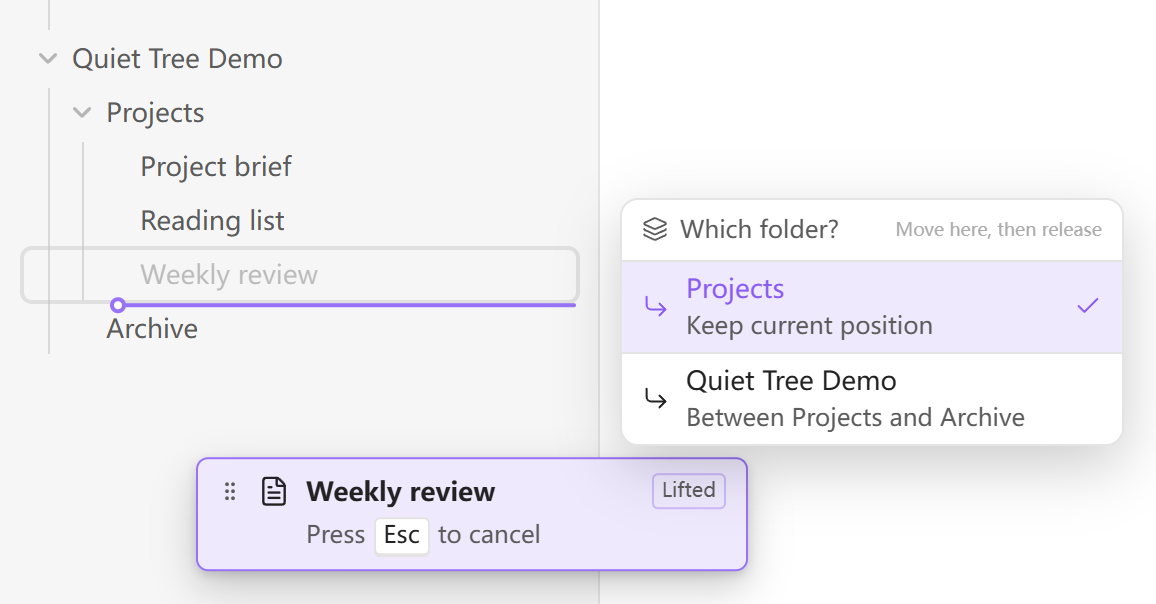
Drag a note and choose its destination folder in the native file explorer.

See both the position and the destination folder before you drop.

Features

  • Arrange each folder your way. Drag files and folders into a custom order without renaming them.
  • Choose exactly where to drop. An insertion line, its indentation, and a folder chooser make nested folder boundaries clear.
  • Keep the explorer you know. Use Obsidian’s native file list and your theme. Choose whole-row dragging or a dedicated handle.
  • Use a mouse or touch. Separate hold delays for desktop and mobile, with a cancel hint on desktop and a cancel area on touch screens.
  • Carry your order across devices. Ordering travels with plugin settings when Obsidian Sync’s community plugin settings sync is enabled.

Get started

  1. Hold a file or folder to lift it. With a mouse, move slightly after holding.
  2. Move to the position you want. At a folder boundary, choose the destination folder.
  3. Release to drop. Change your mind? Press Esc, or drag into the touch cancel area.

Reordering within a folder changes only the saved order. Dropping into another folder moves the file or folder, with links handled by Obsidian.

Install

In Obsidian, open Settings → Community plugins → Browse, search for Quiet Tree, then install and enable it. Use Check for updates there for future releases.

Beta testing and manual installation
  • BRAT: add elfmedy/quiet-tree as a beta plugin.
  • Manual: download main.js, manifest.json, and styles.css from Releases into your vault’s .obsidian/plugins/quiet-tree/ folder, then enable the plugin.

Make it yours

Choose English or Chinese, whole-row or handle dragging, and your preferred hold delay. On desktop, you can exclude folders such as assets; mobile uses the same saved exclusions.

Settings and ordering live together in the plugin’s data.json. For sync setup, data recovery, and compatibility details, see the usage and data guide (中文).

See Releases for changes in each version. Touch behavior has been checked in mobile emulation; physical-device testing is still in progress.


Report an issue · Development · MIT license

HealthExcellent
ReviewPassed
About
Add manual drag-and-drop ordering to Obsidian's native file explorer with clear folder boundaries and compact, editable JSON order files. Drag whole rows or use a handle to reorder and move items across folders (files are moved and links updated), see insertion/target visuals, and enjoy auto-scroll and English/Chinese support.
FilesFoldersSidebar
Details
Current version
0.4.3
Last updated
2 days ago
Created
2 weeks ago
Updates
8 releases
Downloads
147
Compatible with
Obsidian 1.8.7+
Platforms
Desktop, Mobile
License
MIT
Report bugRequest featureReport plugin
Author
elfmedyelfmedy
GitHubelfmedy
  1. Community
  2. Plugins
  3. Files
  4. Quiet Tree

Related plugins

Custom File Explorer sorting

Manual or automatic config-driven reordering and sorting of files and folders in File Explorer.

Flexplorer

Enhance the file explorer with custom sorting, pinning, and hiding.

File Explorer Note Count

See the number of notes in each folder within the file explorer.

File Tree Alternative

An alternative file tree view with separate folder and file panes.

Notebook Navigator

A better file browser and calendar inspired by Apple Notes, Bear, Evernote and Day One.

Recent Files

Display a list of recently opened files.

Hide Folders

Quickly toggle the visibility of specific folders in the file navigator based on configured names. Useful for hiding attachment folders.

Reveal Active File Button

Add a button to the top of the File Explorer, to reveal the active file.

Quick Explorer

Perform file explorer operations (and see your current file path) from the title bar, using the mouse or keyboard.

Novel word count

Display a word count, page count, creation date, or other statistics for each file, folder and vault in the File Explorer pane.