Quiet Chat
 tarnish23334 downloads
A calmer workspace with rounded panes, soft colors, aligned tabs, and optional distraction controls.
- Overview
- Scorecard
- Updates9
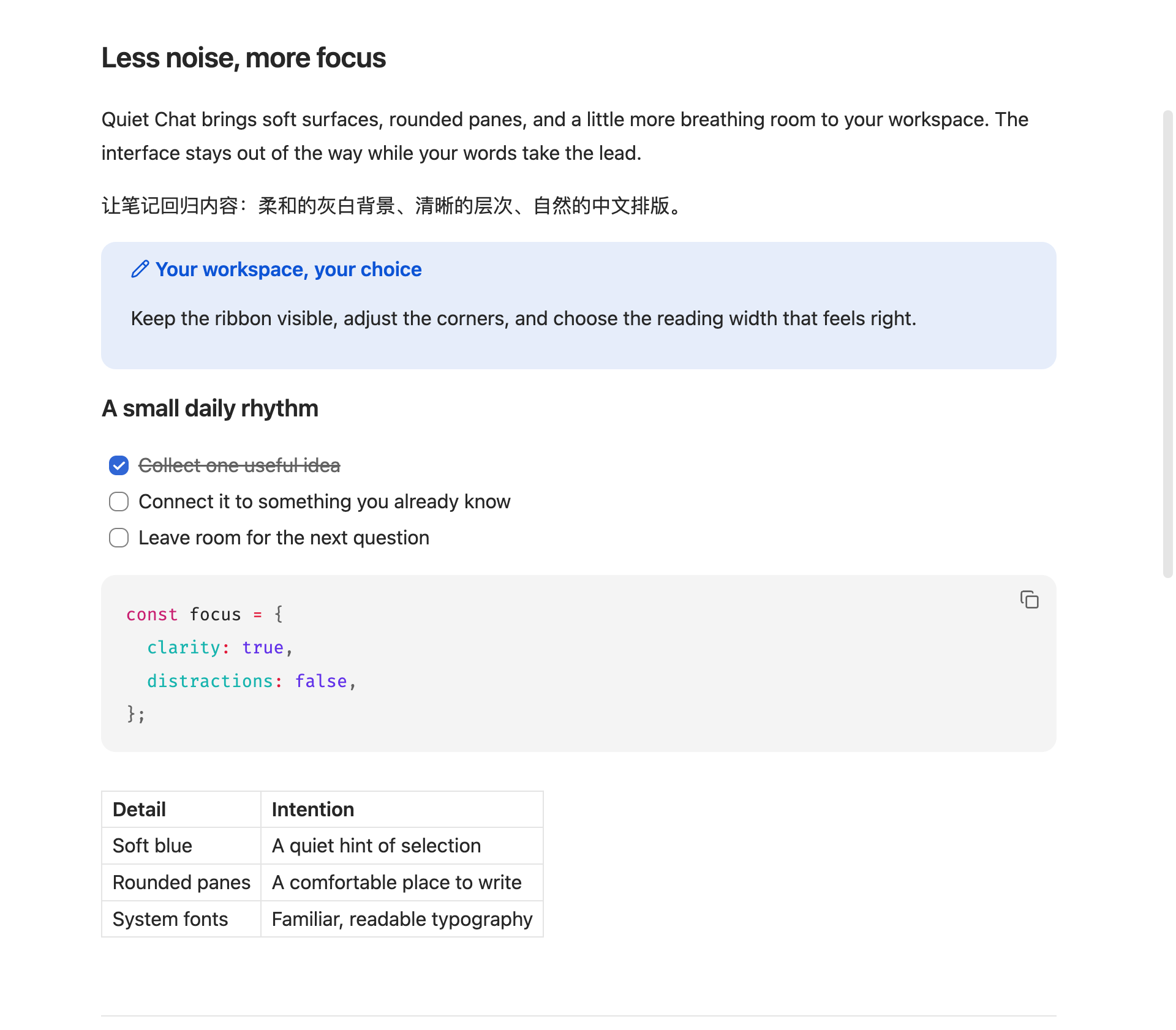
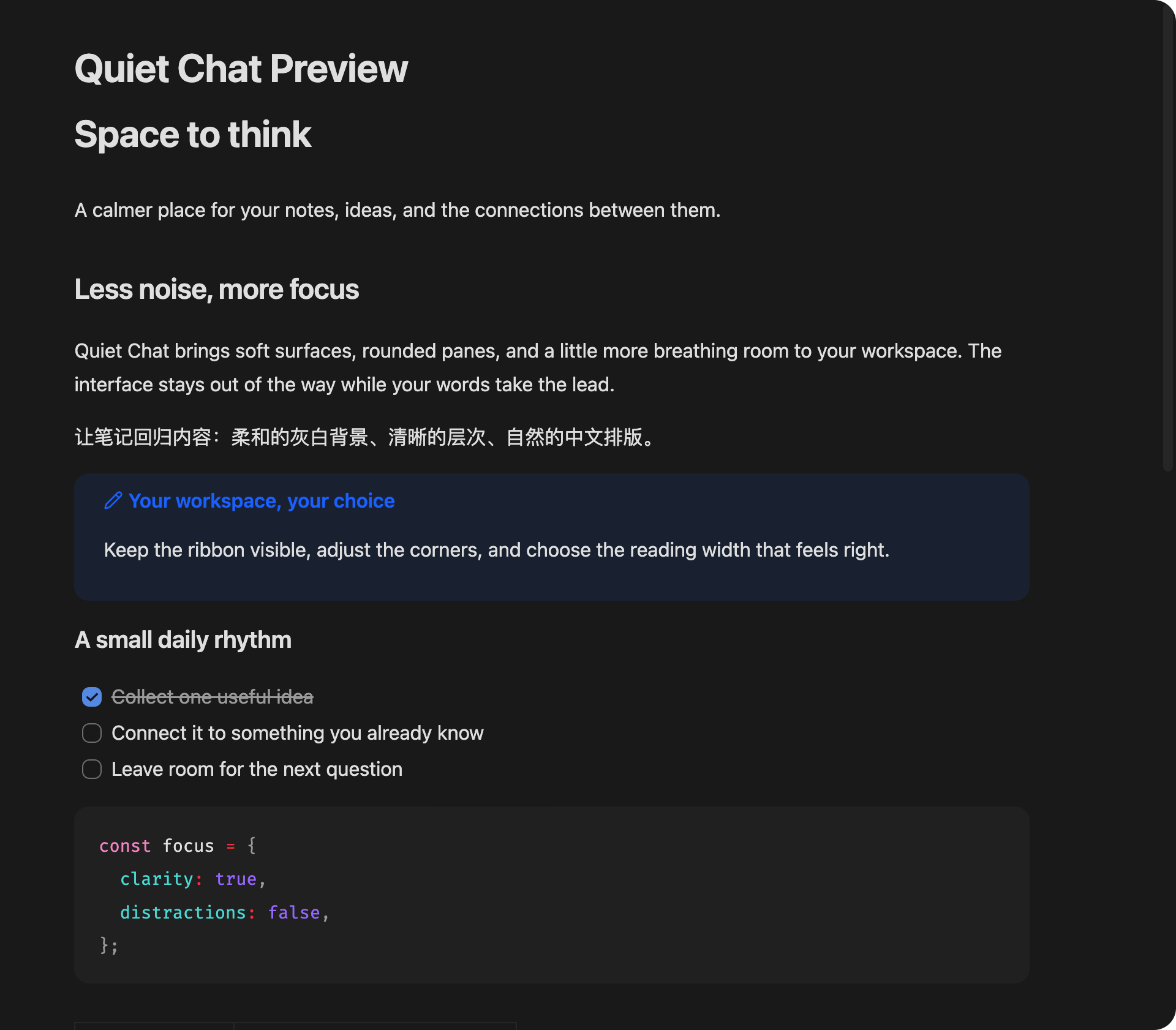
A calmer, ChatGPT-inspired workspace for Obsidian: rounded editor panes, soft gray sidebars, light blue selection, and aligned tabs. Includes light and dark appearances.
为 Obsidian 带来更安静的界面:圆角编辑区、浅灰侧栏、淡蓝选中状态、统一对齐的顶部栏。支持浅色与深色模式。
Preview / 预览
Screenshots use synthetic example content, not a real vault.
Dark appearance / 深色预览
Features / 功能
- Rounded panes, menus, quick switcher and code blocks.
- File-tab icons matching the sidebar and Quick Switcher, with vertical centering and cleanup on unload.
- Vertically aligned Quick Switcher file icons, reusing Material Icon Theme when enabled and falling back to a standard file icon.
- Aligned file-tree padding with constrained spacer widths to prevent sideways scrolling.
- Typora GitHub-inspired document proportions: 16px text, 1.6 line height, 0.8em paragraph spacing, and 36/28/24/20px heading levels. Implemented for Reading view and Live Preview, with borderless headings to match Quiet Chat.
- Adjustable pane radius, readable text width, text size, line height, paragraph spacing, heading scale and heading spacing.
- Separate controls for list item spacing, nested indentation and vertical spacing between list levels. Paragraph spacing applies to Reading view; the editor preserves source blank lines.
- Grouped settings with Chinese and English on separate lines.
- Inset document scroll viewports keep native scrollbars clear of pane corners.
- Optional system fonts for text and UI; your code font is preserved.
- Independent switches for hiding the ribbon, status bar and note header. Hidden Markdown headers retain native view actions in a top-right pill, revealed on corner hover or keyboard focus.
- The ribbon is not hidden by default.
- Appearance can be toggled with a command; disabling it removes its body classes and restores its private inline option properties. No style elements are injected at runtime.
- No network calls, telemetry, note edits, or changes to core settings and shortcuts.
Install / 安装
Requires Obsidian 1.13.0+ on desktop. Mobile is not supported in this release.
Community plugins
Quiet Chat is listed in Obsidian's community plugin directory. Open Settings → Community plugins → Browse, search for Quiet Chat, and install it there.
If it does not appear in Browse yet, use one of the manual methods below.
Manual
- Download
main.js,manifest.json, andstyles.cssfrom Releases. - Create
<vault>/.obsidian/plugins/quiet-chat/and put those three files inside it. - Reload Obsidian, then enable Quiet Chat under Community plugins.
- Use Settings → Quiet Chat to customize the appearance.
BRAT
If you use BRAT, add tarnish233/obsidian-quiet-chat as a beta plugin repository.
BRAT installation has not been separately tested. Directory review status and maintenance notes are documented in the community submission guide.
Recommended setup / 建议配置
- Use Obsidian's Default theme. Other themes may override or conflict with this plugin.
- Enable Editor → Readable line length for the text-width setting to apply.
- If the ribbon is missing, turn on Appearance → Show ribbon and disable this plugin's Hide ribbon option.
- The plugin follows Obsidian's light/dark mode. It does not force a color mode.
- With Hide view header enabled, hover over the top-right corner of a note for the edit/reading toggle and more-options menu. This also works when Obsidian's own view-header setting is off. Non-hover displays show the buttons permanently. 开启「隐藏笔记标题栏」后,将鼠标移到笔记右上角即可显示编辑/阅读切换和更多菜单;无需开启 Obsidian 自身的标题栏选项。
- Existing custom snippets can affect spacing and colors. Disable conflicting snippets individually.
- Material file icons are an optional, separate plugin; Quiet Chat bundles no third-party icons.
If migrating from the earlier local Quiet Chat theme, switch to the Default theme first. Otherwise that theme will remain visible when this plugin is disabled. Previous core-setting changes (hidden ribbon, font settings, etc.) are not automatically restored by this plugin.
Development
npm ci
npm run check
src/theme.css is the base design; the build scopes its selectors to body.quiet-chat so appearance styles stop applying when disabled. src/typography.css provides the document typography; src/options.css maps private CSS option properties to setting-controlled styles. src/settings.css is scoped to the settings container so it stays usable when the appearance is off. All CSS ships in styles.css; no style elements are created by the plugin. main.js and styles.css are generated release artifacts.
Checks cover TypeScript compilation, settings validation, selector isolation, hover-header CSS regressions, restoration of existing inline CSS values and priorities, and cleanup across load/toggle/popout/unload. Desktop light/dark mode, tab alignment and split panes were visually checked during development. Obsidian UI selectors may change in future releases; full third-party theme compatibility is not guaranteed.
Attribution
Inspired by the visual language of a user-provided ChatGPT desktop screenshot. An independent project, not affiliated with or endorsed by OpenAI or Obsidian. No OpenAI logos, screenshots, fonts, or other product assets are distributed.
MIT license.