
- Overview
- Scorecard
- Updates1
Introduction
Obsidian-Pintora is an Obsidian plugin based on Pintora, which allows users to create diagrams using Pintora syntax directly in the Obsidian editor. It's local, secure, fast, and easy to use.
Pintora is a diagramming tool similar to Mermaid and PlantUML, which generates diagrams by parsing its own language, much like how Markdown works. It presents content in an intuitive and easily understandable way. For a detailed explanation of Pintora's syntax and capabilities, refer to the Pintora Language Reference Guide.
Obsidian is a writing tool that supports editing, previewing, and managing Markdown files. It has a vibrant community with many high-quality community plugins available. The editor supports CommonMark, GitHub Flavored Markdown, and LaTeX syntax, along with some Obsidian-flavored Markdown extensions. For more details on the editor's features and usage, check out the Obsidian User Guide.
Features
- Diagram Creation: Parse Pintora language to generate diagrams.
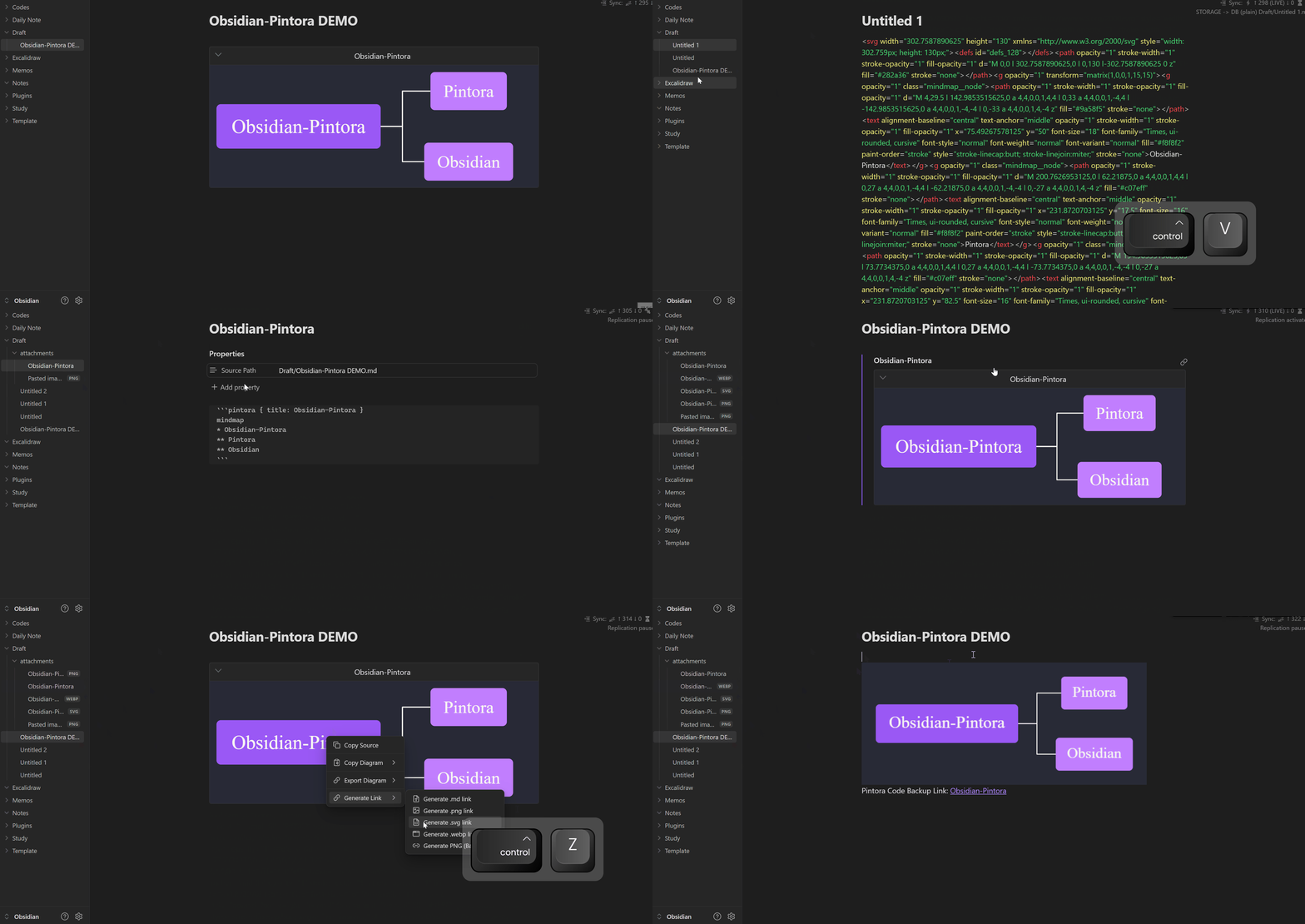
- Copy Diagrams: Copy diagrams to the clipboard in
PNG Base64,SVG XML, andPNG Blobformats. - Export Diagrams: Export diagrams to
.md,.png,.svg,.webpformats. - Convert to Links: Convert Pintora code to attachment links by exporting diagrams in
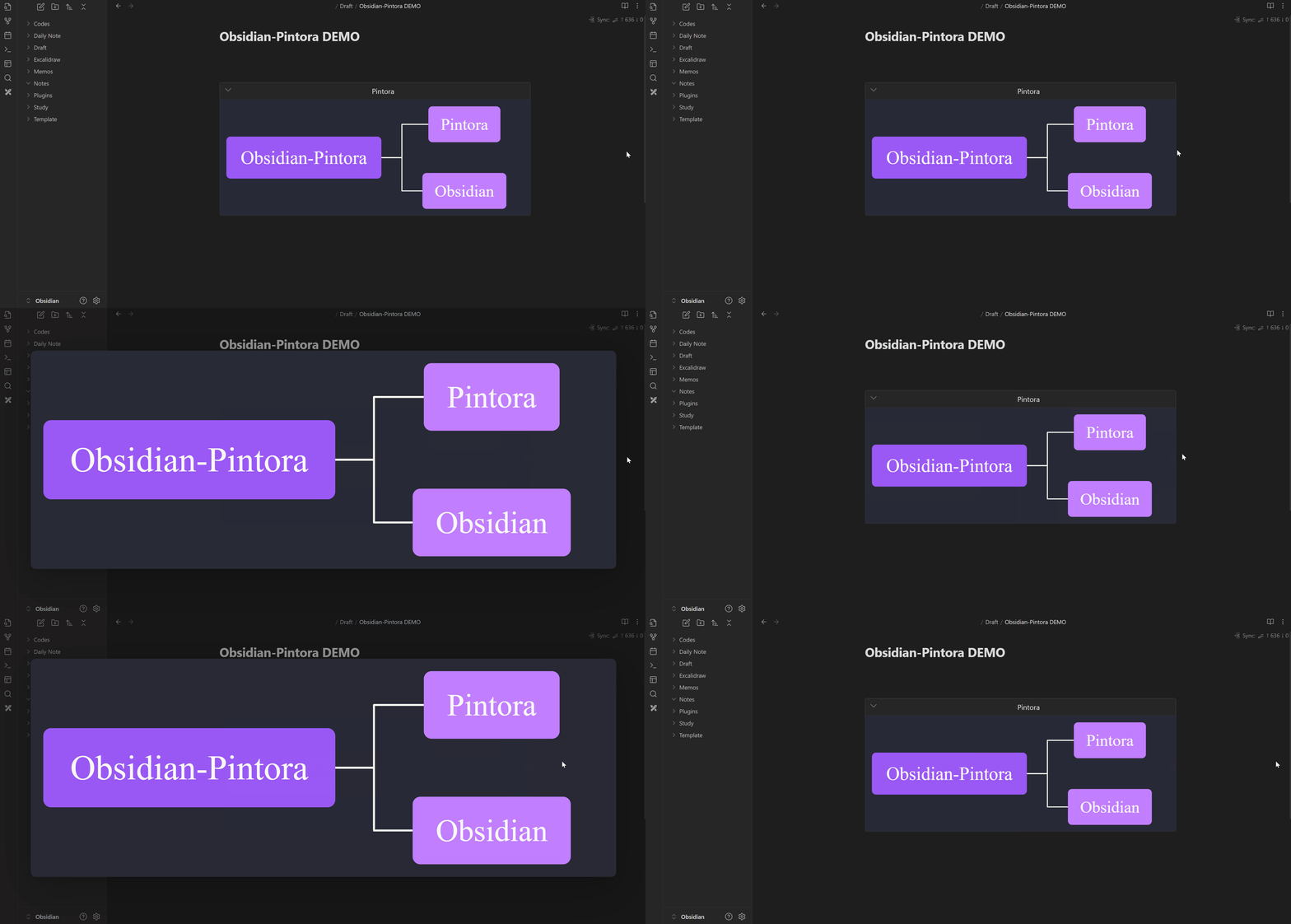
.md,.png,.svg,.webp, orbase64formats to a folder, then generating file links to replace the original Pintora code. - Diagram Lightbox: Center and enlarge diagrams to display them fully and clearly.
- Responsive Size: Dynamically adjust the diagram size based on the original ratio and available space.
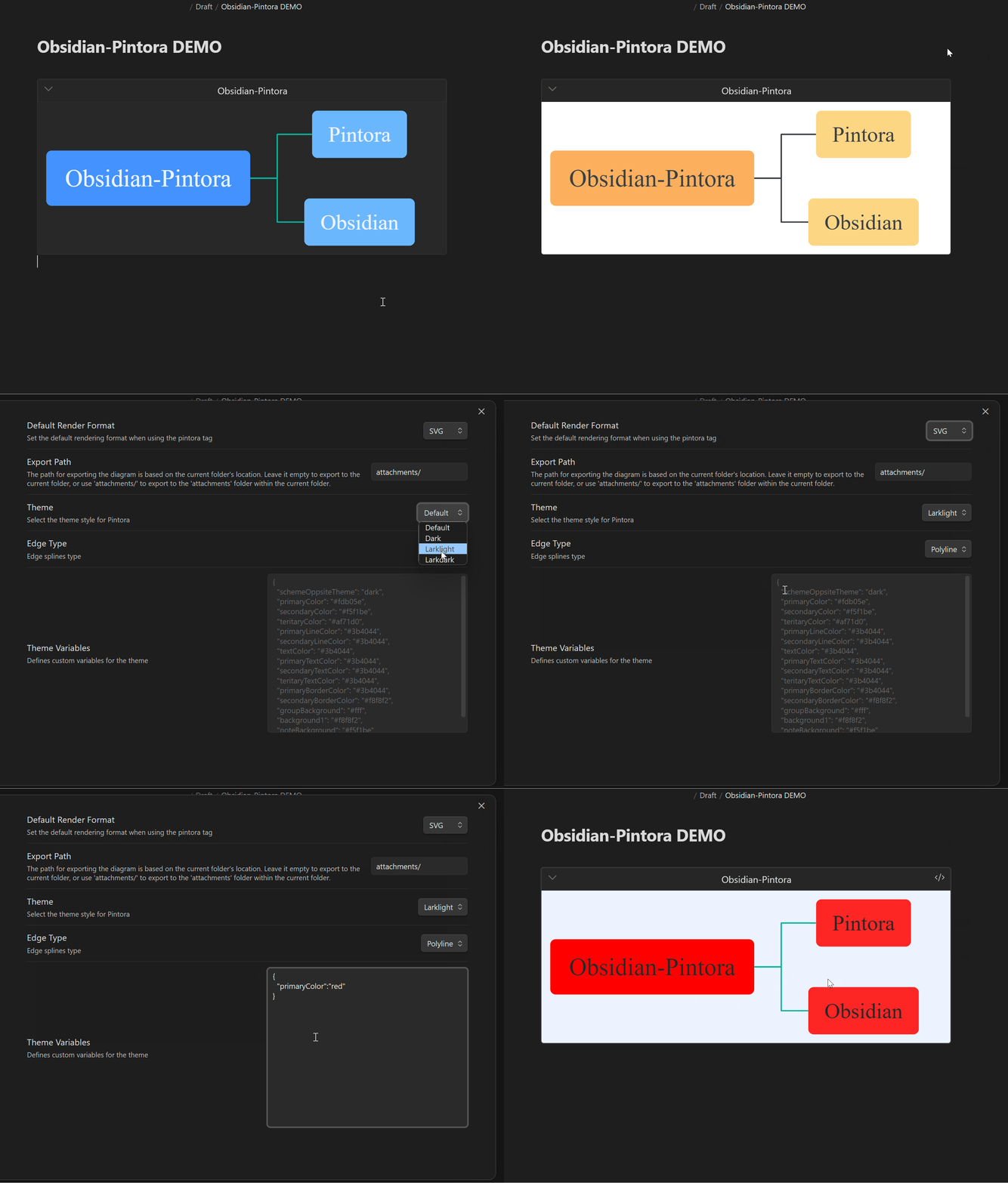
- Custom Themes: Choose themes and edge types, and customize theme styles by inputting theme variables.
- Other Features: Return error messages, fold/unfold diagrams, custom diagram titles, and custom attachment names.
Demo
Diagram Creation
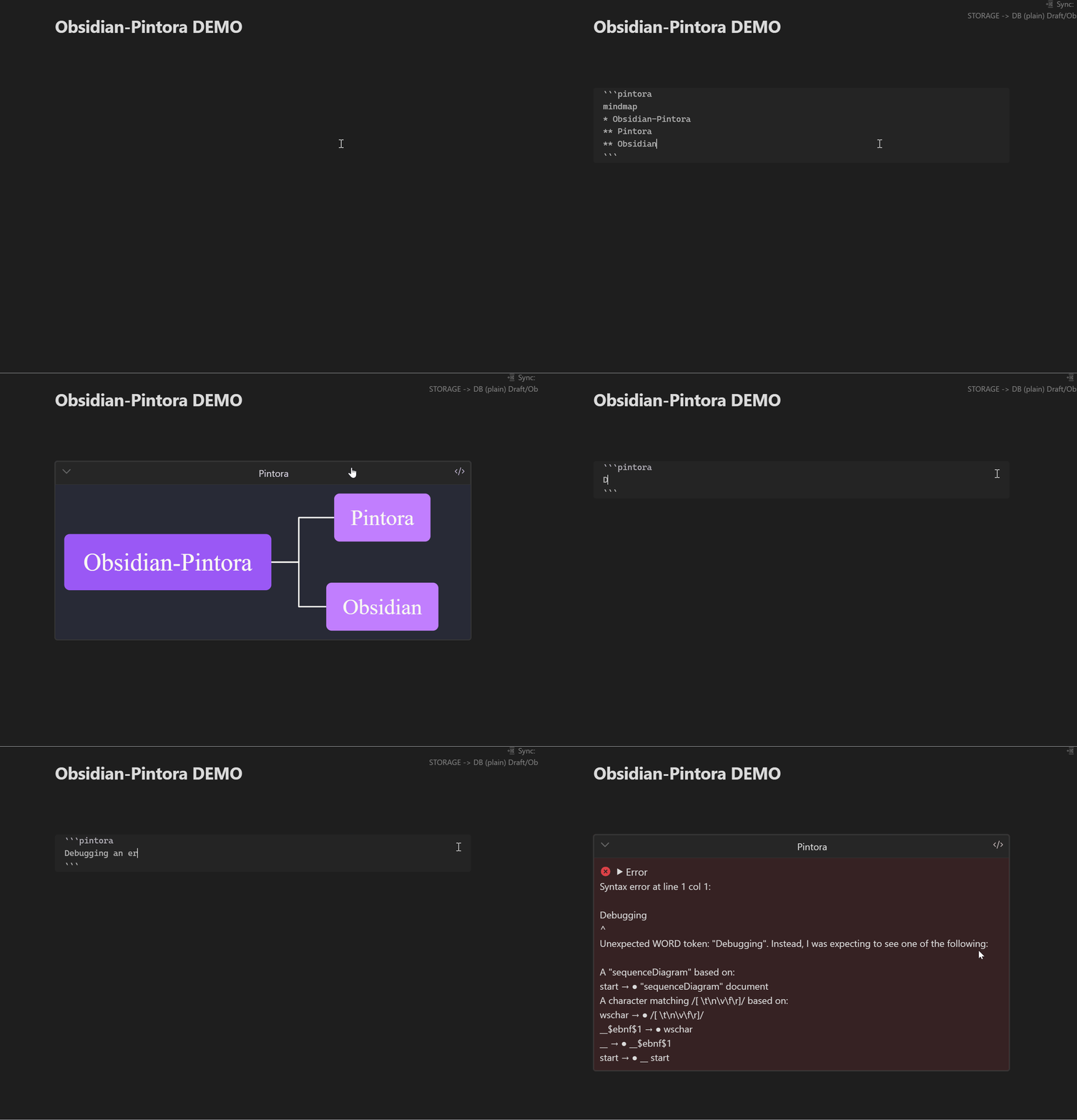
Diagram Lightbox
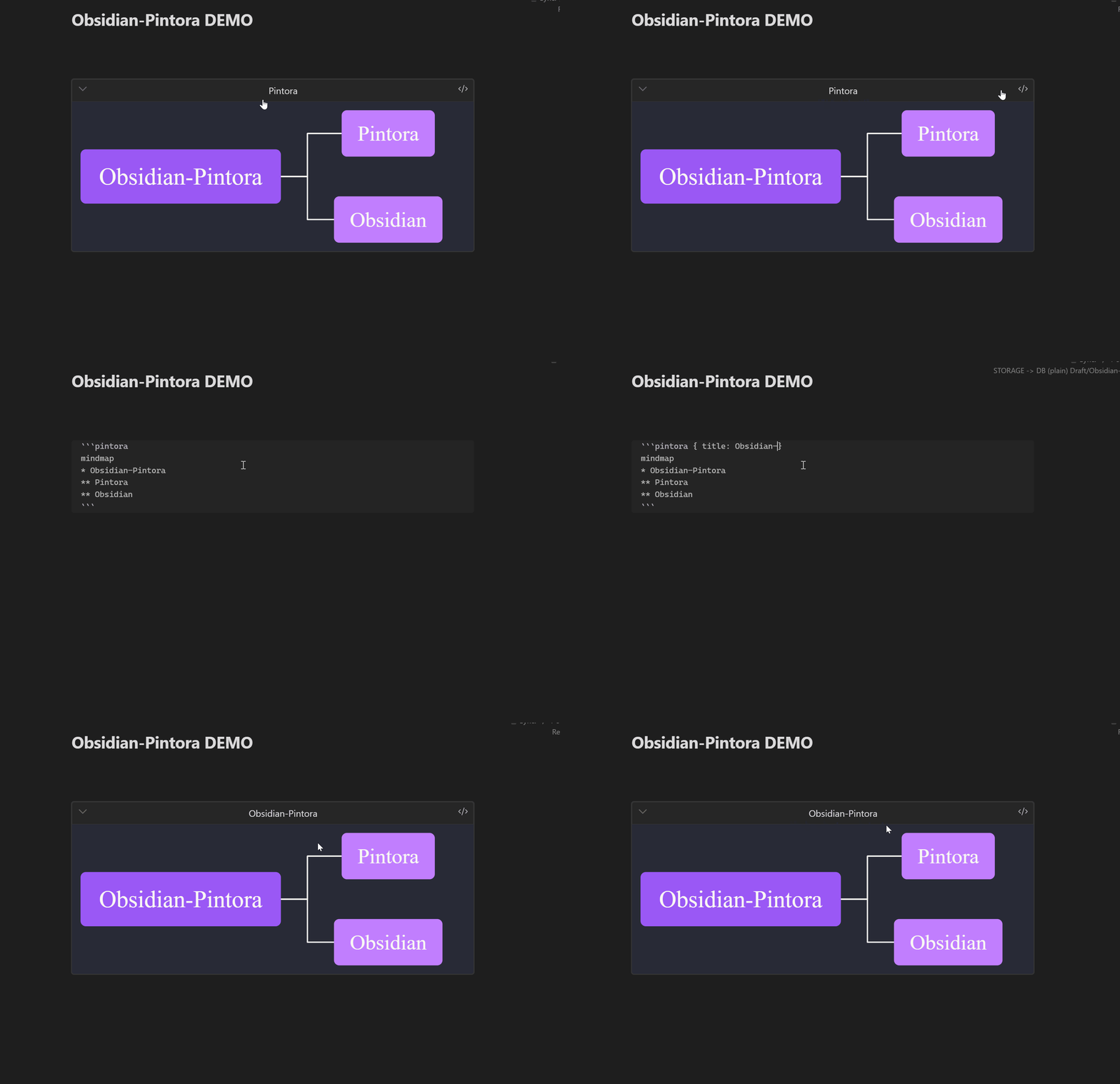
Custom Title
Copying, Exporting, and Linking Diagrams
Theme and Style
Installation
- Search for
Pintorain the Obsidian Community Plugins to install it. (Recommended) - Manually download the plugin package, and place it in the
..\Obsidian Vault\.obsidian\pluginsfolder.
Usage
Activate Pintora Diagram Functionality
- Start a code block with ``` and enter
pintorato activate the Pintora diagram drawing feature. - Supported language labels:
pintora: Use the default rendering method, which can be customized in the settings (default is SVG, recommended).pintora-svg: Force rendering as SVG.pintora-canvas: Force rendering as Canvas.
```pintora
Some Pintora statements written using the Pintora DSL.
```
Custom Titles
- Add a space after the language tag ```pintora and input
{ title: Example Title }. - Note: Follow standard JSON formatting as closely as possible. If you need to use commas
,, enclose the title in"", e.g.,{ title: "Hello, World!" }.
```pintora { title: Example Title }
Some Pintora statements written using the Pintora DSL.
```
Custom Attachment Names
- Use the title name as the attachment name by adding a space after the language tag ```pintora and input
{ title: Example Title }, where Example Title is the attachment name. - Attachments are exported by default to the
attachmentsfolder in the current file directory, which can be modified in the settings.Note: The path starts relative to the current file directory. - If no title is set, an attachment name is automatically generated according to certain rules.
```pintora-canvas
activityDiagram
if (Title is set?) then (Yes)
    :Use the set title;
  else (No)
    :Use an auto-generated attachment name;
  endif
```
Diagram Lightbox Functionality
- Click on the diagram to open the lightbox and display the diagram fully and enlarged.
Right-Click Menu Functionality
- Right-click on the diagram to activate the context menu.
- Available functions include:
Copy Source Code,Copy Diagram, andExport Diagram and Link. - All features are available in edit mode, but the
Export Diagram and Linkfunction is not available in preview mode.
```pintora-svg
mindmap
* Right-Click Menu
** Copy Source Code
*** Copy the Pintora source code
** Copy Diagram
*** Copy PNG (Base64)
*** Copy SVG (XML)
*** Copy PNG (Blob)
** Export and Link
*** Export .md file
*** Export .png file
*** Export .svg file
*** Export .webp file
*** Export PNG (Base64) file
** Convert to Links
*** Generate .md link
*** Generate .png link
*** Generate .svg link
*** Generate .webp link
*** Generate PNG (Base64) link
```
Custom Theme Styles
- In the settings under the theme variables options, input theme variables in standard JSON format.
- For more details on theme variable settings, refer to Pintora Theme Configuration.
Roadmap
- Fix bugs
- Track Pintora updates and synchronize versions
- No new features will be added