Pensio Journaling Sync
 Pensio228 downloads
Sync your journal to Pensio for AI-powered journaling insights: emotion and mood tracking, relationship mapping, and weekly reflections on your notes.
- Overview
- Scorecard
- Updates16
Sync your journal to Pensio for AI-powered journaling insights: emotion and mood tracking, relationship mapping, and weekly reflections on your notes.
Available in the Obsidian Community Plugins directory. Install it in a couple of clicks (see Installation). Questions or a bug? Open an issue.
Required disclosures (per Obsidian developer policies):
- Account required — A free Pensio account is needed.
- Network use — This plugin sends journal content from your configured sync folders to Pensio servers (
pensio.app) over HTTPS. Data is used for storage, AI-based emotion analysis, and insight generation. No data leaves your device until you explicitly connect and configure folders.- Privacy — See Pensio Privacy Policy.
What is Pensio?
Pensio is an AI-powered journaling platform. Write naturally — Pensio automatically extracts 60+ emotions, generates weekly & monthly insights, tracks relationships mentioned in your writing, and provides an AI advisor (Explore) that can answer questions about your entire journal history.
This plugin connects your Obsidian vault to Pensio so you can keep writing in your favorite editor while Pensio adds the intelligence layer on top.
Features
- Automatic sync — syncs when files change, or on a 5-minute interval
- Selective sync — only configured folders are synced; everything else stays local
- Multi-folder support — map multiple vault folders for sync
- Frontmatter aware — entry type and date extracted from YAML front matter
- Secure authentication — one-time pairing code, per-device tokens with automatic refresh, stored via Obsidian's SecretStorage
- Account safety — detects account switches and prevents cross-account data leaks
- People folder sync — dedicated folder for relationship notes, synced as Pensio relationship profiles
- Mirror delete — entries removed from your vault are removed from Pensio (only plugin-created entries)
- Status bar — live sync status with tracked file count
- Mobile compatible — works on Obsidian mobile (iOS & Android)
Installation
From Community Plugins (recommended)
- In Obsidian, open Settings → Community plugins and click Browse
- Search for Pensio Journaling Sync
- Click Install, then Enable
Or open the directory listing and use "Install".
Beta / pre-release builds (BRAT)
Want the newest build before it reaches the directory? Install BRAT, choose Add beta plugin, and enter gabrielrubens/pensio-obsidian-sync.
Manual
- Download
main.js,manifest.json, andstyles.cssfrom the latest release - Create
.obsidian/plugins/pensio-sync/in your vault - Copy the downloaded files into that folder
- Reload Obsidian and enable the plugin
Setup
- Create a Pensio account at pensio.app/register
- Get a setup code — open Connect Obsidian and generate a one-time code
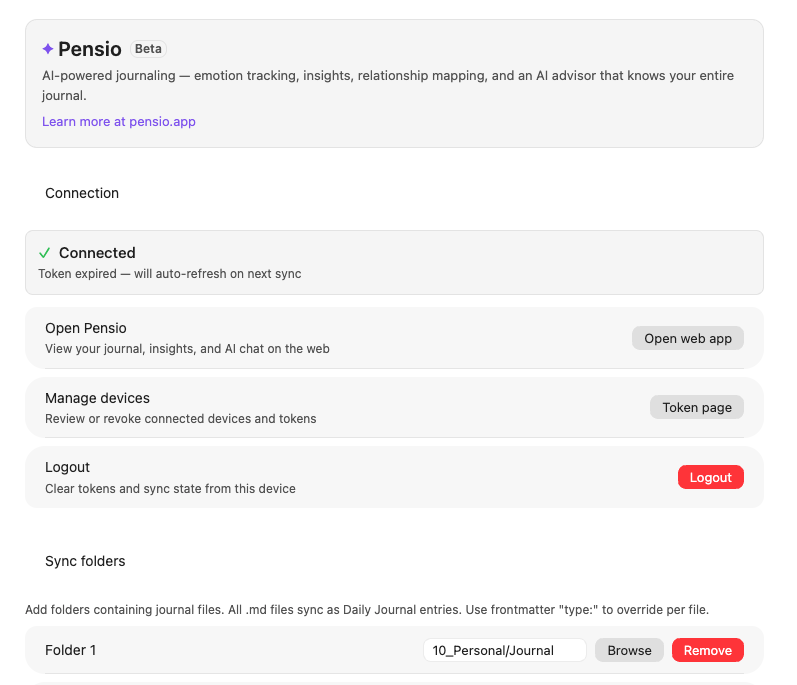
- Pair — open Obsidian Settings → Pensio Journaling Sync, enter the code, click Connect
- Configure folders — add your vault folders to sync (default:
Journal)
Auto-sync is on by default. Entries sync as you write.
Self-hosting or prefer raw tokens? Manual access/refresh token entry lives under Advanced.
Usage
Commands
Access via Command Palette (Ctrl/Cmd + P):
| Command | Description |
|---|---|
| Sync now | Incremental sync (only changed files) |
| Force sync all files | Re-check all files (still skips unchanged content) |
| Sync current file | Sync only the active file |
| Check sync status | Show server entries and local tracked files |
| Logout | Clear tokens and sync state |
Status bar
- Cloud idle — ready to sync (shows tracked file count)
- Spinner syncing — in progress
- Check success — sync completed (shows files synced)
- Warning error — sync failed (check console for details)
- Cloud off reconnect — session expired; enter a new setup code in settings (your notes and sync history are untouched)
Frontmatter
The plugin reads YAML front matter to determine entry type, date, and title.
Entry type — recognized keys: type, entry_type. Frontmatter type overrides the default folder type.
| Frontmatter value | Maps to |
|---|---|
daily_journal, daily, journal |
Daily Journal |
prompted_journal, prompted |
Prompted Journal |
deep_dive, deep dive |
Deep Dive |
meeting_note, meeting |
Meeting Note |
other |
Other |
| (anything else) | Other |
Date — recognized keys (in priority order): date, created, created_at, entry_date. Falls back to file modification time if not present.
Title — extracted from the title frontmatter key, falling back to the filename.
Example:
---
type: deep_dive
date: 2025-03-18
title: My reflection on change
---
How it works
- File watching — the plugin monitors your configured folders for changes
- Content hashing — unchanged files are skipped (SHA-256 deduplication)
- Bulk upload — changed files are sent in batches of 50 to the Pensio API
- Backend processing — Pensio extracts emotions, wikilinks, and generates insights from your entries
Only .md files in your configured sync folders are sent. Everything else stays local.
People folder
Besides journal entries, the plugin can sync relationship notes from a dedicated People folder (default: People/).
Create a markdown file per person:
People/
├── Sarah.md
├── David.md
└── Mom.md
Each file becomes a relationship profile on Pensio. The person's name is taken from the title frontmatter key, or the filename if not set. You can add any notes about the person in the file body.
Person frontmatter
Add a relationship field to categorize the person:
---
title: Sarah
relationship: close_friend
birthday: 1990-05-15
tags:
  - college
  - roommate
---
Notes about Sarah...
Accepted relationship values: partner, family, close_friend, friend, coworker, professional, acquaintance, other. Legacy formats (e.g., 1:👪 Family, Friend) are normalized automatically on sync.
When you mention someone in a journal entry using an Obsidian wiki-link — the person's note name wrapped in double square brackets — Pensio automatically links that mention to their relationship profile, whether the profile came from the People folder or from the wiki-link itself.
Configure the People folder path in Settings → Pensio Journaling Sync → Advanced. Set it to empty to disable people sync.
What you get on Pensio
Once your entries sync, Pensio processes them automatically:
- 60+ emotions extracted — each entry is analyzed for emotional content
- Weekly & monthly insights — AI-generated reflections on patterns in your writing
- Relationship profiles — people mentioned via wiki-links are tracked and profiled
- Explore AI — ask questions about your entire journal history and get answers grounded in your entries
- Constellation — visual map of how your entries connect through themes, emotions, and people
All of this happens on the web — your markdown files in Obsidian stay untouched.
Security & privacy
| What | Details |
|---|---|
| Transport | All communication over HTTPS |
| Authentication | One-time pairing code → per-device JWT family; short-lived access tokens, refresh tokens renewed automatically (sliding reissue) |
| Token storage | Obsidian SecretStorage, write-verified — backed by the OS keychain on desktop; app-local (never inside your vault files, never synced with the vault) on mobile |
| Data sent | Markdown content, file paths, timestamps from configured folders only |
| Data NOT sent | Files outside sync folders, .obsidian config, plugin settings, vault structure |
| Max file size | 1 MB per file (larger files are skipped) |
Documentation
For a full overview of the plugin and Pensio's features, see the Obsidian Sync feature page.
Troubleshooting
"Connection failed"
- Verify the server URL includes
https:// - Generate a fresh setup code from the Connect Obsidian page and pair again
- Check network connectivity
"Session expired"
- The plugin never deletes anything on failures — enter a new setup code in Settings → Pensio Journaling Sync to reconnect and syncing resumes where it left off
Files not syncing
- Confirm the file is inside a configured sync folder
- Use Sync now or Force sync all files from the command palette
- Enable Debug mode in Advanced settings for detailed console logs
"File too large"
- Files over 1 MB are skipped — split into smaller files