
- Overview
- Scorecard
- Updates2
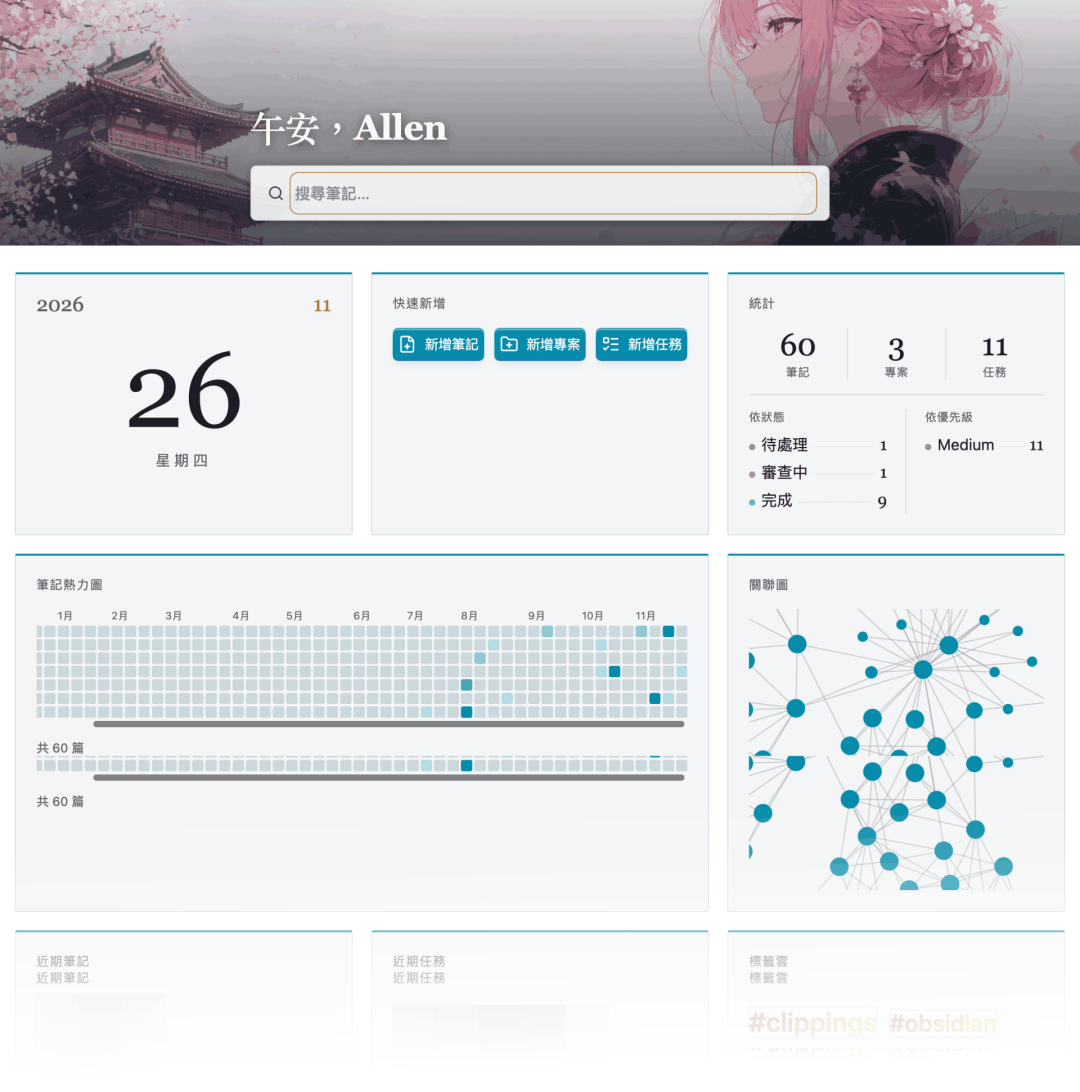
A custom Dashboard view that turns Obsidian into a personal workspace: see today at a glance, capture content quickly, and count notes, projects, and tasks.
Part 1: For users
Features
- Header: Configurable background image and greeting. It shows "Good morning / Good afternoon / Good evening" based on the current time, followed by your configured nickname (06:00–10:59 morning, 11:00–17:59 afternoon, 18:00–05:59 evening). Type a keyword in the search box and press Enter to open Obsidian's global search with the keyword prefilled.
- Date card: Shows today's year, month, day, and weekday (follows the system language).
- Quick add: Create a note, project, or task.
- Statistics: Shows note, project, and task counts. Tasks are grouped by status and priority; if dotpm defines colors, a matching color dot appears before each group.
- Notes heatmap: The left card in the second row shows how often notes were created over the last 12 months.
- Graph: The right card in the second row shows links between notes. Click a node to open its note; node colors follow the accent color setting.
- Recent notes: The left card in the third row lists the 10 most recently updated notes as
folder/title. Click an entry to open it. - Recent tasks: The middle card in the third row lists the 10 incomplete tasks with the nearest due dates. The first line shows
project/task; the second line shows start date, due date, and progress in smaller text. Click an entry to open it. - Tag cloud: The right card in the third row scales font size by tag usage and renders text with a rainbow gradient. Click a tag to open Obsidian's global search with
tag:#tagprefilled. - Live updates: The dashboard refreshes within about one second after a file is created, deleted, or renamed, or after note content changes.
Requirements
- Obsidian 1.8.7 or later. The plugin does not restrict desktop platforms (
isDesktopOnly: false).
Third-party plugin dependency
This plugin integrates with the following third-party plugin to provide full functionality. It still works when the plugin is not installed, but the related features degrade or fail:
- dotpm / obsidian-pm: A project management plugin. OM Dashboard's Create project and Create task buttons call its commands; task status and priority labels and colors are also read from its settings.
- Project repo: https://github.com/dotpm/obsidian-pm
- If it is not installed, both buttons remain visible but fail when used; labels fall back to their raw IDs.
Installation
- Download
om-dashboard.zipfrom the GitHub Release. - Extract it and place the
om-dashboardfolder under<vault>/.obsidian/plugins/. - Reload Obsidian and enable OM Dashboard under Settings → Community plugins.
Usage
Open the dashboard in either of two ways:
- Click the
layout-dashboardicon in the left ribbon. - Open the command palette and run Open Dashboard (command ID:
open-dashboard).
Reopening reuses the existing Dashboard tab. When Open on startup is enabled in settings, a new tab is opened instead.
Settings
Go to Settings → Community plugins → OM Dashboard:
| Setting | Description | Default |
|---|---|---|
| Language | Follow Obsidian / Traditional Chinese / Simplified Chinese / English | Follow Obsidian |
| Nickname | Name shown in the header greeting. If blank, only the time-based greeting is shown. | Blank |
| Accent color | Main color for cards, icons, the heatmap, graph nodes, and the focus outline. Use the color picker or enter #RRGGBB directly. |
#65B2AB |
| Notes root folder | Count only notes under this folder. If blank, count the whole vault (excluding dotpm projects and tasks). | Blank |
| Header background image location | Enter an image path inside the vault, or drag/select an image to upload it. Uploaded files are saved to 附件/OM Dashboard/banner.*; 1920 × 640 px is recommended. |
Blank |
| Open on startup | Automatically open the Dashboard in the main workspace when Obsidian starts. | Enabled |
UI text is managed centrally in src/i18n.ts and currently supports Traditional Chinese, Simplified Chinese, and English.
Counting rules
Statistics read only Markdown frontmatter and never modify note content:
pm-project: true→ counted as a project, not a note.pm-task: true→ counted as a task, not a note;statusandpriorityare also read.- Other Markdown files → counted as notes. If Notes root is set, only files in that folder (including subfolders) are counted.
- If
statusorpriorityis missing, the task is grouped as Unset. - Recent tasks excludes statuses marked as complete in dotpm (
doneandcancelledby default) and sorts bydueascending. Tasks withoutduecome last.
---
pm-task: true
status: doing
priority: high
---
Part 2: For contributors
Development environment
- Node.js 18 or later (LTS recommended).
- Package manager: npm.
- Bundler: esbuild (
esbuild.config.mjs). - Types:
obsidiantype definitions (latest).
Setup and common commands
npm install     # Install dependencies
npm run dev     # Watch mode; compile src/main.ts → main.js (inline sourcemap)
npm run build   # Type check (tsc -noEmit) + production build (minified, no sourcemap)
npm run lint    # ESLint (includes obsidianmd rules)
npm run version # Bump the version (version-bump.mjs) and git add manifest.json versions.json
Project structure
Source code is split by responsibility under src/:
| File | Responsibility |
|---|---|
src/main.ts |
Plugin lifecycle, command registration, vault/metadata events, and refresh scheduling (1-second debounce) |
src/view.ts |
Dashboard rendering and interactions |
src/counters.ts |
Note, project, and task statistics |
src/recent.ts |
Recent notes and incomplete task lists |
src/tags.ts |
Tag statistics and tag cloud |
src/heatmap.ts |
Note creation heatmap |
src/graph.ts |
Note graph |
src/dotpm.ts |
Read dotpm status and priority settings |
src/settings.ts |
Settings interface and defaults |
src/settingsTab.ts |
Settings tab UI |
src/i18n.ts |
Three-language UI text |
Other root files:
esbuild.config.mjs: Build configuration (entrysrc/main.ts, bundle, external obsidian/electron/codemirror, etc.).tsconfig.json: Strict TypeScript (strict: true).eslint.config.mts: ESLint configuration (includeseslint-plugin-obsidianmd).manifest.json,versions.json: Plugin metadata and version mapping.
Development workflow
- Run
npm run devto start watch mode. - After editing files under
src/, esbuild recompilesmain.js. - Reload the plugin in Obsidian (or restart Obsidian) to see the new version.
- Before committing, run
npm run build(type check) andnpm run lint.
The build output main.js is not committed. It is attached directly to the GitHub Release alongside manifest.json and styles.css, and is also packaged into om-dashboard.zip; node_modules/ is not committed either.
Release
Follow Obsidian community plugin conventions:
- Bump
versioninmanifest.json(SemVer) and updateversions.jsonwith the corresponding minimum app version. - Run
npm run version(or update the version files manually). - Run
npm run buildto producemain.js. - Create a GitHub Release. Its tag must exactly match the
versioninmanifest.jsonwith no leadingv. - The Release workflow attaches
main.js,manifest.json, andstyles.cssdirectly, and also packagesom-dashboard.zipfor manual installation.