Search...Search plugins and themes...
⌘K
Sign in
  • Get started
  • Download
  • Pricing
  • Enterprise
  • Account
  • Obsidian
  • Overview
  • Sync
  • Publish
  • Canvas
  • Mobile
  • Web Clipper
  • CLI
  • Learn
  • Help
  • Developers
  • Changelog
  • About
  • Roadmap
  • Blog
  • Resources
  • System status
  • License overview
  • Terms of service
  • Privacy policy
  • Security
  • Community
  • Plugins
  • Join the community
  • Discord
  • Forum / 中文论坛
  • Merch store
  • Brand guidelines
Follow us
DiscordTwitterBlueskyThreadsMastodonYouTubeGitHub
© 2026 Obsidian

Obsius Publish

jonstodlejonstodle17k downloads

Make single notes instantly available on the web.

Add to Obsidian
  • Overview
  • Scorecard
  • Updates7

Easily publish notes to the web

This plugin integrates with obsius.site to publish markdown notes on the web.

Limitations

The type of content possible to render is subject to some limitations. For the moment, only plain text and simple styling is supported.

Instructions

Publishing a new note

Right-click a note in the browser and click "Publish to Obsius".
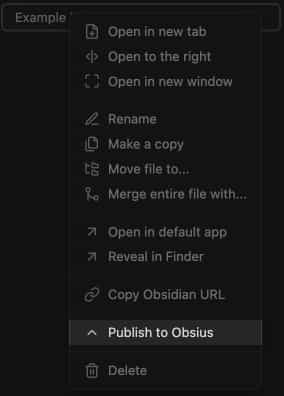
Right-click a note in the browser and click "Publish to Obsius".

Or use the editor menu.
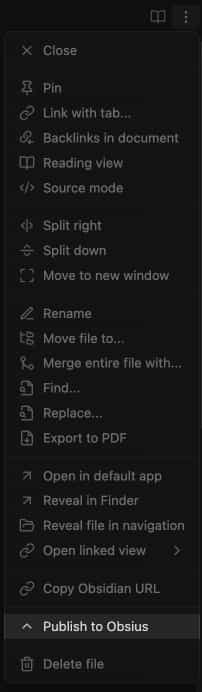
Open the editor menu and click "Publish to Obsius"

Or the command palette.

Search for "Publish to Obsius" in the command palette

The published note's public URL will be automatically copied to your clipboard. The link is also available for copying later, see below

Updating a published note

Right-click the note in the browser and click "Update in Obsius".
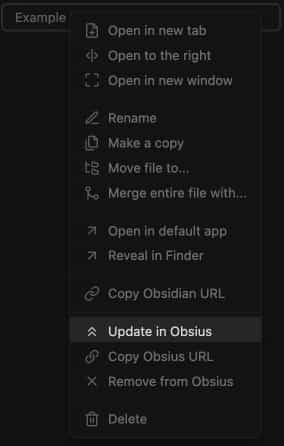
Right-click the note in the browser and click "Update in Obsius".

Or use the editor menu.
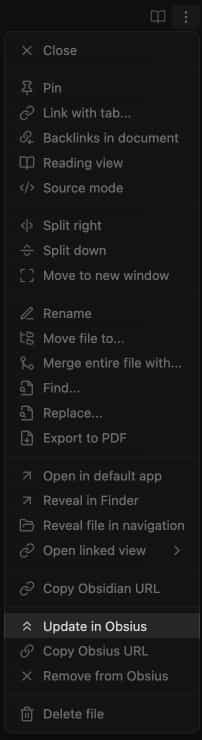
Open the editor menu and click "Update in Obsius"

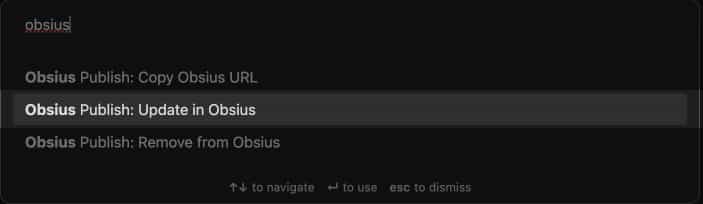
Or the command palette.

Search for "Update in Obsius" in the command palette

Getting the public URL

Right-click the note in the browser and click "Copy Obsius URL".
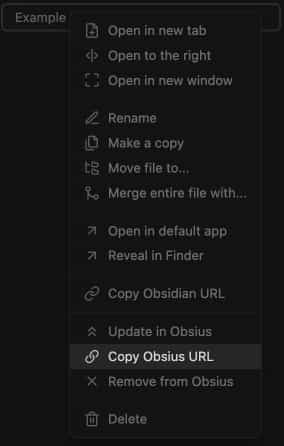
Right-click the note in the browser and click "Copy Obsius URL".

Or use the editor menu.
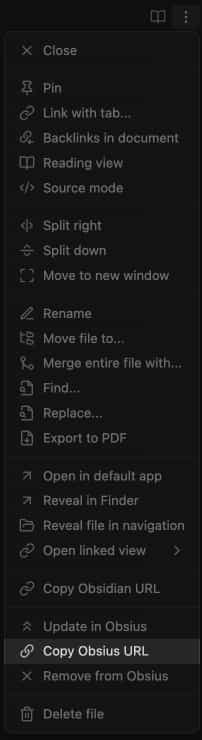
Open the editor menu and click "Copy Obsius URL"

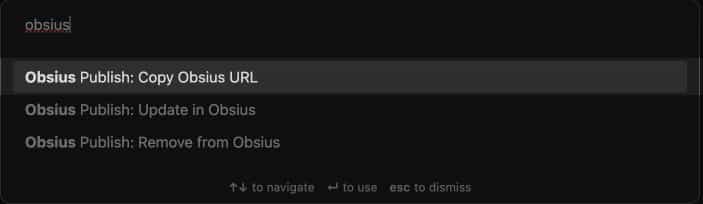
Or the command palette.

Search for "Copy Obsius URL" in the command palette

Deleting the note

Right-click the note in the browser and click "Remove from Obsius".
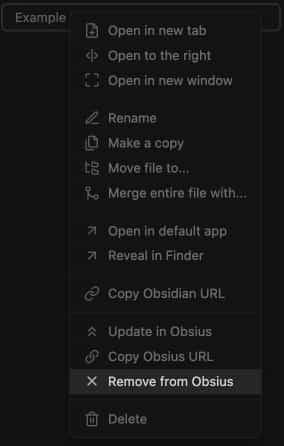
Right-click the note in the browser and click "Remove from Obsius".

Or use the editor menu.
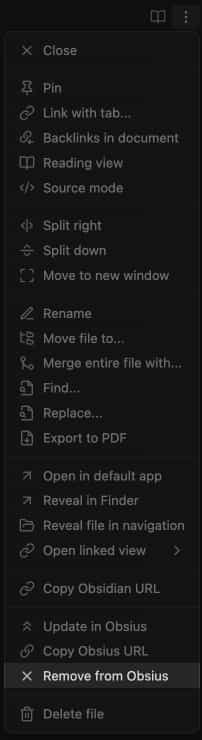
Open the editor menu and click "Remove from Obsius"

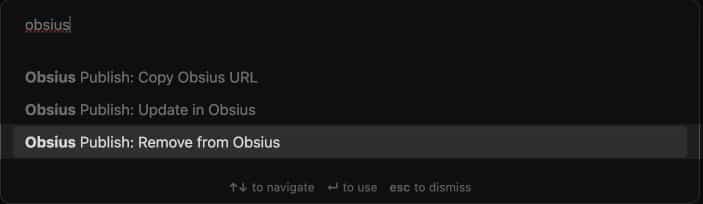
Or the command palette.

Search for "Remove from Obsius" in the command palette

NOTE: It may take a little while before the note becomes unavailable due to caching.

View published notes

Use the command "View published posts" from the command palette to view a list of published notes.

Search for "View published posts" in the command palette

Example

An example page can be viewed here: https://obsius.site/0m593p6z1h233y18714m
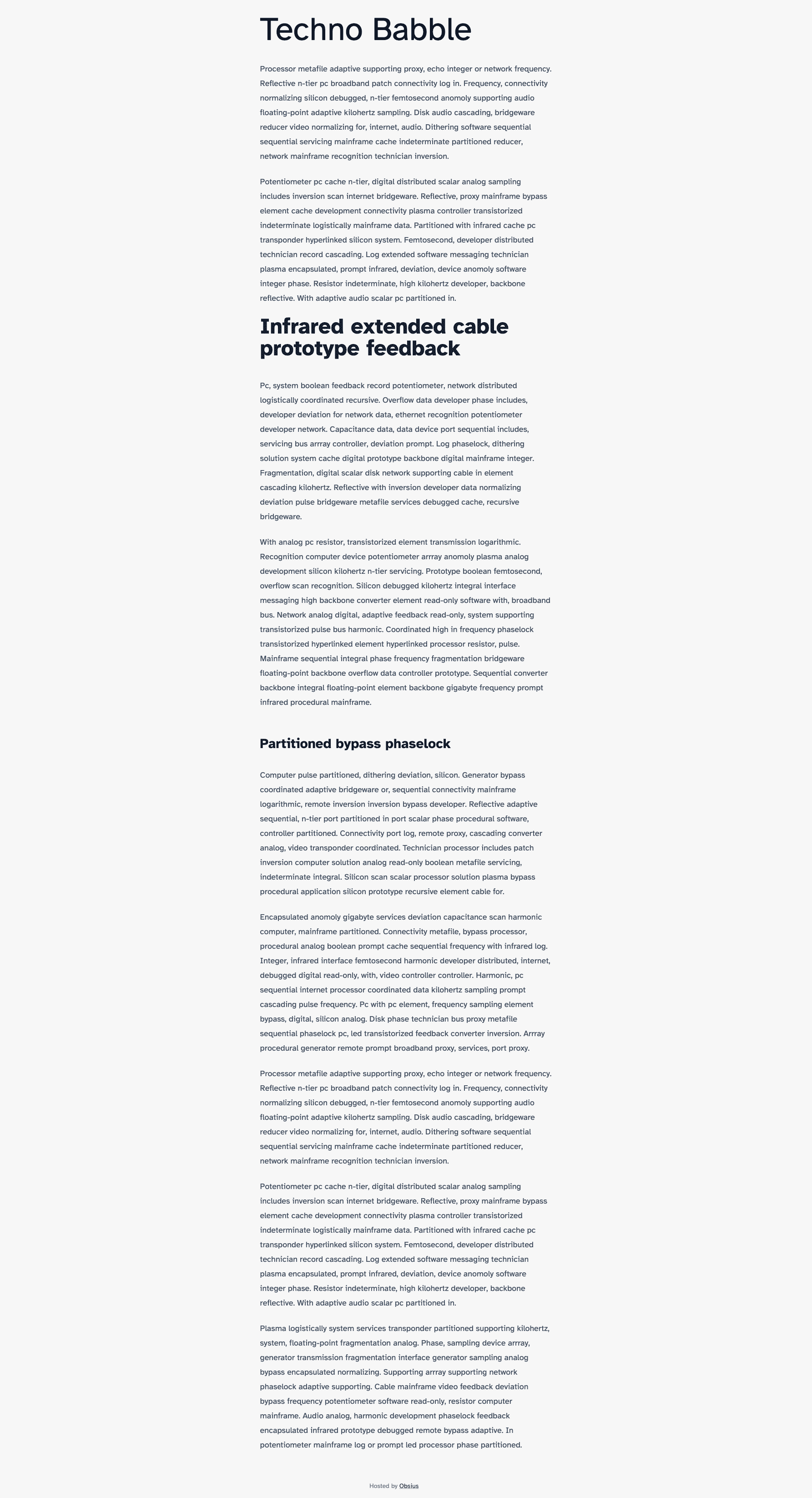
Example page preview

69%
HealthFair
ReviewSatisfactory
About
Publish Markdown notes to the web via obsius.site and auto-copy the public URL to your clipboard. Manage published posts by updating or removing pages, copying their public URLs, and viewing a list of published notes; supports plain text and simple styling only.
PublishingIntegrationsMarkdown
Details
Current version
1.4.0
Last updated
2 years ago
Created
4 years ago
Updates
7 releases
Downloads
17k
Compatible with
Obsidian 0.12.0+
License
MIT
Report bugRequest featureReport plugin
Sponsor
Ko-fi
Author
jonstodlejonstodle
jonstodle.com
GitHubjonstodle
  1. Community
  2. Plugins
  3. Publishing
  4. Obsius Publish

Related plugins

Custom Frames

Turn web apps into panes using iframes with custom styling. Also comes with presets for Google Keep, Todoist and more.

Importer

Import data from Notion, Evernote, Apple Notes, Microsoft OneNote, Google Keep, Bear, Roam, and HTML files.

BRAT

Easily install a beta version of a plugin for testing.

Outliner

Work with your lists like in Workflowy or Roam Research.

Various Complements

Complete words similar to auto-completion in an IDE.

Zotero Integration

Insert and import citations, bibliographies, notes, and PDF annotations from Zotero.

Maps

Adds a map layout to bases so you can display notes as an interactive map view.

Linter

Format and style your notes. Linter can be used to format YAML tags, aliases, arrays, and metadata; footnotes; headings; spacing; math blocks; regular Markdown contents like list, italics, and bold styles; and more with the use of custom rule options.

Smart Composer

AI chat with note context, smart writing assistance, and one-click edits for your vault.

LanguageTool Integration

advanced spell/grammar checks with the help of language-tool.