Core Search Assistant
 qawatake36k downloads
Enhance built-in search: keyboard interface, card preview, bigger preview.
- Overview
- Scorecard
- Updates43
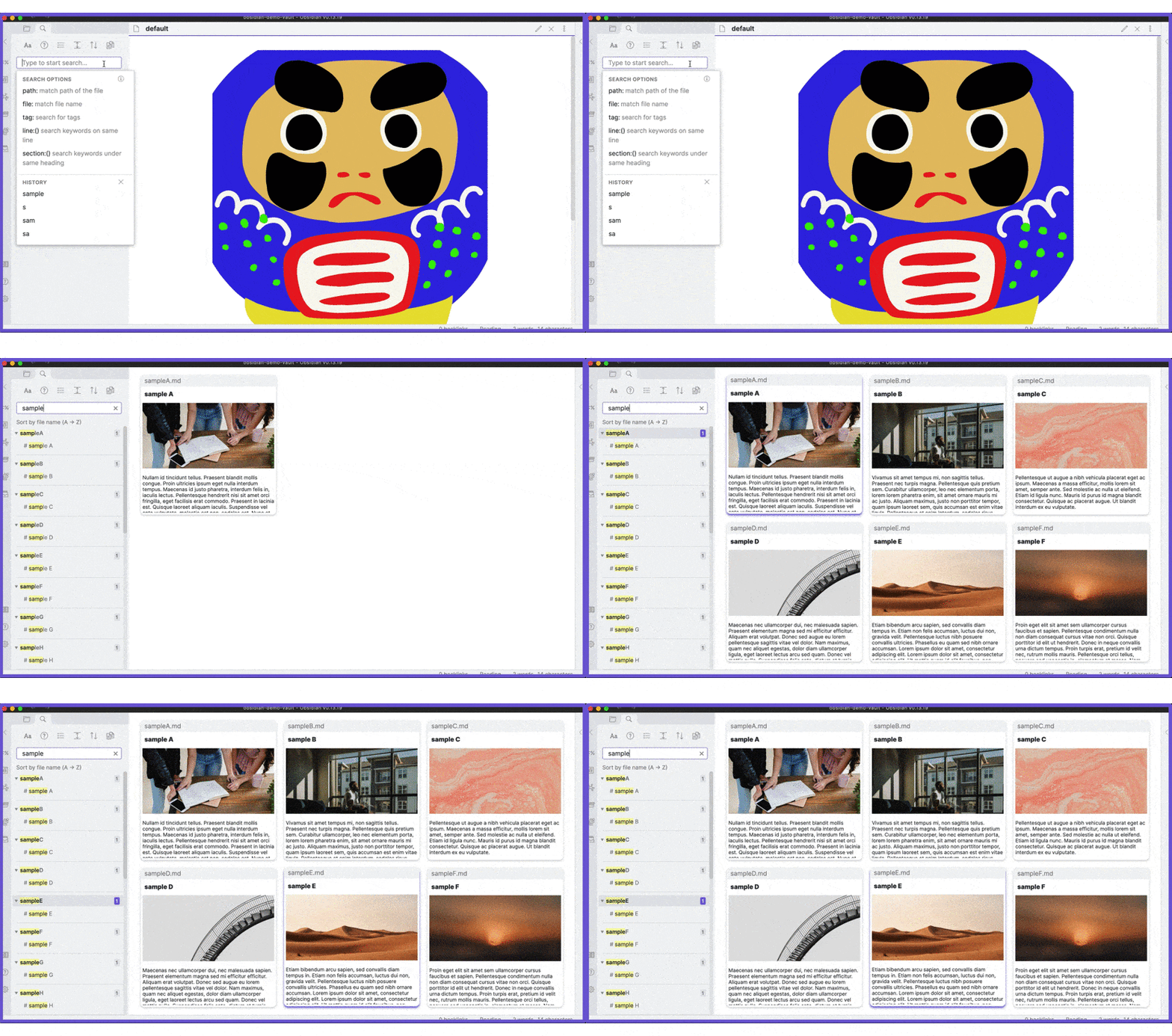
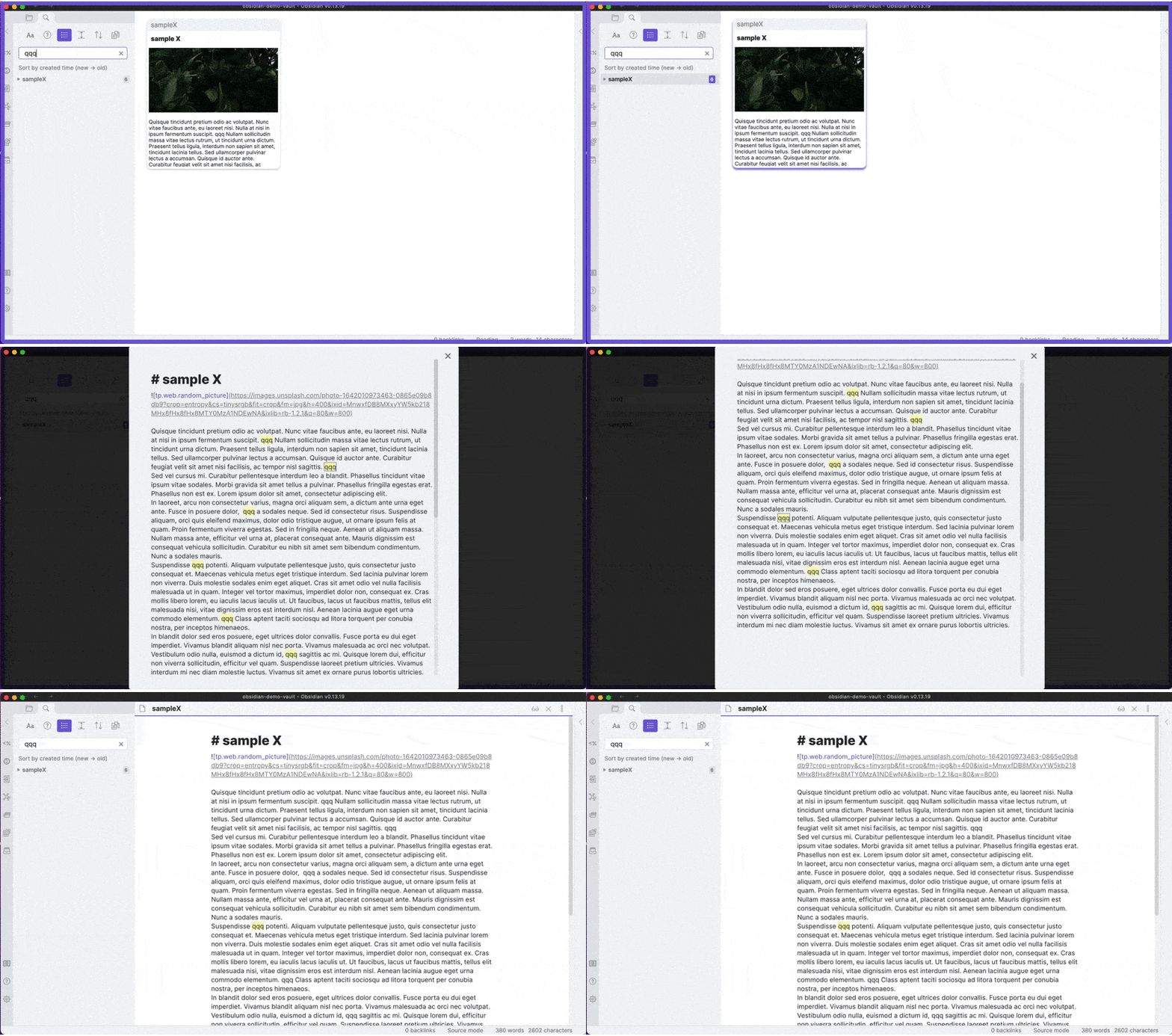
This plugin enhances the built-in search function by providing
- keyboard interface,
- card view,
- bigger preview,
- auto preview,
How to use
When you open the built-in search panel, you enter search mode. In the search mode, you can use the following hotkeys.
| Key | Action |
|---|---|
Ctrl + N, ↓ |
Select the next item. |
Ctrl + P, ↑ |
Select the previous item. |
Ctrl + Space |
Preview the selected item. Currently not supported in the legacy editor. (Manual preview) |
Ctrl + Enter |
Open the selected item. |
Ctrl + Shift + Enter |
Open the selected item in a new pane. |
Shift + Space |
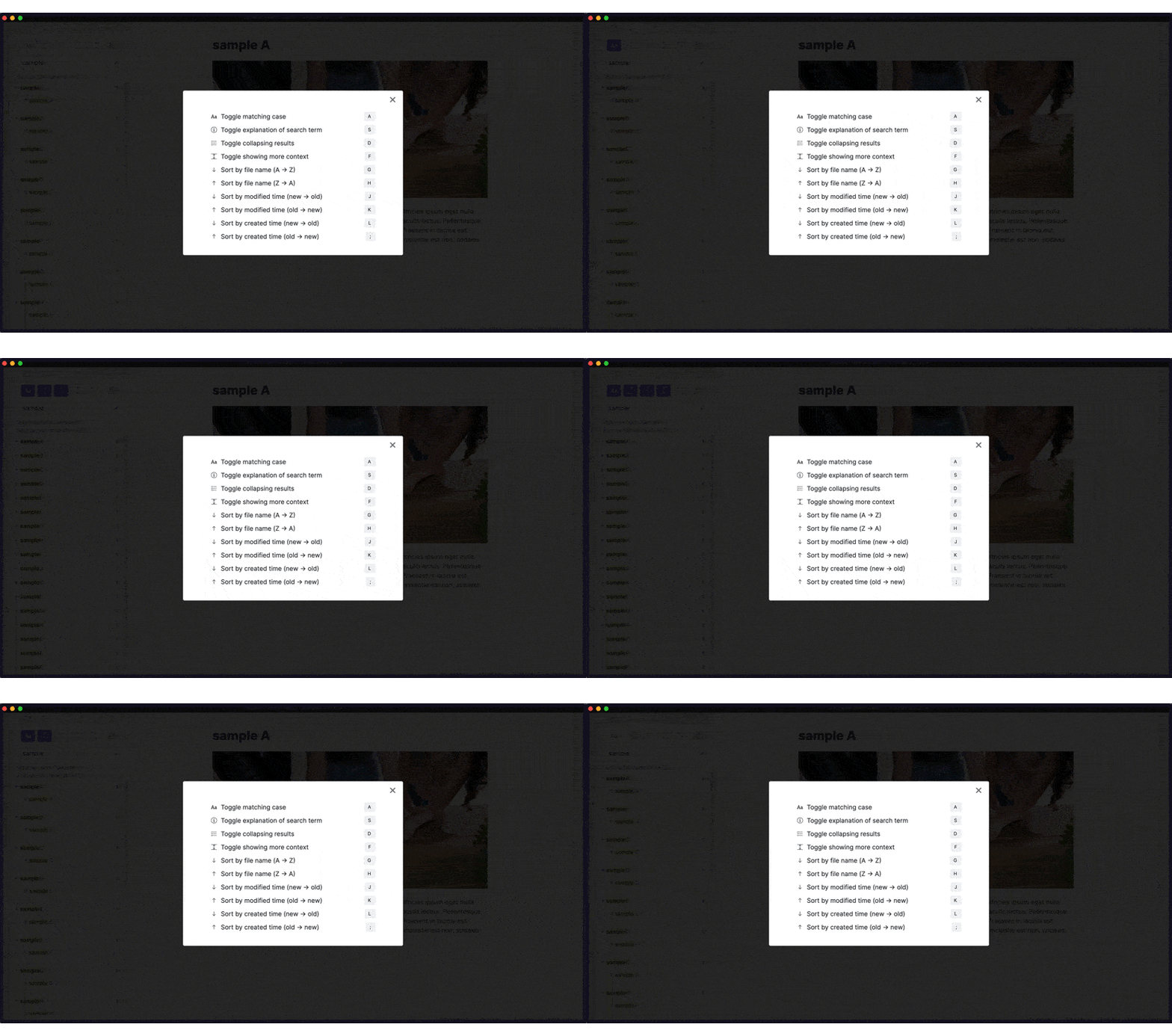
Set search options. |
Ctrl + ] |
Move to the next set of cards. (available only in card view.) |
Ctrl + [ |
Move to the previous set of cards. (available only in card view.) |
Ctrl + I |
Copy the wiki link of the selected item. |
- The hotkeys above are available only in the search mode, so don't worry about overwriting your hotkey settings.
- You can customize hotkeys in the setting tab.
- To exit the search mode, press
Escor click any part of the screen other than the search panel.
Auto Preview
There are three options for auto preview.
- none,
- single view,
- card view.
1. None
Manual preview by Ctrl + Enter is still available.
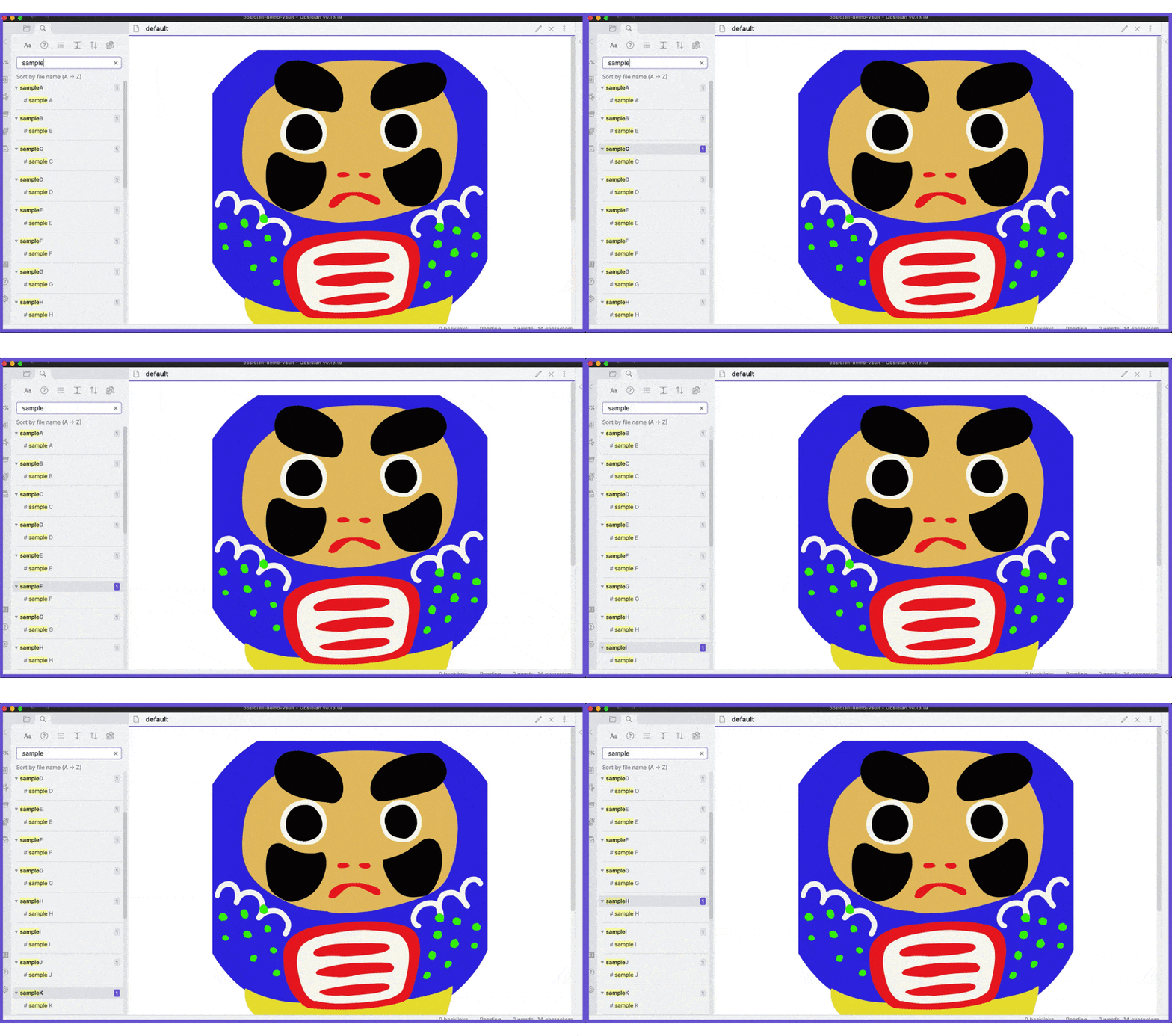
2. Single view
Previewed item can be scrolled unlike card view.
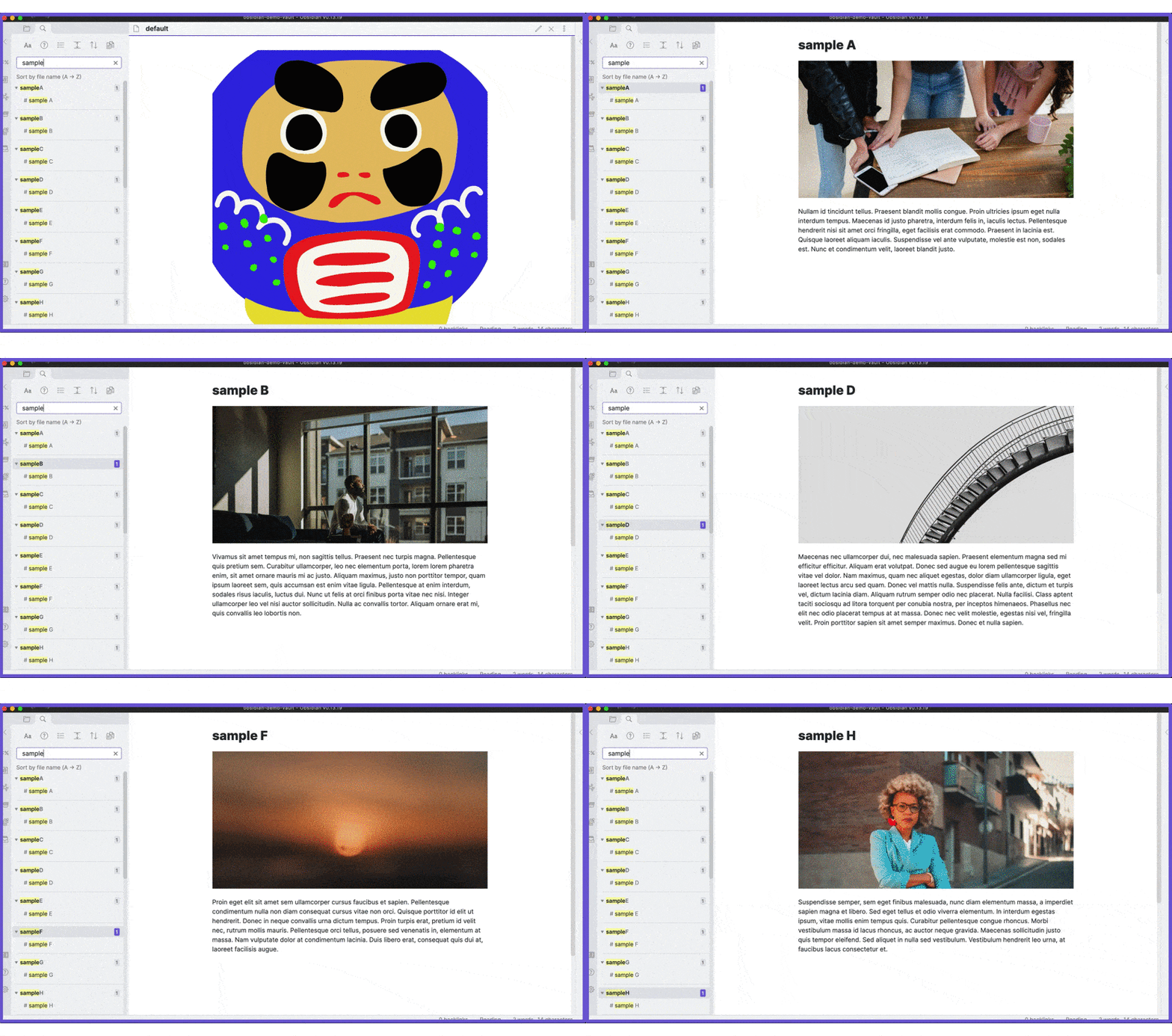
3. Card view
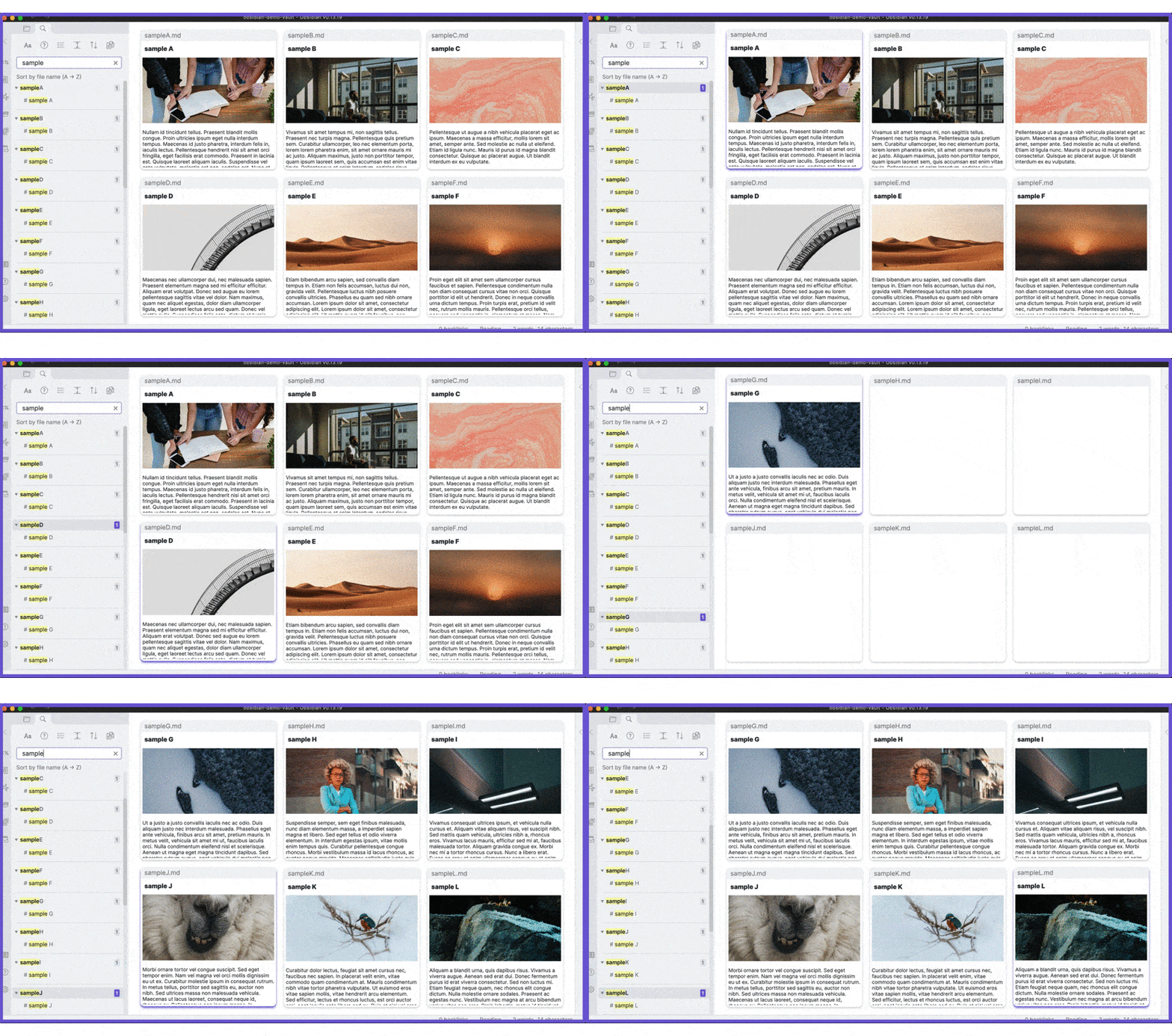
Available layouts:
- 2 x 2,
- 2 x 3,
- 3 x 2,
- 3 x 3.
If rendered results are wrong, press Enter to reload.
Manual Preview
Currently manual preview is not supported in the legacy editor.
In the preview modal, the following hotkeys are available.
| Key | Action |
|---|---|
Ctrl + N, ↓ |
Scroll down a bit. |
Ctrl + P, ↑ |
Scroll up a bit. |
Space |
Scroll down a lot. |
Shit + Space |
Scroll up a lot. |
Ctrl + Enter |
Open the selected item. |
Ctrl + Shift + Enter |
Open the selected item in a new pane. |
Esc, Ctrl + Space |
Close the modal. |
Tab |
Focus on the next match. |
Shift + Tab |
Focus on the previous match. |
Ctrl + E |
Toggle preview mode. |
Ctrl + I |
Copy the wiki link of the selected item. |
- You can customize hotkeys in the setting tab.
Search options
Trouble shooting
Hotkeys do not work after a search (issue #44)
Please reload Obsidian. If that does not help you, enable the Render cards manually option in the setting tab.
HealthExcellent
ReviewCaution
About
Extend Obsidian's search with a keyboard-driven interface, card and large single-item previews, and auto-preview modes. Navigate results, preview and open items in the same or new pane, and copy wiki links directly from search results.Details
Current version
0.9.10
Last updated
Last week
Created
5 years ago
Updates
43 releases
Downloads
36k
Compatible with
Obsidian 1.2.7+
Platforms
Desktop only
License
MIT