
- Overview
- Scorecard
- Updates253
This is an Obsidian plugin which is another choice of Quick switcher. It offers various features, such as:
- 🔎 Search commands & ranking
- Create custom search commands (
Custom searches) - Token-order-independent matching
- Default to non-fuzzy matching; optional fuzzy search available
- Prefix emoji-aware search
- Show relative updated period (last modified/created/property) in suggestions (
Custom searches)
- Create custom search commands (
- 🧭 Dialogs & search modes
- 🧠 Preview & navigation
- ✅ Batch actions
- 📂 File & folder tools
- Move file to another folder
- Reveal a folder in the file tree (
Reveal a folder in the file tree)
- ⌨️ Dialog commands & hotkeys
- 🧩 Command palette
- 🪟 UI/Display
- Show file names and directory names separately
⏬ Install
You can download from Community plugins in Obsidian settings.
⌨️ Features
1. Custom searches
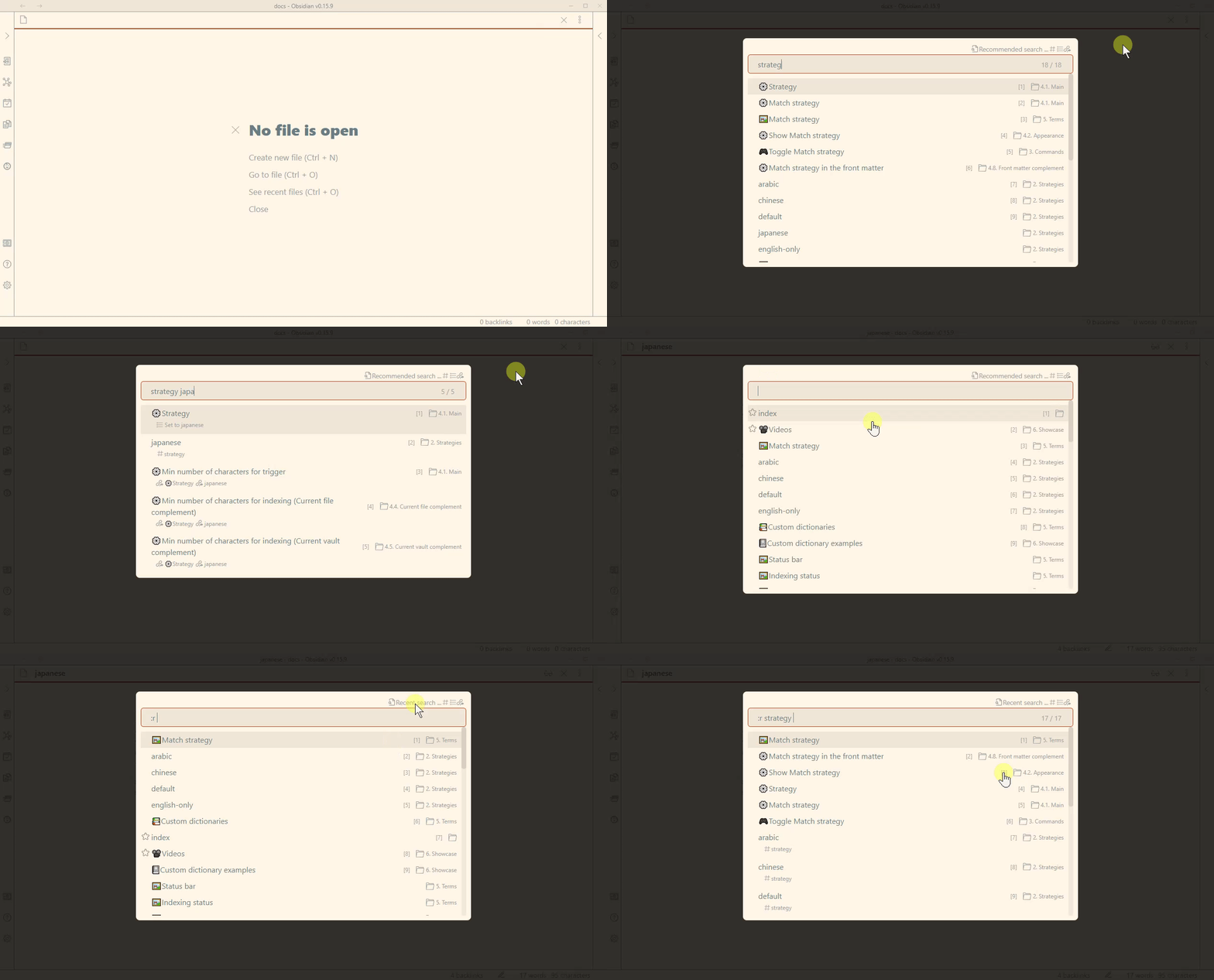
Custom searches enables you to create your original search commands. Search command settings are saved automatically when you finish editing (no Save button required).
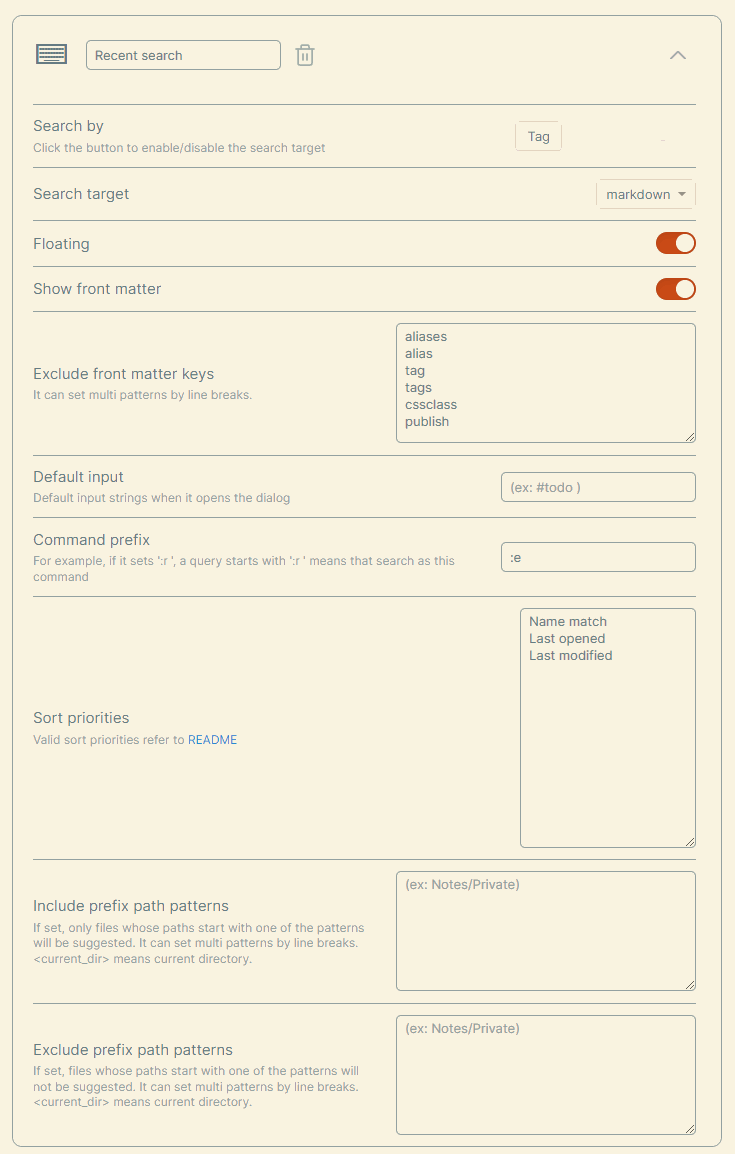
Search target
| Name | Description |
|---|---|
| file | All files in the Vault |
| backlink | Markdown files that link to the current file |
| link | Files linked from the current file |
| 2-hop-link | 2-hop links from the current file |
| opened file | Files currently open in the window |
Sort priorities
You can use the following names as a Sort priorities.
| Name | Description | Since |
|---|---|---|
| Perfect word match | Matches an exact word in the file name | 6.0.0 |
| Prefix name match | Matches when the file name or alias starts with the query | 6.0.0 |
| Name match | Matches when the file name or alias contains the query | 6.0.0 |
| Fuzzy name match | Fuzzy matches the file name or alias | 8.10.0 |
| Tag match | Matches when the query includes a tag name | 6.0.0 |
| Header match | Matches when the query includes a header name | 6.0.0 |
| Link match | Matches when the query includes an internal link name | 6.0.0 |
| Property match | Matches when the query includes a property name | 11.0.0 |
| Length | Orders by file name or alias length | 6.0.0 |
| Last opened | Orders by most recently opened | 6.0.0 |
| Last modified | Orders by most recently modified | 6.0.0 |
| Star | Orders starred files first | 6.0.0 |
| Alphabetical | Orders by file name or alias (A-Z) | 6.2.0 |
| Alphabetical reverse | Orders by file name or alias (Z-A) | 7.0.0 |
| Created latest | Orders by newest creation date | 7.0.0 |
| Created earliest | Orders by oldest creation date | 7.0.0 |
| (Tags split by comma) | Prioritizes files with the specified tags | 7.0.0 |
| (Extensions split by comma) | Prioritizes files with the specified extensions | 8.3.0 |
| (Property and sort order) | Orders by front matter property value | 13.27.0 |
Note Use
(Tags split by comma)like#hogeor#hoge,#huga.
Note Use
(Extensions split by comma)like.mdor.md,.canvas.
Note Use
(Property)like@<property>(@<property>:asc) or@<property>:descfor descending order. For arrays, the first element is used; missing values sort last.
Front matter display
Enable Show front matter to display front matter in suggestions. You can narrow down the displayed keys with the following settings.
| Setting | Description | Since |
|---|---|---|
Exclude front matter keys |
Hides the specified keys. It can set multi patterns by line breaks. | 7.4.0 |
Include front matter keys |
Shows only the specified keys. If empty, all keys are shown. | 14.8.0 |
Note If
Include front matter keysis not empty, only those keys are shown, thenExclude front matter keysis applied to the result. Therefore a key listed in both is not shown.
Note These settings only affect the display. Searching by
@key:valuestill works for every key.
Relative updated period display
You can show the relative updated period in suggestions. Configure it per search command.
- Select the source in
Relative updated period source(do not show / last modified / created time / property) - When using
Property, set the front matter key inProperty key for relative updated period
Preset search commands
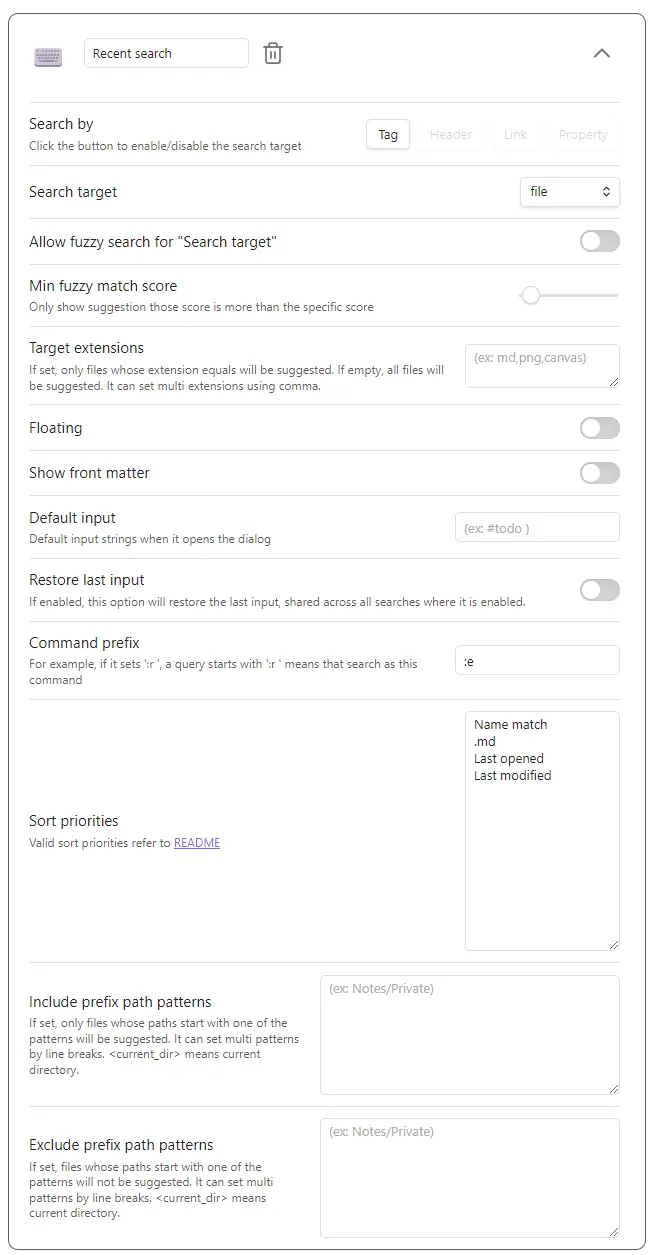
Recent search
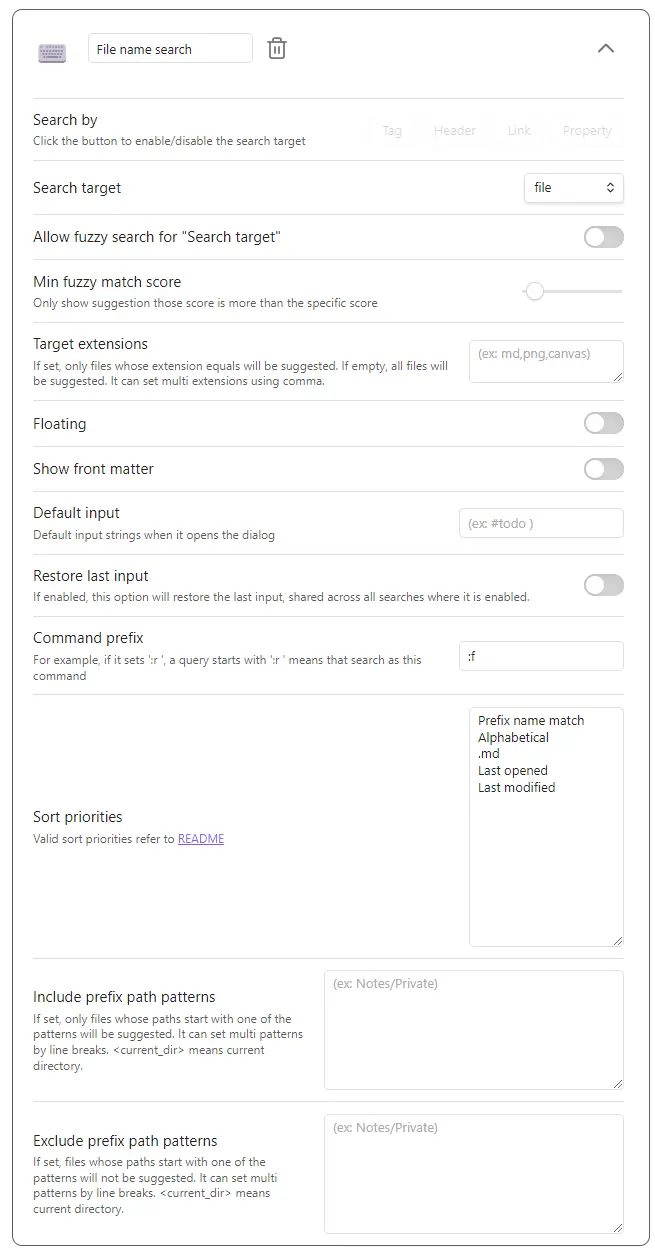
File name search
File name fuzzy search
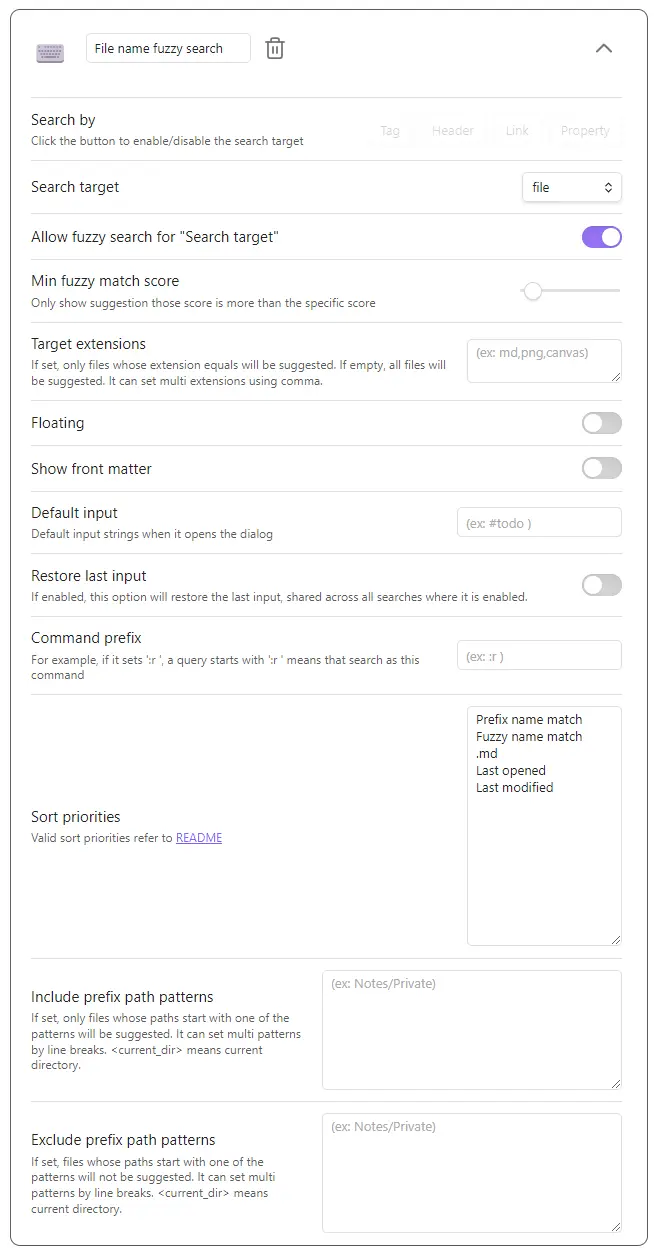
Landmark search
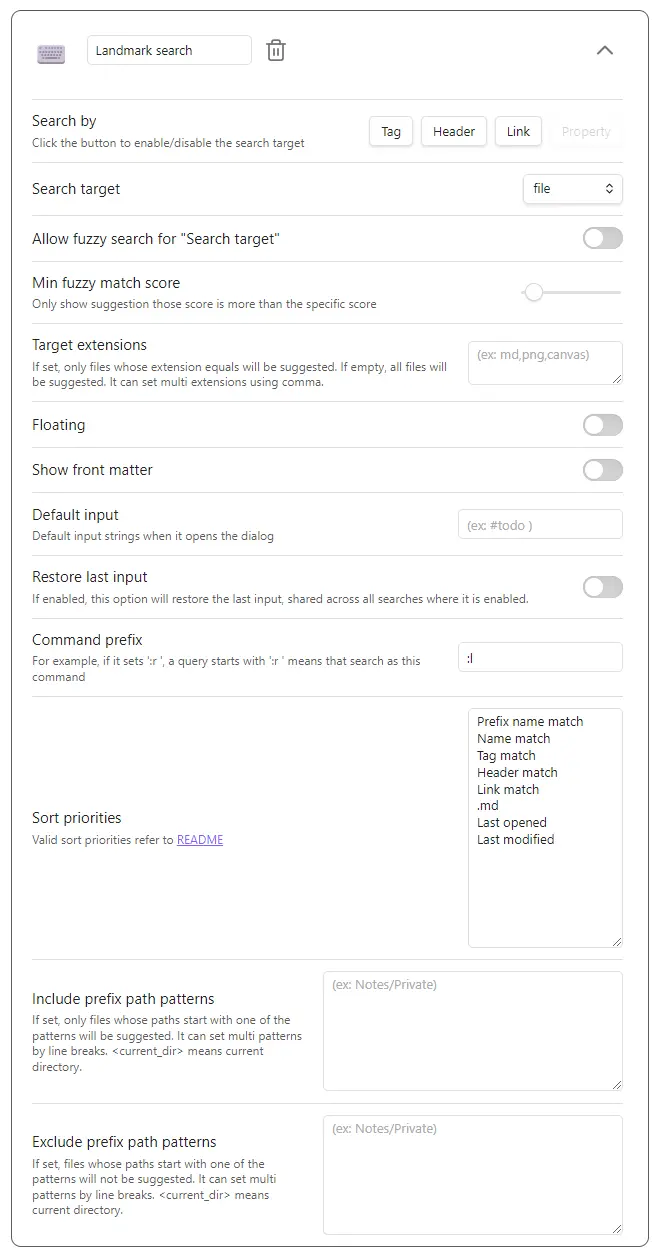
Star search
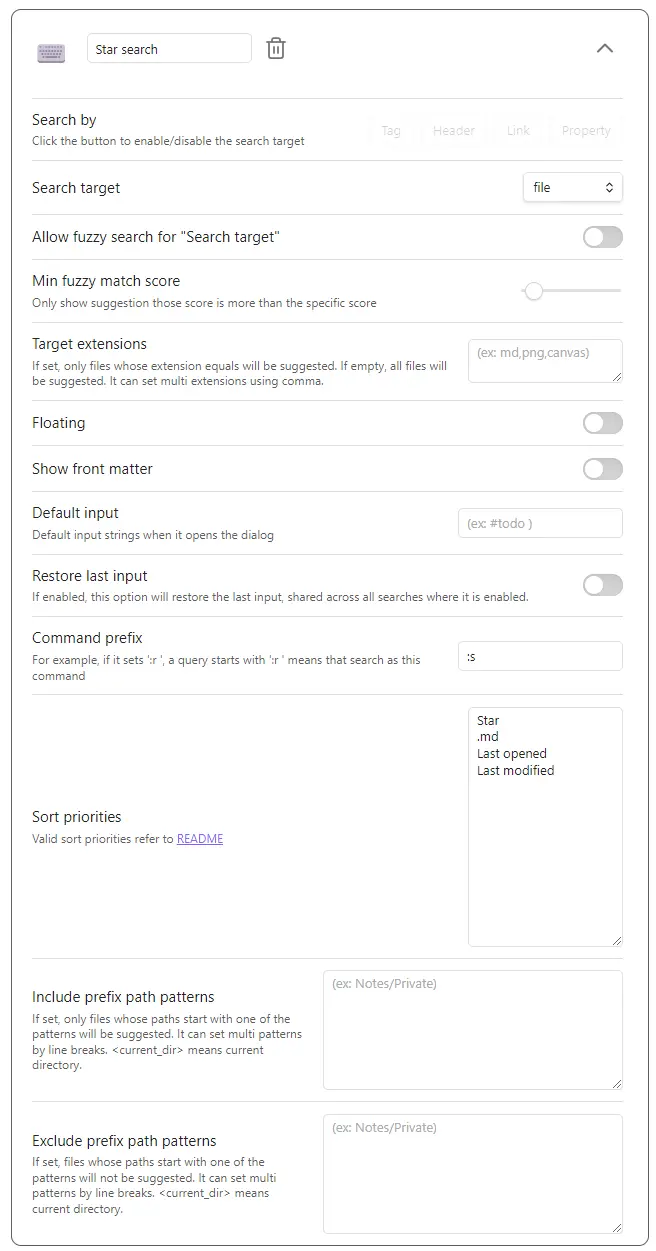
2 hop link search
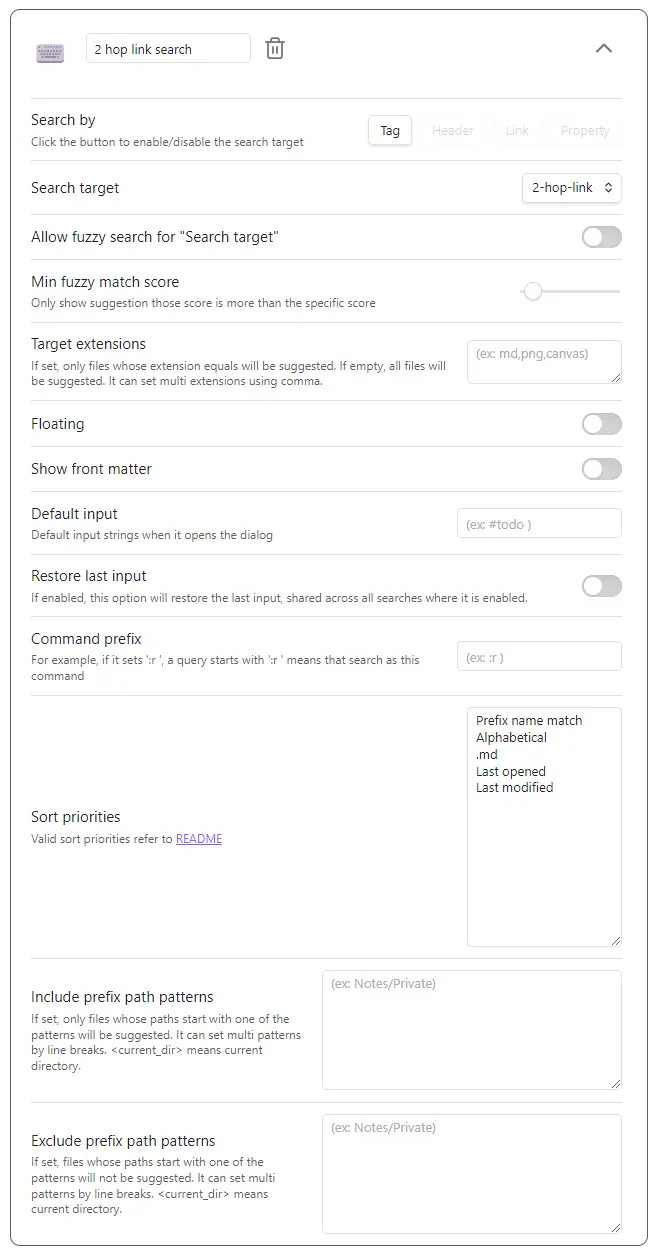
Note
Queries enclosed in double quotes are searched as is
"ho ge"matches onlyho geand does not matchhoge.ho gematches bothho geandhoge.- Use
\"to search for literal quote characters.
A minus sign at the beginning excludes matched candidates
Example: Suppose there are three files:
hoge.mdhogemdhoge
The input hoge -md will suggest only hoge.
Additionally, you can specify a custom string as the exclude prefix using the Exclude prefix setting.
@key:value or @key: searches by front matter property
@status:donematches files whosestatusproperty containsdone.@status:matches files whosestatusproperty has a non-null value set.- Combine with other queries:
keyword @status:donematches files whose name containskeywordAND whosestatusisdone. - Combine with exclusion:
@status: -@status:donematches files that have astatusvalue but it does NOT containdone.
Note Front matter must be loaded for this to work (e.g., enable
Search by propertyorShow front matterin the search command settings).
<cd> means the current directory
If the path of the active file is "/usr/local/vault/notes", the query "<cd> obsidian" will be interpreted as "/usr/local/vault/notes obsidian".
2. Header floating search in file / Header search in file
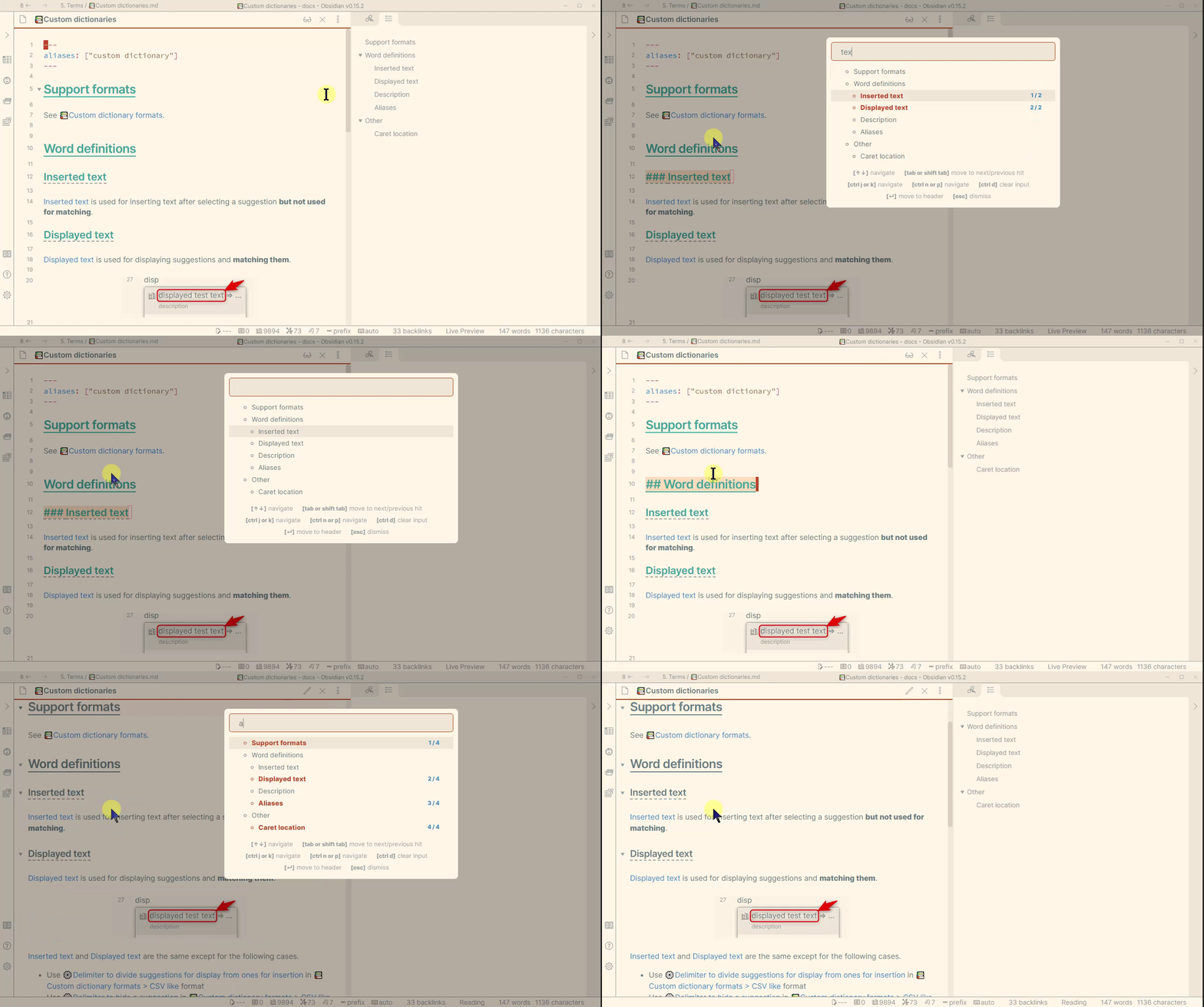
- Show all headers even after filtering to retain file structures in the brain
- Jump to the first hit suggestion automatically and move next/previous by
Tab/Shift+Tabas default - Queries enclosed in double quotes are searched as is
"ho ge"only matchesho genothogeho gematches bothho geandhoge- Use
\"to search for literal quote characters
If you want to show heading level labels (H1/H2, etc.) instead of bullets in header search, you can do so with CSS.
CSS: Show heading level labels (H1-H6)
.another-quick-switcher__item__title__header {
  list-style: none;
}
.another-quick-switcher__item__title__header::before {
  padding-right: 5px;
  font-weight: bold;
  color: darkcyan;
  opacity: 0.4;
}
.another-quick-switcher__item__title__header1::before {
  content: "H1";
}
.another-quick-switcher__item__title__header2::before {
  content: "H2";
}
.another-quick-switcher__item__title__header3::before {
  content: "H3";
}
.another-quick-switcher__item__title__header4::before {
  content: "H4";
}
.another-quick-switcher__item__title__header5::before {
  content: "H5";
}
.another-quick-switcher__item__title__header6::before {
  content: "H6";
}
3. Grep
This feature requires ripgrep and set the executable command to "Ripgrep command" option.
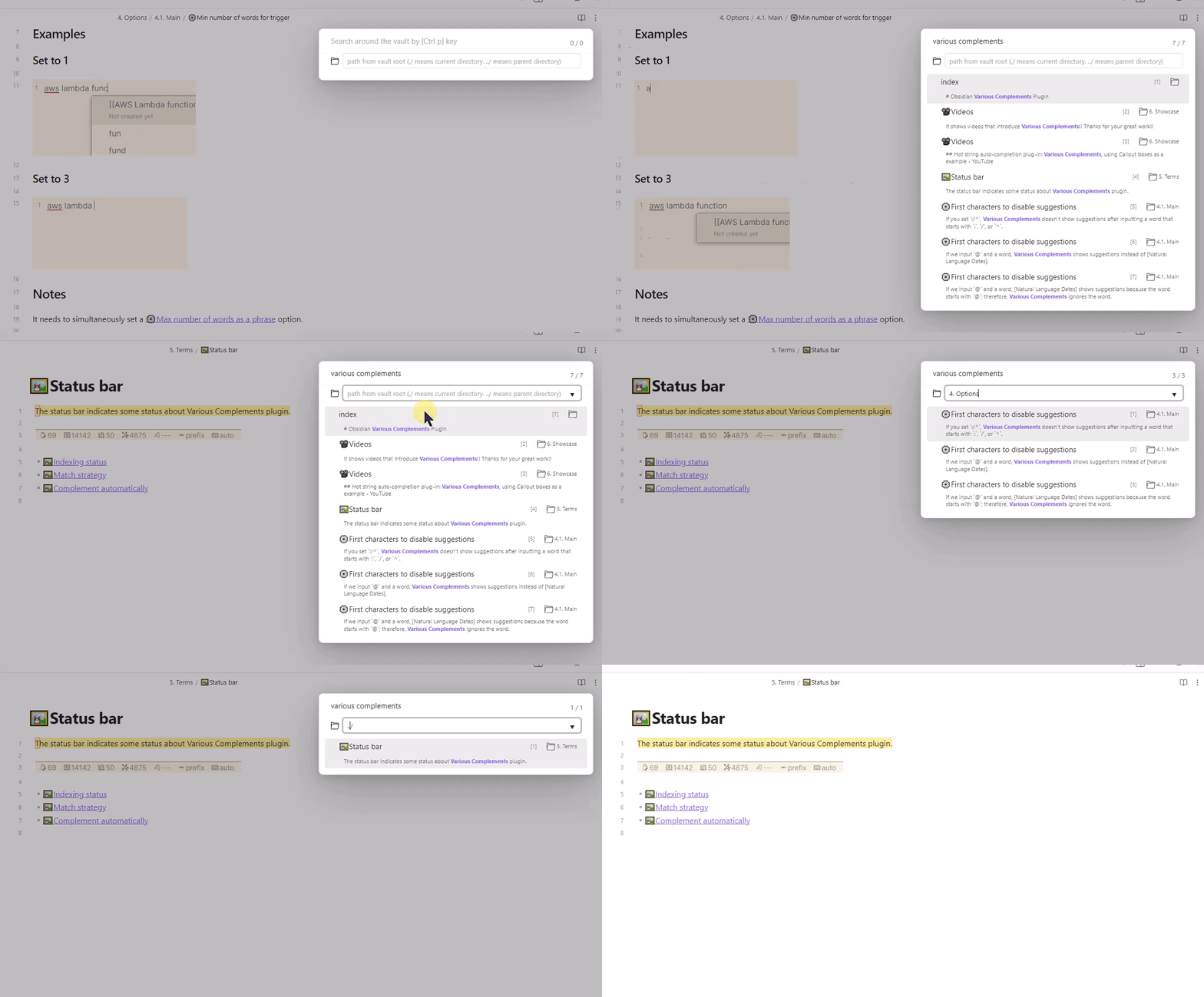
It sorts results by modified time descending.
Additional hotkeys
| Command | Description | Default Hotkey |
|---|---|---|
| Search | Execute search | TAB |
| Preview | Preview selected file | Ctrl+, |
| Toggle input focus | Switch focus between search query and path input | (customizable) |
| Previous search history | Move to the previous query in history | (customizable) |
| Next search history | Move to the next query in history | (customizable) |
| Clear input | Clear the search query input | (customizable) |
| Clear path | Clear the path input | (customizable) |
| Set ./ to path | Set current directory to path input | (customizable) |
Note: If you want to search in real-time, please set the "Grep search delay milli-seconds" option to 1 or more.
Launch Grep from Quick Switcher
You can launch the Grep dialog directly from the main Quick Switcher with the current query carried over. This allows for seamless transition from file searching to content searching.
- Configure the hotkey for "launch grep" in the main dialog settings
- The current search query will be automatically transferred to the Grep dialog
Note
- Input regards as a regex pattern
- Grep searches only markdown files as default. If you want to search for other extensions, please update the "Grep > Extensions" settings
- If you want to include file names in the search, enable the "Include file name in search" setting
- Space-separated terms are searched with AND logic (e.g.,
hello worldfinds content containing both "hello" and "world")
4. Customizable hotkeys
Detailed hotkeys customization is available for each dialog.
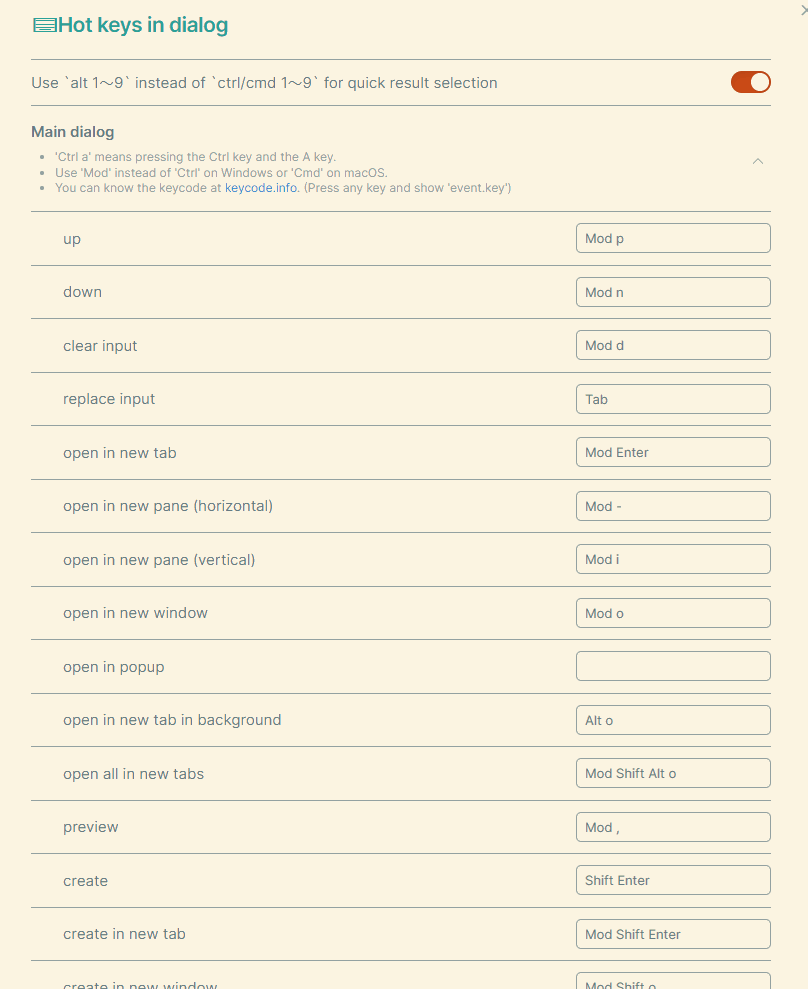
5. Backlink search
The new Backlink search enables displaying all occurrences in the same file and listing the corresponding lines' text.
6. Link search
The new Link search enables displaying all occurrences in the same file and listing the corresponding lines' text.
7. In file search
"In File search" allows you to search for a specific line within a file using a search keyword and displays it along with the surrounding lines.
- Queries enclosed in double quotes are searched as is
"hello world"only matcheshello worldnot lines containing bothhelloandworldseparatelyhello worldmatches lines containing bothhelloandworldanywhere in the line- Use
\"to search for literal quote characters (e.g.,search \"quotefindssearch "quote)
Additional Features
- Insert to Editor: You can insert the selected line directly into the current editor at the cursor position using the configurable "insert to editor" hotkey
8. Show backlinks from the dialog
You can show the backlinks about the suggestion in the dialog. (Default hotkey is Mod h)
It can show backlinks from not only existing notes but also phantom(not existing) notes.
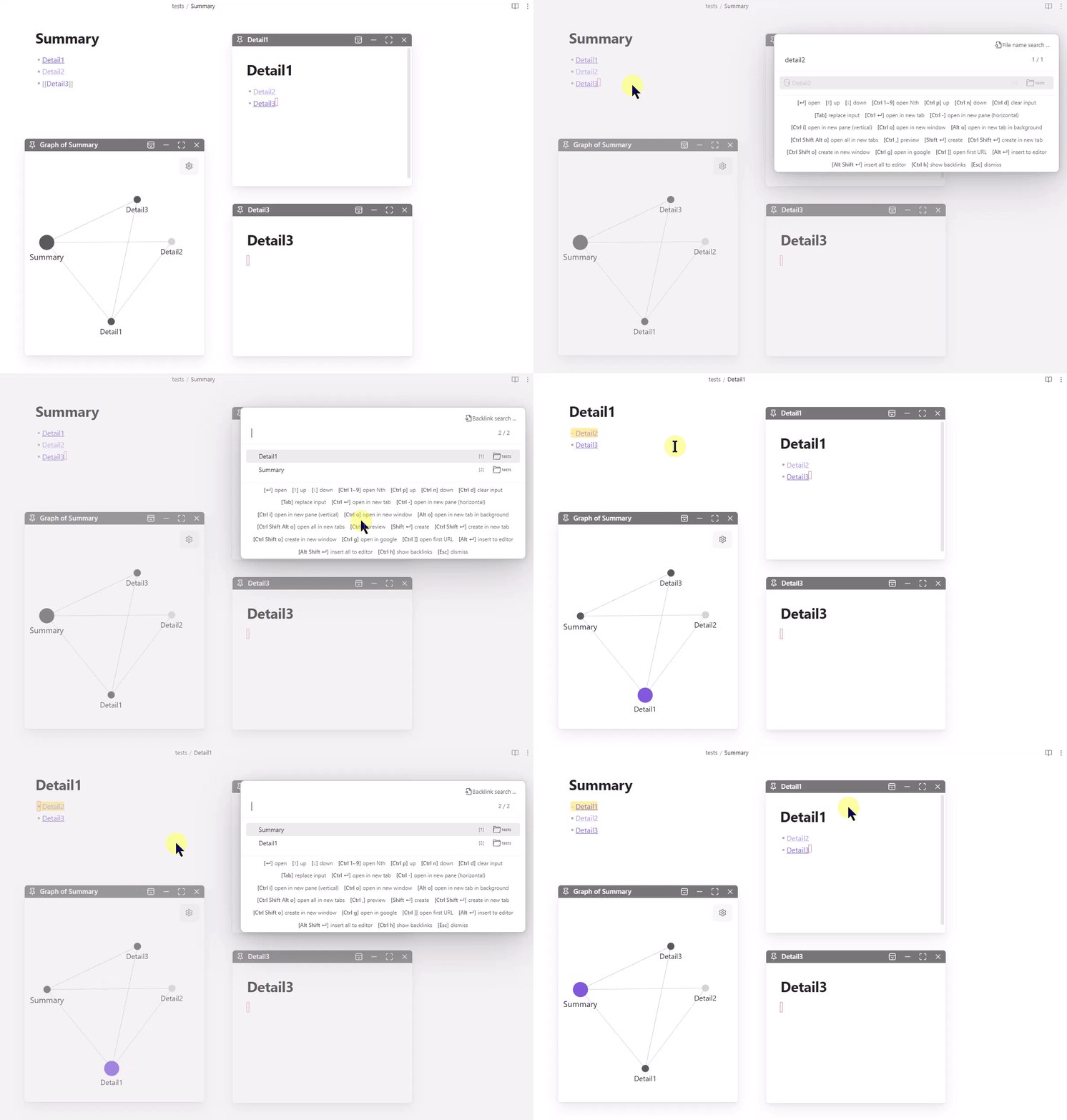
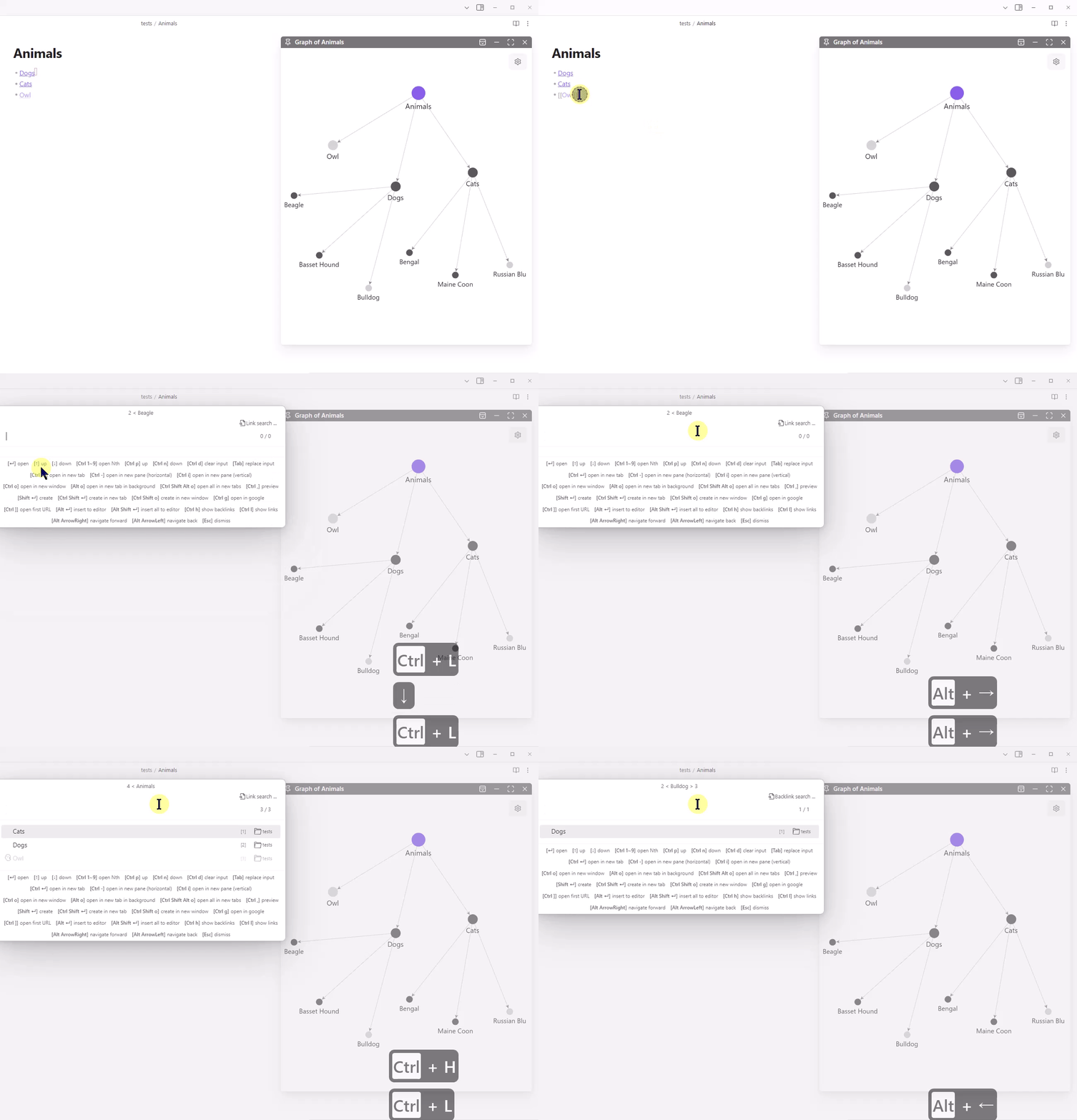
9. Navigate outgoing/backlinks without leaving the dialog
You can navigate outgoing/backlinks without leaving the dialog by using the "show links", "show backlinks", "navigate forward", and "navigate back" commands.
10. Preview
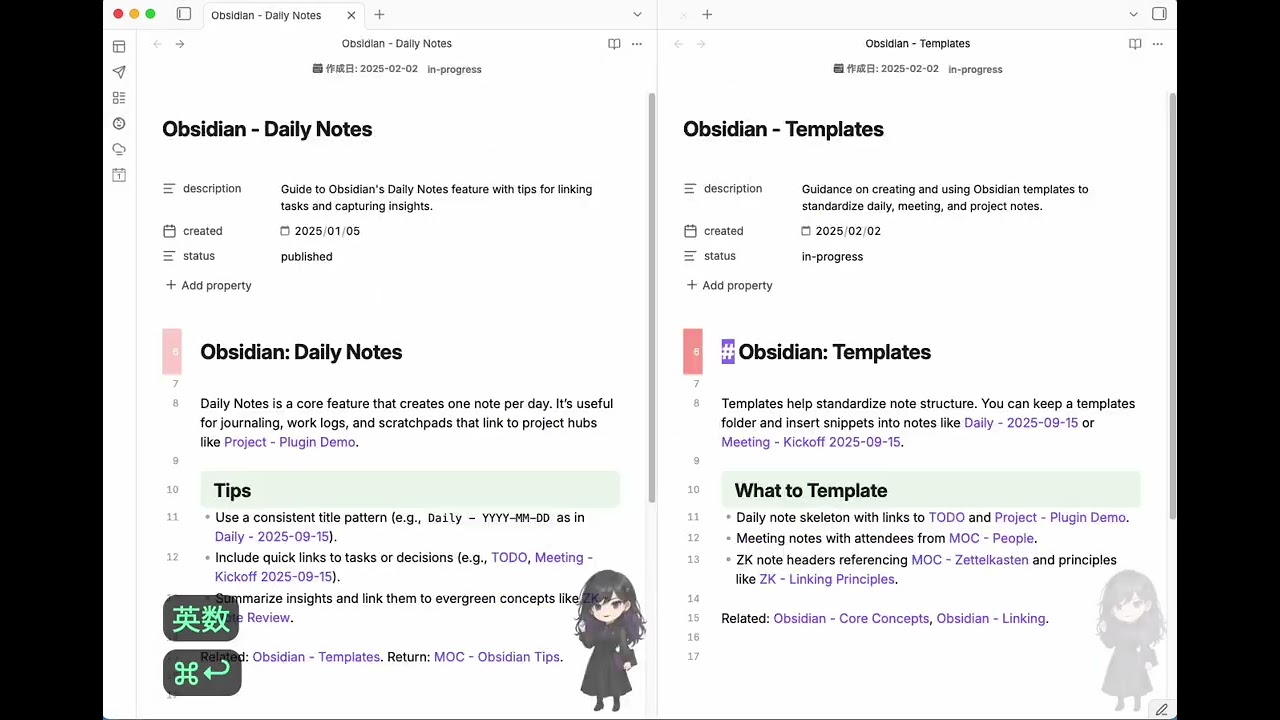
You can preview the file without closing the dialog. (Default hotkey is Mod ,)
While previewing, you can scroll the note with scroll preview up / scroll preview down (hotkeys are configurable). It also responds to scrolling from pointing devices.
It shows a floating view that doesn't distract the contents. Additionally, it makes the editor state before opening the dialog after previewing files and closing the dialog.
Auto Preview
Auto Preview shows a preview automatically as you move the selection, without manually triggering Preview.
| Dialog | Auto preview on selection | Delay setting | Toggle command | Notes |
|---|---|---|---|---|
| Main dialog (search commands) | Yes (per command) | Yes | Yes (toggle auto preview) |
Configured per search command |
| Grep dialog | Yes | Yes | No | Enable in settings |
| Backlink dialog | Yes | Yes | No | Enable in settings |
| Header dialog | Yes | No | Yes (toggle auto preview) |
Auto preview uses floating mode |
| Link dialog | Yes | No | Yes (toggle auto preview) |
Auto preview uses floating mode |
| In File dialog | Yes | No | Yes (toggle auto preview) |
Auto preview uses floating mode |
Settings reference (UI labels):
- Main dialog (search commands):
Auto preview,Auto preview delay milli-seconds - Grep dialog:
Auto preview,Auto preview delay milli-seconds - Backlink dialog:
Auto preview,Auto preview delay milli-seconds - Header dialog:
Auto preview in the floating mode - Link dialog:
Auto preview in the floating mode - In File dialog:
Auto preview in the floating mode
11. Move file to another folder
The "Move file to another folder" command allows you to quickly move the current file to a different folder with enhanced sorting capabilities and smart search features.
Search Features
- Fuzzy Search: Find folders even with partial or out-of-order characters (e.g., "proj" matches "Projects")
- Highlighted Matches: Search terms are highlighted in both folder names and directory paths
- Multiple Match Types: Supports prefix matching, substring matching, and fuzzy matching
- Vault root entry: The vault root appears as
<VAULT_ROOT>so you can move files directly to the root
Folder Sort Options
| Option | Description |
|---|---|
| Recently used | Folders you've recently moved files to appear at the top |
| Alphabetical | Sort folders alphabetically (A-Z) |
| Alphabetical reverse | Sort folders in reverse alphabetical order (Z-A) |
Settings
| Setting | Description | Default |
|---|---|---|
| Folder sort priority | Choose how folders are sorted in the move dialog | Recently used |
| Recently used folders file path | Customize where the folder usage history is stored* | (auto) |
| Max recently used folders | Maximum number of recently used folders to remember | 10 (range: 5-50) |
| Exclude prefix path patterns | Exclude certain folder paths from appearing in the move dialog | (none) |
* When left empty, defaults to .obsidian/plugins/obsidian-another-quick-switcher/recently-used-folders.json
Features
- Recently used folder tracking: The plugin remembers which folders you've used recently and prioritizes them
- Persistent history: Recently used folder history is stored in your vault and syncs across devices
- Configurable storage: Customize where the folder usage history is stored within your vault
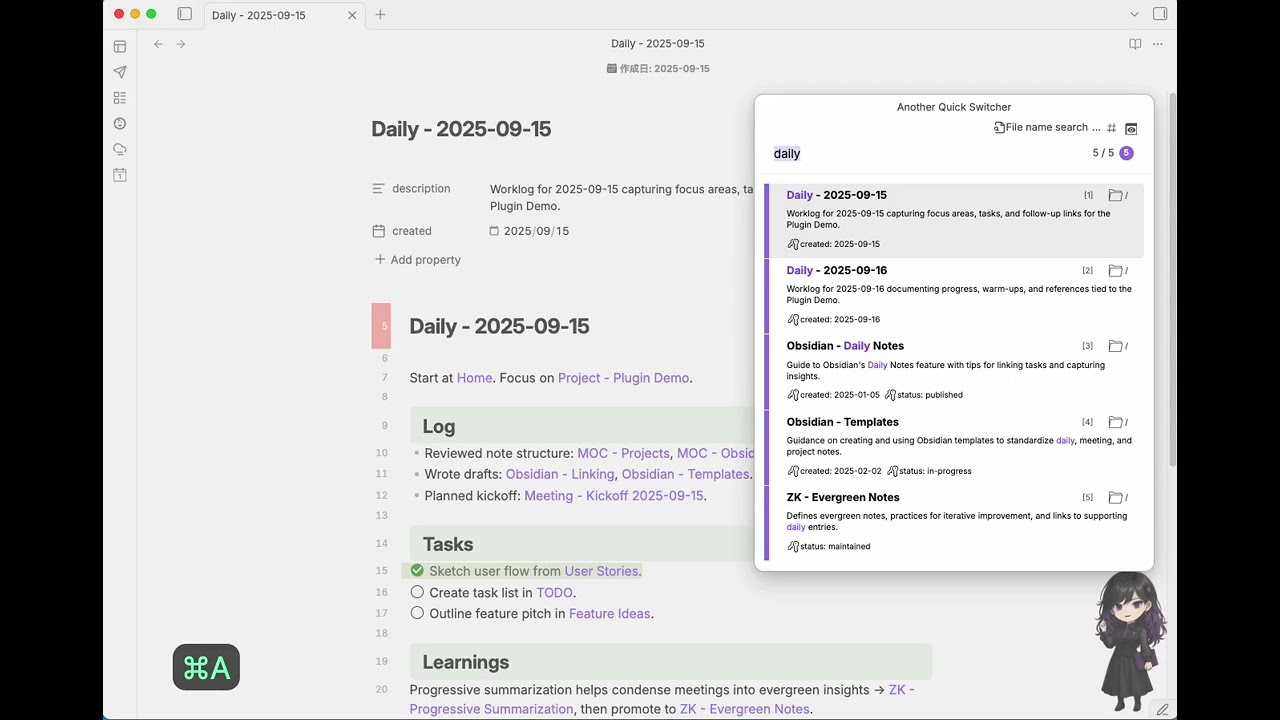
12. Check/Uncheck items (multi-select)
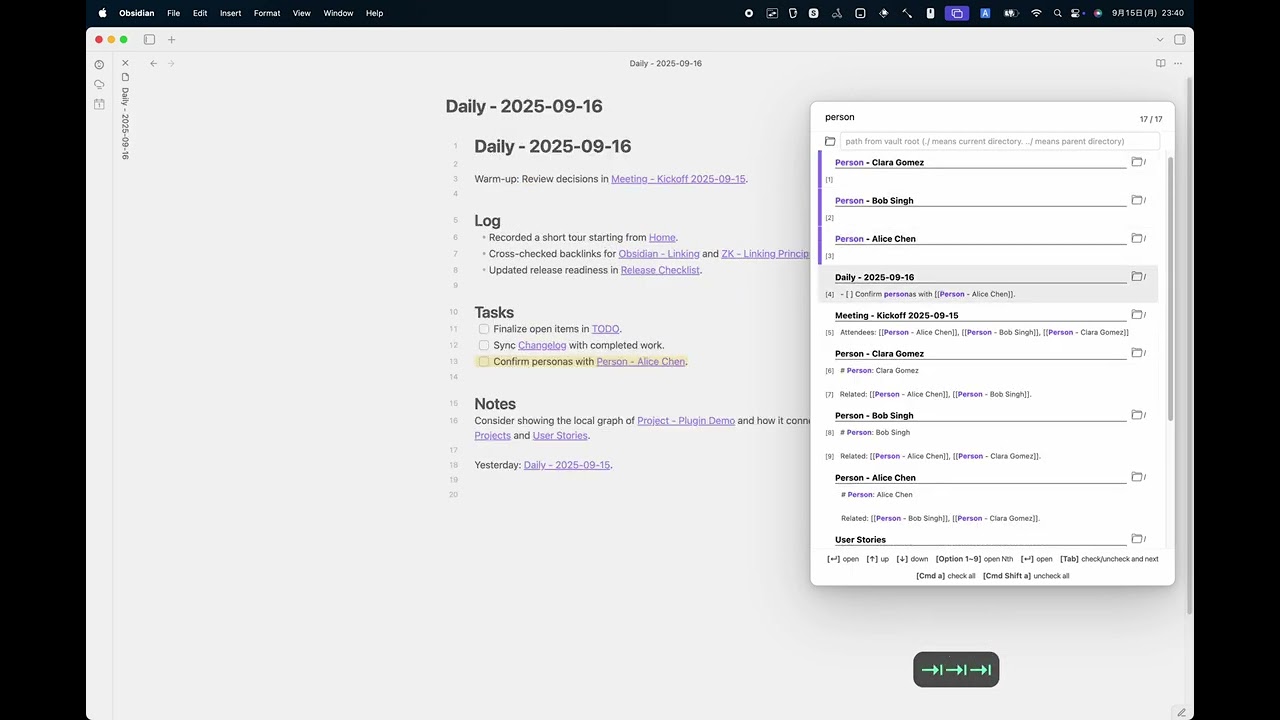
You can multi-select suggestions in the main Quick Switcher, Backlink search, and Grep.
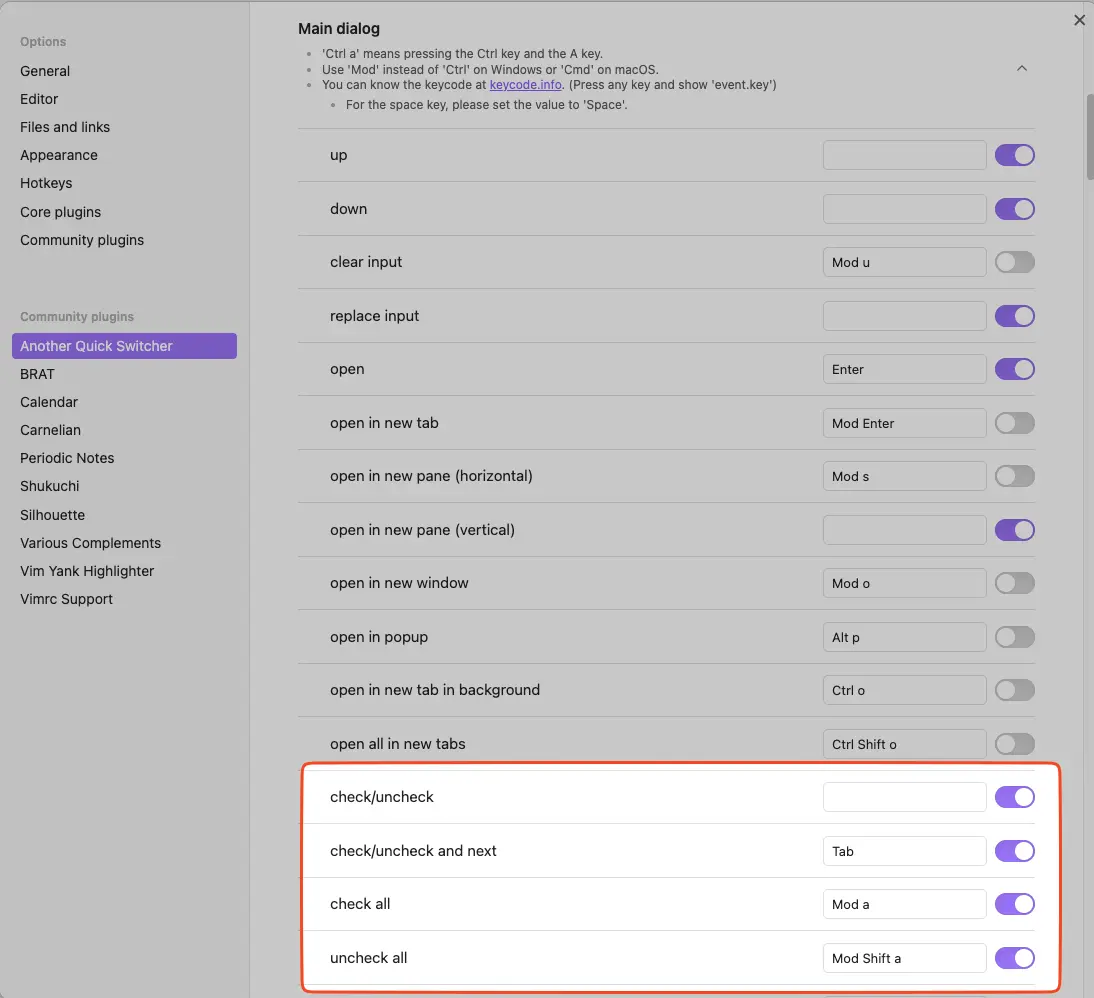
- Toggle selection: use the configurable hotkeys "check/uncheck" or "check/uncheck and next" (moves the cursor to the next item).
- Select all / Clear all: use "check/uncheck all" (toggles all) or "uncheck all" hotkeys (configurable).
- Checked-count badge: shows how many items are checked next to the input while using multi-select.
- Visual cue: checked items show a left accent bar in the list.
- Batch actions: when items are checked, actions like Open will apply to all checked items. For example, Open opens all checked targets in new tabs; other supported actions (e.g., close if opened, open in default app, show in system explorer) also work for checked items.
Tip: Assign convenient keys in Settings to quickly mark a range (e.g., bind "check/uncheck and next").
13. Command palette
Another Quick Switcher bundles its own command palette dialog so you can search and execute Obsidian commands with the same fast scoring model and dialog hotkeys.
- The palette remembers every command you run and surfaces recently used commands with a history badge
- It also records which command you picked for the current query and marks that command as "top priority" the next time you type the same query
- Use the
copy command idhotkey to quickly grab an internal command ID for automation or scripting
https://github.com/user-attachments/assets/eb2bf1bc-08b8-4084-b4b7-450d737b8e95
History storage
| Setting | Description | Default |
|---|---|---|
| History mapping file path | Vault-relative path for the JSON file that stores last used commands and per-query favorites | .obsidian/plugins/obsidian-another-quick-switcher/command-history.json |
| Max history retention days | Remove entries from the history when a command hasn't been run within this many days (0 = keep all) | 10 |
⌘ Dialog Commands
Below are dialog-specific command tables with default keybindings.
The MC column indicates multi-check support: "✅" applies to all checked items, "⛔" affects only the current selection, and "-" is not applicable (e.g., toggle commands).
Main dialog
| Command | Default Keybinding | MC |
|---|---|---|
| open | Enter |
✅ |
| open in new tab | Mod+Enter |
✅ |
| open in new pane (horizontal) | Mod+- |
✅ |
| open in new pane (vertical) | Mod+i |
✅ |
| open in new window | Mod+o |
⛔ |
| open in popup | (none) | ⛔ |
| preview | Mod+, |
⛔ |
| toggle auto preview | (none) | - |
| scroll preview up | (none) | ⛔ |
| scroll preview down | (none) | ⛔ |
| create | Shift+Enter |
⛔ |
| create in new tab | Mod+Shift+Enter |
⛔ |
| create in new pane (horizontal) | (none) | ⛔ |
| create in new pane (vertical) | (none) | ⛔ |
| create in new window | Mod+Shift+o |
⛔ |
| create in new popup | (none) | ⛔ |
| check/uncheck | (none) | - |
| check/uncheck and next | (none) | - |
| check/uncheck all | (none) | - |
| uncheck all | (none) | - |
| insert to editor | Alt+Enter |
✅ |
| open in default app | (none) | ✅ |
| show in system explorer | (none) | ✅ |
| open in google | Mod+g |
⛔ |
| open first URL | Mod+] |
✅ |
| close if opened | (none) | ✅ |
| show links | Mod+l |
⛔ |
| show backlinks | Mod+h |
⛔ |
| show all results | Shift+Alt+a |
⛔ |
| navigate back | Alt+ArrowLeft |
⛔ |
| navigate forward | Alt+ArrowRight |
⛔ |
| previous search history | (none) | ⛔ |
| next search history | (none) | ⛔ |
| launch grep | (none) | ⛔ |
| copy file vault path | (none) | ⛔ |
| copy absolute file path | (none) | ⛔ |
| up | Mod+p |
⛔ |
| down | Mod+n |
⛔ |
| clear input | Mod+d |
⛔ |
| replace input | Tab |
⛔ |
| dismiss | Escape |
⛔ |
Folder dialog
| Command | Default Keybinding | MC |
|---|---|---|
| up | Mod+p |
⛔ |
| down | Mod+n |
⛔ |
| open in default app | (none) | ⛔ |
| dismiss | Escape |
⛔ |
Header dialog
| Command | Default Keybinding | MC |
|---|---|---|
| up | Mod+p |
⛔ |
| down | Mod+n |
⛔ |
| move to header | Enter |
⛔ |
| clear input | Mod+d |
⛔ |
| move to next hit | Tab |
⛔ |
| move to previous hit | Shift+Tab |
⛔ |
| toggle auto preview | Mod+, |
⛔ |
| scroll preview up | (none) | ⛔ |
| scroll preview down | (none) | ⛔ |
| insert all to editor | Alt+Shift+Enter |
⛔ |
| dismiss | Escape |
⛔ |
Backlink dialog
| Command | Default Keybinding | MC |
|---|---|---|
| open | Enter |
✅ |
| open in new tab | Mod+Enter |
✅ |
| open in new pane (horizontal) | Mod+- |
✅ |
| open in new pane (vertical) | Mod+i |
✅ |
| open in new window | Mod+o |
⛔ |
| open in popup | (none) | ⛔ |
| check/uncheck | (none) | - |
| check/uncheck and next | (none) | - |
| check/uncheck all | (none) | - |
| uncheck all | (none) | - |
| show all results | Shift+Alt+a |
⛔ |
| preview | Mod+, |
⛔ |
| scroll preview up | (none) | ⛔ |
| scroll preview down | (none) | ⛔ |
| up | Mod+p |
⛔ |
| down | Mod+n |
⛔ |
| dismiss | Escape |
⛔ |
Link dialog
| Command | Default Keybinding | MC |
|---|---|---|
| open | Enter |
⛔ |
| open in new tab | Mod+Enter |
⛔ |
| open in new pane (horizontal) | Mod+- |
⛔ |
| open in new pane (vertical) | Mod+i |
⛔ |
| open in new window | Mod+o |
⛔ |
| open in popup | (none) | ⛔ |
| show all results | Shift+Alt+a |
⛔ |
| preview | Mod+, |
⛔ |
| toggle auto preview | (none) | - |
| scroll preview up | (none) | ⛔ |
| scroll preview down | (none) | ⛔ |
| up | Mod+p |
⛔ |
| down | Mod+n |
⛔ |
| dismiss | Escape |
⛔ |
In File dialog
| Command | Default Keybinding | MC |
|---|---|---|
| up | Mod+p |
⛔ |
| down | Mod+n |
⛔ |
| insert to editor | (none) | ⛔ |
| show all results | Shift+Alt+a |
⛔ |
| toggle auto preview | Mod+, |
⛔ |
| scroll preview up | (none) | ⛔ |
| scroll preview down | (none) | ⛔ |
| dismiss | Escape |
⛔ |
Grep dialog
| Command | Default Keybinding | MC |
|---|---|---|
| open | Enter |
✅ |
| open in new tab | Mod+Enter |
✅ |
| open in new pane (horizontal) | Mod+- |
✅ |
| open in new pane (vertical) | Mod+i |
✅ |
| open in new window | Mod+o |
⛔ |
| open in popup | (none) | ⛔ |
| check/uncheck | (none) | - |
| check/uncheck and next | (none) | - |
| check/uncheck all | (none) | - |
| uncheck all | (none) | - |
| preview | Mod+, |
⛔ |
| scroll preview up | (none) | ⛔ |
| scroll preview down | (none) | ⛔ |
| clear input | Mod+d |
⛔ |
| clear path | Alt+d |
⛔ |
| set ./ to path | Alt+c |
⛔ |
| toggle input | (none) | ⛔ |
| previous search history | (none) | ⛔ |
| next search history | (none) | ⛔ |
| up | Mod+p |
⛔ |
| down | Mod+n |
⛔ |
| search | Tab |
⛔ |
| dismiss | Escape |
⛔ |
Command palette
| Command | Default Keybinding | MC |
|---|---|---|
| up | Mod+p |
⛔ |
| down | Mod+n |
⛔ |
| copy command id | (none) | ⛔ |
| dismiss | Escape |
⛔ |
💥 Major Breaking Changes
For users who use earlier than v14.0.0
The following commands were removed to avoid conflicts with preview:
open in new tab in backgroundopen all in new tabsinsert to editor in backgroundinsert all to editor
The first two were removed from the main/backlink/link/grep dialogs; the last two were removed from the main dialog.
Alternatives with multi-select:
open in new tab in background-> usecheck/uncheckfor multiple selection and runopenopen all in new tabs-> usecheck/uncheck allto select all and runopeninsert to editor in background-> usecheck/uncheckfor multiple selection and runinsert to editorinsert all to editor-> usecheck/uncheck allto select all and runinsert to editor
For users who use earlier than v13.0.0
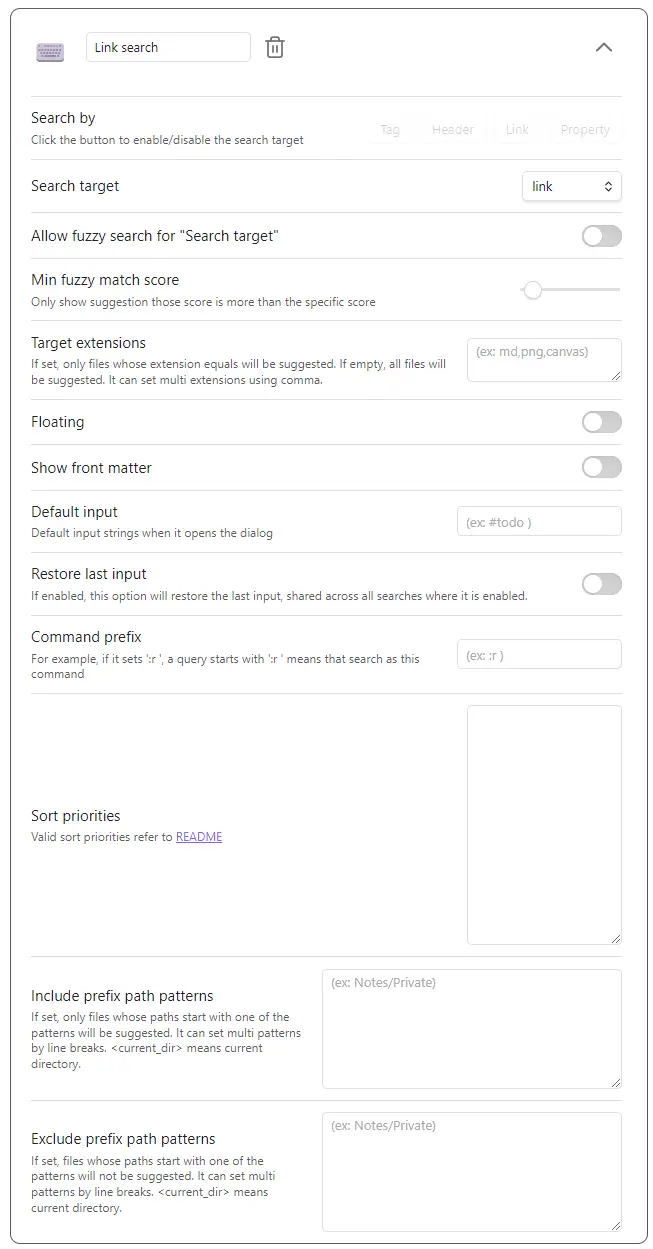
In v13, we removed Link search from Preset search commands. Please see #275 for details about this decision. If you need the previous Link search functionality, you can add it to Search commands with the configuration shown in the image below.
Open "Link search" configuration
For users who use earlier than v8.0.0
Please read a "🔥 Breaking changes" section in the Release note.
For users who use earlier than v7.0.0
Please read a "🔥 Breaking changes" section in the Release note.
For users who use earlier than v6.0.0
Please read a "🔥 Breaking changes" section in the Release note.
📱 Mobile support
It both supports desktop and mobile.
[!NOTE] Please note that I am not currently using the mobile version of Obsidian, so I cannot verify this issue myself. As a result, addressing this bug will have a low priority.
💬 Feature requests / Bugs
Please create a new issue.
🔌 API (Experimental)
Another Quick Switcher provides a public API that allows external scripts (e.g., Templater) to programmatically open the file picker dialog and retrieve the selected file(s).
Usage
// Get the plugin instance
const aqs = app.plugins.plugins["obsidian-another-quick-switcher"];

// Open the file picker with a specific search command
const files = await aqs.api.pickFile("Recent search");

if (files) {
  // files is TFile[] - array of selected files
  // Single selection returns array with one element
  // Multi-selection (check/uncheck) returns array with multiple elements
  console.log(files.map((f) => f.path));
} else {
  // User cancelled the dialog
}
API Reference
api.pickFile(commandName: string): Promise<TFile[] | null>
Opens the file picker dialog with the specified search command and returns the selected file(s).
Parameters:
commandName- The name of the search command to use (e.g., "Recent search", "File name search"). This must match a command name defined in Another Quick Switcher settings.option- Optional parameters:query: An initial search query to pre-fill in the dialog's input box.
Returns:
Promise<TFile[]>- Array of selected files when file(s) are selectedPromise<null>- When the dialog is cancelled
Throws:
Error- If the specified command name is not found in settings
api.getAvailableCommandNames(): string[]
Returns the list of available search command names that can be used with pickFile().
Example with Templater
<%*
const aqs = app.plugins.plugins['obsidian-another-quick-switcher'];
const files = await aqs.api.pickFile("File name search");

if (files && files.length > 0) {
  const file = files[0];
  tR += `[[${file.basename}]]`;
}
%>
Note This API is experimental and may change in future versions.
🖥️ For developers / contributors
Pull requests
Sorry, I would not accept the pull requests except for the following cases.
- Fix obvious bugs
- Fix typo or wrong documentation
- If I ask for it in the GitHub issues or the discussions
Development
Set up
git config core.hooksPath hooks
Install dependencies
Bun is required.
bun install --frozen-lockfile --ignore-scripts
bun dev
Release
Run Release Action manually.
📜 Appendix
What is the "2-hop-link"?
2-hop-link are outgoing links in the current file, and files that have outgoing links to them.
For example, If there are relations as follows,
flowchart LR
    D[Dog] --> A[Animal]
    C[Cat] --> A
    O[Owl] --> A
2-hop-link from the "Dog" is as follows.
flowchart LR
    D[Dog]:::focus --> A[Animal]
    D[Dog]:::focus --> C[Cat]
    D[Dog]:::focus --> O[Owl]

    classDef focus fill:#f96
More complicated example.
flowchart LR
    Dog:::focus --> Animal
    Dog --> Masaru
    Zagitova --> Masaru
    Masaru --> Akita-inu
    Cat --> Animal
    Owl --> Animal
    Tama --> Cat
    Mike --> Cat
    Animal --> Zoo
    Zoo --> Animal
    Mahjong --> Zoo
    Animal --> Coffee
    classDef focus fill:#f96
2-hop-link from the "Dog" is as follows.
flowchart LR
    Dog:::focus --> Animal:::focus
    Dog --> Masaru:::focus
    Zagitova:::focus --> Masaru
    Masaru --> Akita-inu
    Cat:::focus --> Animal
    Owl:::focus --> Animal
    Tama --> Cat
    Mike --> Cat
    Animal --> Zoo
    Zoo:::focus --> Animal
    Mahjong --> Zoo
    Animal --> Coffee
    classDef focus fill:#f96