Mesa AI
 Marcio Vieira7 downloads
Build your own AI team in your vault: agents that delegate, review each other, remember projects, run on schedules and loops, and act safely. Works with Claude Code, Codex, OpenCode and Hermes.
- Overview
- Scorecard
- Updates3
Your own AI team, working inside your vault. Mesa turns your notes into a small company of AI agents: a CEO who plans and delegates, specialists who do the work, and reviewers who check it. You chat with them, give them projects, put them on a schedule, and decide exactly what each one may touch. Your assistant Obi shows you around and can set things up for you.
Mesa works with the AI tools you already have: Claude Code, Codex, OpenCode (including free models) or Hermes, using your own accounts and plans. Nothing goes through a Mesa server, because there isn't one.
Made by Marcio Vieira — guides, how-tos, downloads and feedback at trabalhoia.com.
Screenshots
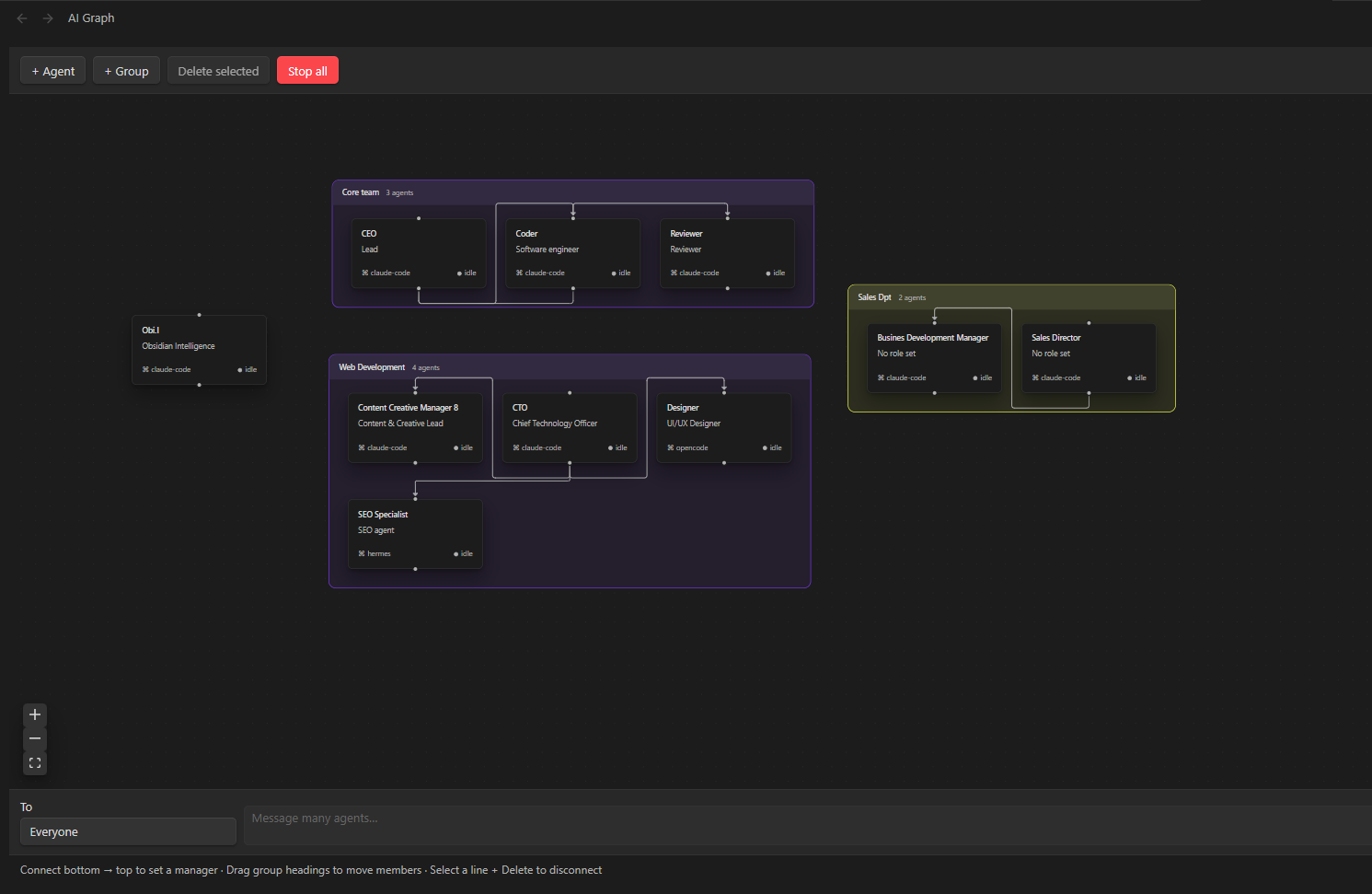 Your AI team as a graph: groups, managers and who runs on which tool.
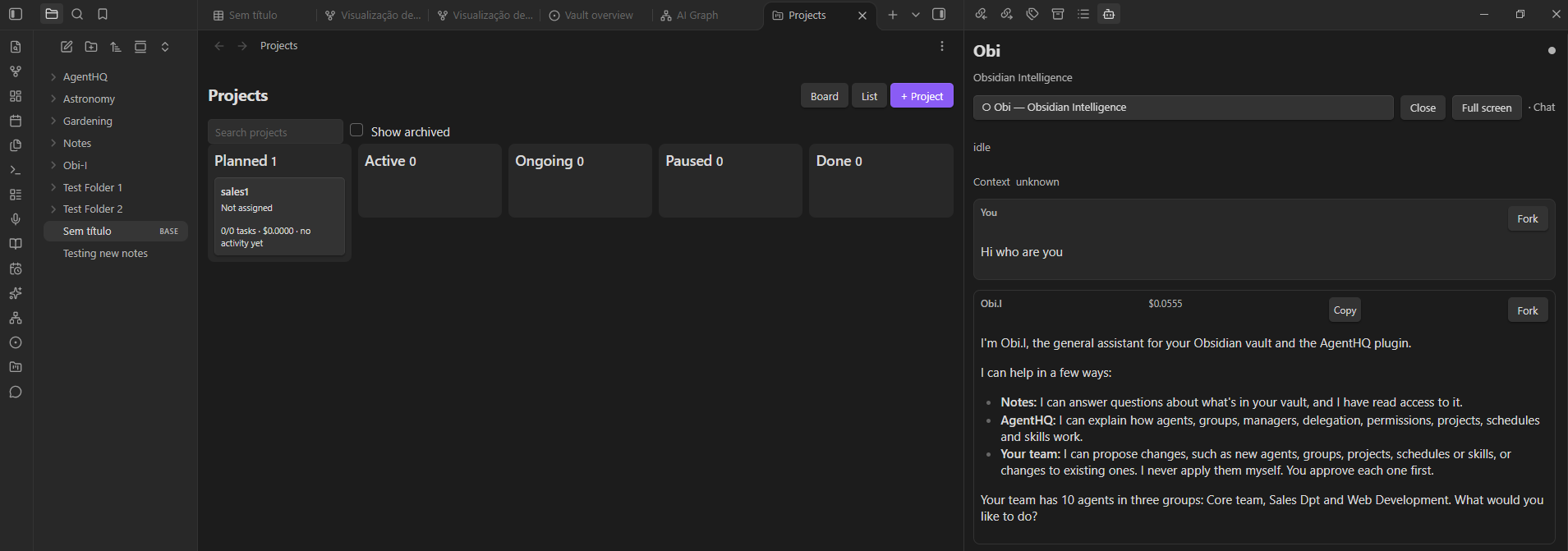 A projects board with Obi, your assistant, beside it.
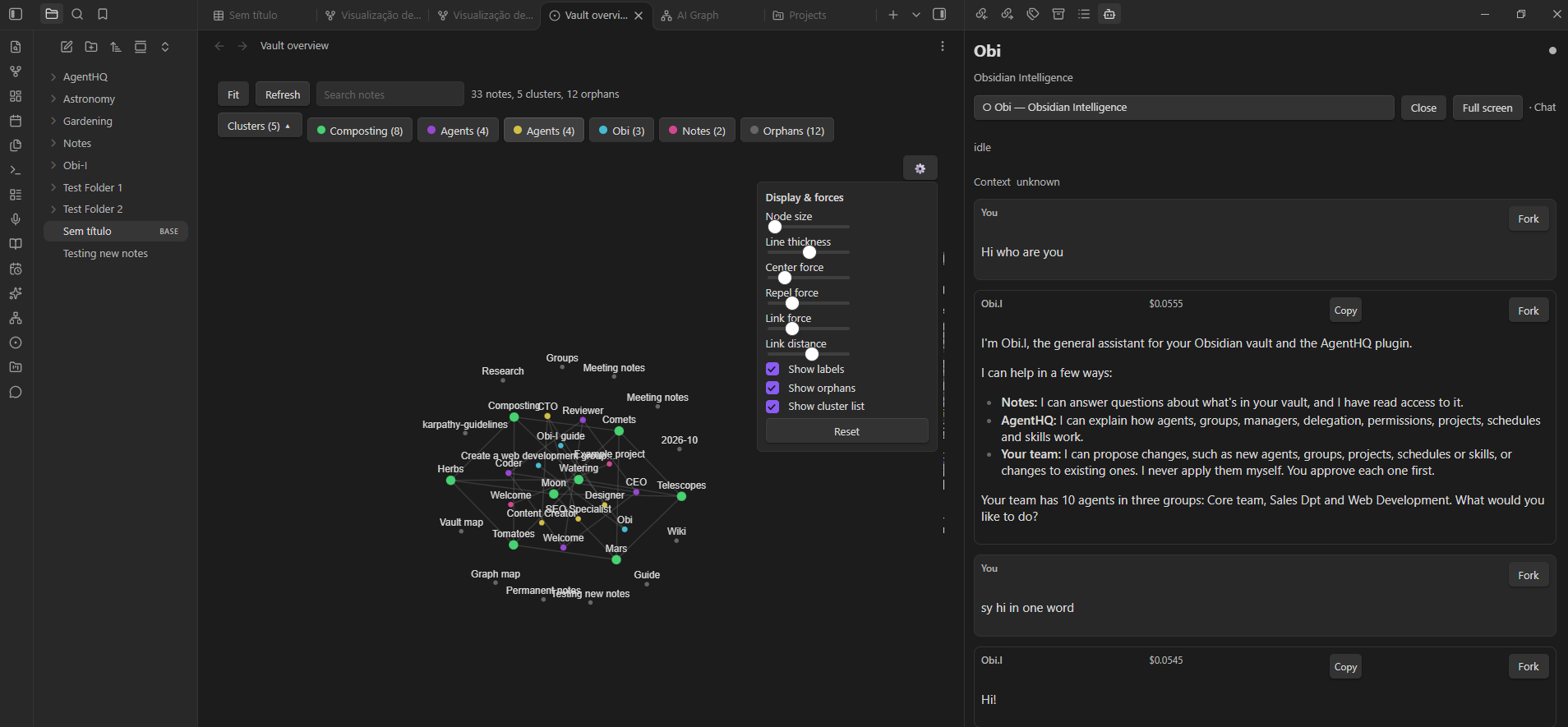 A live map of your vault: clusters, links and orphan notes.
What you can do with it
Build a team that works together
- An org chart you can edit. Agents are notes with a role, instructions, a manager and their own AI tool and model. Drag them around the AI Graph, group them into teams, and broadcast a message to everyone or one group.
- Delegation. Ask the CEO for something big; it splits the work, hands pieces to its team and brings the results back.
- Reviewers and verify loops. A reviewer checks the work and sends it back with feedback until it passes, so you get finished results, not first drafts.
- Mix AI tools in one team. A Claude Code writer, a Codex coder and a free OpenCode researcher can sit in the same team.
Meet Obi, your built-in assistant
- A friendly welcome tour, a plain-language guide, and a "Check my setup" page that shows which AI tools are ready.
- Ask Obi to create agents, teams, projects or schedules: every change appears as an Approve / Reject card first.
Run projects with memory
- Projects give agents a goal, instructions, skills and their own memory: decisions and facts are saved as notes and the relevant ones are recalled automatically in later chats — no need to repeat yourself.
- A project board shows who is doing what; cost limits stop a project before it spends more than you allow.
Put work on autopilot
- Schedules: "Every morning, summarise yesterday's meeting notes", "Every Friday, draft the weekly report". Runs while Obsidian is open; missed runs can be skipped or caught up once.
- Loops (🔁): repeat a task until the reviewer is happy or a count is reached — great for "improve this until it's good" or research that needs several passes.
- Anything that needs your decision waits in the Inbox.
Keep your notes organised
- Note destinations: let an agent write meeting notes, research, wiki pages and permanent (Zettelkasten) notes
straight into your own folders, with templates and
[[links]], so they appear in your normal notes and graph. - Reorganise vault: an agent proposes a tidier folder structure; you review the plan, apply it with links kept intact, and can undo it in one click. Nothing is ever deleted.
- Graph overview: a living, Obsidian-style dot graph of your notes, coloured by cluster, with hubs, bridges and orphans.
Save AI tokens
- A vault map and graph map let agents go straight to the right notes instead of searching your whole vault.
- Vault search and chat recall add only the relevant passages from your notes and earlier conversations.
- A context bar and, for Claude Code, a plan-usage meter ("5h 11% · week 42%") show what you are using.
Let agents act — safely
- Browser control for every AI tool: agents can open sites, click and read, in a clean browser with no logins.
- Run commands: Off, Ask me each time (an Approve card for every command), or Allow freely — your choice per agent.
- Microsoft 365: read Outlook mail, calendar and OneDrive; draft replies; sending, deleting or sharing always waits for your Approve card. Users just press Sign in.
- Outside folders, project output folders and vault access are switched on per agent, never by default.
Chat that keeps up with you
- Edit selection with an agent: select text (or right-click and choose Edit with an agent…), give an instruction, see a preview (changed phrases side by side, or Before and After when most of the text changed), then Accept or Reject.
- @ mentions to attach notes, folders or another agent's chat; 📎 attaches the note you have open.
- Slash commands:
/new,/fork,/compact,/skill,/project,/side(a quick side question that leaves the main chat untouched) and/help. - Images in chat, chat history, forks, collapsible code blocks, and pop-out windows for extra agents.
What you need
- Obsidian desktop, on Windows or Mac: https://obsidian.md
- At least one AI tool, installed and signed in:
- Claude Code (a Claude plan or an API key): https://code.claude.com/docs/en/setup
- Codex CLI (a ChatGPT plan; version 0.160.0 or newer — a newer version is checked once by Mesa, then used): https://github.com/openai/codex
- OpenCode (version 1.19.1 or newer, checked the same way; has free models): https://opencode.ai
- Hermes (see "How each AI tool is set up" below)
- Node.js, only for browser control: https://nodejs.org
- Git is optional, for backups: https://git-scm.com
- No coding needed. Run "Mesa: Check my setup" (Ctrl/Cmd+P) to see what is ready.
Install
The plugin's folder is called obi-i (its original ID); the plugin is Mesa.
- Community plugins (recommended): Obsidian → Settings → Community plugins → Browse → search Mesa → Install → Enable.
- Download from trabalhoia.com: unzip the Mesa zip (three files) into
.obsidian/plugins/obi-i/inside your vault folder, then enable Mesa in Settings → Community plugins. - BRAT: add
PitbullFuzo/Mesaas a beta plugin. - Manual: download
main.js,manifest.jsonandstyles.cssfrom the latest release into.obsidian/plugins/obi-i/inside your vault folder, then enable Mesa. - Ask your AI to install it: give your AI assistant (Claude Code, Codex or similar) INSTALL.md.
Then open Mesa from its ribbon icon: Obi offers the tour, and a starter team (CEO, Coder, Reviewer) is ready to chat.
Safety in plain words
- Agents start locked down. By default an agent writes only to its own Work folder. Vault access, web access, browser control, running commands, note destinations, outside folders and Microsoft 365 are each switched on per agent, with a warning where it matters.
- Mesa's own folders are protected from agents (agents, tasks, activity, settings), and Obi cannot raise its own permissions or cost limits.
- Outward or destructive actions wait for you: sending email, deleting, sharing, and (with "Ask me each time") every command show an Approve card with the full details.
- Codex can read the whole computer, so it needs your explicit consent and gets extra warnings.
- An agent with both vault access and web access could be tricked by a malicious page into leaking notes — use web access only when you need it.
- AI costs come from your own plans; project cost limits help, but check your provider's dashboard.
- Back up your vault before you give agents write access or reorganise notes.
Privacy & network
- Mesa sends nothing to its author. No telemetry, no analytics, no account, no update check.
- AI tools talk to their own providers. Claude Code, Codex, OpenCode and Hermes are separate programs on your computer; Mesa starts them with your message and the notes you allow, and they send that to the provider you signed in with, under that provider's terms.
- Microsoft 365 only when connected: Mesa then contacts
login.microsoftonline.comandgraph.microsoft.comthrough Obsidian. The sign-in is kept in a file outside your vault (not encrypted); Disconnect removes it. - Browser only when enabled for an agent; the help link opens your web browser only when clicked.
- Why Mesa lists your vault files: the vault map, graph map, overview, vault search and organiser need the list of your notes and their links. It stays on your computer; an agent sees it only with vault access.
- Helper files next to
main.js: on load Mesa writesbrowser_mcp.cjs,m365_mcp.cjsandhermes_acp.pyinto its own plugin folder if they are missing or changed. They are built from this repository's source. - Temporary run folders are created in your system temp folder and removed when the run ends. Source code is open (MIT).
Help and feedback
How-tos and a feedback form are at trabalhoia.com. Bugs and ideas: GitHub issues.
How each AI tool is set up
| Claude Code | Codex | OpenCode | Hermes | |
|---|---|---|---|---|
| Sign-in | Your Claude plan or API key | Your ChatGPT plan (codex login) |
Its own providers; free models available | Your configured Hermes provider |
| Reads | Agent's folders (+ vault if allowed) | Whole computer (needs your consent) | Agent's folders (+ vault if allowed) | Agent's folders (+ vault if allowed) |
| Run commands | Off / Allow freely | Sandboxed when Off; Allow freely removes the sandbox | Off / Ask each time / Allow freely | Off / Ask each time / Allow freely |
| Browser control | Yes | Yes (extra consent) | Yes | Yes |
| Microsoft 365 | Yes | No (it can read the sign-in file) | Yes | Yes |
| Cost shown | Dollars per reply | Tokens | Dollars (often $0 on free models) | Estimated when reported |
Mesa runs each tool with its own settings isolated from your personal configuration, loads only Mesa's own helpers (no personal MCP servers), and stops the whole process when you press Stop. Detection checks the usual install locations on Windows and macOS; if a tool is missed, set Settings → Mesa → Runtime path override.
Windows and macOS
- Windows is the tested platform.
- macOS is supported in the code but not yet tested on a real Mac.
Where files live
Under the Mesa/ folder: Agents/, Groups.md, Skills/, Chats/, Tasks/, Projects/ (with each project's log
and memory), Schedules/, Activity/, Work/ (one folder per agent), Attachments/, the vault and graph maps, the
guide and Welcome.md. Settings, graph positions and the Inbox live in the plugin's data.json. Everything is plain
Markdown you can read and back up.
Developer setup
Desktop-only plugin. Use Node.js 22.12+ and npm; Obsidian desktop 1.7.2+.
npm install
npm run lint
npm run typecheck
npm test
npm run build
The build goes to test-vault/.obsidian/plugins/obi-i/. Open only this repository's test vault for development and
switch Mesa off and on after every build. npm run version:bump 1.2.3 updates manifest.json, package.json and
versions.json; npm run package builds the release zip.
Releases are built by GitHub Actions
Every release is built from its tag by .github/workflows/release.yml, not on a developer's computer. The workflow
checks the tag equals the version in manifest.json, runs the tests, builds the plugin, signs main.js, styles.css
and manifest.json with build provenance attestations, attaches them to a draft release and then publishes it. You can
check a downloaded file with gh attestation verify main.js --repo PitbullFuzo/Mesa.
Disclaimer
Mesa lets AI agents read and change files you allow. It is provided as-is, without warranty. We aren't responsible for data loss or AI costs. Please back up your vault before giving agents write access or reorganising notes.
Licence
MIT. See LICENSE.