Note Review Comments
 nd60 downloads
Comment on passages in Reading view and track AI review resolution.
- Overview
- Scorecard
- Updates9
Leave comments while reading in Obsidian, then ask Claude or another LLM to edit the document using your feedback.
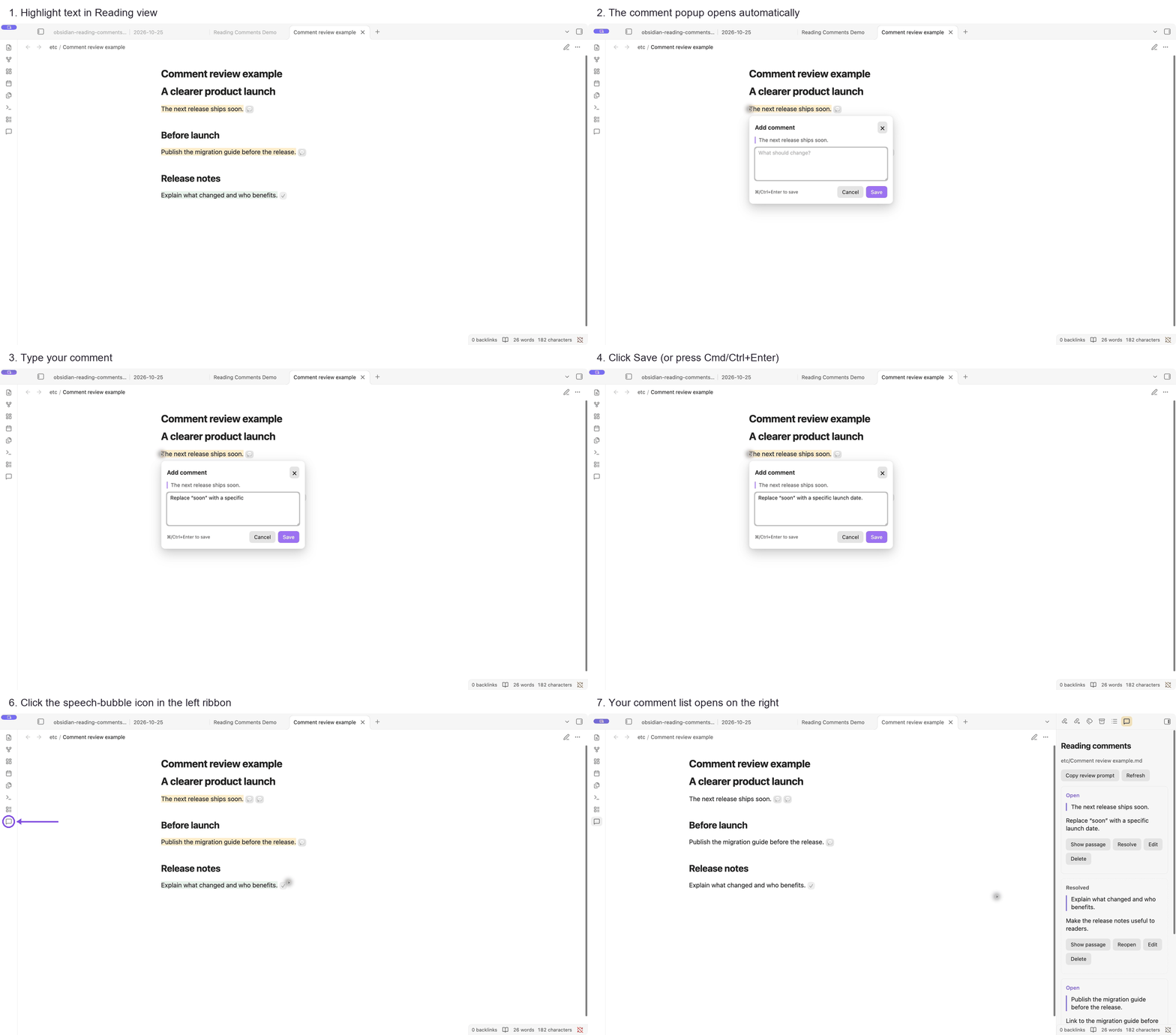
- Highlight text in Reading view. A small popup opens; start typing your comment.
- Save your comments as you read. The sidebar stays closed until you open it.
- Copy the review prompt from the sidebar and give it to your AI agent, along with access to the note and comments file.
Processed comments are marked Resolved, even if an attempt fails. Reopen them when you want another pass.
Obsidian plugin listing · Release files · Install · Report an issue · VS Code companion
Desktop only · Reading view · Obsidian 1.8.0+
Install
- Open Settings → Community plugins in Obsidian. If prompted, select Turn on community plugins.
- Select Browse and search for Note Review Comments.
- Select Install, then Enable.
- Open a Markdown document and switch to Reading view to add your first comment.
You can also open the Obsidian Community listing and choose Add to Obsidian. You do not need Node.js or a build tool.
Manual installation
Use these steps if you prefer to install the release files yourself:
Download
main.js,manifest.json, andstyles.cssfrom the latest release.Create a folder named
note-review-commentsand place the three downloaded files inside.Open your Obsidian vault’s
.obsidian/plugins/directory. You can use the Open plugins folder folder icon in Settings → Community plugins. If navigating manually, show hidden folders to find.obsidian, and createpluginsif it is missing.Copy the
note-review-commentsfolder intoplugins. The final layout should be:<your-vault>/.obsidian/plugins/note-review-comments/ ├── main.js ├── manifest.json └── styles.cssRestart Obsidian, then open Settings → Community plugins and enable Note Review Comments.
Open a Markdown document and switch to Reading view to add your first comment.
Requires Obsidian 1.8.0 or newer on desktop. The core workflow has been tested in Obsidian 1.14.5 on macOS.
If upgrading from a manual installation of Reading Comments 0.1.3 or earlier, disable and remove its reading-comments plugin folder before installing this version. Keep the vault’s .comments folder: existing reviews remain compatible.
Add your first comment
Open a Markdown document and switch to Reading view using the view toggle in the note header.
- Highlight a passage in Reading view. A small popup opens beside the passage as soon as you finish selecting, with the comment field already focused. Start typing immediately.
- Write your feedback, then choose Save or press Cmd+Enter / Ctrl+Enter.
- Use Escape, Cancel, or a click outside the popup to cancel a draft.
Saving leaves the comments panel as it is: closed stays closed, and an open panel updates in place. Open it when you want using a comment marker, the message icon in the ribbon, or the Note Review Comments: Open reading comments command.
Open and Resolved
| Status | Meaning |
|---|---|
| Open | Waiting to be processed. New comments and older comments without a status start here. |
| Resolved | Already processed. The comment is kept as review history. |
Resolved means processed, even if the result was incorrect or the attempt failed. Use Reopen whenever you want another pass. You can also resolve comments manually.
The sidebar provides Show passage, Resolve/Reopen, Edit, and Delete. Commenting and changing statuses do not modify the note’s Markdown.
Send your comments to Claude or another LLM
- Choose Copy review prompt in the sidebar.
- Paste it into Claude Code or another AI agent that can read and edit files in your vault.
- Let the agent process the review. Obsidian picks up saved note and status changes automatically.
If you use a chat-based LLM without local file access, also attach or paste the Markdown document and its .comments JSON file. Local paths alone will not give the model access. Save its revised Markdown and updated comments JSON back to the same files to see the edits and statuses in Obsidian.
The copied prompt includes absolute paths to the note and its comments file. It instructs the agent to:
- Process only open comments, in stored order.
- Apply each request while preserving unrelated content.
- Set that comment’s
resolvedfield totrueimmediately after the attempt, including unsuccessful attempts. - Preserve the comment text, IDs, and other JSON data.
- Leave unprocessed comments open if the review stops early.
- Summarize what happened, including failures.
The plugin does not call an AI service. Processing and status updates depend on the agent following the prompt and saving its changes. Copy review prompt is disabled when no open comments remain.
Your notes stay portable
Reviews are stored in a vault-root .comments folder that mirrors your notes:
Your vault/
├── docs/
│   └── proposal.md
└── .comments/
    └── docs/
        └── proposal.md.comments.json
Each comment records its selected text, line hints, feedback, ID, creation time, and optional resolution status and surrounding context. The version 1 JSON format is compatible with the VS Code Comment Tool; existing fields are preserved on updates. Use this plugin’s prompt when you want resolution-aware AI processing.
The plugin makes no network requests. If your vault uses a sync service, include .comments in that service’s configuration if you want reviews synced too.
Passage tracking and current limits
- Unique quotes are found again after surrounding text changes. Repeated quotes use saved context; ambiguous or missing passages remain listed for manual review.
- When an AI rewrites the quoted passage, the original quote stays in the comment’s history. Its highlight may disappear because the old text is gone.
- Note and folder moves performed inside Obsidian move the corresponding review files. Conflicting destinations are preserved and reported. Moves performed externally while Obsidian is closed require moving the review files and updating their
sourcepaths manually. - Obsidian renders long notes in sections. A passage may not have a visible marker until its section is rendered.
- Embedded notes are excluded from selection capture to avoid attaching feedback to the wrong file.
- In-plugin saves are serialized and stale edits are rejected. Separate applications writing the same review at exactly the same time can still race.
- Invalid JSON is preserved and reported. Repair or restore it, then choose Refresh.
Build and test
Use Node.js 24 or newer:
git clone https://github.com/hello1101n/obsidian-reading-comments.git
cd obsidian-reading-comments
npm ci
npm test
npm run build
The installable plugin files are written to dist/note-review-comments/.
The test suite covers DOM selections, status persistence, storage conflicts, malformed JSON, renames, and refresh races. A simulated Obsidian host uses real temporary files. The core workflow has also been checked in the native app; see verification coverage.
Uninstall
Disable Note Review Comments and remove <your-vault>/.obsidian/plugins/note-review-comments. Your notes remain ordinary Markdown. Keep .comments to retain your review history.
License
MIT.