
- Overview
- Scorecard
- Updates7
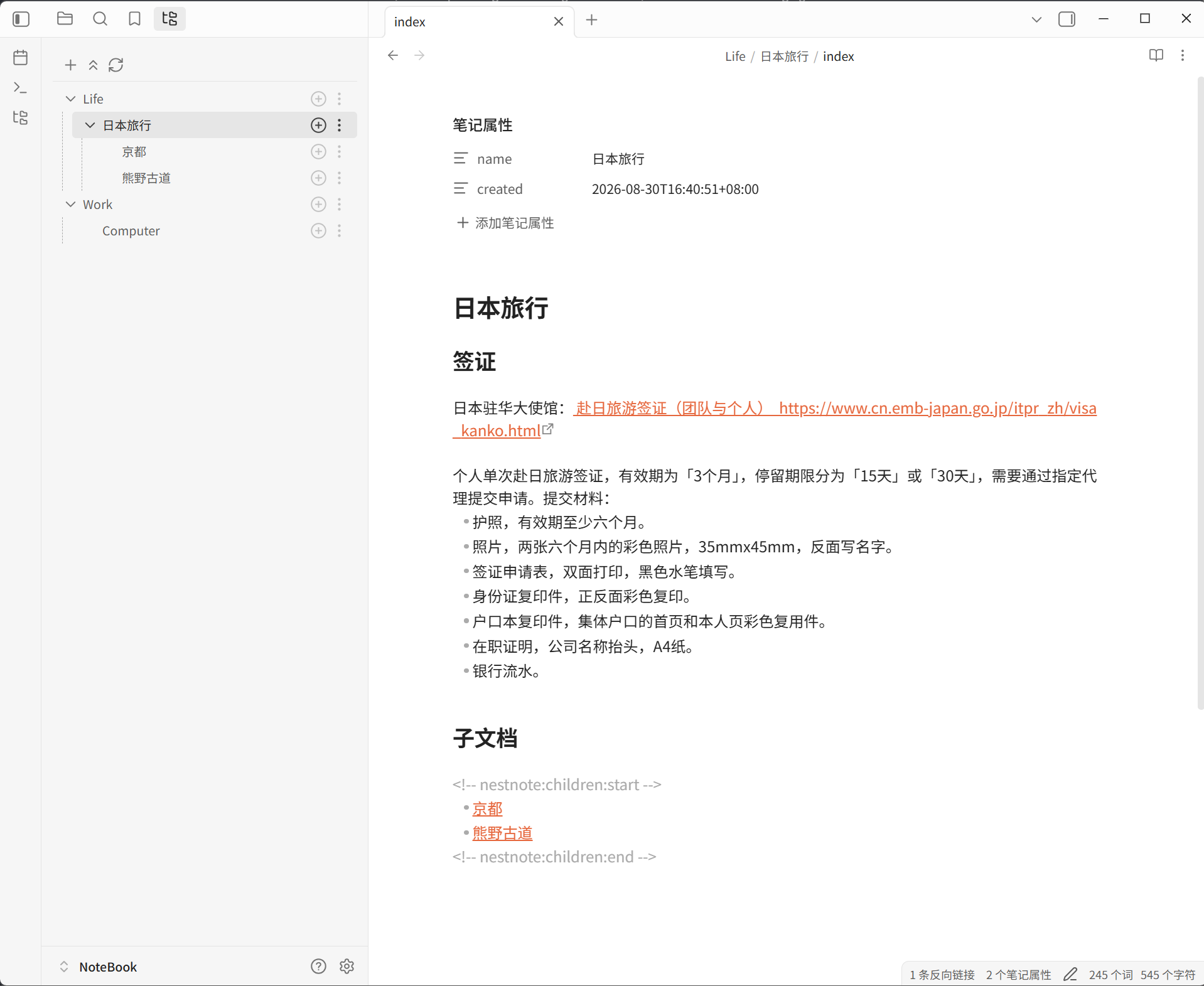
NestNote is an Obsidian plugin that treats folders as documents. Each document is a directory that contains both index.md and attachments/. Root documents are depth 0; by default you can nest 5 more levels of children (adjustable from 0 to 9). The plugin shows and operates this tree in its own sidebar. It only reads and writes vault files and does not keep a separate index database.
- Display name: NestNote
- Plugin ID:
nest-note - Minimum Obsidian version: 1.7.2
- License: GPL-3.0
- UI language: Follows the Obsidian app language. Simplified Chinese and Traditional Chinese currently both show Simplified Chinese (there is no separate Traditional Chinese catalog). All other languages show English.
Install
In Obsidian, open Settings → Community plugins, search for NestNote, then install and enable it.
To skip the community directory or install a development build, see “Build from source” at the end.
Usage
Open the pane
Click the NestNote icon in the leftmost ribbon, or run NestNote: Open document tree from the command palette.
You can also bind these commands under Settings → Hotkeys.
Create the first document
When the vault has no NestNote documents yet, use New root document in the sidebar toolbar (or the command NestNote: New root document). It always creates at the vault root and ignores which sidebar row is selected. Enter a valid name in the dialog, then press Enter or confirm.
After the document is created, NestNote opens its index.md and selects it in the sidebar (expanding ancestors when needed). Opening any NestNote document the same way — including clicking a child-document link inside an index, or restoring the last open document on startup — also expands the sidebar to that document.
Existing ordinary Markdown notes are not converted into NestNote documents, and the plugin does not complete directories that are missing index.md or attachments/. Create them with the plugin, or build the folders yourself using the convention below and then refresh.
Sidebar
| Action | How |
|---|---|
| Open a document | Click the document name in the sidebar |
| New child document | The button on that row; creates under that document |
| Reparent and reorder | Drag onto another document to nest it, or onto empty space in the tree to make it a root. Drag above or below a sibling to reorder. Root documents stay sorted by name |
| Expand all / Collapse all children | Row More or right-click → Expand all or Collapse all. Toggles every nested child under that document. Hidden when the document has no children |
| Copy relative path | Row More or right-click. Copies the vault-relative path of that document's index.md |
| Copy absolute path | Row More or right-click. Copies the local absolute path of that document's index.md |
| Open in default app | Row More or right-click. Opens that document's index.md with the system default app |
| Show in system explorer | Row More or right-click. Reveals that document's index.md in the system file manager |
| Rename | Row More or right-click → Rename |
| Delete | Row More or right-click → Delete; every delete asks for confirmation |
| Expand all / Collapse all | Toolbar button. If any expandable node is still collapsed, the label is Expand all; after everything is expanded it becomes Collapse all. Disabled when nothing can be expanded. This only changes expansion state and does not rescan files |
| Refresh | Toolbar button, or the command NestNote: Refresh. The whole tree also refreshes automatically after vault file changes |
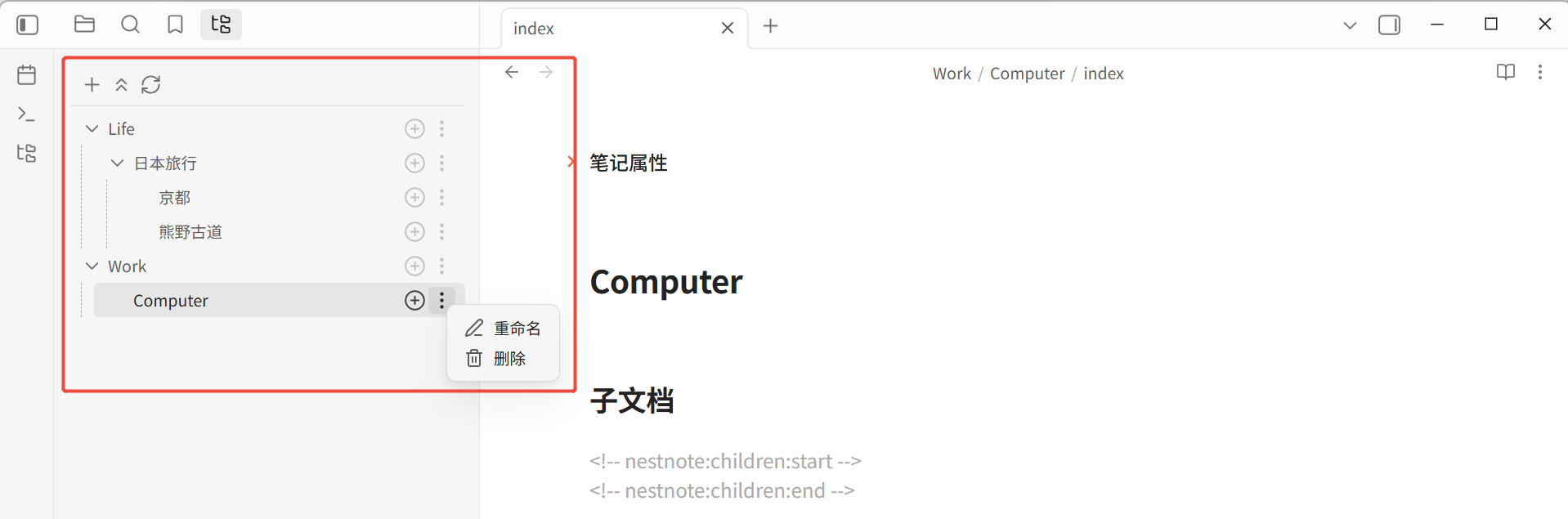
Use the plus button on a row to create a child document:
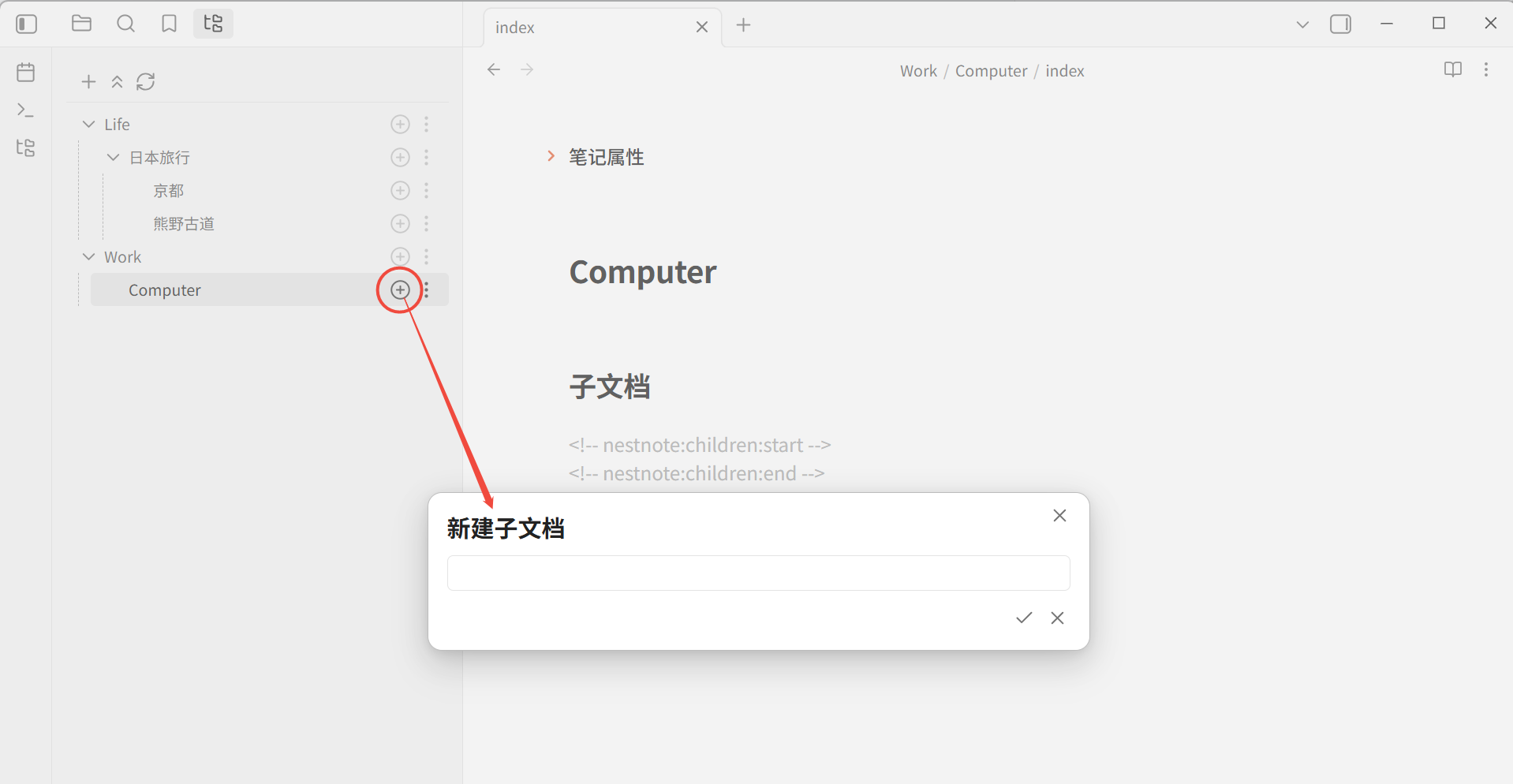
The command NestNote: New child document is different from the row button: it uses the file you are currently editing. The parent’s index.md must be open first. It does not use the selected sidebar row.
Settings
Under Obsidian Settings → NestNote:
| Setting | Description |
|---|---|
| Max child document depth | Range 0–9, default 5. Root documents are depth 0. Directories beyond the limit are hidden in the sidebar and cannot be created as deeper children. 0 shows only root documents |
| Open the NestNote pane on startup | On by default. Applies on the next launch; it does not close a pane that is already open |
| Auto-fix document format | On by default. During scans, fill missing header fields and child-link markers, and rewrite the child list to the canonical format. When off, parent links update only when you create, delete, rename, or move a child document |
Delete
- Every delete asks for confirmation, whether or not the document has children.
- After confirm, the entire document directory (
index.md, attachments, and all child documents) goes to the trash. - The destination follows Obsidian’s own deletion preference: the system trash, or
.trash/inside the vault. - After you restore a directory from trash, the plugin re-identifies and shows it when it notices vault changes.
- On delete failure, the sidebar stays as it was and an error notice is shown.
Commands
Names in the command palette (prefixed with NestNote:):
| Command | What it does |
|---|---|
| Open document tree | Opens the NestNote pane |
| New root document | Creates a document at the vault root, then opens its index.md |
| New child document | Creates a child under the currently open document, then opens its index.md |
| Refresh | Rescans and refreshes the sidebar |
| Archive current attachment | Moves the currently open attachment into its owning document’s attachments/ |
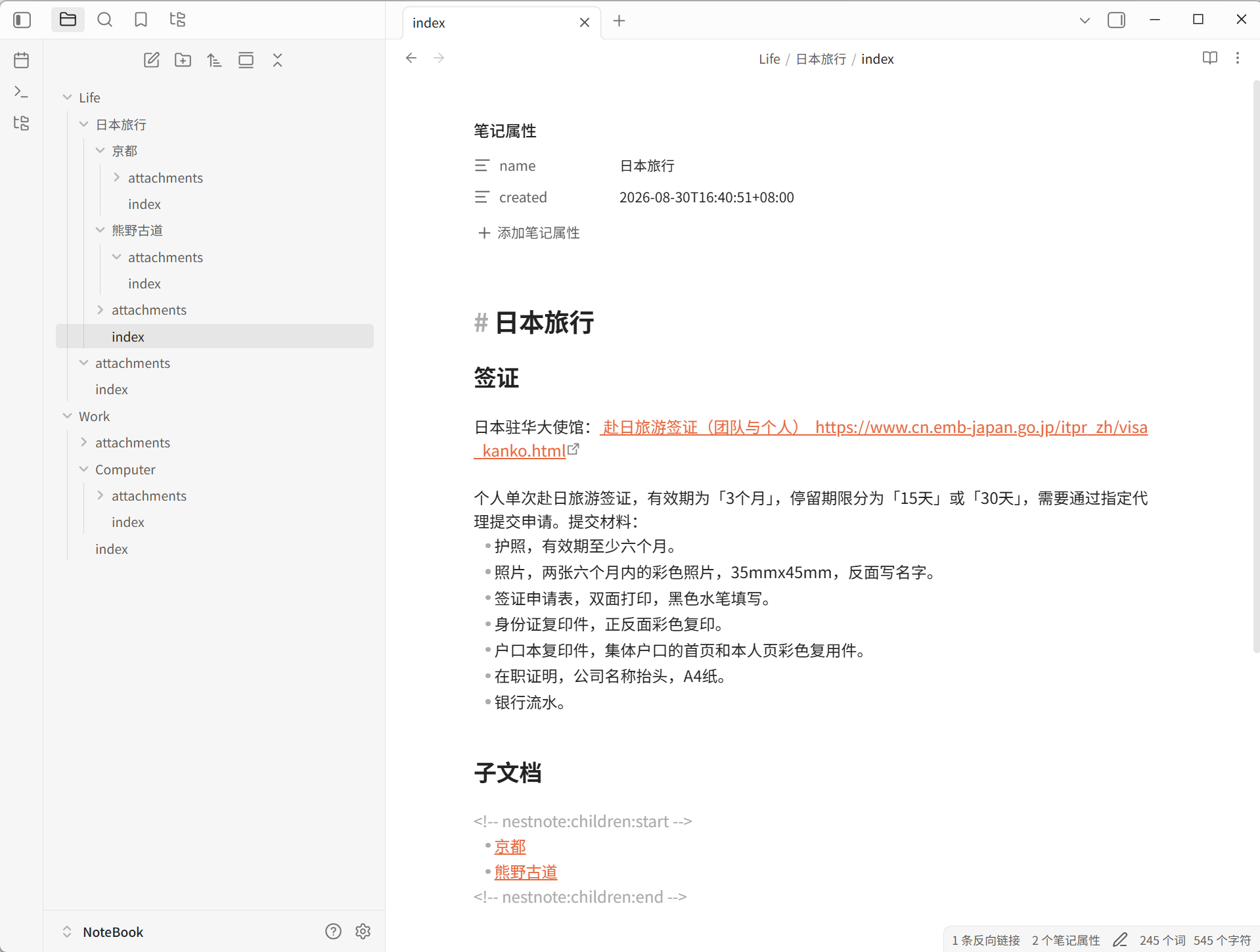
What a document is
A complete document must satisfy all of:
- The directory contains
index.md - The directory contains an
attachments/subdirectory - The directory name is the document name
A directory named attachments is reserved and is never treated as a child document.
Example
Vault root/
├── Work/                          ← root document (depth 0)
│   ├── index.md
│   ├── attachments/
│   ├── 项目 A/                    ← depth-1 child
│   │   ├── index.md
│   │   ├── attachments/
│   │   └── 里程碑 1/              ← depth-2 child
│   │       ├── index.md
│   │       └── attachments/
│   └── 项目 B/
│       ├── index.md
│       └── attachments/
├── 笔记 草稿/                     ← names may include spaces and Chinese
│   ├── index.md
│   └── attachments/
└── random-note.md                 ← ordinary Markdown; hidden from the sidebar
What does not appear in the sidebar
| Kind | Example | Reason |
|---|---|---|
| Ordinary Markdown file | notes/ideas.md |
Not a complete document directory |
Directory missing index.md |
draft/ (only attachments/) |
Incomplete |
Directory missing attachments/ |
draft/ (only index.md) |
Incomplete |
Directory named attachments |
Work/attachments/ |
Reserved name |
Document header
On create (root and child documents use the same template), index.md looks like the following. The timestamp is the moment of creation; the date below is only a format example. When the UI is Chinese, the heading is 子文档.
---
name: Work
created: 2026-08-28T19:00:00+08:00
---
# Work


# Child Document

<!-- nestnote:children:start -->


<!-- nestnote:children:end -->
| Field | Description |
|---|---|
name |
Defaults to the directory name; updated when you rename in the sidebar |
created |
Written on first create; not changed later |
The directory name is authoritative. If this header is missing, the plugin inserts it before the body and does not change your original body. If the header cannot be parsed, the body is not overwritten either; you only get a metadata notice. Existing documents are not backfilled with the H1 title or the “Child Document” heading.
Child document links
A parent’s index.md contains a plugin-maintained list. On create, it is placed under the “Child Document” heading:
# Child Document

<!-- nestnote:children:start -->

- [项目 A](项目%20A/index.md)
- [项目 B](项目%20B/index.md)

<!-- nestnote:children:end -->

This is your own body text. The plugin does not change content outside these markers.
Creating, deleting, renaming, or moving a child updates only the list between the two markers. Order matches the sidebar: custom order is written in the marker region; new children are appended at the end. Scans and auto-fix preserve that order, only filling gaps, removing dead links, and writing canonical blank lines. There is one blank line between the list and each marker; missing blank lines do not affect parsing. Links are ordinary relative paths; spaces in names are written as %20. Hand-written links in the body are not scanned, deleted, or rewritten. When Auto-fix document format is on (the default), scans also rewrite this region to the canonical format, inserting it after the header if the markers are missing. When the option is off, scans do not change existing files.
Attachments
Keep using Obsidian’s built-in paste, insert, and drag-and-drop. There is no plugin command named “Insert attachment”.
While you are editing a complete document’s index.md, newly created images, PDFs, audio, and video are usually moved into that document’s attachments/ if they are not already there. Name conflicts are resolved with an available name (for example image 1.png).
Never moved: files already inside another complete document directory or its attachments/, and locations that cannot be attributed to a document (for example Inbox/ at the vault root). Failed auto-archive does not spam notices; use NestNote: Archive current attachment to move a file by hand. That command walks up from the attachment path to find the owning document. If it cannot find one or the move is unsafe, it shows a notice and leaves the file in place.
Known limits
- Ordinary notes and incomplete directories are not converted into complete documents.
- Directories beyond “Max child document depth” stay in the vault; they are hidden in the sidebar and cannot be created as deeper children through the plugin.
- Any vault file change rescans the whole vault and rebuilds the tree. There is no incremental refresh of only the affected branch. Large vaults may notice this more.
- Auto-archive of attachments runs only when the file can be clearly tied to the current
index.md.
Development
For people who change the code, install locally, or publish a release. Plugin users can skip this chapter.
Build from source
Requires Node.js. On Windows, run this in Git Bash or WSL (PowerShell cannot run ./build.sh directly).
git clone https://github.com/exbob/obsidian-nest-note.git
cd obsidian-nest-note
npm install
./build.sh
Then copy nest-note/ into the vault at .obsidian/plugins/nest-note/. That directory contains main.js, manifest.json, and styles.css. Enable NestNote under Settings → Community plugins.
./build.sh clean only deletes main.js, main.js.map (if present), and ./nest-note/. It does not build. ./build.sh and bash build.sh are the same.
Develop and check
npm run dev       # watch source and rebuild
npm test          # unit / integration tests
npx tsc --noEmit  # typecheck
npm run build     # production build (writes main.js at the repo root only)
./build.sh        # production build and write nest-note/
Command IDs registered in code look like nestnote:open-document-tree. Obsidian may add the plugin prefix (for example nest-note:nestnote:open-document-tree). Use whatever the command palette actually shows.
Publish a new version
This plugin is already in the community plugin directory. For later releases: bump version in manifest.json, push the code, and create a GitHub Release from main.js, manifest.json, and styles.css in nest-note/. The release tag must match the version exactly (for example 1.0.1, with no v prefix). You do not need to resubmit to the community directory. See the Obsidian plugin publishing docs.
Project layout
build.sh                             # production build into nest-note/; clean removes artifacts only
esbuild.config.mjs                   # bundler config
manifest.json                        # plugin manifest
styles.css                           # sidebar and dialog styles
nest-note/                           # install directory to copy into a vault
src/
├── main.ts                          # entry, commands, wiring
├── types.ts                         # shared types
├── settings.ts                      # settings model and normalization
├── i18n/                            # zh/en copy and t()
├── domain/
│   ├── document-scanner.ts          # complete-document detection and tree build
│   ├── frontmatter.ts               # header read/write
│   └── children-links.ts            # child document links
├── services/
│   ├── document-service.ts          # create, rename, delete, open
│   ├── attachment-service.ts        # attachment watch and archive
│   └── vault-event-coordinator.ts   # vault event coalesce and refresh
└── ui/
    ├── desktop-file-actions.ts      # copy path, open with OS
    ├── document-tree-view.ts        # sidebar
    └── settings-tab.ts              # settings tab
tests/                               # Vitest
docs/superpowers/specs/              # design notes