Neon Deck
 SlaveKnight_Yobzz15 downloads
Dashboard, tasks, time tracking, tickets, research notes and writing tools in one themed workspace.
- Overview
- Scorecard
- Updates17
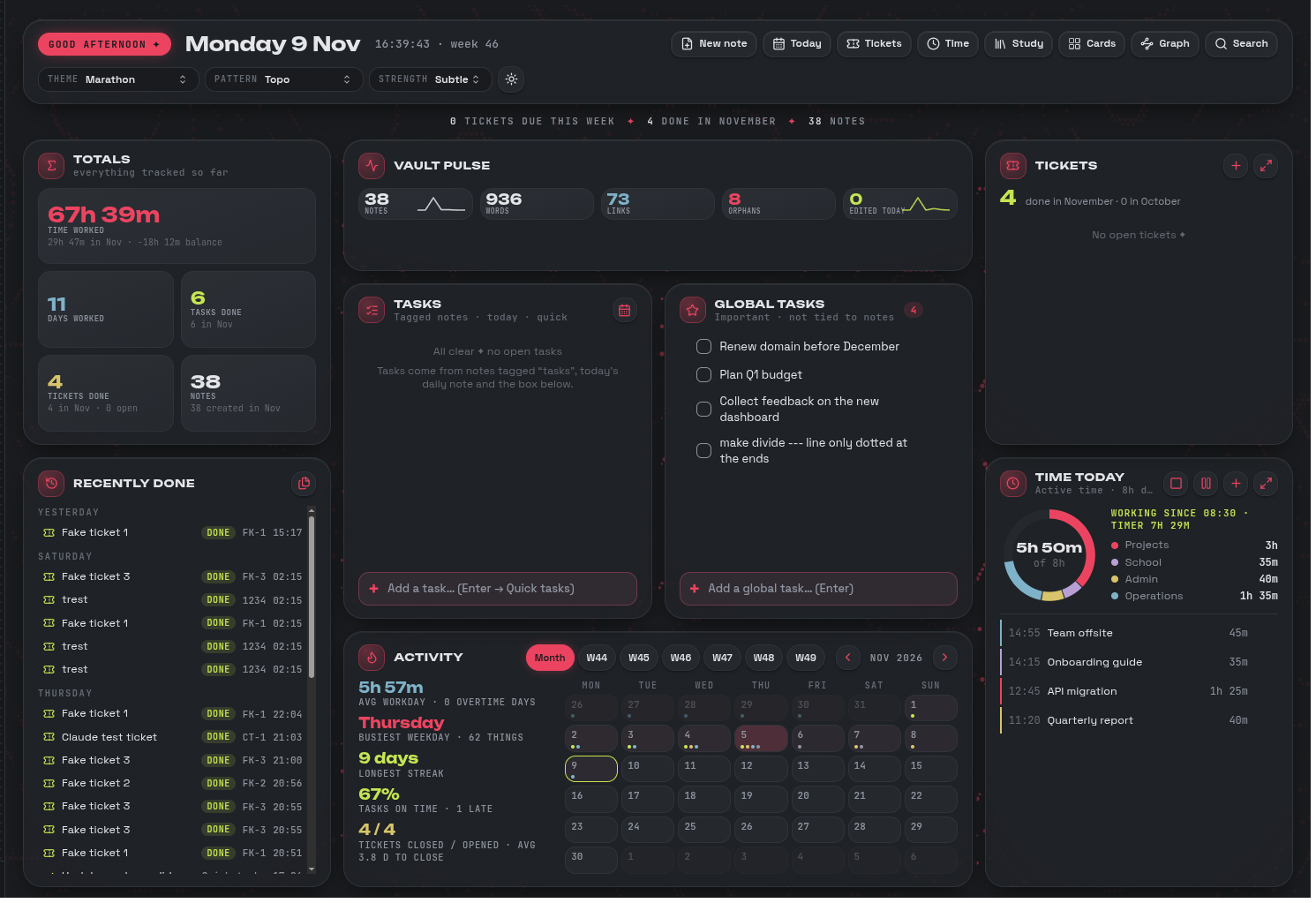
One Obsidian plugin that works as a personal command centre: a dashboard, tasks, tickets, automatic time tracking, research notes and writing tools, in a neon look with live background patterns.
Everything runs 100% locally: no network calls, no telemetry, no remote fonts or code, no eval. Files are only written when you do something that writes.
| Module | What it does |
|---|---|
| Neon Deck | Dashboard, themes, live patterns, quick capture, card explorer, note graph, weekly review |
| Neon Tasks | Tasks widget, Global tasks, the New note card, Fix properties |
| Neon Tickets | Ticket view and pop-up, New ticket form, tracker, reminders, self-writing log, monthly counter |
| Neon Time | Active time per category, manual entries, overtime, daily Time Log notes for an AI agent |
| Neon Write | Table picker, slash menu, a toolbar on selected text and a faint pattern behind notes |
| Neon Study | A separate Study tab: a topic tree (topics → subtopics → notes) with quiz cards and link suggestions |
Since 2.0 these are modules of one plugin. Neon Deck is the core; the others plug their cards, capture targets and facts into its dashboard. Switch any module off in Settings → Neon Deck modules and the rest keeps working; the dashboard gives the free space to the neighbours.
Features
Dashboard (Neon Deck)
- Totals, Vault pulse, Recently done (with a Recently touched popup), Activity (month and week timeline with a day pop-up), Tasks, Global tasks, Tickets and Time today on one page. The Quick capture card is optional.
- One main pane. A nav list at the top of the left sidebar (Dashboard, Cards, Tickets, Time, Graph) switches what the main pane shows. Notes open in that same pane, and Back / Forward move between them. No pile of pinned tabs.
- The grid fills the window on any screen size; lists scroll inside their card, and narrow panes stack the cards.
- Themes (Marathon, Cyberpunk, Calm, Paper, Night shift, Phosphor, Blueprint, Strawberry kitten, Black ICE), each in light and dark, with the same rounded corners and colour only in the accents. Each theme has its own matching category palette built from its accent, used by the Time wheel and category chips. Strawberry kitten and Black ICE are original palettes with no third-party artwork.
- A live background pattern (Damascus, Prism, Meteorite, Topo, Hex mesh, Datastream, Black ICE) that pauses when Obsidian isn't focused or with Reduce motion on.
- A ticker with live facts, and a Totals card: time worked, days worked, tasks and tickets done, notes created.
- Quick capture from anywhere with
Ctrl+Shift+Space: send to Task, Global task, Ticket or Time entry. - Card explorer with category chips and a Revisit reminder for notes you haven't opened in a while, plus a local note graph that follows the theme.
- Sidebar order: notes and folders starting with
!stay on top (with a pin); the rest sort by theircreatedproperty, newest first. - Recently done: ticked tasks and tickets set to Done or Waiting, grouped by day. The header button opens recently edited notes.
- Activity: a month view (average workday, busiest weekday, streaks, tasks on time, tickets closed) with a calendar, and a view per week; click a day for a pop-up with everything that happened.
Tasks (Neon Tasks)
- Open tasks from notes tagged
tasks, today's daily note and a Quick tasks note, grouped Overdue · Today · Later. - Global tasks for the big things that aren't tied to a note, with a daily read-only backup.
- A New note card that asks for name, kind and category, and Fix properties to tidy frontmatter.
- Instant and animated: new tasks show at once, ticked rows fold away. Edit a task's line from the dashboard (pencil on hover); global tasks edit with a double-click and reorder by drag and drop.
Tickets (Neon Tickets)
- A ticket is a normal note with
type: ticket. It opens as a pop-up with steps, a log that writes itself, due dates, reminders and a Waiting state with follow-ups. - Done tickets file themselves into
Done/YYYY-MM/; a counter reads like 14 done in November · 11 in October. - Templates: each template is a note in
Core/Tickets/Templates(steps, description, priority, due). Add, edit, duplicate, delete or export them to PDF from the Templates tab, edit the notes directly, or right-click a ticket → Save as template…. Pick one in New ticket and its steps are filled in. - Screenshots and PDF export: paste, drop or pick screenshots on a ticket (saved in
Core/Images/Tickets/), and export the whole ticket (steps, screenshots, log, time) as a PDF report. - Clear done tickets: on the Done tab, clear all done tickets or only those finished before this month (optionally with their screenshots and reports) — they go to the system trash.
- Sort and group the Tickets tab by due date, status, priority, newest, oldest, recently changed, title, ID or Jira key.
- Reminders show inside Obsidian (no system notifications). The newest log entry is always on top.
Time (Neon Time)
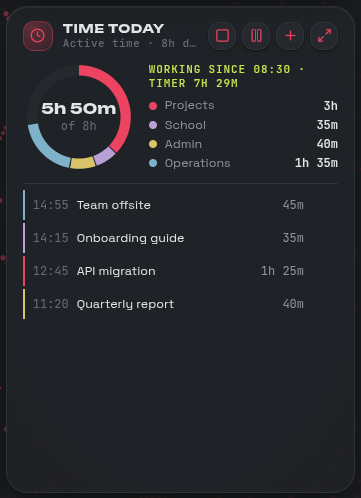
- Counts active time only while a note is the focused tab and you type, scroll or click, also in notes moved to their own window. It stops after a configurable idle time.
- Category comes from checkbox properties (
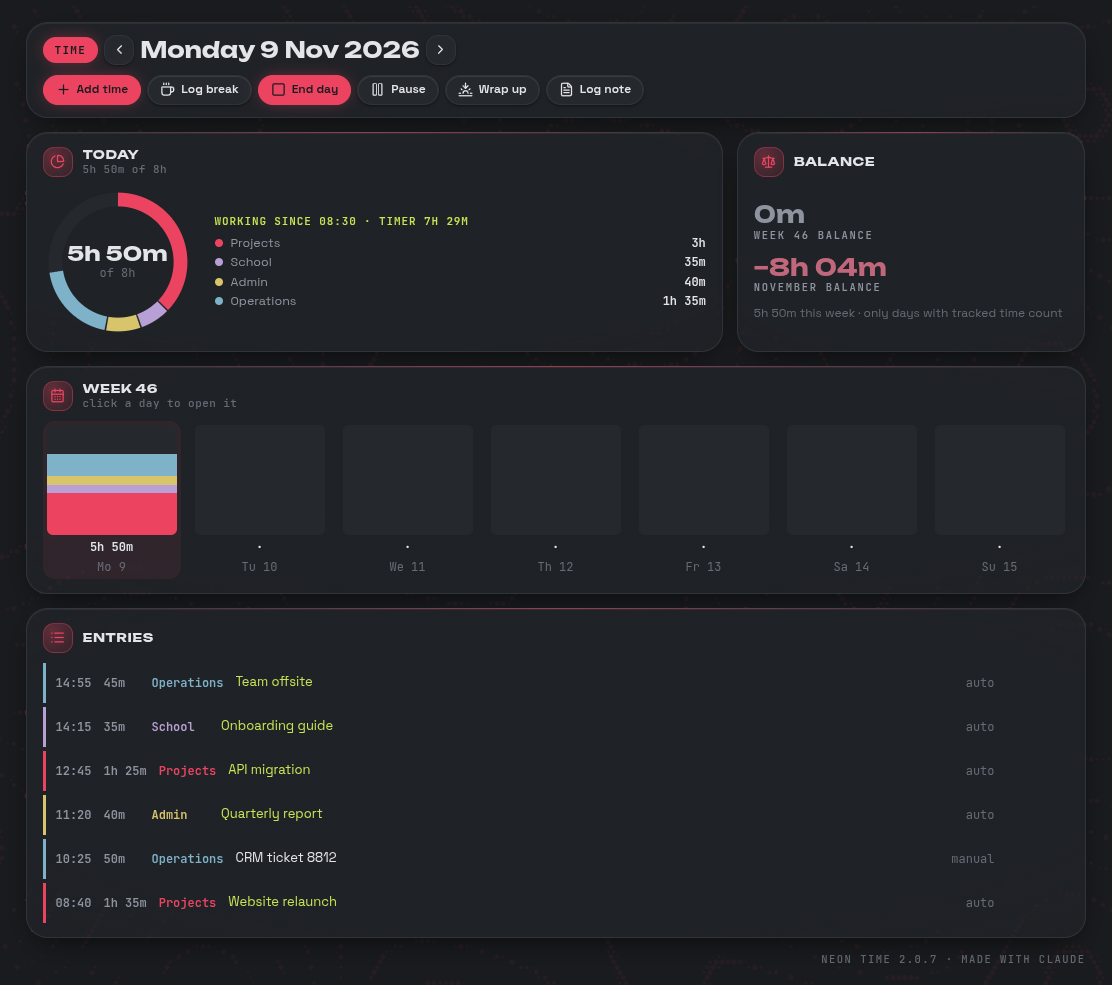
projects,school,admin,operations) or tags.untracked: truenotes are never logged. - A donut against your workday target, overtime as an accent slice, weekly and monthly balance, and entries you can add, edit or delete (with Undo).
- Work day: Start day in the widget and tab; once started it becomes End day, with Pause / Resume beside it. The clock keeps running while Obsidian is idle or closed; after 2 h without input the day ends at your last activity. Add time and Log break ask From and Until (typed loosely:
930,9:30,9.30; the quick chips count back from Until). The day total is the longer of logged time and the workday timer, the rest shows as Untracked; Log break adjusts only the separate work timer. The daily log note lists the workday and each break. - Keeps counting while you're briefly in another app; after 30 min without input it ends at your last activity and drops the idle time.
- Wrap up at the end of the day, and one Time Log note per day (
Core/Time Log/YYYY-MM-DD.md) with totals, a Done today list and an entries table, written for an AI agent to send on to Jira. Neon Time itself never connects to Jira or the network.
Writing (Neon Write)
- Table picker: hover a rows × columns grid (or use the arrows) and click; an empty table lands at the cursor with the cursor in the first cell. Open it from the slash menu, the right-click menu or
Ctrl+P → Neon Write: Insert table…. - Slash menu: type
/at the start of a line or after a space for tables, headings, lists, checklists, quotes, callouts, code blocks, dividers, flashcards, note links and today's date. Keep typing to filter. - Toolbar on selected text: bold, italic, strikethrough, highlight, inline code, note link, heading (H1 → H2 → H3 → none), small sub-title (
####) and callout. Press a button again to undo it. - Lime dividers:
---is drawn as a thin lime line fading out at both ends; typed under a line of text it stays a divider instead of turning the text into a heading. - Page breaks for PDF export (
/pagebreak); headings keep the theme colours in the PDF. - Lockable callouts and math: click the lock on a callout (
[!info|locked]in the note) or a$$math block ($$ % locked) and it can't be edited by accident. - Merged table titles: a cell that is only
<joins the cell on its left; a first row like| Title | < | < |shows as one wide title (Reading view and PDF). - Lifted writing window: the note sits on a rounded, raised card that grows with the pane (70% of it, 700–1020px of text).
- Theme fonts and colours in notes: body text, headings and code use the Neon theme's fonts; titles alternate between its primary and secondary colours.
- Images to Core/Images: new
.png/.jpgfiles move there automatically and links keep working; a command moves existing ones. - Pattern behind notes: the dashboard's pattern, dimmed right down, behind the note you're writing (needs Neon Deck; strength and on/off in settings).
- Optional: switch the Write module off and the others behave exactly as before.
Study (Neon Study)
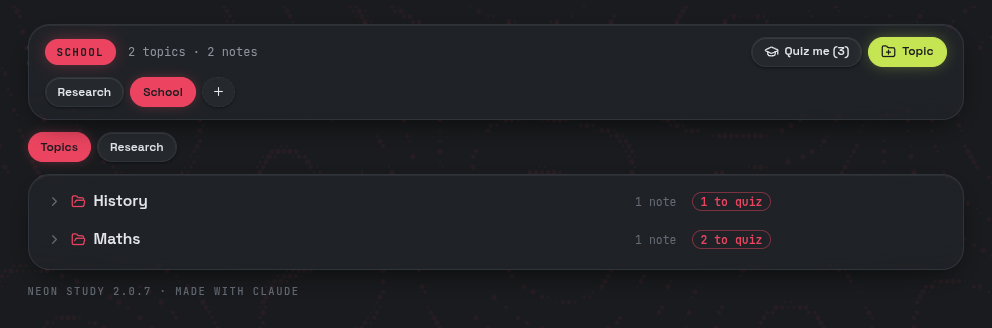
- Its own Study tab, separate from work: one tree of topics → subtopics → notes. Topics are folders, so the tree matches Obsidian's own file views.
- Sections: Research, School or any folder you like, each with its own tree, quiz counts and history. Switch at the top of the tab; + adds a section (pick a folder or type a new one), right-click renames or removes it.
- Research list: the Research subtab is a checklist of things to look into. Enter adds a topic and keeps the box ready for the next; pasting several lines adds one topic per line.
- + on a topic adds a subtopic or a note; ⋯ (or right-click) renames, quizzes or deletes. Deleting asks first and goes to the system trash. Notes open in the main pane.
- Quiz cards: a line
Question :: Answerin a note becomes a card; type/flashcardin a note to open a card editor (live preview, add several, insert at the cursor), or use the Flashcards button in a research note to add them through a small form. "Quiz me" asks all due cards, or one topic's from its ⋯ menu (space shows the answer, 1 / 2 / 3 = again / hard / easy). - Link suggestions: in a research note, the status bar offers to link words that match other research note titles.
- Research notes are left out of work time by default (
untracked: true).
Install
Neon Deck isn't in the Community plugins list yet. Install it by hand:
- Download
neon-deck.zipfrom the latest release and unzip it. - Drag the resulting
neon-deckfolder into your vault's.obsidian/plugins/folder (create it if needed). - In Obsidian, open Settings → Community plugins, turn off Restricted mode if needed, and enable Neon Deck.
- Open the dashboard from the ribbon
▦icon orCtrl+P → Neon Deck: Open dashboard.
Updating: copy only main.js, manifest.json and styles.css from the new release over the ones in .obsidian/plugins/neon-deck/, then reload. Don't delete or replace the neon-deck folder itself: it also holds your settings and module data (tracked time, ticket and task settings). Ticket templates are notes in Core/Tickets/Templates, so they are safe either way.
If the ZIP is not attached to an older release, download its three files instead and put them in .obsidian/plugins/neon-deck/. Maintainers can add the ZIP to an existing release with Actions → Package installer.
Requires Obsidian 1.5.0 or later, desktop.
Upgrading from 1.x (six plugins): replace the files in neon-deck/ as above, turn off Neon Tasks, Time, Tickets, Research (now Study) and Write, and reload. Their settings and data are copied once into Neon Deck (the old files stay). Hotkeys are not carried over: set them again in Settings → Hotkeys. Then you can delete the five old plugin folders.
Safe mode: if Neon Deck ever fails while starting, the next start keeps all modules off; turn them back on one by one in Settings → Neon Deck modules.
Quick capture has no default hotkey (community plugin rule); set one in Settings → Hotkeys.
For developers
- Sources are in
src/(one job per file);MAP.mdlists every file with its functions,CLAUDE.mdhas the rules. - Build:
node tools/build.mjs→dist/neon-deck/(no dependencies). Each former plugin is a module: a childPluginrun bysrc/kernel/mother.js, so it keeps its own commands, settings tab and data. - Check:
node --test test/*.test.mjs(unit tests) andnode tools/check.mjs dist(local-only, cleanup, timers, writes, CSS…). - Saved data (
data.json,modules.json) is personal and isn't in this repo. - To release: bump
src/kernel/manifest.jsonandversions.json, build, attach the three files fromdist/neon-deck/to a GitHub release. Then run Actions → Package installer with the release tag to attach the one-folder ZIP.
Release notes
Only the latest release notes are kept: 2.1.4: community plugin readiness (public API only, no default hotkeys, no light/dark toggle). Older notes are in the git history.
License
Free to use and fork, never to sell. From 1.6.0 on, Neon Deck is licensed under CC BY-NC-SA 4.0: you may use, share and fork it with credit, but not sell it or use it commercially, and forks must keep the same license so they stay free too. See LICENSE. (Versions up to 1.5.0 were MIT.) The bundled fonts keep their own license (see below).
Credits
Made by Yobzs with Claude.
Bundled fonts (in src/deck/fonts/, embedded in styles.css): JetBrains Mono, Space Grotesk and Unbounded, all under the SIL Open Font License 1.1. See src/deck/fonts/OFL.txt.