Neokeys
 friesentius36 downloads
Neovim-inspired leader keys and sequential keybindings.
- Overview
- Scorecard
- Updates4
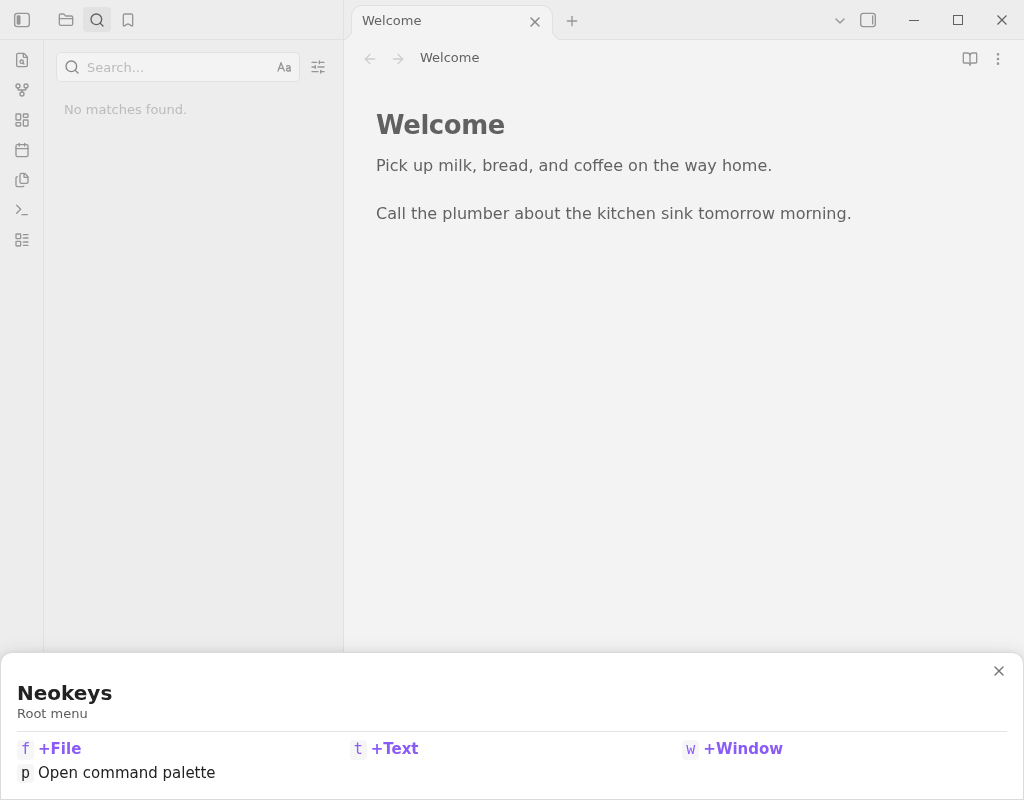
Neovim-inspired leader keys and sequential keybindings for Obsidian, loosely based on Spacekeys. Press a leader key, then a short sequence of keys, to walk a branching, which-key-style menu of commands and files instead of hunting for a hotkey.
Installation
From Obsidian's Community plugins
- Open Settings → Community plugins → Browse.
- Search for Neokeys and select Install, then Enable.
From a release (manual)
- Download
main.js,manifest.json, andstyles.cssfrom the latest release into<your-vault>/.obsidian/plugins/neokeys/. - Reload Obsidian (or disable/re-enable the plugin) and turn on Neokeys under Settings → Community plugins.
From source
- Clone or download this repository into
<your-vault>/.obsidian/plugins/neokeys/. - Build the plugin:
npm install && npm run build. - Reload Obsidian (or disable/re-enable the plugin) and turn on Neokeys under Settings → Community plugins.
Setting up the leader key
Neokeys ships with no default hotkey (this is deliberate, and is what Obsidian's plugin guidelines expect). To assign one:
- Open Settings → Hotkeys.
- Search for Neokeys: Leader.
- Click the
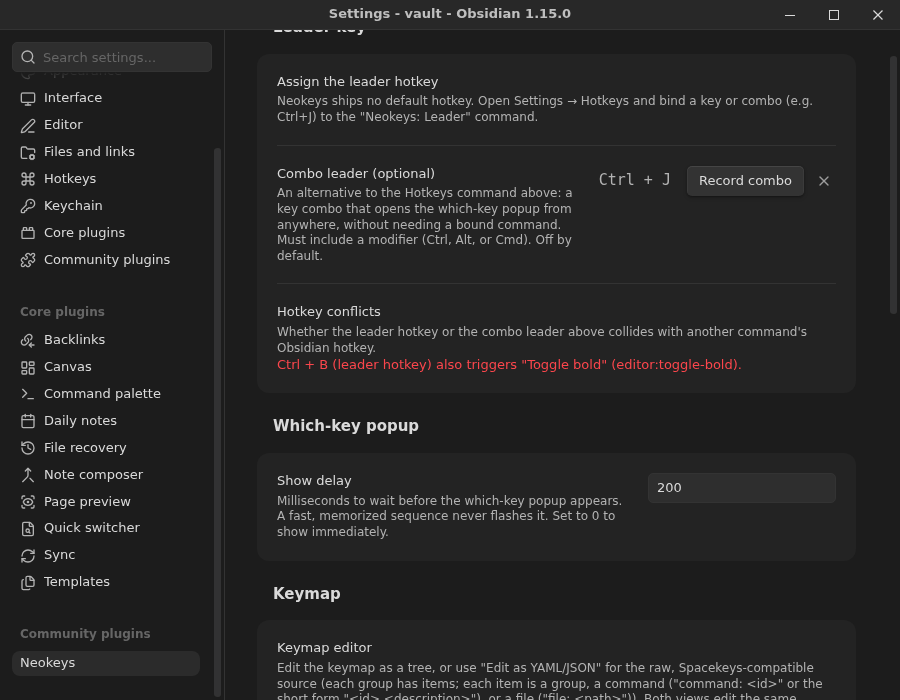
+and press the key or combo you want as your leader (e.g.Ctrl+J; avoid combos Obsidian already uses, likeCtrl+Bfor Bold).
Pressing the leader opens the which-key popup at the root of your keymap. Type further keys to
descend into a group, Backspace to go back up one level, and Esc to close
the popup at any point. The header shows a breadcrumb of the group labels you've descended
through (e.g. Text > Heading), not just the raw keys you pressed.
Combo leader (optional)
As an alternative to the Hotkeys command above, Settings → Neokeys has a Combo leader field:
click Record combo and press the key combo you want, e.g. Ctrl+J. This opens the which-key
popup directly, without needing a bound Obsidian command. It's off (empty) by default, so
existing users see no change, and it must include a modifier (Ctrl, Alt, or Cmd) - a bare or
shift-only combo is rejected with an explanation, since a modifier-free leader would collide with
ordinary typing. Click the x button next to the field to clear it.
Hotkey conflicts
Settings → Neokeys has a Hotkey conflicts row that checks both the leader hotkey (from
Settings → Hotkeys) and the combo leader above against every other command's current Obsidian
hotkey, and names the colliding command if either one collides (e.g. binding the leader to
Ctrl+B shows that it also triggers Obsidian's own "Toggle bold"). This is a warning only -
Neokeys doesn't block the binding - since Obsidian itself lets the same key trigger more than one
thing and you may prefer Neokeys to win.
Animations
Settings → Neokeys has an Animations toggle (on by default) and an Animation duration field (0-1000ms, default 150). With animations on, the which-key popup slides in from the bottom edge when it first appears, and crossfades between menus as you navigate into or back out of a group. Keypress handling is never affected by this - a fast sequence of keys is read and acted on immediately regardless of what's currently animating. If your OS has a reduced-motion accessibility preference turned on, Neokeys never animates, no matter how the toggle is set.
The keymap
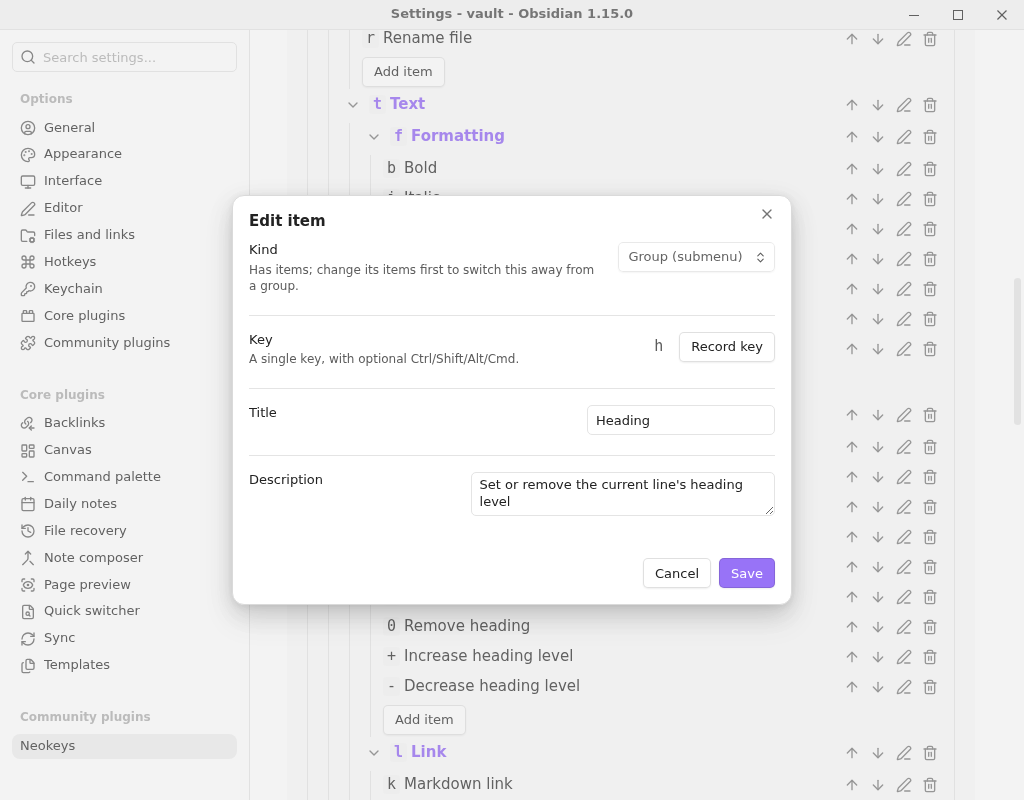
Open Settings → Neokeys to edit the keymap as an expandable tree: add, edit, delete, and reorder groups, commands, and files; edit a group's title and description (along with any entry's key) through the same Edit dialog used for commands and files, since the root menu is the only place those fields are shown inline; and pick a command from Obsidian's currently registered commands with a searchable picker, rather than typing a raw command ID by hand. Click Edit as YAML/JSON to switch to the raw, Spacekeys-compatible source instead (JSON is also accepted, since JSON is valid YAML) - both views edit the same stored keymap, so a change in one shows up in the other, and switching back from the YAML view with invalid text is blocked (with the error shown) rather than silently discarding your edit or overwriting the tree.
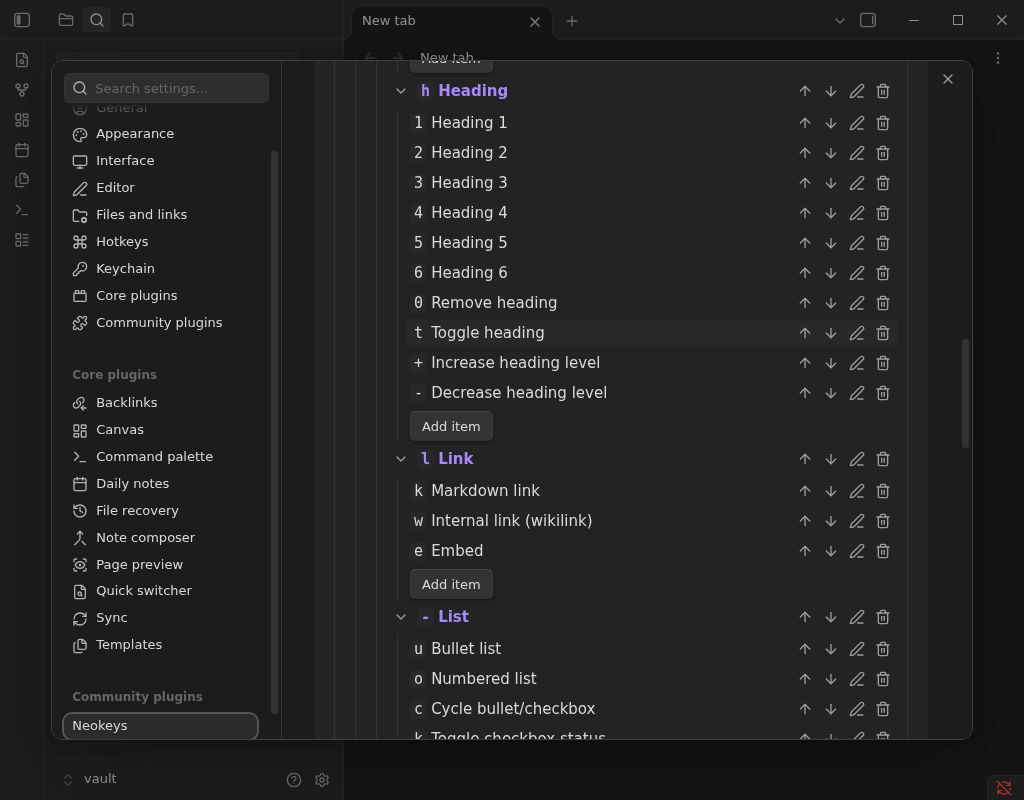
The which-key popup shows a group's entries in the order you arrange them in the tree editor (or
write them in the YAML's items) - reordering an item moves it in the popup too, not just in the
editor. Within that stored order, groups are always listed before files, and files before
commands, so submenus stay easy to find first.
The schema is Spacekeys-compatible, with a title added to each group so the which-key popup can
show a heading for the section you're in. Every entry under items is one of:
- A group - has nested
items, plus an optionaltitleanddescriptionshown as the popup's header when you're inside it. - A command -
command: <command-id>, or the short form"<command-id> <description>". An optionaldescriptionoverrides the label shown in the popup. - A file -
file: <vault-relative-path>, opened with the same resolution as Obsidian's internal links. An optionaldescriptionoverrides the label.
title: Neokeys
description: Root menu
items:
  f:
    title: File
    description: Create, open, and manage files
    items:
      n: file-explorer:new-file New file
      s: editor:save-file Save file
      d: app:delete-file Delete current file
  t:
    title: Text
    description: Formatting for the current selection or line
    items:
      h:
        title: Heading
        description: Set or remove the current line's heading level
        items:
          '1': editor:set-heading-1 Heading 1
          '+': neokeys:increase-heading-level Increase heading level
          '-': neokeys:decrease-heading-level Decrease heading level
The default keymap
A fresh install ships with four root groups: File (f), Text (t), Window (w),
and Command palette (p). Text groups formatting under five subgroups - Formatting (f:
bold, italic, strikethrough, code, highlight, blockquote, clear formatting), Heading (h:
set heading 1-6, remove heading, and increase/decrease heading level), Link
(l: Markdown link, wikilink, embed), List (-: bullet/numbered list, checklist, indent), and
Add (a: table, code block, math, footnote, horizontal rule, callout, tag). Window groups
tab/split/window management, loosely following the terminal multiplexer herdr's tab/pane/workspace
mnemonics (c for new, not n, so n/p stay free for next/previous); splitting is bound
directly on v (split right) and - (split down), not through a submenu.
Increase/decrease heading level
Obsidian has no built-in command to shift a heading's level up or down - only jump to an absolute
level (editor:set-heading-1..-6) or remove it (editor:set-heading-0). Neokeys adds its own
neokeys:increase-heading-level and neokeys:decrease-heading-level commands (bound to h + /
h - in the Heading submenu) that read the current line's heading level and step it by one.
"Increase" cycles plain text -> H1 -> H2 -> ... -> H6 -> plain text; "decrease" is the exact
reverse, plain text -> H6 -> H5 -> ... -> H1 -> plain text. Both ends wrap rather than stopping, so
either command can be pressed repeatedly to cycle through every level. Both commands apply to
every line touched by the current selection, or the cursor's line when nothing is selected; a
multi-line selection that ends at the very start of a line leaves that last line alone.
A key string is an optional run of modifier letters (c/s/a/m for ctrl/shift/alt/meta)
followed by a - and a base key, e.g. c-enter for Ctrl+Enter, or just a single character for
an unmodified key, e.g. f. Printable characters are case-sensitive: F is Shift+F, and s-f
or cs-f are equivalent to F and c-F. Any other shifted character must be written as the
character itself, e.g. ? rather than s-/ or ! rather than s-1; those forms are rejected.
A handful of named keys are recognized as aliases: space, up/down/left/right, enter,
esc, tab, backspace, delete, home, end, pageup, pagedown, insert, and
f1–f12.
Tree edits save immediately. In the YAML/JSON view, click Save keymap to apply changes; an
invalid keymap is rejected with an error message that points at the exact field (e.g.
items.f.items.d) that needs fixing, and the previously saved keymap keeps working until you fix
it.
Any edit made in the tree editor rewrites the stored keymap in a normalized YAML form: comments are
dropped and the short command form ("<command-id> <description>") is expanded into explicit
command/description fields. Editing only through the YAML/JSON view never rewrites anything, so
your comments and formatting are kept exactly as you wrote them there. Deleting a group that still
has items asks for confirmation first, naming the group and how many entries it contains; deleting
anything else happens in one click.
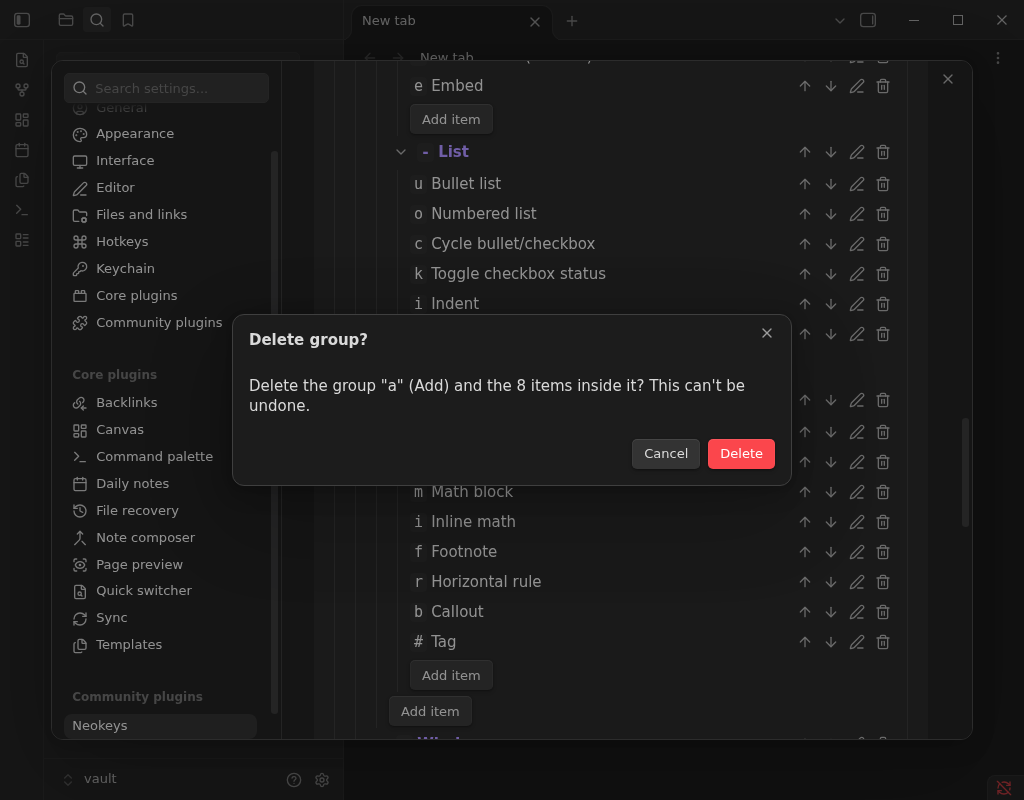
A keymap can still parse successfully but reference a command ID Obsidian doesn't currently recognize (a typo, or a plugin that's disabled) - this doesn't block saving, since the command might belong to a plugin you just haven't enabled yet. Settings → Neokeys lists any such entries under Invalid commands, by key path and command ID, and the which-key popup marks the same entries in red with an "Unknown command" badge; pressing one shows a notice instead of silently doing nothing.
The show delay setting controls how long (in milliseconds) the popup waits before revealing the key/label grid (with animations on, the whole bar waits, then slides in as its backdrop fades in), so a sequence you already know by muscle memory never flashes it. There is no forced abandon-timeout: a half-typed sequence waits indefinitely until it resolves, dead-ends, is backspaced away, or you press Esc.
Compatibility
Desktop only for now (isDesktopOnly: true); mobile support is a possible future stretch goal,
since there is no public API signal for "a hardware keyboard is attached."
Development
npm installnpm run dev- esbuild in watch modenpm run build- typecheck + production buildnpm test- Jest unit tests (key parsing, keymap parsing/validation and serialization, tree edit operations, tree resolution/sorting, delay logic, combo-leader validation, command-ID validation, breadcrumb building, hotkey-conflict detection, animation settings, heading-level increase/decrease)npm run lint- ESLint witheslint-plugin-obsidianmd's recommended config, plus@eslint/css'sno-importantonstyles.css, mirroring the community directory's source and CSS scans (seeeslint.config.mjsfor why the plugin version is pinned)npm run validate- mirrors the parts of Obsidian's community-plugin submission checks that don't require a live GitHub release (manifest/versions shape,id/versionformat)
Branching and releases
Feature and fix PRs target dev, not main (.no-mistakes.yaml sets this as the default PR
base branch); CI runs on pushes and PRs to both. main stays the GitHub default branch, since
Obsidian reads the default branch's manifest for the community-plugin listing.
To cut a release: bump the version with npm version <patch|minor|major> --no-git-tag-version
(updates package.json, manifest.json, and versions.json without creating a git tag),
then open a dev -> main PR whose description is the release notes. Merging that PR into
main publishes the release with no manual tagging: .github/workflows/release.yml reads
manifest.json's version on every push to main and, only when no release for that exact
version exists yet, runs lint/typecheck/test/build/validate, then creates the annotated tag,
then publishes the GitHub release with the PR body as notes, followed by the generated commit
list. Merging a PR without a version bump (or re-merging the same version) is a no-op release
run.
Support
If Neokeys is useful to you, you can support its development on Ko-fi.