Murmur
 kaurimark86 downloads
Read your notes aloud with karaoke-style highlighting. Multiple TTS providers supported.
- Overview
- Scorecard
- Updates5
Read any Obsidian note aloud—with highlighting that follows the words.
Generic read-aloud tools flatten Markdown into mush. Murmur understands the common shapes of an Obsidian note, adds pauses around headings, paragraphs, and list items, and keeps your place visible while you listen.
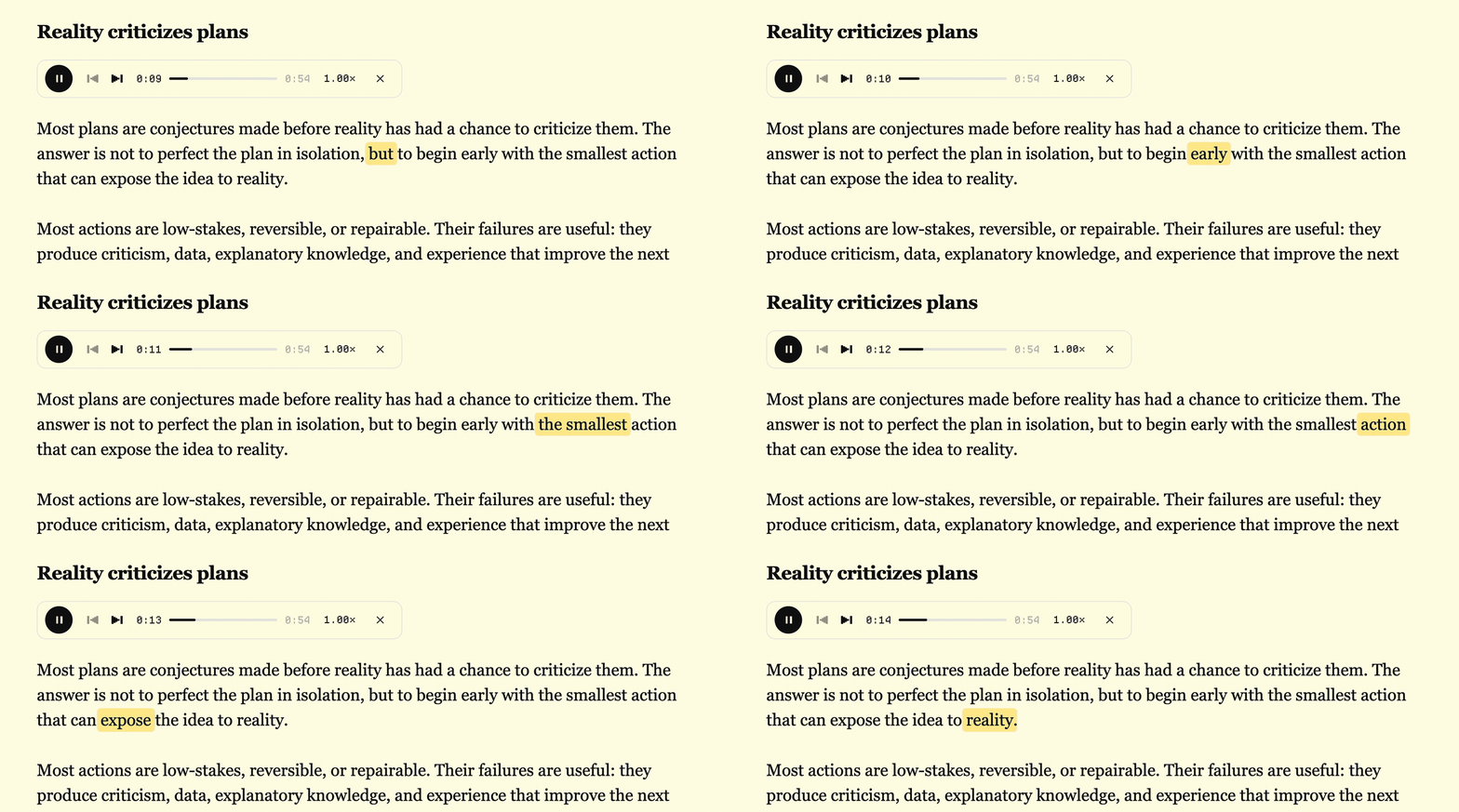
Watch with sound
https://github.com/user-attachments/assets/d440a7c3-ecf0-4c6a-88f8-0aca7bf83dce
Captured in Obsidian 1.12.7 with Murmur's inline player.
Before installing: Murmur is desktop-only and requires Obsidian 1.11.4+, an internet connection, and your own TTS-provider API key. Note text is sent directly to that provider, whose usage may cost money. Murmur itself has no server, account, analytics, or telemetry.
Install
- In Obsidian, open Settings → Community plugins → Browse.
- Search for Murmur.
- Select Install, then Enable.
What it does
- Reads the current note or only the text you select
- Adds listenable pacing and removes common Obsidian markup before speech generation
- Highlights spoken text during whole-note playback in Source mode and Live Preview
- Pauses, skips between spoken segments, seeks within the current segment, and plays from 0.75× to 2× speed
- Replays unchanged passages from a local cache instead of generating them again
Use
- Open Settings → Murmur, choose a provider, and add its API key.
- Click Murmur's ribbon icon or run Read note (or selection) from the command palette.
- Optionally assign that command a hotkey under Settings → Hotkeys.
If text is selected, Murmur reads the selection. Otherwise it reads the whole note.
Privacy, cost, and cache
API keys are stored through Obsidian's SecretStorage. Murmur's ordinary data.json contains only a reference to the stored secret, not the key itself.
Generated MP3 audio and alignment data are cached unencrypted under <vault>/.obsidian/plugins/murmur/cache/, up to 500 MB by default. Depending on your vault setup, those files may be included in backups or sync. You can change the limit or clear the cache from Settings → Murmur.
The plugin is free and open source. Generating new audio uses your provider account and may incur provider charges; replaying cached audio does not.
Providers
All five providers require their own API key. Their pricing, language support, and data policies apply.
Affiliate disclosure: I may earn a commission at no extra cost if you sign up for ElevenLabs through the marked link. It does not affect the plugin. The other links are ordinary links.
| Provider | Murmur integration |
|---|---|
| ElevenLabs (affiliate) | Uses API character timestamps for the most precise highlighting; requires a voice ID |
| Inworld | Includes built-in voice and model choices; highlighting uses uniform estimated timing |
| Fish Audio | Uses a Fish Audio voice-reference ID; highlighting uses uniform estimated timing |
| Cartesia | Requires a Cartesia voice ID; highlighting uses uniform estimated timing |
| OpenAI | Murmur currently exposes six built-in voices; highlighting uses uniform estimated timing |
Fish Audio API usage is billed from a separate API wallet, even if you already have a Fish Audio subscription.
Current limitations
- No mobile support. Obsidian blocks installation because Murmur is currently marked desktop-only.
- Selection highlighting is not reliable yet. Selection playback works, but correct editor highlighting currently requires whole-note playback.
- Reading view has no inline player or highlighting. Audio continues, and a floating controller may remain visible if enabled.
- Detected tables and triple-backtick code blocks are announced and skipped, not narrated.
- Non-ElevenLabs highlighting is approximate. Murmur divides total audio duration uniformly across characters, so the highlighted word can visibly drift during ordinary speech.
Development
npm install
npm test
npm run lint
npm run build
For local testing, clone the repository into <vault>/.obsidian/plugins/murmur/, build it, then reload Community plugins in Obsidian.
License
MIT — see LICENSE.
Support
Found a bug or rough edge? Open an issue.
If Murmur is useful and you want to support it, you can buy me a coffee.