Morse Translator
 shangchengwen91 downloads
Enter Morse code in a floating window, translate it in real time, and insert it into the document.
- Overview
- Scorecard
- Updates2
中文
简介
摩尔斯码翻译器是一个为 Obsidian 笔记应用开发的插件,允许您在悬浮窗口中输入摩尔斯码,并实时翻译成文本,直接插入到当前编辑的笔记中。
主要功能
- 悬浮窗口 – 可拖动的独立窗口,不干扰主界面操作
- 实时翻译 – 输入摩尔斯码时即时显示翻译预览
- 多种输入方式 – 支持空格分隔字母,斜杠
/分隔单词 - 灵活插入 – 手动按
Enter插入,或开启自动插入(停止输入后自动插入) - 大小写控制 – 可选择输出大写或小写字母
- 自定义字符映射 – 支持自定义点(
.)和横(-)的替代字符 - 多语言界面 – 支持中文和英文界面切换
- 命令支持 – 通过命令面板或快捷键打开/关闭翻译器
安装方法
手动安装
- 下载插件文件夹,放入 Obsidian 库目录下的
.obsidian/plugins/文件夹中。 - 在 Obsidian 中打开
设置→第三方插件,关闭安全模式。 - 找到
摩尔斯码翻译器并启用。
使用方法
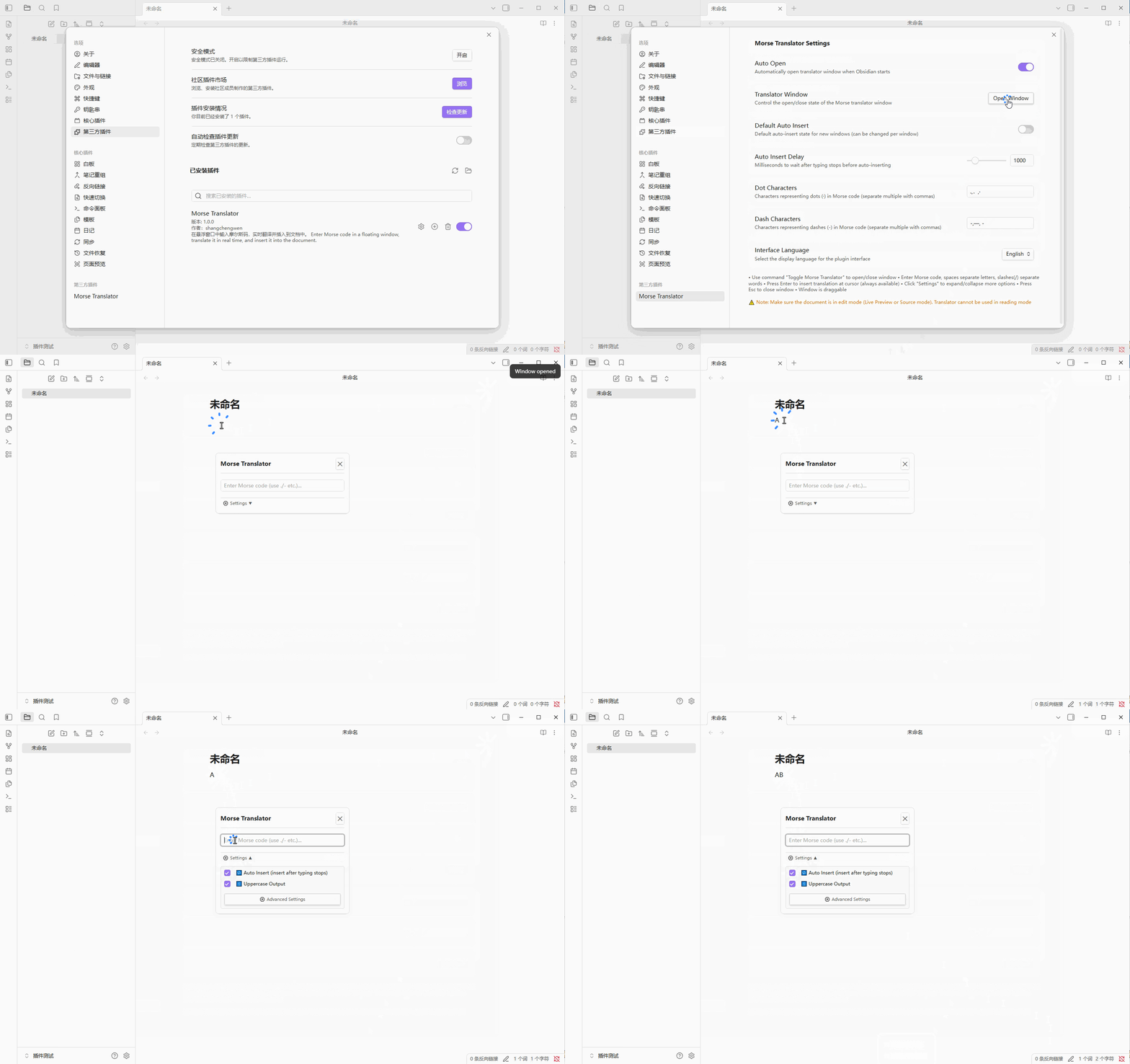
打开翻译器
- 命令面板中执行
切换摩尔斯码翻译器或打开摩尔斯码翻译器 - 或在设置中开启
自动打开,启动 Obsidian 时自动打开
- 命令面板中执行
输入摩尔斯码
- 字母之间用 空格 分隔
- 单词之间用 斜杠 / 分隔
- 示例:
.... . .-.. .-.. --- / .-- --- .-. .-.. -..→HELLO WORLD
插入文本
- 按
Enter立即插入翻译结果 - 或开启
自动输入,停止输入后自动插入(等待时间可调)
- 按
其他操作
- 按
Esc关闭窗口 - 拖动标题栏可移动窗口位置
- 点击
设置选项展开/折叠更多控制项
- 按
自定义设置
| 设置项 | 说明 |
|---|---|
| 自动打开 | 启动 Obsidian 时自动打开翻译器窗口 |
| 全局默认自动输入 | 新打开窗口时的默认自动输入状态 |
| 自动输入等待时间 | 停止输入后等待多少毫秒自动插入(300–5000ms) |
| 点字符集合 | 用于表示摩尔斯码中点的字符(如 .、.、·) |
| 横字符集合 | 用于表示摩尔斯码中横的字符(如 -、—、-) |
| 界面语言 | 选择中文或英文界面 |
快捷键支持
插件本身不预设快捷键,您可以在 Obsidian 的热键设置中为以下命令自定义快捷键:
切换摩尔斯码翻译器打开摩尔斯码翻译器关闭摩尔斯码翻译器
注意事项
- 请确保文档处于 编辑模式(实时预览或源码模式),阅读模式下无法使用
- 输入的无效字符会以红色提示,不会影响翻译
开发信息
- 作者:shangchengwen
- 版本:1.0.0
- 开源协议:MIT
English
Introduction
Morse Translator is an Obsidian plugin that allows you to enter Morse code in a floating window, get real-time translation, and insert the decoded text directly into your current note.

Features
- Floating Window – Draggable, non-intrusive window
- Real-time Translation – See translation preview as you type
- Flexible Input – Spaces separate letters, slashes
/separate words - Flexible Insertion – Manual
Enterinsertion or auto-insert after typing stops - Case Control – Choose uppercase or lowercase output
- Custom Character Mapping – Define alternative characters for dots (
.) and dashes (-) - Bilingual Interface – Switch between Chinese and English
- Command Support – Open/close the translator via command palette or hotkeys
Installation
Manual Installation
- Download the plugin folder and place it in
.obsidian/plugins/under your Obsidian vault. - Open
Settings→Third-party pluginsin Obsidian, turn off Safe Mode. - Find
Morse Translatorand enable it.
Usage
Open the Translator
- Run
Toggle Morse TranslatororOpen Morse Translatorfrom the command palette - Or enable
Auto Openin settings to open when Obsidian starts
- Run
Enter Morse Code
- Separate letters with spaces
- Separate words with slashes /
- Example:
.... . .-.. .-.. --- / .-- --- .-. .-.. -..→HELLO WORLD
Insert Text
- Press
Enterto insert translation immediately - Or enable
Auto Insertto insert automatically after you stop typing (delay adjustable)
- Press
Other Actions
- Press
Escto close the window - Drag the title bar to move the window
- Click
Settingsto expand/collapse more controls
- Press
Settings
| Setting | Description |
|---|---|
| Auto Open | Automatically open the translator window when Obsidian starts |
| Default Auto Insert | Default auto-insert state for new windows |
| Auto Insert Delay | Milliseconds to wait after typing stops before auto-inserting (300–5000ms) |
| Dot Characters | Characters representing dots in Morse code (e.g., ., ., ·) |
| Dash Characters | Characters representing dashes in Morse code (e.g., -, —, -) |
| Interface Language | Select Chinese or English interface |
Hotkeys
The plugin does not preset hotkeys. You can assign your own shortcuts in Obsidian's Hotkey settings for the following commands:
Toggle Morse TranslatorOpen Morse TranslatorClose Morse Translator
Notes
- Make sure your document is in Edit Mode (Live Preview or Source mode). The translator cannot be used in Reading Mode.
- Invalid characters are highlighted in red and will not affect translation.
Development Info
- Author: shangchengwen
- Version: 1.0.0
- License: MIT
反馈与贡献
如果您有任何问题或建议,欢迎通过 GitHub Issues 提交反馈。
For any questions or suggestions, please submit an issue on GitHub.
HealthExcellent
ReviewPassed
About
Translate Morse from a draggable floating window with live preview and insert decoded text into the active note. Use spaces for letters and / for words, enable auto-insert after typing stops, pick case, customize dot/dash characters, and open via command palette or hotkeys.Details
Current version
1.1.0
Last updated
3 months ago
Created
4 months ago
Updates
2 releases
Downloads
91
Compatible with
Obsidian 1.12.4+
Platforms
Desktop, Mobile
License
MIT