
- Overview
- Scorecard
- Updates6
A tiny WYSIWYG-style Markdown formatting layer for Obsidian users.
English | Русский | Español | Deutsch | 中文 | 日本語
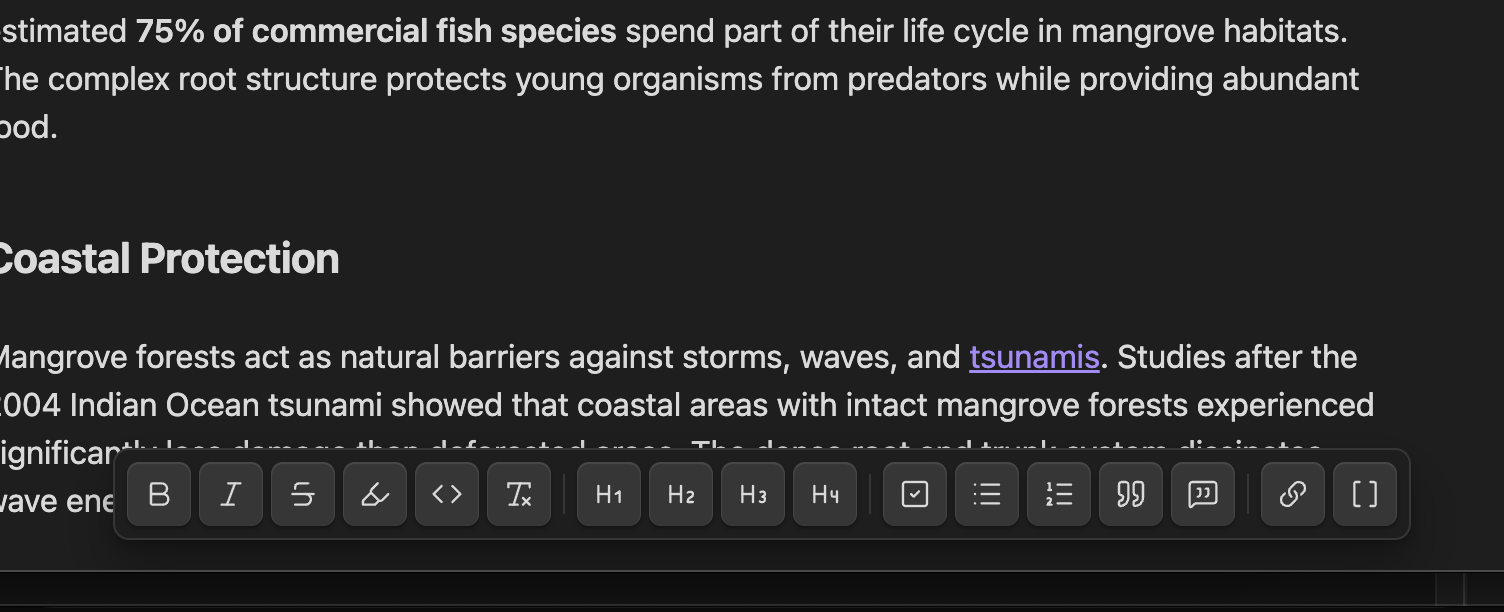
mdMenu is a clean-room Obsidian Markdown toolbar inspired by cMenu. It gives the editor a mini WYSIWYG-style layer for common formatting while keeping your notes as plain Markdown underneath. Headings, checkboxes, callouts, links, highlights, code, lists, bold, italic, and a few quiet helpers stay right next to the text you are writing.
Keep it pinned at the bottom. Let it follow the selection. Drag it somewhere comfortable and leave it there. You still write Markdown, just with fewer command palette trips, fewer memorized shortcuts, and a little more direct manipulation.
Status: GitHub-release ready. Community plugin submission: in progress.
What works now
Markdown actions
The built-in command registry covers:
- Bold
- Italic
- Strikethrough
- Underline
- Highlight
- Clear formatting
- Inline code
- Code block
- Block quote
- Callout
- Checkbox
- Bulleted list
- Numbered list
- Markdown link
- Wikilink
- Headings H1-H6
The default toolbar doesn't show every command at once. It starts with a useful writing set and leaves the rest available through presets or the settings tab.
Headings
The default toolbar shows H1, H2, H3, and H4 as separate buttons. H5, H6, and the grouped heading menu are still there if you want a different setup.
Toolbar placement
mdMenu has four placement modes:
fixed: keep the toolbar at the bottom of the workspace.selection: show it near selected text.cursor: place it near the current editor selection or caret when the browser gives mdMenu a usable selection rectangle.manual: drag it by the handle and keep the saved position.
Selection, cursor, and manual placement stay inside the viewport, even in small windows.
Toolbar customization
The toolbar is editable from settings:
- Add any built-in command that isn't already on the toolbar.
- Search for and add any available command from Obsidian's command palette.
- Remove buttons you don't use.
- Add visual separators between groups.
- Reorder buttons with drag and drop.
- Reorder buttons with arrow controls if drag and drop is awkward.
- Reset the toolbar back to the default set.
Separators are real toolbar items, so you can make the bar read like groups instead of one long strip of icons.
Presets
Presets are quick starting points:
Writer: the full default set for regular Markdown writing.Zettelkasten: headings, checkboxes, quotes, highlights, wikilinks, and Markdown links.Code notes: inline code, code blocks, lists, callouts, and links.Compact: a shorter toolbar with grouped headings and the compact visual style.
After picking a preset, you can still add buttons, remove buttons, add separators, and reorder everything. Presets don't lock the toolbar. They just save you from building the first version by hand.
Styles
default: regular Obsidian toolbar density.compact: smaller buttons when the note needs more room.
Both styles use Obsidian theme variables, so mdMenu follows light and dark themes without adding its own color system.
Editing details
- Toolbar actions return focus to the active Markdown editor.
- Empty inline-format actions put the cursor between the inserted markers.
- Selecting already wrapped text and pressing the same inline action removes the wrapper.
- Checkbox toggling preserves indentation and handles empty checked or unchecked task items.
- Callout toggling turns the current line into
> [!note], or removes an existing callout marker. - Clear formatting removes common inline wrappers from the selection or current line.
- Heading, checkbox, and callout actions apply to every selected line.
- Code block toggling wraps or unwraps fenced code blocks.
Settings safety
Saved settings are normalized on load. If old or malformed data shows up, mdMenu falls back to defaults instead of breaking the toolbar.
Release support
The repo has a local release build and a tag-based GitHub release workflow. Release assets include main.js, manifest.json, and styles.css, with GitHub artifact attestations.
Settings
The settings tab lets you:
- Turn the toolbar on or off.
- Choose the placement mode.
- Choose the visual style.
- Reset the manual toolbar position.
- Apply toolbar presets: Writer, Zettelkasten, Code notes, and Compact.
- Add built-in toolbar buttons.
- Add commands from Obsidian's command palette.
- Add visual separators.
- Reorder toolbar buttons with drag and drop or arrow buttons.
- Remove toolbar buttons.
- Reset toolbar items to the default set.
Install from Community plugins
Install mdMenu from the official Obsidian Community Plugins directory:
mdMenu on Obsidian Community Plugins
Then enable mdMenu from Obsidian's community plugin settings.
Install with BRAT
BRAT can install mdMenu directly from GitHub releases:
- Install the "Obsidian42 - BRAT" plugin.
- In BRAT, add a beta plugin from
sandsaber/mdMenu. - Enable
mdMenufrom Obsidian's community plugin settings.
Install from GitHub release
Download these files from the latest GitHub release:
main.js
manifest.json
styles.css
Put them here in your vault:
.obsidian/plugins/mdmenu
Then enable mdMenu from Obsidian's community plugin settings.
Build locally
Build the release folder:
npm run build:dist
Copy this folder:
dist/mdmenu
to your vault:
.obsidian/plugins/mdmenu
Then enable mdMenu from Obsidian's community plugin settings.
Release files
npm run build:dist creates:
dist/mdmenu/main.js
dist/mdmenu/manifest.json
dist/mdmenu/styles.css
dist/mdmenu/LICENSE
dist/ is ignored by Git. Rebuild it when you need a fresh local package.
Release workflow
GitHub releases are created from semver tags without a v prefix:
git tag 1.0.3
git push origin 1.0.3
The release workflow runs on tags matching x.y.z. It installs dependencies with npm ci, runs npm audit --omit=dev, lints, typechecks, runs tests, builds dist/mdmenu, checks that the tag matches package.json and manifest.json, verifies release assets, creates GitHub artifact attestations, and publishes main.js, manifest.json, and styles.css.
Development
Install dependencies:
npm install
Run tests:
npm run test
Run lint checks:
npm run lint
Run TypeScript checks:
npm run typecheck
Build the root plugin bundle:
npm run build
Build the release folder:
npm run build:dist
Run the full pre-release check:
npm run check
npm run check runs lint checks, tests, the production build, the release folder build, and npm audit --omit=dev.
Test coverage
The current tests cover:
- Settings normalization.
- Markdown transforms.
- H1-H6 heading application.
- Checkbox edge cases.
- Callout and clear-formatting transforms.
- Toolbar command registry.
- Contextual toolbar positioning.
- Event coalescing and active-document switching.
- Multiline Markdown transforms and fenced code blocks.
Roadmap
Next up:
- Better cursor geometry when Obsidian exposes a stable editor-coordinate API.
- Keyboard navigation and touch-target refinements.
- Automated UI smoke tests for common themes, mobile layouts, and pop-out windows.
Privacy
mdMenu runs locally inside Obsidian. It doesn't send notes, selections, settings, or telemetry anywhere.
Inspiration
mdMenu is inspired by cMenu, an earlier Obsidian formatting toolbar plugin. This project doesn't copy cMenu source files.
License
MIT. See LICENSE.