Mappy
 hiroyaiizuka123 downloads
View and edit Markdown as linked, illustrated mind maps.
- Overview
- Scorecard
- Updates18
English | 日本語 | Documentation
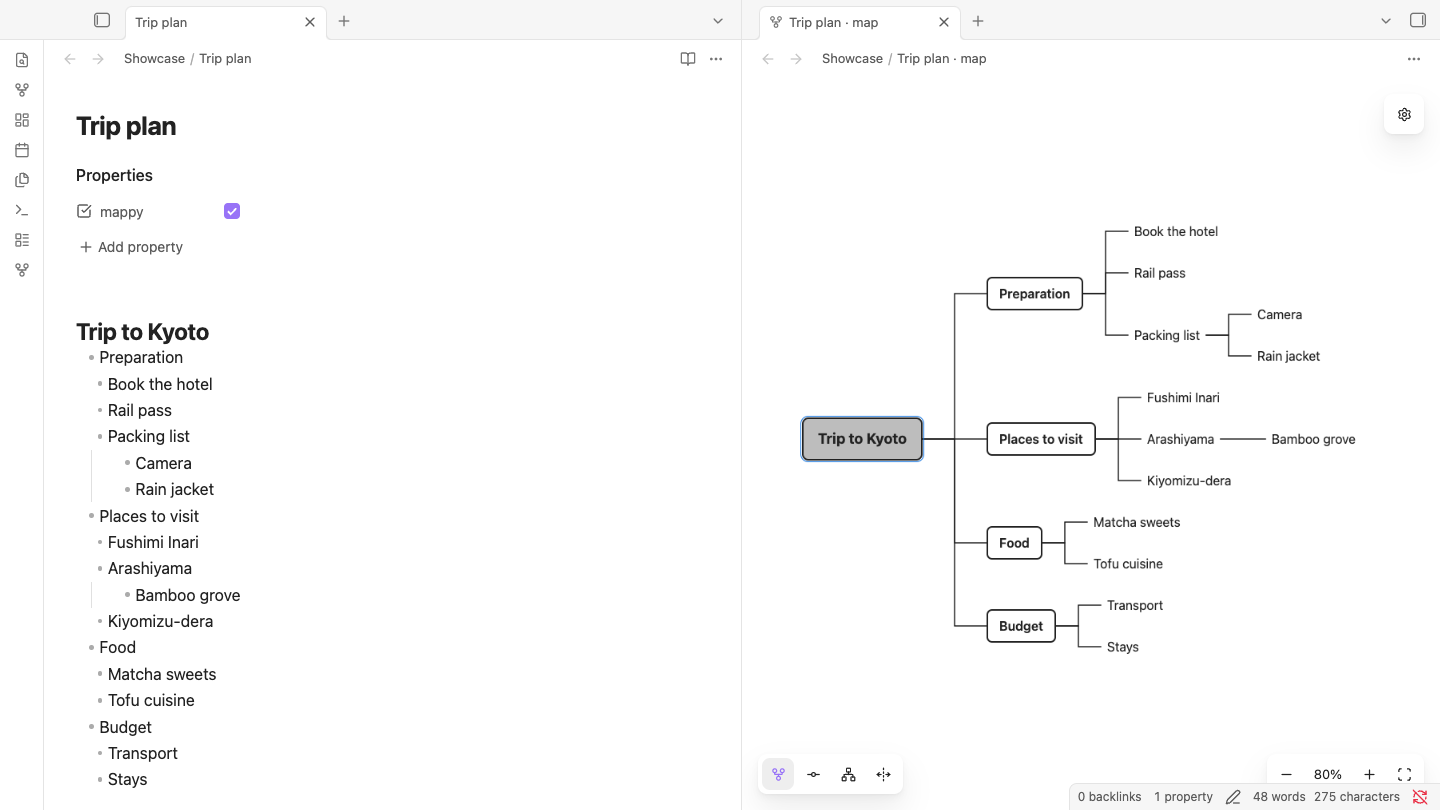
Mappy lets you read and edit an Obsidian note as a mind map, without turning it into anything else. A plain note written with H2 headings and bullet lists is shown in one of four layouts (mind map, timeline, hierarchy, balanced), and adding, editing and moving nodes writes back to that note's Markdown. There is no special file format: without Mappy, the note is still headings and bullet lists.
0.x is a beta. It has been checked only with Obsidian on macOS desktop. Real typing with a Japanese IME, Windows and Linux have not been checked yet, and it doesn't run on mobile for now (see Compatibility and Known limitations). Before using it in your everyday vault, make sure you have a backup such as git or Obsidian Sync.
What it does
- Switch one note between Markdown and a map, or put the two side by side; an edit in either shows up in the other at once
- Add a sibling or child with Enter/Tab and type in place, drag to reorder or change the parent (the destination is shown beforehand), fold branches, undo and redo
- Show internal links, external links and images in nodes, and suggest notes and attachments after
[[/![[ - Keep one of four layouts (mind map, timeline, hierarchy, balanced) per note
- Double-click empty space to place a second or later map (a free topic), and make it a branch of the main map later
- Write
![[Map note]]in another note to embed the map read-only - Insert a map into an Excalidraw drawing, or export it as SVG/PNG
- When another editor or an external tool (Cursor, Claude Code and so on) rewrites the file, the map updates as soon as Obsidian notices the change
Storage format
The Markdown is the single source of truth. Mappy has no files or database of its own: everything in a map is in the note's body and frontmatter.
The root is an H2 heading, and list indentation below it makes the hierarchy. The first line of an item is the node's text; there is no separate title field.
---
mappy: true
---
## Trip plan
- Preparation
  - Packing list
- Destinations
  - Kyoto
    - [[Kyoto notes]]
  - ![[map.png]]
Mappy writes three frontmatter keys. It only handles notes with mappy: true and leaves every other note alone.
| Key | Value | Meaning |
|---|---|---|
mappy |
true (a YAML boolean) |
Open this note as a map. "Turn this note into a mind map" writes it and "Turn off mind map for this note" removes it |
mappy-layout |
timeline / hierarchy / balanced |
The layout. Not written for the mind map layout (leaving it out means mind map) |
mappy-topics |
heading text: { mindmap: [x, y], timeline: [x, y] } |
Free topic positions, keyed by the heading text and saved per layout. When several topics share a heading, the second and later ones are keyed heading text (2), heading text (3)… (in source order; when that string is another heading's text, the smallest unused number) |
- Mappy rewrites a note only on an explicit action: turning it into a map or back, switching the layout, adding, editing, moving or deleting nodes, and moving free topics. Opening, viewing, flipping between the map and Markdown, and changing settings don't rewrite it.
- An edit replaces only the lines it changes. Other lines, other frontmatter keys, blank lines and line endings stay as they were.
- This list format applies when the note's top-level headings are all H2, or there are none. A note with H1, H3 or other headings is shown as a heading hierarchy (H2→H3→H4…) as it is, and is not converted automatically. "Change to list format" in the context menu converts it explicitly, and undo reverts it.
- Headings are read as Obsidian reads them. A line of text followed by
===/---(a setext heading) is a heading only when the text is a single line (including a single line with<br>).===/---under text of two or more lines is read as body paragraphs, not a heading, as Obsidian's reading view and outline do (with---, a paragraph and a horizontal rule). Mappy 0.3.8 and earlier showed this form as a heading node too, so in such notes that node leaves the map and becomes body text of the node above, and the nodes below it may get a new parent. A note whose only heading besides H2 was this form of===now opens as the list format, and the list items that used to be body text appear as nodes. The note's text doesn't change. To keep the node, make the heading text a single line in Markdown (use<br>for line breaks), or rewrite it as## Heading.%%…%%comments are also read as Obsidian reads them: inside one line they are part of that line's text, and across lines they count as a blank line (aHeadingand===right below a line holding only%%note%%are two lines of text, so they are not a heading; with a blank line between them, they are). - Numbered lists and task lists don't become nodes, but their text is kept as it is. A node shows its text and the links and images in its body. Body text (continuation lines before any child list) is not shown in the map; use "Edit body and links" in the context menu for it.
Installation
Mappy can be installed on the desktop version of Obsidian (1.8.7 or later; see Compatibility for what has been checked).
- Open Obsidian's Settings and choose Community plugins. If Restricted mode is on, turn it off first
- Click Browse, search for
Mappy, and choose Install - When it finishes, choose Enable
When a new version comes out, check for updates on the Community plugins screen to bring it in.
To install by hand, put the three files main.js, manifest.json and styles.css attached to a version on Releases in your vault's .obsidian/plugins/mappy/, then enable Mappy in the community plugins list (with Restricted mode off; if Mappy isn't listed, reload the list or restart Obsidian). The repository's source code does not work as it is.
For a step-by-step guide to using Mappy, see the documentation.
Basic usage
Opening and switching
Use the command palette, the ribbon icon on the left, or a file's context menu. No default hotkeys are registered; assign them in Obsidian's settings if you need them.
| Command | What it does |
|---|---|
| Create new mind map | Creates a note with mappy: true and an H2 root in the folder from the settings, and opens it. The file is named "Untitled mind map" and the root "Central topic" (written into the note as ## Central topic). Tab there adds a "Main topic", and Tab on that a "Subtopic" |
| Turn this note into a mind map | Writes mappy: true into the open note's frontmatter and opens it as a map (also in the file's context menu) |
| Open mind map | Opens a mappy: true note as a map (same as the ribbon icon) |
| Open mind map beside Markdown | Puts the map and the standard editor side by side. Run from a Markdown note, the map is on the left and the editor on the right. Run from a map, the Markdown opens on the left |
| Switch between map and Markdown | Flips the same pane between the two. The Markdown side scrolls to the selected node's line |
| Turn off mind map for this note | Removes mappy, mappy-layout and mappy-topics and goes back to Markdown, keeping the body |
| Change current map to list format | Converts a heading-hierarchy note to an H2 root and a list (undo reverts it) |
| Search and insert a map | Searches for another mappy: true note and adds it as an ![[Other map]] item at the end of the selected node's children. With nothing selected (after clicking empty space to clear the selection), places it near the main map as a ## ![[Other map]] free topic at the end of the note. Only while a map is active |
| Insert current map into Excalidraw drawing | See Adding to Excalidraw |
| Export current map as SVG or PNG | See Exporting to SVG or PNG |
A mappy: true note opened from a link or the file explorer also opens as a map. A pane switched to Markdown with "Switch between map and Markdown" stays Markdown when the same note is opened again. A map tab behaves like a Markdown tab: a note chosen from a link in the map or from the file explorer opens in that tab (Cmd/Ctrl+click for a new tab; pin the tab to keep it), and back/forward return to the map. [[#Heading]] and [[Note#^block]] select the node at that position, and when you move to another note while editing a node's text, what you typed is saved first. Escape on a node doesn't move focus to the neighboring tab. While a map is active, Obsidian's file commands such as "Rename file", "Copy file path" and "Delete current file" have no target in the map and don't act on the note next to it.
On the map
The canvas fills the view, with floating buttons: the layouts in the bottom-left corner, the gear (a popover of three items) in the top-right corner, and zoom in the bottom-right corner.
| Action | How |
|---|---|
| Gear | The gear in the top-right corner opens a popover below it with just three items: Switch to Markdown (Open the note in this tab), Search and insert a map (Insert another map) and Export (Save as SVG or PNG). ↑↓ move, Enter runs, and Escape, a click outside or pressing the gear again closes it. Node actions are on the keys below and in the context menu; everything else is in the command palette |
| Moving the selection | ↑/↓ in display order, ← to the parent, → to the first child. Clicking empty space clears the selection (dragging the background doesn't), and the arrow keys start again from the main root. Undo and redo work with nothing selected |
| Adding a sibling/child | Enter/Tab with a node selected. An input opens with a provisional name selected: "Main topic" for a node right under the root (of the map or of a topic), "Subtopic" further down. Typing replaces it (Enter without typing keeps the name, Escape right away cancels the addition, and Escape after typing cancels only the typing). A topic from double-clicking empty space or from the context menu (and a topic made with Enter on a topic's root) works the same way with "Topic". The provisional name is written into the note as it is, in Japanese (メイントピック, サブトピック, トピック) when Obsidian's language is Japanese |
| Editing text | Double-click or F2. Enter confirms, Shift+Enter breaks the line inside the node (saved on one line in Markdown, like Hot<br>springs), Escape cancels. The input widens with the text and wraps at the same width as the confirmed node (a line with link or emphasis syntax, a URL or runs of spaces may wrap at a different place than after confirming) |
| Adding children in a row | Tab while editing text confirms and adds a child |
| Link and attachment suggestions | [[ or ![[ while editing text. While suggestions are shown, Enter/Tab picks a suggestion first |
| Moving up/down | Alt (Option)+↑/↓, or the context menu |
| Reordering and changing the parent | Drag the node. A placeholder node and line show the destination beforehand; Escape puts it back |
| Deleting | Delete/Backspace (with its branch). Afterwards the sibling above is selected, or else the sibling below, or else the parent (in source order, also in the balanced layout). Clearing a free topic's title selects the topic above or below, or else the main root. The items of a main map without an H2 and the topics are treated as separate sequences; when nothing is left in the same sequence, the nearest node is selected. Undo brings it back |
| Folding | Space, or the round − that appears at a branch's fork. A folded branch shows how many descendants are hidden |
| Editing body and links / adding an image | The node's context menu |
| Undo/redo | Cmd/Ctrl+Z / Cmd/Ctrl+Shift+Z, or the context menu |
| Panning and zooming | Drag the background, scroll or pinch, scroll with a modifier key, or the buttons in the bottom-right corner |
| Inserting another map | Make a node's text just ![[Map note]] (the same as "Search and insert a map"; ![[Note#Heading]] inserts only what is under that heading; a free topic heading ## ![[Map note]] works too, and that topic becomes the inserted map). The node becomes the inserted map's root, and the inserted map's branches line up to the right, looking the same as the current map's and in the same layout (down to the root's children when first opened). The inserted part is read-only (in a muted text color; an ![[…]] node has a link mark in front): you can select and fold it, and open the original map (double-click, or "Open original map" in the context menu). The ![[…]] node itself can be edited, moved and deleted as usual, and deleting it removes the inserted branches with it. Insertions of the map itself, and insertions inside an inserted map, stay links |
If you switch to another app or window while typing in a node's input (the one opened by double-click, F2 or Enter/Tab), the input stays open and what you had typed so far is saved to the note (if the save is refused, the input shows an error and nothing is written to the note. What happens when you leave in the middle of IME composition, and how it behaves when actually switching apps, have not been checked. The "Edit body and links" dialog does not save when you leave). Come back and press Enter to close it; anything you typed after coming back is saved then. Escape after coming back cancels only what you typed after leaving, and what was saved when you left can be undone with Cmd/Ctrl+Z.
If you close the map tab or another window, or disable Mappy, with the input still open (without pressing Enter or Escape), what you are typing is saved to the note too. It is the same as a Markdown tab not losing typed text, and the same as moving to another note (a link, the file explorer, back/forward). Text still being composed with an IME is saved as it appeared in the input (closing in the middle of real IME typing has not been checked yet). Even if the input shows an error, closing tries to save once more, and if it can't, tells you why with "Couldn't save the text being edited." (for example, when the node being edited itself changed on the Markdown side; the note then keeps the Markdown side's content). To discard what you typed, press Escape before closing. Quitting Obsidian or reloading the window saves it too (it is written after the reload or at the next launch; when it can't be, see Known limitations).
Hovering over a node's body shows no tooltip with its title or its source path (so as not to cover the input or the node right below). The fold buttons and the buttons at the edges of the view show tooltips as before. The source path stays in exported SVG as the node's tooltip. While a map is active, F2 is the map's edit key, and Obsidian's default hotkey for "Rename file" doesn't run. The input in a node is Mappy's own, not Obsidian's standard editor. Besides note names, paths and aliases, the suggestions include attachments in the vault such as PNG, SVG and PDF.
Layouts
Choose one in the bottom-left corner. Switching only writes mappy-layout; the body doesn't change.
- Mind map: grows to the right, connected by right-angled lines with some space.
mappy-layoutis not written - Timeline (
timeline): puts the first level along a horizontal axis and grows the branches below it alternately up and down. When consecutive first-level items are on the same side and the next item has branches, the next item is placed well apart from those of the previous item's branches that reach the height where its own branches go, and closer to branches farther from the axis - Hierarchy (
hierarchy): puts the root at the top and grows downwards, lining up children of the same parent on one row (for org charts and issue trees) - Balanced (
balanced): puts the root in the middle and splits the first level right, left, right, left in Markdown order. There is no way to choose the side by hand
Free topic positions are saved per layout and kept when you switch (a topic without a name yet also stays where you put it). For switching while dragging, see Known limitations.
Free topics
The note's first heading section is the main map, and each later top-level section (## ) is a free topic placed near it.
| Action | How |
|---|---|
| Adding | Double-click empty space, or "Add topic" in the empty space's context menu. A ## Topic section is created where you clicked, with "Topic" selected in an input to type over (Escape right away cancels). Running "Search and insert a map" with nothing selected places a ## ![[Other map]] topic near the main map (in a note with no content, either way that section becomes the main map) |
| Moving | Drag the topic's root. The position is saved in mappy-topics. Topics with the same heading (such as the same map inserted twice) move separately |
| Making it a branch of the main map | Carry the topic next to a node of the main map and drop it. The section becomes a list under that node |
| Detaching a branch | Drag a branch of the main map to empty space with no nodes and drop it. It becomes a new ## section at the end of the note |
| Moving the main map | Drag the main root. Topics keep their place on screen |
| Deleting | Delete, or "Delete topic" in the context menu |
All of these can be undone. A note with no headings gets a root showing the file name that holds everything together.
Settings
Obsidian's Settings → Mappy has four items. Changing them doesn't rewrite any note.
- Theme: Follow Obsidian (default) / Light / Dark. Applies only to the map view
- Default layout for new maps: the value "Create new mind map" and "Turn this note into a mind map" write to
mappy-layout. Notes that already exist keep their layout - Folder for new maps: a path relative to the vault. Empty follows Obsidian's "Default location for new notes", and
/is the vault root - Layouts in the bottom-left corner: chooses the layout buttons shown in the map's bottom-left corner (by default the mind map, the timeline and the hierarchy; turn Balanced on to show it too). The mind map and the layout chosen as the default for new maps can't be hidden (choosing a hidden layout as the default shows its button as well). When an open note's
mappy-layoutis a hidden layout, that note still shows its button. This is a display setting, not a way to turn features off: saving and restoringmappy-layout, the commands, embeds and inserting into Excalidraw don't change. Up to 0.4.2 all four were shown by default. After updating to 0.4.3, if you haven't changed any Mappy setting since 0.2.0, the Balanced button leaves the bottom-left corner (turn it on in the settings to bring it back). If you have changed any setting since 0.2.0, your saved choice stays as it is
Embedding in another note
Writing ![[Map note]] or ![[Map note#Heading]] shows a read-only map in reading view, Live Preview and hover previews. The layout is the original note's mappy-layout, the frame has a fixed height, and inside it you can only fold and unfold branches. Branches you unfold (or fold) in an embed stay that way when you edit the original note as a map, switch its layout or undo. When the original note is rewritten on the Markdown side or by an external tool (including when you keep working on the map right after), folding may reset on branches of nodes that share a name or have an empty title. "Open in map" in the top-right corner opens the original note as a map. A note without mappy: true, and a block reference (#^id), stay Obsidian's usual embeds.
Adding to Excalidraw
With the Excalidraw plugin enabled, there are three ways.
| Method | Result |
|---|---|
Drop a mappy: true .md onto the canvas while holding Option (Alt) |
Inserts the map as native Excalidraw elements (rectangles, text, lines, images), in one group, with the root linking to the original note |
| The command "Insert current map into Excalidraw drawing" | Inserts into the drawing that was last active, with the current layout and folding |
| Excalidraw's "Insert interactive frame" (drop while holding Ctrl; Shift+Ctrl on Windows) | Shows the mappy: true note inside the frame as a live Mappy view you can edit |
A map inserted as native elements is a snapshot that doesn't sync with the original note. Dropping without a modifier key and Excalidraw's insert dialogs work as they normally do.
Exporting to SVG or PNG
With a map open, run "Export current map as SVG or PNG" and choose a format. The map is saved as <note name>.svg / .png in Obsidian's attachment folder, with the layout, folding and theme colors you are looking at (a number is added if the name is taken). The original note isn't rewritten.
- The SVG holds the nodes as HTML (
foreignObject). Browsers and Obsidian show it, but some SVG editors and previews, such as Inkscape and Illustrator, may not show its content. Images from the vault are embedded in the SVG file (it doesn't refer to separate files). An image that can't be read becomes alternative text, keeping the node - The PNG draws the same SVG on your device at twice the resolution. A large map is scaled down to fit the device's canvas limit
- Fonts are not embedded. Text widths and wrapping depend on the fonts where the file is opened, while node boxes keep the size they had when exported
- Where this SVG can't be redrawn as an image (such as iOS, where Mappy doesn't run for now), PNG isn't offered and only SVG can be exported
Compatibility
| Environment | Status |
|---|---|
| macOS desktop, Obsidian 1.14 | Checked (main actions, by automation and by eye) |
| Windows and Linux desktop | Not checked |
| iOS and Android | Not available for now. Mappy is marked desktop only (isDesktopOnly in manifest.json), so Obsidian doesn't offer or load it on mobile. It doesn't use desktop-only features; it will be opened to mobile once it has been tried there. If your vault's .obsidian folder is synced between devices (Obsidian Sync with plugin sync on, iCloud and so on), the version your desktop installs reaches the phone as well, but from 0.4.1 Obsidian on mobile doesn't load Mappy (0.4.0 and earlier could be installed on mobile). Synced or not, map notes stay plain Markdown and nothing in them changes |
| Obsidian 1.8.7 to 1.13 | Can be installed on 1.8.7 and later, but not checked in this range |
| Interface language | Japanese when Obsidian's language is Japanese, English otherwise (command names, menus, settings and notices, and the provisional names Mappy writes into notes: Main topic / メイントピック, Subtopic / サブトピック, Topic / トピック, and the new map's root Central topic / 中心トピック; the new map's file name Untitled mind map / 無題のマインドマップ follows it too). English was checked on macOS only for command names, buttons, the gear popover, context menus, the tab title, the settings tab, Subtopic, Main topic, Central topic and one refusal message; not every notice |
Known limitations
- Input methods (IME) have not been fully checked. Mappy is built not to break text that is still being composed. With 0.3.7 there is a report that a Japanese IME on macOS was tried by hand without problems, but there is no evidence (a recording, the Markdown before and after), so it can't be called checked. Later versions, IMEs on Windows and Linux, and IMEs for languages other than Japanese, such as Chinese and Korean, have not been tried. If confirming a conversion adds a node or drops characters, you can fix it on the Markdown side.
- Undo history is separate from the Markdown editor's. The map keeps a history per note and discards it when it detects a change on the Markdown side or from outside (after that, earlier actions can't be undone with Cmd/Ctrl+Z (pressing it does nothing), and undone actions can't be redone). Switching the layout in the bottom-left corner doesn't discard it, and actions before the switch can still be undone (the result stays in the layout you switched to). Free topic positions are saved per layout, so undoing a move of a topic made in another layout doesn't change what the current layout shows (Cmd/Ctrl+Z looks like it did nothing, but it went back one step). Switching the layout more than 256 times after an action may clear the undo (and redo) history all at once. Cmd/Ctrl+Z on the Markdown side works on the editor's own history.
- Folding in inserted maps: in a map inserted into the current map (the branches to the right of an
![[Map note]]node), after you unfold or fold the branch of a node that shares a name or has an empty title (such as a node with only an image), when the inserted note is rewritten on the Markdown side or with an external tool (as in the next item, "Folding after an external change"), that branch's folding may go back to how it was when the map was opened, and the node's selection may be cleared. - Folding after an external change: when the note is rewritten on the Markdown side or by an external tool, folding and selection may be cleared on nodes that share a name or have an empty title (such as a node with only an image), because Mappy doesn't guess which node is which.
- Conflicts with external changes: if the Markdown side or an external tool rewrites the note while you are typing, Mappy refuses to save rather than overwrite with old content, and keeps your typing. After the map updates, press Enter again to confirm. When several nodes share a name, or the node being edited itself changed outside, and so on, Mappy refuses rather than guess.
- Quitting or reloading while typing: if you quit Obsidian or reload the window (the command
app:reload) with a node's input open, what you are typing is saved to the note too. It isn't written at that moment (a write cut off there can leave the note empty); it is written when Mappy loads next (after the reload, or at the next launch). If other lines changed in the meantime, only your edit is written. It isn't written, and a notice that stays until you close it says "Couldn't save "(your text)" in (note), which was being edited when Obsidian reloaded or quit.", when the node itself (or the text right next to it) changed on the Markdown side, when nodes with the same name make it unclear where the change was, when a note over 262,144 characters (counted in UTF-16 units: most emoji count as two or more) or a free topic's rename saw any change in the meantime, or when the input is more than a day old (for example, Mappy was disabled meanwhile). When Obsidian's local storage is short of room, the input is kept without the note's text, so it isn't written if the note saw any change in the meantime, whatever its length (with the same notice). If there is room only for the newest input, an input still waiting from an earlier reload or quit is dropped without notice. Nothing is saved if the app crashes or is force-quit, or if the local storage has no room even for the newest input. Checked only with Obsidian 1.14.2 on macOS. - What can't be a node: numbered lists and task lists. In the heading format, H6 is the deepest level (the H2-and-list format has no depth limit).
- Link suggestions: not Obsidian's standard suggestions, only note names, aliases and attachments. No PDF previews or annotations.
- Embeds and snapshots: an
![[Map note]]embed is read-only, and native elements inserted into Excalidraw don't sync with the original note. - Large notes: showing and editing 2,000 nodes has been checked, but panning and zooming slow down on a deep branch that is one long chain.
- Several windows, or several panes on the same note: this works, but typing in two of them at once is handled as the conflict above.
- Switching and changing the view while dragging: when you switch the layout in the bottom-left corner while carrying a topic or the main map (for example with another finger on a touch screen), fitting the whole map waits until you let go, but this, and saving when you then let go, haven't been checked on touch-screen devices yet. Pressing the zoom or fit buttons with another finger hasn't been checked on touch-screen devices either.
- Indentation that mixes tabs and spaces: when the indentation of one list mixes tabs and spaces, Obsidian itself reads the same note in two ways. The map draws the same levels as Live Preview (the view of the Markdown being edited), but in reading view, and in features that use the list structure Obsidian read, such an item may appear at another level, or the next item may join the previous item's text and seem to disappear. The map keeps reading as Live Preview does, not as reading view does. Pressing Tab/Shift+Tab in the Markdown editor in a list indented with spaces (Obsidian inserts tabs by default) produces this. To avoid it, indent each list with either tabs or spaces, not both (then adding and moving nodes in the map writes items with that list's indentation, and a branch moved from a list indented the other way is rewritten to match where it goes. In a list without indentation Mappy follows the note's other lists (spaces if the note has both tabs and spaces), and in a list that already mixes them it writes spaces. Tabs pasted into body text, and the contents of code blocks, are written as they are). To fix lines that already mix them, retype the leading indentation on the Markdown side.
mappy-topicsis a nested value, so it isn't meant to be edited from Obsidian's Properties panel. Mappy rewrites it only when it moves topics.
Troubleshooting
Mappy doesn't bring its own format into your notes, so recovery happens entirely on the Markdown side.
| Situation | What to do |
|---|---|
| The map looks or behaves wrong | Open the Markdown with "Switch between map and Markdown", and check or fix the text there. The Markdown is the source of truth; the map only shows it |
| You want to stop using Mappy | Disable Mappy in Settings → Community plugins. Notes open as ordinary headings and bullet lists; frontmatter keys such as mappy stay but do no harm |
| You want just one note back as an ordinary note | Run "Turn off mind map for this note". It removes mappy, mappy-layout and mappy-topics from the frontmatter and leaves the body as it is. With Mappy disabled, remove the same keys by hand in Properties or in Markdown |
| Saving is refused with "The note changed in Markdown. Update the map and edit again." or a similar message | After the map updates to the latest content, press Enter again to confirm (for a drop or an added image, do it again). If it is still refused, copy what is in the input and write it on the Markdown side |
| You want to undo something | Cmd/Ctrl+Z on the map. If the history was cleared, for example by an external change, and the note is also open in a Markdown editor, pressing Cmd/Ctrl+Z repeatedly in the editor may bring it back (later changes, from outside or from switching the layout, are undone first, and map actions from before the editor was opened are not). Otherwise, restore from the core plugin "File recovery" or from a backup |
| You want to remove it completely | Uninstall the plugin. All it leaves in the vault are the frontmatter keys in your notes and the plugin settings in .obsidian/plugins/mappy/data.json |
Network use
Mappy has no server of its own, and sends no telemetry, update checks or note content. There are no accounts or payments. It reaches outside only when a note itself refers to an image at an external URL.
- When a node has an image
, it is loaded for display by the same rendering as Obsidian's reading view - SVG/PNG export embeds only the images at such external URLs that can be fetched within 15 seconds (nothing but images is fetched)
Two features read the list of files in your vault, on your device only: the suggestions after [[ / ![[ (file names and aliases) and the search for a map to call (the notes marked mappy: true). The list is not sent anywhere.
License
MIT License (Copyright (c) 2026 Hiroya Iizuka).
The only bundled third-party code is the Markdown parser @lezer/markdown (MIT License, Copyright (C) 2020 by Marijn Haverbeke and others). Other plugins (MarkMind, Light Mindmap) served as references for features; none of their code is included.