Loose Ends
 Jorrit van der Heide63 downloads
Write notes now and tag them later, with an inbox of the notes still waiting for tags.
- Overview
- Scorecard
- Updates8
Write notes now and tag them later, with an inbox of the notes still waiting for tags.
Works well with Tag Along, which shows your tags as a folder tree. See Works well with.
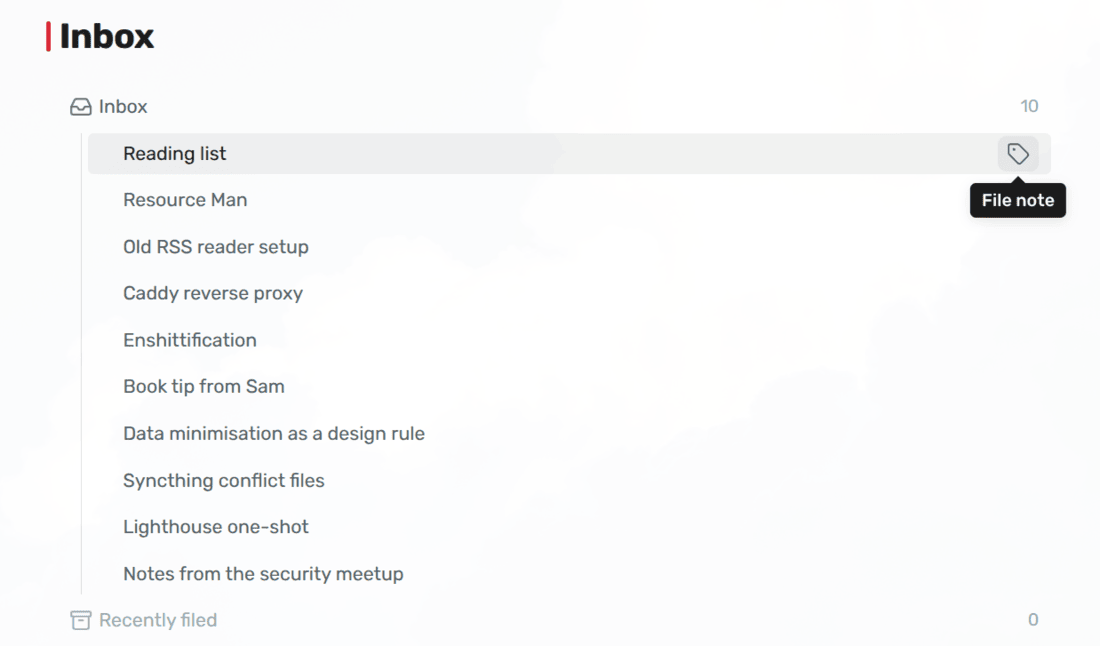
You're in a meeting, or halfway through an article, and a thought comes up. Before you can write it down, you have to decide where it goes: which folder, which tags. That's the worst possible moment to decide, because you still have the thought. So either you stop to sort it and lose the thread, or you don't, and the note ends up in a pile that nobody will ever sort.
Loose Ends splits the two. You write the note now, and sort it later. Until you've sorted it, the note carries one tag saying so, and that tag keeps it in front of you. The moment you've given it every tag it needs, the extra tag goes away by itself.
1 Installation
Install Loose Ends in Obsidian: go to Settings → Community plugins → Browse, search for "Loose Ends", then install and enable it. You can also open its page in the plugin directory.
Loose Ends needs Obsidian 1.13 or later, and works on desktop and mobile.
2 Getting started
Loose Ends does nothing until you tell it what a note needs. So:
Say what every note needs. In Settings → Loose Ends → Axes, click Add axis. Type
domainin the first field andwork, personalin the second. Add a second axis:source, witharticle, book, meeting. Every note now needs adomain/…tag and asource/…tag.Name the unfiled tag. Set Unfiled tag to
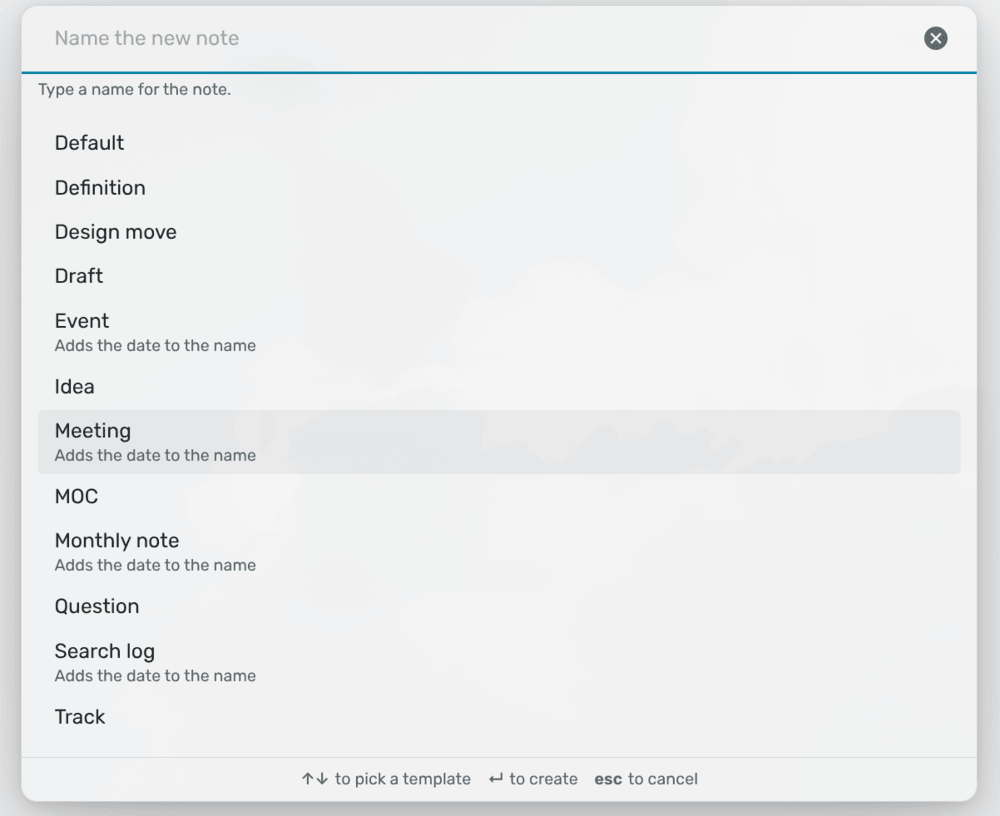
inbox. That's the tag a note carries while it's missing something.Write a note. Run Add note, type a name, and press Enter. The note opens with the cursor ready, and gets the
inboxtag, because it doesn't have adomainorsourceyet.See what's waiting. Put this block on a note of your own, like a dashboard:
```loose-ends
```
It lists every note that's still missing something, newest first.
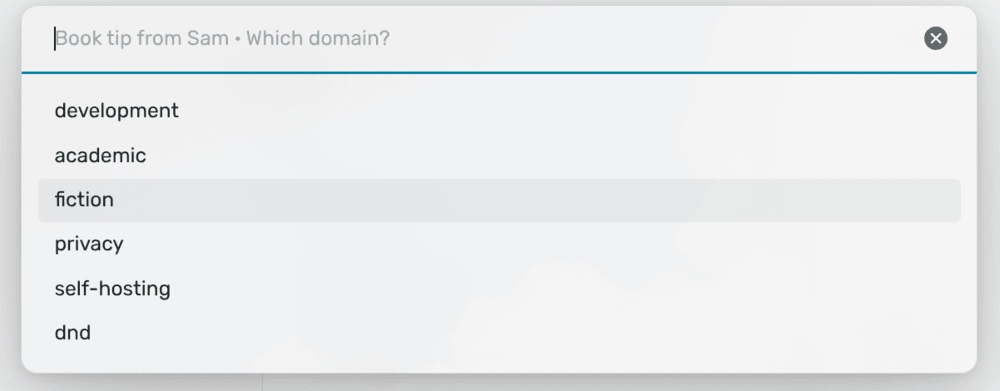
File it. Click the tag button on a row, or run File note in the note itself. Loose Ends asks Which domain? and Which source?, and once you've answered both, the
inboxtag is gone and the note moves to Recently filed.
3 Safety and quality
Loose Ends only writes two things in a note: the tag you pick when it asks you a question, and the unfiled tag. Every other tag, every other property and every word you wrote stay as they are. It only ever writes in your notes folder, so notes that belong to something else, like a literature folder, are left alone. Section 11 lists exactly what it writes and when.
It doesn't connect to the internet and doesn't run any programs.
Every push is tested, and every release is built in the open with a signed attestation, so you can check that the file you installed is the one that was built. Section 11.4 says how.
Table of contents
- 4 Documentation
- 5 Features
- 6 How it works
- 7 Templates
- 8 Commands
- 9 Settings
- 10 Works well with
- 11 Network and file disclosure
- 12 Questions or issues?
- 13 Support
- 14 License
4 Documentation
If you want to work on the plugin:
- Architecture - How the code is layered, and how the unfiled tag is kept up to date without the plugin triggering itself.
- Filing model - What "filed" means, why values are compared exactly, and what the notes folder is for.
- Templates - Placeholders, dates in names, prompts, and how a note is matched to its template.
- Settings - How settings are stored and checked, and what to do when one changes.
- Development - Setup, tests, checks and releases.
5 Features
5.1 Writing
- Add note - One prompt for the name and the template, and nothing else.
- Or any other way - A note made with Obsidian's new note button, as a daily note, or with Templater or QuickAdd gets the unfiled tag too, as long as it's in your notes folder.
- Templates - Any note in your template folder, with
{{title}},{{date}}and{{cursor}}. - Dates in names - A template can put today's date in the note's name, or the date you type.
- Prompts that stay out of your note - A question under a template's heading is drawn in the note, and never written to the file.
5.2 Filing
- File note - Asks only what a note is still missing, one question at a time, with your most recent answers first.
- Set an answer later - One Set command per axis, to change an answer at any time.
- Right-click - File a note from its menu, in the file explorer or anywhere else Obsidian offers one.
- Stop halfway - Close a question, and the answers you already gave are kept.
5.3 The inbox
- Inbox block - A list of every note still missing something, on any note you like, with what each one is missing on hover.
- One-click filing - File a note straight from its row.
- Recently filed - The notes you filed in the last seven days.
5.4 Staying honest
- A tag that can't go stale - The unfiled tag is worked out from the note's own tags every time. Delete it by hand and it comes back; answer the last question and it goes.
- Exact answers - Only the values you listed count, so a typo or an old tag never quietly passes as filed.
- Only your notes - Nothing outside your notes folder is ever tagged.
6 How it works
6.1 Axes
An axis is a question every note has to answer, and the answer is a tag.
domain asks what a note is about, and accepts domain/work or
domain/personal. source asks where it came from, and accepts
source/article, source/book or source/meeting. You choose the axes and
the answers they accept:
domain   work, personal
source   article, book, meeting
A note that has an answer for every axis is filed. A note that's missing
one is unfiled, and gets the tag you named for that, such as inbox.
Only the tags in a note's tags property count as answers. Loose Ends writes
them there too.
6.2 The unfiled tag is worked out, not stored
The unfiled tag isn't a record of anything. It's worked out from the note's own tags every time the note changes, and only written so that you can see it, for example as a folder in a tag tree. Your answers are the record.
That's why it can't go stale. Delete the tag by hand, and it comes back. Answer the last question, and it goes. Change the axes, and every note in the notes folder is checked again when you close the settings.
6.3 Values are compared exactly
domain/work/project-x doesn't answer the domain axis, and neither does a
bare domain. Only domain/work and domain/personal do, because those are
the values you listed. If you want work/project-x as an answer, add it to the
list: a value can have a slash in it like any other.
When Loose Ends asks about an axis, the question names any tag under it that isn't one of its values, and picking a value replaces it. Nothing else ever touches it.
This is on purpose, and it's the bug this plugin was written after. Its
predecessor accepted anything that started with domain/, so a nested tag
passed as an answer while no picker would ever offer it. The only way to make
one was typing it by hand, which made the first typo a matter of time, and one
that didn't show up until the tag tree came apart.
6.4 The notes folder
The Notes folder does two jobs: it's where Add note makes new notes, and it's the only place Loose Ends ever writes the unfiled tag. Keep it narrow if other plugins own some of your notes, like a folder of literature notes: those will never answer your axes, so without the folder they'd stay unfiled forever.
7 Templates
Add note offers every Markdown file directly in your template folder. On a
fresh install, Loose Ends puts a Default template there to start with.
| Placeholder | Becomes |
|---|---|
{{title}} |
The name you typed |
{{date}} |
Today's date, as YYYY-MM-DD |
{{date:YYYY-MM}}, {{date:YYYY}} |
The same date, cut short, so it still sorts |
{{cursor}} |
Where the cursor starts |
Case and spaces inside the braces don't matter.
Dates in names. When the title heading has a date in it, like
# {{title}} {{date}}, the note's name gets the date too: typing Hanna makes
Hanna 2026-09-30. If you type a date yourself, that date is used instead of
today's, so Hanna 2026-10-07 stays Hanna 2026-10-07, for a meeting you
prepare before the day. A heading dated to the month also takes a typed month:
# {{title}} {{date:YYYY-MM}} and Budget 2026-10 make Budget 2026-10.
Prompts. Put an HTML comment right under a heading, and it becomes that heading's prompt:
## Decisions

<!-- What did we agree on, and who does what? -->
Add note leaves the comment out of the note. Instead, the question is shown faintly on the empty line under the heading, until you write something there. Because it only lives in the template, rewording it rewords it in every note, and nothing stays behind under what you wrote.
A note is matched to its template by its headings. A template with no heading besides its title can't be recognised, so its prompts are never shown.
8 Commands
None of the commands has a hotkey, so you can choose your own in Settings → Hotkeys.
Loose Ends: Add note- Asks for a name and a template, and makes the note in your notes folder.Loose Ends: File note- Asks for each answer the open note is still missing.Loose Ends: Set <axis>- Changes one answer on the open note, whether or not it already had one. There's one for each axis, named after it.Loose Ends: Refresh tags- Checks every note in your notes folder against the axes. This also runs by itself when the axes change.
File note and Set are also on the right-click menu of every note in the notes folder: File note while the note is still missing something, and Set always.
9 Settings
| Setting | Default | |
|---|---|---|
| Notes folder | Whole vault | Where Add note makes new notes, and the only folder where Loose Ends adds tags. See The notes folder. |
| Template folder | Templates |
The templates Add note offers. See Templates. |
| Remember the last template | On | Offer the template you picked last first. When it's off, Default comes first, then the rest by name, for when one template is the usual answer. |
| Unfiled tag | Empty | The tag written on a note that's still missing an answer, and the name of the inbox block's first group. Leave it empty for no tag. |
| Axes | None | What a note has to answer. Each axis is a top-level tag and the values it accepts. The pickers offer your most recent answers first, then the rest in the order you listed them. |
Refresh tags is at the bottom of the settings too.
10 Works well with
These plugins are by the same author. Each does one thing, and Loose Ends doesn't need the other, but they fit together nicely.
10.1 Tag Along
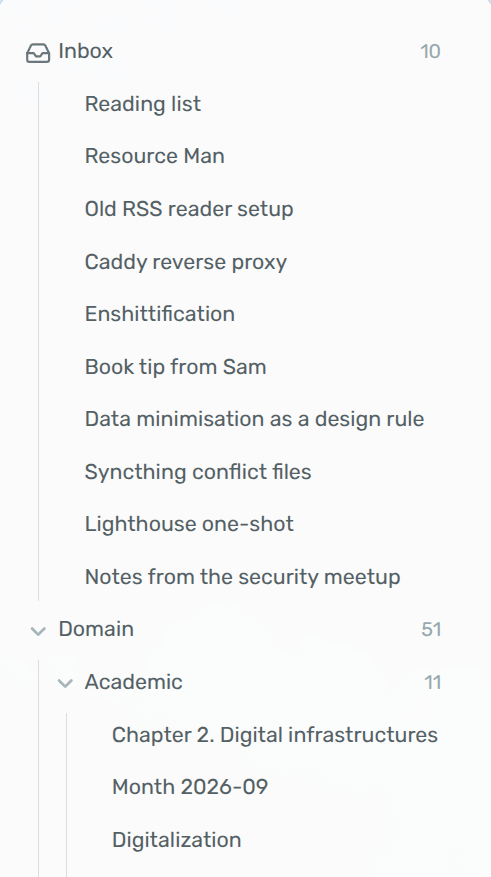
Tag Along shows your vault
as a folder tree built from your tags. Each axis becomes a tree, like domain
and source, and the unfiled tag becomes a folder of everything still waiting.
Set Unfiled tag to inbox, and make inbox an exclusive folder in Tag
Along: a new note then shows up in inbox only, and moves to its proper
folders the moment you've finished filing it.
11 Network and file disclosure
Loose Ends runs entirely on your device. It never connects to the internet and doesn't send anything anywhere.
11.1 What it reads
- Notes: The
tagsproperty of the notes in your notes folder, which it gets from Obsidian's own index of your notes, and the headings of the note you're editing, to show its prompts. - Templates: The Markdown files in your template folder, for Add note and the prompts.
11.2 What it changes in your notes
Only in notes in your notes folder, and only these:
- Answers: The tag you pick when it asks about an axis, in the note's
tagsproperty. Any other tag under that axis is replaced. - The unfiled tag: Added when a note is missing an answer, and taken off when it isn't.
- New notes: Add note makes the note you ask for.
When it adds a tag, it keeps the tags list sorted, the way the Linter plugin
does, so your next save doesn't show a change nobody made. The tags
themselves stay as they are.
11.3 What it stores
- Starter template: On a fresh install,
Default.mdin the template folder, unless a file with that name is already there. If you delete it, it isn't written again. - Settings: Its own
data.jsonin the plugin folder. - Recent picks: The order you last picked templates in, and the answers for each axis, so your usual choice comes first.
- Filing dates: When each note was filed, for Recently filed.
Recent picks and filing dates are habits rather than settings, so they're kept in Obsidian's local storage for this vault, and don't sync to your other devices.
11.4 How releases are built
Every push is built, linted with ESLint and the official Obsidian ESLint plugin, and tested with Vitest on Node 20, 22 and 24. Releases are built by GitHub Actions from the tagged source, with every action pinned to an exact version, and come with a signed build provenance attestation, so you can check that the file you installed is the one that was built:
gh attestation verify main.js --repo jorritvanderheide/obsidian-loose-ends
12 Questions or issues?
Have a look at the FAQ first: it covers the most common surprises, like an unfiled tag that keeps coming back. If something still doesn't work, or you have an idea, please open an issue. Found a security problem? Please report it privately, as described in the security policy.
The source lives on Codeberg and is mirrored to GitHub.
13 Support
Loose Ends is free. If you find it useful, you can support its development on Liberapay:
14 License
Copyright © 2026 Jorrit van der Heide. Licensed under the EUPL-1.2.