LLM Translator
 Joseph Kim2k downloads
Translate selected text in Obsidian's native PDF reader with local and cloud translation services.
- Overview
- Scorecard
- Updates9
Features • Quick Start • Recommended Settings • Usage Guide • Other Services • Windows Notes • FAQ • Development
A local LLM-powered translation plugin for Obsidian, supporting real-time text selection translation in PDF and Markdown files.
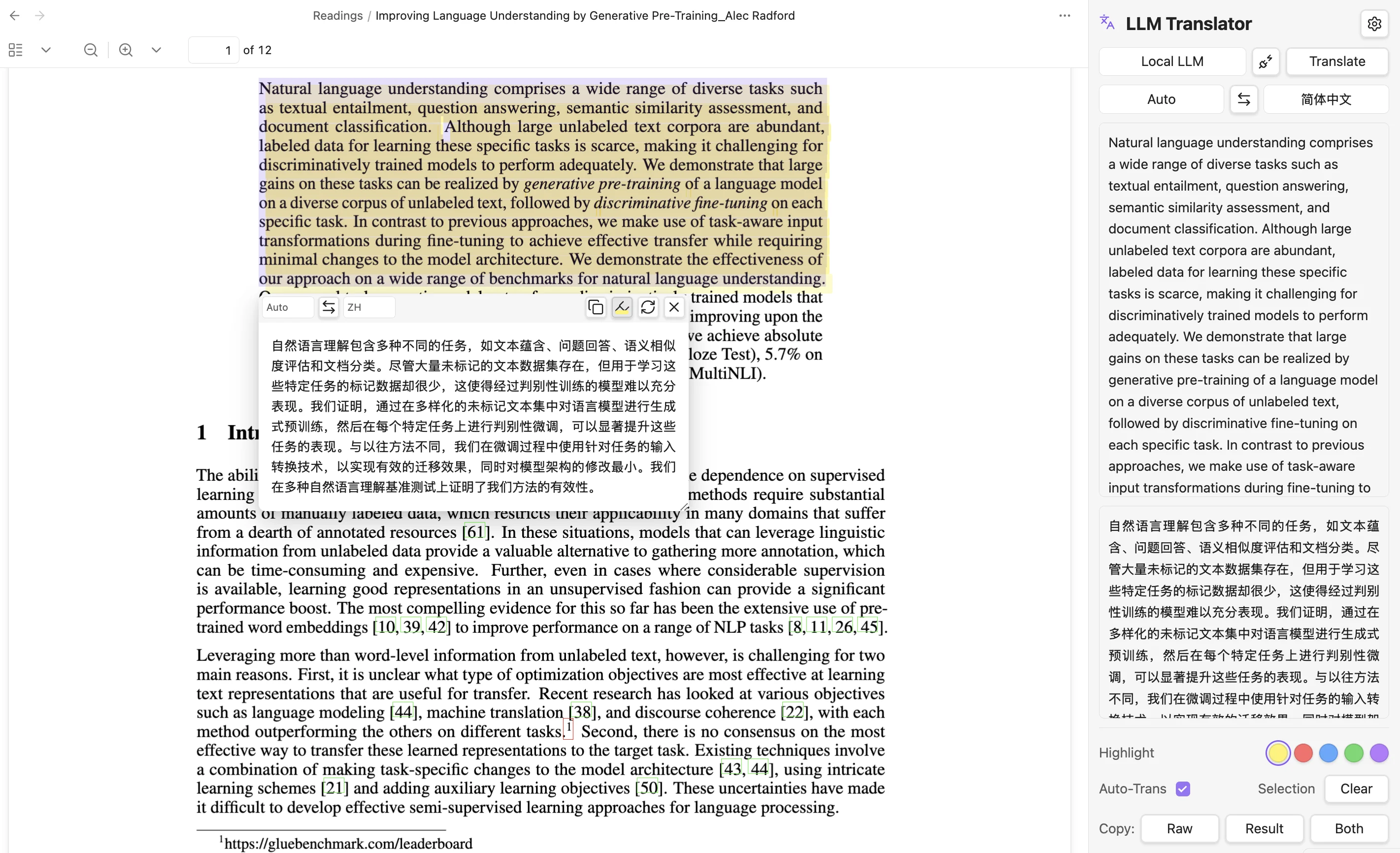
Features
📌 Multiple Translation Sources
- Local LLM (Ollama) — Private, offline, unlimited usage
- Cloud API (OpenAI-Compatible) — Connect DeepSeek, OpenRouter, and more
- Google Translate / Bing Translate — No config needed, one-click switch
📄 Multi-format Document Support
- PDF Documents — Default support, auto-translate on selection
- Markdown Documents — Enable "Global" mode in settings
🎯 Smart Interaction
- Auto-popup translation window on text selection
- Sidebar translation panel for manual input or the current selection
- Copy / Retry / One-click language switch
- Custom translation prompt for professional needs
🌐 Multi-language Interface
- Automatically follows Obsidian system language
- Supports Chinese / English interface
✏️ Native PDF Highlight Annotations
- Persistent highlights — Written as standard PDF annotations, visible across all PDF readers
- 5 colors — Yellow, Red, Blue, Green, Purple; configurable default
- Highlight notes — Click any highlight to attach a note, stored in the PDF
- Toggle & undo — Click again to remove, Cmd+Z / Ctrl+Z to undo
Quick Start
# 1. Install Ollama (macOS / Linux)
curl -fsSL https://ollama.com/install.sh | sh

# 2. Pull translation model (recommended HY-MT2-1.8B)
ollama pull RogerBen/HY-MT2-1.8B:latest

# 3. After installing the plugin, select Local LLM in settings
#    Enter endpoint http://localhost:11434 and model name
#    Click Test to verify connection
💡 Windows Users: Download the installer from the Ollama website. Ollama will run automatically in the background after installation.
Install Plugin
Download and install via Terminal:
# Create plugin directory
mkdir -p YourVault/.obsidian/plugins/llm-translator

# Download Release files
curl -sL https://github.com/KimFischer99/Obsidian-LLM-Translator/releases/latest/download/main.js \
  -o YourVault/.obsidian/plugins/llm-translator/main.js
curl -sL https://github.com/KimFischer99/Obsidian-LLM-Translator/releases/latest/download/manifest.json \
  -o YourVault/.obsidian/plugins/llm-translator/manifest.json
curl -sL https://github.com/KimFischer99/Obsidian-LLM-Translator/releases/latest/download/styles.css \
  -o YourVault/.obsidian/plugins/llm-translator/styles.css
Replace YourVault with your Obsidian vault path. Restart Obsidian and enable LLM Translator in Settings → Community plugins.
Recommended Settings
After installing the plugin, configure as follows:
General Settings
| Setting | Recommended Value |
|---|---|
| Translation scope | Global |
| Auto-translate selected text | Enabled |
| Enable reader selection popup | Enabled |
Service Settings
| Setting | Recommended Value |
|---|---|
| Translation service | Local LLM |
| Local model endpoint | http://localhost:11434 |
| Model name | RogerBen/HY-MT2-1.8B:latest |
| Source language | Auto |
| Target language | 简体中文 |
Advanced Settings
| Setting | Recommended Value |
|---|---|
| Max selection length | 5000 |
| Selection trigger delay | 350ms |
| Request timeout | 30000ms |
| Top K | 20 |
| Top P | 0.6 |
| Repeat Penalty | 1.05 |
| Num Predict | 4096 |
Usage Guide
Basic Operations
- Auto-translate — Select text in PDF or Markdown, translation popup appears automatically
- Sidebar — Click the language icon on the left toolbar to open the right-side translation panel
- Translate from sidebar — Enter text directly, or reuse the current PDF/Markdown selection, then click Translate
Translation Scope
- Global — Both PDF and Markdown support selection translation
- PDF only — Only enable in PDF files
The default scope is Global.
Sidebar Features
- Translation service switch — Quickly switch Local LLM / Cloud API / Google / Bing
- Language selection — Set source and target languages
- Manual input / current selection — Type text directly or reuse the latest document selection
- Auto-Trans — Toggle auto-translation
- Copy — Copy source (Raw), translation (Result), or Both
- Clear — Clear current translation history
Custom Prompt
Modify the translation prompt in Settings → Advanced → Custom prompt:
Translate the following academic text. Preserve technical terminology,
citations, and formulas. Output only the translation.
Other Translation Services
Cloud API (OpenAI-Compatible)
Supports any OpenAI-compatible API provider:
| Configuration | Description |
|---|---|
| API URL | Provider's endpoint |
| API Key | Provider's authentication key |
| Model name | Provider's model identifier |
Google Translate / Bing Translate
No configuration required. Select directly from the translation service dropdown.
⚠️ Free translation services have rate limits. For heavy usage, switch to local models or cloud APIs.
Privacy and network access
- Local LLM sends selected text and the translation prompt to the configured Ollama endpoint. With the default
http://localhost:11434endpoint, the request stays on this computer; a custom remote endpoint sends it over the network. - Cloud API sends selected text, the translation prompt, language settings, and model identifier to the API URL you configure. The provider may retain or process this data under its own policy.
- Google Translate / Bing Translate send selected text and language settings to Google or Microsoft translation services.
- Cloud API keys are selected or created through Obsidian
SecretStorage;data.jsonstores only the selected secret ID, not the key value.
LLM Translator 0.4.0 requires Obsidian 1.11.4 or later. Obsidian's version resolver can keep older installations on plugin 0.3.5.
Windows Notes
Ollama Installation
- Download the Windows installer from the Ollama website
- Runs automatically in the background after installation
- Port is the same as macOS:
http://localhost:11434 - If connection fails, check Windows Firewall settings
URL Format
- Use forward slashes
/:http://localhost:11434(correct) - Do not use backslashes:
http://localhost:11434\(wrong)
FAQ
Connection test failed?
- Confirm Ollama is running (there should be an Ollama icon in the taskbar)
- Try accessing
http://localhost:11434in your browser to verify - Check if another program is using port 11434
Translation popup not showing?
- Confirm "Auto-translate selected text" and "Enable reader selection popup" are enabled
- Try restarting Obsidian
Markdown files won't translate?
- Set "Translation scope" to "Global"
Development
# Install dependencies
npm install

# Development mode (watch for file changes)
npm run dev

# Production build
npm run build

# Automated behavior tests
npm test
After building, copy main.js, manifest.json, and styles.css to:
YourVault/.obsidian/plugins/llm-translator/
License
MIT License © 2026