LLM Content Block
 Darren Zheng162 downloads
Archive LLM texts as scrollable, format-safe cards.
- Overview
- Scorecard
- Updates2
LLM Content Block
English · 中文
Paste AI conversations into Obsidian as a scrollable, format-safe card.
Why
We're entering a phase where more of what we want to keep is conversations with AI — a Q&A, a brainstorm, a debugging session. These conversations are themselves worth saving, the way we used to save articles, web pages, book notes.
But pasting them straight into Obsidian breaks immediately:
- It wrecks your formatting. An AI reply is itself markdown — headings, lists, code blocks, math. Once pasted, Obsidian treats it as your note's own structure: a
## headinginside the reply becomes a level-2 heading in your note, its lists merge into your lists, its ``` fences can even cut off your other blocks. Paste a few conversations and the whole note's hierarchy is scrambled — you can no longer tell what's your note and what's the AI's answer. - It doesn't fit. A good AI reply is often hundreds of words; it fills the screen and stretches the note endlessly.
- No structure. A conversation is back-and-forth turns; flattened into one blob, the dialogue is lost.
LLM Content Block gives AI conversations their own container, fixing all three:
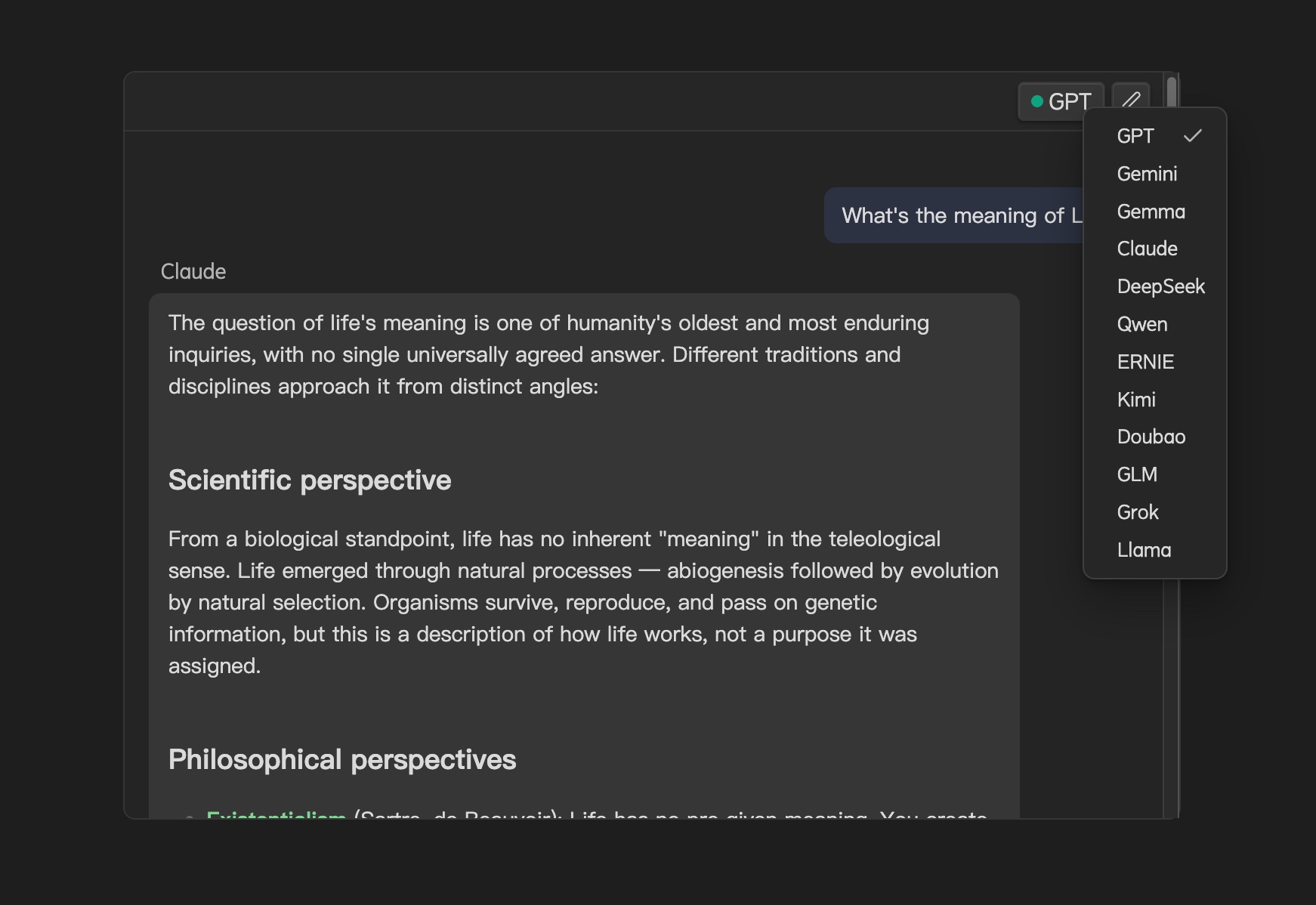
- The conversation lives inside a card; its markdown renders only inside the card and never leaks into the note body — the AI's headings don't become your headings, its code blocks don't slice your note. Your note stays clean.
- The card has a max height and scrolls internally; long AI answers even collapse by default — click Expand for the full text.
- Turns are recognized as user / AI bubbles, with a source tag (GPT / Claude / …).
In one line: make AI-generated content a self-contained, collectible, format-safe block in Obsidian — like a callout is a container for emphasis, this is a container for AI conversations.
Usage
Write a fenced code block with language aicard and paste the conversation:
```aicard
source: Claude
You: What's the difference between RSC and SSR?
Claude: The essence is **where it renders and when it hydrates**… (markdown, code, LaTeX all fine)
```
source:(optional): the model — click the pill at the card's top-right to switch or type any name (presets: GPT / Gemini / Claude / DeepSeek / Qwen / ERNIE / Kimi / Doubao / Gemma / GLM / Grok / Llama, plus custom).- Lines starting with
Role:split into left/right bubbles:me/you/user→ right,Claude/GPT/AI/assistant→ left; other roles get a neutral bubble. - Plain text with no role prefix becomes one clean content card.
- Full markdown support: code blocks, tables, LaTeX (
$...$/$$...$$), callouts, wiki links. - Edit button (top-right) edits the conversation and source in place — the edit box is plain text, so pasting won't scramble formatting.
If the conversation itself contains ``` code blocks, use **4 backticks**
````aicardfor the outer fence to avoid truncation. There's also a command Insert AI chat block: with text selected → wrap it into a card; no selection → insert a skeleton. Bind a hotkey in Settings → Hotkeys.
Features
- Format isolation: the AI content's markdown is contained in the card and never pollutes your note.
- Scroll + collapse: the card is height-limited and scrolls; long AI answers collapse to a preview.
- Rich text: code highlighting, LaTeX, tables, callouts, wiki links.
- Dialogue structure: auto user/AI bubbles; recognizes Chinese & English role names.
- Source management: 12 preset models + custom; one-click switch via the pill, written back to the note.
- Theme-aware: built entirely on Obsidian CSS variables; follows dark/light automatically.
- i18n: UI follows Obsidian's current language (中文 / English).
Settings
- Card max height, body font size, body font family (empty = follow theme).
- Custom sources (name + optional brand color).
View
Reading view renders perfectly. In Live Preview, very long blocks may need scrolling near the block's end to trigger rendering — for archived content, read in Reading view for the best experience.
Development
npm install
npm run build          # type-check + bundle
npm run build:deploy   # bundle + deploy to vault
npm run dev            # watch
The deploy target is set via env var or a local file (the repo itself contains no personal path):
export OBSIDIAN_VAULT=/path/to/your/vault   # option 1
echo /path/to/your/vault > .deploy-vault     # option 2 (.deploy-vault is gitignored)
License
MIT License — see LICENSE.
LLM Content Block(中文)
English · 中文
把和 AI 的对话装进 Obsidian 里一张可滚动、不破坏格式的卡片。
为什么需要它
我们正进入这样一个阶段:日常获取、并想收藏下来的内容,越来越多是和 AI 的对话——一次问答、一段头脑风暴、一个解题或写代码的过程。这些对话本身就是值得保存的知识,就像从前收藏文章、网页、书摘。
但把它们直接粘进 Obsidian,会立刻出问题:
- 格式被冲乱。AI 的回答本身就是 markdown:标题、列表、代码块、数学公式。粘进笔记后,这些会被 Obsidian 当成笔记自己的结构展开——AI 回答里的
## 标题变成笔记的二级标题,AI 的列表嵌进笔记的列表,AI 的 ``` 代码块还可能截断笔记的其它围栏。粘几段对话,整篇笔记的层级和格式就全乱了,再也分不清"哪段是我的笔记、哪段是 AI 的回答"。 - 一屏装不下。一段精彩的 AI 回答动辄几百上千字,铺满整屏,笔记被撑得很长,翻找费劲。
- 没有边界。对话是来回多轮(你问、AI 答),扁平地粘成一大段文字,读不出对话结构,也不像一条可被引用的"记录"。
LLM Content Block 给 AI 对话一个独立容器,一次解决这三点:
- 对话被装进一张卡片,它的 markdown 只在卡片内部渲染,绝不外泄到笔记主体——AI 的标题不会变成笔记标题,AI 的代码块不会截断笔记。笔记结构保持干净。
- 卡片有最大高度、内部可滚动;较长的 AI 回答还能默认折叠,点「展开」看全文。长对话不再霸占屏幕。
- 多轮对话自动识别成 user / AI 气泡,带来源标签(GPT / Claude / …)。
一句话:让 AI 生成的内容,成为 Obsidian 里一个自包含、可收藏、不破坏格式的块——就像 callout 是"强调"的容器,它是"AI 对话"的容器。
用法
写一个 fenced code block,语言填 aicard,把对话粘进去:
```aicard
source: Claude
你: RSC 和 SSR 什么区别?
Claude: 本质区别在于**在哪里渲染、何时 hydrate**……(可含 markdown、代码块、LaTeX)
```
source:(可选):来源模型,点击卡片右上角胶囊可切换或直接输入(预置 GPT / Gemini / Claude / DeepSeek / Qwen / ERNIE / Kimi / Doubao / Gemma / GLM / Grok / Llama,也可自定义)。- 以
角色:开头的行分成左右气泡:我/你/user靠右,Claude/GPT/AI/助手靠左;其它角色走中性气泡。 - 没有角色前缀的纯文本,整段成一个干净的内容卡片。
- 完整支持 markdown:代码块、表格、LaTeX(
$...$/$$...$$)、callout、wiki link 等。 - 右上角编辑按钮可就地编辑对话与来源(编辑框是纯文本,粘贴不会冲乱格式)。
对话里如果自带 ``` 代码块,外层围栏用 **4 个反引号**
````aicard防止截断。 也可以用命令「插入 AI 对话块」:选中已有文本→包成卡片;没选中→插入骨架。在设置→快捷键里给它绑个键。
特性
- 格式隔离:AI 内容的 markdown 困在卡片内,不污染笔记结构。
- 可滚动 + 折叠:卡片限高、内部滚动;长 AI 回答默认折叠预览。
- 富文本:代码高亮、LaTeX、表格、callout、wiki link 全支持。
- 对话结构:自动 user/AI 气泡,中英文角色名都能识别。
- 来源管理:12 个预置模型 + 自定义,胶囊一键切换并写回。
- 主题协调:全程使用 Obsidian CSS 变量,dark / light 自动跟随。
- 多语言:界面跟随 Obsidian 当前语言(中文 / English)。
设置
- 卡片最大高度、正文字号、正文字体(留空跟随主题)。
- 自定义来源(名称 + 可选品牌色)。
视图
阅读视图完美渲染。Live Preview 下超长对话可能需要滚到块尾附近才触发渲染——归档后主要在阅读视图查看,体验最佳。
开发
npm install
npm run build          # 类型检查 + 打包
npm run build:deploy   # 打包 + 部署到 vault
npm run dev            # 监听打包
部署目标通过环境变量或本地文件指定(仓库本身不含任何个人路径):
export OBSIDIAN_VAULT=/path/to/your/vault   # 方式一
echo /path/to/your/vault > .deploy-vault     # 方式二(.deploy-vault 已 gitignore)
License
MIT License,详见 LICENSE。