Living Mindmap
 Chansocheat Tieng606 downloads
Turn Markdown headings and lists into polished, directly editable mindmaps.
- Overview
- Scorecard
- Updates7
A polished, directly editable mindmap view for ordinary Obsidian Markdown notes.
Usage
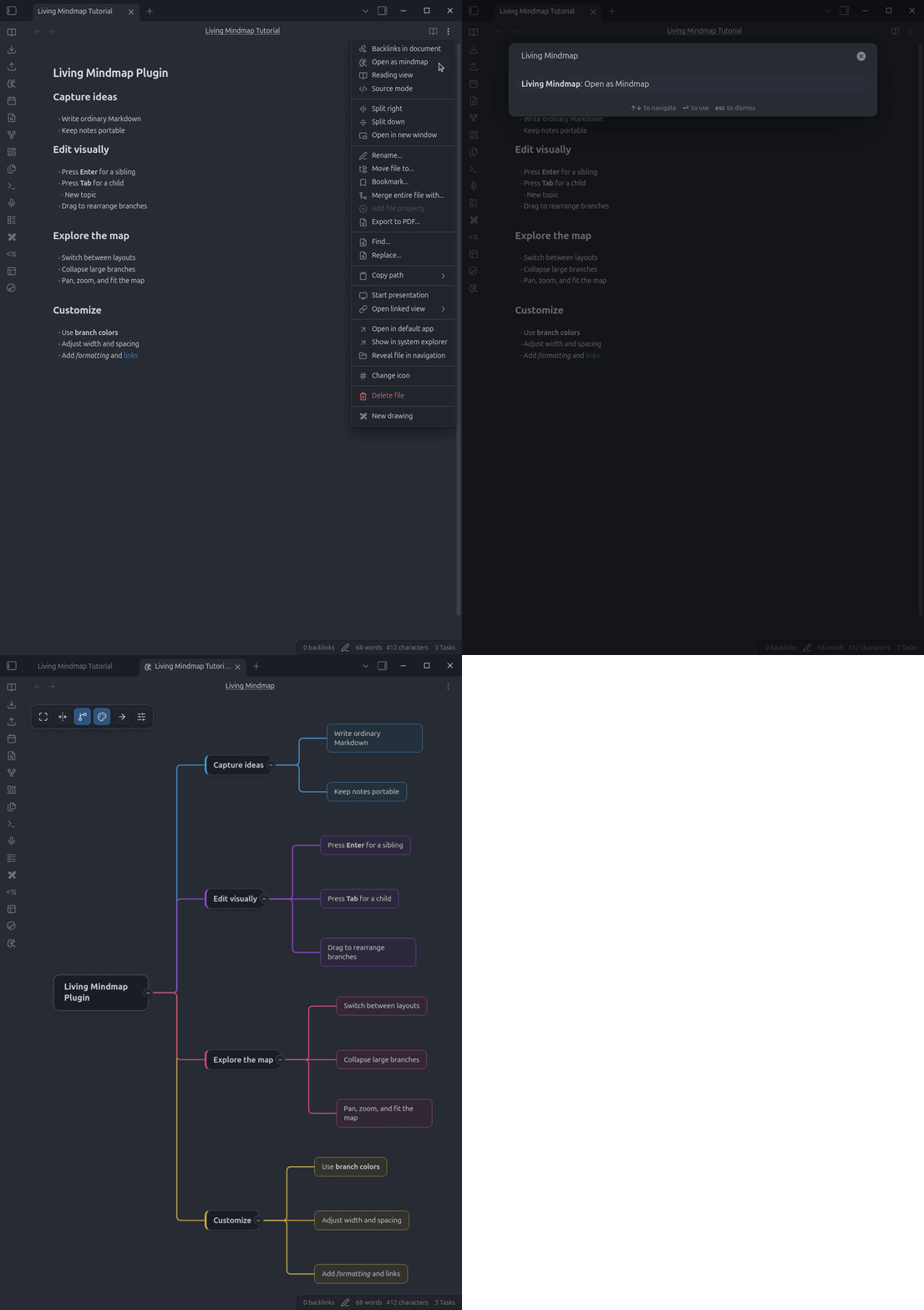
Open a Markdown note and run Living Mindmap: Open as Mindmap, or choose Open as Mindmap from the document's three-dot menu.
On desktop, use the ribbon's brain-circuit icon or the command palette. On mobile, open the ribbon from Obsidian's sidebar or use the command palette.
Commands and controls
Selected nodes
These commands apply after clicking a node. Use Shift-click or a selection rectangle to apply formatting and deletion to multiple nodes.
| Input | Action |
|---|---|
Double-click or F2 |
Start editing the primary selected node |
Tab |
Create a child |
Enter |
Create a sibling at the same level |
Ctrl+B / Cmd+B |
Toggle bold formatting on the selected nodes |
Ctrl+I / Cmd+I |
Toggle italic formatting on the selected nodes |
Delete or Backspace |
Delete the selected nodes and their descendants |
Ctrl+Z / Cmd+Z |
Undo the latest mindmap change |
Ctrl+Y / Cmd+Y |
Redo the latest mindmap change |
Inline editing
These commands apply while the text editor is visible inside a node.
| Input | Action |
|---|---|
Enter or Tab |
Save the edit without creating another node |
Shift+Enter |
Save and create a sibling |
Shift+Tab |
Save and create a child |
Ctrl+B / Cmd+B |
Toggle bold formatting on the selected text |
Ctrl+I / Cmd+I |
Toggle italic formatting on the selected text |
Ctrl+Z / Cmd+Z |
Undo |
Ctrl+Y / Cmd+Y |
Redo |
Escape |
Cancel editing |
On Linux and Windows, use Ctrl. On macOS, use Cmd.
Mobile and tablet
Tap a node to select it. The action rail appears along the upper-right edge of the screen.
| Input or control | Action |
|---|---|
| Tap a node | Select the node and show its actions |
| Double-tap a node | Edit its text |
| Drag an empty area with one finger | Pan the map |
| Pinch with two fingers | Zoom in or out |
| Edit | Open the selected node's text editor |
| Add child | Create and edit a child node |
| Add sibling | Create and edit a node at the same level |
| Delete | Delete the selected branch, with confirmation when it has descendants |
| Undo / Redo | Move backward or forward through mindmap changes |
+ / − on a node |
Expand or collapse that branch |
While editing, use the on-screen controls for bold, italic, child, sibling, and Done. These controls work without a hardware keyboard.
Canvas navigation and selection
| Input | Action |
|---|---|
| Click a node | Select only that node |
| Shift-click a node | Add or remove it from the current selection |
| Left-drag an empty area | Select multiple nodes with a selection rectangle |
| Right-drag an empty area | Pan the view |
| Mouse wheel | Zoom in or out |
Drag and drop
Dragging a parent moves its complete descendant subtree. Dragging one node from a multi-selection moves the selected sibling branches together.
| Target area | Action |
|---|---|
| Center of a node | Make the moved branches children of that node |
| Top or bottom edge in Horizontal layout | Reorder siblings |
| Left or right edge in Vertical layout | Reorder siblings |
Context menu
Right-click a non-title node to convert it between a Markdown heading and regular list content.
Toolbar
| Control | Action |
|---|---|
| Fit map | Fit and center the complete mindmap in the viewport |
| Collapse/expand | Collapse every branch or expand them again |
| Compact branches | Toggle between globally aligned levels and local branch spacing |
| Branch colors | Toggle distinct colors for top-level branches |
| Layout | Switch between Horizontal and Vertical layouts |
| Dimensions | Adjust node width, hierarchy gaps, and sibling spacing |
Settings
Mind-map preferences are global and stored in the plugin's data.json, not in note frontmatter. Toolbar changes update the same global settings immediately.
| Setting | Purpose |
|---|---|
| Layout | Choose Horizontal or Vertical rendering |
| Maximum node width | Set the width at which node text wraps |
| Spacing mode | Align levels globally or compact each branch locally |
| Branch colors | Color top-level branches and their connectors independently |
| Horizontal hierarchy gap | Set the distance between hierarchy columns |
| Vertical hierarchy gap | Set the distance between hierarchy rows |
| Sibling gap | Set the minimum distance between sibling subtrees |
Node text always wraps at the configured maximum width. Shorter nodes keep their natural compact width.
Enable Compact branches in the toolbar to keep parent-to-child gaps fixed within each branch. Disable it to align every depth into global columns.
Enable Branch colors in the toolbar to give each top-level branch its own node and connector color.
Author
Created by Chansocheat Tieng.