Live Room Sync
 Noproblemrr76 downloads
Party up with friends and share a vault live. Start a party, send an invite and edit the same notes together with named cursors. No server needed.
- Overview
- Scorecard
- Updates7
An Obsidian plugin that lets you party up with friends (or your own devices) and share a whole vault live, with Google-Docs-style typing. Start a party, send an invite link, and your friends show up with their name and picture. No account, no server to run, no domain.
Status: early (v0.5.0). It has automated tests and was tried between two Obsidian windows on one Mac, but not yet on phones or across different networks. Back up your vault before you use it.
Screenshots
A dark, blocky pixel look with slow-moving contour lines behind everything. These pictures show the plugin's real panel and dialogs, drawn with its real code and stylesheet in a browser (npm run preview), so Obsidian's own window around them is left out. The contour lines drift slowly when you use it; a still picture can't show that.
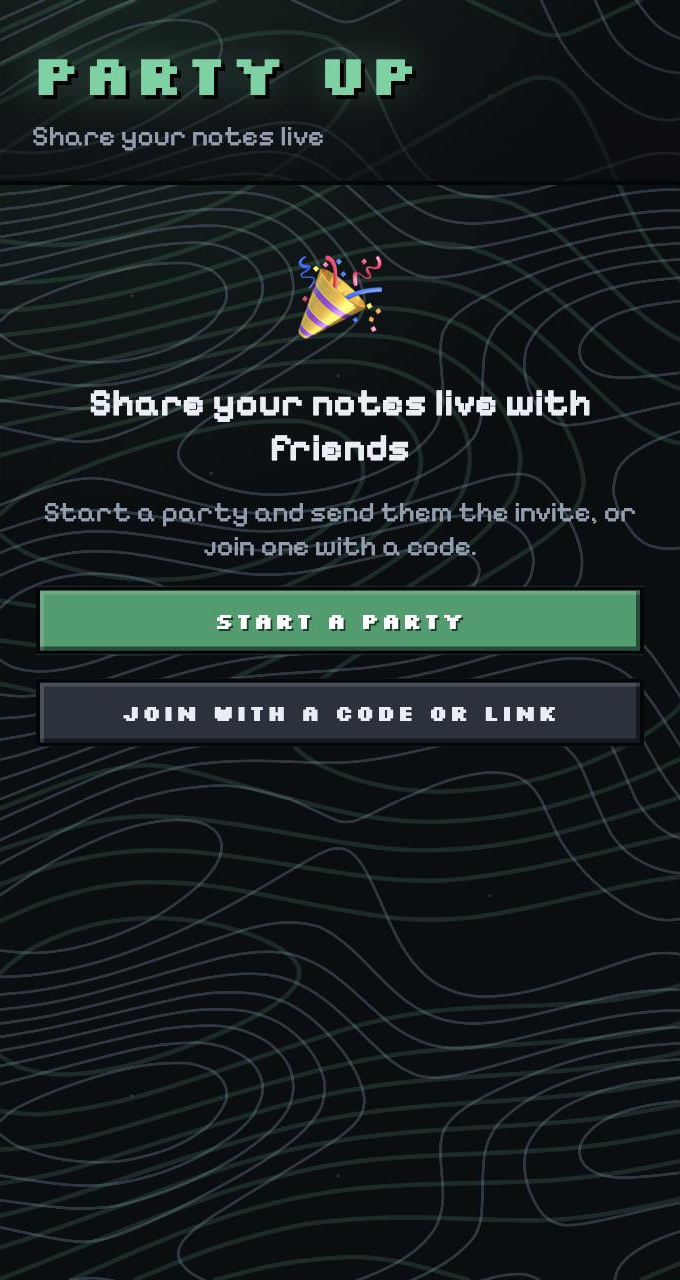
Start. Open the party panel from the ribbon or the status bar. Start a party, or join one.
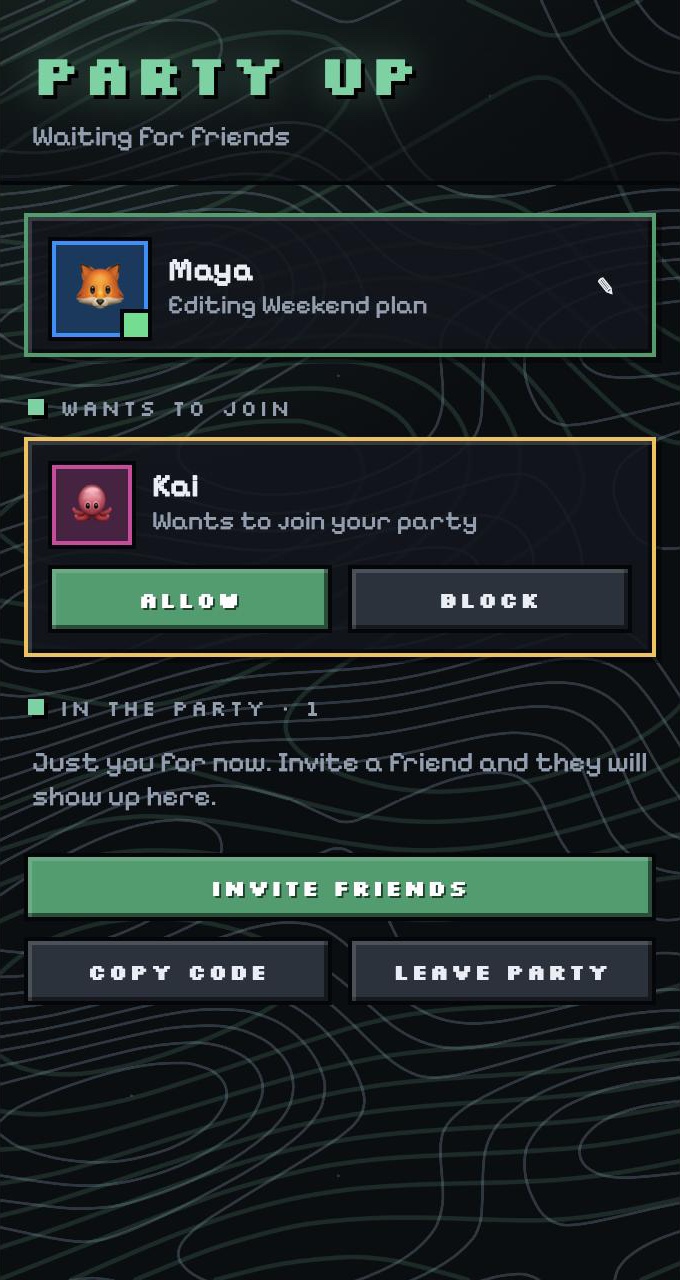
Allow. When someone new joins, you decide. Nothing is shared with them until you press Allow.
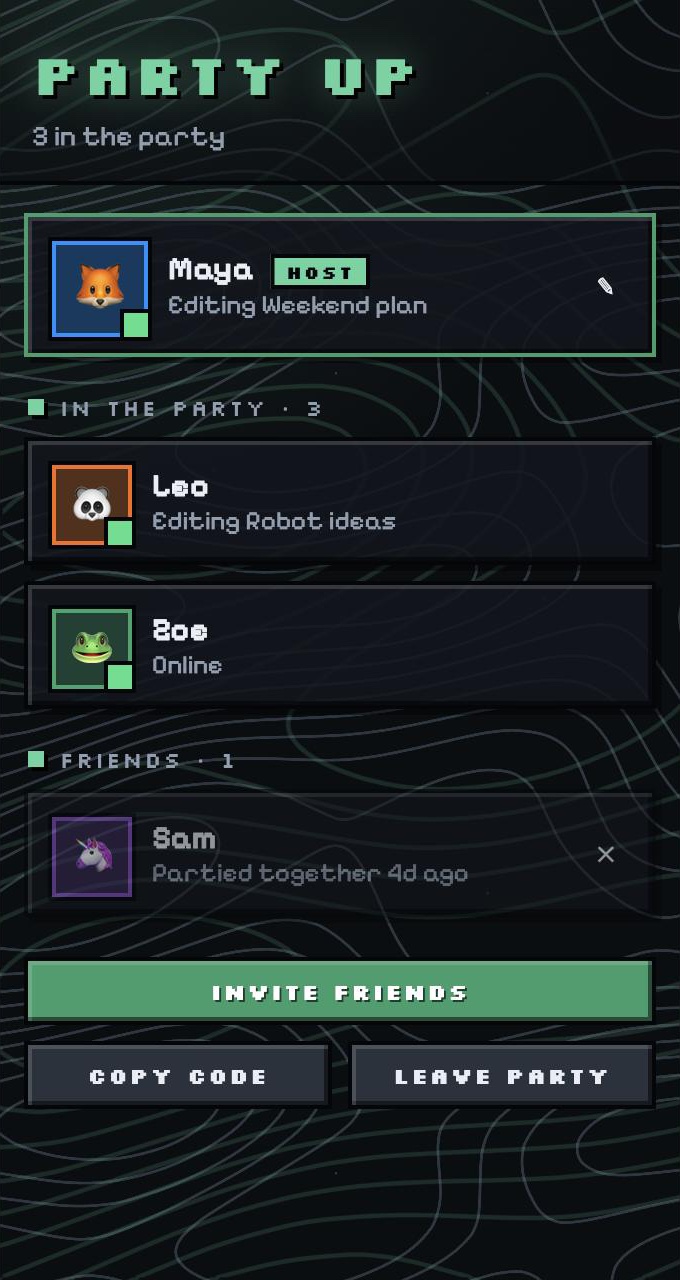
Together. Everyone in the party with their picture, what they are editing, and friends you partied with before. Click a friend to jump to their note.
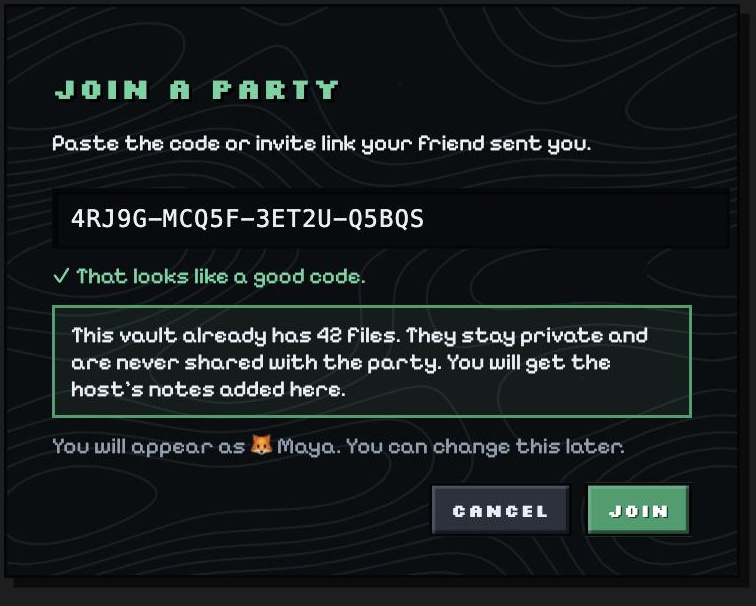
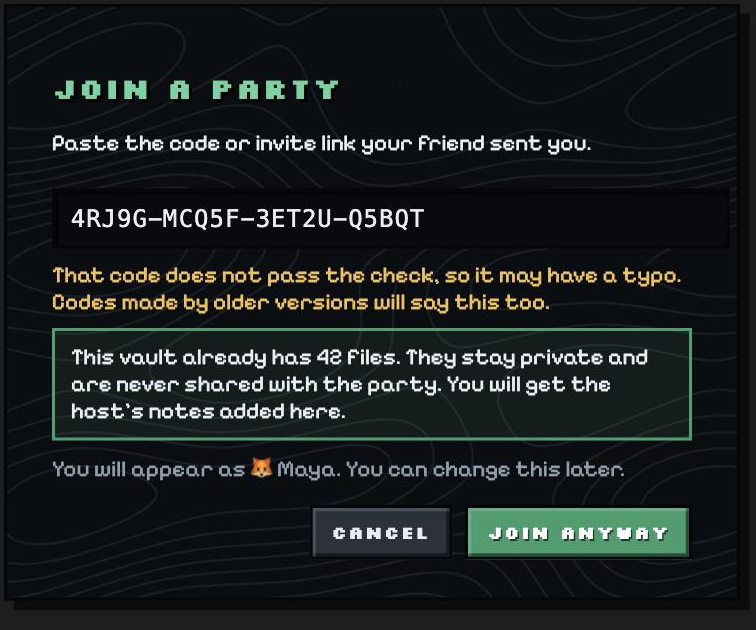
Join. Paste a code or an invite link. Codes have a check letter, so a typo is caught before you join an empty room.
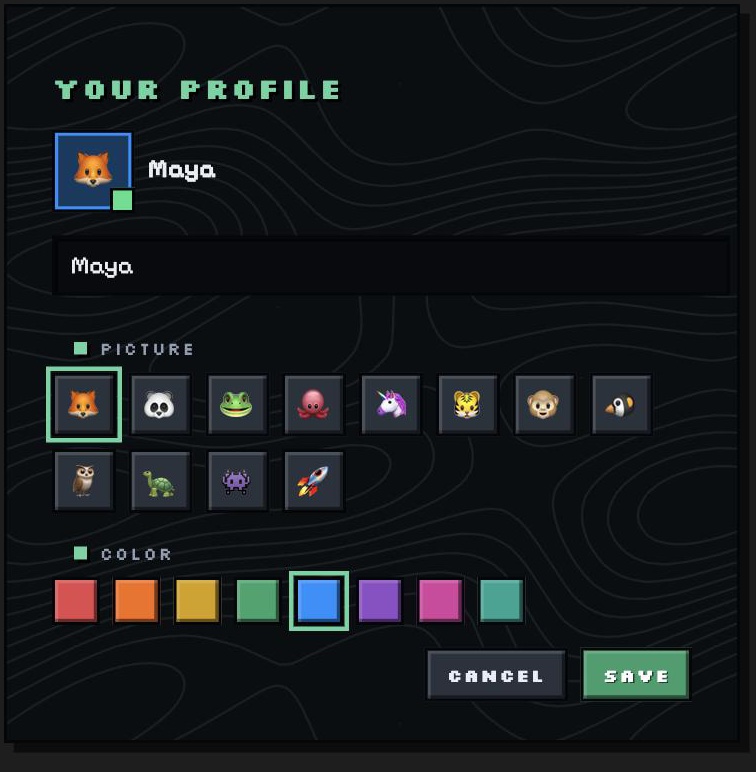
Profile. Pick a name, a picture and a color. Friends see them next to your cursor.
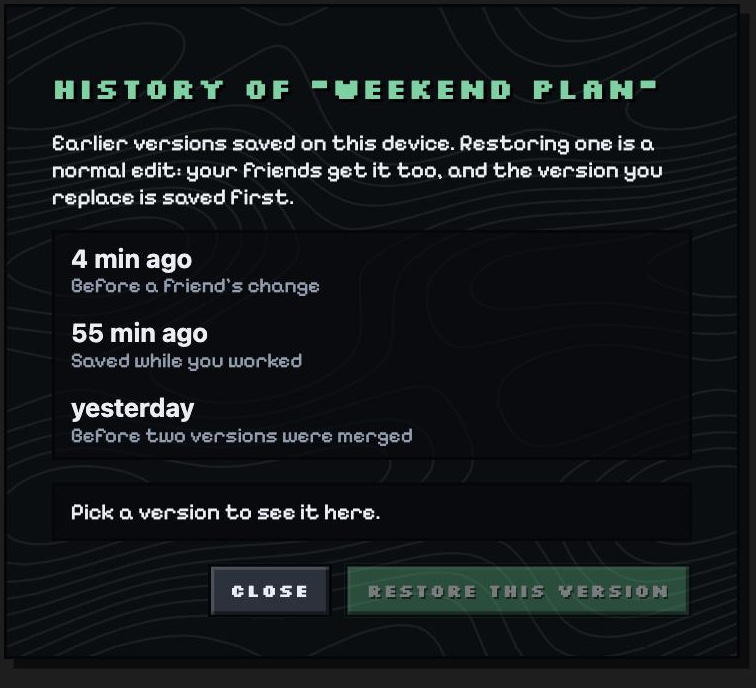
Note history. Earlier versions of a note, kept on your device. Preview one and restore it.
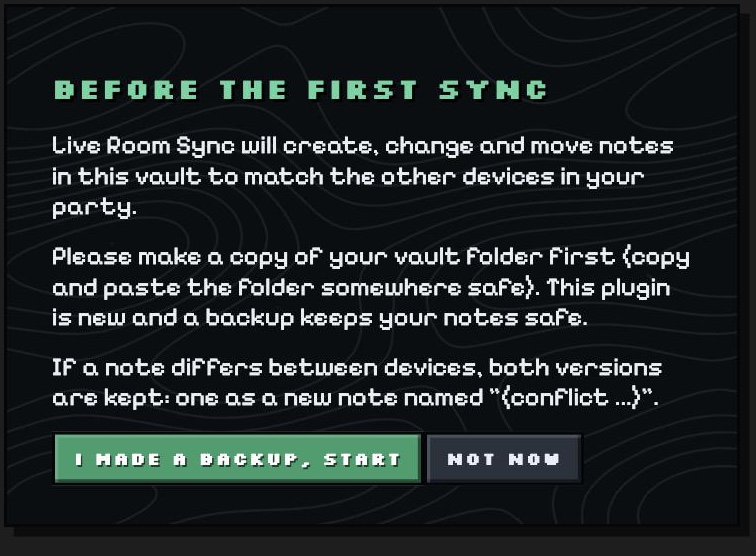
First run. The plugin asks you to back up your vault before it syncs anything.
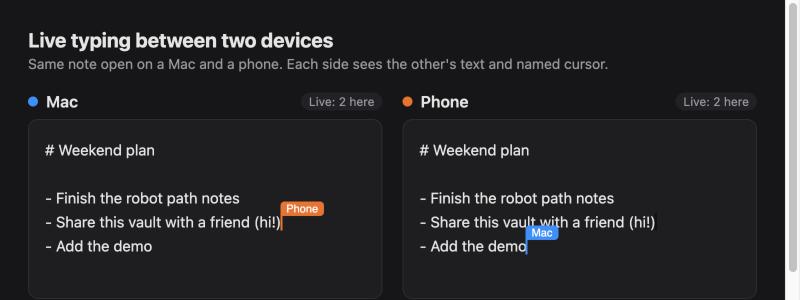
Live typing. The same note open on two devices, each with the other's named cursor. (This picture comes from the plugin's browser test page, which uses the same editor code as Obsidian.)
What it does
- A look of its own. A dark, blocky pixel style with slow-moving contour lines, pixel fonts, square pictures and chunky buttons. It's all CSS, with no extra code running. The motion stops if your system asks for less motion.
- Your vault leads. The person who starts the party is the host. A vault that joins keeps the notes it already had private: they are never sent to the party, so they can't pile into the host's vault or replace anything in it. The joining friend gets the host's notes, and once the host presses Allow they can edit them and add new notes. If both have a note with the same name, the host's version wins and the guest's is kept as a private copy.
- Party panel. See who is here, who wants to join, what they are working on, and friends you have partied with before ("Partied together 4d ago").
- Your profile. Pick a name, an emoji picture and a color. Friends see them, and your cursor shows as
🐼 Boin the note. - Easy invites. One link or one code. Clicking an invite link opens Obsidian and the join dialog.
- You decide who comes in. New devices ask to join and you press Allow or Block. Devices prove who they are with a signature, so nobody can pretend to be a device you already allowed.
- Click a friend to jump to their note. The party panel shows what each person is editing. Click their row and that note opens for you.
- Join and leave messages. A small message when someone joins or leaves ("🐼 Bo joined the party"). You can turn it off.
- Note history. Earlier versions of each note are kept on your device: one before a friend's change lands, and now and then while you work. Open Show history of this note, preview a version and restore it. Restoring is a normal edit, and the version it replaces is saved first.
- Whole vault sync. Notes, folders, renames and deletes follow everyone, so graph view, links and backlinks keep working.
- Live typing. Open the same note on two devices and see each other's text and cursors in about a second.
- Attachments. Images, PDFs and other files sync too (default limit 25 MB on desktop, 10 MB on phones).
- Offline friendly. Edit offline; changes merge when you reconnect.
- Nothing is silently lost. If two versions of a note truly clash, both are kept. One becomes a new note named like
Note (conflict Mac 2026-11-02 2245).md.
Install
Option A: download a release (easiest)
- Go to the Releases page and download
main.js,manifest.jsonandstyles.css. - In your vault, create the folder
.obsidian/plugins/live-room-sync/and put the 3 files in it..obsidianis hidden. On macOS pressCmd + Shift + .in Finder to show hidden folders. On Windows turn on "Hidden items" in File Explorer.
- In Obsidian: Settings → Community plugins. If "Restricted mode" is on, turn it off. Click the refresh icon, then switch Live Room Sync on.
Do this on every device (and every friend does it on theirs). Everyone must use the same version. Version 0.3.0 can sync with 0.2.x, but not with 0.1.x.
Option B: build from source
git clone https://github.com/noproblemerr-web/live-room-sync.git
cd live-room-sync
npm install
npm run build        # creates main.js
Then copy main.js, manifest.json and styles.css into <your vault>/.obsidian/plugins/live-room-sync/.
Quick start
- Back up your vault (copy the folder somewhere safe). The plugin asks you to confirm this the first time.
- Click the people icon in the left ribbon (or the "Party" item in the status bar) to open the party panel.
- You: press Start a party, then Invite friends. This copies a link. Send it to your friends.
- Friends: install the plugin, then click your link, or press Join with a code or link and paste it.
- You: when "Bo wants to join" appears, press Allow. Your notes appear on their side.
- Open the same note on both and type. Text and named cursors show up on the other side.
A friend can join with a vault that already has notes. Those notes stay private on their side and are never sent to you. They just get your notes added to their vault, so an empty or brand-new vault keeps things tidiest.
Joining and approval
- A device that joins with your code asks to come in. Until you press Allow, it gets none of your notes and you get none of its notes.
- A device you allowed once is remembered (it appears under Friends), so it joins without asking next time. Press the x next to a friend to forget them.
- Block keeps a device out for good, until you forget it.
- The device that just joined with a code trusts the devices it meets for the first 3 minutes, so you only have to approve in one direction.
- Turn off Ask before new devices join (Settings → Advanced) if you want anyone with the code to come straight in.
- Approval is tied to a key pair made on each device, not to a name. Changing your name does not give anyone a way to impersonate you.
Host and guests
- Host. Whoever presses Start a party. The panel marks them with a Host tag. Their vault leads: it is the party's version of the notes.
- Guest. Anyone who joins with the code or link. When they join, the notes already in their vault are marked private and never shared. The join dialog tells them how many files that is.
- After joining, a guest gets the host's notes, can edit them (once allowed), and any note they create or change in a shared note is shared. Notes they had before stay private, even if they edit, rename or delete them.
- Same name on both sides. The host's note wins in the guest's vault, and the guest's own version is kept next to it as a
(conflict ...)copy that stays private. - If a guest leaves, everything goes back to a normal vault. The notes they received stay on their device.
- It's on the guest's side. The "stay private" rule is kept by the joining person's copy of the plugin. A changed copy could ignore it, which is one more reason to Allow only people you trust. If a guest runs an older version (before 0.5.0), their old notes are still shared, so ask everyone to update.
How it works
Device A  <---- direct WebRTC link ---->  Device B
    \                                      /
     \--- "I am here" hello (find peers) --/
              public relay (Nostr / BitTorrent / MQTT)
- Party code. One code is one party. It is random (20 letters, the last one a check letter), so it is not guessable.
- Finding each other. Devices first need to meet. They post a tiny "hello, I am here" message on a free public relay (Nostr by default; BitTorrent trackers and MQTT are alternatives). The relay never sees your notes. The room name it sees is a hash, not your code, and the hello messages are encrypted with a key derived from your code.
- Direct link. After meeting, devices connect straight to each other over WebRTC. Your notes travel device to device.
- Who are you. Each device sends its name, picture and a signed proof of its device key. The other side checks the signature, then asks its owner (or remembers an earlier answer).
- Merging. Each note is a shared document (Yjs, a CRDT). Edits made at the same time are merged character by character, so nobody's typing is overwritten. Binary files are exchanged by content hash.
- Live cursors. While a note is open, your cursor, name, picture and the note's name are shared with the party (turn the note name off in settings).
Settings
| Setting | What it does |
|---|---|
| Your profile | Name, emoji picture and color. |
| Party | Start, join, invite, open the panel or leave. |
| Live typing | Turn live cursors and keystroke-level sync on or off. |
| Show join and leave messages | A small message when someone joins or leaves. |
| Show which note I am in | Let friends see "Editing Weekend plan" next to your name. |
| Sync pictures and other files | Turn attachment sync on or off. |
| Biggest file (MB) | Larger files are skipped. Default 25 (10 on phones). |
| Folders not to sync | One folder per line. Hidden folders and .obsidian are never synced. |
| Advanced → Ask before new devices join | On by default. |
| Advanced → Network | How devices find each other: Nostr (default), BitTorrent trackers or MQTT. Everyone in a party must use the same one. |
| Advanced → TURN server | Optional. JSON like [{"urls":"turn:example.com:3478","username":"u","credential":"p"}]. Only for very strict networks. |
Commands
Open the command palette (Cmd/Ctrl + P) and type "Live Room Sync":
- Open party panel
- Show history of this note
- Copy invite link
- Join a party
- Copy room code
- Reconnect
- Check all files now: rescan the vault and sync anything missed
- Pause or resume syncing
- Copy debug log: copies a log to your clipboard (useful for bug reports)
Status bar
Click it to open the party panel.
| Text | Meaning |
|---|---|
Party: none |
No party yet. Start or join one. |
Party: just you |
Connected, waiting for a friend to join. |
Party: 1 waiting |
Someone wants to join. Open the panel to allow. |
Party: 2 here |
Two people see each other (the number counts you). · syncing means changes are still moving. |
Party: paused |
Syncing is paused. |
Party: error |
Hover for the reason, then try Reconnect. |
Party: off / starting |
Not connected yet. Use Reconnect. |
Limits and things to know
- Two devices must be online at the same time to sync. There is no always-on server. To get "always on", leave one computer running with Obsidian open on the vault.
- Group size. Every device connects directly to every other (a mesh). It is meant for a handful of people (about 5). It has only been tried with up to 3 devices.
- Anyone you allow can read, edit and delete the notes you share. Treat the party code like a password. To lock someone out, leave, start a new party, and invite only the people you still trust. People you removed keep their copy.
- Privacy. Devices connect directly over WebRTC, so the devices in a party can see each other's IP addresses, and the public STUN servers see them too. The public relay only sees a hashed room name and encrypted hello messages, plus when you connect.
- Where the party code lives. It is saved in plain text in
<vault>/.obsidian/plugins/live-room-sync/data.json, together with your device key. This plugin never syncs that folder, but if your vault folder is backed up or shared by iCloud, Dropbox or git, they go with it. Keep that folder out of anything public. - Public relays are free and can be flaky. If devices cannot see each other, switch Network to another option on all devices, or press Reconnect.
- Strict networks (some schools and offices) can block direct connections. A TURN server may be needed.
- Deletes sync. Deleting a note on one device removes it on the others (to the system trash).
- Not an audited security product. Keys derived from the code and WebRTC encryption are used, and devices are checked by signature, but there has been no independent security review.
- Known issue. In one manual test the line under a friend's name showed "Online" instead of "Editing ". An automated two-plugin test shows it working, so it may be rare. Notes and cursors are not affected. Please report it if you see it.
- Note history is small on purpose. It keeps the last 15 versions of each note (up to 500 KB each), on this device only, and it is not shared with friends.
- Big files. Attachments are loaded into memory as a whole, so very large files are skipped (see the setting above).
Disclosures
- Network use. To find each other, devices use a free public relay (Nostr by default; BitTorrent trackers or MQTT if you choose them) and public STUN servers. After that, devices talk directly to each other over WebRTC. If you set a TURN server, traffic can go through it.
- What the relays see. A scrambled room name and encrypted hello messages, plus when you connect. They never see your notes.
- Accounts, ads, payments, telemetry. None. The plugin has no account, shows no ads, takes no payments and sends no usage data.
- Files. The plugin reads and writes notes and attachments inside your vault (the ones you share). It keeps its own settings, device key, sync state and note history in
.obsidian/plugins/live-room-sync/. It never touches files outside your vault. - Clipboard. Only when you press a copy button or command (invite link, code or debug log).
Troubleshooting
Party: just youforever. Make sure your friend is open, joined with the same code and uses the same Network option. Try another Network option on all devices, then Reconnect.- Friend joined but gets nothing. They are probably waiting for you to press Allow in the party panel.
- Plugin missing from the list. Check the path is
<vault>/.obsidian/plugins/live-room-sync/and thatmain.jsandmanifest.jsonare directly inside. Turn off Restricted mode and press the refresh icon. - A
(conflict ...)note appeared. Two versions disagreed. Compare them, keep what you want and delete the other. - Something broke. Run Copy debug log and include it in a GitHub issue.
Development
npm install
npm run typecheck     # TypeScript check
npm run build         # bundle to main.js
npm test              # sync, join, approval and rename tests
npm run test:smoke    # load the built plugin against a fake Obsidian
npm run test:browser  # live-typing tests in headless Chromium (needs Playwright's Chromium)
npm run css           # rebuild styles.css (fonts and contour lines included) from styles.src.css
npm run preview       # draw the party panel and dialogs in a browser, see tools/preview/README.md
Source layout:
| File | Purpose |
|---|---|
src/main.ts |
Obsidian plugin: settings, commands, party actions, status bar |
src/ui.ts |
Party panel, join and profile dialogs, settings page |
src/settings.ts |
Settings, avatars and colors |
src/engine.ts |
Vault sync: scan, merge, conflicts, renames, attachments |
src/provider.ts |
Yjs sync over a transport, with the signed hello and approval gate |
src/identity.ts |
Device key pair and signatures |
src/transport-trystero.ts |
WebRTC transport via Trystero |
src/cm-binder.ts |
Binds the editor (CodeMirror) to the shared text |
src/util.ts |
Diffing, party codes and invite links, hashing, conflict names |
src/history.ts |
Note history kept on this device |
styles.src.css |
The look (source). npm run css builds styles.css from it |
assets/, licenses/ |
Pixel fonts, the contour-line picture, and the fonts' licenses |
tools/ |
Scripts that make the contour lines and the stylesheet, and a browser preview of the panel |
Credits
Pixel fonts: Silkscreen and Pixelify Sans, both under the SIL Open Font License 1.1 (see licenses/). They are Minecraft-style pixel fonts, but not Mojang's own font, which can't be bundled.
Built on Yjs, y-codemirror.next, Trystero and diff-match-patch.
License
MIT © 2026 noproblemerr-web