OneDrive Sync
 Jeff Steinbok15k downloads
Sync your Obsidian vault with OneDrive Personal/Consumer
- Overview
- Scorecard
- Updates40
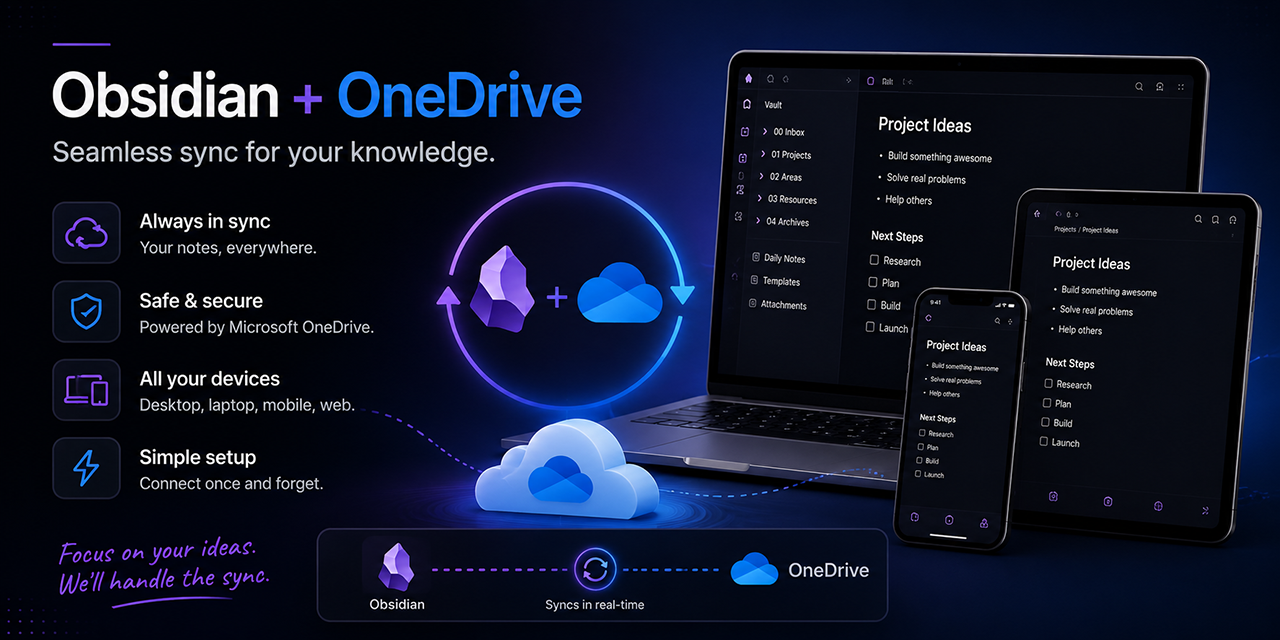
Sync your Obsidian vault with OneDrive. Zero-config for personal Microsoft accounts; work and school (Entra ID) accounts are also supported with a one-time app registration. Mobile-friendly, battery-efficient.
📖 How It Works · Troubleshooting · Advanced Usage · Development · Postmortem Process
[!TIP] 🦞 OpenClaw Users - This pairs well with the 🦞🐚📝 Carapace Obsidian toolset when integrating these vaults with OpenClaw, so synced vault content can plug directly into your broader tool-driven workflow.
[!IMPORTANT] While I do work for Microsoft and on the OneDrive team, this plugin is in no way an official Microsoft plugin. Just a thing I needed and wanted to share. If you like it, give me a ⭐. As a friend of mine says, "I'm only in it for the subs and likes.".
✨ Features
- Zero-Configuration for Personal Accounts — No Azure AD app registration needed. Just click connect and authenticate.
- Work and School Accounts — Entra ID (Microsoft 365 Business/Enterprise) accounts are supported with your own app registration. See Advanced Usage.
- Mobile-First — Device Code Flow works on iOS and Android with no redirects.
- Event-Driven Sync — Syncs on file changes, not polling. Great for battery life.
- Bidirectional — Automatic two-way sync with configurable conflict resolution.
- Two Access Modes — App Folder (secure, isolated) or Full Access (shareable, flexible location).
- Pull-Only Mode — (Experimental) One-way sync from OneDrive for read-only vaults or backup recovery.
Why this over native OneDrive file sync?
- Skips device-specific clutter — workspace UI state files (
.obsidian/workspace*.json) are intentionally excluded. - Faster content sync behavior — sync is event-driven on vault file changes instead of waiting for generic file-system polling cycles.
- Built-in merge/conflict handling — choose overwrite, duplicate, or manual resolution instead of relying on last-writer-wins file sync behavior.
🚀 Installation
Community Plugin Store (Recommended)
- Open Obsidian → Settings → Community Plugins → Browse
- Search for "OneDrive Sync"
- Click Install, then Enable
[!NOTE] Upgrading from 1.0.x? Version 1.1.0 uses a new Azure app registration. After updating, you'll need to disconnect and reconnect to OneDrive in the plugin settings. Your files in OneDrive are not affected — the plugin will re-sync on first connection.
To clean up the old app authorization, visit account.live.com/consent/Manage, find the old entry (it may appear as "Obsidian OneDrive Sync by Jeff Steinbok"), and click Remove. You can also delete the old
/Apps/Obsidian OneDrive Sync by Jeff Steinbokfolder from your OneDrive if present.
Via BRAT (Beta Testing)
- Install BRAT from Community Plugins
- BRAT settings → Add Beta Plugin →
JeffSteinbok/obsidian-onedrive - To receive pre-release builds, enable "Enable beta versions" in the Add Beta Plugin dialog (BRAT installs only the latest full release otherwise). You can toggle this later per-plugin in BRAT's settings.
Manual
- Download
main.jsandmanifest.jsonfrom the latest release - Place them in
.obsidian/plugins/onedrive-sync/ - Enable the plugin in Settings → Community Plugins
🔧 Setup
- Settings → OneDrive Sync → Connect to OneDrive
- Enter the displayed code at microsoft.com/devicelogin
- Sign in and grant permissions
- Done — your vault syncs automatically!
[!NOTE] Signing in with a work or school (Entra ID) account? Set Account type in settings first — see Account Types for the one-time app registration these accounts require.
Configuration
| Setting | Description |
|---|---|
| Sync Interval | Set to 0 for manual-only sync (recommended for battery) |
| Startup Sync Delay | Delay before the first sync after the plugin finishes initializing (0 = disabled, 10s recommended) |
| Conflict Resolution | Last write wins (default), create duplicate, or manual |
| Sync App Settings | Optional — sync .obsidian/app.json, .obsidian/appearance.json, and .obsidian/hotkeys.json to keep appearance and hotkeys consistent across devices |
| Sync Plugins | Optional — sync plugin lists, manifests, and binaries (main.js, styles.css). Does not sync plugin data files (data.json) |
| Sync CSS Snippets | Optional — sync CSS snippets from .obsidian/snippets/ to keep custom styles consistent across devices |
| Sync Bookmarks | Optional — sync .obsidian/bookmarks.json to keep bookmarks consistent across devices |
| Pull-Only Mode | (Experimental) Download changes from OneDrive but never upload local edits. Useful for read-only vaults or backup recovery. Enable under Settings → Experimental |
| Debug Logging | Enable for troubleshooting. Writes a daily note under _OneDriveSyncLogs/YYYY-MM-DD.md (device-local, never synced), stamped with the plugin version and current config |
For advanced settings (reset sync token, reconcile from cloud, custom client ID, experimental performance options), see Advanced Usage.
Commands
Available via the command palette (Ctrl/Cmd+P):
- Sync now — trigger a manual sync immediately
- Connect to OneDrive / Disconnect from OneDrive — manage authentication
- Force full sync (re-download everything) — clear sync state and re-pull all files from cloud
- Reconcile from cloud (cloud-as-truth recovery) — destructive recovery; see Reset vs. Reconcile below
- Show sync conflicts — open the conflict resolution view
Reset vs. Reconcile — which one?
| Symptom | Use |
|---|---|
| "Plugin lost track of state, want a fresh re-read from cloud" | Reset sync token |
| "Files I deleted on another device are still here" | Reconcile from cloud |
| "I have files that pre-date the plugin and they need to be in cloud" | Reset sync token |
| "Vault has cruft that doesn't exist in OneDrive — wipe it" | Reconcile from cloud |
Reset sync token is upload-biased: local always wins, so any local-only file gets pushed to cloud on the next sync. Reconcile from cloud is the opposite: cloud always wins, local-only files get deleted (with a confirmation prompt for large deletes). Empty folders left behind by reconcile are pruned automatically — except folders that also exist in OneDrive.
Files always excluded from sync
The plugin hardcodes these exclusions for safety:
.obsidian/plugins/onedrive-sync/— the plugin's own folder is always excluded to prevent syncing itsdata.json(which contains sync state and configuration) and to avoid self-downgrade scenarios where one device overwrites another's plugin binary. Authentication tokens are stored separately using Obsidian's SecretStorage API, not indata.json..obsidian/workspace*.json— per-device UI state (Obsidian Sync excludes these too)_OneDriveSyncLogs/— device-local debug logs
Optional: .syncIgnore
Create a .syncIgnore file at your vault root to exclude files/folders from sync. See Advanced Usage for details.
🔒 Access Modes
| App Folder (Default) | Full Access | |
|---|---|---|
| Permissions | Minimal — isolated app folder | Full OneDrive access |
| Scopes | User.Read, Files.ReadWrite.AppFolder, offline_access |
User.Read, Files.ReadWrite.All, offline_access |
| Location | /Apps/ObsidianOneDrive/ |
Anywhere you choose |
| Sharing | No | Yes — share via OneDrive |
| Browseable | Not easily | Yes — visible in OneDrive web/app |
| Best for | Personal vaults, privacy-focused | Shared/family vaults |
To switch modes: Settings → OneDrive Sync → Access Mode, then disconnect and reconnect.
👥 Sharing Your Vault (Full Access Mode)
- Enable Full Access mode and set your sync folder path (e.g.,
/Documents/MyVault) - In OneDrive web/app, share that folder with others ("Can edit")
- They don't need the plugin! They just use OneDrive's native sync:
- Desktop: Accept the share → OneDrive syncs locally → open folder as vault in Obsidian
- Mobile: Accept the share → "Make available offline" in OneDrive app → open as vault
Tip: Use "Create duplicate" conflict resolution to avoid overwriting each other's changes.
📱 Mobile Support
This plugin is designed with mobile as a primary target:
- Device Code Flow — no custom URL schemes or redirects needed
- Event-Driven Sync — only syncs when files change (battery-efficient)
- iOS: Use Safari to complete authentication
- Android: Use Chrome or your default browser
Security & Privacy
- Authentication tokens (OAuth access and refresh tokens) are stored using Obsidian's SecretStorage API, which keeps them outside of
data.jsonand in a platform-appropriate secure store. They are never written to files that could be accidentally synced or exposed. - The plugin's own folder (
.obsidian/plugins/onedrive-sync/) is always excluded from sync. Even though tokens are no longer indata.json, the exclusion remains to prevent self-downgrade (one device overwriting another's plugin binary) and to keep device-specific sync state separate. - No data leaves your OneDrive — the plugin communicates directly with Microsoft Graph. There is no intermediary server.
- Vault file enumeration — the plugin reads your vault's file list to determine what to sync. This is inherent to any sync tool, but the information never leaves your device except as uploads to your own OneDrive.