Line Arrange
 chitwan277k downloads
Shuffle, reverse, or sort lines, using either visual width or lexical order.
- Overview
- Scorecard
- Updates8
Line Arrange is an Obsidian plugin that lets you rearrange lines, blocks, or headings in different ways: sorting, reversing, and shuffling. Sorting can be done alphabetically or by visual width (how wide the text looks on screen).
Features
Line Operations
Operate on a flat selection of lines. Hierarchy is ignored; each line is treated individually.
Sort lines by width – order by rendered text width

Sort lines lexically – order alphabetically (A → Z)

Shuffle lines – randomize order

Reverse lines – flip order top-to-bottom

Block Operations
Operate on paragraphs, lists, or sections. Block hierarchy (headings, indentation) is preserved.
Sort blocks by width – order blocks by their widest line

Sort blocks lexically – alphabetical order by first line of block

Shuffle blocks – randomize block order while keeping sub-blocks grouped

Reverse blocks – flip sibling blocks while preserving nesting

How Block Sorting Works
A block = a top-level line together with all its indented children.
When rearranging blocks:
- Indented or nested items always stay attached to their parent.
- Sorting, shuffling, and reversing happen independently at each indentation level.
- Blank lines within a block selection are discarded.
- Numbered lists are automatically renumbered after reordering.
Blocks are treated as hierarchical units defined by indentation. The tree structure is preserved — only sibling order changes.
Limitations: Complex elements (horizontal rules, tables, code blocks, deeply nested structures) may not behave as expected.
Heading Operations
Operate only on top-level headings in your selection. The heading itself determines the order; everything beneath each heading (subheadings, paragraphs, lists) stays attached.
- Sort headings by width – order by rendered heading width
- Sort headings lexically – alphabetical order by heading text
- Shuffle headings – randomize heading order
- Reverse headings – flip heading order
Subheadings and content remain intact under their parent heading. These commands only affect the selected heading level (shallowest).
Usage
- Select the lines or blocks you want to arrange.
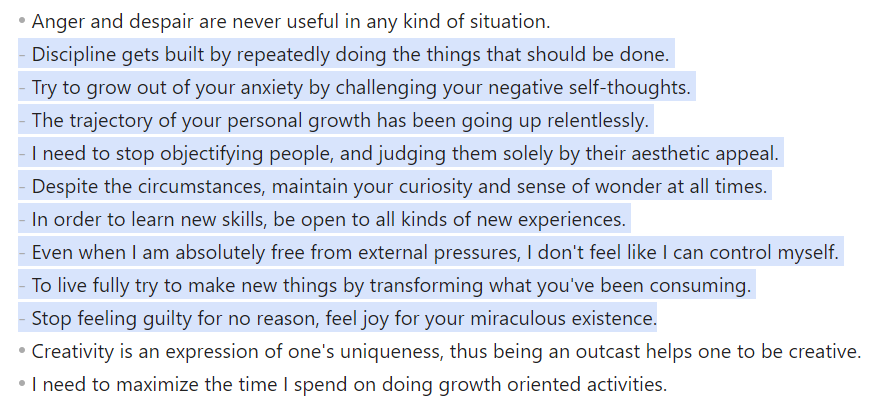
- Run a command using one of the following methods:
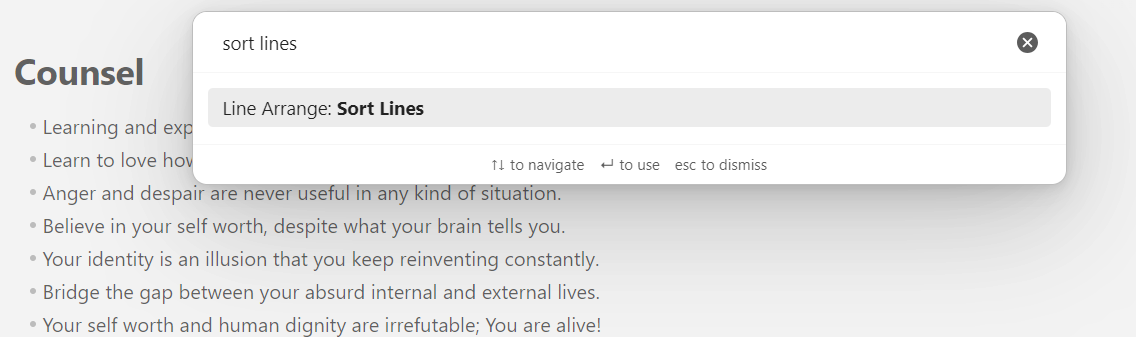
Command Palette (Ctrl/Cmd + P)
Open the command palette and run a command such as:
Sort lines– arranges lines by visual width.
Editor Context Menu (Right-Click)
You can also right-click the editor and choose:
Line Arrange >
Then select the desired operation.
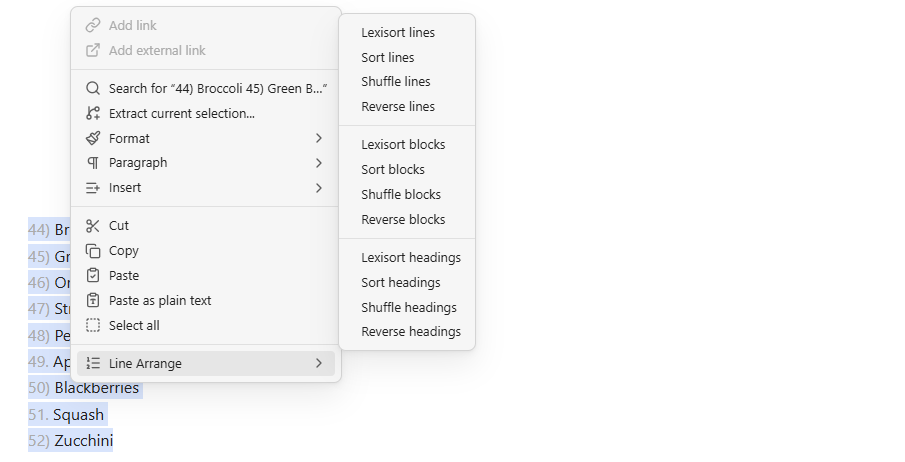
List of Commands
Lines
Lexisort lines– alphabetically sorts selected linesReverse lines– reverses line orderSort lines– sorts lines by visual widthShuffle lines– randomizes line order
Headings
Lexisort headings– alphabetically sorts top-level headingsReverse headings– reverses heading orderSort headings– sorts headings by visual widthShuffle headings– randomizes heading order
Blocks
Lexisort blocks– alphabetically sorts text blocksReverse blocks– reverses sibling block orderSort blocks– sorts blocks by visual widthShuffle blocks– randomizes block order
Installation
From within Obsidian
- Open Settings → Community plugins.
- Search for Line Arrange.
- Click Install, then Enable.
Manual installation
- Download the latest release from GitHub Releases.
- Extract into your vault at:
YourVault/.obsidian/plugins/lineArrange
- Enable the plugin in Obsidian settings.
Notes
- Works best in source mode or when selections are clean.
- Supports configurable locales for lexical sorting (so A–Z order respects your language/region).
Contributing
If you find a bug or have a feature request, open an issue on GitHub.